# Coingecko - Introduction
**Pages:** 4
---
## 🔥 Getting Started
**URL:** llms-txt#🔥-getting-started
**Contents:**
- Which MCP Server Should You Use?
- 🔗 Endpoint Options
- Primary Endpoint (HTTP Streaming)
- Alternative Endpoint (SSE — Server-Sent Events)
- Remote Server (Public, Keyless)
- Remote Server (Authenticated)
- Step 1: Add the configuration
- Step 2: Authorize your MCP access
- Local Server (API Key Required)
Connecting your AI to CoinGecko is simple. We offer several MCP server options to fit your needs, from keyless access for testing to authenticated connections for production applications.
Most MCP-compatible clients, like Claude Desktop, Gemini CLI, and Cursor, can be configured using a simple JSON file (e.g., `claude_desktop_config.json`)
### Prerequisites
* Make sure your device has `node` installed. You can download it from [nodejs.org/download](https://nodejs.org/en/download)
## Which MCP Server Should You Use?
Here's a breakdown of the available options to help you choose the right one:
| MCP Server Type | Best For | Endpoints | Status | Setup Details |
| ------------------------------- | --------------------------------------------------------------------------------------------------------------------------------------------------------------------------------------------------------------------------------------- | ---------------------------------------- | ----------- | ----------------------------------------------------------------------------- |
| Remote Server (Public, Keyless) | - First-time users, quick tests, and basic queries - Connect instantly without any registration - Subject to shared rate limits, not for heavy use | Primary: `/mcp` Alternative: `/sse` | Public Beta | [mcp.api.coingecko.com](https://mcp.api.coingecko.com/) |
| Remote Server (Authenticated) | - Scalable apps, AI agent integrations - Unlocks 76+ tools available under your Demo/Pro plan - Higher, reliable rate limits with 24/7 uptime. Get your API key [here](https://www.coingecko.com/en/api/pricing) | Primary: `/mcp` Alternative: `/sse` | Public Beta | [mcp.pro-api.coingecko.com](https://mcp.pro-api.coingecko.com/) |
| Local Server | - Ideal for local development, desktop AI apps - Build/test your AI app even without an active internet connection - Demo/Pro API key to access more tools. Get your API key [here](https://www.coingecko.com/en/api/pricing) | Local server instance | Beta | [npmjs/coingecko-mcp](https://www.npmjs.com/package/@coingecko/coingecko-mcp) |
## 🔗 Endpoint Options
Each remote server offers two connection methods to ensure compatibility with various MCP clients:
### Primary Endpoint (HTTP Streaming)
* **Public Server**: `https://mcp.api.coingecko.com/mcp`
* **Pro Server**: `https://mcp.pro-api.coingecko.com/mcp`
* Uses HTTP streaming protocol for real-time data transfer.
* Recommended for most modern MCP clients.
### Alternative Endpoint (SSE — Server-Sent Events)
* **Public Server**: `https://mcp.api.coingecko.com/sse`
* **Pro Server**: `https://mcp.pro-api.coingecko.com/sse`
* Uses Server-Sent Events for compatibility.
* Use this if you encounter connection issues with the primary endpoint.
Most clients work with either endpoint. The configuration examples below use the SSE endpoint by default for maximum compatibility.
## Remote Server (Public, Keyless)
The easiest way to get started. Just add the following to your client's `mcp_config.json` file.
### Client-Specific Config
The file name and location depend on your client. Find your config file here: [modelcontextprotocol.io/quickstart](https://modelcontextprotocol.io/quickstart/user#2-add-the-filesystem-mcp-server)
Add the following configuration to your `mcp_config.json`:
Here's a quick 2-minute tutorial for setting up the public server with Claude Desktop:
## Remote Server (Authenticated)
To access more tools and higher rate limits, use your CoinGecko API key with our hosted "Bring Your Own Key" (BYOK) server. Get your API key [here](https://www.coingecko.com/en/api/pricing)
### Step 1: Add the configuration
Add the following configuration to your `mcp_config.json`:
### Step 2: Authorize your MCP access
After adding the config, the first time your client tries to use the CoinGecko MCP, a new browser tab will open, redirecting you to our authentication page:
* Simply paste in your CoinGecko API key, and authorize to link your key to the MCP session.
✨ Don't have an API key yet? Upgrade to Pro today! Read more [here](https://www.coingecko.com/en/api/pricing).
* You can also toggle between dynamic/static tools here. Learn more about [Dynamic Tools](#dynamic-vs-static-tools).
## Local Server (API Key Required)
For local development and maximum control, run the MCP server directly on your machine. This method offers the rate limits based on your API plan.
✨ Don't have an API key yet? Get your free Demo key or upgrade to Pro! Read more [here](https://www.coingecko.com/en/api/pricing).
* Configure the `env` based on your API key tier:
* Pro API access:
* Demo API access:
**Examples:**
Example 1 (unknown):
```unknown
Here's a quick 2-minute tutorial for setting up the public server with Claude Desktop:
## Remote Server (Authenticated)
To access more tools and higher rate limits, use your CoinGecko API key with our hosted "Bring Your Own Key" (BYOK) server. Get your API key [here](https://www.coingecko.com/en/api/pricing)
### Step 1: Add the configuration
Add the following configuration to your `mcp_config.json`:
```
Example 2 (unknown):
```unknown
### Step 2: Authorize your MCP access
After adding the config, the first time your client tries to use the CoinGecko MCP, a new browser tab will open, redirecting you to our authentication page:
* Simply paste in your CoinGecko API key, and authorize to link your key to the MCP session.
✨ Don't have an API key yet? Upgrade to Pro today! Read more [here](https://www.coingecko.com/en/api/pricing).
* You can also toggle between dynamic/static tools here. Learn more about [Dynamic Tools](#dynamic-vs-static-tools).
## Local Server (API Key Required)
For local development and maximum control, run the MCP server directly on your machine. This method offers the rate limits based on your API plan.
```
Example 3 (unknown):
```unknown
✨ Don't have an API key yet? Get your free Demo key or upgrade to Pro! Read more [here](https://www.coingecko.com/en/api/pricing).
* Configure the `env` based on your API key tier:
* Pro API access:
```
Example 4 (unknown):
```unknown
* Demo API access:
```
---
## Endpoint Overview
**URL:** llms-txt#endpoint-overview
**Contents:**
- CoinGecko Endpoints: Coins
- CoinGecko Endpoints: NFT
- CoinGecko Endpoints: Exchanges & Derivatives
- CoinGecko Endpoints: Public Treasuries
- CoinGecko Endpoints: General
- Onchain DEX Endpoints (GeckoTerminal)
Source: https://docs.coingecko.com/v3.0.1/reference/endpoint-overview
Any exclusive endpoints for Pro-API users (any paid plan subscribers) will not be included here.
For a full list of endpoints, please visit [Pro API Documentation](/reference/endpoint-overview) instead.
## CoinGecko Endpoints: Coins
| Endpoint | Description |
| -------------------------------------------------------------------------------------------------- | -------------------------------------------------------------------------------------------------------------------------------------------------------------------------------------- |
| [/ping](/v3.0.1/reference/ping-server) | Check the API server status |
| [/simple/price](/v3.0.1/reference/simple-price) | Query the prices of one or more coins by using their unique Coin API IDs |
| [/simple/token\_price/\{id}](/v3.0.1/reference/simple-token-price) | Query the prices of one or more coins by using their unique Coin API IDs |
| [/simple/supported\_vs\_currencies](/v3.0.1/reference/simple-supported-currencies) | Query all the supported currencies on CoinGecko |
| [/coins/list](/v3.0.1/reference/coins-list) | Query all the supported coins on CoinGecko with coins ID, name and symbol |
| [/coins/markets](/v3.0.1/reference/coins-markets) | Query all the supported coins with price, market cap, volume and market related data |
| [/coins/\{id}](/v3.0.1/reference/coins-id) | Query all the metadata (image, websites, socials, description, contract address, etc.) from the CoinGecko coin page based on a particular coin ID |
| [/coins/\{id}/tickers](/v3.0.1/reference/coins-id-tickers) | Query the coin tickers on both centralized exchange (CEX) and decentralized exchange (DEX) based on a particular coin ID |
| [/coins/\{id}/history](/v3.0.1/reference/coins-id-history) | Query the historical data (price, market cap, 24hr volume, ...) at a given date for a coin based on a particular coin ID |
| [/coins/\{id}/market\_chart](/v3.0.1/reference/coins-id-market-chart) | Get the historical chart data of a coin including time in UNIX, price, market cap and 24hr volume based on particular coin ID |
| [/coins/\{id}/market\_chart/range](/v3.0.1/reference/coins-id-market-chart-range) | Get the historical chart data of a coin within certain time range in UNIX along with price, market cap and 24hr volume based on particular coin ID |
| [/coins-id-ohlc](/v3.0.1/reference/coins-id-ohlc) | Get the OHLC chart (Open, High, Low, Close) of a coin based on particular coin ID |
| [/coins/../contract/..](/v3.0.1/reference/coins-contract-address) | Query all the metadata (image, websites, socials, description, contract address, etc.) from the CoinGecko coin page based on an asset platform and a particular token contract address |
| [/coins/../contract/../market\_chart](/v3.0.1/reference/contract-address-market-chart) | Get the historical chart data including time in UNIX, price, market cap and 24hr volume based on asset platform and particular token contract address |
| [/coins/../contract/../market\_chart/range](/v3.0.1/reference/contract-address-market-chart-range) | Get the historical chart data within certain time range in UNIX along with price, market cap and 24hr volume based on asset platform and particular token contract address |
| [/coins/categories/list](/v3.0.1/reference/coins-categories-list) | Query all the coins categories on CoinGecko |
| [/coins/categories](/v3.0.1/reference/coins-categories) | Query all the coins categories with market data (market cap, volume, ...) on CoinGecko |
## CoinGecko Endpoints: NFT
| Endpoint | Description |
| --------------------------------------------------------------- | --------------------------------------------------------------------------------------------------------------------------------------- |
| [/nfts/list](/v3.0.1/reference/nfts-list) | Query all supported NFTs with ID, contract address, name, asset platform ID and symbol on CoinGecko |
| [/nfts/..](/v3.0.1/reference/nfts-id) | Query all the NFT data (name, floor price, 24hr volume, ...) based on the NFT collection ID |
| [/nfts/../contract/..](/v3.0.1/reference/nfts-contract-address) | Query all the NFT data (name, floor price, 24hr volume, ...) based on the NFT collection contract address and respective asset platform |
## CoinGecko Endpoints: Exchanges & Derivatives
| Endpoint | Description |
| ----------------------------------------------------------------------------- | ----------------------------------------------------------------------------------------------------------------------------- |
| [/exchanges](/v3.0.1/reference/exchanges) | Query all the supported exchanges with exchanges' data (ID, name, country, ...) that have active trading volumes on CoinGecko |
| [/exchanges/list](/v3.0.1/reference/exchanges-list) | Query all the exchanges with ID and name |
| [/exchanges/\{id}](/v3.0.1/reference/exchanges-id) | Query exchange's data (name, year established, country, ...), exchange volume in BTC and tickers based on exchange's ID |
| [/exchanges/\{id}/tickers](/v3.0.1/reference/exchanges-id-tickers) | Query exchange's tickers based on exchange's ID |
| [/exchanges/\{id}/volume\_chart](/v3.0.1/reference/exchanges-id-volume-chart) | Query the historical volume chart data with time in UNIX and trading volume data in BTC based on exchange's ID |
| [/derivatives](/v3.0.1/reference/derivatives-tickers) | Query all the tickers from derivatives exchanges on CoinGecko |
| [/derivatives/exchanges](/v3.0.1/reference/derivatives-exchanges) | Query all the derivatives exchanges with related data (ID, name, open interest, ...) on CoinGecko |
| [/derivatives/exchanges/\{id}](/v3.0.1/reference/derivatives-exchanges-id) | Query the derivatives exchange's related data (ID, name, open interest, ...) based on the exchanges' ID |
| [/derivatives/exchanges/list](/v3.0.1/reference/derivatives-exchanges-list) | Query all the derivatives exchanges with ID and name on CoinGecko |
## CoinGecko Endpoints: Public Treasuries
| Endpoint | Description |
| ------------------------------------------------------------------------------- | ----------------------------------------------------------------------------------------- |
| [/\{entity}/public\_treasury/\{coin\_id}](/reference/companies-public-treasury) | Query public companies & governments' cryptocurrency holdings by coin ID |
| [/public\_treasury/\{entity\_id}](/reference/public-treasury-entity) | Query public companies & governments' cryptocurrency holdings by entity ID |
| [/entities/list](/reference/entities-list) | Query all the supported entities on CoinGecko with entities ID, name, symbol, and country |
## CoinGecko Endpoints: General
| Endpoint | Description |
| ------------------------------------------------------------------------------ | ------------------------------------------------------------------------------------------------------------------ |
| [/exchange\_rates](/v3.0.1/reference/exchange-rates) | Query BTC exchange rates with other currencies |
| [/asset\_platforms](/v3.0.1/reference/asset-platforms-list) | Query all the asset platforms (blockchain networks) on CoinGecko |
| [/token\_lists/\{asset\_platform\_id}/all.json](/v3.0.1/reference/token-lists) | Get full list of tokens of a blockchain network (asset platform) that is supported by Ethereum token list standard |
| [/search](/v3.0.1/reference/search-data) | Search for coins, categories and markets listed on CoinGecko |
| [/search/trending](/v3.0.1/reference/trending-search) | Query trending search coins, NFTs and categories on CoinGecko in the last 24 hours |
| [/global](/v3.0.1/reference/crypto-global) | Query cryptocurrency global data including active cryptocurrencies, markets, total crypto market cap and etc. |
| [/global/decentralized\_finance\_defi](/v3.0.1/reference/global-defi) | Query cryptocurrency global decentralized finance (DeFi) data including DeFi market cap, trading volume |
## Onchain DEX Endpoints (GeckoTerminal)
| Endpoint | Description |
| ---------------------------------------------------------------------------------------- | ------------------------------------------------------------------------------------------------------------------------------------------------------------------------ |
| [/onchain/simple/networks/../token\_price/..](/v3.0.1/reference/onchain-simple-price) | Get token price based on the provided token contract address on a network |
| [/onchain/networks](/v3.0.1/reference/networks-list) | Query all the supported networks on GeckoTerminal |
| [/onchain/networks/../dexes](/v3.0.1/reference/dexes-list) | Query all the supported decentralized exchanges (DEXs) based on the provided network on GeckoTerminal |
| [/onchain/networks/trending\_pools](/v3.0.1/reference/trending-pools-list) | Query all the trending pools across all networks on GeckoTerminal |
| [/onchain/networks/../trending\_pools](/v3.0.1/reference/trending-pools-network) | Query the trending pools based on the provided network |
| [/onchain/networks/../pools/..](/v3.0.1/reference/pool-address) | Query the specific pool based on the provided network and pool address |
| [/onchain/networks/../pools/multi/..](/v3.0.1/reference/pools-addresses) | Query multiple pools based on the provided network and pool address |
| [/onchain/networks/../pools](/v3.0.1/reference/top-pools-network) | Query all the top pools based on the provided network |
| [/onchain/networks/../dexes/../pools](/v3.0.1/reference/top-pools-dex) | Query all the top pools based on the provided network and decentralized exchange (DEX) |
| [/onchain/networks/../new\_pools](/v3.0.1/reference/latest-pools-network) | Query all the latest pools based on provided network |
| [/onchain/networks/new\_pools](/v3.0.1/reference/latest-pools-list) | Query all the latest pools across all networks on GeckoTerminal |
| [/onchain/search/pools](/v3.0.1/reference/search-pools) | Search for pools on a network |
| [/onchain/networks/../tokens/../pools](/v3.0.1/reference/top-pools-contract-address) | Query top pools based on the provided token contract address on a network |
| [/onchain/networks/../tokens/..](/v3.0.1/reference/token-data-contract-address) | Query specific token data based on the provided token contract address on a network |
| [/onchain/networks/../tokens/multi/..](/v3.0.1/reference/tokens-data-contract-addresses) | Query multiple tokens data based on the provided token contract addresses on a network |
| [/onchain/networks/../tokens/../info](/v3.0.1/reference/token-info-contract-address) | Query token metadata (name, symbol, CoinGecko ID, image, socials, websites, description, etc.) based on a provided token contract address on a network |
| [/onchain/networks/../pools/../info](/v3.0.1/reference/pool-token-info-contract-address) | Query pool metadata (base and quote token details, image, socials, websites, description, contract address, etc.) based on a provided pool contract address on a network |
| [/onchain/tokens/info\_recently\_updated](/v3.0.1/reference/tokens-info-recent-updated) | Query 100 most recently updated tokens info across all networks on GeckoTerminal |
| [/onchain/networks/../pools/../ohlcv/..](/v3.0.1/reference/pool-ohlcv-contract-address) | Get the OHLCV chart (Open, High, Low, Close, Volume) of a pool based on the provided pool address on a network |
| [/onchain/networks/../pools/../trades](/v3.0.1/reference/pool-trades-contract-address) | Query the last 300 trades in the past 24 hours based on the provided pool address |
⚡️ Need Real-time Data Streams? Try [WebSocket API](https://docs.coingecko.com/websocket)
With WebSocket, you can now stream ultra-low latency, real-time prices, trades, and OHLCV chart data.
Subscribe to our [paid API plan](https://www.coingecko.com/en/api/pricing) (Analyst plan & above) to access WebSocket and REST API data delivery methods.
---
## Introduction
**URL:** llms-txt#introduction
Source: https://docs.coingecko.com/index
Started in 2014, CoinGecko is the world's largest independent crypto data aggregator that is integrated with more than 1,000 crypto exchanges and lists more than 18,000 coins across 600+ categories. CoinGecko API offers the most comprehensive and reliable crypto market data through RESTful JSON endpoints.
CoinGecko API now serves **onchain DEX data** across 250+ blockchain networks, 1,700+ decentralized exchanges (DEXes), and 15M+ tokens, powered by GeckoTerminal.
Thousands of forward-thinking projects, Web3 developers, researchers, institutions, and enterprises use our API to obtain **price feeds, market data, metadata, and historical data of crypto assets, NFTs, and exchanges**.
Here are some of the **common use cases** for clients who use CoinGecko API:
* Crypto Exchanges (CEX, DEX), Trading Apps
* Wallets (Hot, Cold)
* Data Aggregator, Crypto Screener, Analytics Dashboard
* AI Agents, DeFAI Apps
* Block Explorer, Portfolio Tracker
* DeFi Protocols, NFT Marketplaces, Digital Bank
* Backtesting Trading Strategy
* Accounting, Tax, Audit, HR Payroll
* Research & Analysis: Media, Institution, Academic, VC, Financial
* Oracles, Bots, Payments, E-commerce
🔥 New: [WebSocket API](https://docs.coingecko.com/websocket)
With WebSocket, you can now stream ultra-low latency, real-time prices, trades, and OHLCV chart data.
Subscribe to our [paid API plan](https://www.coingecko.com/en/api/pricing) (Analyst plan & above) to access WebSocket and REST API data delivery methods.
Start by creating your CoinGecko API key
Bring CoinGecko data to your AI apps
export const FooterFix = () => {
React.useEffect(() => {
const paginationElement = document.getElementById('pagination');
if (paginationElement) paginationElement.remove();
const footerElement = document.getElementById('footer');
if (footerElement) footerElement.style.marginTop = '-40px';
const feedbackToolbarClass = document.querySelector('.feedback-toolbar');
if (feedbackToolbarClass) feedbackToolbarClass.style.paddingBottom = '0px';
}, []);
---
## 📕 Overview
**URL:** llms-txt#📕-overview
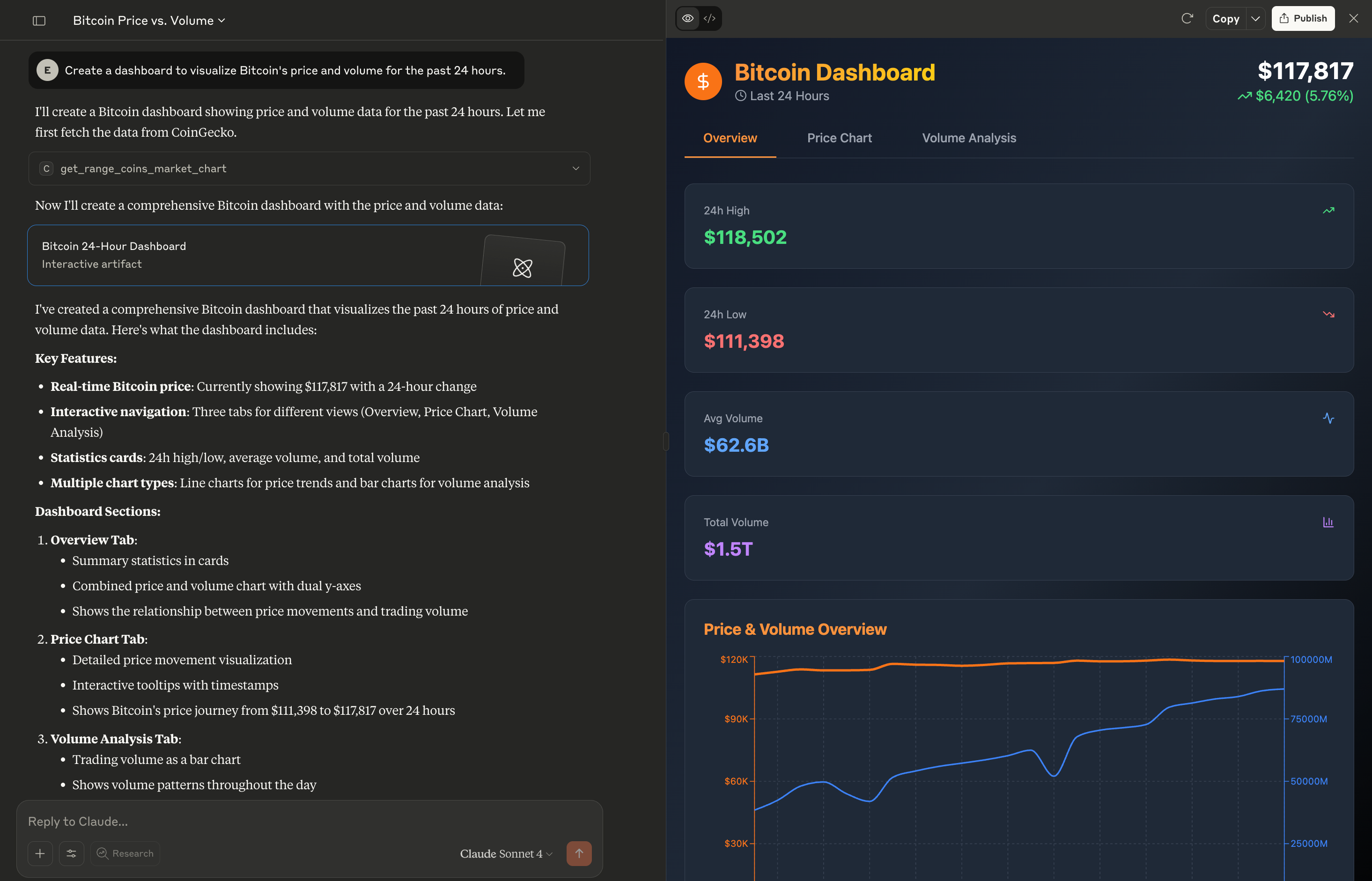
The official CoinGecko MCP Server is now live, making CoinGecko data readily available to your AI models and applications. With the CoinGecko MCP, you can empower your agents to:
* **Access real-time market data**: Get aggregated prices, market cap, and trading volume for over 15k+ coins on CoinGecko, integrated across 1,000+ exchanges.
* **Dive into onchain analytics**: Query onchain DEX price and liquidity data for more than 8M tokens across 200+ networks via GeckoTerminal.
* **Discover market trends**: Instantly find trending coins, new token listings, top gainers/losers, and popular NFT collections.
* **Retrieve rich metadata**: Pull essential details like project descriptions, logos, social links, contract addresses, security info, and more.
* **Analyze historical performance**: Access historical price, market data, and OHLCV for any cryptocurrency.
* **Explore crypto categories**: Effortlessly list coins within specific sectors like Meme, DeFi, Layer 1, AI agent, and more.
---
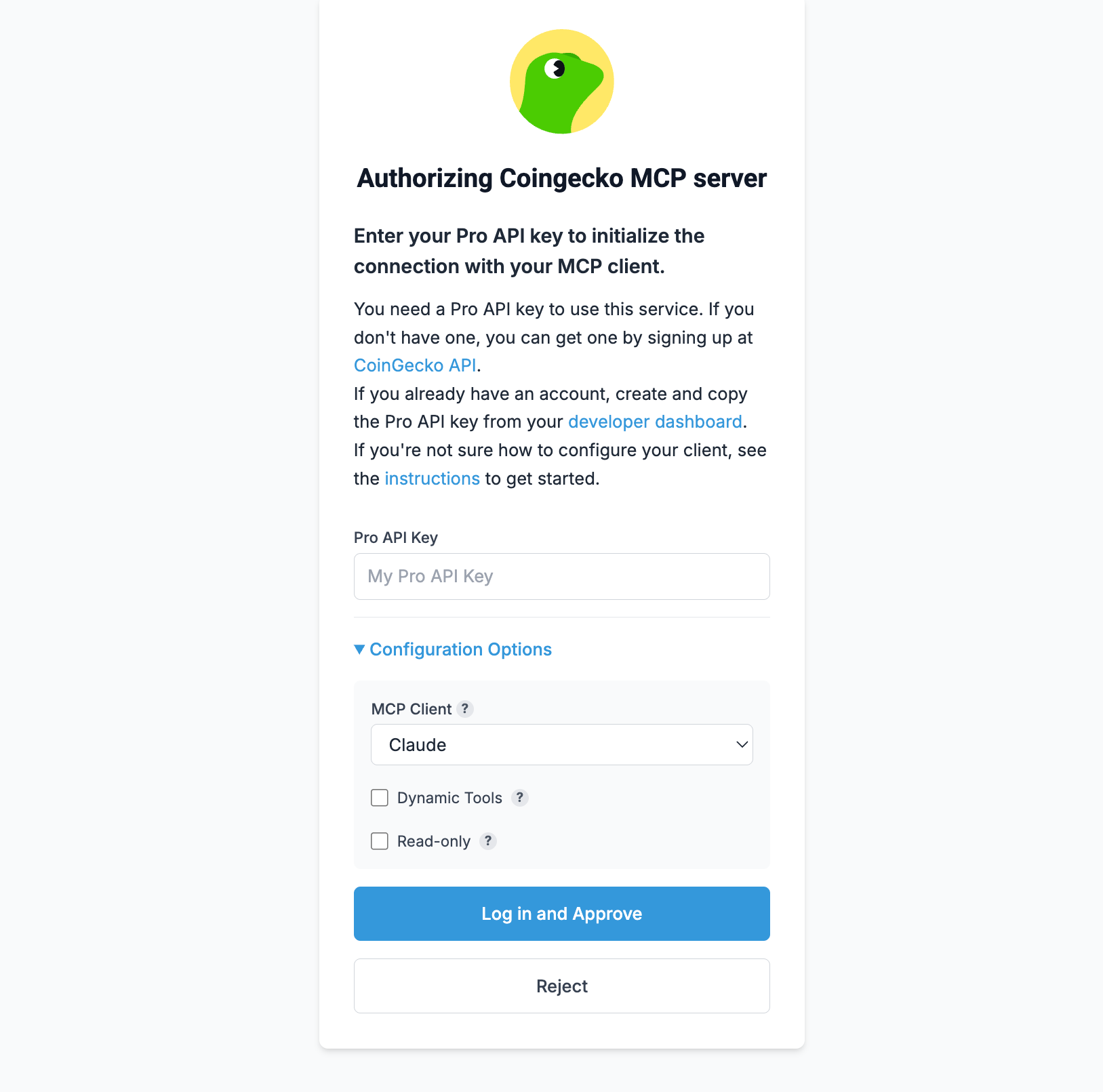 * Simply paste in your CoinGecko API key, and authorize to link your key to the MCP session.
✨ Don't have an API key yet? Upgrade to Pro today! Read more [here](https://www.coingecko.com/en/api/pricing).
* You can also toggle between dynamic/static tools here. Learn more about [Dynamic Tools](#dynamic-vs-static-tools).
## Local Server (API Key Required)
For local development and maximum control, run the MCP server directly on your machine. This method offers the rate limits based on your API plan.
* Simply paste in your CoinGecko API key, and authorize to link your key to the MCP session.
✨ Don't have an API key yet? Upgrade to Pro today! Read more [here](https://www.coingecko.com/en/api/pricing).
* You can also toggle between dynamic/static tools here. Learn more about [Dynamic Tools](#dynamic-vs-static-tools).
## Local Server (API Key Required)
For local development and maximum control, run the MCP server directly on your machine. This method offers the rate limits based on your API plan.
 With WebSocket, you can now stream ultra-low latency, real-time prices, trades, and OHLCV chart data.
  With WebSocket, you can now stream ultra-low latency, real-time prices, trades, and OHLCV chart data.
  ---
---