
other.md 1.5 MB
Timescaledb - Other
Pages: 248
Integrate Managed Service for TimescaleDB and Google Data Studio
URL: llms-txt#integrate-managed-service-for-timescaledb-and-google-data-studio
Contents:
- Before you begin
- Connecting to a Managed Service for TimescaleDB data source from Data Studio
You can create reports or perform some analysis on data you have in Managed Service for TimescaleDB using Google Data Studio. You can use Data Studio to integrate other data sources, such as YouTube Analytics, MySQL, BigQuery, AdWords, and others.
- You should also have a Google account.
- In the overview page of your service:
- Download the CA certificate named
ca.pemfor your service. - Make a note of the
Host,Port,Database name,User, andPasswordfields for the service.
- Download the CA certificate named
Connecting to a Managed Service for TimescaleDB data source from Data Studio
- Log in to Google and open Google Data Studio.
- Click the
Create +button and chooseData source. - Select
PostgreSQLas the Google Connector. - In the
Database Authenticationtab, type details for theHost Name,Port,Database,Username, andPasswordfields. - Select
Enable SSLand upload your server certificate file,ca.pem. - Click
AUTHENTICATE. - Choose the table to be queried, or select
CUSTOM QUERYto create an SQL query. - Click
CONNECT.
===== PAGE: https://docs.tigerdata.com/mst/integrations/logging/ =====
Integrate Datadog with Tiger Cloud
URL: llms-txt#integrate-datadog-with-tiger-cloud
Contents:
- Prerequisites
- Monitor Tiger Cloud service metrics with Datadog
- Create a data exporter
- Manage a data exporter
- Attach a data exporter to a Tiger Cloud service
- Monitor Tiger Cloud service metrics
- Edit a data exporter
- Delete a data exporter
- Reference
- Configure Datadog Agent to collect metrics for your Tiger Cloud services
Datadog is a cloud-based monitoring and analytics platform that provides comprehensive visibility into applications, infrastructure, and systems through real-time monitoring, logging, and analytics.
This page explains how to:
This integration is available for Scale and Enterprise pricing plans.
- Configure Datadog Agent to collect metrics for your Tiger Cloud service
This integration is available for all pricing plans.
To follow the steps on this page:
- Create a target Tiger Cloud service with the Real-time analytics capability.
You need your connection details.
- Sign up for Datadog.
You need your Datadog API key to follow this procedure.
- Install Datadog Agent.
Monitor Tiger Cloud service metrics with Datadog
Export telemetry data from your Tiger Cloud services with the time-series and analytics capability enabled to Datadog using a Tiger Cloud data exporter. The available metrics include CPU usage, RAM usage, and storage.
Create a data exporter
A Tiger Cloud data exporter sends telemetry data from a Tiger Cloud service to a third-party monitoring tool. You create an exporter on the project level, in the same AWS region as your service:
- In Tiger Cloud Console, open Exporters
- Click
New exporter - Select
MetricsforData typeandDatadogfor provider
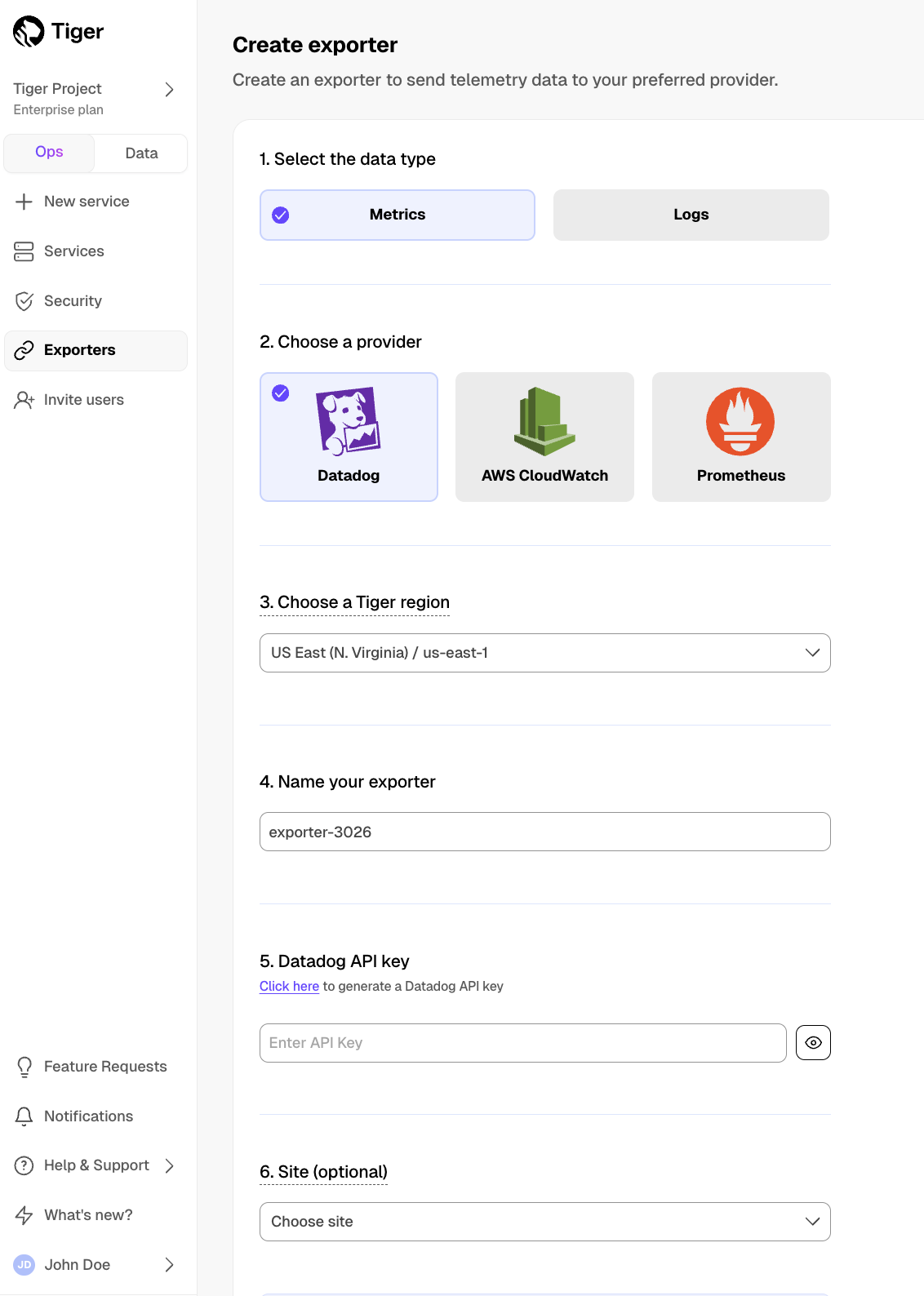
- Choose your AWS region and provide the API key
The AWS region must be the same for your Tiger Cloud exporter and the Datadog provider.
- Set
Siteto your Datadog region, then clickCreate exporter
Manage a data exporter
This section shows you how to attach, monitor, edit, and delete a data exporter.
Attach a data exporter to a Tiger Cloud service
To send telemetry data to an external monitoring tool, you attach a data exporter to your Tiger Cloud service. You can attach only one exporter to a service.
To attach an exporter:
- In Tiger Cloud Console, choose the service
- Click
Operations>Exporters - Select the exporter, then click
Attach exporter - If you are attaching a first
Logsdata type exporter, restart the service
Monitor Tiger Cloud service metrics
You can now monitor your service metrics. Use the following metrics to check the service is running correctly:
timescale.cloud.system.cpu.usage.millicorestimescale.cloud.system.cpu.total.millicorestimescale.cloud.system.memory.usage.bytestimescale.cloud.system.memory.total.bytestimescale.cloud.system.disk.usage.bytestimescale.cloud.system.disk.total.bytes
Additionally, use the following tags to filter your results.
|Tag|Example variable| Description |
|-|-|----------------------------|
|host|us-east-1.timescale.cloud| |
|project-id|| |
|service-id|| |
|region|us-east-1| AWS region |
|role|replica or primary| For service with replicas |
|node-id|| For multi-node services |
Edit a data exporter
To update a data exporter:
- In Tiger Cloud Console, open Exporters
- Next to the exporter you want to edit, click the menu >
Edit - Edit the exporter fields and save your changes
You cannot change fields such as the provider or the AWS region.
Delete a data exporter
To remove a data exporter that you no longer need:
Disconnect the data exporter from your Tiger Cloud services
In Tiger Cloud Console, choose the service.
- Click
Operations>Exporters. - Click the trash can icon.
- Repeat for every service attached to the exporter you want to remove.
- Click
The data exporter is now unattached from all services. However, it still exists in your project.
Delete the exporter on the project level
In Tiger Cloud Console, open Exporters
- Next to the exporter you want to edit, click menu >
Delete - Confirm that you want to delete the data exporter.
- Next to the exporter you want to edit, click menu >
When you create the IAM OIDC provider, the URL must match the region you create the exporter in. It must be one of the following:
| Region | Zone | Location | URL |
|---|---|---|---|
ap-southeast-1 |
Asia Pacific | Singapore | irsa-oidc-discovery-prod-ap-southeast-1.s3.ap-southeast-1.amazonaws.com |
ap-southeast-2 |
Asia Pacific | Sydney | irsa-oidc-discovery-prod-ap-southeast-2.s3.ap-southeast-2.amazonaws.com |
ap-northeast-1 |
Asia Pacific | Tokyo | irsa-oidc-discovery-prod-ap-northeast-1.s3.ap-northeast-1.amazonaws.com |
ca-central-1 |
Canada | Central | irsa-oidc-discovery-prod-ca-central-1.s3.ca-central-1.amazonaws.com |
eu-central-1 |
Europe | Frankfurt | irsa-oidc-discovery-prod-eu-central-1.s3.eu-central-1.amazonaws.com |
eu-west-1 |
Europe | Ireland | irsa-oidc-discovery-prod-eu-west-1.s3.eu-west-1.amazonaws.com |
eu-west-2 |
Europe | London | irsa-oidc-discovery-prod-eu-west-2.s3.eu-west-2.amazonaws.com |
sa-east-1 |
South America | São Paulo | irsa-oidc-discovery-prod-sa-east-1.s3.sa-east-1.amazonaws.com |
us-east-1 |
United States | North Virginia | irsa-oidc-discovery-prod.s3.us-east-1.amazonaws.com |
us-east-2 |
United States | Ohio | irsa-oidc-discovery-prod-us-east-2.s3.us-east-2.amazonaws.com |
us-west-2 |
United States | Oregon | irsa-oidc-discovery-prod-us-west-2.s3.us-west-2.amazonaws.com |
Configure Datadog Agent to collect metrics for your Tiger Cloud services
Datadog Agent includes a Postgres integration that you use to collect detailed Postgres database metrics about your Tiger Cloud services.
- Connect to your Tiger Cloud service
For Tiger Cloud, open an SQL editor in Tiger Cloud Console. For self-hosted TimescaleDB, use psql.
Add the
datadoguser to your Tiger Cloud serviceTest the connection and rights for the datadog user
Update the following command with your connection details, then run it from the command line:
You see the output from the pg_stat_database table, which means you have given the correct rights to datadog.
Connect Datadog to your Tiger Cloud service
Configure the Datadog Agent Postgres configuration file; it is usually located on the Datadog Agent host at:
- Linux:
/etc/datadog-agent/conf.d/postgres.d/conf.yaml - MacOS:
/opt/datadog-agent/etc/conf.d/postgres.d/conf.yaml - Windows:
C:\ProgramData\Datadog\conf.d\postgres.d\conf.yaml
- Linux:
Integrate Datadog Agent with your Tiger Cloud service:
Use your connection details to update the following and add it to the Datadog Agent Postgres
configuration file:
- Add Tiger Cloud metrics
Tags to make it easier for build Datadog dashboards that combine metrics from the Tiger Cloud data exporter and
Datadog Agent. Use your connection details to update the following and add it to
<datadog_home>/datadog.yaml:
- Restart Datadog Agent
See how to Start, stop, and restart Datadog Agent.
Metrics for your Tiger Cloud service are now visible in Datadog. Check the Datadog Postgres integration documentation for a comprehensive list of metrics collected.
===== PAGE: https://docs.tigerdata.com/integrations/decodable/ =====
Examples:
Example 1 (sql):
create user datadog with password '<password>';
Example 2 (sql):
grant pg_monitor to datadog;
Example 3 (sql):
grant SELECT ON pg_stat_database to datadog;
Example 4 (bash):
psql "postgres://datadog:<datadog password>@<host>:<port>/tsdb?sslmode=require" -c \
    "select * from pg_stat_database LIMIT(1);" \
    && echo -e "\e[0;32mPostgres connection - OK\e[0m" || echo -e "\e[0;31mCannot connect to Postgres\e[0m"
Major TimescaleDB upgrades
URL: llms-txt#major-timescaledb-upgrades
Contents:
- Prerequisites
- Check the TimescaleDB and Postgres versions
- Plan your upgrade path
- Check for failed retention policies
- Export your policy settings
- Implement your upgrade path
- Verify the updated policy settings and jobs
A major upgrade is when you update from TimescaleDB X.<minor version> to Y.<minor version>.
A minor upgrade is when you update from TimescaleDB <major version>.x, to TimescaleDB <major version>.y.
You can run different versions of TimescaleDB on different databases within the same Postgres instance.
This process uses the Postgres ALTER EXTENSION function to upgrade TimescaleDB independently on different
databases.
When you perform a major upgrade, new policies are automatically configured based on your current configuration. In order to verify your policies post upgrade, in this upgrade process you export your policy settings before upgrading.
Tiger Cloud is a fully managed service with automatic backup and restore, high availability with replication, seamless scaling and resizing, and much more. You can try Tiger Cloud free for thirty days.
This page shows you how to perform a major upgrade. For minor upgrades, see Upgrade TimescaleDB to a minor version.
- Install the Postgres client tools on your migration machine. This includes
psql, andpg_dump. - Read the release notes for the version of TimescaleDB that you are upgrading to.
- Perform a backup of your database. While TimescaleDB upgrades are performed in-place, upgrading is an intrusive operation. Always make sure you have a backup on hand, and that the backup is readable in the case of disaster.
Check the TimescaleDB and Postgres versions
To see the versions of Postgres and TimescaleDB running in a self-hosted database instance:
- Set your connection string
This variable holds the connection information for the database to upgrade:
- Retrieve the version of Postgres that you are running
Postgres returns something like:
- Retrieve the version of TimescaleDB that you are running
Postgres returns something like:
Plan your upgrade path
Best practice is to always use the latest version of TimescaleDB. Subscribe to our releases on GitHub or use Tiger Cloud and always get latest update without any hassle.
Check the following support matrix against the versions of TimescaleDB and Postgres that you are running currently and the versions you want to update to, then choose your upgrade path.
For example, to upgrade from TimescaleDB 1.7 on Postgres 12 to TimescaleDB 2.17.2 on Postgres 15 you need to:
- Upgrade TimescaleDB to 2.10
- Upgrade Postgres to 15
- Upgrade TimescaleDB to 2.17.2.
You may need to upgrade to the latest Postgres version before you upgrade TimescaleDB.
| TimescaleDB version |Postgres 17|Postgres 16|Postgres 15|Postgres 14|Postgres 13|Postgres 12|Postgres 11|Postgres 10| |-----------------------|-|-|-|-|-|-|-|-| | 2.22.x |✅|✅|✅|❌|❌|❌|❌|❌|❌| | 2.21.x |✅|✅|✅|❌|❌|❌|❌|❌|❌| | 2.20.x |✅|✅|✅|❌|❌|❌|❌|❌|❌| | 2.17 - 2.19 |✅|✅|✅|✅|❌|❌|❌|❌|❌| | 2.16.x |❌|✅|✅|✅|❌|❌|❌|❌|❌|❌| | 2.13 - 2.15 |❌|✅|✅|✅|✅|❌|❌|❌|❌| | 2.12.x |❌|❌|✅|✅|✅|❌|❌|❌|❌| | 2.10.x |❌|❌|✅|✅|✅|✅|❌|❌|❌| | 2.5 - 2.9 |❌|❌|❌|✅|✅|✅|❌|❌|❌| | 2.4 |❌|❌|❌|❌|✅|✅|❌|❌|❌| | 2.1 - 2.3 |❌|❌|❌|❌|✅|✅|✅|❌|❌| | 2.0 |❌|❌|❌|❌|❌|✅|✅|❌|❌ | 1.7 |❌|❌|❌|❌|❌|✅|✅|✅|✅|
We recommend not using TimescaleDB with Postgres 17.1, 16.5, 15.9, 14.14, 13.17, 12.21. These minor versions introduced a breaking binary interface change that, once identified, was reverted in subsequent minor Postgres versions 17.2, 16.6, 15.10, 14.15, 13.18, and 12.22. When you build from source, best practice is to build with Postgres 17.2, 16.6, etc and higher. Users of Tiger Cloud and platform packages for Linux, Windows, MacOS, Docker, and Kubernetes are unaffected.
Check for failed retention policies
When you upgrade from TimescaleDB 1 to TimescaleDB 2, scripts automatically configure updated features to work as expected with the new version. However, not everything works in exactly the same way as previously.
Before you begin this major upgrade, check the database log for errors related to failed retention policies that could have occurred in TimescaleDB 1. You can either remove the failing policies entirely, or update them to be compatible with your existing continuous aggregates.
If incompatible retention policies are present when you perform the upgrade, the
ignore_invalidation_older_than setting is automatically turned off, and a
notice is shown.
Export your policy settings
- Set your connection string
This variable holds the connection information for the database to upgrade:
Connect to your Postgres deployment
Save your policy statistics settings to a
.csvfileSave your continuous aggregates settings to a
.csvfileSave your drop chunk policies to a
.csvfileSave your reorder policies to a
.csvfileExit your psql session
Implement your upgrade path
You cannot upgrade TimescaleDB and Postgres at the same time. You upgrade each product in the following steps:
Upgrade TimescaleDB
If your migration path dictates it, upgrade Postgres
Follow the procedure in Upgrade Postgres. The version of TimescaleDB installed in your Postgres deployment must be the same before and after the Postgres upgrade.
If your migration path dictates it, upgrade TimescaleDB again
Check that you have upgraded to the correct version of TimescaleDB
Postgres returns something like:
To upgrade TimescaleDB in a Docker container, see the Docker container upgrades section.
Verify the updated policy settings and jobs
- Verify the continuous aggregate policy jobs
Postgres returns something like:
- Verify the information for each policy type that you exported before you upgraded.
For continuous aggregates, take note of the config information to
verify that all settings were converted correctly.
- Verify that all jobs are scheduled and running as expected
Postgres returns something like:
You are running a shiny new version of TimescaleDB.
===== PAGE: https://docs.tigerdata.com/self-hosted/multinode-timescaledb/multinode-ha/ =====
Examples:
Example 1 (bash):
export SOURCE="postgres://<user>:<password>@<source host>:<source port>/<db_name>"
Example 2 (shell):
psql -X -d source -c "SELECT version();"
Example 3 (shell):
-----------------------------------------------------------------------------------------------------------------------------------------
    PostgreSQL 17.2 (Ubuntu 17.2-1.pgdg22.04+1) on aarch64-unknown-linux-gnu, compiled by gcc (Ubuntu 11.4.0-1ubuntu1~22.04) 11.4.0, 64-bit
    (1 row)
Example 4 (sql):
psql -X -d source -c "\dx timescaledb;"
Migrate with downtime
URL: llms-txt#migrate-with-downtime
Contents:
- Prerequisites
- Migrate to Tiger Cloud
- Prepare to migrate
- Align the version of TimescaleDB on the source and target
- Migrate the roles from TimescaleDB to your Tiger Cloud service
- Upload your data to the target Tiger Cloud service
- Validate your Tiger Cloud service and restart your app
- Prepare to migrate
- Align the extensions on the source and target
- Migrate the roles from TimescaleDB to your Tiger Cloud service
You use downtime migration to move less than 100GB of data from a self-hosted database to a Tiger Cloud service.
Downtime migration uses the native Postgres pg_dump and pg_restore commands.
If you are migrating from self-hosted TimescaleDB, this method works for hypertables compressed into the columnstore without having
to convert the data back to the rowstore before you begin.
If you want to migrate more than 400GB of data, create a Tiger Cloud Console support request, or send us an email at support@tigerdata.com saying how much data you want to migrate. We pre-provision your Tiger Cloud service for you.
However, downtime migration for large amounts of data takes a large amount of time. For more than 100GB of data, best practice is to follow live migration.
This page shows you how to move your data from a self-hosted database to a Tiger Cloud service using shell commands.
Best practice is to use an Ubuntu EC2 instance hosted in the same region as your Tiger Cloud service to move data. That is, the machine you run the commands on to move your data from your source database to your target Tiger Cloud service.
Before you move your data:
- Create a target Tiger Cloud service.
Each Tiger Cloud service has a single Postgres instance that supports the most popular extensions. Tiger Cloud services do not support tablespaces, and there is no superuser associated with a service. Best practice is to create a Tiger Cloud service with at least 8 CPUs for a smoother experience. A higher-spec instance can significantly reduce the overall migration window.
To ensure that maintenance does not run while migration is in progress, best practice is to adjust the maintenance window.
Install the Postgres client tools on your migration machine.
This includes psql, pg_dump, and pg_dumpall.
- Install the GNU implementation of
sed.
Run sed --version on your migration machine. GNU sed identifies itself
as GNU software, BSD sed returns sed: illegal option -- -.
Migrate to Tiger Cloud
To move your data from a self-hosted database to a Tiger Cloud service:
This section shows you how to move your data from self-hosted TimescaleDB to a Tiger Cloud service
using pg_dump and psql from Terminal.
Prepare to migrate
- Take the applications that connect to the source database offline
The duration of the migration is proportional to the amount of data stored in your database. By disconnection your app from your database you avoid and possible data loss.
- Set your connection strings
These variables hold the connection information for the source database and target Tiger Cloud service:
You find the connection information for your Tiger Cloud service in the configuration file you downloaded when you created the service.
Align the version of TimescaleDB on the source and target
Ensure that the source and target databases are running the same version of TimescaleDB.
Check the version of TimescaleDB running on your Tiger Cloud service:
Update the TimescaleDB extension in your source database to match the target service:
If the TimescaleDB extension is the same version on the source database and target service,
you do not need to do this.
For more information and guidance, see Upgrade TimescaleDB.
Ensure that the Tiger Cloud service is running the Postgres extensions used in your source database.
Check the extensions on the source database:
- For each extension, enable it on your target Tiger Cloud service:
Migrate the roles from TimescaleDB to your Tiger Cloud service
Roles manage database access permissions. To migrate your role-based security hierarchy to your Tiger Cloud service:
- Dump the roles from your source database
Export your role-based security hierarchy. <db_name> has the same value as <db_name> in source.
I know, it confuses me as well.
If you only use the default postgres role, this step is not necessary.
- Remove roles with superuser access
Tiger Cloud service do not support roles with superuser access. Run the following script
to remove statements, permissions and clauses that require superuser permissions from roles.sql:
- Dump the source database schema and data
The pg_dump flags remove superuser access and tablespaces from your data. When you run
pgdump, check the run time, a long-running pg_dump can cause issues.
To dramatically reduce the time taken to dump the source database, using multiple connections. For more information, see dumping with concurrency and restoring with concurrency.
Upload your data to the target Tiger Cloud service
This command uses the timescaledb_pre_restore and timescaledb_post_restore functions to put your database in the correct state.
Validate your Tiger Cloud service and restart your app
Update the table statistics.
Verify the data in the target Tiger Cloud service.
Check that your data is correct, and returns the results that you expect,
- Enable any Tiger Cloud features you want to use.
Migration from Postgres moves the data only. Now manually enable Tiger Cloud features like hypertables, hypercore or data retention while your database is offline.
- Reconfigure your app to use the target database, then restart it.
And that is it, you have migrated your data from a self-hosted instance running TimescaleDB to a Tiger Cloud service.
This section shows you how to move your data from self-hosted Postgres to a Tiger Cloud service
using pg_dump and psql from Terminal.
Migration from Postgres moves the data only. You must manually enable Tiger Cloud features like hypertables, hypercore or data retention after the migration is complete. You enable Tiger Cloud features while your database is offline.
Prepare to migrate
- Take the applications that connect to the source database offline
The duration of the migration is proportional to the amount of data stored in your database. By disconnection your app from your database you avoid and possible data loss.
- Set your connection strings
These variables hold the connection information for the source database and target Tiger Cloud service:
You find the connection information for your Tiger Cloud service in the configuration file you downloaded when you created the service.
Align the extensions on the source and target
Ensure that the Tiger Cloud service is running the Postgres extensions used in your source database.
Check the extensions on the source database:
- For each extension, enable it on your target Tiger Cloud service:
Migrate the roles from TimescaleDB to your Tiger Cloud service
Roles manage database access permissions. To migrate your role-based security hierarchy to your Tiger Cloud service:
- Dump the roles from your source database
Export your role-based security hierarchy. <db_name> has the same value as <db_name> in source.
I know, it confuses me as well.
If you only use the default postgres role, this step is not necessary.
- Remove roles with superuser access
Tiger Cloud service do not support roles with superuser access. Run the following script
to remove statements, permissions and clauses that require superuser permissions from roles.sql:
- Dump the source database schema and data
The pg_dump flags remove superuser access and tablespaces from your data. When you run
pgdump, check the run time, a long-running pg_dump can cause issues.
To dramatically reduce the time taken to dump the source database, using multiple connections. For more information, see dumping with concurrency and restoring with concurrency.
Upload your data to the target Tiger Cloud service
Validate your Tiger Cloud service and restart your app
Update the table statistics.
Verify the data in the target Tiger Cloud service.
Check that your data is correct, and returns the results that you expect,
- Enable any Tiger Cloud features you want to use.
Migration from Postgres moves the data only. Now manually enable Tiger Cloud features like hypertables, hypercore or data retention while your database is offline.
- Reconfigure your app to use the target database, then restart it.
And that is it, you have migrated your data from a self-hosted instance running Postgres to a Tiger Cloud service.
To migrate your data from an Amazon RDS/Aurora Postgres instance to a Tiger Cloud service, you extract the data to an intermediary EC2 Ubuntu instance in the same AWS region as your RDS/Aurora Postgres instance. You then upload your data to a Tiger Cloud service. To make this process as painless as possible, ensure that the intermediary machine has enough CPU and disk space to rapidLy extract and store your data before uploading to Tiger Cloud.
Migration from RDS/Aurora Postgres moves the data only. You must manually enable Tiger Cloud features like hypertables, data compression or data retention after the migration is complete. You enable Tiger Cloud features while your database is offline.
This section shows you how to move your data from a Postgres database running in an Amazon RDS/Aurora Postgres instance to a
Tiger Cloud service using pg_dump and psql from Terminal.
Create an intermediary EC2 Ubuntu instance
- In https://console.aws.amazon.com/rds/home#databases:, select the RDS/Aurora Postgres instance to migrate.
- Click
Actions>Set up EC2 connection. PressCreate EC2 instanceand use the following settings:- AMI: Ubuntu Server.
- Key pair: use an existing pair or create a new one that you will use to access the intermediary machine.
- VPC: by default, this is the same as the database instance.
- Configure Storage: adjust the volume to at least the size of RDS/Aurora Postgres instance you are migrating from. You can reduce the space used by your data on Tiger Cloud using Hypercore.
- Click
Lauch instance. AWS creates your EC2 instance, then clickConnect to instance>SSH client. Follow the instructions to create the connection to your intermediary EC2 instance.
Install the psql client tools on the intermediary instance
Connect to your intermediary EC2 instance. For example:
On your intermediary EC2 instance, install the Postgres client.
Keep this terminal open, you need it to connect to the RDS/Aurora Postgres instance for migration.
Set up secure connectivity between your RDS/Aurora Postgres and EC2 instances
- In https://console.aws.amazon.com/rds/home#databases:, select the RDS/Aurora Postgres instance to migrate.
- Scroll down to
Security group rules (1)and select theEC2 Security Group - Inboundgroup. TheSecurity Groups (1)window opens. Click theSecurity group ID, then clickEdit inbound rules

- On your intermediary EC2 instance, get your local IP address:
Bear with me on this one, you need this IP address to enable access to your RDS/Aurora Postgres instance.
- In
Edit inbound rules, clickAdd rule, then create aPostgreSQL,TCPrule granting access to the local IP address for your EC2 instance (told you :-)). Then clickSave rules.

Test the connection between your RDS/Aurora Postgres and EC2 instances
- In https://console.aws.amazon.com/rds/home#databases:, select the RDS/Aurora Postgres instance to migrate.
- On your intermediary EC2 instance, use the values of
Endpoint,Port,Master username, andDB nameto create the postgres connectivity string to theSOURCEvariable.

The value of Master password was supplied when this RDS/Aurora Postgres instance was created.
- Test your connection:
You are connected to your RDS/Aurora Postgres instance from your intermediary EC2 instance.
Migrate your data to your Tiger Cloud service
To securely migrate data from your RDS instance:
Prepare to migrate
- Take the applications that connect to the RDS instance offline
The duration of the migration is proportional to the amount of data stored in your database. By disconnection your app from your database you avoid and possible data loss. You should also ensure that your source RDS instance is not receiving any DML queries.
Connect to your intermediary EC2 instance
Set your connection strings
These variables hold the connection information for the RDS instance and target Tiger Cloud service:
You find the connection information for SOURCE in your RDS configuration. For TARGET in the configuration file you
downloaded when you created the Tiger Cloud service.
Align the extensions on the source and target
Ensure that the Tiger Cloud service is running the Postgres extensions used in your source database.
Check the extensions on the source database:
- For each extension, enable it on your target Tiger Cloud service:
Migrate roles from RDS to your Tiger Cloud service
Roles manage database access permissions. To migrate your role-based security hierarchy to your Tiger Cloud service:
- Dump the roles from your RDS instance
Export your role-based security hierarchy. If you only use the default postgres role, this
step is not necessary.
AWS RDS does not allow you to export passwords with roles. You assign passwords to these roles when you have uploaded them to your Tiger Cloud service.
- Remove roles with superuser access
Tiger Cloud services do not support roles with superuser access. Run the following script
to remove statements, permissions and clauses that require superuser permissions from roles.sql:
Upload the roles to your Tiger Cloud service
Manually assign passwords to the roles
AWS RDS did not allow you to export passwords with roles. For each role, use the following command to manually assign a password to a role:
Migrate data from your RDS instance to your Tiger Cloud service
- Dump the data from your RDS instance to your intermediary EC2 instance
The pg_dump flags remove superuser access and tablespaces from your data. When you run
pgdump, check the run time, a long-running pg_dump can cause issues.
To dramatically reduce the time taken to dump the RDS instance, using multiple connections. For more information, see dumping with concurrency and restoring with concurrency.
- Upload your data to your Tiger Cloud service
Validate your Tiger Cloud service and restart your app
Update the table statistics.
Verify the data in the target Tiger Cloud service.
Check that your data is correct, and returns the results that you expect,
- Enable any Tiger Cloud features you want to use.
Migration from Postgres moves the data only. Now manually enable Tiger Cloud features like hypertables, hypercore or data retention while your database is offline.
- Reconfigure your app to use the target database, then restart it.
And that is it, you have migrated your data from an RDS/Aurora Postgres instance to a Tiger Cloud service.
This section shows you how to move your data from a Managed Service for TimescaleDB instance to a
Tiger Cloud service using pg_dump and psql from Terminal.
Prepare to migrate
- Take the applications that connect to the source database offline
The duration of the migration is proportional to the amount of data stored in your database. By disconnection your app from your database you avoid and possible data loss.
- Set your connection strings
These variables hold the connection information for the source database and target Tiger Cloud service:
You find the connection information for your Tiger Cloud service in the configuration file you downloaded when you created the service.
Align the version of TimescaleDB on the source and target
Ensure that the source and target databases are running the same version of TimescaleDB.
Check the version of TimescaleDB running on your Tiger Cloud service:
Update the TimescaleDB extension in your source database to match the target service:
If the TimescaleDB extension is the same version on the source database and target service,
you do not need to do this.
For more information and guidance, see Upgrade TimescaleDB.
Ensure that the Tiger Cloud service is running the Postgres extensions used in your source database.
Check the extensions on the source database:
- For each extension, enable it on your target Tiger Cloud service:
Migrate the roles from TimescaleDB to your Tiger Cloud service
Roles manage database access permissions. To migrate your role-based security hierarchy to your Tiger Cloud service:
- Dump the roles from your source database
Export your role-based security hierarchy. <db_name> has the same value as <db_name> in source.
I know, it confuses me as well.
MST does not allow you to export passwords with roles. You assign passwords to these roles when you have uploaded them to your Tiger Cloud service.
- Remove roles with superuser access
Tiger Cloud services do not support roles with superuser access. Run the following script
to remove statements, permissions and clauses that require superuser permissions from roles.sql:
- Dump the source database schema and data
The pg_dump flags remove superuser access and tablespaces from your data. When you run
pgdump, check the run time, a long-running pg_dump can cause issues.
To dramatically reduce the time taken to dump the source database, using multiple connections. For more information, see dumping with concurrency and restoring with concurrency.
Upload your data to the target Tiger Cloud service
This command uses the timescaledb_pre_restore and timescaledb_post_restore functions to put your database in the correct state.
Upload your data
Manually assign passwords to the roles
MST did not allow you to export passwords with roles. For each role, use the following command to manually assign a password to a role:
Validate your Tiger Cloud service and restart your app
Update the table statistics.
Verify the data in the target Tiger Cloud service.
Check that your data is correct, and returns the results that you expect,
- Enable any Tiger Cloud features you want to use.
Migration from Postgres moves the data only. Now manually enable Tiger Cloud features like hypertables, hypercore or data retention while your database is offline.
- Reconfigure your app to use the target database, then restart it.
And that is it, you have migrated your data from a Managed Service for TimescaleDB instance to a Tiger Cloud service.
===== PAGE: https://docs.tigerdata.com/migrate/live-migration/ =====
Examples:
Example 1 (bash):
export SOURCE="postgres://<user>:<password>@<source host>:<source port>/<db_name>"
   export TARGET="postgres://tsdbadmin:<PASSWORD>@<HOST>:<PORT>/tsdb?sslmode=require"
Example 2 (bash):
psql target -c "SELECT extversion FROM pg_extension WHERE extname = 'timescaledb';"
Example 3 (bash):
psql source -c "ALTER EXTENSION timescaledb UPDATE TO '<version here>';"
Example 4 (bash):
psql source -c "SELECT * FROM pg_extension;"
last()
URL: llms-txt#last()
Contents:
- Samples
- Required arguments
The last aggregate allows you to get the value of one column
as ordered by another. For example, last(temperature, time) returns the
latest temperature value based on time within an aggregate group.
The last and first commands do not use indexes, they perform a sequential
scan through the group. They are primarily used for ordered selection within a
GROUP BY aggregate, and not as an alternative to an
ORDER BY time DESC LIMIT 1 clause to find the latest value, which uses
indexes.
Get the temperature every 5 minutes for each device over the past day:
This example uses first and last with an aggregate filter, and avoids null values in the output:
Required arguments
| Name | Type | Description |
|---|---|---|
value |
ANY ELEMENT | The value to return |
time |
TIMESTAMP or INTEGER | The timestamp to use for comparison |
===== PAGE: https://docs.tigerdata.com/api/histogram/ =====
Examples:
Example 1 (sql):
SELECT device_id, time_bucket('5 minutes', time) AS interval,
  last(temp, time)
FROM metrics
WHERE time > now () - INTERVAL '1 day'
GROUP BY device_id, interval
ORDER BY interval DESC;
Example 2 (sql):
SELECT
   TIME_BUCKET('5 MIN', time_column) AS interv,
   AVG(temperature) as avg_temp,
   first(temperature,time_column) FILTER(WHERE time_column IS NOT NULL) AS beg_temp,
   last(temperature,time_column) FILTER(WHERE time_column IS NOT NULL) AS end_temp
FROM sensors
GROUP BY interv
About Tiger Cloud services
URL: llms-txt#about-tiger-cloud-services
Contents:
- Learn more about Tiger Cloud
- Keep testing during your free trial
- Advanced configuration
Tiger Cloud is the modern Postgres data platform for all your applications. It enhances Postgres to handle time series, events, real-time analytics, and vector search—all in a single database alongside transactional workloads.
You get one system that handles live data ingestion, late and out-of-order updates, and low latency queries, with the performance, reliability, and scalability your app needs. Ideal for IoT, crypto, finance, SaaS, and a myriad other domains, Tiger Cloud allows you to build data-heavy, mission-critical apps while retaining the familiarity and reliability of Postgres.
A Tiger Cloud service is a single optimised Postgres instance extended with innovations in the database engine and cloud infrastructure to deliver speed without sacrifice. A Tiger Cloud service is 10-1000x faster at scale! It is ideal for applications requiring strong data consistency, complex relationships, and advanced querying capabilities. Get ACID compliance, extensive SQL support, JSON handling, and extensibility through custom functions, data types, and extensions.
Each service is associated with a project in Tiger Cloud. Each project can have multiple services. Each user is a member of one or more projects.
You create free and standard services in Tiger Cloud Console, depending on your pricing plan. A free service comes at zero cost and gives you limited resources to get to know Tiger Cloud. Once you are ready to try out more advanced features, you can switch to a paid plan and convert your free service to a standard one.
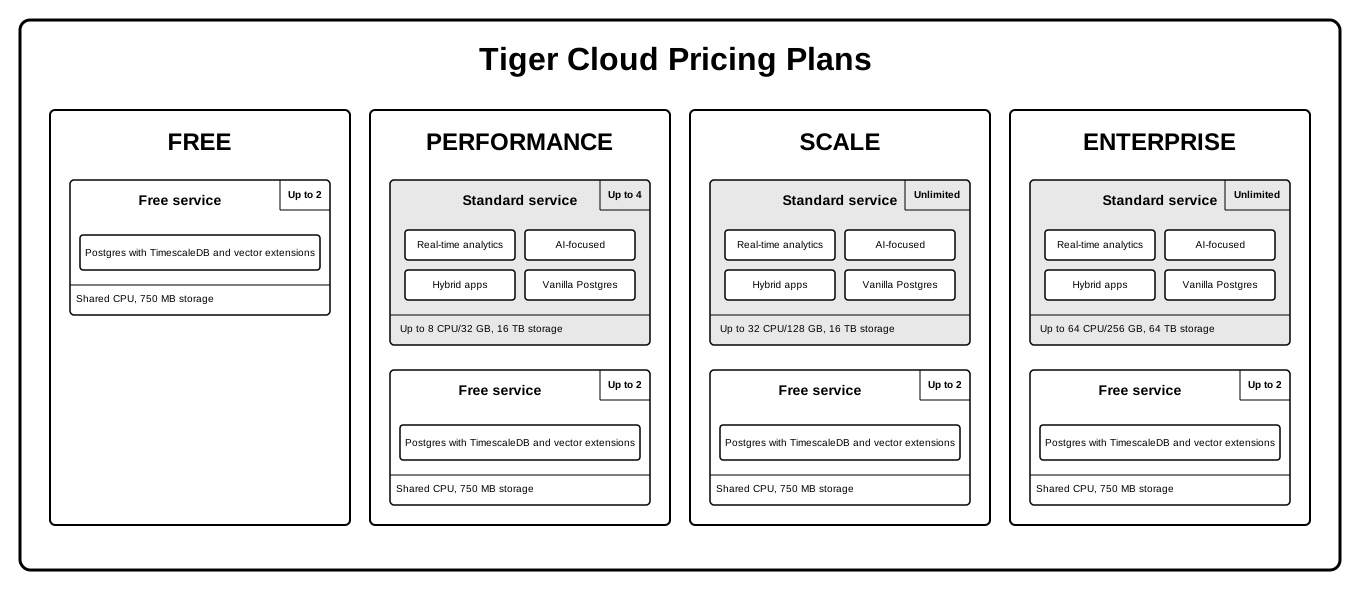
The Free pricing plan and services are currently in beta.
To the Postgres you know and love, Tiger Cloud adds the following capabilities:
Standard services:
Real-time analytics: store and query time-series data at scale for real-time analytics and other use cases. Get faster time-based queries with hypertables, continuous aggregates, and columnar storage. Save money by compressing data into the columnstore, moving cold data to low-cost bottomless storage in Amazon S3, and deleting old data with automated policies.
- AI-focused: build AI applications from start to scale. Get fast and accurate similarity search with the pgvector and pgvectorscale extensions.
- Hybrid applications: get a full set of tools to develop applications that combine time-based data and AI.
All standard Tiger Cloud services include the tooling you expect for production and developer environments: live migration, automatic backups and PITR, high availability, read replicas, data forking, connection pooling, tiered storage, usage-based storage, secure in-Tiger Cloud Console SQL editing, service metrics and insights, streamlined maintenance, and much more. Tiger Cloud continuously monitors your services and prevents common Postgres out-of-memory crashes.
Postgres with TimescaleDB and vector extensions
Free services offer limited resources and a basic feature scope, perfect to get to know Tiger Cloud in a development environment.
Learn more about Tiger Cloud
Read about Tiger Cloud features in the documentation:
- Create your first hypertable.
- Run your first query using time_bucket().
- Trying more advanced time-series functions, starting with gap filling or real-time aggregates.
Keep testing during your free trial
You're now on your way to a great start with Tiger Cloud.
You have an unthrottled, 30-day free trial with Tiger Cloud to continue to test your use case. Before the end of your trial, make sure you add your credit card information. This ensures a smooth transition after your trial period concludes.
If you have any questions, you can join our community Slack group or contact us directly.
Advanced configuration
Tiger Cloud is a versatile hosting service that provides a growing list of advanced features for your Postgres and time-series data workloads.
For more information about customizing your database configuration, see the Configuration section.
The TimescaleDB Terraform provider provides configuration management resources for Tiger Cloud. You can use it to create, rename, resize, delete, and import services. For more information about the supported service configurations and operations, see the Terraform provider documentation.
===== PAGE: https://docs.tigerdata.com/use-timescale/write-data/ =====
Integrate DBeaver with Tiger
URL: llms-txt#integrate-dbeaver-with-tiger
Contents:
- Prerequisites
- Connect DBeaver to your Tiger Cloud service
DBeaver is a free cross-platform database tool for developers, database administrators, analysts, and everyone working with data. DBeaver provides an SQL editor, administration features, data and schema migration, and the ability to monitor database connection sessions.
This page explains how to integrate DBeaver with your Tiger Cloud service.
To follow the steps on this page:
- Create a target Tiger Cloud service with the Real-time analytics capability.
You need your connection details. This procedure also works for self-hosted TimescaleDB.
- Download and install DBeaver.
Connect DBeaver to your Tiger Cloud service
To connect to Tiger Cloud:
- Start
DBeaver - In the toolbar, click the plug+ icon
- In
Connect to a databasesearch forTimescaleDB - Select
TimescaleDB, then clickNext - Configure the connection
Use your connection details to add your connection settings.
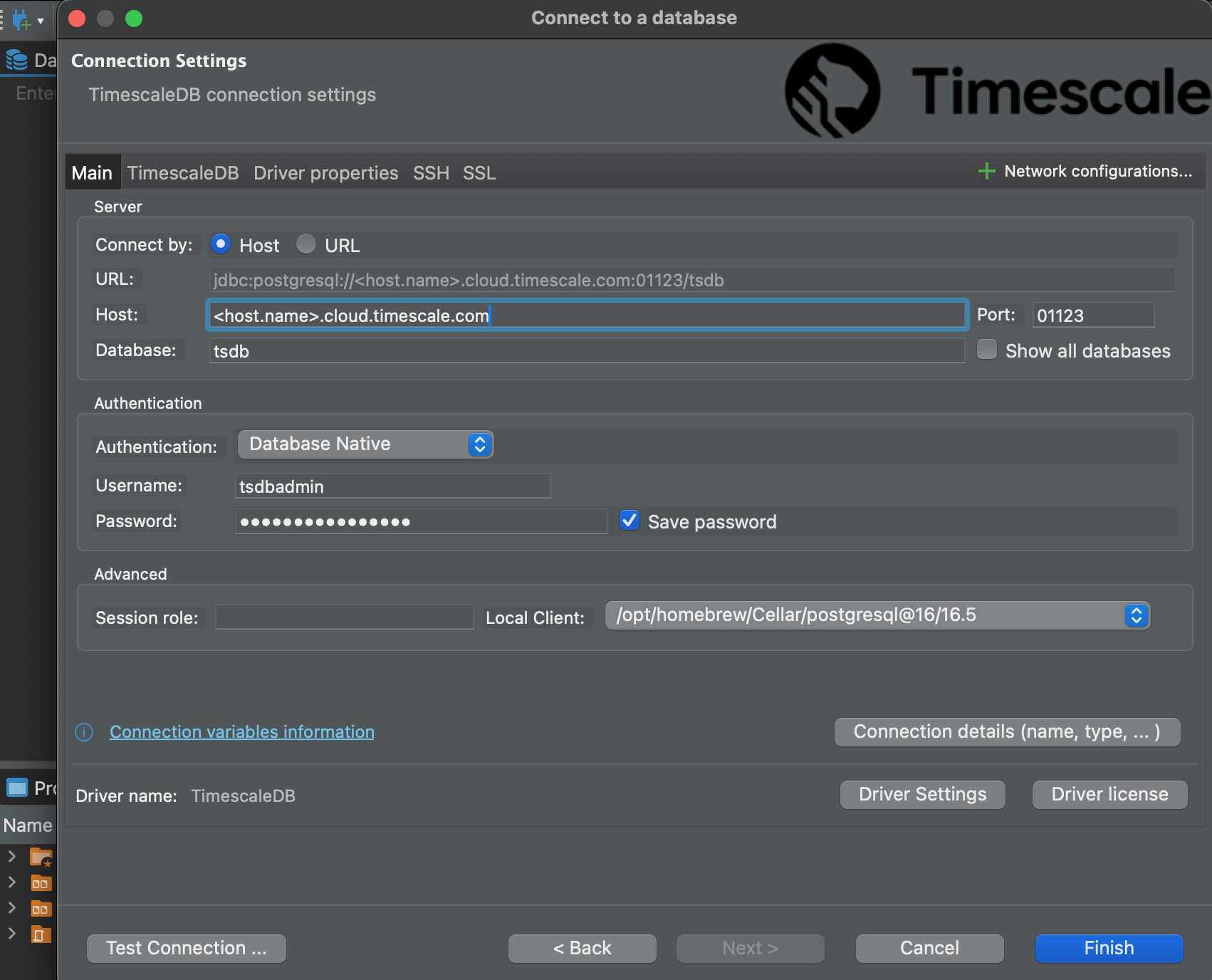
If you configured your service to connect using a stricter SSL mode, in the SSL tab check
`Use SSL` and set `SSL mode` to the configured mode. Then, in the `CA Certificate` field type the location of the SSL
root CA certificate.
- Click
Test Connection. When the connection is successful, clickFinish
Your connection is listed in the Database Navigator.
You have successfully integrated DBeaver with Tiger Cloud.
===== PAGE: https://docs.tigerdata.com/integrations/qstudio/ =====
Integrate pgAdmin with Tiger
URL: llms-txt#integrate-pgadmin-with-tiger
Contents:
- Prerequisites
- Connect pgAdmin to your Tiger Cloud service
pgAdmin is a feature-rich open-source administration and development platform for Postgres. It is available for Chrome, Firefox, Edge, and Safari browsers, or can be installed on Microsoft Windows, Apple macOS, or various Linux flavors.
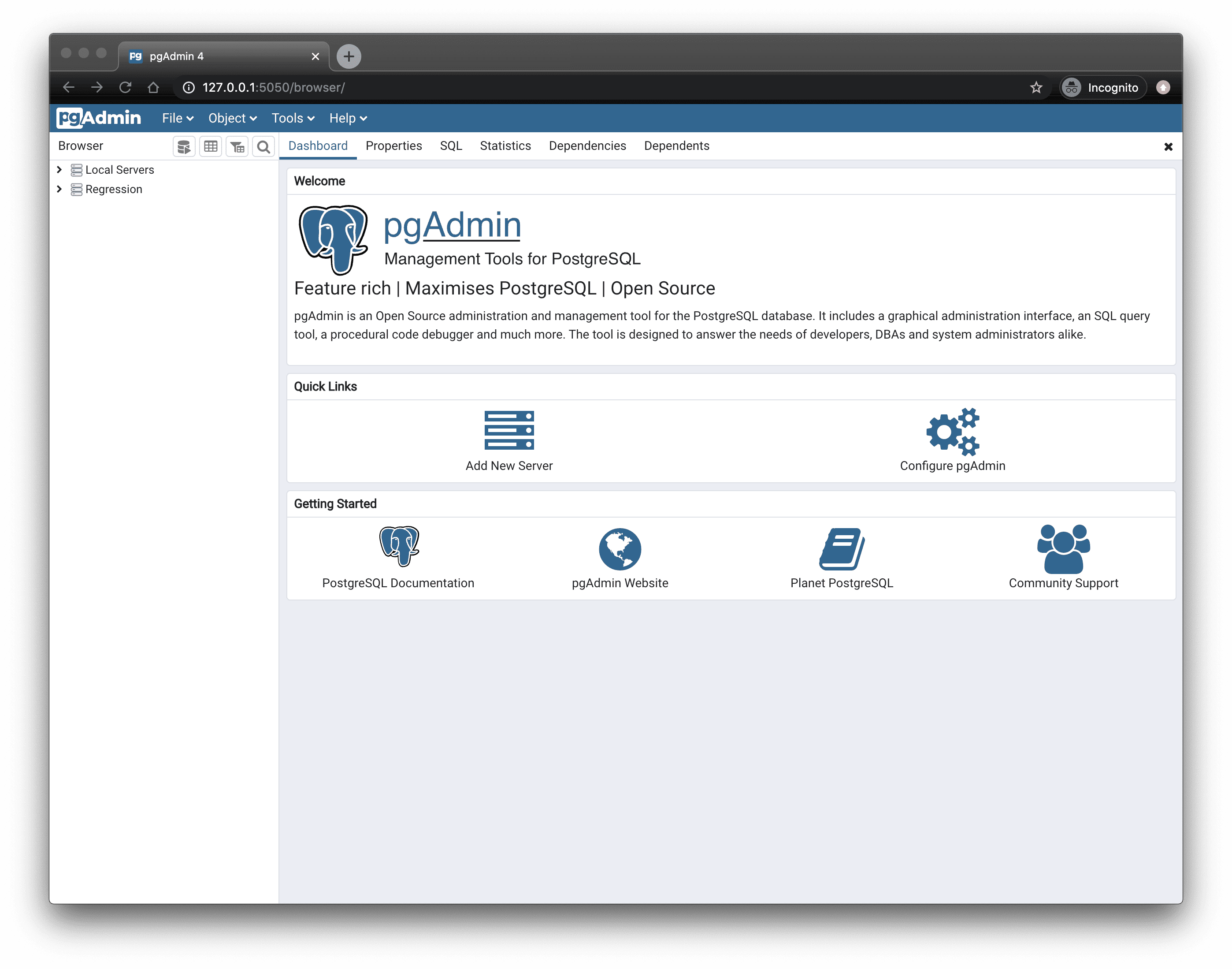
This page explains how to integrate pgAdmin with your Tiger Cloud service.
To follow the steps on this page:
- Create a target Tiger Cloud service with the Real-time analytics capability.
You need your connection details. This procedure also works for self-hosted TimescaleDB.
- Download and install pgAdmin.
Connect pgAdmin to your Tiger Cloud service
To connect to Tiger Cloud:
- Start pgAdmin
- In the
Quick Linkssection of theDashboardtab, clickAdd New Server - In
Register - Server>General, fill in theNameandCommentsfields with the server name and description, respectively - Configure the connection
- In the
Connectiontab, configure the connection using your connection details. - If you configured your service to connect using a stricter SSL mode, then in the
SSLtab checkUse SSL, setSSL modeto the configured mode, and in theCA Certificatefield type the location of the SSL root CA certificate to use.
- In the
- Click
Save
You have successfully integrated pgAdmin with Tiger Cloud.
===== PAGE: https://docs.tigerdata.com/integrations/kubernetes/ =====
timescaledb_experimental.policies
URL: llms-txt#timescaledb_experimental.policies
Contents:
- Samples
- Available columns
The policies view provides information on all policies set on continuous
aggregates.
Only policies applying to continuous aggregates are shown in this view. Policies applying to regular hypertables or regular materialized views are not displayed.
Experimental features could have bugs. They might not be backwards compatible, and could be removed in future releases. Use these features at your own risk, and do not use any experimental features in production.
Select from the timescaledb_experimental.policies table to view it:
Example of the returned output:
|Column|Type|Description|
|-|-|-|
|relation_name|Name of the continuous aggregate|
|relation_schema|Schema of the continuous aggregate|
|schedule_interval|How often the policy job runs|
|proc_schema|Schema of the policy job|
|proc_name|Name of the policy job|
|config|Configuration details for the policy job|
|hypertable_schema|Schema of the hypertable that contains the actual data for the continuous aggregate view|
|hypertable_name|Name of the hypertable that contains the actual data for the continuous aggregate view|
===== PAGE: https://docs.tigerdata.com/api/informational-views/chunks/ =====
Examples:
Example 1 (sql):
SELECT * FROM timescaledb_experimental.policies;
Example 2 (sql):
-[ RECORD 1 ]--------------------------------------------------------------------
relation_name     | mat_m1
relation_schema   | public
schedule_interval | @ 1 hour
proc_schema       | _timescaledb_internal
proc_name         | policy_refresh_continuous_aggregate
config            | {"end_offset": 1, "start_offset", 10, "mat_hypertable_id": 2}
hypertable_schema | _timescaledb_internal
hypertable_name   | _materialized_hypertable_2
-[ RECORD 2 ]--------------------------------------------------------------------
relation_name     | mat_m1
relation_schema   | public
schedule_interval | @ 1 day
proc_schema       | _timescaledb_internal
proc_name         | policy_compression
config            | {"hypertable_id": 2, "compress_after", 11}
hypertable_schema | _timescaledb_internal
hypertable_name   | _materialized_hypertable_2
-[ RECORD 3 ]--------------------------------------------------------------------
relation_name     | mat_m1
relation_schema   | public
schedule_interval | @ 1 day
proc_schema       | _timescaledb_internal
proc_name         | policy_retention
config            | {"drop_after": 20, "hypertable_id": 2}
hypertable_schema | _timescaledb_internal
hypertable_name   | _materialized_hypertable_2
Integrate Decodable with Tiger Cloud
URL: llms-txt#integrate-decodable-with-tiger-cloud
Contents:
- Prerequisites
- Connect Decodable to your Tiger Cloud service
Decodable is a real-time data platform that allows you to build, run, and manage data pipelines effortlessly.
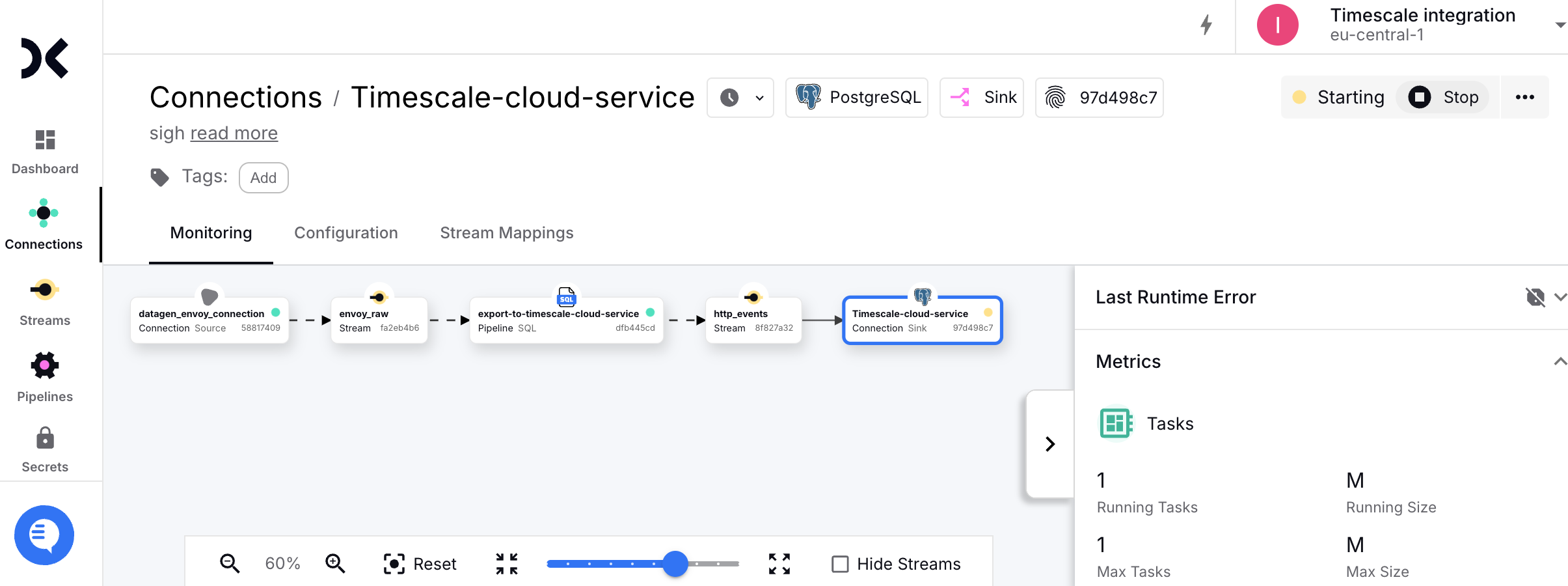
This page explains how to integrate Decodable with your Tiger Cloud service to enable efficient real-time streaming and analytics.
To follow the steps on this page:
- Create a target Tiger Cloud service with the Real-time analytics capability.
You need your connection details. This procedure also works for self-hosted TimescaleDB.
- Sign up for Decodable.
This page uses the pipeline you create using the Decodable Quickstart Guide.
Connect Decodable to your Tiger Cloud service
To stream data gathered in Decodable to a Tiger Cloud service:
Create the sync to pipe a Decodable data stream into your Tiger Cloud service
Log in to your Decodable account.
- Click
Connections, then clickNew Connection. - Select a
PostgreSQL sinkconnection type, then clickConnect. - Using your connection details, fill in the connection information.
- Click
Leave schema and JDBC options empty.
- Select the
http_eventssource stream, then clickNext.
Decodable creates the table in your Tiger Cloud service and starts streaming data.
Test the connection
Connect to your Tiger Cloud service.
For Tiger Cloud, open an SQL editor in Tiger Cloud Console. For self-hosted TimescaleDB, use psql.
- Check the data from Decodable is streaming into your Tiger Cloud service.
You see something like:
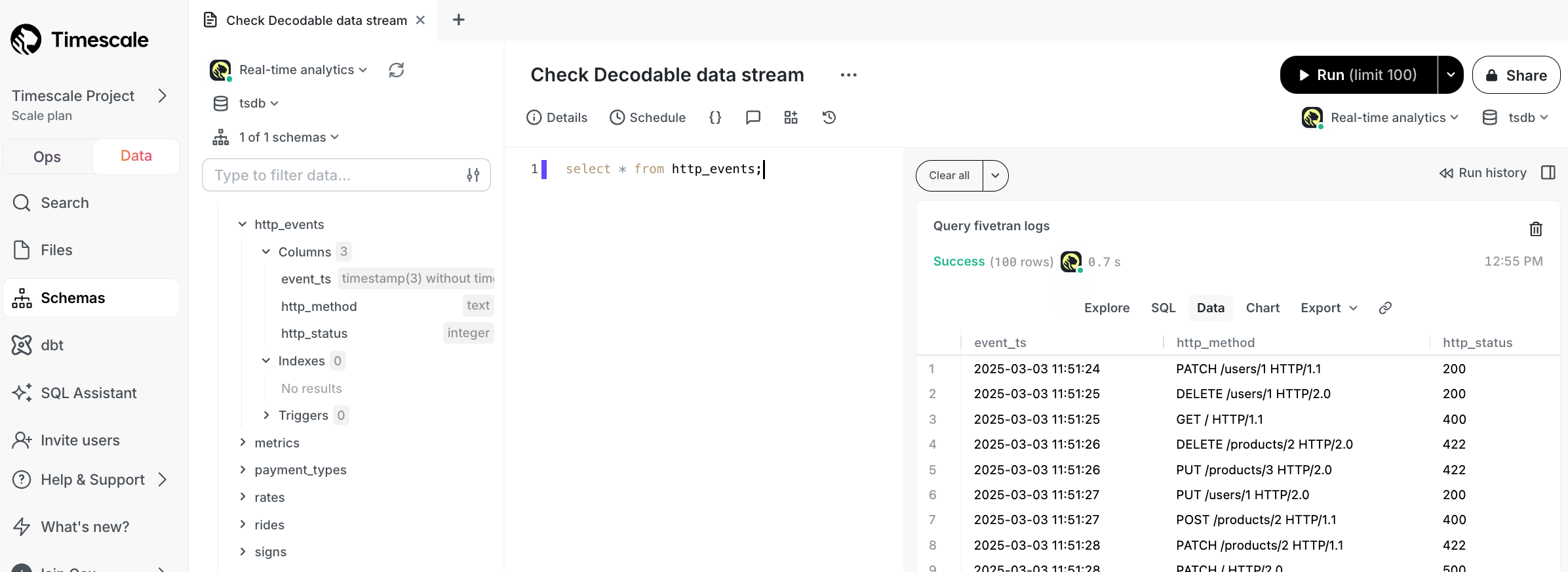
You have successfully integrated Decodable with Tiger Cloud.
===== PAGE: https://docs.tigerdata.com/integrations/debezium/ =====
Examples:
Example 1 (sql):
SELECT * FROM http_events;
to_uuidv7_boundary()
URL: llms-txt#to_uuidv7_boundary()
Contents:
- Samples
- Arguments
Create a UUIDv7 object from a Postgres timestamp for use in range queries.
ts is converted to a UNIX timestamp split into millisecond and sub-millisecond parts.
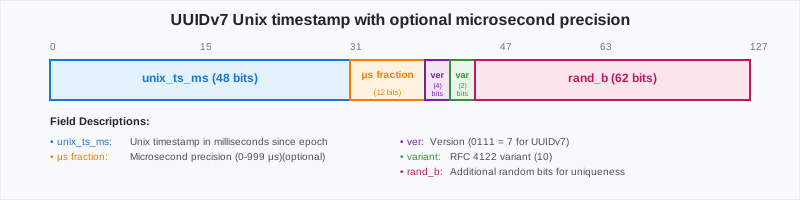
The random bits of the UUID are set to zero in order to create a "lower" boundary UUID.
For example, you can use the returned UUIDvs to find all rows with UUIDs where the timestamp is less than the boundary UUID's timestamp.
- Create a boundary UUID from a timestamp:
Returns something like:
- Use a boundary UUID to find all UUIDs with a timestamp below
'2025-09-04 10:00':
| Name | Type | Default | Required | Description |
|-|------------------|-|----------|--------------------------------------------------|
|ts|TIMESTAMPTZ| - | ✔ | The timestamp used to return a UUIDv7 object |
===== PAGE: https://docs.tigerdata.com/api/distributed-hypertables/cleanup_copy_chunk_operation_experimental/ =====
Examples:
Example 1 (sql):
postgres=# SELECT to_uuidv7_boundary('2025-09-04 11:01');
Example 2 (terminaloutput):
to_uuidv7_boundary
    --------------------------------------
     019913f5-30e0-7000-8000-000000000000
Example 3 (sql):
SELECT * FROM uuid_events WHERE event_id < to_uuidv7_boundary('2025-09-04 10:00');
Virtual Private Cloud
URL: llms-txt#virtual-private-cloud
Contents:
- Prerequisites
- Set up a secured connection between Tiger Cloud and AWS
- Create a Peering VPC in Tiger Cloud Console
- Complete the VPC connection in AWS
- Set up security groups in AWS
- Attach a Tiger Cloud service to the Peering VPC
- Migrate a Tiger Cloud service between VPCs
You use Virtual Private Cloud (VPC) peering to ensure that your Tiger Cloud services are only accessible through your secured AWS infrastructure. This reduces the potential attack vector surface and improves security.
The data isolation architecture that ensures a highly secure connection between your apps and Tiger Cloud is:
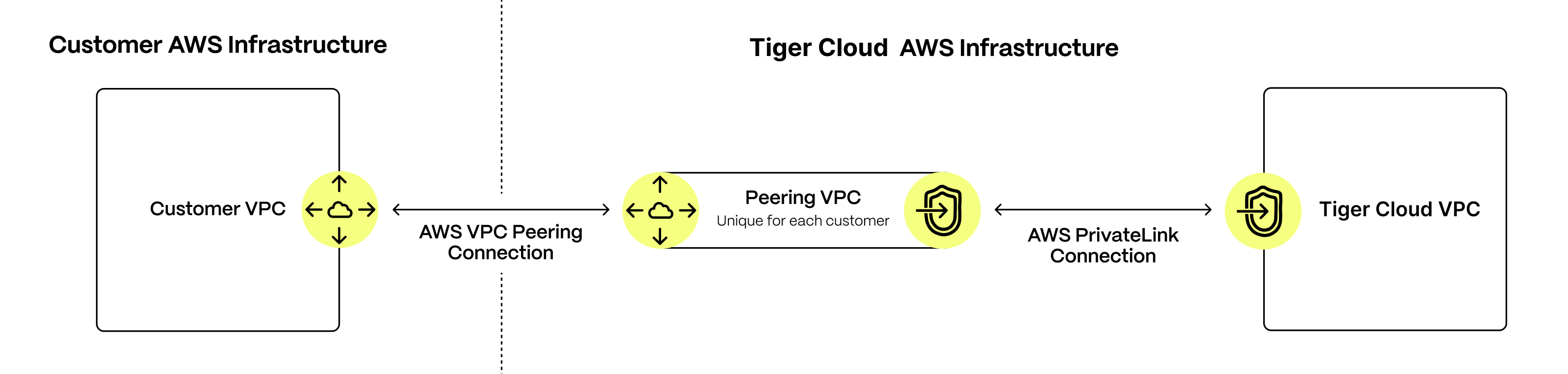
Your customer apps run inside your AWS Customer VPC, your Tiger Cloud services always run inside the secure Tiger Cloud VPC. You control secure communication between apps in your VPC and your services using a dedicated Peering VPC. The AWS PrivateLink connecting Tiger Cloud VPC to the dedicated Peering VPC gives the same level of protection as using a direct AWS PrivateLink connection. It only enables communication to be initiated from your Customer VPC to services running in the Tiger Cloud VPC. Tiger Cloud cannot initiate communication with your Customer VPC.
To configure this secure connection, you first create a Peering VPC with AWS PrivateLink in Tiger Cloud Console. After you have accepted and configured the peering connection to your Customer VPC, you use AWS Security Groups to restrict the apps in your Customer VPC that are visible to the Peering VPC. The last step is to attach individual services to the Peering VPC in Tiger Cloud Console.
You create each Peering VPC on a Tiger Cloud project level.
You can attach:
- Up to 50 Customer VPCs to a Peering VPC.
- A Tiger Cloud service to a single Peering VPC at a time. The service and the Peering VPC must be in the same AWS region. However, you can peer a Customer VPC and a Peering VPC that are in different regions.
- Multiple Tiger Cloud services to the same Peering VPC.
You cannot attach a Tiger Cloud service to multiple Peering VPCs at the same time.
The number of Peering VPCs you can create in your project depends on your pricing plan. If you need another Peering VPC, either contact support@tigerdata.com or change your pricing plan in Tiger Cloud Console.
To set up VPC peering, you need the following permissions in your AWS account:
- Accept VPC peering requests
- Configure route table rules
- Configure security group and firewall rules
Set up a secured connection between Tiger Cloud and AWS
To connect to a Tiger Cloud service using VPC peering, your apps and infrastructure must be already running in an Amazon Web Services (AWS) VPC. You can peer your VPC from any AWS region. However, your Peering VPC must be within one of the Cloud-supported regions.
The stages to create a secured connection between Tiger Cloud services and your AWS infrastructure are:
- Create a Peering VPC in Tiger Cloud Console
- Complete the VPC connection in your AWS
- Set up security groups in your AWS
- Attach a Tiger Cloud service to the Peering VPC
Create a Peering VPC in Tiger Cloud Console
Create the VPC and the peering connection that enables you to securely route traffic between Tiger Cloud and your Customer VPC in a logically isolated virtual network.
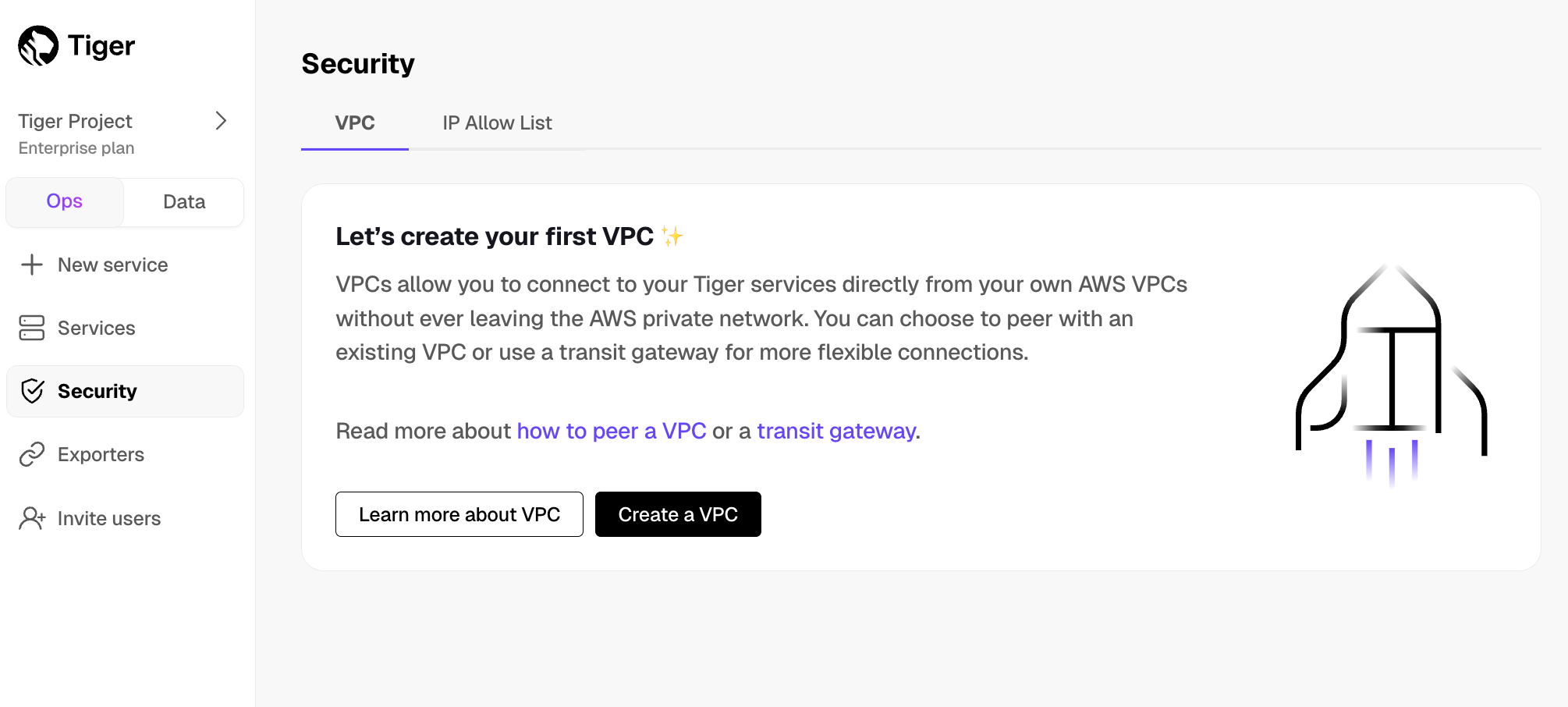
- In Tiger Cloud Console > Security > VPC, click
Create a VPC
- Choose your region and IP range, name your VPC, then click
Create VPC

The IP ranges of the Peering VPC and Customer VPC should not overlap.
For as many peering connections as you need:
In the
VPC Peeringcolumn, clickAdd.- Enter information about your existing Customer VPC, then click
Add Connection.
- Enter information about your existing Customer VPC, then click
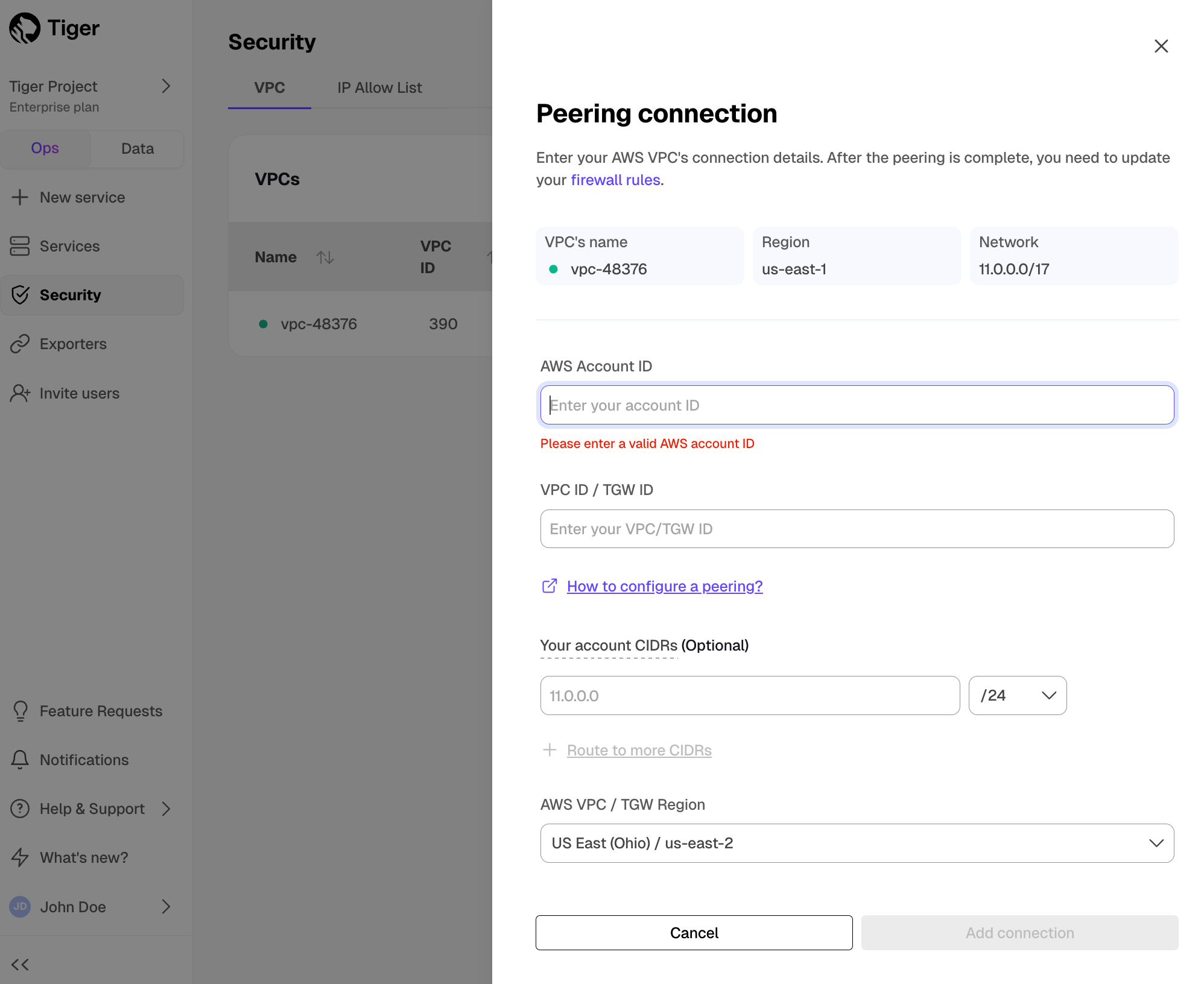
- You can attach:
- Up to 50 Customer VPCs to a Peering VPC.
- A Tiger Cloud service to a single Peering VPC at a time. The service and the Peering VPC must be in the same AWS region. However, you can peer a Customer VPC and a Peering VPC that are in different regions.
- Multiple Tiger Cloud services to the same Peering VPC.
- You cannot attach a Tiger Cloud service to multiple Peering VPCs at the same time.
The number of Peering VPCs you can create in your project depends on your pricing plan. If you need another Peering VPC, either contact support@tigerdata.com or change your pricing plan in Tiger Cloud Console.
Tiger Cloud sends a peering request to your AWS account so you can complete the VPC connection in AWS.
Complete the VPC connection in AWS
When you receive the Tiger Cloud peering request in AWS, edit your routing table to match
the IP Range and CIDR block between your Customer and Peering VPCs.
When you peer a VPC with multiple CIDRs, all CIDRs are added to the Tiger Cloud rules automatically. After you have finished peering, further changes in your VPC's CIDRs are not detected automatically. If you need to refresh the CIDRs, recreate the peering connection.
The request acceptance process is an important safety mechanism. Do not accept a peering request from an unknown account.
- In AWS > VPC Dashboard > Peering connections, select the peering connection request from Tiger Cloud
Copy the peering connection ID to the clipboard. The connection request starts with pcx-.
In the peering connection, click
Route Tables, then select theRoute Table IDthat corresponds to your VPCIn
Routes, clickEdit routes
You see the list of existing destinations.
 .
.
If you do not already have a destination that corresponds to the IP range / CIDR block of
your Peering VPC:
- Click
Add route, and set: *Destination: the CIDR block of your Peering VPC. For example:10.0.0.7/17. *Target: the peering connection ID you copied to your clipboard.- Click
Save changes.
- Click
Network traffic is secured between your AWS account and Tiger Cloud for this project.
Set up security groups in AWS
Security groups allow specific inbound and outbound traffic at the resource level. You can associate a VPC with one or more security groups, and each instance in your VPC may belong to a different set of security groups. The security group choices for your VPC are:
- Create a security group to use for your Tiger Cloud VPC only.
- Associate your VPC with an existing security group.
- Do nothing, your VPC is automatically associated with the default one.
To create a security group specific to your Tiger Cloud Peering VPC:
AWS > VPC Dashboard > Security Groups, click
Create security groupEnter the rules for this security group:
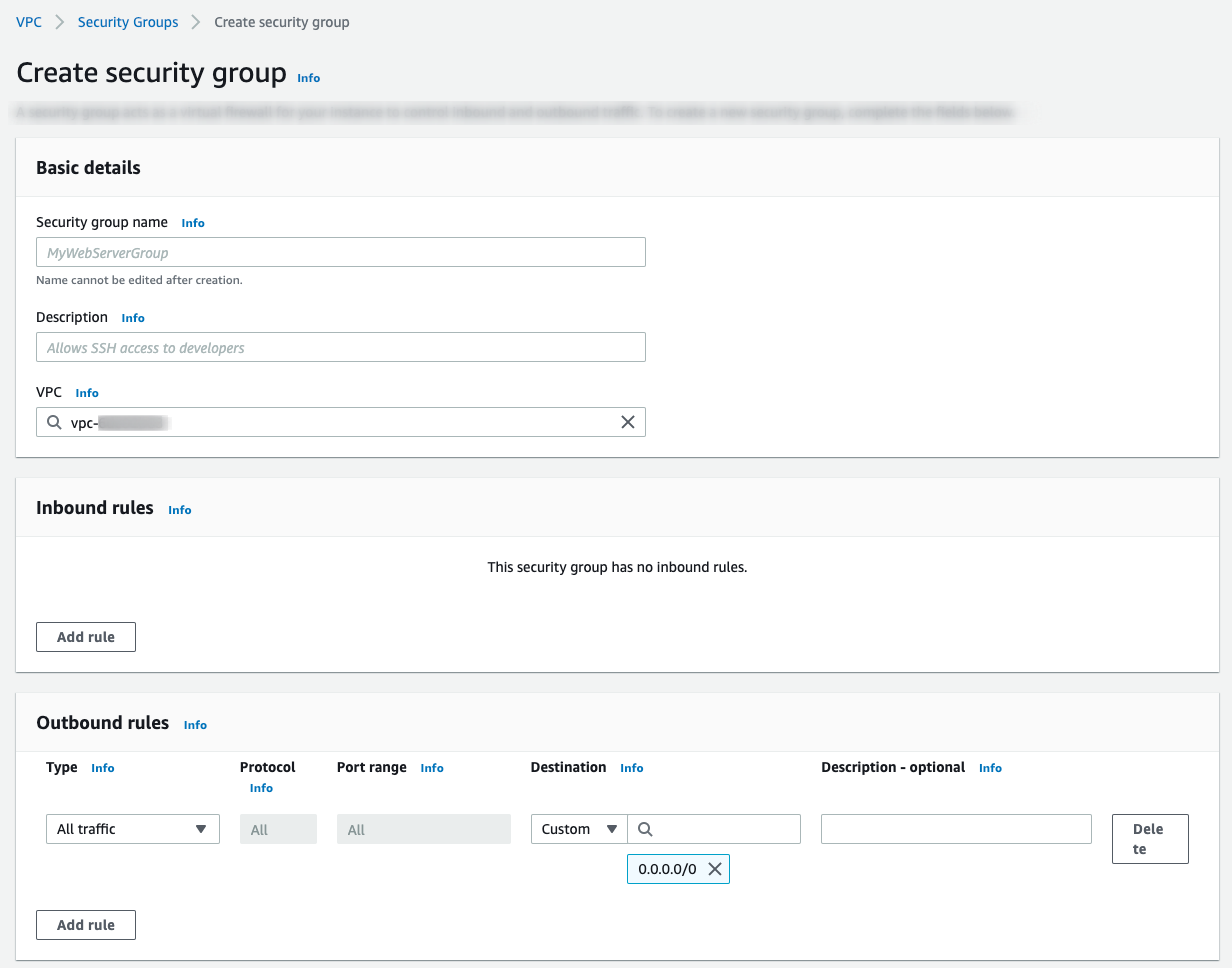
VPC: select the VPC that is peered with Tiger Cloud.Inbound rules: leave empty.Outbound rules:Type:Custom TCPProtocol:TCPPort range:5432Destination:CustomInfo: the CIDR block of your Tiger Cloud Peering VPC.
- Click
Add rule, then clickCreate security group
Attach a Tiger Cloud service to the Peering VPC
Now that Tiger Cloud is communicating securely with your AWS infrastructure, you can attach one or more services to the Peering VPC.
After you attach a service to a Peering VPC, you can only access it through the peered AWS VPC. It is no longer accessible using the public internet.
- In Tiger Cloud Console > Services select the service you want to connect to the Peering VPC
- Click
Operations>Security>VPC - Select the VPC, then click
Attach VPC
And that is it, your service is now securely communicating with your AWS account inside a VPC.
Migrate a Tiger Cloud service between VPCs
To ensure that your applications continue to run without interruption, you keep service attached to the Peering VPC. However, you can change the Peering VPC your service is attached to, or disconnect from the Peering VPC and enable access to the service from the public internet.
Tiger Cloud uses a different DNS for services that are attached to a Peering VPC. When you migrate a service between public access and a Peering VPC, you need to update your connection string.
- In Tiger Cloud Console > Services select the service to migrate
If you don't have a service, create a new one.
- Click
Operations>Security>VPC - Select the VPC, then click
Attach VPC
Migration takes a few minutes to complete and requires a change to DNS settings for the service. The service is not accessible during this time. If you receive a DNS error, allow some time for DNS propagation.
===== PAGE: https://docs.tigerdata.com/use-timescale/security/read-only-role/ =====
Counter aggregation
URL: llms-txt#counter-aggregation
Contents:
- Run a counter aggregate query using a delta function
- Running a counter aggregate query using a delta function
- Run a counter aggregate query using an extrapolated delta function
- Running a counter aggregate query using an extrapolated delta function
- Run a counter aggregate query with a continuous aggregate
- Parallelism and ordering
When you are monitoring application performance, there are two main types of metrics that you can collect: gauges, and counters. Gauges fluctuate up and down, like temperature or speed, while counters always increase, like the total number of miles travelled in a vehicle.
When you process counter data, it is usually assumed that if the value of the counter goes down, the counter has been reset. For example, if you wanted to count the total number of miles travelled in a vehicle, you would expect the values to continuously increase: 1, 2, 3, 4, and so on. If the counter reset to 0, you would expect that this was a new trip, or an entirely new vehicle. This can become a problem if you want to continue counting from where you left off, rather than resetting to 0. A reset could occur if you have had a short server outage, or any number of other reasons. To get around this, you can analyze counter data by looking at the change over time, which accounts for resets.
Accounting for resets can be difficult to do in SQL, so TimescaleDB has developed aggregate and accessor functions that handle calculations for counters in a more practical way.
Counter aggregates can be used in continuous aggregates, even though they are not parallelizable in Postgres. For more information, see the section on parallelism and ordering.
For more information about counter aggregation API calls, see the hyperfunction API documentation.
Run a counter aggregate query using a delta function
In this procedure, we are using an example table called example that contains
counter data.
Running a counter aggregate query using a delta function
Create a table called
example:Create a counter aggregate and the delta accessor function. This gives you the change in the counter's value over the time period, accounting for any resets. This allows you to search for fifteen minute periods where the counter increased by a larger or smaller amount:
You can also use the
time_bucketfunction to produce a series of deltas over fifteen minute increments:
Run a counter aggregate query using an extrapolated delta function
If your series is less regular, the deltas are affected by the number of samples
in each fifteen minute period. You can improve this by using the
extrapolated_delta function. To do this, you need to provide bounds that
define where to extrapolate to. In this example, we use the time_bucket_range
function, which works in the same way as time_bucket but produces an open
ended range of all the times in the bucket. This example also uses a CTE to do
the counter aggregation, which makes it a little easier to understand what's
going on in each part.
Running a counter aggregate query using an extrapolated delta function
- Create a hypertable called
example:
If you are self-hosting TimescaleDB v2.19.3 and below, create a Postgres relational table, then convert it using create_hypertable. You then enable hypercore with a call to ALTER TABLE.
- Create a counter aggregate and the extrapolated delta function:
In this procedure, Prometheus is used to do the extrapolation. TimescaleDB's
current extrapolation function is built to mimic the Prometheus project's
increase function, which measures the change of a counter extrapolated to the
edges of the queried region.
Run a counter aggregate query with a continuous aggregate
Your counter aggregate might be more useful if you make a continuous aggregate out of it.
Create the continuous aggregate:
You can also re-aggregate from the continuous aggregate into a larger bucket size:
Parallelism and ordering
The counter reset calculations require a strict ordering of inputs, which means
they are not parallelizable in Postgres. This is because Postgres handles
parallelism by issuing rows randomly to workers. However, if your parallelism
can guarantee sets of rows that are disjointed in time, the algorithm can be
parallelized, as long as it is within a time range, and all rows go to the same
worker. This is the case for both continuous aggregates and for distributed
hypertables, as long as the partitioning keys are in the group by, even though
the aggregate itself doesn't really make sense otherwise.
For more information about parallelism and ordering, see our developer documentation
===== PAGE: https://docs.tigerdata.com/use-timescale/hyperfunctions/heartbeat-agg/ =====
Examples:
Example 1 (sql):
CREATE TABLE example (
        measure_id      BIGINT,
        ts              TIMESTAMPTZ ,
        val             DOUBLE PRECISION,
        PRIMARY KEY (measure_id, ts)
    );
Example 2 (sql):
SELECT measure_id,
        delta(
            counter_agg(ts, val)
        )
    FROM example
    GROUP BY measure_id;
Example 3 (sql):
SELECT measure_id,
        time_bucket('15 min'::interval, ts) as bucket,
        delta(
            counter_agg(ts, val)
        )
    FROM example
    GROUP BY measure_id, time_bucket('15 min'::interval, ts);
Example 4 (sql):
CREATE TABLE example (
        measure_id      BIGINT,
        ts              TIMESTAMPTZ ,
        val             DOUBLE PRECISION,
        PRIMARY KEY (measure_id, ts)
    ) WITH (
      tsdb.hypertable,
      tsdb.partition_column='ts',
      tsdb.chunk_interval='15 days'
    );
timescaledb_information.data_nodes
URL: llms-txt#timescaledb_information.data_nodes
Contents:
- Samples
- Available columns
Get information on data nodes. This function is specific to running TimescaleDB in a multi-node setup.
Multi-node support is sunsetted.
TimescaleDB v2.13 is the last release that includes multi-node support for Postgres versions 13, 14, and 15.
Get metadata related to data nodes.
| Name | Type | Description |
|---|---|---|
node_name |
TEXT | Data node name. |
owner |
REGCLASS | Oid of the user, who added the data node. |
options |
JSONB | Options used when creating the data node. |
===== PAGE: https://docs.tigerdata.com/api/informational-views/hypertable_compression_settings/ =====
Examples:
Example 1 (sql):
SELECT * FROM timescaledb_information.data_nodes;

 node_name    | owner      | options
--------------+------------+--------------------------------
 dn1         | postgres   | {host=localhost,port=15431,dbname=test}
 dn2         | postgres   | {host=localhost,port=15432,dbname=test}
(2 rows)
create_distributed_restore_point()
URL: llms-txt#create_distributed_restore_point()
Contents:
- Required arguments
- Returns
- Errors
- Sample usage
Multi-node support is sunsetted.
TimescaleDB v2.13 is the last release that includes multi-node support for Postgres versions 13, 14, and 15.
Creates a same-named marker record, for example restore point, in the
write-ahead logs of all nodes in a multi-node TimescaleDB cluster.
The restore point can be used as a recovery target on each node, ensuring the entire multi-node cluster can be restored to a consistent state. The function returns the write-ahead log locations for all nodes where the marker record was written.
This function is similar to the Postgres function
pg_create_restore_point, but it has been modified
to work with a distributed database.
This function can only be run on the access node, and requires superuser privileges.
Required arguments
|Name|Description|
|-|-|
|name|The restore point name|
|Column|Type|Description|
|-|-|-|
|node_name|NAME|Node name, or NULL for access node|
|node_type|TEXT|Node type name: access_node or data_node|
|restore_point|PG_LSN|Restore point log sequence number|
An error is given if:
- The restore point
nameis more than 64 characters - A recovery is in progress
- The current WAL level is not set to
replicaorlogical - The current user is not a superuser
- The current server is not the access node
- TimescaleDB's 2PC transactions are not enabled
This example create a restore point called pitr across three data nodes and
the access node:
===== PAGE: https://docs.tigerdata.com/api/distributed-hypertables/copy_chunk_experimental/ =====
Examples:
Example 1 (sql):
SELECT * FROM create_distributed_restore_point('pitr');
 node_name |  node_type  | restore_point
-----------+-------------+---------------
           | access_node | 0/3694A30
 dn1       | data_node   | 0/3694A98
 dn2       | data_node   | 0/3694B00
 dn3       | data_node   | 0/3694B68
(4 rows)
JSONB support for semi-structured data
URL: llms-txt#jsonb-support-for-semi-structured-data
Contents:
- Index the JSONB structure
- Index individual fields
You can use JSON and JSONB to provide semi-structured data. This is most useful for data that contains user-defined fields, such as field names that are defined by individual users and vary from user to user. We recommend using this in a semi-structured way, for example:
When you are defining a schema using JSON, ensure that common fields, such as
time, user_id, and device_id, are pulled outside of the JSONB structure
and stored as columns. This is because field accesses are more efficient on
table columns than inside JSONB structures. Storage is also more efficient.
You should also use the JSONB data type, that is, JSON stored in a binary format, rather than JSON data type. JSONB data types are more efficient in both storage overhead and lookup performance.
Use JSONB for user-defined data rather than sparse data. This works best for most data sets. For sparse data, use NULLable fields and, if possible, run on top of a compressed file system like ZFS. This will work better than a JSONB data type, unless the data is extremely sparse, for example, more than 95% of fields for a row are empty.
Index the JSONB structure
When you index JSONB data across all fields, it is usually best to use a GIN (generalized inverted) index. In most cases, you can use the default GIN operator, like this:
For more information about GIN indexes, see the Postgres documentation.
This index only optimizes queries where the WHERE clause uses the ?, ?&,
?|, or @> operator. For more information about these operators, see the
Postgres documentation.
Index individual fields
JSONB columns sometimes have common fields containing values that are useful to index individually. Indexes like this can be useful for ordering operations on field values, multicolumn indexes, and indexes on specialized types, such as a postGIS geography type. Another advantage of indexes on individual field values is that they are often smaller than GIN indexes on the entire JSONB field. To create an index like this, it is usually best to use a partial index on an expression accessing the field. For example:
In this example, the expression being indexed is the cpu field inside the
data JSONB object, cast to a double. The cast reduces the size of the index by
storing the much smaller double, instead of a string. The WHERE clause ensures
that the only rows included in the index are those that contain a cpu field,
because the data ? 'cpu' returns true. This also serves to reduce the size
of the index by not including rows without a cpu field. Note that in order for
a query to use the index, it must have data ? 'cpu' in the WHERE clause.
This expression can also be used with a multi-column index, for example, by
adding time DESC as a leading column. Note, however, that to enable index-only
scans, you need data as a column, not the full expression
((data->>'cpu')::double precision).
===== PAGE: https://docs.tigerdata.com/use-timescale/schema-management/about-tablespaces/ =====
Examples:
Example 1 (sql):
CREATE TABLE metrics (
  time TIMESTAMPTZ,
  user_id INT,
  device_id INT,
  data JSONB
);
Example 2 (sql):
CREATE INDEX idxgin ON metrics USING GIN (data);
Example 3 (sql):
CREATE INDEX idxcpu
  ON metrics(((data->>'cpu')::double precision))
  WHERE data ? 'cpu';
IP allow list
URL: llms-txt#ip-allow-list
Contents:
- Create and attach an IP allow list in the ops mode
- Create an IP allow list in the data mode
You can restrict access to your Tiger Cloud services to trusted IP addresses only. This prevents unauthorized connections without the need for a Virtual Private Cloud. Creating IP allow lists helps comply with security standards such as SOC 2 or HIPAA that require IP filtering. This is especially useful in regulated industries like finance, healthcare, and government.
For a more fine-grained control, you create separate IP allow lists for the ops mode and the data mode.
Create and attach an IP allow list in the ops mode
You create an IP allow list at the project level, then attach your service to it.
You attach a service to either one VPC, or one IP allow list. You cannot attach a service to a VPC and an IP allow list at the same time.
- In Tiger Cloud Console, select
Security>IP Allow List, then clickCreate IP Allow List
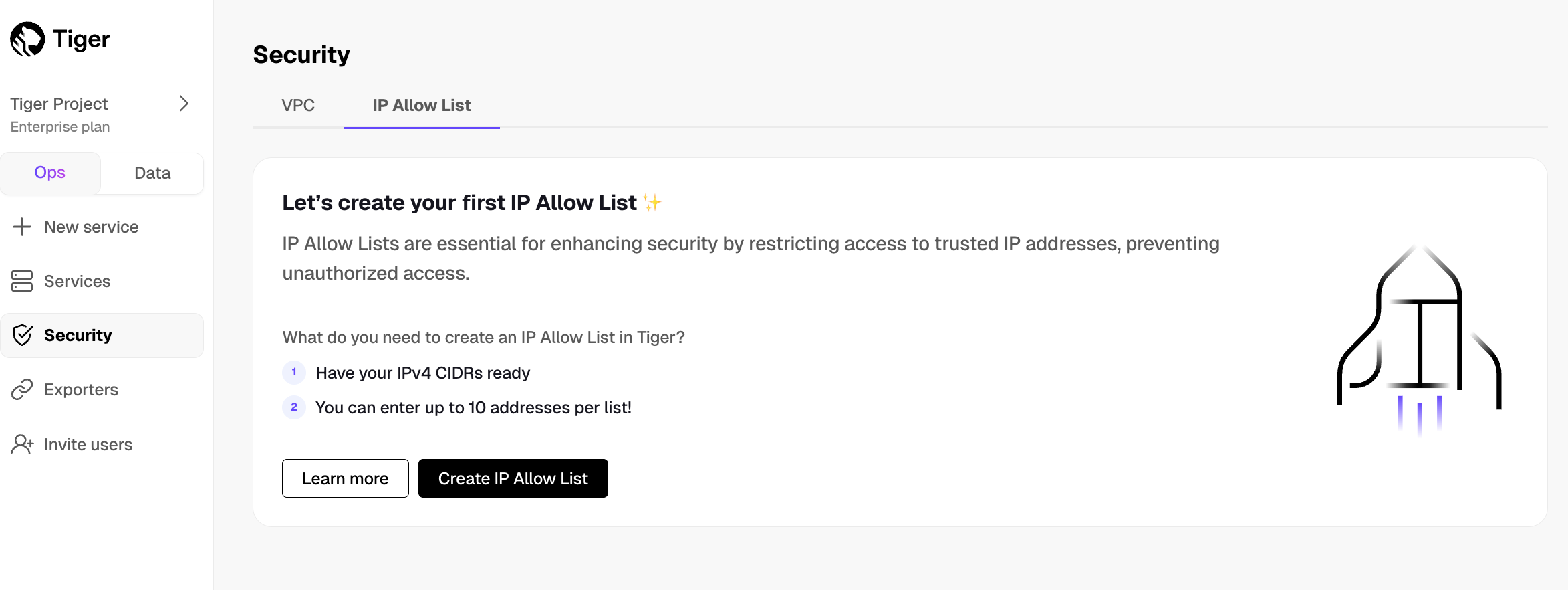
- Enter your trusted IP addresses
The number of IP addresses that you can include in one list depends on your pricing plan.
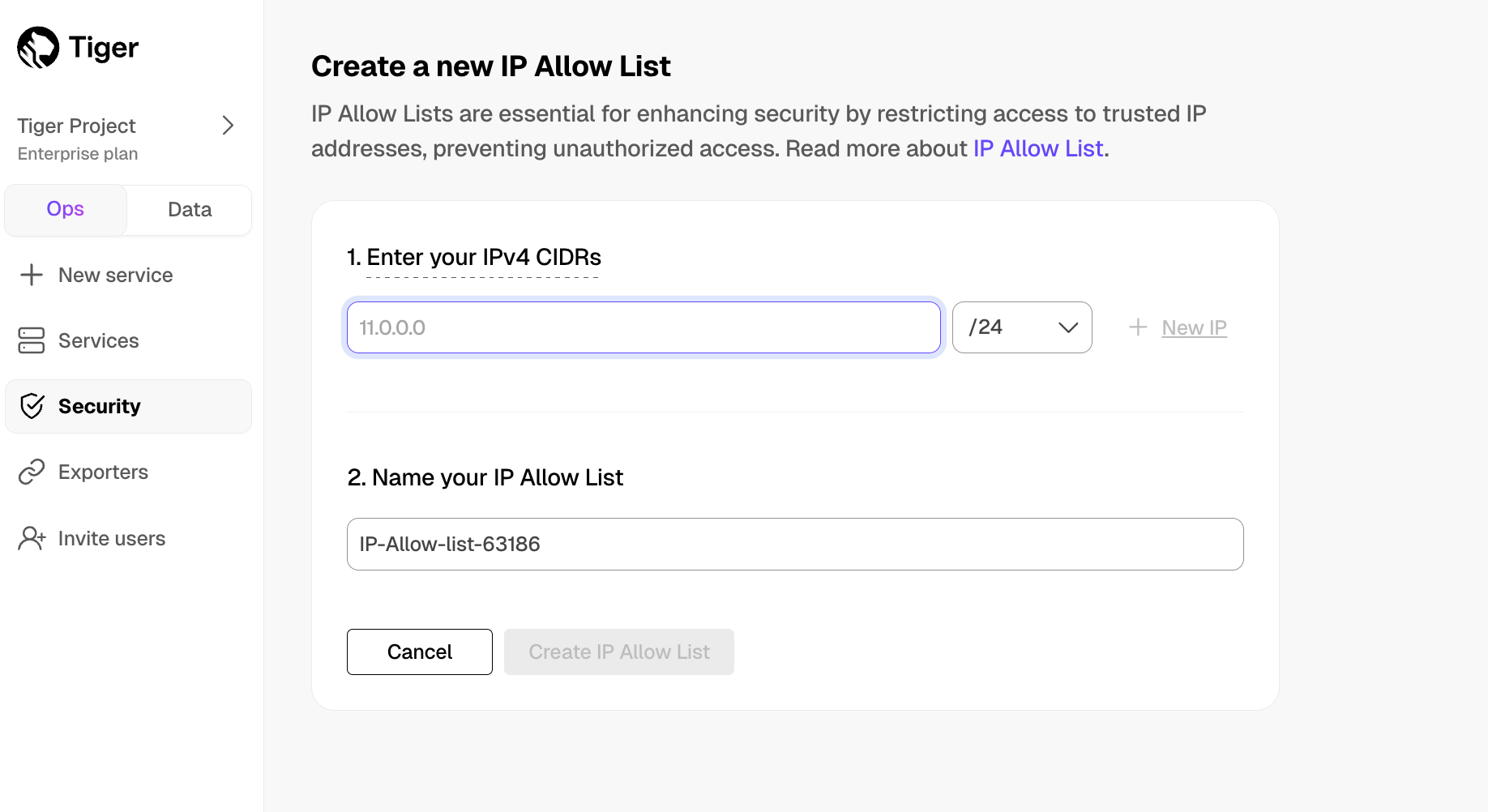
- Name your allow list and click
Create IP Allow List
Click + Create IP Allow List to create another list. The number of IP allow lists you can create depends on your pricing plan.
- Select a Tiger Cloud service, then click
Operations>Security>IP Allow List
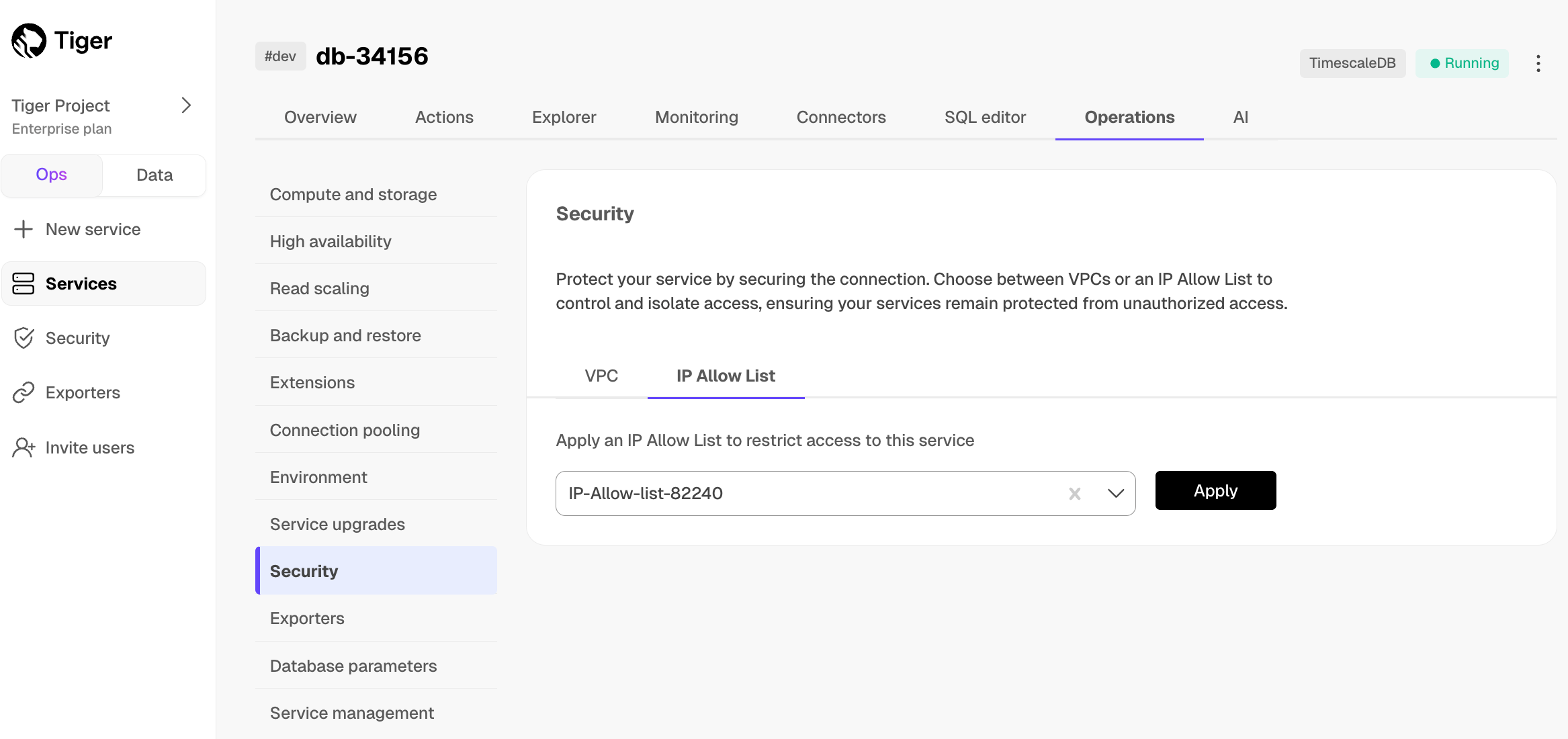
Select the list in the drop-down and click
ApplyType
Applyin the confirmation popup
You have created and attached an IP allow list for the operations available in the ops mode. You can unattach or change the list attached to a service from the same tab.
Create an IP allow list in the data mode
You create an IP allow list in the data mode settings.
In Tiger Cloud Console, toggle
DataClick the project name in the upper left corner, then select
SettingsScroll down and toggle
IP AllowlistAdd IP addresses
Click
Add entry.- Enter an IP address or a range of IP addresses.
- Click
Add. - When all the IP addresses have been added, click
Apply. - Click
Confirm.
You have successfully added an IP allow list for querying your service in the data mode.
===== PAGE: https://docs.tigerdata.com/use-timescale/security/multi-factor-authentication/ =====
Integrate Terraform with Tiger
URL: llms-txt#integrate-terraform-with-tiger
Contents:
- Prerequisites
- Configure Terraform
Terraform is an infrastructure-as-code tool that enables you to safely and predictably provision and manage infrastructure.
This page explains how to configure Terraform to manage your Tiger Cloud service or self-hosted TimescaleDB.
To follow the steps on this page:
- Create a target Tiger Cloud service with the Real-time analytics capability.
You need your connection details. This procedure also works for self-hosted TimescaleDB.
- Download and install Terraform.
Configure Terraform
Configure Terraform based on your deployment type:
You use the Tiger Data Terraform provider to manage Tiger Cloud services:
Generate client credentials for programmatic use
In Tiger Cloud Console, click
Projectsand save yourProject ID, then clickProject settings.Click
Create credentials, then savePublic keyandSecret key.Configure Tiger Data Terraform provider
Create a
main.tfconfiguration file with at least the following content. Changex.y.zto the latest version of the provider.Create a
terraform.tfvarsfile in the same directory as yourmain.tfto pass in the variable values:Add your resources
Add your Tiger Cloud services or VPC connections to the main.tf configuration file. For example:
You can now manage your resources with Terraform. See more about available resources and data sources.
You use the cyrilgdn/postgresql Postgres provider to connect to your self-hosted TimescaleDB instance.
Create a main.tf configuration file with the following content, using your connection details:
You can now manage your database with Terraform.
===== PAGE: https://docs.tigerdata.com/integrations/azure-data-studio/ =====
Examples:
Example 1 (hcl):
terraform {
         required_providers {
           timescale = {
             source  = "timescale/timescale"
             version = "x.y.z"
           }
         }
       }

       provider "timescale" {
        project_id = var.ts_project_id
        access_key = var.ts_access_key
        secret_key = var.ts_secret_key
       }

       variable "ts_project_id" {
        type = string
       }

       variable "ts_access_key" {
        type = string
       }

       variable "ts_secret_key" {
        type = string
       }
Example 2 (hcl):
export TF_VAR_ts_project_id="<your-timescale-project-id>"
       export TF_VAR_ts_access_key="<your-timescale-access-key>"
       export TF_VAR_ts_secret_key="<your-timescale-secret-key>"
Example 3 (hcl):
resource "timescale_service" "test" {
     name              = "test-service"
     milli_cpu         = 500
     memory_gb         = 2
     region_code       = "us-east-1"
     enable_ha_replica = false

     timeouts = {
       create = "30m"
     }
   }

   resource "timescale_vpc" "vpc" {
     cidr         = "10.10.0.0/16"
     name         = "test-vpc"
     region_code  = "us-east-1"
   }
Example 4 (hcl):
terraform {
    required_providers {
     postgresql = {
      source  = "cyrilgdn/postgresql"
      version = ">= 1.15.0"
     }
    }
   }

   provider "postgresql" {
    host            = "your-timescaledb-host"
    port            = "your-timescaledb-port"
    database        = "your-database-name"
    username        = "your-username"
    password        = "your-password"
    sslmode         = "require" # Or "disable" if SSL isn't enabled
   }
Logging
URL: llms-txt#logging
Contents:
- Native logging
- Dump logs to a text file with the Aiven CLI
- Logging integrations
- Creating a Loggly service integration
There are a number of different ways to review logs and metrics for your services. You can use the native logging tool in MST Console, retrieve details logs using the Aiven CLI tool, or integrate a third-party service, such as SolarWinds Loggly.
To see the most recent logged events for your service.
- In MST Console, in the
Servicestab, find the service you want to review, and check it is marked asRunning. - Navigate to the
Logstab to see a constantly updated list of logged events.
<img class="main-content__illustration"
src="https://assets.timescale.com/docs/images/mst/view-logs.png"
alt="Managed Service for TimescaleDB native logging"/>
Dump logs to a text file with the Aiven CLI
If you want to dump your Managed Service for TimescaleDB logs to a text file or an archive for use later on, you can use the Aiven CLI.
Sign in to your Managed Service for TimescaleDB account from the Aiven CLI tool,
and use this command to dump your logs to a text file called tslogs.txt:
For more information about the Aiven CLI tool, see the Aiven CLI section.
Logging integrations
If you need to access logs for your services regularly, or if you need more detailed logging than Managed Service for TimescaleDB can provide in MST Console, you can connect your Managed Service for TimescaleDB to a logging service such as SolarWinds Loggly.
This section covers how to create a service integration to Loggly with Managed Service for TimescaleDB.
Creating a Loggly service integration
- Navigate to SolarWinds Loggly and create or log in to your account.
- From the Loggly Home screen, navigate to
Logs→Source Setup. ClickCustomer Tokensfrom the top menu bar. - On the
Customer Tokenspage, clickAdd Newto create a new token. Give your token a name, and clickSave. Copy your new token to your clipboard. - Log in to your Managed Service for TimescaleDB account, and navigate
to
Service Integrations. - In the
Service Integrationspage, navigate toSyslog, and clickAdd new endpoint. - In the
Create new syslog endpointdialog, complete these fields:
- In the
Endpoint namefield, type a name for your endpoint.- In the
Serverfield, typelogs-01.loggly.com. - In the
Portfield, type514. - Uncheck the
TLScheckbox. - In the
Formatfield, selectrfc5425. - In the
Structured Datafield, type<LOGGLY_TOKEN>@41058, using the Loggly token you copied earlier. You can also add a tag here, which you can use to more easily search for your logs in Loggly. For example,8480330f5-aa09-46b0-b220-a0efa372b17b@41058 TAG="example-tag".
- In the
Click Create to create the endpoint. When the endpoint has been created,
it shows as an enabled service integration, with a green `active` indicator.
- In the Loggly dashboard, navigate to
Searchto see your incoming logs. From here, you can create custom dashboards and view reports for your logs.
<img class="main-content__illustration"
width={1375} height={944}
src="https://assets.timescale.com/docs/images/loggly-view-logs.webp"
alt="Viewing incoming MST logs in Loggly"
/>
===== PAGE: https://docs.tigerdata.com/mst/integrations/metrics-datadog/ =====
Examples:
Example 1 (bash):
avn service logs -S desc -f --project <project name> <service_name> > tslogs.txt
Migrate from Postgres using dual-write and backfill
URL: llms-txt#migrate-from-postgres-using-dual-write-and-backfill
Contents:
- 1. Set up a target database instance in Tiger Cloud
- 2. Modify the application to write to the target database
- 3. Set up schema and migrate relational data to target database
- 3a. Dump the database roles from the source database
- 3b. Determine which tables to convert to hypertables
- 3c. Dump all tables from the source database, excluding data from hypertable candidates
- 3d. Load the roles and schema into the target database
- 3e. Convert the plain tables to hypertables, optionally compress data in the columnstore
- 4. Start application in dual-write mode
- 5. Determine the completion point
T
This document provides detailed step-by-step instructions to migrate data using the dual-write and backfill migration method from a source database which is using Postgres to Tiger Cloud.
In the context of migrations, your existing production database is referred to as the SOURCE database, the Tiger Cloud service that you are migrating your data to is the TARGET.
In detail, the migration process consists of the following steps:
- Set up a target Tiger Cloud service.
- Modify the application to write to the target database.
- Migrate schema and relational data from source to target.
- Start the application in dual-write mode.
- Determine the completion point
T. - Backfill time-series data from source to target.
- Validate that all data is present in target database.
- Validate that target database can handle production load.
- Switch application to treat target database as primary (potentially continuing to write into source database, as a backup).
If you get stuck, you can get help by either opening a support request, or take
your issue to the #migration channel in the community slack,
where the developers of this migration method are there to help.
You can open a support request directly from Tiger Cloud Console, or by email to support@tigerdata.com.
1. Set up a target database instance in Tiger Cloud
If you intend on migrating more than 400 GB, open a support request to ensure that enough disk is pre-provisioned on your Tiger Cloud service.
You can open a support request directly from Tiger Cloud Console, or by email to support@tigerdata.com.
2. Modify the application to write to the target database
How exactly to do this is dependent on the language that your application is written in, and on how exactly your ingestion and application function. In the simplest case, you simply execute two inserts in parallel. In the general case, you must think about how to handle the failure to write to either the source or target database, and what mechanism you want to or can build to recover from such a failure.
Should your time-series data have foreign-key references into a plain table,
you must ensure that your application correctly maintains the foreign key
relations. If the referenced column is a *SERIAL type, the same row inserted
into the source and target may not obtain the same autogenerated id. If this
happens, the data backfilled from the source to the target is internally
inconsistent. In the best case it causes a foreign key violation, in the worst
case, the foreign key constraint is maintained, but the data references the
wrong foreign key. To avoid these issues, best practice is to follow
live migration.
You may also want to execute the same read queries on the source and target database to evaluate the correctness and performance of the results which the queries deliver. Bear in mind that the target database spends a certain amount of time without all data being present, so you should expect that the results are not the same for some period (potentially a number of days).
3. Set up schema and migrate relational data to target database
You would probably like to convert some of your large tables which contain time-series data into hypertables. This step consists of identifying those tables, excluding their data from the database dump, copying the database schema and tables, and setting up the time-series tables as hypertables. The data is backfilled into these hypertables in a subsequent step.
For the sake of convenience, connection strings to the source and target
databases are referred to as source and target throughout this guide.
This can be set in your shell, for example:
3a. Dump the database roles from the source database
Tiger Cloud services do not support roles with superuser access. If your SQL dump includes roles that have such permissions, you'll need to modify the file to be compliant with the security model.
You can use the following sed command to remove unsupported statements and
permissions from your roles.sql file:
This command works only with the GNU implementation of sed (sometimes referred
to as gsed). For the BSD implementation (the default on macOS), you need to
add an extra argument to change the -i flag to -i ''.
To check the sed version, you can use the command sed --version. While the
GNU version explicitly identifies itself as GNU, the BSD version of sed
generally doesn't provide a straightforward --version flag and simply outputs
an "illegal option" error.
A brief explanation of this script is:
CREATE ROLE "postgres"; andALTER ROLE "postgres": These statements are removed because they require superuser access, which is not supported by Timescale.(NO)SUPERUSER|(NO)REPLICATION|(NO)BYPASSRLS: These are permissions that require superuser access.GRANTED BY role_specification: The GRANTED BY clause can also have permissions that require superuser access and should therefore be removed. Note: according to the TimescaleDB documentation, the GRANTOR in the GRANTED BY clause must be the current user, and this clause mainly serves the purpose of SQL compatibility. Therefore, it's safe to remove it.
3b. Determine which tables to convert to hypertables
Ideal candidates for hypertables are large tables containing
time-series data.
This is usually data with some form of timestamp value (TIMESTAMPTZ,
TIMESTAMP, BIGINT, INT etc.) as the primary dimension, and some other
measurement values.
3c. Dump all tables from the source database, excluding data from hypertable candidates
--exclude-table-datais used to exclude all data from hypertable candidates. You can either specify a table pattern, or specify--exclude-table-datamultiple times, once for each table to be converted.--no-tablespacesis required because Tiger Cloud does not support tablespaces other than the default. This is a known limitation.--no-owneris required because Tiger Cloud'stsdbadminuser is not a superuser and cannot assign ownership in all cases. This flag means that everything is owned by the user used to connect to the target, regardless of ownership in the source. This is a known limitation.--no-privilegesis required because thetsdbadminuser for your Tiger Cloud service is not a superuser and cannot assign privileges in all cases. This flag means that privileges assigned to other users must be reassigned in the target database as a manual clean-up task. This is a known limitation.
3d. Load the roles and schema into the target database
3e. Convert the plain tables to hypertables, optionally compress data in the columnstore
For each table which should be converted to a hypertable in the target database, execute:
The by_range dimension builder is an addition to TimescaleDB
2.13. For simpler cases, like this one, you can also create the
hypertable using the old syntax:
For more information about the options which you can pass to
create_hypertable, consult the create_table API reference. For
more information about hypertables in general, consult the
hypertable documentation.
You may also wish to consider taking advantage of some of Tiger Cloud's killer features, such as:
- retention policies to automatically drop unneeded data
- tiered storage to automatically move data to Tiger Cloud's low-cost bottomless object storage tier
- hypercore to reduce the size of your hypertables by compressing data in the columnstore
- continuous aggregates to write blisteringly fast aggregate queries on your data
4. Start application in dual-write mode
With the target database set up, your application can now be started in dual-write mode.
5. Determine the completion point T
After dual-writes have been executing for a while, the target hypertable contains data in three time ranges: missing writes, late-arriving data, and the "consistency" range
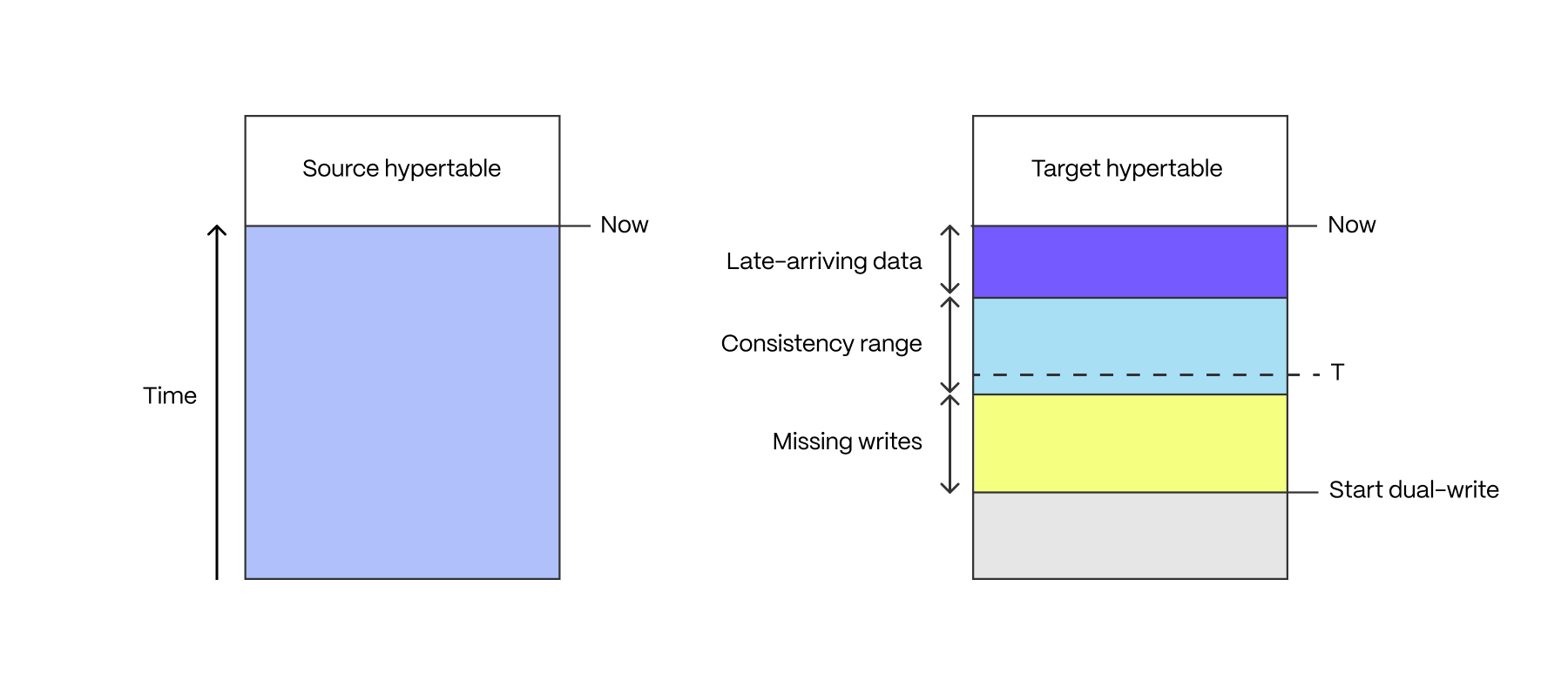
If the application is made up of multiple writers, and these writers did not all simultaneously start writing into the target hypertable, there is a period of time in which not all writes have made it into the target hypertable. This period starts when the first writer begins dual-writing, and ends when the last writer begins dual-writing.
Late-arriving data
Some applications have late-arriving data: measurements which have a timestamp in the past, but which weren't written yet (for example from devices which had intermittent connectivity issues). The window of late-arriving data is between the present moment, and the maximum lateness.
Consistency range
The consistency range is the range in which there are no missing writes, and in which all data has arrived, that is between the end of the missing writes range and the beginning of the late-arriving data range.
The length of these ranges is defined by the properties of the application, there is no one-size-fits-all way to determine what they are.
The completion point T is an arbitrarily chosen time in the consistency range.
It is the point in time to which data can safely be backfilled, ensuring that
there is no data loss.
The completion point should be expressed as the type of the time column of
the hypertables to be backfilled. For instance, if you're using a TIMESTAMPTZ
time column, then the completion point may be 2023-08-10T12:00:00.00Z. If
you're using a BIGINT column it may be 1695036737000.
If you are using a mix of types for the time columns of your hypertables, you
must determine the completion point for each type individually, and backfill
each set of hypertables with the same type independently from those of other
types.
6. Backfill data from source to target
Dump the data from your source database on a per-table basis into CSV format,
and restore those CSVs into the target database using the
timescaledb-parallel-copy tool.
6a. Determine the time range of data to be copied
Determine the window of data that to be copied from the source database to the
target. Depending on the volume of data in the source table, it may be sensible
to split the source table into multiple chunks of data to move independently.
In the following steps, this time range is called <start> and <end>.
Usually the time column is of type timestamp with time zone, so the values
of <start> and <end> must be something like 2023-08-01T00:00:00Z. If the
time column is not a timestamp with time zone then the values of <start>
and <end> must be the correct type for the column.
If you intend to copy all historic data from the source table, then the value
of <start> can be '-infinity', and the <end> value is the value of the
completion point T that you determined.
6b. Remove overlapping data in the target
The dual-write process may have already written data into the target database
in the time range that you want to move. In this case, the dual-written data
must be removed. This can be achieved with a DELETE statement, as follows:
The BETWEEN operator is inclusive of both the start and end ranges, so it is not recommended to use it.
6d. Copy the data with a streaming copy
Execute the following command, replacing <source table> and <hypertable>
with the fully qualified names of the source table and target hypertable
respectively:
The above command is not transactional. If there is a connection issue, or some other issue which causes it to stop copying, the partially copied rows must be removed from the target (using the instructions in step 6b above), and then the copy can be restarted.
6e. Enable policies that compress data in the target hypertable
In the following command, replace <hypertable> with the fully qualified table
name of the target hypertable, for example public.metrics:
7. Validate that all data is present in target database
Now that all data has been backfilled, and the application is writing data to both databases, the contents of both databases should be the same. How exactly this should best be validated is dependent on your application.
If you are reading from both databases in parallel for every production query, you could consider adding an application-level validation that both databases are returning the same data.
Another option is to compare the number of rows in the source and target tables, although this reads all data in the table which may have an impact on your production workload.
Another option is to run ANALYZE on both the source and target tables and
then look at the reltuples column of the pg_class table. This is not exact,
but doesn't require reading all rows from the table. Note: for hypertables, the
reltuples value belongs to the chunk table, so you must take the sum of
reltuples for all chunks belonging to the hypertable. If the chunk is
compressed in one database, but not the other, then this check cannot be used.
8. Validate that target database can handle production load
Now that dual-writes have been in place for a while, the target database should be holding up to production write traffic. Now would be the right time to determine if the target database can serve all production traffic (both reads and writes). How exactly this is done is application-specific and up to you to determine.
9. Switch production workload to target database
Once you've validated that all the data is present, and that the target database can handle the production workload, the final step is to switch to the target database as your primary. You may want to continue writing to the source database for a period, until you are certain that the target database is holding up to all production traffic.
===== PAGE: https://docs.tigerdata.com/migrate/dual-write-and-backfill/timescaledb-backfill/ =====
Examples:
Example 1 (bash):
export SOURCE="postgres://<user>:<password>@<source host>:<source port>/<db_name>"
export TARGET="postgres://<user>:<password>@<target host>:<target port>/<db_name>"
Example 2 (bash):
pg_dumpall -d "source" \
  -l database name \
  --quote-all-identifiers \
  --roles-only \
  --file=roles.sql
Example 3 (bash):
sed -i -E \
-e '/CREATE ROLE "postgres";/d' \
-e '/ALTER ROLE "postgres"/d' \
-e '/CREATE ROLE "tsdbadmin";/d' \
-e '/ALTER ROLE "tsdbadmin"/d' \
-e 's/(NO)*SUPERUSER//g' \
-e 's/(NO)*REPLICATION//g' \
-e 's/(NO)*BYPASSRLS//g' \
-e 's/GRANTED BY "[^"]*"//g' \
roles.sql
Example 4 (unknown):
pg_dump -d "source" \
  --format=plain \
  --quote-all-identifiers \
  --no-tablespaces \
  --no-owner \
  --no-privileges \
  --exclude-table-data= \
  --file=dump.sql
Tiger Data cookbook
URL: llms-txt#tiger-data-cookbook
Contents:
- Prerequisites
- Hypertable recipes
- Remove duplicates from an existing hypertable
- Get faster JOIN queries with Common Table Expressions
- IoT recipes
- Work with columnar IoT data
This page contains suggestions from the Tiger Data Community about how to resolve common issues. Use these code examples as guidance to work with your own data.
To follow the steps on this page:
- Create a target Tiger Cloud service with the Real-time analytics capability.
You need your connection details. This procedure also works for self-hosted TimescaleDB.
Hypertable recipes
This section contains recipes about hypertables.
Remove duplicates from an existing hypertable
Looking to remove duplicates from an existing hypertable? One method is to run a PARTITION BY query to get
ROW_NUMBER() and then the ctid of rows where row_number>1. You then delete these rows. However,
you need to check tableoid and ctid. This is because ctid is not unique and might be duplicated in
different chunks. The following code example took 17 hours to process a table with 40 million rows:
Shoutout to Mathias Ose and Christopher Piggott for this recipe.
Get faster JOIN queries with Common Table Expressions
Imagine there is a query that joins a hypertable to another table on a shared key:
If you run EXPLAIN on this query, you see that the query planner performs a NestedJoin between these two tables, which means querying the hypertable multiple times. Even if the hypertable is well indexed, if it is also large, the query will be slow. How do you force a once-only lookup? Use materialized Common Table Expressions (CTEs).
If you split the query into two parts using CTEs, you can materialize the hypertable lookup and force Postgres to perform it only once.
Now if you run EXPLAIN once again, you see that this query performs only one lookup. Depending on the size of your hypertable, this could result in a multi-hour query taking mere seconds.
Shoutout to Rowan Molony for this recipe.
This section contains recipes for IoT issues:
Work with columnar IoT data
Narrow and medium width tables are a great way to store IoT data. A lot of reasons are outlined in Designing Your Database Schema: Wide vs. Narrow Postgres Tables.
One of the key advantages of narrow tables is that the schema does not have to change when you add new sensors. Another big advantage is that each sensor can sample at different rates and times. This helps support things like hysteresis, where new values are written infrequently unless the value changes by a certain amount.
Narrow table format example
Working with narrow table data structures presents a few challenges. In the IoT world one concern is that many data analysis approaches - including machine learning as well as more traditional data analysis - require that your data is resampled and synchronized to a common time basis. Fortunately, TimescaleDB provides you with hyperfunctions and other tools to help you work with this data.
An example of a narrow table format is:
| ts | sensor_id | value |
|---|---|---|
| 2024-10-31 11:17:30.000 | 1007 | 23.45 |
Typically you would couple this with a sensor table:
| sensor_id | sensor_name | units |
|---|---|---|
| 1007 | temperature | degreesC |
| 1012 | heat_mode | on/off |
| 1013 | cooling_mode | on/off |
| 1041 | occupancy | number of people in room |
A medium table retains the generic structure but adds columns of various types so that you can use the same table to store float, int, bool, or even JSON (jsonb) data:
| ts | sensor_id | d | i | b | t | j |
|---|---|---|---|---|---|---|
| 2024-10-31 11:17:30.000 | 1007 | 23.45 | null | null | null | null |
| 2024-10-31 11:17:47.000 | 1012 | null | null | TRUE | null | null |
| 2024-10-31 11:18:01.000 | 1041 | null | 4 | null | null | null |
To remove all-null entries, use an optional constraint such as:
Get the last value of every sensor
There are several ways to get the latest value of every sensor. The following examples use the structure defined in Narrow table format example as a reference:
SELECT DISTINCT ON
If you have a list of sensors, the easy way to get the latest value of every sensor is to use
SELECT DISTINCT ON:
The common table expression (CTE) used above is not strictly necessary. However, it is an elegant way to join to the sensor list to get a sensor name in the output. If this is not something you care about, you can leave it out:
It is important to take care when down-selecting this data. In the previous examples, the time that the query would scan back was limited. However, if there any sensors that have either not reported in a long time or in the worst case, never reported, this query devolves to a full table scan. In a database with 1000+ sensors and 41 million rows, an unconstrained query takes over an hour.
An alternative to SELECT DISTINCT ON is to use a JOIN LATERAL. By selecting your entire
sensor list from the sensors table rather than pulling the IDs out using SELECT DISTINCT, JOIN LATERAL can offer
some improvements in performance:
Limiting the time range is important, especially if you have a lot of data. Best practice is to use these kinds of queries for dashboards and quick status checks. To query over a much larger time range, encapsulate the previous example into a materialized query that refreshes infrequently, perhaps once a day.
Shoutout to Christopher Piggott for this recipe.
===== PAGE: https://docs.tigerdata.com/tutorials/blockchain-query/ =====
Examples:
Example 1 (sql):
CREATE OR REPLACE FUNCTION deduplicate_chunks(ht_name TEXT, partition_columns TEXT, bot_id INT DEFAULT NULL)
    RETURNS TABLE
            (
                chunk_schema  name,
                chunk_name    name,
                deleted_count INT
            )
AS
$$
DECLARE
    chunk         RECORD;
    where_clause  TEXT := '';
    deleted_count INT;
BEGIN
    IF bot_id IS NOT NULL THEN
        where_clause := FORMAT('WHERE bot_id = %s', bot_id);
    END IF;

    FOR chunk IN
        SELECT c.chunk_schema, c.chunk_name
        FROM timescaledb_information.chunks c
        WHERE c.hypertable_name = ht_name
        LOOP
            EXECUTE FORMAT('
            WITH cte AS (
                SELECT ctid,
                       ROW_NUMBER() OVER (PARTITION BY %s ORDER BY %s ASC) AS row_num,
                       *
                FROM %I.%I
                %s
            )
            DELETE FROM %I.%I
            WHERE ctid IN (
                SELECT ctid
                FROM cte
                WHERE row_num > 1
            )
            RETURNING 1;
        ', partition_columns, partition_columns, chunk.chunk_schema, chunk.chunk_name, where_clause, chunk.chunk_schema,
                           chunk.chunk_name)
                INTO deleted_count;

            RETURN QUERY SELECT chunk.chunk_schema, chunk.chunk_name, COALESCE(deleted_count, 0);
        END LOOP;
END
$$ LANGUAGE plpgsql;


SELECT *
FROM deduplicate_chunks('nudge_events', 'bot_id, session_id, nudge_id, time', 2540);
Example 2 (sql):
SELECT timestamp,
      FROM hypertable as h
      JOIN related_table as rt
        ON rt.id = h.related_table_id
     WHERE h.timestamp BETWEEN '2024-10-10 00:00:00' AND '2024-10-17 00:00:00'
Example 3 (sql):
WITH cached_query AS materialized (
  SELECT *
    FROM hypertable
   WHERE BETWEEN '2024-10-10 00:00:00' AND '2024-10-17 00:00:00'
)
  SELECT *
    FROM cached_query as c
    JOIN related_table as rt
      ON rt.id = h.related_table_id
Example 4 (sql):
CONSTRAINT at_least_one_not_null
        CHECK ((d IS NOT NULL) OR (i IS NOT NULL) OR (b IS NOT NULL) OR (j IS NOT NULL) OR (t IS NOT NULL))
Telemetry and version checking
URL: llms-txt#telemetry-and-version-checking
Contents:
- Change what is included the telemetry report
- Version checking
- Disable telemetry
- Disabling telemetry
- Enabling telemetry
TimescaleDB collects anonymous usage data to help us better understand and assist
our users. It also helps us provide some services, such as automated version
checking. Your privacy is the most important thing to us, so we do not collect
any personally identifying information. In particular, the UUID (user ID)
fields contain no identifying information, but are randomly generated by
appropriately seeded random number generators.
This is an example of the JSON data file that is sent for a specific deployment:
If you want to see the exact JSON data file that is sent, use the
get_telemetry_report API call.
Telemetry reports are different if you are using an open source or community
version of TimescaleDB. For these versions, the report includes an edition
field, with a value of either apache_only or community.
Change what is included the telemetry report
If you want to adjust which metadata is included or excluded from the telemetry
report, you can do so in the _timescaledb_catalog.metadata table. Metadata
which has include_in_telemetry set to true, and a value of
timescaledb_telemetry.cloud, is included in the telemetry report.
Telemetry reports are sent periodically in the background. In response to the telemetry report, the database receives the most recent version of TimescaleDB available for installation. This version is recorded in your server logs, along with any applicable out-of-date version warnings. You do not have to update immediately to the newest release, but we highly recommend that you do so, to take advantage of performance improvements and bug fixes.
It is highly recommend that you leave telemetry enabled, as it provides useful features for you, and helps to keep improving Timescale. However, you can turn off telemetry if you need to for a specific database, or for an entire instance.
If you turn off telemetry, the version checking feature is also turned off.
Disabling telemetry
- Open your Postgres configuration file, and locate
the
timescaledb.telemetry_levelparameter. See the Postgres configuration file instructions for locating and opening the file. Change the parameter setting to
off:Reload the configuration file:
Alternatively, you can use this command at the
psqlprompt, as the root user:
This command disables telemetry for the specified system, database, or user.
Enabling telemetry
Open your Postgres configuration file, and locate the 'timescaledb.telemetry_level' parameter. See the Postgres configuration file instructions for locating and opening the file.
Change the parameter setting to 'off':
Reload the configuration file:
Alternatively, you can use this command at the
psqlprompt, as the root user:
This command enables telemetry for the specified system, database, or user.
===== PAGE: https://docs.tigerdata.com/self-hosted/configuration/timescaledb-tune/ =====
Examples:
Example 1 (json):
{
  "db_uuid": "860c2be4-59a3-43b5-b895-5d9e0dd44551",
  "license": {
    "edition": "community"
  },
  "os_name": "Linux",
  "relations": {
    "views": {
      "num_relations": 0
    },
    "tables": {
      "heap_size": 32768,
      "toast_size": 16384,
      "indexes_size": 98304,
      "num_relations": 4,
      "num_reltuples": 12
    },
    "hypertables": {
      "heap_size": 3522560,
      "toast_size": 23379968,
      "compression": {
        "compressed_heap_size": 3522560,
        "compressed_row_count": 4392,
        "compressed_toast_size": 20365312,
        "num_compressed_chunks": 366,
        "uncompressed_heap_size": 41951232,
        "uncompressed_row_count": 421368,
        "compressed_indexes_size": 11993088,
        "uncompressed_toast_size": 2998272,
        "uncompressed_indexes_size": 42696704,
        "num_compressed_hypertables": 1
      },
      "indexes_size": 18022400,
      "num_children": 366,
      "num_relations": 2,
      "num_reltuples": 421368
    },
    "materialized_views": {
      "heap_size": 0,
      "toast_size": 0,
      "indexes_size": 0,
      "num_relations": 0,
      "num_reltuples": 0
    },
    "partitioned_tables": {
      "heap_size": 0,
      "toast_size": 0,
      "indexes_size": 0,
      "num_children": 0,
      "num_relations": 0,
      "num_reltuples": 0
    },
    "continuous_aggregates": {
      "heap_size": 122404864,
      "toast_size": 6225920,
      "compression": {
        "compressed_heap_size": 0,
        "compressed_row_count": 0,
        "num_compressed_caggs": 0,
        "compressed_toast_size": 0,
        "num_compressed_chunks": 0,
        "uncompressed_heap_size": 0,
        "uncompressed_row_count": 0,
        "compressed_indexes_size": 0,
        "uncompressed_toast_size": 0,
        "uncompressed_indexes_size": 0
      },
      "indexes_size": 165044224,
      "num_children": 760,
      "num_relations": 24,
      "num_reltuples": 914704,
      "num_caggs_on_distributed_hypertables": 0,
      "num_caggs_using_real_time_aggregation": 24
    },
    "distributed_hypertables_data_node": {
      "heap_size": 0,
      "toast_size": 0,
      "compression": {
        "compressed_heap_size": 0,
        "compressed_row_count": 0,
        "compressed_toast_size": 0,
        "num_compressed_chunks": 0,
        "uncompressed_heap_size": 0,
        "uncompressed_row_count": 0,
        "compressed_indexes_size": 0,
        "uncompressed_toast_size": 0,
        "uncompressed_indexes_size": 0,
        "num_compressed_hypertables": 0
      },
      "indexes_size": 0,
      "num_children": 0,
      "num_relations": 0,
      "num_reltuples": 0
    },
    "distributed_hypertables_access_node": {
      "heap_size": 0,
      "toast_size": 0,
      "compression": {
        "compressed_heap_size": 0,
        "compressed_row_count": 0,
        "compressed_toast_size": 0,
        "num_compressed_chunks": 0,
        "uncompressed_heap_size": 0,
        "uncompressed_row_count": 0,
        "compressed_indexes_size": 0,
        "uncompressed_toast_size": 0,
        "uncompressed_indexes_size": 0,
        "num_compressed_hypertables": 0
      },
      "indexes_size": 0,
      "num_children": 0,
      "num_relations": 0,
      "num_reltuples": 0,
      "num_replica_chunks": 0,
      "num_replicated_distributed_hypertables": 0
    }
  },
  "os_release": "5.10.47-linuxkit",
  "os_version": "#1 SMP Sat Jul 3 21:51:47 UTC 2021",
  "data_volume": 381903727,
  "db_metadata": {},
  "build_os_name": "Linux",
  "functions_used": {
    "pg_catalog.int8(integer)": 8,
    "pg_catalog.count(pg_catalog.\"any\")": 20,
    "pg_catalog.int4eq(integer,integer)": 7,
    "pg_catalog.textcat(pg_catalog.text,pg_catalog.text)": 10,
    "pg_catalog.chareq(pg_catalog.\"char\",pg_catalog.\"char\")": 6,
  },
  "install_method": "docker",
  "installed_time": "2022-02-17T19:55:14+00",
  "os_name_pretty": "Alpine Linux v3.15",
  "last_tuned_time": "2022-02-17T19:55:14Z",
  "build_os_version": "5.11.0-1028-azure",
  "exported_db_uuid": "5730161f-0d18-42fb-a800-45df33494c21",
  "telemetry_version": 2,
  "build_architecture": "x86_64",
  "distributed_member": "none",
  "last_tuned_version": "0.12.0",
  "postgresql_version": "12.10",
  "related_extensions": {
    "postgis": false,
    "pg_prometheus": false,
    "timescale_analytics": false,
    "timescaledb_toolkit": false
  },
  "timescaledb_version": "2.6.0",
  "num_reorder_policies": 0,
  "num_retention_policies": 0,
  "num_compression_policies": 1,
  "num_user_defined_actions": 1,
  "build_architecture_bit_size": 64,
  "num_continuous_aggs_policies": 24
}
Example 2 (yaml):
timescaledb.telemetry_level=off
Example 3 (bash):
pg_ctl
Example 4 (sql):
ALTER [SYSTEM | DATABASE | USER] { *db_name* | *role_specification* } SET timescaledb.telemetry_level=off
Use Tiger Data products
URL: llms-txt#use-tiger-data-products
This section contains information about using TimescaleDB and Tiger Cloud. If you're not sure how to find the information you need, try the Find a docs page section.
===== PAGE: https://docs.tigerdata.com/use-timescale/OLD-cloud-multi-node/ =====
attach_data_node()
URL: llms-txt#attach_data_node()
Contents:
- Required arguments
- Optional arguments
- Returns
- Sample usage
Multi-node support is sunsetted.
TimescaleDB v2.13 is the last release that includes multi-node support for Postgres versions 13, 14, and 15.
Attach a data node to a hypertable. The data node should have been
previously created using add_data_node.
When a distributed hypertable is created, by default it uses all available data nodes for the hypertable, but if a data node is added after a hypertable is created, the data node is not automatically used by existing distributed hypertables.
If you want a hypertable to use a data node that was created later, you must attach the data node to the hypertable using this function.
Required arguments
| Name | Description |
|---|---|
node_name |
Name of data node to attach |
hypertable |
Name of distributed hypertable to attach node to |
Optional arguments
| Name | Description |
|---|---|
if_not_attached |
Prevents error if the data node is already attached to the hypertable. A notice is printed that the data node is attached. Defaults to FALSE. |
repartition |
Change the partitioning configuration so that all the attached data nodes are used. Defaults to TRUE. |
| Column | Description |
|---|---|
hypertable_id |
Hypertable id of the modified hypertable |
node_hypertable_id |
Hypertable id on the remote data node |
node_name |
Name of the attached data node |
Attach a data node dn3 to a distributed hypertable conditions
previously created with
create_distributed_hypertable.
You must add a data node to your distributed database first
with add_data_node first before attaching it.
===== PAGE: https://docs.tigerdata.com/api/distributed-hypertables/set_number_partitions/ =====
Examples:
Example 1 (sql):
SELECT * FROM attach_data_node('dn3','conditions');

hypertable_id | node_hypertable_id |  node_name
--------------+--------------------+-------------
            5 |                  3 | dn3

(1 row)
Export metrics to Datadog
URL: llms-txt#export-metrics-to-datadog
Contents:
- Prerequisites
- Create a data exporter
- Manage a data exporter
- Attach a data exporter to a Tiger Cloud service
- Monitor Tiger Cloud service metrics
- Edit a data exporter
- Delete a data exporter
- Reference
You can export telemetry data from your Tiger Cloud services with the time-series and analytics capability enabled to Datadog. The available metrics include CPU usage, RAM usage, and storage. This integration is available for Scale or Enterprise pricing plans.
This page shows you how to create a Datadog exporter in Tiger Cloud Console, and manage the lifecycle of data exporters.
To follow the steps on this page:
- Create a target Tiger Cloud service with real-time analytics enabled.
Create a data exporter
Tiger Cloud data exporters send telemetry data from a Tiger Cloud service to third-party monitoring tools. You create an exporter on the project level, in the same AWS region as your service:
- In Tiger Cloud Console, open Exporters
- Click
New exporter - Select
MetricsforData typeandDatadogfor provider
- Choose your AWS region and provide the API key
The AWS region must be the same for your Tiger Cloud exporter and the Datadog provider.
- Set
Siteto your Datadog region, then clickCreate exporter
Manage a data exporter
This section shows you how to attach, monitor, edit, and delete a data exporter.
Attach a data exporter to a Tiger Cloud service
To send telemetry data to an external monitoring tool, you attach a data exporter to your Tiger Cloud service. You can attach only one exporter to a service.
To attach an exporter:
- In Tiger Cloud Console, choose the service
- Click
Operations>Exporters - Select the exporter, then click
Attach exporter - If you are attaching a first
Logsdata type exporter, restart the service
Monitor Tiger Cloud service metrics
You can now monitor your service metrics. Use the following metrics to check the service is running correctly:
timescale.cloud.system.cpu.usage.millicorestimescale.cloud.system.cpu.total.millicorestimescale.cloud.system.memory.usage.bytestimescale.cloud.system.memory.total.bytestimescale.cloud.system.disk.usage.bytestimescale.cloud.system.disk.total.bytes
Additionally, use the following tags to filter your results.
|Tag|Example variable| Description |
|-|-|----------------------------|
|host|us-east-1.timescale.cloud| |
|project-id|| |
|service-id|| |
|region|us-east-1| AWS region |
|role|replica or primary| For service with replicas |
|node-id|| For multi-node services |
Edit a data exporter
To update a data exporter:
- In Tiger Cloud Console, open Exporters
- Next to the exporter you want to edit, click the menu >
Edit - Edit the exporter fields and save your changes
You cannot change fields such as the provider or the AWS region.
Delete a data exporter
To remove a data exporter that you no longer need:
Disconnect the data exporter from your Tiger Cloud services
In Tiger Cloud Console, choose the service.
- Click
Operations>Exporters. - Click the trash can icon.
- Repeat for every service attached to the exporter you want to remove.
- Click
The data exporter is now unattached from all services. However, it still exists in your project.
Delete the exporter on the project level
In Tiger Cloud Console, open Exporters
- Next to the exporter you want to edit, click menu >
Delete - Confirm that you want to delete the data exporter.
- Next to the exporter you want to edit, click menu >
When you create the IAM OIDC provider, the URL must match the region you create the exporter in. It must be one of the following:
| Region | Zone | Location | URL |
|---|---|---|---|
ap-southeast-1 |
Asia Pacific | Singapore | irsa-oidc-discovery-prod-ap-southeast-1.s3.ap-southeast-1.amazonaws.com |
ap-southeast-2 |
Asia Pacific | Sydney | irsa-oidc-discovery-prod-ap-southeast-2.s3.ap-southeast-2.amazonaws.com |
ap-northeast-1 |
Asia Pacific | Tokyo | irsa-oidc-discovery-prod-ap-northeast-1.s3.ap-northeast-1.amazonaws.com |
ca-central-1 |
Canada | Central | irsa-oidc-discovery-prod-ca-central-1.s3.ca-central-1.amazonaws.com |
eu-central-1 |
Europe | Frankfurt | irsa-oidc-discovery-prod-eu-central-1.s3.eu-central-1.amazonaws.com |
eu-west-1 |
Europe | Ireland | irsa-oidc-discovery-prod-eu-west-1.s3.eu-west-1.amazonaws.com |
eu-west-2 |
Europe | London | irsa-oidc-discovery-prod-eu-west-2.s3.eu-west-2.amazonaws.com |
sa-east-1 |
South America | São Paulo | irsa-oidc-discovery-prod-sa-east-1.s3.sa-east-1.amazonaws.com |
us-east-1 |
United States | North Virginia | irsa-oidc-discovery-prod.s3.us-east-1.amazonaws.com |
us-east-2 |
United States | Ohio | irsa-oidc-discovery-prod-us-east-2.s3.us-east-2.amazonaws.com |
us-west-2 |
United States | Oregon | irsa-oidc-discovery-prod-us-west-2.s3.us-west-2.amazonaws.com |
===== PAGE: https://docs.tigerdata.com/use-timescale/metrics-logging/metrics-to-prometheus/ =====
month_normalize()
URL: llms-txt#month_normalize()
Contents:
- Samples
- Required arguments
Translate a metric to a standard month. A standard month is calculated as the exact number of days in a year divided by the number of months in a year, so 365.25/12 = 30.4375. month_normalize() divides a metric by the number of days in the corresponding calendar month and multiplies it by 30.4375.
This enables you to compare metrics for different months and decide which one performed better, objectively. For example, in the following table that summarizes the number of sales for three months, January has the highest number of total sales:
| Month | Sales |
|---|---|
| Jan | 3000 |
| Feb | 2900 |
| Mar | 2900 |
When you normalize the sales metrics, you get the following result, showing that February in fact performed better:
| Month | Normalized sales |
|---|---|
| Jan | 2945.56 |
| Feb | 3152.46 |
| Mar | 2847.38 |
Get the normalized value for a metric of 1000, and a reference date of January 1, 2021:
The output looks like this:
Required arguments
|Name|Type|Description|
|-|-|-|
|metric|float8||
|reference_date|TIMESTAMPTZ|Timestamp to normalize the metric with|
|days|float8|Optional, defaults to 365.25/12 if none provided|
===== PAGE: https://docs.tigerdata.com/api/gauge_agg/ =====
Examples:
Example 1 (sql):
SELECT month_normalize(1000,'2021-01-01 00:00:00+03'::timestamptz)
Example 2 (sql):
month_normalize
----------------------
981.8548387096774
"DevOps as code with Tiger"
URL: llms-txt#"devops-as-code-with-tiger"
Contents:
- Prerequisites
- Install and configure Tiger CLI
- Create your first Tiger Cloud service
- Commands
- Global flags
- Configuration parameters
- Prerequisites
- Configure secure authentication
- Create your first Tiger Cloud service
- Security best practices
Tiger Data supplies a clean, programmatic control layer for Tiger Cloud. This includes RESTful APIs and CLI commands that enable humans, machines, and AI agents easily provision, configure, and manage Tiger Cloud services programmatically.
Tiger CLI is a command-line interface that you use to manage Tiger Cloud resources including VPCs, services, read replicas, and related infrastructure. Tiger CLI calls Tiger REST API to communicate with Tiger Cloud.
This page shows you how to install and set up secure authentication for Tiger CLI, then create your first service.
To follow the steps on this page:
- Create a target Tiger Data account.
Install and configure Tiger CLI
- Install Tiger CLI
Use the terminal to install the CLI:
Set up API credentials
Log Tiger CLI into your Tiger Data account:
Tiger CLI opens Console in your browser. Log in, then click Authorize.
You can have a maximum of 10 active client credentials. If you get an error, open credentials
and delete an unused credential.
- Select a Tiger Cloud project:
If only one project is associated with your account, this step is not shown.
Where possible, Tiger CLI stores your authentication information in the system keychain/credential manager.
  If that fails, the credentials are stored in `~/.config/tiger/credentials` with restricted file permissions (600).
  By default, Tiger CLI stores your configuration in `~/.config/tiger/config.yaml`.
- Test your authenticated connection to Tiger Cloud by listing services
This call returns something like:
- No services:

- One or more services:
Create your first Tiger Cloud service
Create a new Tiger Cloud service using Tiger CLI:
- Submit a service creation request
By default, Tiger CLI creates a service for you that matches your pricing plan:
- Free plan: shared CPU/memory and the
time-seriesandaicapabilities - Paid plan: 0.5 CPU and 2 GB memory with the
time-seriescapability
Tiger Cloud creates a Development environment for you. That is, no delete protection, high-availability, spooling or read replication. You see something like:
This service is set as default by the CLI.
- Check the CLI configuration
You see something like:
And that is it, you are ready to use Tiger CLI to manage your services in Tiger Cloud.
You can use the following commands with Tiger CLI. For more information on each command, use the -h flag. For example:
tiger auth login -h
| Command | Subcommand | Description |
|---|---|---|
| auth | Manage authentication and credentials for your Tiger Data account | |
| login | Create an authenticated connection to your Tiger Data account | |
| logout | Remove the credentials used to create authenticated connections to Tiger Cloud | |
| status | Show your current authentication status and project ID | |
| version | Show information about the currently installed version of Tiger CLI | |
| config | Manage your Tiger CLI configuration | |
| show | Show the current configuration | |
set <key> <value> |
Set a specific value in your configuration. For example, tiger config set debug true |
|
unset <key> |
Clear the value of a configuration parameter. For example, tiger config unset debug |
|
| reset | Reset the configuration to the defaults. This also logs you out from the current Tiger Cloud project | |
| service | Manage the Tiger Cloud services in this project | |
| create | Create a new service in this project. Possible flags are:
Possible cpu-memory combinations are:
|
|
delete <service-id> |
Delete a service from this project. This operation is irreversible and requires confirmation by typing the service ID | |
fork <service-id> |
Fork an existing service to create a new independent copy. Key features are:
|
|
get <service-id> (aliases: describe, show) |
Show detailed information about a specific service in this project | |
| list | List all the services in this project | |
update-password <service-id> |
Update the master password for a service | |
| db | Database operations and management | |
connect <service-id> |
Connect to a service | |
connection-string <service-id> |
Retrieve the connection string for a service | |
save-password <service-id> |
Save the password for a service | |
test-connection <service-id> |
Test the connectivity to a service | |
| mcp | Manage the Tiger Model Context Protocol Server for AI Assistant integration | |
install [client] |
Install and configure Tiger Model Context Protocol Server for a specific client (claude-code, cursor, windsurf, or other). If no client is specified, you'll be prompted to select one interactively |
|
| start | Start the Tiger Model Context Protocol Server. This is the same as tiger mcp start stdio |
|
| start stdio | Start the Tiger Model Context Protocol Server with stdio transport (default) | |
| start http | Start the Tiger Model Context Protocol Server with HTTP transport. Includes flags: --port (default: 8080), --host (default: localhost) |
You can use the following global flags with Tiger CLI:
| Flag | Default | Description |
|---|---|---|
--analytics |
true |
Set to false to disable usage analytics |
--color |
true |
Set to false to disable colored output |
--config-dir string |
.config/tiger |
Set the directory that holds config.yaml |
--debug |
No debugging | Enable debug logging |
--help |
- | Print help about the current command. For example, tiger service --help |
--password-storage string |
keyring | Set the password storage method. Options are keyring, pgpass, or none |
--service-id string |
- | Set the Tiger Cloud service to manage |
--skip-update-check |
- | Do not check if a new version of Tiger CLI is available |
Configuration parameters
By default, Tiger CLI stores your configuration in ~/.config/tiger/config.yaml. The name of these
variables matches the flags you use to update them. However, you can override them using the following
environmental variables:
Configuration parameters
TIGER_CONFIG_DIR: path to configuration directory (default:~/.config/tiger)TIGER_API_URL: Tiger REST API base endpoint (default: https://console.cloud.timescale.com/public/api/v1)TIGER_CONSOLE_URL: URL to Tiger Cloud Console (default: https://console.cloud.timescale.com)TIGER_GATEWAY_URL: URL to the Tiger Cloud Console gateway (default: https://console.cloud.timescale.com/api)TIGER_DOCS_MCP: enable/disable docs MCP proxy (default:true)TIGER_DOCS_MCP_URL: URL to the Tiger MCP Server for Tiger Data docs (default: https://mcp.tigerdata.com/docs)TIGER_SERVICE_ID: ID for the service updated when you call CLI commandsTIGER_ANALYTICS: enable or disable analytics (default:true)TIGER_PASSWORD_STORAGE: password storage method (keyring, pgpass, or none)TIGER_DEBUG: enable/disable debug logging (default:false)TIGER_COLOR: set tofalseto disable colored output (default:true)
Authentication parameters
To authenticate without using the interactive login, either:
Set the following parameters with your client credentials, then
login:Add your client credentials to the
logincommand:
Tiger REST API is a comprehensive RESTful API you use to manage Tiger Cloud resources including VPCs, services, and read replicas.
This page shows you how to set up secure authentication for the Tiger REST API and create your first service.
To follow the steps on this page:
Create a target Tiger Data account.
Install curl.
Configure secure authentication
Tiger REST API uses HTTP Basic Authentication with access keys and secret keys. All API requests must include proper authentication headers.
Set up API credentials
In Tiger Cloud Console copy your project ID and store it securely using an environment variable:
In Tiger Cloud Console create your client credentials and store them securely using environment variables:
Configure the API endpoint
Set the base URL in your environment:
- Test your authenticated connection to Tiger REST API by listing the services in the current Tiger Cloud project
This call returns something like:
- No services:

- One or more services:
Create your first Tiger Cloud service
Create a new service using the Tiger REST API:
- Create a service using the POST endpoint
Tiger Cloud creates a Development environment for you. That is, no delete protection, high-availability, spooling or read replication. You see something like:
Save
service_idfrom the response to a variable:Check the configuration for the service
You see something like:
And that is it, you are ready to use the Tiger REST API to manage your services in Tiger Cloud.
Security best practices
Follow these security guidelines when working with the Tiger REST API:
Credential management
- Store API credentials as environment variables, not in code
- Use credential rotation policies for production environments
- Never commit credentials to version control systems
Network security
- Use HTTPS endpoints exclusively for API communication
- Implement proper certificate validation in your HTTP clients
Data protection
- Use secure storage for service connection strings and passwords
- Implement proper backup and recovery procedures for created services
- Follow data residency requirements for your region
===== PAGE: https://docs.tigerdata.com/getting-started/run-queries-from-console/ =====
Examples:
Example 1 (shell):
curl -s https://packagecloud.io/install/repositories/timescale/tiger-cli/script.deb.sh | sudo os=any dist=any bash
    sudo apt-get install tiger-cli
Example 2 (shell):
curl -s https://packagecloud.io/install/repositories/timescale/tiger-cli/script.deb.sh | sudo os=any dist=any bash
    sudo apt-get install tiger-cli
Example 3 (shell):
curl -s https://packagecloud.io/install/repositories/timescale/tiger-cli/script.rpm.sh | sudo os=rpm_any dist=rpm_any bash
    sudo yum install tiger-cli
Example 4 (shell):
curl -s https://packagecloud.io/install/repositories/timescale/tiger-cli/script.rpm.sh | sudo os=rpm_any dist=rpm_any bash
    sudo yum install tiger-cli
Analyse geospatial data with postgis
URL: llms-txt#analyse-geospatial-data-with-postgis
Contents:
- Use the
postgisextension to analyze geospatial data- Using the
postgisextension to analyze geospatial data
- Using the
The postgis Postgres extension provides storing, indexing, and querying
geographic data. It helps in spatial data analysis, the study of patterns,
anomalies, and theories within spatial or geographical data.
For more information about these functions and the options available, see the PostGIS documentation.
Use the postgis extension to analyze geospatial data
The postgis Postgres extension allows you to conduct complex analyses of
your geospatial time-series data. Tiger Data understands that you have a
multitude of data challenges and helps you discover when things happened, and
where they occurred. In this example you can query when the covid cases were
reported, where they were reported, and how many were reported around a
particular location.
Using the postgis extension to analyze geospatial data
Install the
postgisextension:You can confirm if the extension is installed using the
\dxcommand. The extensions that are installed are listed:Create a hypertable named
covid_location, where,locationis aGEOGRAPHYtype column that stores GPS coordinates using the 4326/WGS84 coordinate system, andtimerecords the time the GPS coordinate was logged for a specificstate_id. This hypertable is partitioned on thetimecolumn:
If you are self-hosting TimescaleDB v2.19.3 and below, create a Postgres relational table, then convert it using create_hypertable. You then enable hypercore with a call to ALTER TABLE.
To support efficient queries, create an index on the
state_idcolumn:Insert some randomly generated values in the
covid_locationtable. The longitude and latitude coordinates of New Jersey are (-73.935242 40.730610), and New York are (-74.871826 39.833851):To fetch all cases of a specific state during a specific period, use:
The data you get back looks a bit like this:
- To fetch the latest logged cases of all states using the Tiger Data SkipScan feature, replace
<Interval_Time>with the number of days between the day you are running the query and the day the last report was logged in the table, in this case 30, June, 2023:
The ST_AsText(location) function converts the binary geospatial data into
human-readable format. The data you get back looks a bit like this:
- To fetch all cases and states that were within 10000 meters of Manhattan at any time:
The data you get back looks a bit like this:
===== PAGE: https://docs.tigerdata.com/use-timescale/extensions/pg-textsearch/ =====
Examples:
Example 1 (sql):
CREATE EXTENSION postgis;
Example 2 (sql):
List of installed extensions
    Name         | Version |   Schema   |                                      Description
    ---------------------+---------+------------+---------------------------------------------------------------------------------------
     pg_stat_statements  | 1.10    | public     | track planning and execution statistics of all SQL statements executed
     pgcrypto            | 1.3     | public     | cryptographic functions
     plpgsql             | 1.0     | pg_catalog | PL/pgSQL procedural language
     postgis             | 3.3.3   | public     | PostGIS geometry and geography spatial types and functions
     timescaledb         | 2.11.0  | public     | Enables scalable inserts and complex queries for time-series data (Community Edition)
     timescaledb_toolkit | 1.16.0  | public     | Library of analytical hyperfunctions,     time-series pipelining, and other SQL utilities
    (6 rows)
Example 3 (sql):
CREATE TABLE covid_location (
      time TIMESTAMPTZ NOT NULL,
      state_id INT NOT NULL,
      location GEOGRAPHY(POINT, 4326),
      cases INT NOT NULL,
      deaths INT NOT NULL
    ) WITH (
      tsdb.hypertable,
      tsdb.partition_column='time'
    );
Example 4 (sql):
CREATE INDEX ON covid_location (state_id, time DESC);
High availability and read replication
URL: llms-txt#high-availability-and-read-replication
Contents:
- Rapid recovery
In Tiger Cloud, replicas are copies of the primary data instance in a Tiger Cloud service. If your primary becomes unavailable, Tiger Cloud automatically fails over to your HA replica.
The replication strategies offered by Tiger Cloud are:
High Availability(HA) replicas: significantly reduce the risk of downtime and data loss due to system failure, and enable services to avoid downtime during routine maintenance.
Read replicas: safely scale a service to power your read-intensive
apps and business intelligence tooling and remove the load from the primary data instance.
For MST, see Failover in Managed Service for TimescaleDB. For self-hosted TimescaleDB, see Replication and high availability.
By default, all services have rapid recovery enabled.
Because compute and storage are handled separately in Tiger Cloud, services recover quickly from compute failures, but usually need a full recovery from backup for storage failures.
Compute failure: the most common cause of database failure. Compute failures can be caused by hardware failing, or through things like unoptimized queries, causing increased load that maxes out the CPU usage. In these cases, data on disk is unaffected and only the compute and memory needs replacing. Tiger Cloud recovery immediately provisions new compute infrastructure for the service and mounts the existing storage to the new node. Any WAL that was in memory then replays. This process typically only takes thirty seconds. However, depending on the amount of WAL that needs replaying this may take up to twenty minutes. Even in the worst-case scenario, Tiger Cloud recovery is an order of magnitude faster than a standard recovery from backup.
Storage failure: in the rare occurrence of disk failure, Tiger Cloud automatically performs a full recovery from backup.
If CPU usage for a service runs high for long periods of time, issues such as WAL archiving getting queued behind other processes can occur. This can cause a failure and could result in a larger data loss. To avoid data loss, services are monitored for this kind of scenario.
===== PAGE: https://docs.tigerdata.com/use-timescale/upgrades/ =====
Connect to a Tiger Cloud service with psql
URL: llms-txt#connect-to-a-tiger-cloud-service-with-psql
Contents:
- Prerequisites
- Check for an existing installation
- Install psql
- Connect to your service
- Useful psql commands
- Save query results to a file
- Run long queries
- Edit queries in a text editor
psql is a terminal-based frontend to Postgres that enables you to type in queries interactively, issue them to Postgres, and see the query results.
This page shows you how to use the psql command line tool to interact with your Tiger Cloud service.
To follow the steps on this page:
- Create a target Tiger Cloud service with the Real-time analytics capability.
You need your connection details. This procedure also works for self-hosted TimescaleDB.
Check for an existing installation
On many operating systems, psql is installed by default. To use the functionality described in this page, best practice is to use the latest version of psql. To check the version running on your system:
If you already have the latest version of psql installed, proceed to the Connect to your service section.
If there is no existing installation, take the following steps to install psql:
Install using Homebrew. libpqxx is the official C++ client API for Postgres.
- Install Homebrew, if you don't already have it:
For more information about Homebrew, including installation instructions, see the Homebrew documentation.
Make sure your Homebrew repository is up to date:
Update your path to include the
psqltool:
On Intel chips, the symbolic link is added to /usr/local/bin. On Apple Silicon, the symbolic link is added to /opt/homebrew/bin.
Install using MacPorts. libpqxx is the official C++ client API for Postgres.
Install MacPorts by downloading and running the package installer.
Make sure MacPorts is up to date:
Install the latest version of
libpqxx:View the files that were installed by
libpqxx:
Install psql on Debian and Ubuntu with the apt package manager.
Make sure your
aptrepository is up to date:Install the
postgresql-clientpackage:
psql is installed by default when you install Postgres. This procedure uses the interactive installer provided by Postgres and EnterpriseDB.
Download and run the Postgres installer from www.enterprisedb.com.
In the
Select Componentsdialog, checkCommand Line Tools, along with any other components you want to install, and clickNext.Complete the installation wizard to install the package.
Connect to your service
To use psql to connect to your service, you need the connection details. See Find your connection details.
Connect to your service with either:
- The parameter flags:
You are prompted to provide the password.
- The service URL with the password already included and a stricter SSL mode enabled:
Useful psql commands
When you start using psql, these are the commands you are likely to use most frequently:
|Command|Description|
|-|-|
|\c <DB_NAME>|Connect to a new database|
|\d|Show the details of a table|
|\df|List functions in the current database|
|\df+|List all functions with more details|
|\di|List all indexes from all tables|
|\dn|List all schemas in the current database|
|\dt|List available tables|
|\du|List Postgres database roles|
|\dv|List views in current schema|
|\dv+|List all views with more details|
|\dx|Show all installed extensions|
|ef <FUNCTION_NAME>|Edit a function|
|\h|Show help on syntax of SQL commands|
|\l|List available databases|
|\password <USERNAME>|Change the password for the user|
|\q|Quit psql|
|\set|Show system variables list|
|\timing|Show how long a query took to execute|
|\x|Show expanded query results|
|\?|List all psql slash commands|
For more on psql commands, see the Tiger Data psql cheat sheet and psql documentation.
Save query results to a file
When you run queries in psql, the results are shown in the terminal by default.
If you are running queries that have a lot of results, you might like to save
the results into a comma-separated .csv file instead. You can do this using
the COPY command. For example:
This command sends the results of the query to a new file called output.csv in
the /tmp/ directory. You can open the file using any spreadsheet program.
To run multi-line queries in psql, use the EOF delimiter. For example:
Edit queries in a text editor
Sometimes, queries can get very long, and you might make a mistake when you try
typing it the first time around. If you have made a mistake in a long query,
instead of retyping it, you can use a built-in text editor, which is based on
Vim. Launch the query editor with the \e command. Your previous query is
loaded into the editor. When you have made your changes, press Esc, then type
:+w+q to save the changes, and return to the command prompt. Access the
edited query by pressing ↑, and press Enter to run it.
===== PAGE: https://docs.tigerdata.com/integrations/google-cloud/ =====
Examples:
Example 1 (bash):
psql --version
Example 2 (powershell):
wmic
/output:C:\list.txt product get name, version
Example 3 (bash):
/bin/bash -c "$(curl -fsSL https://raw.githubusercontent.com/Homebrew/install/HEAD/install.sh)"
Example 4 (bash):
brew doctor
    brew update
Tiger Data glossary of terms
URL: llms-txt#tiger-data-glossary-of-terms
Contents:
- A
- B
- C
- D
- E
- F
- G
- H
- I
- J
This glossary defines technical terms, concepts, and terminology used in Tiger Data documentation, database industry, and real-time analytics.
ACL (Access Control List): a table that tells a computer operating system which access rights each user has to a particular system object, such as a file directory or individual file.
ACID: a set of properties (atomicity, consistency, isolation, durability) that guarantee database transactions are processed reliably.
ACID compliance: a set of database properties—Atomicity, Consistency, Isolation, Durability—ensuring reliable and consistent transactions. Inherited from Postgres.
Adaptive query optimization: dynamic query plan adjustment based on actual execution statistics and data distribution patterns, improving performance over time.
Aggregate (Continuous Aggregate): a materialized, precomputed summary of query results over time-series data, providing faster access to analytics.
Alerting: the process of automatically notifying administrators when predefined conditions or thresholds are met in system monitoring.
Analytics database: a system optimized for large-scale analytical queries, supporting complex aggregations, time-based queries, and data exploration.
Anomaly detection: the identification of abnormal patterns or outliers within time-series datasets, common in observability, IoT, and finance.
Append-only storage: a storage pattern where data is only added, never modified in place. Ideal for time-series workloads and audit trails.
Archival: the process of moving old or infrequently accessed data to long-term, cost-effective storage solutions.
Auto-partitioning: automatic division of a hypertable into chunks based on partitioning dimensions to optimize scalability and performance.
Availability zone: an isolated location within a cloud region that provides redundant power, networking, and connectivity.
B-tree: a self-balancing tree data structure that maintains sorted data and allows searches, sequential access, insertions, and deletions in logarithmic time.
Background job: an automated task that runs in the background without user intervention, typically for maintenance operations like compression or data retention.
Background worker: a Postgres process that runs background tasks independently of client sessions.
Batch processing: handling data in grouped batches rather than as individual real-time events, often used for historical data processing.
Backfill: the process of filling in historical data that was missing or needs to be recalculated, often used during migrations or after schema changes.
Backup: a copy of data stored separately from the original data to protect against data loss, corruption, or system failure.
Bloom filter: a probabilistic data structure that tests set membership with possible false positives but no false negatives. TimescaleDB uses blocked bloom filters to speed up point lookups by eliminating chunks that don't contain queried values.
Buffer pool: memory area where frequently accessed data pages are cached to reduce disk I/O operations.
BRIN (Block Range Index): a Postgres index type that stores summaries about ranges of table blocks, useful for large tables with naturally ordered data.
Bytea: a Postgres data type for storing binary data as a sequence of bytes.
Cache hit ratio: the percentage of data requests served from memory cache rather than disk, indicating query performance efficiency.
Cardinality: the number of unique values in a dataset or database column.
Check constraint: a database constraint that limits the values that can be stored in a column by checking them against a specified condition.
Chunk: a horizontal partition of a hypertable that contains data for a specific time interval and space partition. See chunks.
Chunk interval: the time period covered by each chunk in a hypertable, which affects query performance and storage efficiency.
Chunk skipping: a query optimization technique that skips chunks not relevant to the query's time range, dramatically improving performance.
CIDR (Classless Inter-Domain Routing): a method for allocating IP addresses and routing IP packets.
Client credentials: authentication tokens used by applications to access services programmatically without user interaction.
Close: in financial data, the closing price of a security at the end of a trading period.
Cloud: computing services delivered over the internet, including servers, storage, databases, networking, software, analytics, and intelligence.
Cloud deployment: the use of public, private, or hybrid cloud infrastructure to host TimescaleDB, enabling elastic scalability and managed services.
Cloud-native: an approach to building applications that leverage cloud infrastructure, scalability, and services like Kubernetes.
Cold storage: a tier of data storage for infrequently accessed data that offers lower costs but higher access times.
Columnar: a data storage format that stores data column by column rather than row by row, optimizing for analytical queries.
Columnstore: TimescaleDB's columnar storage engine optimized for analytical workloads and compression.
Compression: the process of reducing data size by encoding information using fewer bits, improving storage efficiency and query performance. See compression.
Connection pooling: a technique for managing multiple database connections efficiently, reducing overhead for high-concurrency environments.
Consensus algorithm: protocols ensuring distributed systems agree on data state, critical for multi-node database deployments.
Compression policy: an automated rule that compresses hypertable chunks after they reach a specified age or size threshold.
Compression ratio: the ratio between the original data size and the compressed data size, indicating compression effectiveness.
Constraint: a rule enforced by the database to maintain data integrity and consistency.
Continuous aggregate: a materialized view that incrementally updates with new data, providing fast access to pre-computed aggregations. See continuous aggregates.
Counter aggregation: aggregating monotonic counter data, handling counter resets and extrapolation.
Cron: a time-based job scheduler in Unix-like computer operating systems.
Cross-region backup: a backup stored in a different geographical region from the primary data for disaster recovery.
Data lake: a centralized repository storing structured and unstructured data at scale, often integrated with time-series databases for analytics.
Data lineage: the tracking of data flow from source to destination, including transformations, essential for compliance and debugging.
Data pipeline: automated workflows for moving, transforming, and loading data between systems, often using tools like Apache Kafka or Apache Airflow.
Data migration: the process of moving data from one system, storage type, or format to another. See the migration guides.
Data retention: the practice of storing data for a specified period before deletion, often governed by compliance requirements or storage optimization. See data retention.
Data rollup: the process of summarizing detailed historical data into higher-level aggregates, balancing storage needs with query efficiency.
Data skew: uneven distribution of data across partitions or nodes, potentially causing performance bottlenecks.
Data tiering: a storage management strategy that places data on different storage tiers based on access patterns and performance requirements.
Data type: a classification that specifies which type of value a variable can hold, such as integer, string, or boolean.
Decompress: the process of restoring compressed data to its original, uncompressed state.
Delta: the difference between two values, commonly used in counter aggregations to calculate the change over time.
DHCP (Dynamic Host Configuration Protocol): a network management protocol used to automatically assign IP addresses and other network configuration parameters.
Dimension: a partitioning key in a hypertable that determines how data is distributed across chunks.
Disaster recovery: the process and procedures for recovering and protecting a business's IT infrastructure in the event of a disaster.
Double precision: a floating-point data type that provides more precision than the standard float type.
Downsample: the process of reducing the temporal resolution of time-series data by aggregating data points over longer time intervals.
Downtime: the period during which a system, service, or application is unavailable or not operational.
Dual-write and backfill: a migration approach where new data is written to both the source and target databases simultaneously, followed by backfilling historical data to ensure completeness.
Dual-write: a migration pattern where applications write data to both the source and target systems simultaneously.
Edge computing: processing data at or near the data source such as IoT devices, rather than solely in centralized servers, reducing latency.
Edge gateway: a device that aggregates data from sensors and performs preprocessing before sending data to cloud or centralized databases.
ELT (Extract, Load, Transform): a data pipeline pattern where raw data is loaded first, then transformed within the target system, leveraging database processing power.
Embedding: a vector representation of data such as text or images, that captures semantic meaning in a high-dimensional space.
Error rate: the percentage of requests or operations that result in errors over a given time period.
Euclidean distance: a measure of the straight-line distance between two points in multidimensional space.
Exactly-once: a message is delivered and processed precisely once. There is no loss and no duplicates.
Explain: a Postgres command that shows the execution plan for a query, useful for performance analysis.
Event sourcing: an architectural pattern storing all changes as a sequence of events, naturally fitting time-series database capabilities.
Event-driven architecture: a design pattern where components react to events such as sensor readings, requiring real-time data pipelines and storage.
Extension: a Postgres add-on that extends the database's functionality beyond the core features.
Fact table: the central table in a star schema containing quantitative measures, often time-series data with foreign keys to dimension tables.
Failover: the automatic switching to a backup system, server, or network upon the failure or abnormal termination of the primary system.
Financial time-series: high-volume, timestamped datasets like stock market feeds or trade logs, requiring low-latency, scalable databases like TimescaleDB.
Foreign key: a database constraint that establishes a link between data in two tables by referencing the primary key of another table.
Fork: a copy of a database service that shares the same data but can diverge independently through separate writes.
Free service: a free instance of Tiger Cloud with limited resources. You can create up to two free services under any pricing plan. When a free service reaches the resource limit, it converts to the read-only state. You can convert a free service to a standard one under paid pricing plans.
FTP (File Transfer Protocol): a standard network protocol used for transferring files between a client and server on a computer network.
Gap filling: a technique for handling missing data points in time-series by interpolation or other methods, often implemented with hyperfunctions.
GIN (Generalized Inverted Index): a Postgres index type designed for indexing composite values and supporting fast searches.
GiST (Generalized Search Tree): a Postgres index type that provides a framework for implementing custom index types.
GP-LTTB: an advanced downsampling algorithm that extends Largest-Triangle-Three-Buckets with Gaussian Process modeling.
GUC (Grand Unified Configuration): Postgres's configuration parameter system that controls various aspects of database behavior.
GUID (Globally Unique Identifier): a unique identifier used in software applications, typically represented as a 128-bit value.
Hash: an index type that provides constant-time lookups for equality comparisons but doesn't support range queries.
High-cardinality: refers to datasets with a large number of unique values, which can strain storage and indexing in time-series applications.
Histogram bucket: a predefined range of metrics organized for statistical analysis, commonly visualized in monitoring tools.
Hot standby: a replication configuration where the standby server can serve read-only queries while staying synchronized with the primary.
High availability: a system design that ensures an agreed level of operational performance, usually uptime, for a higher than normal period.
High: in financial data, the highest price of a security during a specific time period.
Histogram: a graphical representation of the distribution of numerical data, showing the frequency of data points in different ranges.
Historical data: previously recorded data that provides context and trends for analysis and decision-making.
HNSW (Hierarchical Navigable Small World): a graph-based algorithm for approximate nearest neighbor search in high-dimensional spaces.
Hot storage: a tier of data storage for frequently accessed data that provides the fastest access times but at higher cost.
Hypercore: TimescaleDB's hybrid storage engine that seamlessly combines row and column storage for optimal performance. See Hypercore.
Hyperfunction: an SQL function in TimescaleDB designed for time-series analysis, statistics, and specialized computations. See Hyperfunctions.
HyperLogLog: a probabilistic data structure used for estimating the cardinality of large datasets with minimal memory usage.
Hypershift: a migration tool and strategy for moving data to TimescaleDB with minimal downtime.
Hypertable: TimescaleDB's core abstraction that automatically partitions time-series data for scalability. See Hypertables.
Idempotency: the property where repeated operations produce the same result, crucial for reliable data ingestion and processing.
Ingest rate: the speed at which new data is written to the system, measured in rows per second. Critical for IoT and observability.
Inner product: a mathematical operation that combines two vectors to produce a scalar, used in similarity calculations.
Insert: an SQL operation that adds new rows of data to a database table.
Integer: a data type that represents whole numbers without decimal points.
Intercept: a statistical measure representing the y-intercept in linear regression analysis.
Internet gateway: an AWS VPC component that enables communication between instances in a VPC and the internet.
Interpolation: a method of estimating unknown values that fall between known data points.
IP allow list: a security feature that restricts access to specified IP addresses or ranges.
Isolation level: a database transaction property that defines the degree to which operations in one transaction are isolated from those in other concurrent transactions.
Job: an automated task scheduled to run at specific intervals or triggered by certain conditions.
Job execution: the process of running scheduled background tasks or automated procedures.
JIT (Just-In-Time) compilation: Postgres feature that compiles frequently executed query parts for improved performance, available in TimescaleDB.
Job history: a record of past job executions, including their status, duration, and any errors encountered.
JSON (JavaScript Object Notation): a lightweight data interchange format that is easy for humans to read and write.
JWT (JSON Web Token): a compact, URL-safe means of representing claims to be transferred between two parties.
Latency: the time delay between a request being made and the response being received.
Lifecycle policy: a set of rules that automatically manage data throughout its lifecycle, including retention and deletion.
Live migration: a data migration technique that moves data with minimal or zero downtime.
Load balancer: a service distributing traffic across servers or database nodes to optimize resource use and avoid single points of failure.
Log-Structured Merge (LSM) Tree: a data structure optimized for write-heavy workloads, though TimescaleDB primarily uses B-tree indexes for balanced read/write performance.
LlamaIndex: a framework for building applications with large language models, providing tools for data ingestion and querying.
LOCF (Last Observation Carried Forward): a method for handling missing data by using the most recent known value.
Logical backup: a backup method that exports data in a human-readable format, allowing for selective restoration.
Logical replication: a Postgres feature that replicates data changes at the logical level rather than the physical level.
Logging: the process of recording events, errors, and system activities for monitoring and troubleshooting purposes.
Low: in financial data, the lowest price of a security during a specific time period.
LTTB (Largest-Triangle-Three-Buckets): a downsampling algorithm that preserves the visual characteristics of time-series data.
Manhattan distance: a distance metric calculated as the sum of the absolute differences of their coordinates.
Manual compression: the process of compressing chunks manually rather than through automated policies.
Materialization: the process of computing and storing the results of a query or view for faster access.
Materialized view: a database object that stores the result of a query and can be refreshed periodically.
Memory-optimized query: a query pattern designed to minimize disk I/O by leveraging available RAM and efficient data structures.
Metric: a quantitative measurement used to assess system performance, business outcomes, or operational efficiency.
MFA (Multi-Factor Authentication): a security method that requires two or more verification factors to grant access.
Migration: the process of moving data, applications, or systems from one environment to another. See migration guides.
Monitoring: the continuous observation and measurement of system performance and health.
Multi-tenancy: an architecture pattern supporting multiple customers or applications within a single database instance, with proper isolation.
MQTT (Message Queuing Telemetry Transport): a lightweight messaging protocol designed for small sensors and mobile devices.
MST (Managed Service for TimescaleDB): a fully managed TimescaleDB service that handles infrastructure and maintenance tasks.
NAT Gateway: a network address translation service that enables instances in a private subnet to connect to the internet.
Node (database node): an individual server within a distributed system, contributing to storage, compute, or replication tasks.
Normalization: database design technique organizing data to reduce redundancy, though time-series data often benefits from denormalized structures.
Not null: a database constraint that ensures a column cannot contain empty values.
Numeric: a Postgres data type for storing exact numeric values with user-defined precision.
OAuth: an open standard for access delegation commonly used for token-based authentication and authorization.
Observability: the ability to measure the internal states of a system by examining its outputs.
OLAP (Online Analytical Processing): systems or workloads focused on large-scale, multidimensional, and complex analytical queries.
OLTP (Online Transaction Processing): high-speed transactional systems optimized for data inserts, updates, and short queries.
OHLC: an acronym for Open, High, Low, Close prices, commonly used in financial data analysis.
OHLCV: an extension of OHLC that includes Volume data for complete candlestick analysis.
Open: in financial data, the opening price of a security at the beginning of a trading period.
OpenTelemetry: open standard for collecting, processing, and exporting telemetry data, often stored in time-series databases.
Optimization: the process of making systems, queries, or operations more efficient and performant.
Parallel copy: a technique for copying large amounts of data using multiple concurrent processes to improve performance.
Parallel Query Execution: a Postgres feature that uses multiple CPU cores to execute single queries faster, inherited by TimescaleDB.
Partitioning: the practice of dividing large tables into smaller, more manageable pieces based on certain criteria.
Percentile: a statistical measure that indicates the value below which a certain percentage of observations fall.
Performance: a measure of how efficiently a system operates, often quantified by metrics like throughput, latency, and resource utilization.
pg_basebackup: a Postgres utility for taking base backups of a running Postgres cluster.
pg_dump: a Postgres utility for backing up database objects and data in various formats.
pg_restore: a Postgres utility for restoring databases from backup files created by pg_dump.
pgVector: a Postgres extension that adds vector similarity search capabilities for AI and machine learning applications. See pgvector.
pgai on Tiger Cloud: a cloud solution for building search, RAG, and AI agents with Postgres. Enables calling AI embedding and generation models directly from the database using SQL. See pgai.
pgvectorscale: a performance enhancement for pgvector featuring StreamingDiskANN indexing, binary quantization compression, and label-based filtering. See pgvectorscale.
pgvectorizer: a TimescaleDB tool for automatically vectorizing and indexing data for similarity search.
Physical backup: a backup method that copies the actual database files at the storage level.
PITR (Point-in-Time Recovery): the ability to restore a database to a specific moment in time.
Policy: an automated rule or procedure that performs maintenance tasks like compression, retention, or refresh operations.
Predictive maintenance: the use of time-series data to forecast equipment failure, common in IoT and industrial applications.
Postgres: an open-source object-relational database system known for its reliability, robustness, and performance.
PostGIS: a Postgres extension that adds support for geographic objects and spatial queries.
Primary key: a database constraint that uniquely identifies each row in a table.
psql: an interactive terminal-based front-end to Postgres that allows users to type queries interactively.
QPS (Queries Per Second): a measure of database performance indicating how many queries a database can process per second.
Query: a request for data or information from a database, typically written in SQL.
Query performance: a measure of how efficiently database queries execute, including factors like execution time and resource usage.
Query planner/optimizer: a component determining the most efficient strategy for executing SQL queries based on database structure and indexes.
Query planning: the database process of determining the most efficient way to execute a query.
RBAC (Role-Based Access Control): a security model that assigns permissions to users based on their roles within an organization.
Read committed: an isolation level where transactions can read committed changes made by other transactions.
Read scaling: a technique for improving database performance by distributing read queries across multiple database replicas.
Read uncommitted: the lowest isolation level where transactions can read uncommitted changes from other transactions.
Read-only role: a database role with permissions limited to reading data without modification capabilities.
Read replica: a copy of the primary database that serves read-only queries, improving read scalability and geographic distribution.
Real-time analytics: the immediate analysis of incoming data streams, crucial for observability, trading platforms, and IoT monitoring.
Real: a Postgres data type for storing single-precision floating-point numbers.
Real-time aggregate: a continuous aggregate that includes both materialized historical data and real-time calculations on recent data.
Refresh policy: an automated rule that determines when and how continuous aggregates are updated with new data.
Region: a geographical area containing multiple data centers, used in cloud computing for data locality and compliance.
Repeatable read: an isolation level that ensures a transaction sees a consistent snapshot of data throughout its execution.
Replica: a copy of a database that can be used for read scaling, backup, or disaster recovery purposes.
Replication: the process of copying and maintaining data across multiple database instances to ensure availability and durability.
Response time: the time it takes for a system to respond to a request, measured from request initiation to response completion.
REST API: a web service architecture that uses HTTP methods to enable communication between applications.
Restore: the process of recovering data from backups to restore a database to a previous state.
Restore point: a snapshot of database state that can be used as a reference point for recovery operations.
Retention policy: an automated rule that determines how long data is kept before being deleted from the system.
Route table: a set of rules that determine where network traffic is directed within a cloud network.
RTO (Recovery Time Objective): the maximum acceptable time that systems can be down after a failure or disaster.
RPO (Recovery Point Objective): the maximum acceptable amount of data loss measured in time after a failure or disaster.
Rowstore: traditional row-oriented data storage where data is stored row by row, optimized for transactional workloads.
SAML (Security Assertion Markup Language): an XML-based standard for exchanging authentication and authorization data between security domains.
Scheduled job: an automated task that runs at predetermined times or intervals.
Schema evolution: the process of modifying database structure over time while maintaining compatibility with existing applications.
Schema: the structure of a database, including tables, columns, relationships, and constraints.
Security group: a virtual firewall that controls inbound and outbound traffic for cloud resources.
Service discovery: mechanisms allowing applications to dynamically locate services like database endpoints, often used in distributed environments.
Segmentwise recompression: a TimescaleDB compression technique that recompresses data segments to improve compression ratios.
Serializable: the highest isolation level that ensures transactions appear to run serially even when executed concurrently.
Service: see Tiger Cloud service.
Sharding: horizontal partitioning of data across multiple database instances, distributing load and enabling linear scalability.
SFTP (SSH File Transfer Protocol): a secure version of FTP that encrypts both commands and data during transmission.
SkipScan: query optimization for DISTINCT operations that incrementally jumps between ordered values without reading intermediate rows. Uses a Custom Scan node to efficiently traverse ordered indexes, dramatically improving performance over traditional DISTINCT queries.
Similarity search: a technique for finding items that are similar to a given query item, often used with vector embeddings.
SLA (Service Level Agreement): a contract that defines the expected level of service between a provider and customer.
SLI (Service Level Indicator): a quantitative measure of some aspect of service quality.
SLO (Service Level Objective): a target value or range for service quality measured by an SLI.
Slope: a statistical measure representing the rate of change in linear regression analysis.
SMTP (Simple Mail Transfer Protocol): an internet standard for email transmission across networks.
Snapshot: a point-in-time copy of data that can be used for backup and recovery purposes.
SP-GiST (Space-Partitioned Generalized Search Tree): a Postgres index type for data structures that naturally partition search spaces.
Storage optimization: techniques for reducing storage costs and improving performance through compression, tiering, and efficient data organization.
Streaming data: continuous flows of data generated by devices, logs, or sensors, requiring high-ingest, real-time storage solutions.
SQL (Structured Query Language): a programming language designed for managing and querying relational databases.
SSH (Secure Shell): a cryptographic network protocol for secure communication over an unsecured network.
SSL (Secure Sockets Layer): a security protocol that establishes encrypted links between networked computers.
Standard service: a regular Tiger Cloud service that includes the resources and features according to the pricing plan. You can create standard services under any of the paid plans.
Streaming replication: a Postgres replication method that continuously sends write-ahead log records to standby servers.
Synthetic monitoring: simulated transactions or probes used to test system health, generating time-series metrics for performance analysis.
Table: a database object that stores data in rows and columns, similar to a spreadsheet.
Tablespace: a Postgres storage structure that defines where database objects are physically stored on disk.
TCP (Transmission Control Protocol): a connection-oriented protocol that ensures reliable data transmission between applications.
TDigest: a probabilistic data structure for accurate estimation of percentiles in distributed systems.
Telemetry: the collection of real-time data from systems or devices for monitoring and analysis.
Text: a Postgres data type for storing variable-length character strings.
Throughput: a measure of system performance indicating the amount of work performed or data processed per unit of time.
Tiered storage: a storage strategy that automatically moves data between different storage classes based on access patterns and age.
Tiger Cloud: Tiger Data's managed cloud platform that provides TimescaleDB as a fully managed solution with additional features.
Tiger Lake: Tiger Data's service for integrating operational databases with data lake architectures.
Tiger Cloud service: an instance of optimized Postgres extended with database engine innovations such as TimescaleDB, in a cloud infrastructure that delivers speed without sacrifice. You can create free services and standard services.
Time series: data points indexed and ordered by time, typically representing how values change over time.
Time-weighted average: a statistical calculation that gives more weight to values based on the duration they were held.
Time bucketing: grouping timestamps into uniform intervals for analysis, commonly used with hyperfunctions.
Time-series forecasting: the application of statistical models to time-series data to predict future trends or events.
TimescaleDB: an open-source Postgres extension for real-time analytics that provides scalability and performance optimizations.
Timestamp: a data type that stores date and time information without timezone data.
Timestamptz: a Postgres data type that stores timestamp with timezone information.
TLS (Transport Layer Security): a cryptographic protocol that provides security for communication over networks.
Tombstone: marker indicating deleted data in append-only systems, requiring periodic cleanup processes.
Transaction isolation: the database property controlling the visibility of uncommitted changes between concurrent transactions.
TPS (Transactions Per Second): a measure of database performance indicating transaction processing capacity.
Transaction: a unit of work performed against a database that must be completed entirely or not at all.
Trigger: a database procedure that automatically executes in response to certain events on a table or view.
UDP (User Datagram Protocol): a connectionless communication protocol that provides fast but unreliable data transmission.
Unique: a database constraint that ensures all values in a column or combination of columns are distinct.
Uptime: the amount of time that a system has been operational and available for use.
Usage-based storage: a billing model where storage costs are based on actual data stored rather than provisioned capacity.
UUID (Universally Unique Identifier): a 128-bit identifier used to uniquely identify information without central coordination.
Vacuum: a Postgres maintenance operation that reclaims storage and updates database statistics.
Varchar: a variable-length character data type that can store strings up to a specified maximum length.
Vector operations: SIMD (Single Instruction, Multiple Data) optimizations for processing arrays of data, improving analytical query performance.
Vertical scaling (scale up): increasing system capacity by adding more power (CPU, RAM) to existing machines, as opposed to horizontal scaling.
Visualization tool: a platform or dashboard used to display time-series data in charts, graphs, and alerts for easier monitoring and analysis.
Vector: a mathematical object with magnitude and direction, used in machine learning for representing data as numerical arrays.
VPC (Virtual Private Cloud): a virtual network dedicated to your cloud account that provides network isolation.
VWAP (Volume Weighted Average Price): a financial indicator that shows the average price weighted by volume over a specific time period.
WAL (Write-Ahead Log): Postgres's method for ensuring data integrity by writing changes to a log before applying them to data files.
Warm storage: a storage tier that balances access speed and cost, suitable for data accessed occasionally.
Watermark: a timestamp that tracks the progress of continuous aggregate materialization.
WebSocket: a communication protocol that provides full-duplex communication channels over a single TCP connection.
Window function: an SQL function that performs calculations across related rows, particularly useful for time-series analytics and trend analysis.
Workload management: techniques for prioritizing and scheduling different types of database operations to optimize overall system performance.
XML (eXtensible Markup Language): a markup language that defines rules for encoding documents in a format that is both human-readable and machine-readable.
YAML (YAML Ain't Markup Language): a human-readable data serialization standard commonly used for configuration files.
Zero downtime: a system design goal where services remain available during maintenance, upgrades, or migrations without interruption.
Zero-downtime migration: migration strategies that maintain service availability throughout the transition process, often using techniques like dual-write and gradual cutover.
===== PAGE: https://docs.tigerdata.com/api/compression/ =====
Ingest data
URL: llms-txt#ingest-data
Contents:
- Preparing your new database
- Bulk upload from CSV files
- Bulk uploading from a CSV file
- Insert data directly using a client driver
- Insert data directly using a message queue
There are several different ways of ingesting your data into Managed Service for TimescaleDB. This section contains instructions to:
- Bulk upload from a
.csvfile - Insert data directly using a client driver, such as JDBC, ODBC, or Node.js
- Insert data directly using a message queue, such as Kafka
Before you begin, make sure you have
created your service,
and can connect to it using psql.
Preparing your new database
- Use
psqlto connect to your service.
You retrieve the service URL,
port, and login credentials from the service overview in the [MST dashboard][mst-login].
Create a new database for your data. In this example, the new database is called
new_db:Create a new SQL table in your database. The columns you create for the table must match the columns in your source data. In this example, the table is storing weather condition data, and has columns for the timestamp, location, and temperature:
Load the
timescaledbPostgres extension:Convert the SQL table into a hypertable:
The by_range dimension builder is an addition to TimescaleDB 2.13.
When you have successfully set up your new database, you can ingest data using one of these methods.
Bulk upload from CSV files
If you have a dataset stored in a .csv file, you can import it into an empty
hypertable. You need to begin by creating the new table, before you
import the data.
Before you begin, make sure you have prepared your new database.
Bulk uploading from a CSV file
- Insert data into the new hypertable using the
timescaledb-parallel-copytool. You should already have the tool installed, but you can install it manually from our GitHub repository if you need to. In this example, we are inserting the data using four workers:
We recommend that you set the number of workers lower than the number of
available CPU cores on your client machine or server, to prevent the workers
having to compete for resources. This helps your ingest go faster.
- OPTIONAL: If you don't want to use the
timescaledb-parallel-copytool, or if you have a very small dataset, you can use the PostgresCOPYcommand instead:
Insert data directly using a client driver
You can use a client driver such as JDBC, Python, or Node.js, to insert data directly into your new database.
See the Postgres instructions for using the ODBC driver.
See the Code Quick Starts for using various languages, including Python and node.js.
Insert data directly using a message queue
If you have data stored in a message queue, you can import it into your service. This section provides instructions on using the Kafka Connect Postgres connector.
This connector deploys Postgres change events from Kafka Connect to a runtime service. It monitors one or more schemas in a service, and writes all change events to Kafka topics, which can then be independently consumed by one or more clients. Kafka Connect can be distributed to provide fault tolerance, which ensures the connectors are running and continually keeping up with changes in the database.
You can also use the Postgres connector as a library without Kafka or Kafka Connect. This allows applications and services to directly connect to MST and obtain the ordered change events. In this environment, the application must record the progress of the connector so that when it is restarted, the connect can continue where it left off. This approach can be useful for less critical use cases. However, for production use cases, we recommend that you use the connector with Kafka and Kafka Connect.
See these instructions for using the Kafka connector.
===== PAGE: https://docs.tigerdata.com/mst/user-management/ =====
Examples:
Example 1 (sql):
psql -h <HOSTNAME> -p <PORT> -U <USERNAME> -W -d <DATABASE_NAME>
Example 2 (sql):
CREATE DATABASE new_db;
    \c new_db;
Example 3 (sql):
CREATE TABLE conditions (
      time        TIMESTAMPTZ         NOT NULL,
      location    text                NOT NULL,
      temperature DOUBLE PRECISION    NULL
    );
Example 4 (sql):
CREATE EXTENSION timescaledb;
    \dx
Ingest real-time financial data using WebSocket
URL: llms-txt#ingest-real-time-financial-data-using-websocket
Contents:
- Prerequisites
- Set up a new Python environment
- Setting up a new Python environment
- Create the websocket connection
- Websocket arguments
- Connecting to the websocket server
- Optimize time-series data in hypertables
- Create standard Postgres tables for relational data
- Batching in memory
- Ingesting data in real-time
This tutorial shows you how to ingest real-time time-series data into TimescaleDB using a websocket connection. The tutorial sets up a data pipeline to ingest real-time data from our data partner, Twelve Data. Twelve Data provides a number of different financial APIs, including stock, cryptocurrencies, foreign exchanges, and ETFs. It also supports websocket connections in case you want to update your database frequently. With websockets, you need to connect to the server, subscribe to symbols, and you can start receiving data in real-time during market hours.
When you complete this tutorial, you'll have a data pipeline set up that ingests real-time financial data into your Tiger Cloud.
This tutorial uses Python and the API wrapper library provided by Twelve Data.
Before you begin, make sure you have:
- Signed up for a free Tiger Data account.
- Downloaded the file that contains your Tiger Cloud service credentials such as
<HOST>,<PORT>, and<PASSWORD>. Alternatively, you can find these details in theConnection Infosection for your service. - Installed Python 3
- Signed up for Twelve Data. The free tier is perfect for this tutorial.
- Made a note of your Twelve Data API key.
When you connect to the Twelve Data API through a websocket, you create a persistent connection between your computer and the websocket server. You set up a Python environment, and pass two arguments to create a websocket object and establish the connection.
Set up a new Python environment
Create a new Python virtual environment for this project and activate it. All the packages you need to complete for this tutorial are installed in this environment.
Setting up a new Python environment
Create and activate a Python virtual environment:
Install the Twelve Data Python wrapper library with websocket support. This library allows you to make requests to the API and maintain a stable websocket connection.
Install Psycopg2 so that you can connect the TimescaleDB from your Python script:
Create the websocket connection
A persistent connection between your computer and the websocket server is used to receive data for as long as the connection is maintained. You need to pass two arguments to create a websocket object and establish connection.
Websocket arguments
This argument needs to be a function that is invoked whenever there's a
new data record is received from the websocket:
This is where you want to implement the ingestion logic so whenever
there's new data available you insert it into the database.
This argument needs to be a list of stock ticker symbols (for example,
`MSFT`) or crypto trading pairs (for example, `BTC/USD`). When using a
websocket connection you always need to subscribe to the events you want to
receive. You can do this by using the `symbols` argument or if your
connection is already created you can also use the `subscribe()` function to
get data for additional symbols.
Connecting to the websocket server
Create a new Python file called
websocket_test.pyand connect to the Twelve Data servers using the<YOUR_API_KEY>:Run the Python script:
When you run the script, you receive a response from the server about the status of your connection:
When you have established a connection to the websocket server,
wait a few seconds, and you can see data records, like this:
Each price event gives you multiple data points about the given trading pair
such as the name of the exchange, and the current price. You can also
occasionally see `heartbeat` events in the response; these events signal
the health of the connection over time.
At this point the websocket connection is working successfully to pass data.
To ingest the data into your Tiger Cloud service, you need to implement the
on_event function.
After the websocket connection is set up, you can use the on_event function
to ingest data into the database. This is a data pipeline that ingests real-time
financial data into your Tiger Cloud service.
Stock trades are ingested in real-time Monday through Friday, typically during normal trading hours of the New York Stock Exchange (9:30 AM to 4:00 PM EST).
Optimize time-series data in hypertables
Hypertables are Postgres tables in TimescaleDB that automatically partition your time-series data by time. Time-series data represents the way a system, process, or behavior changes over time. Hypertables enable TimescaleDB to work efficiently with time-series data. Each hypertable is made up of child tables called chunks. Each chunk is assigned a range of time, and only contains data from that range. When you run a query, TimescaleDB identifies the correct chunk and runs the query on it, instead of going through the entire table.
Hypercore is the hybrid row-columnar storage engine in TimescaleDB used by hypertables. Traditional databases force a trade-off between fast inserts (row-based storage) and efficient analytics (columnar storage). Hypercore eliminates this trade-off, allowing real-time analytics without sacrificing transactional capabilities.
Hypercore dynamically stores data in the most efficient format for its lifecycle:
- Row-based storage for recent data: the most recent chunk (and possibly more) is always stored in the rowstore, ensuring fast inserts, updates, and low-latency single record queries. Additionally, row-based storage is used as a writethrough for inserts and updates to columnar storage.
- Columnar storage for analytical performance: chunks are automatically compressed into the columnstore, optimizing storage efficiency and accelerating analytical queries.
Unlike traditional columnar databases, hypercore allows data to be inserted or modified at any stage, making it a flexible solution for both high-ingest transactional workloads and real-time analytics—within a single database.
Because TimescaleDB is 100% Postgres, you can use all the standard Postgres tables, indexes, stored procedures, and other objects alongside your hypertables. This makes creating and working with hypertables similar to standard Postgres.
- Connect to your Tiger Cloud service
In Tiger Cloud Console open an SQL editor. You can also connect to your service using psql.
- Create a hypertable to store the real-time stock data
If you are self-hosting TimescaleDB v2.19.3 and below, create a Postgres relational table, then convert it using create_hypertable. You then enable hypercore with a call to ALTER TABLE.
- Create an index to support efficient queries
Index on the symbol and time columns:
Create standard Postgres tables for relational data
When you have other relational data that enhances your time-series data, you can
create standard Postgres tables just as you would normally. For this dataset,
there is one other table of data called company.
- Add a table to store the company data
You now have two tables in your Tiger Cloud service. One hypertable
named stocks_real_time, and one regular Postgres table named company.
When you ingest data into a transactional database like Timescale, it is more efficient to insert data in batches rather than inserting data row-by-row. Using one transaction to insert multiple rows can significantly increase the overall ingest capacity and speed of your Tiger Cloud service.
Batching in memory
A common practice to implement batching is to store new records in memory first, then after the batch reaches a certain size, insert all the records from memory into the database in one transaction. The perfect batch size isn't universal, but you can experiment with different batch sizes (for example, 100, 1000, 10000, and so on) and see which one fits your use case better. Using batching is a fairly common pattern when ingesting data into TimescaleDB from Kafka, Kinesis, or websocket connections.
You can implement a batching solution in Python with Psycopg2.
You can implement the ingestion logic within the on_event function that
you can then pass over to the websocket object.
This function needs to:
- Check if the item is a data item, and not websocket metadata.
- Adjust the data so that it fits the database schema, including the data types, and order of columns.
- Add it to the in-memory batch, which is a list in Python.
- If the batch reaches a certain size, insert the data, and reset or empty the list.
Ingesting data in real-time
- Update the Python script that prints out the current batch size, so you can
follow when data gets ingested from memory into your database. Use
the
<HOST>,<PASSWORD>, and<PORT>details for the Tiger Cloud service where you want to ingest the data and your API key from Twelve Data:
You can even create separate Python scripts to start multiple websocket connections for different types of symbols, for example, one for stock, and another one for cryptocurrency prices.
If you see an error message similar to this:
Then check that you use a proper API key received from Twelve Data.
To look at OHLCV values, the most effective way is to create a continuous aggregate. You can create a continuous aggregate to aggregate data for each hour, then set the aggregate to refresh every hour, and aggregate the last two hours' worth of data.
Creating a continuous aggregate
Connect to the Tiger Cloud service
tsdbthat contains the Twelve Data stocks dataset.At the psql prompt, create the continuous aggregate to aggregate data every minute:
When you create the continuous aggregate, it refreshes by default.
- Set a refresh policy to update the continuous aggregate every hour, if there is new data available in the hypertable for the last two hours:
Query the continuous aggregate
When you have your continuous aggregate set up, you can query it to get the OHLCV values.
Querying the continuous aggregate
Connect to the Tiger Cloud service that contains the Twelve Data stocks dataset.
At the psql prompt, use this query to select all
AAPLOHLCV data for the past 5 hours, by time bucket:
The result of the query looks like this:
You can visualize the OHLCV data that you created using the queries in Grafana.
Graph OHLCV data
When you have extracted the raw OHLCV data, you can use it to graph the result in a candlestick chart, using Grafana. To do this, you need to have Grafana set up to connect to your self-hosted TimescaleDB instance.
Graphing OHLCV data
- Ensure you have Grafana installed, and you are using the TimescaleDB database that contains the Twelve Data dataset set up as a data source.
- In Grafana, from the
Dashboardsmenu, clickNew Dashboard. In theNew Dashboardpage, clickAdd a new panel. - In the
Visualizationsmenu in the top right corner, selectCandlestickfrom the list. Ensure you have set the Twelve Data dataset as your data source. - Click
Edit SQLand paste in the query you used to get the OHLCV values. - In the
Format assection, selectTable. - Adjust elements of the table as required, and click
Applyto save your graph to the dashboard.
<img class="main-content__illustration"
     width={1375} height={944}
     src="https://assets.timescale.com/docs/images/Grafana_candlestick_1day.webp"
     alt="Creating a candlestick graph in Grafana using 1-day OHLCV tick data"
/>
===== PAGE: https://docs.tigerdata.com/tutorials/index/ =====
Examples:
Example 1 (bash):
virtualenv env
    source env/bin/activate
Example 2 (bash):
pip install twelvedata websocket-client
Example 3 (bash):
pip install psycopg2-binary
Example 4 (python):
def on_event(event):
        print(event) # prints out the data record (dictionary)
TimescaleDB upgrade fails with no update path
URL: llms-txt#timescaledb-upgrade-fails-with-no-update-path
In some cases, when you use the ALTER EXTENSION timescaledb UPDATE command to
upgrade, it might fail with the above error.
This occurs if the list of available extensions does not include the version you are trying to upgrade to, and it can occur if the package was not installed correctly in the first place. To correct the problem, install the upgrade package, restart Postgres, verify the version, and then attempt the upgrade again.
===== PAGE: https://docs.tigerdata.com/_troubleshooting/self-hosted/pg_dump-version-mismatch/ =====
Billing on Managed Service for TimescaleDB
URL: llms-txt#billing-on-managed-service-for-timescaledb
Contents:
- Billing groups
- Create a billing group
- Manage billing groups
- Assign and unassign projects
- Taxation
- Corporate billing
By default, all new services require a credit card, which is charged at the end of the month for all charges accrued over that month. Each project is charged separately. Your credit card statement records the transaction as coming from Aiven, as Aiven provides billing services for Managed Service for TimescaleDB.
Managed Service for TimescaleDB uses hourly billing. This charge is automatically calculated, based on the services you are running in your project. The price charged for your project includes:
- Virtual machine
- Networking
- Backups
- Setting up
Managed Service for TimescaleDB does not charge you for network traffic used by your service. However, your application cloud service provider might charge you for the network traffic going to or from your service.
Terminating or powering a service down stops the accumulation of new charges immediately. However, the minimum hourly charge unit is one hour. For example, if you launch a service and shut it down after 40 minutes, you are charged for one full hour.
Migrating to different service plan levels does not incur extra charges for the migration itself. Note, though, that some service plan levels are more costly per hour, and your new service is charged at the new rate.
Migrating a service to another cloud region or different cloud provider does not incur extra charges.
All prices listed for Managed Service for TimescaleDB are inclusive of credit card and processing fees. However, in some cases, your credit card provider might charge additional fees, such as an international transaction fee. These fees are not charged by Tiger Data or Aiven.
Create billing groups to set up common billing profiles for projects within an organization. Billing groups make it easier to manage your costs since you receive a consolidated invoice for all projects assigned to a billing group and can pay with one saved payment method.
Billing groups can only be used in one organization. Credits are assigned per billing group and are automatically used to cover charges of any project assigned to that group.
You can track spending by exporting cost information to business intelligence tools using the invoice API.
To access billing groups in MST Console, you must be a super admin or account owner.
Create a billing group
To create a billing group, take the following steps:
- In MST Console, click Billing > Billing groups > Create billing group.
- Enter a name for the billing group and click Continue.
- Enter the billing details.
You can copy these details from another billing group by selecting it from the list. Click Continue.
- Select the projects to add to this billing group and click Continue
You can skip this step and add projects later.
- Check the information in the Summary step. To make changes to any section, click Edit.
- When you have confirmed everything is correct, click Create & Assign.
Manage billing groups
To view and update your billing groups, take the following steps:
- Rename billing groups:
- In MST Console, go to Billing > Billing
groups and find the billing group to rename.
- Click Actions > Rename.
- Enter the new name and click Rename.
- Update your billing information:
- In MST Console, go to Billing > Billing
groups and click on the name of the group to update.
- Open the Billing information tab and click Edit to update the details for each section.
- Delete billing groups
- In MST Console, open Billing > Billing groups
and select the group to delete.
- On the Projects tab, confirm that the billing group has no projects. If there are projects listed, move them to a different billing group.
- Go back to the list of billing groups and click Actions > Delete next to the group to be deleted.
Assign and unassign projects
To manage projects in billing groups, take the following steps.
- Assign projects to a billing group:
- In MST Console, go to Billing > Billing groups.
- Select the billing group to assign the project to.
- On the Projects tab, click Assign projects.
- Select the projects and click Assign projects.
- Click Cancel to close the dialog box.
Assigning a project that is already assigned to another billing group will unassign it from that billing group.
- Move a project to another billing group
- In MST Console, go to Billing > Billing groups.
- Click on the name of the billing group that the project is currently assigned to.
- On the Projects tab, find the project to move.
- Click the three dots for that project and select the billing group to move it to.
Aiven provides billing services for Managed Service for TimescaleDB. These services are provided by Aiven Ltd, a private limited company incorporated in Finland.
If you are within the European Union, Finnish law requires that you are charged a value-added tax (VAT). The VAT percentage depends on where you are domiciled. For business customers in EU countries other than Finland, you can use the reverse charge mechanism of 2006/112/EC article 196, by entering a valid VAT ID into the billing information of your project.
If you are within the United States, no tax is withheld from your payments. In
most cases, you do not require a W-8 form to confirm this, however, if you
require a W-8BEN-E form describing this status, you can
request one.
If you are elsewhere in the world, no taxes are applied to your account, according to the Value-Added Tax Act of Finland, section 69 h.
If you prefer to pay by invoice, or if you are unable to provide a credit card
for billing, you can switch your project to corporate billing instead. Under
this model, invoices are generated at the end of the month based on actual
usage, and are sent in .pdf format by email to the billing email addresses you
configured in your dashboard.
Payment terms for corporate invoices are 14 days net, by bank transfer, to the bank details provided on the invoice. By default, services are charged in US Dollars (USD), but you can request your invoices be sent in either Euros (EUR) or Pounds Sterling (GBP) at the invoice date's currency exchange rates.
To switch from credit card to corporate billing, make sure your billing profile and email address is correct in your project's billing settings, and send a message to the Tiger Data support team asking to be changed to corporate billing.
===== PAGE: https://docs.tigerdata.com/mst/connection-pools/ =====
Integrate Amazon Web Services with Tiger Cloud
URL: llms-txt#integrate-amazon-web-services-with-tiger-cloud
Contents:
- Prerequisites
- Connect your AWS infrastructure to your Tiger Cloud services
Amazon Web Services (AWS) is a comprehensive cloud computing platform that provides on-demand infrastructure, storage, databases, AI, analytics, and security services to help businesses build, deploy, and scale applications in the cloud.
This page explains how to integrate your AWS infrastructure with Tiger Cloud using AWS Transit Gateway.
To follow the steps on this page:
- Create a target Tiger Cloud service with the Real-time analytics capability.
You need your connection details.
- Set up AWS Transit Gateway.
Connect your AWS infrastructure to your Tiger Cloud services
To connect to Tiger Cloud:
Create a Peering VPC in Tiger Cloud Console
In
Security>VPC, clickCreate a VPC:
- Choose your region and IP range, name your VPC, then click
Create VPC:
Your service and Peering VPC must be in the same AWS region. The number of Peering VPCs you can create in your project depends on your pricing plan. If you need another Peering VPC, either contact support@tigerdata.com or change your plan in Tiger Cloud Console.
Add a peering connection:
In the
VPC Peeringcolumn, clickAdd.- Provide your AWS account ID, Transit Gateway ID, CIDR ranges, and AWS region. Tiger Cloud creates a new isolated connection for every unique Transit Gateway ID.
Click
Add connection.Accept and configure peering connection in your AWS account
Once your peering connection appears as Processing, you can accept and configure it in AWS:
Accept the peering request coming from Tiger Cloud. The request can take up to 5 min to arrive. Within 5 more minutes after accepting, the peering should appear as
Connectedin Tiger Cloud Console.Configure at least the following in your AWS account networking:
- Your subnet route table to route traffic to your Transit Gateway for the Peering VPC CIDRs.
- Your Transit Gateway route table to route traffic to the newly created Transit Gateway peering attachment for the Peering VPC CIDRs.
- Security groups to allow outbound TCP 5432.
Attach a Tiger Cloud service to the Peering VPC In Tiger Cloud Console
Select the service you want to connect to the Peering VPC.
- Click
Operations>Security>VPC. - Select the VPC, then click
Attach VPC.
- Click
You cannot attach a Tiger Cloud service to multiple Tiger Cloud VPCs at the same time.
You have successfully integrated your AWS infrastructure with Tiger Cloud.
===== PAGE: https://docs.tigerdata.com/integrations/grafana/ =====
Fork services
URL: llms-txt#fork-services
Contents:
- Understand service forks
- Fork creation speed
- Billing
- Prerequisites
- Manage forks using Tiger CLI
- Manage forks using Console
- Integrate service forks in your CI/CD pipeline
Modern development is highly iterative. Developers and AI agents need safe spaces to test changes before deploying them to production. Forkable services make this natural and easy. Spin up a branch, run your test, throw it away, or merge it back.
A fork is an exact copy of a service at a specific point in time, with its own independent data and configuration, including:
- The database data and schema
- Configuration
- An admin
tsdbadminuser with a new password
Forks are fully independent. Changes to the fork don't affect the parent service. You can query them, run migrations, add indexes, or test new features against the fork without affecting the original service.
Forks are a powerful way to share production-scale data safely. Testing, BI and data science teams often need access to real datasets to build models or generate insights. With forkable services, you easily create fast, zero-copy branches of a production service that are isolated from production, but contain all the data needed for analysis. Rapid fork creation dramatically reduces friction getting insights from live data.
Understand service forks
You can use service forks for disaster recovery, CI/CD automation, and testing and development. For example, you can automatically test a major Postgres upgrade on a fork before applying it to your production service.
Tiger Cloud offers the following fork strategies:
now: create a fresh fork of your database at the current time. Use when:- You need the absolute latest data
- Recent changes must be included in the fork
last-snapshot: fork from the most recent automatic backup or snapshot. Use when:- You want the fastest possible fork creation
- Slightly behind current data is acceptable
timestamp: fork from a specific point in time within your [retention period][pricing]. Use when:- Disaster recovery from a known-good state
- Investigating issues that occurred at a specific time
- Testing "what-if" scenarios from historical data
The retention period for point-in-time recovery and forking depends on your pricing plan.
Fork creation speed
Fork creation speed depends on your type of service you want to create:
- Free: ~30-90 seconds. Uses a Copy-on-Write storage architecture with zero-copy between a fork and the parent.
- Paid: varies with the size of your service, typically 5-20+ minutes. Uses tradional storage architecture with backup restore + WAL replay.
You can fork a free service to a free or a paid service. However, you cannot fork a paid service to a free service.
Billing on storage works in the following way:
- High-performance storage:
- Copy-on-Write: you are only billed for storage for the chunks that diverge from the parent service.
- Traditional: you are billed for storage for the whole service.
- Object storage tier:
- Tiered data is shared across forks using copy-on-write and traditional storage:
- Chunks in tiered storage are only billed once, regardless of the number of forks
- Only new or modified chunks in a fork incur additional costs
For details, see Replicas and forks with tiered data.
To follow the steps on this page:
- Create a target Tiger Cloud service with the Real-time analytics capability.
You need your connection details. This procedure also works for self-hosted TimescaleDB.
Manage forks using Tiger CLI
To manage development forks:
- Install Tiger CLI
Use the terminal to install the CLI:
Set up API credentials
Log Tiger CLI into your Tiger Data account:
Tiger CLI opens Console in your browser. Log in, then click Authorize.
You can have a maximum of 10 active client credentials. If you get an error, open credentials
and delete an unused credential.
- Select a Tiger Cloud project:
If only one project is associated with your account, this step is not shown.
Where possible, Tiger CLI stores your authentication information in the system keychain/credential manager.
  If that fails, the credentials are stored in `~/.config/tiger/credentials` with restricted file permissions (600).
  By default, Tiger CLI stores your configuration in `~/.config/tiger/config.yaml`.
- Test your authenticated connection to Tiger Cloud by listing services
This call returns something like:
- No services:

- One or more services:
- Fork the service
By default a fork matches the resource of the parent Tiger Cloud services. For paid plans specify --cpu and/or --memory for dedicated resources.
You see something like:
When you are done, delete your forked service
Use the CLI to request service delete:
Validate the service delete:
You see something like:
Manage forks using Console
To manage development forks:
- In Tiger Cloud Console, from the
Serviceslist, ensure the service you want to recover has a status ofRunningorPaused. - Navigate to
Operations>Service Managementand clickFork service. - Configure the fork, then click
Fork service.
A fork of the service is created. The forked service shows in Services with a label
specifying which service it has been forked from.
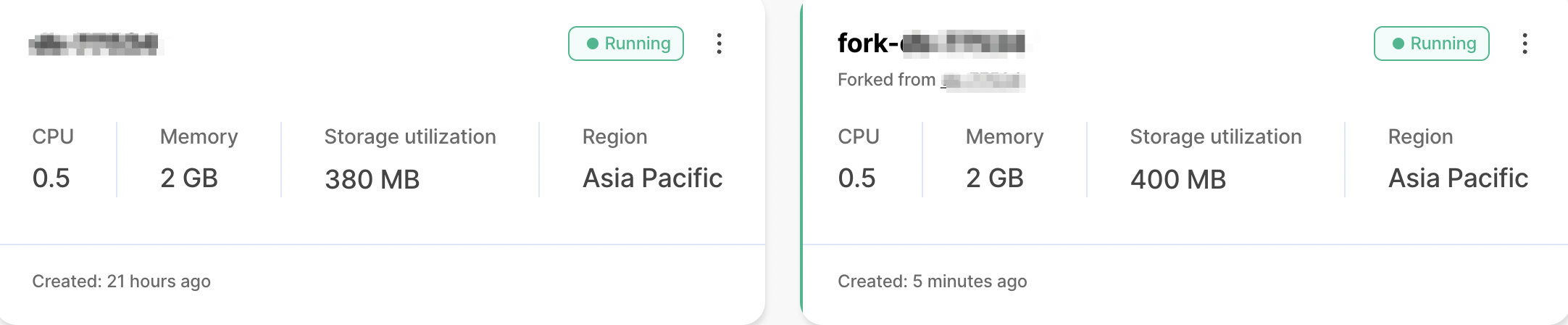
- Update the connection strings in your app to use the fork.
Integrate service forks in your CI/CD pipeline
To fork your Tiger Cloud service using GitHub actions:
Store your Tiger Cloud API key as a GitHub Actions secret
In Tiger Cloud Console, click
Create credentials.- Save the
Public keyandSecret keylocally, then clickDone. - In your GitHub repository, click
Settings, openSecrets and variables, then clickActions. - Click
New repository secret, then setNametoTIGERDATA_API_KEY - Set
Secretto your Tiger Cloud API key in the following format<Public key>:<Secret key>, then clickAdd secret.
- Save the
Add the GitHub Actions Marketplace to your workflow YAML files
For example, the following workflow forks a service when a pull request is opened, running tests against the fork, then automatically cleans up.
For the full list of inputs, outputs, and configuration options, see the Tiger Data - Fork Service in GitHub marketplace.
===== PAGE: https://docs.tigerdata.com/use-timescale/jobs/ =====
Examples:
Example 1 (shell):
curl -s https://packagecloud.io/install/repositories/timescale/tiger-cli/script.deb.sh | sudo os=any dist=any bash
    sudo apt-get install tiger-cli
Example 2 (shell):
curl -s https://packagecloud.io/install/repositories/timescale/tiger-cli/script.deb.sh | sudo os=any dist=any bash
    sudo apt-get install tiger-cli
Example 3 (shell):
curl -s https://packagecloud.io/install/repositories/timescale/tiger-cli/script.rpm.sh | sudo os=rpm_any dist=rpm_any bash
    sudo yum install tiger-cli
Example 4 (shell):
curl -s https://packagecloud.io/install/repositories/timescale/tiger-cli/script.rpm.sh | sudo os=rpm_any dist=rpm_any bash
    sudo yum install tiger-cli
Problem resolving DNS
URL: llms-txt#problem-resolving-dns
services require a DNS record. When you launch a new service the DNS record is created, and it can take some time for the new name to propagate to DNS servers around the world.
If you move an existing service to a new Cloud provider or region, the service is rebuilt in the new region in the background. When the service has been rebuilt in the new region, the DNS records are updated. This could cause a short interruption to your service while the DNS changes are propagated.
If you are unable to resolve DNS, wait a few minutes and try again.
===== PAGE: https://docs.tigerdata.com/_troubleshooting/self-hosted/upgrade-no-update-path/ =====
Run your queries from Tiger Cloud Console
URL: llms-txt#run-your-queries-from-tiger-cloud-console
Contents:
- Data mode
- Connect to your Tiger Cloud service in the data mode
- Data mode FAQ
- SQL Assistant
- Key capabilities
- Supported LLMs
- Limitations to keep in mind
- Security, privacy, and data usage
- Ops mode SQL editor
- Cloud SQL editor licenses
As Tiger Cloud is based on Postgres, you can use lots of different tools to connect to your service and interact with your data.
In Tiger Cloud Console you can use the following ways to run SQL queries against your service:
Data mode: a rich experience powered by PopSQL. You can write queries with autocomplete, save them in folders, share them, create charts/dashboards, and much more.
SQL Assistant in the data mode: write, fix, and organize SQL faster and more accurately.
SQL editor in the ops mode: a simple SQL editor in the ops mode that lets you run ad-hoc ephemeral queries. This is useful for quick one-off tasks like creating an index on a small table or inspecting
pg_stat_statements.
If you prefer the command line to the ops mode SQL editor in Tiger Cloud Console, use psql.
You use the data mode in Tiger Cloud Console to write queries, visualize data, and share your results.
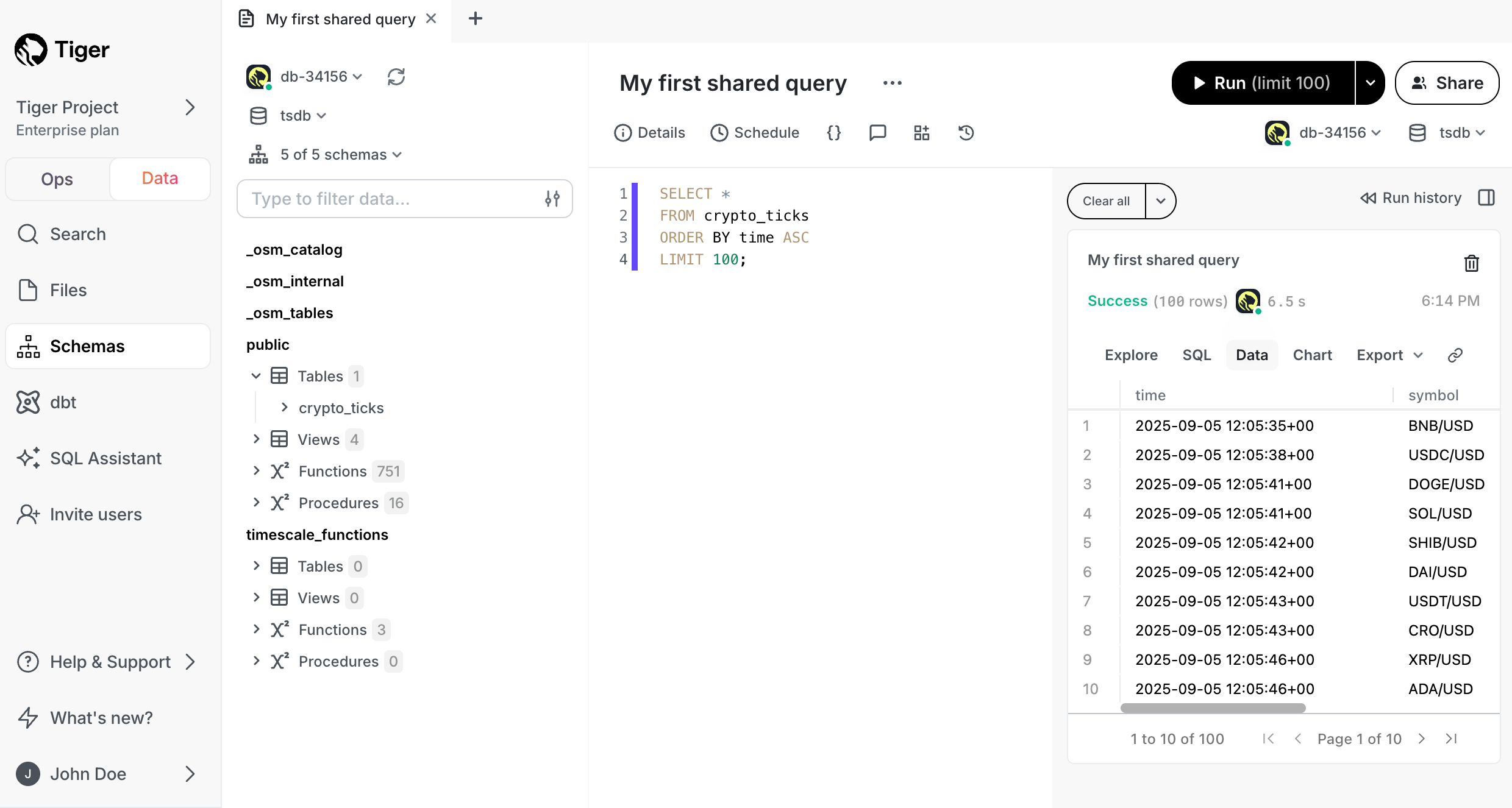
This feature is not available under the Free pricing plan.
Available features are:
- Real-time collaboration: work with your team directly in the data mode query editor with live presence and multiple cursors.
- Schema browser: understand the structure of your service and see usage data on tables and columns.
- SQL Assistant: write, fix, and organize SQL faster and more accurately using AI.
- Autocomplete: get suggestions as you type your queries.
- Version history: access previous versions of a query from the built-in revision history, or connect to a git repo.
- Charts: visualize data from inside the UI rather than switch to Sheets or Excel.
- Schedules: automatically refresh queries and dashboards to create push alerts.
- Query variables: use Liquid to parameterize your queries or use
ifstatements. - Cross-platform support: work from Tiger Cloud Console or download the desktop app for macOS, Windows, and Linux.
- Easy connection: connect to Tiger Cloud, Postgres, Redshift, Snowflake, BigQuery, MySQL, SQL Server, and more.
Connect to your Tiger Cloud service in the data mode
To connect to a service:
- Check your service is running correctly
In Tiger Cloud Console, check that your service is marked as Running:
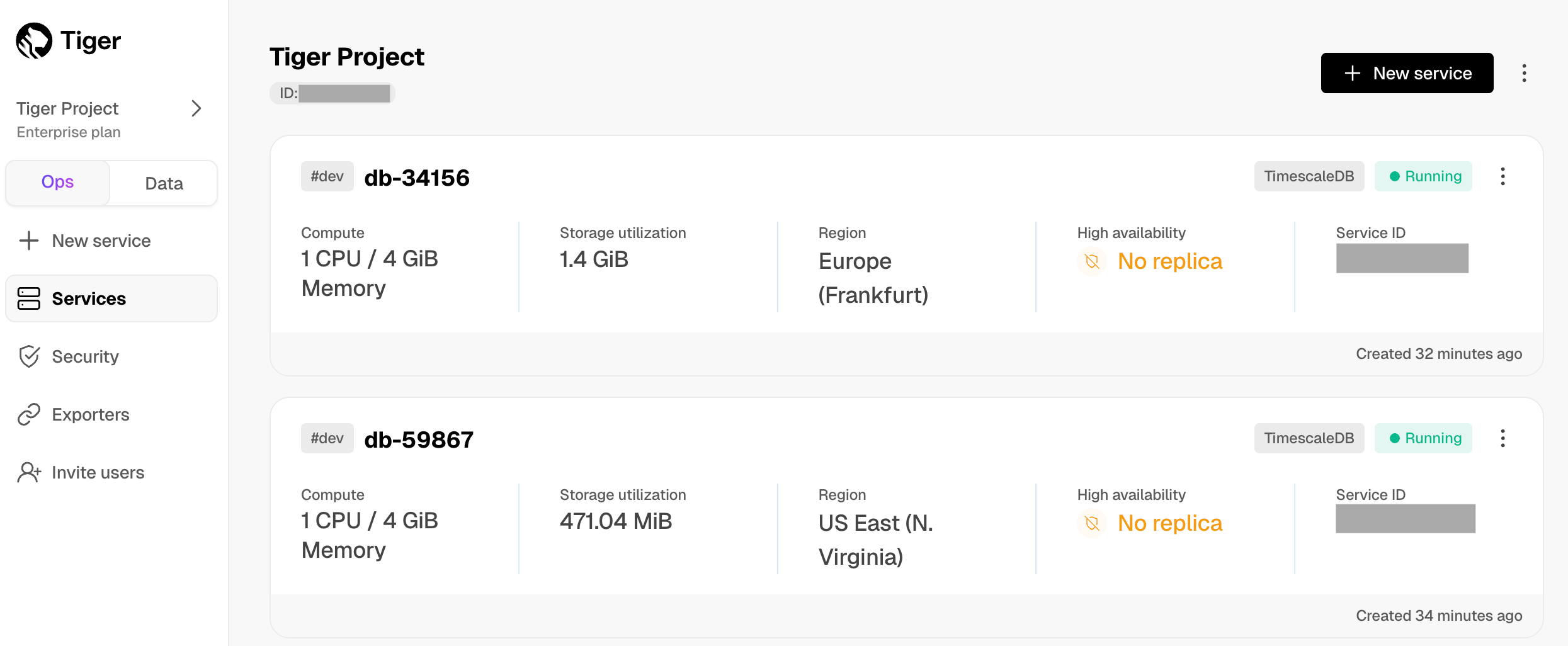
- Connect to your service
In the data mode in Tiger Cloud Console, select a service in the connection drop-down:
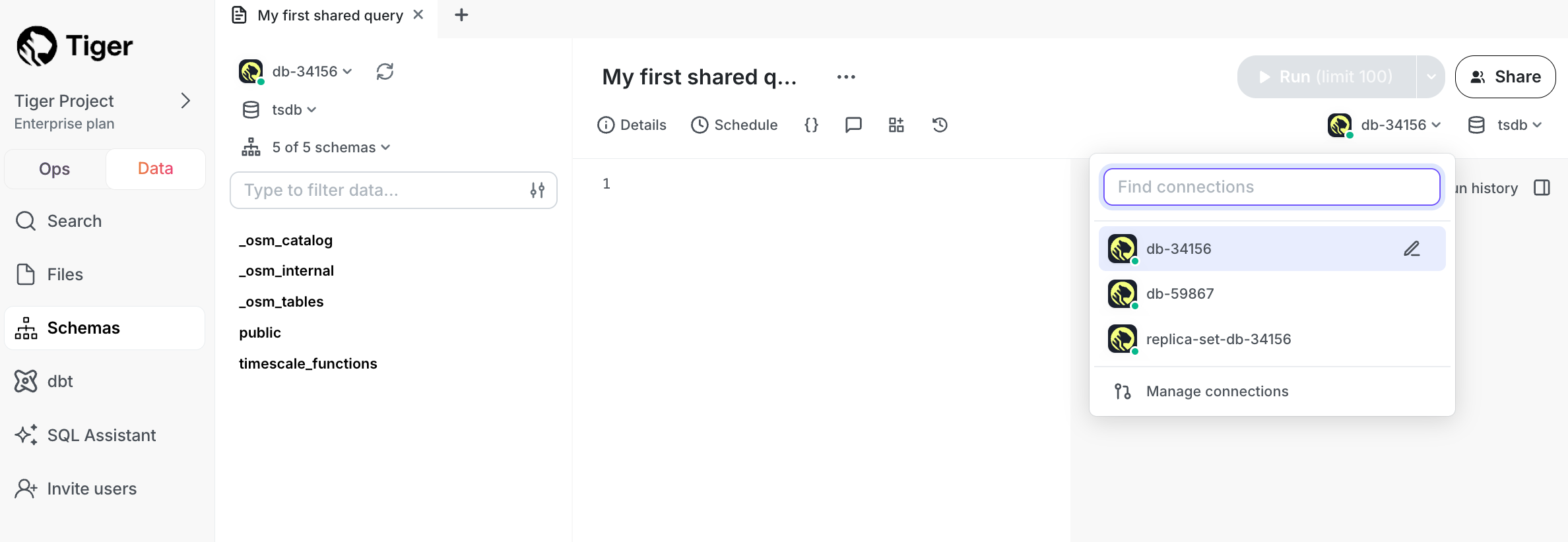
- Run a test query
Type SELECT CURRENT_DATE; in Scratchpad and click Run:
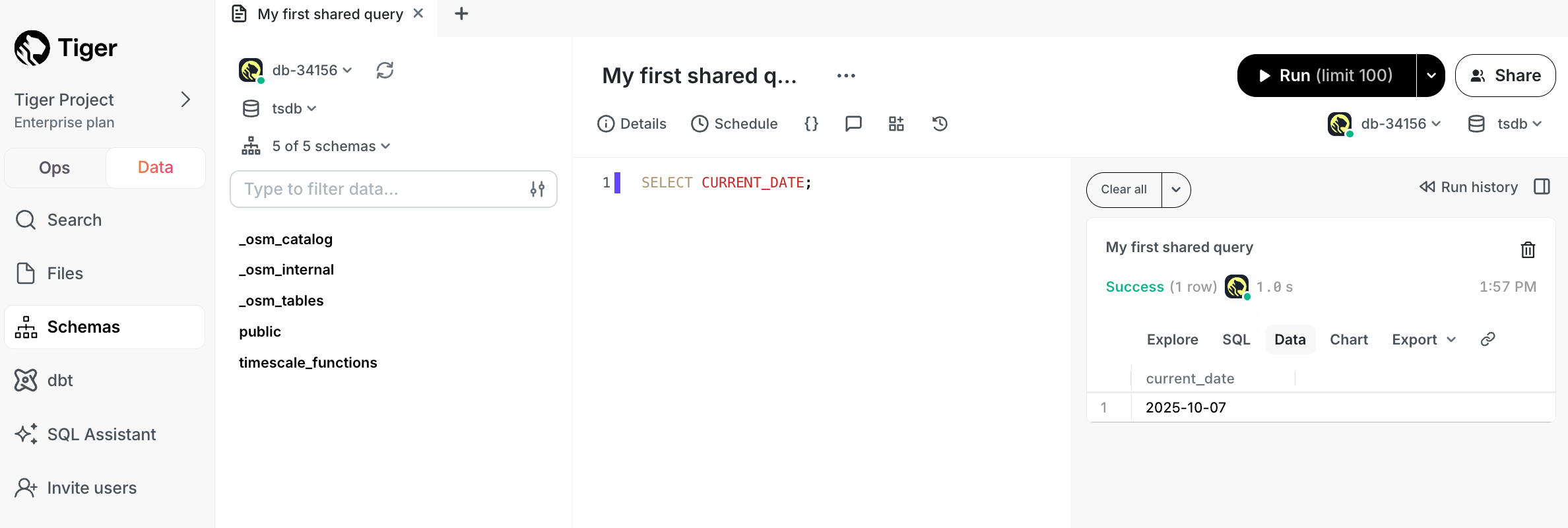
Quick recap. You:
- Manage your services in the ops mode in Tiger Cloud Console
- Manage your data in the data mode in Tiger Cloud Console
- Store configuration and security information in your config file.
Now you have used the data mode in Tiger Cloud Console, see how to easily do the following:
- Write a query
- Share a query with your teammates
- Create a chart from your data
- Create a dashboard of multiple query results
- Create schedules for your queries
What if my service is within a vpc?
If your Tiger Cloud service runs inside a VPC, do one of the following to enable access for the PopSQL desktop app:
- Use PopSQL's bridge connector.
- Use an SSH tunnel: when you configure the connection in PopSQL, under
Advanced OptionsenableConnect over SSH. - Add PopSQL's static IPs (
23.20.131.72, 54.211.234.135) to your allowlist.
What happens if another member of my Tiger Cloud project uses the data mode?
The number of data mode seats you are allocated depends on your pricing plan.
Will using the data mode affect the performance of my Tiger Cloud service?
There are a few factors to consider:
- What instance size is your service?
- How many users are running queries?
- How computationally intensive are the queries?
If you have a small number of users running performant SQL queries against a service with sufficient resources, then there should be no degradation to performance. However, if you have a large number of users running queries, or if the queries are computationally expensive, best practice is to create a read replica and send analytical queries there.
If you'd like to prevent write operations such as insert or update, instead
of using the tsdbadmin user, create a read-only user for your service and
use that in the data mode.
SQL Assistant in Tiger Cloud Console is a chat-like interface that harnesses the power of AI to help you write, fix, and organize SQL faster and more accurately. Ask SQL Assistant to change existing queries, write new ones from scratch, debug error messages, optimize for query performance, add comments, improve readability—and really, get answers to any questions you can think of.
This feature is not available under the Free pricing plan.
StreamingDiskANN index
The StreamingDiskANN index is a graph-based algorithm that uses the DiskANN algorithm. You can read more about it in the blog announcing its release.
To create this index, run:
The above command creates the index using smart defaults. There are a number of parameters you could tune to adjust the accuracy/speed trade-off.
The parameters you can set at index build time are:
| Parameter name | Description | Default value |
|---|---|---|
num_neighbors |
Sets the maximum number of neighbors per node. Higher values increase accuracy but make the graph traversal slower. | 50 |
search_list_size |
This is the S parameter used in the greedy search algorithm used during construction. Higher values improve graph quality at the cost of slower index builds. | 100 |
max_alpha |
Is the alpha parameter in the algorithm. Higher values improve graph quality at the cost of slower index builds. | 1.0 |
To set these parameters, you could run:
You can also set a parameter to control the accuracy vs. query speed
trade-off at query time. The parameter is set in the search() function
using the query_params argument. You can set the
search_list_size(default: 100). This is the number of additional
candidates considered during the graph search at query time. Higher
values improve query accuracy while making the query slower.
You can specify this value during search as follows:
To drop the index, run:
pgvector HNSW index
Pgvector provides a graph-based indexing algorithm based on the popular HNSW algorithm.
To create this index, run:
The above command creates the index using smart defaults. There are a number of parameters you could tune to adjust the accuracy/speed trade-off.
The parameters you can set at index build time are:
| Parameter name | Description | Default value |
|---|---|---|
m |
Represents the maximum number of connections per layer. Think of these connections as edges created for each node during graph construction. Increasing m increases accuracy but also increases index build time and size. | 16 |
ef_construction |
Represents the size of the dynamic candidate list for constructing the graph. It influences the trade-off between index quality and construction speed. Increasing ef_construction enables more accurate search results at the expense of lengthier index build times. |
64 |
To set these parameters, you could run:
You can also set a parameter to control the accuracy vs. query speed
trade-off at query time. The parameter is set in the search() function
using the query_params argument. You can set the ef_search(default:
40). This parameter specifies the size of the dynamic candidate list
used during search. Higher values improve query accuracy while making
the query slower.
You can specify this value during search as follows:
To drop the index run:
pgvector ivfflat index
Pgvector provides a clustering-based indexing algorithm. The blog post describes how it works in detail. It provides the fastest index-build speed but the slowest query speeds of any indexing algorithm.
To create this index, run:
Note: ivfflat should never be created on empty tables because it needs to cluster data, and that only happens when an index is first created, not when new rows are inserted or modified. Also, if your table undergoes a lot of modifications, you need to rebuild this index occasionally to maintain good accuracy. See the blog post for details.
Pgvector ivfflat has a lists index parameter that is automatically set
with a smart default based on the number of rows in your table. If you
know that you'll have a different table size, you can specify the number
of records to use for calculating the lists parameter as follows:
You can also set the lists parameter directly:
You can also set a parameter to control the accuracy vs. query speed
trade-off at query time. The parameter is set in the search() function
using the query_params argument. You can set the probes. This
parameter specifies the number of clusters searched during a query. It
is recommended to set this parameter to sqrt(lists) where lists is the
num_list parameter used above during index creation. Higher values
improve query accuracy while making the query slower.
You can specify this value during search as follows:
To drop the index, run:
Time partitioning
In many use cases where you have many embeddings, time is an important component associated with the embeddings. For example, when embedding news stories, you often search by time as well as similarity (for example, stories related to Bitcoin in the past week or stories about Clinton in November 2016).
Yet, traditionally, searching by two components "similarity" and "time" is challenging for Approximate Nearest Neighbor (ANN) indexes and makes the similarity-search index less effective.
One approach to solving this is partitioning the data by time and creating ANN indexes on each partition individually. Then, during search, you can:
- Step 1: filter partitions that don't match the time predicate.
- Step 2: perform the similarity search on all matching partitions.
- Step 3: combine all the results from each partition in step 2, re-rank, and filter out results by time.
Step 1 makes the search a lot more efficient by filtering out whole swaths of data in one go.
Timescale-vector supports time partitioning using TimescaleDB's hypertables. To use this feature, simply indicate the length of time for each partition when creating the client:
Then, insert data where the IDs use UUIDs v1 and the time component of the UUIDspecifies the time of the embedding. For example, to create an embedding for the current time, simply do:
To insert data for a specific time in the past, create the UUID using the
uuid_from_time function
You can then query the data by specifying a uuid_time_filter in the
search call:
Cosine distance is used by default to measure how similarly an embedding
is to a given query. In addition to cosine distance, Euclidean/L2 distance is
also supported. The distance type is set when creating the client
using the distance_type parameter. For example, to use the Euclidean
distance metric, you can create the client with:
Valid values for distance_type are cosine and euclidean.
It is important to note that you should use consistent distance types on clients that create indexes and perform queries. That is because an index is only valid for one particular type of distance measure.
Note that the StreamingDiskANN index only supports cosine distance at this time.
===== PAGE: https://docs.tigerdata.com/ai/langchain-integration-for-pgvector-and-timescale-vector/ =====
Examples:
Example 1 (bash):
pip install timescale_vector
Example 2 (bash):
pip install python-dotenv
Example 3 (unknown):
Load up your Postgres credentials, the safest way is with a `.env` file:
Example 4 (unknown):
Next, create the client. This tutorial, uses the sync client. But the library has an async client as well (with an identical interface that
uses async functions).

The client constructor takes three required arguments:

| name           | description                                                                               |
|----------------|-------------------------------------------------------------------------------------------|
| `service_url`    | Tiger Cloud service URL / connection string                                                     |
| `table_name`     | Name of the table to use for storing the embeddings. Think of this as the collection name |
| `num_dimensions` | Number of dimensions in the vector                                                        |
Create a chatbot using pgvector
URL: llms-txt#create-a-chatbot-using-pgvector
Contents:
- Use the
pgvectorextension to create achatbot- Prerequisites
- Using the
pgvectorextension to create a chatbot
The pgvector Postgres extension helps you to store and search over machine
learning-generated embeddings. It provides different capabilities that allows
you to identify both exact and approximate nearest neighbors. It is designed to
work seamlessly with other Postgres features, including indexing and querying.
For more information about these functions and the options available, see the pgvector repository.
Use the pgvector extension to create a chatbot
The pgvector Postgres extension allows you to create, store, and query
OpenAI vector embeddings in a Postgres database instance. This page shows you how to
use retrieval augmented generation (RAG) to create a chatbot that combines
your data with ChatGPT using OpenAI and pgvector. RAG provides a solution to the
problem that a foundational model such as GPT-3 or GPT-4 could be missing some
information needed to give a good answer, because that information was not in the
dataset used to train the model. This can happen if the information is stored in
private documents or only became available recently.
In this example, you create embeddings, insert the embeddings into a Tiger Cloud service and
query the embeddings using pgvector. The content for the
embeddings is from the Tiger Data blog, specifically from the
Developer Q&A section, which features posts by Tiger Data users talking
about their real-world use cases.
Before you begin, make sure you have:
- Installed Python.
- Created a Tiger Cloud service.
- Downloaded the cheatsheet when you created the service. This sheet contains the connection details for the database you want to use as a vector database.
- Cloned the pgvector repository.
- Signed up for an OpenAI developer account.
- Created an API key and made a note of your OpenAI API key.
If you are on a free plan there may be rate limiting for
your API requests.
Using the pgvector extension to create a chatbot
Create and activate a Python virtual environment:
Set the environment variables for
OPENAI_API_KEYandTIMESCALE_CONNECTION_STRING. In this example, to set the environment variables in macOS, open thezshrcprofile. Replace<OPENAI_API>, and<SERVICE_URL>with your OpenAI API key and the URL of your Tiger Cloud service:
bash
echo $OPENAI_API_KEY
echo $TIMESCALE_CONNECTION_STRING
bash
pip install -r requirements.txt
python
###############################################################################
###############################################################################
import openai
import os
import pandas as pd
import numpy as np
import json
import tiktoken
from dotenv import load_dotenv, find_dotenv
_ = load_dotenv(find_dotenv())
openai.api_key  = os.environ['OPENAI_API_KEY']
df = pd.read_csv('blog_posts_data.csv')
df.head()
###############################################################################
###############################################################################
def num_tokens_from_string(string: str, encoding_name = "cl100k_base") -> int:
    if not string:
        return 0
    encoding = tiktoken.get_encoding(encoding_name)
    num_tokens = len(encoding.encode(string))
    return num_tokens
def get_embedding_cost(num_tokens):
return num_tokens/1000*0.0001
def get_total_embeddings_cost():
    total_tokens = 0
    for i in range(len(df.index)):
        text = df['content'][i]
        token_len = num_tokens_from_string(text)
        total_tokens = total_tokens + token_len
    total_cost = get_embedding_cost(total_tokens)
    return total_cost
###############################################################################
total_cost = get_total_embeddings_cost()
print("Estimated price to embed this content = $" + str(total_cost))
###############################################################################
###############################################################################
new_list = []
for i in range(len(df.index)):
    text = df['content'][i]
    token_len = num_tokens_from_string(text)
    if token_len <= 512:
        new_list.append([df['title'][i], df['content'][i], df['url'][i], token_len])
    else:
        start = 0
        ideal_token_size = 512
        ideal_size = int(ideal_token_size // (4/3))
        end = ideal_size
        #split text by spaces into words
        words = text.split()
#remove empty spaces
words = [x for x in words if x != ' ']
total_words = len(words)
#calculate iterations
        chunks = total_words // ideal_size
        if total_words % ideal_size != 0:
            chunks += 1
new_content = []
        for j in range(chunks):
            if end > total_words:
                end = total_words
            new_content = words[start:end]
            new_content_string = ' '.join(new_content)
            new_content_token_len = num_tokens_from_string(new_content_string)
            if new_content_token_len > 0:
                new_list.append([df['title'][i], new_content_string, df['url'][i], new_content_token_len])
            start += ideal_size
            end += ideal_size
def get_embeddings(text):
   response = openai.Embedding.create(
       model="text-embedding-ada-002",
       input = text.replace("\n"," ")
   )
   embedding = response['data'][0]['embedding']
   return embedding
for i in range(len(new_list)):
   text = new_list[i][1]
   embedding = get_embeddings(text)
   new_list[i].append(embedding)
df_new = pd.DataFrame(new_list, columns=['title', 'content', 'url', 'tokens', 'embeddings'])
df_new.head()
df_new.to_csv('blog_data_and_embeddings.csv', index=False)
print("Done! Check the file blog_data_and_embeddings.csv for your results.")
bash
Estimated price to embed this content = $0.0060178
Done! Check the file blog_data_and_embeddings.csv for your results.
python
###############################################################################
###############################################################################
import openai
import os
import pandas as pd
import numpy as np
import psycopg2
import ast
import pgvector
import math
from psycopg2.extras import execute_values
from pgvector.psycopg2 import register_vector
###############################################################################
###############################################################################
connection_string  = os.environ['TIMESCALE_CONNECTION_STRING']
conn = psycopg2.connect(connection_string)
cur = conn.cursor()
#install pgvector in your database
cur.execute("CREATE EXTENSION IF NOT EXISTS vector;");
conn.commit()
register_vector(conn)
table_create_command = """
CREATE TABLE embeddings (
            id bigserial primary key,
            title text,
            url text,
            content text,
            tokens integer,
            embedding vector(1536)
            );
            """
cur.execute(table_create_command)
cur.close()
conn.commit()
###############################################################################
df = pd.read_csv('blog_data_and_embeddings.csv')
titles = df['title']
urls = df['url']
contents = df['content']
tokens = df['tokens']
embeds = [list(map(float, ast.literal_eval(embed_str))) for embed_str in df['embeddings']]
df_new = pd.DataFrame({
    'title': titles,
    'url': urls,
    'content': contents,
    'tokens': tokens,
    'embeddings': embeds
})
###############################################################################
###############################################################################
register_vector(conn)
cur = conn.cursor()
data_list = [(row['title'], row['url'], row['content'], int(row['tokens']), np.array(row['embeddings'])) for index, row in df_new.iterrows()]
execute_values(cur, "INSERT INTO embeddings (title, url, content, tokens, embedding) VALUES %s", data_list)
conn.commit()
cur.execute("SELECT COUNT(*) as cnt FROM embeddings;")
num_records = cur.fetchone()[0]
print("Number of vector records in table: ", num_records,"\n")
cur.execute("SELECT * FROM embeddings LIMIT 1;")
records = cur.fetchall()
print("First record in table: ", records)
#calculate the index parameters according to best practices
num_lists = num_records / 1000
if num_lists < 10:
   num_lists = 10
if num_records > 1000000:
   num_lists = math.sqrt(num_records)
#use the cosine distance measure, which is what we'll later use for querying
cur.execute(f'CREATE INDEX ON embeddings USING ivfflat (embedding vector_cosine_ops) WITH (lists = {num_lists});')
conn.commit()
print("Index created on embeddings table")
bash
0  How to Build a Weather Station With Elixir, Ne...  ...  [0.021399984136223793, 0.021850213408470154, -...
1  How to Build a Weather Station With Elixir, Ne...  ...  [0.01620873250067234, 0.011362895369529724, 0....
2  How to Build a Weather Station With Elixir, Ne...  ...  [0.022517921403050423, -0.0019158280920237303,...
3  CloudQuery on Using Postgres for Cloud Asset...  ...  [0.008915113285183907, -0.004873732570558786, ...
4  CloudQuery on Using PostgreSQL for Cloud Asset...  ...  [0.0204352755099535, 0.010087345726788044, 0.0...
[5 rows x 5 columns]
Number of vector records in table: 129
First record in table: [(1, 'How to Build a Weather Station With Elixir, Nerves, and TimescaleDB', 'https://www.timescale.com/blog/how-to-build-a-weather-station-with-elixir-nerves-and-timescaledb/', 'This is an installment of our “Community Member Spotlight” series, where we invite our customers to share their work, shining a light on their success and inspiring others with new ways to use technology to solve problems.In this edition,Alexander Koutmos, author of the Build a Weather Station with Elixir and Nerves book, joins us to share how he uses Grafana and TimescaleDB to store and visualize weather data collected from IoT sensors.About the teamThe bookBuild a Weather Station with Elixir and Nerveswas a joint effort between Bruce Tate, Frank Hunleth, and me.I have been writing software professionally for almost a decade and have been working primarily with Elixir since 2016. I currently maintain a few Elixir libraries onHexand also runStagira, a software consultancy company.Bruce Tateis a kayaker, programmer, and father of two from Chattanooga, Tennessee. He is the author of more than ten books and has been around Elixir from the beginning. He is the founder ofGroxio, a company that trains Elixir developers.Frank Hunlethis an embedded systems programmer, OSS maintainer, and Nerves core team member. When not in front of a computer, he loves running and spending time with his family.About the projectIn the Pragmatic Bookshelf book,Build a Weather Station with Elixir and Nerves, we take a project-based approach and guide the reader to create a Nerves-powered IoT weather station.For those unfamiliar with the Elixir ecosystem,Nervesis an IoT framework that allows you to build and deploy IoT applications on a wide array of embedded devices. At a high level, Nerves allows you to focus on building your project and takes care of a lot of the boilerplate associated with running Elixir on embedded devices.The goal of the book is to guide the reader through the process of building an end-to-end IoT solution for capturing, persisting, and visualizing weather data.Assembled weather station hooked up to development machine.One of the motivating factors for this book was to create a real-world project where readers could get hands-on experience with hardware without worrying too much about the nitty-gritty of soldering components together. Experimenting with hardware can often feel intimidating and confusing, but with Elixir and Nerves, we feel confident that even beginners get comfortable and productive quickly. As a result, in the book, we leverage a Raspberry Pi Zero W along with a few I2C enabled sensors to', 501, array([ 0.02139998, 0.02185021, -0.00537814, ..., -0.01257126,
   -0.02165324, -0.03714396], dtype=float32))]
Index created on embeddings table
python
###############################################################################
###############################################################################
import openai
import os
import pandas as pd
import numpy as np
import json
import tiktoken
import psycopg2
import ast
import pgvector
import math
from psycopg2.extras import execute_values
from pgvector.psycopg2 import register_vector
from dotenv import load_dotenv, find_dotenv
_ = load_dotenv(find_dotenv())
openai.api_key  = os.environ['OPENAI_API_KEY']
connection_string = os.environ['TIMESCALE_CONNECTION_STRING']
conn = psycopg2.connect(connection_string)
###############################################################################
###############################################################################
def get_top3_similar_docs(query_embedding, conn):
    embedding_array = np.array(query_embedding)
    register_vector(conn)
    cur = conn.cursor()
    cur.execute("SELECT content FROM embeddings ORDER BY embedding <=> %s LIMIT 3", (embedding_array,))
    top3_docs = cur.fetchall()
    return top3_docs
def get_completion_from_messages(messages, model="gpt-3.5-turbo-0613", temperature=0, max_tokens=1000):
    response = openai.ChatCompletion.create(
        model=model,
        messages=messages,
        temperature=temperature,
        max_tokens=max_tokens,
    )
    return response.choices[0].message["content"]
def get_embeddings(text):
    response = openai.Embedding.create(
        model="text-embedding-ada-002",
        input = text.replace("\n"," ")
    )
    embedding = response['data'][0]['embedding']
    return embedding
###############################################################################
###############################################################################
###############################################################################
def process_input_with_retrieval(user_input):
    delimiter = "
- Run the script using the
python query_embeddings.pycommand. You should see an output that looks a bit like this:
===== PAGE: https://docs.tigerdata.com/use-timescale/extensions/pgcrypto/ =====
Examples:
Example 1 (bash):
virtualenv pgvectorenv
    source pgvectorenv/bin/activate
Example 2 (bash):
nano ~/.zshrc
    export OPENAI_API_KEY='<OPENAI_API>'
    export TIMESCALE_CONNECTION_STRING='<SERVICE_URL>'

    Update the shell with the new variables using `source ~/.zshrc`

1.  Confirm that you have set the environment variables using:
Example 3 (unknown):
1.  Install the required modules and packages using the `requirements.txt`. This
    file is located in the `vector-cookbook\openai_pgvector_helloworld`
    directory:
Example 4 (unknown):
1.  To create embeddings for your data using the OpenAI API, open an editor of
    your choice and create the `create_embeddings.py` file.
generate_uuidv7()
URL: llms-txt#generate_uuidv7()
Contents:
- Samples
Generate a UUIDv7 object based on the current time.
The UUID contains a a UNIX timestamp split into millisecond and sub-millisecond parts, followed by random bits.
You can use this function to generate a time-ordered series of UUIDs suitable for use in a time-partitioned column in TimescaleDB.
Generate a UUIDv7 object based on the current time
Insert a generated UUIDv7 object
===== PAGE: https://docs.tigerdata.com/api/uuid-functions/to_uuidv7/ =====
Examples:
Example 1 (sql):
postgres=# SELECT generate_uuidv7();
               generate_uuidv7
    --------------------------------------
     019913ce-f124-7835-96c7-a2df691caa98
Example 2 (sql):
INSERT INTO alerts VALUES (generate_uuidv7(), 'high CPU');
Encrypt data using pgcrypto
URL: llms-txt#encrypt-data-using-pgcrypto
Contents:
- Use the
pgcryptoextension to encrypt inserted data- Using the
pgcryptoextension to encrypt inserted data
- Using the
The pgcrypto Postgres extension provides cryptographic functions such as:
- General hashing
- Password hashing
- PGP encryption
- Raw encryption
- Random-data
For more information about these functions and the options available, see the pgcrypto documentation.
Use the pgcrypto extension to encrypt inserted data
The pgcrypto extension allows you to encrypt, decrypt, hash,
and create digital signatures within your database. Tiger Data understands how
precious your data is and safeguards sensitive information.
Using the pgcrypto extension to encrypt inserted data
Install the
pgcryptoextension:You can confirm if the extension is installed using the
\dxcommand. The installed extensions are listed:Create a table named
user_passwords:Insert the values in the
user_passwordstable and replace<Password_Key>with a password key of your choice:You can confirm that the password is encrypted using the command:
The encrypted passwords are listed:
- To view the decrypted passwords, replace
<Password_Key>with the password key that you created:
The decrypted passwords are listed:
===== PAGE: https://docs.tigerdata.com/use-timescale/extensions/postgis/ =====
Examples:
Example 1 (sql):
CREATE EXTENSION IF NOT EXISTS pgcrypto;
Example 2 (sql):
List of installed extensions
            Name         | Version |   Schema   |                                      Description
    ---------------------+---------+------------+---------------------------------------------------------------------------------------
     pg_stat_statements  | 1.10    | public     | track planning and execution statistics of all SQL statements executed
     pgcrypto            | 1.3     | public     | cryptographic functions
     plpgsql             | 1.0     | pg_catalog | PL/pgSQL procedural language
     timescaledb         | 2.11.0  | public     | Enables scalable inserts and complex queries for time-series data (Community Edition)
     timescaledb_toolkit | 1.16.0  | public     | Library of analytical hyperfunctions, time-series pipelining, and other SQL utilities
Example 3 (sql):
CREATE TABLE user_passwords (username varchar(100) PRIMARY KEY, crypttext text);
Example 4 (sql):
INSERT INTO tbl_sym_crypt (username, crypttext)
        VALUES ('user1', pgp_sym_encrypt('user1_password','<Password_Key>')),
           ('user2', pgp_sym_encrypt('user2_password','<Password_Key>'));
Counter and gauge aggregation
URL: llms-txt#counter-and-gauge-aggregation
This section contains functions related to counter and gauge aggregation. Counter aggregation functions are used to accumulate monotonically increasing data by treating any decrements as resets. Gauge aggregates are similar, but are used to track data which can decrease as well as increase. For more information about counter aggregation functions, see the hyperfunctions documentation.
Some hyperfunctions are included in the default TimescaleDB product. For additional hyperfunctions, you need to install the TimescaleDB Toolkit Postgres extension.
<HyperfunctionTable
hyperfunctionFamily='metric aggregation'
includeExperimental
sortByType
/>
All accessors can be used with CounterSummary, and all but num_resets
with GaugeSummary.
===== PAGE: https://docs.tigerdata.com/api/gapfilling-interpolation/ =====
Storage in Tiger
URL: llms-txt#storage-in-tiger
Tiered storage is a hierarchical storage management architecture for real-time analytics services you create in Tiger Cloud.
Engineered for infinite low-cost scalability, tiered storage consists of the following:
High-performance storage tier: stores the most recent and frequently queried data. This tier comes in two types, standard and enhanced, and provides you with up to 64 TB of storage and 32,000 IOPS.
Object storage tier: stores data that is rarely accessed and has lower performance requirements. For example, old data for auditing or reporting purposes over long periods of time, even forever. The object storage tier is low-cost and bottomless.
No matter the tier your data is stored in, you can query it when you need it. Tiger Cloud seamlessly accesses the correct storage tier and generates the response.
You define tiering policies that automatically migrate data from the high-performance storage tier to the object tier as it ages. You use retention policies to remove very old data from the object storage tier.
With tiered storage you don't need an ETL process, infrastructure changes, or custom-built, bespoke solutions to offload data to secondary storage and fetch it back in when needed. Kick back and relax, we do the work for you.
In this section, you:
- Learn more about storage tiers: understand how the tiers are built and how they differ.
- Manage storage and tiering: configure high-performance storage, object storage, and data tiering.
- Query tiered data: query the data in the object storage.
- Learn about replicas and forks with tiered data: understand how tiered storage works with forks and replicas of your service.
===== PAGE: https://docs.tigerdata.com/use-timescale/metrics-logging/ =====
add_job()
URL: llms-txt#add_job()
Contents:
- Samples
- Required arguments
- Optional arguments
- Returns
Register a job for scheduling by the automation framework. For more information about scheduling, including example jobs, see the jobs documentation section.
Register the user_defined_action procedure to run every hour:
Register the user_defined_action procedure to run at midnight every Sunday.
The initial_start provided must satisfy these requirements, so it must be a Sunday midnight:
Required arguments
|Name|Type| Description |
|-|-|---------------------------------------------------------------|
|proc|REGPROC| Name of the function or procedure to register as a job. |
|schedule_interval|INTERVAL| Interval between executions of this job. Defaults to 24 hours |
Optional arguments
|Name|Type| Description |
|-|-|------------------------------------------------------------------------------------------------------------------------------------------------------------------------------------------------------------------------------------------------------------------------------------------------------------------------------|
|config|JSONB| Jobs-specific configuration, passed to the function when it runs |
|initial_start|TIMESTAMPTZ| Time the job is first run. In the case of fixed schedules, this also serves as the origin on which job executions are aligned. If omitted, the current time is used as origin in the case of fixed schedules. |
|scheduled|BOOLEAN| Set to FALSE to exclude this job from scheduling. Defaults to TRUE. |
|check_config|REGPROC| A function that takes a single argument, the JSONB config structure. The function is expected to raise an error if the configuration is not valid, and return nothing otherwise. Can be used to validate the configuration when adding a job. Only functions, not procedures, are allowed as values for check_config. |
|fixed_schedule|BOOLEAN| Set to FALSE if you want the next start of a job to be determined as its last finish time plus the schedule interval. Set to TRUE if you want the next start of a job to begin schedule_interval after the last start. Defaults to TRUE |
|timezone|TEXT| A valid time zone. If fixed_schedule is TRUE, subsequent executions of the job are aligned on its initial start. However, daylight savings time (DST) changes may shift this alignment. Set to a valid time zone if you want to mitigate this issue. Defaults to NULL. |
|Column|Type|Description|
|-|-|-|
|job_id|INTEGER|TimescaleDB background job ID|
===== PAGE: https://docs.tigerdata.com/api/data-retention/add_retention_policy/ =====
Examples:
Example 1 (sql):
CREATE OR REPLACE PROCEDURE user_defined_action(job_id int, config jsonb) LANGUAGE PLPGSQL AS
$$
BEGIN
  RAISE NOTICE 'Executing action % with config %', job_id, config;
END
$$;

SELECT add_job('user_defined_action','1h');
SELECT add_job('user_defined_action','1h', fixed_schedule => false);
Example 2 (sql):
-- December 4, 2022 is a Sunday
SELECT add_job('user_defined_action','1 week', initial_start => '2022-12-04 00:00:00+00'::timestamptz);
-- if subject to DST
SELECT add_job('user_defined_action','1 week', initial_start => '2022-12-04 00:00:00+00'::timestamptz, timezone => 'Europe/Berlin');
Permission denied for table job_errors when running pg_dump
URL: llms-txt#permission-denied-for-table-job_errors-when-running-pg_dump
When the pg_dump tool tries to acquire a lock on the job_errors
table, if the user doesn't have the required SELECT permission, it
results in this error.
To resolve this issue, use a superuser account to grant the necessary
permissions to the user requiring the pg_dump tool.
Use this command to grant permissions to <TEST_USER>:
===== PAGE: https://docs.tigerdata.com/_troubleshooting/self-hosted/update-timescaledb-could-not-access-file/ =====
Examples:
Example 1 (sql):
GRANT SELECT ON TABLE _timescaledb_internal.job_errors TO <TEST_USER>;
Viewing service logs
URL: llms-txt#viewing-service-logs
Occasionally there is a need to inspect logs from Managed Service for TimescaleDB. For example, to debug query performance or inspecting errors caused by a specific workload.
There are different built-in ways to inspect service logs at Managed Service for TimescaleDB:
- When you select a specific service, navigate to the
Logstab to see recent events. Logs can be browsed back in time. Download logs using the command-line client by running:
REST API endpoint is available for fetching the same information two above methods output, in case programmatic access is needed.
Service logs included on the normal service price are stored only for a few days. Unless you are using logs integration to another service, older logs are not accessible.
===== PAGE: https://docs.tigerdata.com/mst/vpc-peering/ =====
Examples:
Example 1 (bash):
avn service logs -S desc -f --project <PROJECT_NAME> <SERVICE_NAME>
Queries using locf() don't treat NULL values as missing
URL: llms-txt#queries-using-locf()-don't-treat-null-values-as-missing
When you have a query that uses a last observation carried forward (locf)
function, the query carries forward NULL values by default. If you want the
function to ignore NULL values instead, you can set treat_null_as_missing=TRUE
as the second parameter in the query. For example:
===== PAGE: https://docs.tigerdata.com/_troubleshooting/cagg-watermark-in-future/ =====
Examples:
Example 1 (sql):
dev=# select * FROM (select time_bucket_gapfill(4, time,-5,13), locf(avg(v)::int,treat_null_as_missing:=true) FROM (VALUES (0,0),(8,NULL)) v(time, v) WHERE time BETWEEN 0 AND 10 GROUP BY 1) i ORDER BY 1 DESC;
 time_bucket_gapfill | locf
---------------------+------
                  12 |    0
                   8 |    0
                   4 |    0
                   0 |    0
                  -4 |
                  -8 |
(6 rows)
Upgrading fails with an error saying "old version has already been loaded"
URL: llms-txt#upgrading-fails-with-an-error-saying-"old-version-has-already-been-loaded"
When you use the ALTER EXTENSION timescaledb UPDATE command to upgrade, this
error might appear.
This occurs if you don't run ALTER EXTENSION timescaledb UPDATE command as the
first command after starting a new session using psql or if you use tab
completion when running the command. Tab completion triggers metadata queries in
the background which prevents the alter extension from being the first command.
To correct the problem, execute the ALTER EXTENSION command like this:
===== PAGE: https://docs.tigerdata.com/_troubleshooting/self-hosted/migration-errors-perms/ =====
Examples:
Example 1 (sql):
psql -X -c 'ALTER EXTENSION timescaledb UPDATE;'
Failover
URL: llms-txt#failover
Contents:
- Uncontrolled master or replica fail
- Controlled failover during upgrades
One standby read-only replica server is configured, for each service on a Pro plan. You can query a read-only replica server, but cannot write to a read-only replica server. When a master server fails, the standby replica server is automatically promoted as master. If you manually created a read-only replica service, then if a master server fails, the read-only replica services are not promoted as master servers.
The two distinct cases during which failovers occur are:
- When the master or replica fails unexpectedly, for example because the hardware hosting the virtual machine fails.
- When controlled failover happens because of upgrades.
Uncontrolled master or replica fail
When a replica server fails unexpectedly, there is no way to know whether the server really failed, or whether there is a temporary network glitch with the cloud provider's network.
There is a 300 second timeout before Managed Service for TimescaleDB
automatically decides the server is gone and spins up a new replica server.
During these 300 seconds, replica.servicename.timescaledb.io points to a
server that may not serve queries anymore. The DNS record pointing to the master
server servicename.timescaledb.io continues to serve the queries. If the replica
server does not come back up within 300 seconds,
replica.servicename.timescaledb.io points to the master server, until a new
replica server is built.
When the master server fails, a replica server waits for 60 seconds before
promoting itself as master. During this 60-second timeout, the master server
servicename.timescaledb.io remains unavailable and does not respond. However,
replica.servicename.timescaledb.io works in read-only mode. After the replica
server promotes itself as master, servicename.timescaledb.io points to the new
master server, and replica.servicename.timescaledb.io continues to point to
the new master server. A new replica server is built automatically, and after it
is in sync, replica.servicename.timescaledb.io points to the new replica
server.
Controlled failover during upgrades
When applying upgrades or plan changes on business or premium plans, the standby server is replaced:
A new server is started, the backup is restored, and the new server starts
following the old master server. After the new server is up and running,
replica.servicename.timescaledb.io is updated, and the old replica server is
deleted.
For premium plans, this step is executed for both replica servers before the master
server is replaced. Two new servers are started, a backup is restored, and one new
server is synced up to the old master server. When it is time to switch the master
to a new server, the old master is terminated and one of the new replica servers
is immediately promoted as a master. At this point, servicename.timescaledb.io
is updated to point at the new master server. Similarly, the new master is
removed from the replica.servicename.timescaledb.io record.
===== PAGE: https://docs.tigerdata.com/mst/manage-backups/ =====
Migrate from non-Postgres using dual-write and backfill
URL: llms-txt#migrate-from-non-postgres-using-dual-write-and-backfill
Contents:
- 1. Set up a target database instance in Tiger Cloud
- 2. Modify the application to write to the target database
- 3. Set up schema and migrate relational data to target database
- 4. Start application in dual-write mode
- 5. Determine the completion point
T- Missing writes
- Late-arriving data
- Consistency range
- Completion point
- 6. Backfill data from source to target
This document provides detailed step-by-step instructions to migrate data using the dual-write and backfill migration method from a source database which is not using Postgres to Tiger Cloud.
In the context of migrations, your existing production database is referred to as the SOURCE database, the Tiger Cloud service that you are migrating your data to is the TARGET.
In detail, the migration process consists of the following steps:
- Set up a target Tiger Cloud service.
- Modify the application to write to a secondary database.
- Set up schema and migrate relational data to target database.
- Start the application in dual-write mode.
- Determine the completion point
T. - Backfill time-series data from source to target.
- Enable background jobs (policies) in the target database.
- Validate that all data is present in target database.
- Validate that target database can handle production load.
- Switch application to treat target database as primary (potentially continuing to write into source database, as a backup).
If you get stuck, you can get help by either opening a support request, or take
your issue to the #migration channel in the community slack,
where the developers of this migration method are there to help.
You can open a support request directly from Tiger Cloud Console, or by email to support@tigerdata.com.
1. Set up a target database instance in Tiger Cloud
If you intend on migrating more than 400 GB, open a support request to ensure that enough disk is pre-provisioned on your Tiger Cloud service.
You can open a support request directly from Tiger Cloud Console, or by email to support@tigerdata.com.
2. Modify the application to write to the target database
How exactly to do this is dependent on the language that your application is written in, and on how exactly your ingestion and application function. In the simplest case, you simply execute two inserts in parallel. In the general case, you must think about how to handle the failure to write to either the source or target database, and what mechanism you want to or can build to recover from such a failure.
Should your time-series data have foreign-key references into a plain table,
you must ensure that your application correctly maintains the foreign key
relations. If the referenced column is a *SERIAL type, the same row inserted
into the source and target may not obtain the same autogenerated id. If this
happens, the data backfilled from the source to the target is internally
inconsistent. In the best case it causes a foreign key violation, in the worst
case, the foreign key constraint is maintained, but the data references the
wrong foreign key. To avoid these issues, best practice is to follow
live migration.
You may also want to execute the same read queries on the source and target database to evaluate the correctness and performance of the results which the queries deliver. Bear in mind that the target database spends a certain amount of time without all data being present, so you should expect that the results are not the same for some period (potentially a number of days).
3. Set up schema and migrate relational data to target database
Describing exactly how to migrate your data from every possible source is not feasible, instead we tell you what needs to be done, and hope that you find resources to support you.
In this step, you need to prepare the database to receive time-series data which is dual-written from your application. If you're migrating from another time-series database then you only need to worry about setting up the schema for the hypertables which will contain time-series data. For some background on what hypertables are, consult the tables and hypertables section of the getting started guide.
If you're migrating from a relational database containing both relational and time-series data, you also need to set up the schema for the relational data, and copy it over in this step, excluding any of the time-series data. The time-series data is backfilled in a subsequent step.
Our assumption in the dual-write and backfill scenario is that the volume of relational data is either very small in relation to the time-series data, so that it is not problematic to briefly stop your production application while you copy the relational data, or that it changes infrequently, so you can get a snapshot of the relational metadata without stopping your application. If this is not the case for your application, you should reconsider using the dual-write and backfill method.
If you're planning on experimenting with continuous aggregates, we recommend that you first complete the dual-write and backfill migration, and only then create continuous aggregates on the data. If you create continuous aggregates on a hypertable before backfilling data into it, you must refresh the continuous aggregate over the whole time range to ensure that there are no holes in the aggregated data.
4. Start application in dual-write mode
With the target database set up, your application can now be started in dual-write mode.
5. Determine the completion point T
After dual-writes have been executing for a while, the target hypertable contains data in three time ranges: missing writes, late-arriving data, and the "consistency" range
If the application is made up of multiple writers, and these writers did not all simultaneously start writing into the target hypertable, there is a period of time in which not all writes have made it into the target hypertable. This period starts when the first writer begins dual-writing, and ends when the last writer begins dual-writing.
Late-arriving data
Some applications have late-arriving data: measurements which have a timestamp in the past, but which weren't written yet (for example from devices which had intermittent connectivity issues). The window of late-arriving data is between the present moment, and the maximum lateness.
Consistency range
The consistency range is the range in which there are no missing writes, and in which all data has arrived, that is between the end of the missing writes range and the beginning of the late-arriving data range.
The length of these ranges is defined by the properties of the application, there is no one-size-fits-all way to determine what they are.
The completion point T is an arbitrarily chosen time in the consistency range.
It is the point in time to which data can safely be backfilled, ensuring that
there is no data loss.
The completion point should be expressed as the type of the time column of
the hypertables to be backfilled. For instance, if you're using a TIMESTAMPTZ
time column, then the completion point may be 2023-08-10T12:00:00.00Z. If
you're using a BIGINT column it may be 1695036737000.
If you are using a mix of types for the time columns of your hypertables, you
must determine the completion point for each type individually, and backfill
each set of hypertables with the same type independently from those of other
types.
6. Backfill data from source to target
Dump the data from your source database on a per-table basis into CSV format,
and restore those CSVs into the target database using the
timescaledb-parallel-copy tool.
6a. Determine the time range of data to be copied
Determine the window of data that to be copied from the source database to the
target. Depending on the volume of data in the source table, it may be sensible
to split the source table into multiple chunks of data to move independently.
In the following steps, this time range is called <start> and <end>.
Usually the time column is of type timestamp with time zone, so the values
of <start> and <end> must be something like 2023-08-01T00:00:00Z. If the
time column is not a timestamp with time zone then the values of <start>
and <end> must be the correct type for the column.
If you intend to copy all historic data from the source table, then the value
of <start> can be '-infinity', and the <end> value is the value of the
completion point T that you determined.
6b. Remove overlapping data in the target
The dual-write process may have already written data into the target database
in the time range that you want to move. In this case, the dual-written data
must be removed. This can be achieved with a DELETE statement, as follows:
The BETWEEN operator is inclusive of both the start and end ranges, so it is not recommended to use it.
6d. Copy the data
Refer to the documentation for your source database in order to determine how to dump a table into a CSV. You must ensure the CSV contains only data before the completion point. You should apply this filter when dumping the data from the source database.
You can load a CSV file into a hypertable using timescaledb-parallel-copy as
follows. Set the number of workers equal to the number of CPU cores in your
target database:
The above command is not transactional. If there is a connection issue, or some other issue which causes it to stop copying, the partially copied rows must be removed from the target (using the instructions in step 6b above), and then the copy can be restarted.
6e. Enable policies that compress data in the target hypertable
In the following command, replace <hypertable> with the fully qualified table
name of the target hypertable, for example public.metrics:
7. Validate that all data is present in target database
Now that all data has been backfilled, and the application is writing data to both databases, the contents of both databases should be the same. How exactly this should best be validated is dependent on your application.
If you are reading from both databases in parallel for every production query, you could consider adding an application-level validation that both databases are returning the same data.
Another option is to compare the number of rows in the source and target tables, although this reads all data in the table which may have an impact on your production workload.
8. Validate that target database can handle production load
Now that dual-writes have been in place for a while, the target database should be holding up to production write traffic. Now would be the right time to determine if the target database can serve all production traffic (both reads and writes). How exactly this is done is application-specific and up to you to determine.
9. Switch production workload to target database
Once you've validated that all the data is present, and that the target database can handle the production workload, the final step is to switch to the target database as your primary. You may want to continue writing to the source database for a period, until you are certain that the target database is holding up to all production traffic.
===== PAGE: https://docs.tigerdata.com/migrate/dual-write-and-backfill/dual-write-from-postgres/ =====
Examples:
Example 1 (bash):
psql target -c "DELETE FROM <hypertable> WHERE time >= <start> AND time < <end>);"
Example 2 (unknown):
timescaledb-parallel-copy \
  --connection target \
  --table <target_hypertable> \
  --workers 8 \
  --file
Example 3 (bash):
psql -d target -f -v hypertable=<hypertable> - <<'EOF'
SELECT public.alter_job(j.id, scheduled=>true)
FROM _timescaledb_config.bgw_job j
JOIN _timescaledb_catalog.hypertable h ON h.id = j.hypertable_id
WHERE j.proc_schema IN ('_timescaledb_internal', '_timescaledb_functions')
  AND j.proc_name = 'policy_compression'
  AND j.id >= 1000
  AND format('%I.%I', h.schema_name, h.table_name)::text::regclass = :'hypertable'::text::regclass;
EOF
Can't access file "timescaledb-VERSION" after update
URL: llms-txt#can't-access-file-"timescaledb-version"-after-update
If the error occurs immediately after updating your version of TimescaleDB and
the file mentioned is from the previous version, it is probably due to an incomplete
update process. Within the greater Postgres server instance, each
database that has TimescaleDB installed needs to be updated with the SQL command
ALTER EXTENSION timescaledb UPDATE; while connected to that database. Otherwise,
the database looks for the previous version of the TimescaleDB files.
See our update docs for more info.
===== PAGE: https://docs.tigerdata.com/_troubleshooting/self-hosted/migration-errors/ =====
Foreign data wrappers
URL: llms-txt#foreign-data-wrappers
Contents:
- Prerequisites
- Query another data source
You use Postgres foreign data wrappers (FDWs) to query external data sources from a Tiger Cloud service. These external data sources can be one of the following:
- Other Tiger Cloud services
- Postgres databases outside of Tiger Cloud
If you are using VPC peering, you can create FDWs in your Customer VPC to query a service in your Tiger Cloud project. However, you can't create FDWs in your Tiger Cloud services to query a data source in your Customer VPC. This is because Tiger Cloud VPC peering uses AWS PrivateLink for increased security. See VPC peering documentation for additional details.
Postgres FDWs are particularly useful if you manage multiple Tiger Cloud services with different capabilities, and need to seamlessly access and merge regular and time-series data.
To follow the steps on this page:
- Create a target Tiger Cloud service with the Real-time analytics capability.
You need your connection details. This procedure also works for self-hosted TimescaleDB.
Query another data source
To query another data source:
You create Postgres FDWs with the postgres_fdw extension, which is enabled by default in Tiger Cloud.
- Connect to your service
See how to connect.
- Create a server
Run the following command using your connection details:
- Create user mapping
Run the following command using your connection details:
- Import a foreign schema (recommended) or create a foreign table
Import the whole schema:
Alternatively, import a limited number of tables:
Create a foreign table. Skip if you are importing a schema:
A user with the tsdbadmin role assigned already has the required USAGE permission to create Postgres FDWs. You can enable another user, without the tsdbadmin role assigned, to query foreign data. To do so, explicitly grant the permission. For example, for a new grafana user:
You create Postgres FDWs with the postgres_fdw extension. See documenation on how to enable it.
- Connect to your database
Use psql to connect to your database.
- Create a server
Run the following command using your connection details:
- Create user mapping
Run the following command using your connection details:
- Import a foreign schema (recommended) or create a foreign table
Import the whole schema:
Alternatively, import a limited number of tables:
Create a foreign table. Skip if you are importing a schema:
===== PAGE: https://docs.tigerdata.com/use-timescale/write-data/insert/ =====
Examples:
Example 1 (sql):
CREATE SERVER myserver
   FOREIGN DATA WRAPPER postgres_fdw
   OPTIONS (host '<host>', dbname 'tsdb', port '<port>');
Example 2 (sql):
CREATE USER MAPPING FOR tsdbadmin
   SERVER myserver
   OPTIONS (user 'tsdbadmin', password '<password>');
Example 3 (sql):
CREATE SCHEMA foreign_stuff;

      IMPORT FOREIGN SCHEMA public
      FROM SERVER myserver
      INTO foreign_stuff ;
Example 4 (sql):
CREATE SCHEMA foreign_stuff;

      IMPORT FOREIGN SCHEMA public
      LIMIT TO (table1, table2)
      FROM SERVER myserver
      INTO foreign_stuff;
run_job()
URL: llms-txt#run_job()
Contents:
- Samples
- Required arguments
Run a previously registered job in the current session.
This works for job as well as policies.
Since run_job is implemented as stored procedure it cannot be executed
inside a SELECT query but has to be executed with CALL.
Any background worker job can be run in the foreground when executed with
run_job. You can use this with an increased log level to help debug problems.
Set log level shown to client to DEBUG1 and run the job with the job ID 1000:
Required arguments
| Name | Description |
|---|---|
job_id |
(INTEGER) TimescaleDB background job ID |
===== PAGE: https://docs.tigerdata.com/api/jobs-automation/add_job/ =====
Examples:
Example 1 (sql):
SET client_min_messages TO DEBUG1;
CALL run_job(1000);
Integrate Power BI with Tiger
URL: llms-txt#integrate-power-bi-with-tiger
Contents:
- Prerequisites
- Add your Tiger Cloud service as an ODBC data source
- Import the data from your your Tiger Cloud service into Power BI
Power BI is a business analytics tool for visualizing data, creating interactive reports, and sharing insights across an organization.
This page explains how to integrate Power BI with Tiger Cloud using the Postgres ODBC driver, so that you can build interactive reports based on the data in your Tiger Cloud service.
To follow the steps on this page:
- Create a target Tiger Cloud service with the Real-time analytics capability.
You need your connection details. This procedure also works for self-hosted TimescaleDB.
- Download Power BI Desktop on your Microsoft Windows machine.
- Install the PostgreSQL ODBC driver.
Add your Tiger Cloud service as an ODBC data source
Use the PostgreSQL ODBC driver to connect Power BI to Tiger Cloud.
- Open the ODBC data sources
On your Windows machine, search for and select ODBC Data Sources.
Connect to your Tiger Cloud service
Under
User DSN, clickAdd.- Choose
PostgreSQL Unicodeand clickFinish. - Use your connection details to configure the data source.
- Click
Testto ensure the connection works, then clickSave.
- Choose
Import the data from your your Tiger Cloud service into Power BI
Establish a connection and import data from your Tiger Cloud service into Power BI:
Connect Power BI to your Tiger Cloud service
Open Power BI, then click
Get data from other sources.- Search for and select
ODBC, then clickConnect. - In
Data source name (DSN), select the Tiger Cloud data source and clickOK. - Use your connection details to enter your
User NameandPassword, then clickConnect.
- Search for and select
After connecting, Navigator displays the available tables and schemas.
Import your data into Power BI
Select the tables to import and click
Load.
The Data pane shows your imported tables.
- To visualize your data and build reports, drag fields from the tables onto the canvas.
You have successfully integrated Power BI with Tiger Cloud.
===== PAGE: https://docs.tigerdata.com/integrations/tableau/ =====
Manage data security in your Tiger Cloud service
URL: llms-txt#manage-data-security-in-your-tiger-cloud-service
Contents:
- Create a read-only user
When you create a service, Tiger Cloud assigns you the tsdmadmin role. This role has full permissions to modify data in your service. However, Tiger Cloud does not provide superuser access. tsdmadmin is not a superuser.
As tsdmadmin, you can use standard Postgres means to create other roles or assign individual permissions. This page shows you how to create a read-only role for your database. Adding a read-only role does not provide resource isolation. To restrict the access of a read-only user, as well as isolate resources, create a read replica instead.
The database-level roles for the individual services in your project do not overlap with the Tiger Cloud project user roles. This page describes the database-level roles. For user roles available in Console, see Control user access to Tiger Cloud projects.
Create a read-only user
You can create a read-only user to provide limited access to your database.
Connect to your service as the tsdbadmin user.
Create the new role:
Grant the appropriate permissions for the role, as required. For example, to grant
SELECTpermissions to a specific table, use:
To grant SELECT permissions to all tables in a specific schema, use:
Create a new user:
Assign the role to the new user:
===== PAGE: https://docs.tigerdata.com/use-timescale/security/saml/ =====
Examples:
Example 1 (sql):
CREATE ROLE readaccess;
Example 2 (sql):
GRANT SELECT ON TO readaccess;
Example 3 (sql):
GRANT SELECT ON ALL TABLES IN SCHEMA <SCHEMA_NAME> TO readaccess;
Example 4 (sql):
CREATE USER read_user WITH PASSWORD 'read_password';
Sync, import, and migrate your data to Tiger
URL: llms-txt#sync,-import,-and-migrate-your-data-to-tiger
Contents:
- Sync from Postgres or S3
- Import individual files
- Migrate your data
In Tiger Cloud, you can easily add and sync data to your service from other sources.
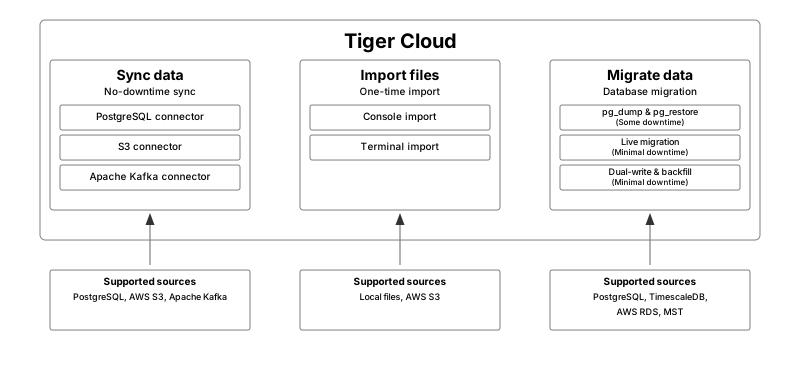
- Sync or stream directly, so data from another source is continuously updated in your service.
- Import individual files using Tiger Cloud Console or the command line.
- Migrate data from other databases.
Sync from Postgres or S3
Tiger Cloud provides source connectors for Postgres, S3, and Kafka. You use them to synchronize all or some of your data to your Tiger Cloud service in real time. You run the connectors continuously, using your data as a primary database and your Tiger Cloud service as a logical replica. This enables you to leverage Tiger Cloud’s real-time analytics capabilities on your replica data.
| Connector options | Downtime requirements |
|---|---|
| Source Postgres connector | None |
| Source S3 connector | None |
| Source Kafka connector | None |
Import individual files
You can import individual files using Console, from your local machine or S3. This includes CSV, Parquet, TXT, and MD files. Alternatively, import files using the terminal.
Depending on the amount of data you need to migrate, and the amount of downtime you can afford, Tiger Data offers the following migration options:
| Migration strategy | Use when | Downtime requirements |
|---|---|---|
| Migrate with downtime | Use pg_dump and pg_restore to migrate when you can afford downtime. |
Some downtime |
| Live migration | Simplified end-to-end migration with almost zero downtime. | Minimal downtime |
| Dual-write and backfill | Append-only data, heavy insert workload (~20,000 inserts per second) when modifying your ingestion pipeline is not an issue. | Minimal downtime |
All strategies work to migrate from Postgres, TimescaleDB, AWS RDS, and Managed Service for TimescaleDB. Migration
assistance is included with Tiger Cloud support. If you encounter any difficulties while migrating your data,
consult the troubleshooting page, open a support request, or take your issue to the #migration channel
in the community slack, the developers of this migration method are there to help.
You can open a support request directly from Tiger Cloud Console, or by email to support@tigerdata.com.
If you're migrating your data from another source database type, best practice is export the data from your source database as a CSV file, then import to your Tiger Cloud service using timescaledb-parallel-copy.
===== PAGE: https://docs.tigerdata.com/migrate/dual-write-and-backfill/ =====
Ingest real-time financial websocket data - Set up the dataset
URL: llms-txt#ingest-real-time-financial-websocket-data---set-up-the-dataset
Contents:
- Prerequisites
- Connect to the websocket server
- Set up a new Python environment
- Create the websocket connection
- Connect to the websocket server
- Optimize time-series data in a hypertable
- Create a standard Postgres table for relational data
- Batching in memory
- Ingest data in real-time
- Troubleshooting
This tutorial uses a dataset that contains second-by-second stock-trade data for
the top 100 most-traded symbols, in a hypertable named stocks_real_time. It
also includes a separate table of company symbols and company names, in a
regular Postgres table named company.
To follow the steps on this page:
- Create a target Tiger Cloud service with the Real-time analytics capability.
You need your connection details. This procedure also works for self-hosted TimescaleDB.
Connect to the websocket server
When you connect to the Twelve Data API through a websocket, you create a persistent connection between your computer and the websocket server. You set up a Python environment, and pass two arguments to create a websocket object and establish the connection.
Set up a new Python environment
Create a new Python virtual environment for this project and activate it. All the packages you need to complete for this tutorial are installed in this environment.
Create and activate a Python virtual environment:
Install the Twelve Data Python wrapper library with websocket support. This library allows you to make requests to the API and maintain a stable websocket connection.
Install Psycopg2 so that you can connect the TimescaleDB from your Python script:
Create the websocket connection
A persistent connection between your computer and the websocket server is used to receive data for as long as the connection is maintained. You need to pass two arguments to create a websocket object and establish connection.
Websocket arguments
This argument needs to be a function that is invoked whenever there's a
new data record is received from the websocket:
This is where you want to implement the ingestion logic so whenever
there's new data available you insert it into the database.
This argument needs to be a list of stock ticker symbols (for example,
`MSFT`) or crypto trading pairs (for example, `BTC/USD`). When using a
websocket connection you always need to subscribe to the events you want to
receive. You can do this by using the `symbols` argument or if your
connection is already created you can also use the `subscribe()` function to
get data for additional symbols.
Connect to the websocket server
Create a new Python file called
websocket_test.pyand connect to the Twelve Data servers using the<YOUR_API_KEY>:Run the Python script:
When you run the script, you receive a response from the server about the status of your connection:
When you have established a connection to the websocket server,
wait a few seconds, and you can see data records, like this:
Each price event gives you multiple data points about the given trading pair
such as the name of the exchange, and the current price. You can also
occasionally see `heartbeat` events in the response; these events signal
the health of the connection over time.
At this point the websocket connection is working successfully to pass data.
Optimize time-series data in a hypertable
Hypertables are Postgres tables in TimescaleDB that automatically partition your time-series data by time. Time-series data represents the way a system, process, or behavior changes over time. Hypertables enable TimescaleDB to work efficiently with time-series data. Each hypertable is made up of child tables called chunks. Each chunk is assigned a range of time, and only contains data from that range. When you run a query, TimescaleDB identifies the correct chunk and runs the query on it, instead of going through the entire table.
Hypercore is the hybrid row-columnar storage engine in TimescaleDB used by hypertables. Traditional databases force a trade-off between fast inserts (row-based storage) and efficient analytics (columnar storage). Hypercore eliminates this trade-off, allowing real-time analytics without sacrificing transactional capabilities.
Hypercore dynamically stores data in the most efficient format for its lifecycle:
- Row-based storage for recent data: the most recent chunk (and possibly more) is always stored in the rowstore, ensuring fast inserts, updates, and low-latency single record queries. Additionally, row-based storage is used as a writethrough for inserts and updates to columnar storage.
- Columnar storage for analytical performance: chunks are automatically compressed into the columnstore, optimizing storage efficiency and accelerating analytical queries.
Unlike traditional columnar databases, hypercore allows data to be inserted or modified at any stage, making it a flexible solution for both high-ingest transactional workloads and real-time analytics—within a single database.
Because TimescaleDB is 100% Postgres, you can use all the standard Postgres tables, indexes, stored procedures, and other objects alongside your hypertables. This makes creating and working with hypertables similar to standard Postgres.
- Connect to your Tiger Cloud service
In Tiger Cloud Console open an SQL editor. You can also connect to your service using psql.
- Create a hypertable to store the real-time cryptocurrency data
Create a hypertable for your time-series data using CREATE TABLE.
For efficient queries on data in the columnstore, remember to segmentby the column you will
use most often to filter your data:
If you are self-hosting TimescaleDB v2.19.3 and below, create a Postgres relational table, then convert it using create_hypertable. You then enable hypercore with a call to ALTER TABLE.
Create a standard Postgres table for relational data
When you have relational data that enhances your time-series data, store that data in standard Postgres relational tables.
- Add a table to store the asset symbol and name in a relational table
You now have two tables within your Tiger Cloud service. A hypertable named crypto_ticks, and a normal
Postgres table named crypto_assets.
When you ingest data into a transactional database like Timescale, it is more efficient to insert data in batches rather than inserting data row-by-row. Using one transaction to insert multiple rows can significantly increase the overall ingest capacity and speed of your Tiger Cloud service.
Batching in memory
A common practice to implement batching is to store new records in memory first, then after the batch reaches a certain size, insert all the records from memory into the database in one transaction. The perfect batch size isn't universal, but you can experiment with different batch sizes (for example, 100, 1000, 10000, and so on) and see which one fits your use case better. Using batching is a fairly common pattern when ingesting data into TimescaleDB from Kafka, Kinesis, or websocket connections.
To ingest the data into your Tiger Cloud service, you need to implement the
on_event function.
After the websocket connection is set up, you can use the on_event function
to ingest data into the database. This is a data pipeline that ingests real-time
financial data into your Tiger Cloud service.
You can implement a batching solution in Python with Psycopg2.
You can implement the ingestion logic within the on_event function that
you can then pass over to the websocket object.
This function needs to:
- Check if the item is a data item, and not websocket metadata.
- Adjust the data so that it fits the database schema, including the data types, and order of columns.
- Add it to the in-memory batch, which is a list in Python.
- If the batch reaches a certain size, insert the data, and reset or empty the list.
Ingest data in real-time
- Update the Python script that prints out the current batch size, so you can
follow when data gets ingested from memory into your database. Use
the
<HOST>,<PASSWORD>, and<PORT>details for the Tiger Cloud service where you want to ingest the data and your API key from Twelve Data:
You can even create separate Python scripts to start multiple websocket connections for different types of symbols, for example, one for stock, and another one for cryptocurrency prices.
If you see an error message similar to this:
Then check that you use a proper API key received from Twelve Data.
Connect Grafana to Tiger Cloud
To visualize the results of your queries, enable Grafana to read the data in your service:
- Log in to Grafana
In your browser, log in to either:
- Self-hosted Grafana: at `http://localhost:3000/`. The default credentials are `admin`, `admin`.
- Grafana Cloud: use the URL and credentials you set when you created your account.
- Add your service as a data source
- Open
Connections>Data sources, then clickAdd new data source. - Select
PostgreSQLfrom the list. - Configure the connection:
Host URL,Database name,Username, andPassword
- Open
Configure using your connection details. Host URL is in the format <host>:<port>.
  - `TLS/SSL Mode`: select `require`.
  - `PostgreSQL options`: enable `TimescaleDB`.
  - Leave the default setting for all other fields.
- Click
Save & test.
Grafana checks that your details are set correctly.
===== PAGE: https://docs.tigerdata.com/tutorials/financial-ingest-real-time/financial-ingest-query/ =====
Examples:
Example 1 (bash):
virtualenv env
    source env/bin/activate
Example 2 (bash):
pip install twelvedata websocket-client
Example 3 (bash):
pip install psycopg2-binary
Example 4 (python):
def on_event(event):
        print(event) # prints out the data record (dictionary)
About security in Tiger Cloud
URL: llms-txt#about-security-in-tiger-cloud
Contents:
- Role-based access
- Data encryption
- Networking security
- Networking with Virtual Private Cloud (VPC) peering
- IP address allow lists
- Operator access
- GDPR compliance
- HIPAA compliance
- SOC 2 compliance
Protecting data starts with secure software engineering. At Tiger Data, we embed security into every stage of development, from static code analysis and automated dependency scanning to rigorous code security reviews. To go even further, we developed pgspot, an open-source extension to identify security issues with Postgres extensions, which strengthens the broader ecosystem as well as our own platform. Tiger Data products do not have any identified weaknesses.
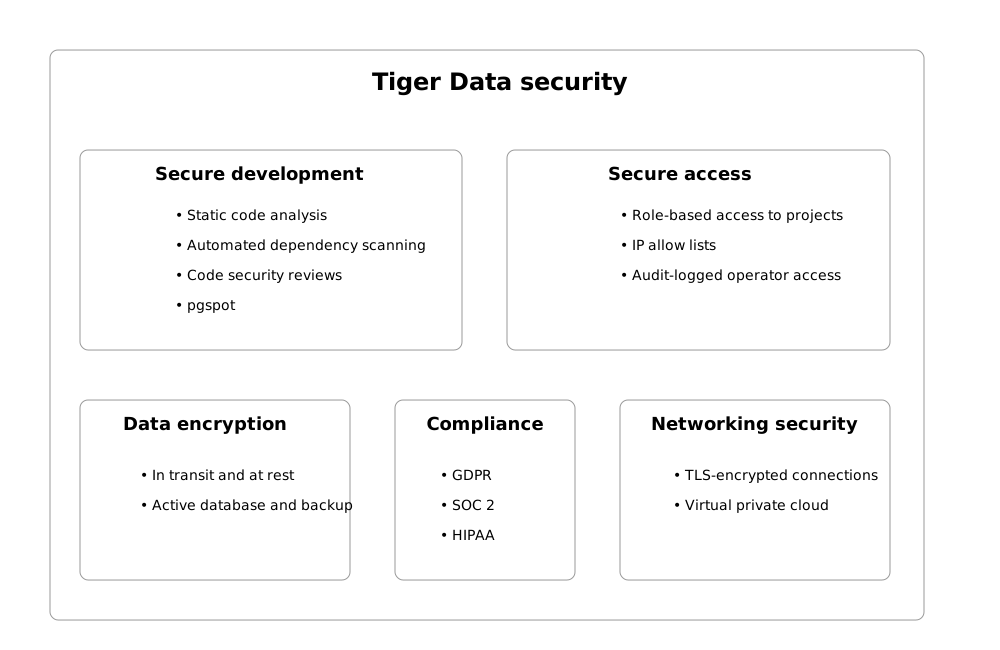
This page lists the additional things we do to ensure operational security and to lock down Tiger Cloud services. To see our security features at a glance, see Tiger Data Security.
Tiger Cloud provides role-based access for you to:
- Administer your Tiger Cloud project In Tiger Cloud Console, users with the Owner, Admin, and Viewer roles have different permissions to manage users and services in the project.
- Manage data in each service To restrict access to your data on the database level, you can create other roles on top of the default tsdbadmin role.
Your data on Tiger Cloud is encrypted both in transit and at rest. Both active databases and backups are encrypted.
Tiger Cloud uses AWS as its cloud provider, with all the security that AWS provides. Data encryption uses the industry-standard AES-256 algorithm. Cryptographic keys are managed by AWS Key Management Service (AWS KMS). Keys are never stored in plaintext.
For more information about AWS security, see the AWS documentation on security in Amazon Elastic Compute Cloud and Elastic Block Storage.
Networking security
Customer access to Tiger Cloud services is only provided over TLS-encrypted connections. There is no option to use unencrypted plaintext connections.
Networking with Virtual Private Cloud (VPC) peering
When using VPC peering, no public Internet-based access is provided to the service. Service addresses are published in public DNS, but they can only be connected to from the customer's peered VPC using private network addresses.
VPC peering only enables communication to be initiated from your Customer VPC to Tiger Cloud services running in the Tiger Cloud VPC. Tiger Cloud cannot initiate communication with your VPC. To learn how to set up VPC Peering, see Secure your Tiger Cloud services with VPC Peering and AWS PrivateLink.
IP address allow lists
You can allow only trusted IP addresses to access your Tiger Cloud services. You do this by creating IP address allow lists and attaching them to your services.
Normally all the resources required for providing Tiger Cloud services are automatically created, maintained and terminated by the Tiger Cloud infrastructure. No manual operator intervention is required.
However, the Tiger Data operations team has the capability to securely log in to the service virtual machines for troubleshooting purposes. These accesses are audit logged.
No customer access to the virtual machine level is provided.
Tiger Data complies with the European Union's General Data Protection Regulation (GDPR), and all practices are covered by our Privacy Policy and the Terms of Service. All customer data is processed in accordance with Tiger Data's GDPR-compliant Data Processor Addendum, which applies to all Tiger Data customers.
Tiger Data operators never access customer data, unless explicitly requested by the customer to troubleshoot a technical issue. The Tiger Data operations team has mandatory recurring training regarding the applicable policies.
The Tiger Cloud Enterprise plan is Health Insurance Portability and Accountability Act (HIPAA) compliant. This allows organizations to securely manage and analyze sensitive healthcare data, ensuring they meet regulatory requirements while building compliant applications.
Tiger Cloud is SOC 2 Type 2 compliant. This ensures that organizations can securely manage customer data in alignment with industry standards for security, availability, processing integrity, confidentiality, and privacy. It helps businesses meet trust requirements while confidently building applications that handle sensitive information. The annual SOC 2 report is available to customers on the Scale or Enterprise pricing plans. Open a support ticket to get access to it.
===== PAGE: https://docs.tigerdata.com/use-timescale/security/strict-ssl/ =====
Query the Bitcoin blockchain
URL: llms-txt#query-the-bitcoin-blockchain
Contents:
- Steps in this tutorial
The financial industry is extremely data-heavy and relies on real-time and historical data for decision-making, risk assessment, fraud detection, and market analysis. Tiger Data simplifies management of these large volumes of data, while also providing you with meaningful analytical insights and optimizing storage costs.
In this tutorial, you use Tiger Cloud to ingest, store, and analyze transactions on the Bitcoin blockchain.
Blockchains are, at their essence, a distributed database. The transactions in a blockchain are an example of time-series data. You can use TimescaleDB to query transactions on a blockchain, in exactly the same way as you might query time-series transactions in any other database.
Steps in this tutorial
This tutorial covers:
- Ingest data into a service: set up and connect to a Tiger Cloud service, create tables and hypertables, and ingest data.
- Query your data: obtain information, including finding the most recent transactions on the blockchain, and gathering information about the transactions using aggregation functions.
- Compress your data using hypercore: compress data that is no longer needed for highest performance queries, but is still accessed regularly for real-time analytics.
When you've completed this tutorial, you can use the same dataset to Analyze the Bitcoin data, using TimescaleDB hyperfunctions.
===== PAGE: https://docs.tigerdata.com/tutorials/blockchain-analyze/ =====
JDBC authentication type is not supported
URL: llms-txt#jdbc-authentication-type-is-not-supported
When connecting to Tiger Cloud with a Java Database Connectivity (JDBC) driver, you might get this error message.
Your Tiger Cloud authentication type doesn't match your JDBC driver's
supported authentication types. The recommended approach is to upgrade your JDBC
driver to a version that supports scram-sha-256 encryption. If that isn't an
option, you can change the authentication type for your Tiger Cloud service
to md5. Note that md5 is less secure, and is provided solely for
compatibility with older clients.
For information on changing your authentication type, see the documentation on resetting your service password.
===== PAGE: https://docs.tigerdata.com/_troubleshooting/chunk-temp-file-limit/ =====
Live migration
URL: llms-txt#live-migration
Contents:
- Prerequisites
- Migrate to Tiger Cloud
- Set your connection strings
- Align the version of TimescaleDB on the source and target
- Tune your source database
- Migrate your data, then start downtime
- Validate your data, then restart your app
- Set your connection strings
- Align the extensions on the source and target
- Tune your source database
Live migration is an end-to-end solution that copies the database schema and data to your target Tiger Cloud service, then replicates the database activity in your source database to the target service in real time. Live migration uses the Postgres logical decoding functionality and leverages pgcopydb.
You use the live migration Docker image to move 100GB-10TB+ of data to a Tiger Cloud service seamlessly with only a few minutes downtime.
If you want to migrate more than 400GB of data, create a Tiger Cloud Console support request, or send us an email at support@tigerdata.com saying how much data you want to migrate. We pre-provision your Tiger Cloud service for you.
Best practice is to use live migration when:
- Modifying your application logic to perform dual writes is a significant effort.
- The insert workload does not exceed 20,000 rows per second, and inserts are batched.
Use Dual write and backfill for greater workloads.
- Your source database:
- Uses
UPDATEandDELETEstatements on uncompressed time-series data.
- Uses
Live-migration does not support replicating INSERT/UPDATE/DELETE statements on compressed data.
- Has large, busy tables with primary keys.
- Does not have many
UPDATEorDELETEstatements.
This page shows you how to move your data from a self-hosted database to a Tiger Cloud service using the live-migration Docker image.
Best practice is to use an Ubuntu EC2 instance hosted in the same region as your Tiger Cloud service to move data. That is, the machine you run the commands on to move your data from your source database to your target Tiger Cloud service.
Before you move your data:
- Create a target Tiger Cloud service.
Each Tiger Cloud service has a single Postgres instance that supports the most popular extensions. Tiger Cloud services do not support tablespaces, and there is no superuser associated with a service. Best practice is to create a Tiger Cloud service with at least 8 CPUs for a smoother experience. A higher-spec instance can significantly reduce the overall migration window.
To ensure that maintenance does not run while migration is in progress, best practice is to adjust the maintenance window.
Install Docker on your migration machine.
This machine needs sufficient space to store the buffered changes that occur while your data is being copied. This space is proportional to the amount of new uncompressed data being written to the Tiger Cloud service during migration. A general rule of thumb is between 100GB and 500GB. The CPU specifications of this EC2 instance should match those of your Tiger Cloud service for optimal performance. For example, if your service has an 8-CPU configuration, then your EC2 instance should also have 8 CPUs.
- Before starting live migration, read the Frequently Asked Questions.
Migrate to Tiger Cloud
To move your data from a self-hosted database to a Tiger Cloud service:
This section shows you how to move your data from self-hosted TimescaleDB to a Tiger Cloud service using live migration from Terminal.
Set your connection strings
These variables hold the connection information for the source database and target Tiger Cloud service. In Terminal on your migration machine, set the following:
You find the connection information for your Tiger Cloud service in the configuration file you downloaded when you created the service.
Avoid using connection strings that route through connection poolers like PgBouncer or similar tools. This tool requires a direct connection to the database to function properly.
Align the version of TimescaleDB on the source and target
Ensure that the source and target databases are running the same version of TimescaleDB.
Check the version of TimescaleDB running on your Tiger Cloud service:
Update the TimescaleDB extension in your source database to match the target service:
If the TimescaleDB extension is the same version on the source database and target service,
you do not need to do this.
For more information and guidance, see Upgrade TimescaleDB.
Ensure that the Tiger Cloud service is running the Postgres extensions used in your source database.
Check the extensions on the source database:
- For each extension, enable it on your target Tiger Cloud service:
Tune your source database
You need admin rights to to update the configuration on your source database. If you are using
a managed service, follow the instructions in the From MST tab on this page.
- Install the
wal2jsonextension on your source database
Install wal2json on your source database.
- Prevent Postgres from treating the data in a snapshot as outdated
This is not applicable if the source database is Postgres 17 or later.
Set the write-Ahead Log (WAL) to record the information needed for logical decoding
Restart the source database
Your configuration changes are now active. However, verify that the settings are live in your database.
- Enable live-migration to replicate
DELETEandUPDATEoperations
Replica identity assists data replication by identifying the rows being modified. Your options are that each table and hypertable in the source database should either have:
- A primary key: data replication defaults to the primary key of the table being replicated. Nothing to do.
- A viable unique index: each table has a unique, non-partial, non-deferrable index that includes only columns
marked as
NOT NULL. If a UNIQUE index does not exist, create one to assist the migration. You can delete if after migration.
For each table, set REPLICA IDENTITY to the viable unique index:
- No primary key or viable unique index: use brute force.
For each table, set REPLICA IDENTITY to FULL:
For each UPDATE or DELETE statement, Postgres reads the whole table to find all matching rows. This results
in significantly slower replication. If you are expecting a large number of UPDATE or DELETE operations on the table,
best practice is to not use FULL.
Migrate your data, then start downtime
- Pull the live-migration docker image to you migration machine
To list the available commands, run:
To see the available flags for each command, run --help for that command. For example:
- Create a snapshot image of your source database in your Tiger Cloud service
This process checks that you have tuned your source database and target service correctly for replication, then creates a snapshot of your data on the migration machine:
Live-migration supplies information about updates you need to make to the source database and target service. For example:
If you have warnings, stop live-migration, make the suggested changes and start again.
- Synchronize data between your source database and your Tiger Cloud service
This command migrates data from the snapshot to your Tiger Cloud service, then streams
transactions from the source to the target.
If the source Postgres version is 17 or later, you need to pass additional
flag -e PGVERSION=17 to the migrate command.
During this process, you see the migration process:
If migrate stops add --resume to start from where it left off.
Once the data in your target Tiger Cloud service has almost caught up with the source database, you see the following message:
Wait until replay_lag is down to a few kilobytes before you move to the next step. Otherwise, data
replication may not have finished.
Start app downtime
Stop your app writing to the source database, then let the the remaining transactions finish to fully sync with the target. You can use tools like the
pg_topCLI orpg_stat_activityto view the current transaction on the source database.Stop Live-migration.
Live-migration continues the remaining work. This includes copying
  TimescaleDB metadata, sequences, and run policies. When the migration completes,
  you see the following message:
Validate your data, then restart your app
- Validate the migrated data
The contents of both databases should be the same. To check this you could compare the number of rows, or an aggregate of columns. However, the best validation method depends on your app.
- Stop app downtime
Once you are confident that your data is successfully replicated, configure your apps to use your Tiger Cloud service.
- Cleanup resources associated with live-migration from your migration machine
This command removes all resources and temporary files used in the migration process. When you run this command, you can no longer resume live-migration.
This section shows you how to move your data from self-hosted Postgres to a Tiger Cloud service using live migration from Terminal.
Set your connection strings
These variables hold the connection information for the source database and target Tiger Cloud service. In Terminal on your migration machine, set the following:
You find the connection information for your Tiger Cloud service in the configuration file you downloaded when you created the service.
Avoid using connection strings that route through connection poolers like PgBouncer or similar tools. This tool requires a direct connection to the database to function properly.
Align the extensions on the source and target
Ensure that the Tiger Cloud service is running the Postgres extensions used in your source database.
Check the extensions on the source database:
- For each extension, enable it on your target Tiger Cloud service:
Tune your source database
You need admin rights to to update the configuration on your source database. If you are using
a managed service, follow the instructions in the From AWS RDS/Aurora tab on this page.
- Install the
wal2jsonextension on your source database
Install wal2json on your source database.
- Prevent Postgres from treating the data in a snapshot as outdated
This is not applicable if the source database is Postgres 17 or later.
Set the write-Ahead Log (WAL) to record the information needed for logical decoding
Restart the source database
Your configuration changes are now active. However, verify that the settings are live in your database.
- Enable live-migration to replicate
DELETEandUPDATEoperations
Replica identity assists data replication by identifying the rows being modified. Your options are that each table and hypertable in the source database should either have:
- A primary key: data replication defaults to the primary key of the table being replicated. Nothing to do.
- A viable unique index: each table has a unique, non-partial, non-deferrable index that includes only columns
marked as
NOT NULL. If a UNIQUE index does not exist, create one to assist the migration. You can delete if after migration.
For each table, set REPLICA IDENTITY to the viable unique index:
- No primary key or viable unique index: use brute force.
For each table, set REPLICA IDENTITY to FULL:
For each UPDATE or DELETE statement, Postgres reads the whole table to find all matching rows. This results
in significantly slower replication. If you are expecting a large number of UPDATE or DELETE operations on the table,
best practice is to not use FULL.
Migrate your data, then start downtime
- Pull the live-migration docker image to you migration machine
To list the available commands, run:
To see the available flags for each command, run --help for that command. For example:
- Create a snapshot image of your source database in your Tiger Cloud service
This process checks that you have tuned your source database and target service correctly for replication, then creates a snapshot of your data on the migration machine:
Live-migration supplies information about updates you need to make to the source database and target service. For example:
If you have warnings, stop live-migration, make the suggested changes and start again.
- Synchronize data between your source database and your Tiger Cloud service
This command migrates data from the snapshot to your Tiger Cloud service, then streams
transactions from the source to the target.
If the source Postgres version is 17 or later, you need to pass additional
flag -e PGVERSION=17 to the migrate command.
After migrating the schema, live-migration prompts you to create hypertables for tables that
contain time-series data in your Tiger Cloud service. Run create_hypertable() to convert these
table. For more information, see the Hypertable docs.
During this process, you see the migration process:
If migrate stops add --resume to start from where it left off.
Once the data in your target Tiger Cloud service has almost caught up with the source database, you see the following message:
Wait until replay_lag is down to a few kilobytes before you move to the next step. Otherwise, data
replication may not have finished.
Start app downtime
Stop your app writing to the source database, then let the the remaining transactions finish to fully sync with the target. You can use tools like the
pg_topCLI orpg_stat_activityto view the current transaction on the source database.Stop Live-migration.
Live-migration continues the remaining work. This includes copying
  TimescaleDB metadata, sequences, and run policies. When the migration completes,
  you see the following message:
Validate your data, then restart your app
- Validate the migrated data
The contents of both databases should be the same. To check this you could compare the number of rows, or an aggregate of columns. However, the best validation method depends on your app.
- Stop app downtime
Once you are confident that your data is successfully replicated, configure your apps to use your Tiger Cloud service.
- Cleanup resources associated with live-migration from your migration machine
This command removes all resources and temporary files used in the migration process. When you run this command, you can no longer resume live-migration.
To migrate your data from an Amazon RDS/Aurora Postgres instance to a Tiger Cloud service, you extract the data to an intermediary EC2 Ubuntu instance in the same AWS region as your RDS/Aurora instance. You then upload your data to a Tiger Cloud service. To make this process as painless as possible, ensure that the intermediary machine has enough CPU and disk space to rapidly extract and store your data before uploading to Tiger Cloud.
Migration from RDS/Aurora gives you the opportunity to create hypertables before copying the data. Once the migration is complete, you can manually enable Tiger Cloud features like data compression or data retention.
This section shows you how to move your data from an Amazon RDS/Aurora instance to a Tiger Cloud service using live migration.
Create an intermediary EC2 Ubuntu instance
- In https://console.aws.amazon.com/rds/home#databases:, select the RDS/Aurora Postgres instance to migrate.
- Click
Actions>Set up EC2 connection. PressCreate EC2 instanceand use the following settings:- AMI: Ubuntu Server.
- Key pair: use an existing pair or create a new one that you will use to access the intermediary machine.
- VPC: by default, this is the same as the database instance.
- Configure Storage: adjust the volume to at least the size of RDS/Aurora Postgres instance you are migrating from. You can reduce the space used by your data on Tiger Cloud using Hypercore.
- Click
Lauch instance. AWS creates your EC2 instance, then clickConnect to instance>SSH client. Follow the instructions to create the connection to your intermediary EC2 instance.
Install the psql client tools on the intermediary instance
Connect to your intermediary EC2 instance. For example:
On your intermediary EC2 instance, install the Postgres client.
Keep this terminal open, you need it to connect to the RDS/Aurora Postgres instance for migration.
Set up secure connectivity between your RDS/Aurora Postgres and EC2 instances
- In https://console.aws.amazon.com/rds/home#databases:, select the RDS/Aurora Postgres instance to migrate.
- Scroll down to
Security group rules (1)and select theEC2 Security Group - Inboundgroup. TheSecurity Groups (1)window opens. Click theSecurity group ID, then clickEdit inbound rules
- On your intermediary EC2 instance, get your local IP address:
Bear with me on this one, you need this IP address to enable access to your RDS/Aurora Postgres instance.
- In
Edit inbound rules, clickAdd rule, then create aPostgreSQL,TCPrule granting access to the local IP address for your EC2 instance (told you :-)). Then clickSave rules.
Test the connection between your RDS/Aurora Postgres and EC2 instances
- In https://console.aws.amazon.com/rds/home#databases:, select the RDS/Aurora Postgres instance to migrate.
- On your intermediary EC2 instance, use the values of
Endpoint,Port,Master username, andDB nameto create the postgres connectivity string to theSOURCEvariable.
The value of Master password was supplied when this RDS/Aurora Postgres instance was created.
- Test your connection:
You are connected to your RDS/Aurora Postgres instance from your intermediary EC2 instance.
Set your connection strings
These variables hold the connection information for the source database and target Tiger Cloud service. In Terminal on your migration machine, set the following:
You find the connection information for your Tiger Cloud service in the configuration file you downloaded when you created the service.
Avoid using connection strings that route through connection poolers like PgBouncer or similar tools. This tool requires a direct connection to the database to function properly.
Align the extensions on the source and target
Ensure that the Tiger Cloud service is running the Postgres extensions used in your source database.
Check the extensions on the source database:
- For each extension, enable it on your target Tiger Cloud service:
Tune your source database
Updating parameters on a Postgres instance will cause an outage. Choose a time that will cause the least issues to tune this database.
Update the DB instance parameter group for your source database
In https://console.aws.amazon.com/rds/home#databases:, select the RDS instance to migrate.
Click
Configuration, scroll down and note theDB instance parameter group, then clickParameter groups
<img class="main-content__illustration"
  src="https://assets.timescale.com/docs/images/migrate/awsrds-parameter-groups.png"
  alt="Create security rule to enable RDS EC2 connection"/>
Click
Create parameter group, fill in the form with the following values, then clickCreate.- Parameter group name - whatever suits your fancy.
- Description - knock yourself out with this one.
- Engine type -
PostgreSQL - Parameter group family - the same as
DB instance parameter groupin yourConfiguration. - In
Parameter groups, select the parameter group you created, then clickEdit. - Update the following parameters, then click
Save changes.rds.logical_replicationset to1: record the information needed for logical decoding.wal_sender_timeoutset to0: disable the timeout for the sender process.
In RDS, navigate back to your databases, select the RDS instance to migrate, and click
Modify.Scroll down to
Database options, select your new parameter group, and clickContinue.- Click
Apply immediatelyor choose a maintenance window, then clickModify DB instance.
- Click
Changing parameters will cause an outage. Wait for the database instance to reboot before continuing.
Verify that the settings are live in your database.
Enable replication
DELETEandUPDATEoperations
Replica identity assists data replication by identifying the rows being modified. Your options are that each table and hypertable in the source database should either have:
- A primary key: data replication defaults to the primary key of the table being replicated. Nothing to do.
- A viable unique index: each table has a unique, non-partial, non-deferrable index that includes only columns
marked as
NOT NULL. If a UNIQUE index does not exist, create one to assist the migration. You can delete if after migration.
For each table, set REPLICA IDENTITY to the viable unique index:
- No primary key or viable unique index: use brute force.
For each table, set REPLICA IDENTITY to FULL:
For each UPDATE or DELETE statement, Postgres reads the whole table to find all matching rows. This results
in significantly slower replication. If you are expecting a large number of UPDATE or DELETE operations on the table,
best practice is to not use FULL.
Migrate your data, then start downtime
- Pull the live-migration docker image to you migration machine
To list the available commands, run:
To see the available flags for each command, run --help for that command. For example:
- Create a snapshot image of your source database in your Tiger Cloud service
This process checks that you have tuned your source database and target service correctly for replication, then creates a snapshot of your data on the migration machine:
Live-migration supplies information about updates you need to make to the source database and target service. For example:
If you have warnings, stop live-migration, make the suggested changes and start again.
- Synchronize data between your source database and your Tiger Cloud service
This command migrates data from the snapshot to your Tiger Cloud service, then streams
transactions from the source to the target.
If the source Postgres version is 17 or later, you need to pass additional
flag -e PGVERSION=17 to the migrate command.
After migrating the schema, live-migration prompts you to create hypertables for tables that
contain time-series data in your Tiger Cloud service. Run create_hypertable() to convert these
table. For more information, see the Hypertable docs.
During this process, you see the migration process:
If migrate stops add --resume to start from where it left off.
Once the data in your target Tiger Cloud service has almost caught up with the source database, you see the following message:
Wait until replay_lag is down to a few kilobytes before you move to the next step. Otherwise, data
replication may not have finished.
Start app downtime
Stop your app writing to the source database, then let the the remaining transactions finish to fully sync with the target. You can use tools like the
pg_topCLI orpg_stat_activityto view the current transaction on the source database.Stop Live-migration.
Live-migration continues the remaining work. This includes copying
  TimescaleDB metadata, sequences, and run policies. When the migration completes,
  you see the following message:
Validate your data, then restart your app
- Validate the migrated data
The contents of both databases should be the same. To check this you could compare the number of rows, or an aggregate of columns. However, the best validation method depends on your app.
- Stop app downtime
Once you are confident that your data is successfully replicated, configure your apps to use your Tiger Cloud service.
- Cleanup resources associated with live-migration from your migration machine
This command removes all resources and temporary files used in the migration process. When you run this command, you can no longer resume live-migration.
This section shows you how to move your data from a MST instance to a Tiger Cloud service using live migration from Terminal.
Set your connection strings
These variables hold the connection information for the source database and target Tiger Cloud service. In Terminal on your migration machine, set the following:
You find the connection information for your Tiger Cloud service in the configuration file you downloaded when you created the service.
Avoid using connection strings that route through connection poolers like PgBouncer or similar tools. This tool requires a direct connection to the database to function properly.
Align the version of TimescaleDB on the source and target
Ensure that the source and target databases are running the same version of TimescaleDB.
Check the version of TimescaleDB running on your Tiger Cloud service:
Update the TimescaleDB extension in your source database to match the target service:
If the TimescaleDB extension is the same version on the source database and target service,
you do not need to do this.
For more information and guidance, see Upgrade TimescaleDB.
Ensure that the Tiger Cloud service is running the Postgres extensions used in your source database.
Check the extensions on the source database:
- For each extension, enable it on your target Tiger Cloud service:
Tune your source database
- Enable live-migration to replicate
DELETEandUPDATEoperations
Replica identity assists data replication by identifying the rows being modified. Your options are that each table and hypertable in the source database should either have:
- A primary key: data replication defaults to the primary key of the table being replicated. Nothing to do.
- A viable unique index: each table has a unique, non-partial, non-deferrable index that includes only columns
marked as
NOT NULL. If a UNIQUE index does not exist, create one to assist the migration. You can delete if after migration.
For each table, set REPLICA IDENTITY to the viable unique index:
- No primary key or viable unique index: use brute force.
For each table, set REPLICA IDENTITY to FULL:
For each UPDATE or DELETE statement, Postgres reads the whole table to find all matching rows. This results
in significantly slower replication. If you are expecting a large number of UPDATE or DELETE operations on the table,
best practice is to not use FULL.
Migrate your data, then start downtime
- Pull the live-migration docker image to you migration machine
To list the available commands, run:
To see the available flags for each command, run --help for that command. For example:
- Create a snapshot image of your source database in your Tiger Cloud service
This process checks that you have tuned your source database and target service correctly for replication, then creates a snapshot of your data on the migration machine:
Live-migration supplies information about updates you need to make to the source database and target service. For example:
If you have warnings, stop live-migration, make the suggested changes and start again.
- Synchronize data between your source database and your Tiger Cloud service
This command migrates data from the snapshot to your Tiger Cloud service, then streams
transactions from the source to the target.
If the source Postgres version is 17 or later, you need to pass additional
flag -e PGVERSION=17 to the migrate command.
During this process, you see the migration process:
If migrate stops add --resume to start from where it left off.
Once the data in your target Tiger Cloud service has almost caught up with the source database, you see the following message:
Wait until replay_lag is down to a few kilobytes before you move to the next step. Otherwise, data
replication may not have finished.
Start app downtime
Stop your app writing to the source database, then let the the remaining transactions finish to fully sync with the target. You can use tools like the
pg_topCLI orpg_stat_activityto view the current transaction on the source database.Stop Live-migration.
Live-migration continues the remaining work. This includes copying
  TimescaleDB metadata, sequences, and run policies. When the migration completes,
  you see the following message:
Validate your data, then restart your app
- Validate the migrated data
The contents of both databases should be the same. To check this you could compare the number of rows, or an aggregate of columns. However, the best validation method depends on your app.
- Stop app downtime
Once you are confident that your data is successfully replicated, configure your apps to use your Tiger Cloud service.
- Cleanup resources associated with live-migration from your migration machine
This command removes all resources and temporary files used in the migration process. When you run this command, you can no longer resume live-migration.
And you are done, your data is now in your Tiger Cloud service.
This section shows you how to work around frequently seen issues when using live migration.
ERROR: relation "xxx.yy" does not exist
This may happen when a relation is removed after executing the snapshot command. A relation can be
a table, index, view, or materialized view. When you see you this error:
Do not perform any explicit DDL operation on the source database during the course of migration.
If you are migrating from self-hosted TimescaleDB or MST, disable the chunk retention policy on your source database until you have finished migration.
FATAL: remaining connection slots are reserved for non-replication superuser connections
This may happen when the number of connections exhaust max_connections defined in your target Tiger Cloud service.
By default, live-migration needs around ~6 connections on the source and ~12 connections on the target.
Migration seems to be stuck with “x GB copied to Target DB (Source DB is y GB)”
When you are migrating a lot of data involved in aggregation, or there are many materialized views taking time
to complete the materialization, this may be due to REFRESH MATERIALIZED VIEWS happening at the end of initial
data migration.
To resolve this issue:
See what is happening on the target Tiger Cloud service:
When you run the
migrate, add the following flags to exclude specific materialized views being materialized:When
migratehas finished, manually refresh the materialized views you excluded.
Restart migration from scratch after a non-resumable failure
If the migration halts due to a failure, such as a misconfiguration of the source or target database, you may need to
restart the migration from scratch. In such cases, you can reuse the original target Tiger Cloud service created for the
migration by utilizing the --drop-if-exists flag with the migrate command.
This flag ensures that the existing target objects created by the previous migration are dropped, allowing the migration to proceed without trouble.
Note: This flag also requires you to manually recreate the TimescaleDB extension on the target.
Here’s an example command sequence to restart the migration:
This approach provides a clean slate for the migration process while reusing the existing target instance.
Inactive or lagging replication slots
If you encounter an “Inactive or lagging replication slots” warning on your cloud provider console after using live-migration, it might be due to lingering replication slots created by the live-migration tool on your source database.
To clean up resources associated with live migration, use the following command:
The --prune flag is used to delete temporary files in the ~/live-migration directory
that were needed for the migration process. It's important to note that executing the
clean command means you cannot resume the interrupted live migration.
Because of issues dumping passwords from various managed service providers, Live-migration migrates roles without passwords. You have to migrate passwords manually.
Live-migration does not migrate table privileges. After completing Live-migration:
Grant all roles to
tsdbadmin.On your migration machine, edit
/tmp/grants.psqlto match table privileges on your source database.Run
grants.psqlon your target Tiger Cloud service.
Postgres to Tiger Cloud: “live-replay not keeping up with source load”
- Go to Tiger Cloud Console ->
Monitoring->Insightstab and find the query which takes significant time - If the query is either UPDATE/DELETE, make sure the columns used on the WHERE clause have necessary indexes.
- If the query is either UPDATE/DELETE on the tables which are converted as hypertables, make sure the REPLIDA IDENTITY(defaults to primary key) on the source is compatible with the target primary key. If not, create an UNIQUE index source database by including the hypertable partition column and make it as a REPLICA IDENTITY. Also, create the same UNIQUE index on target.
ERROR: out of memory (or) Failed on request of size xxx in memory context "yyy" on a Tiger Cloud service
This error occurs when the Out of Memory (OOM) guard is triggered due to memory allocations exceeding safe limits. It typically happens when multiple concurrent connections to the TimescaleDB instance are performing memory-intensive operations. For example, during live migrations, this error can occur when large indexes are being created simultaneously.
The live-migration tool includes a retry mechanism to handle such errors. However, frequent OOM crashes may significantly delay the migration process.
One of the following can be used to avoid the OOM errors:
Upgrade to Higher Memory Spec Instances: To mitigate memory constraints, consider using a TimescaleDB instance with higher specifications, such as an instance with 8 CPUs and 32 GB RAM (or more). Higher memory capacity can handle larger workloads and reduce the likelihood of OOM errors.
Reduce Concurrency: If upgrading your instance is not feasible, you can reduce the concurrency of the index migration process using the
--index-jobs=<value>flag in the migration command. By default, the value of--index-jobsmatches the GUC max_parallel_workers. Lowering this value reduces the memory usage during migration but may increase the total migration time.
By taking these steps, you can prevent OOM errors and ensure a smoother migration experience with TimescaleDB.
===== PAGE: https://docs.tigerdata.com/migrate/dual-write-and-backfill/ =====
Examples:
Example 1 (bash):
export SOURCE="postgres://<user>:<password>@<source host>:<source port>/<db_name>"
export TARGET="postgres://tsdbadmin:<PASSWORD>@<HOST>:<PORT>/tsdb?sslmode=require"
Example 2 (bash):
psql target -c "SELECT extversion FROM pg_extension WHERE extname = 'timescaledb';"
Example 3 (bash):
psql source -c "ALTER EXTENSION timescaledb UPDATE TO '<version here>';"
Example 4 (bash):
psql source -c "SELECT * FROM pg_extension;"
Set up Transit Gateway on AWS
URL: llms-txt#set-up-transit-gateway-on-aws
Contents:
- Before you begin
- Attaching a VPC to an AWS Transit Gateway
AWS Transit Gateway (TGW) enables transitive routing from on-premises networks through VPN and from other VPC. By creating a Transit Gateway VPC attachment, services in an MST Project VPC can route traffic to all other networks attached - directly or indirectly - to the Transit Gateway.
- Set up a VPC peering for your project in MST.
- In your AWS console, go to
My Accountand make a note of youraccount ID. - In your AWS console, go to
Transit Gateways, find the transit gateway that you want to attach, and make a note of the ID.
Attaching a VPC to an AWS Transit Gateway
To set up VPC peering for your project:
- In MST Console, click
VPCand select the VPC connection that you created. In the
VPC Peering connectionspage selectTransit Gateway VPC Attachment.Type the account ID of your AWS account in
AWS Account ID.Type the ID of the Transit Gateway of AWS in
Transit Gateway ID.Type the IP range in the
Network cidrsfield.
Each Transit Gateway has a route table of its own, and by default routes
traffic to each attached network directly to attached VPCs or indirectly
through VPN attachments. The attached VPCs' route tables need to be updated
to include the TGW as a target for any IP range (CIDR) that should be routed
using the VPC attachment. These IP ranges must be configured when creating
the attachment for an MST Project VPC.
- Click
Add peering connection.
A new connection with a status of Pending Acceptance is listed in your
AWS console. Verify that the account ID and transit gateway ID match those
listed in MST Console.
- In the AWS console, go to
Actionsand selectAccept Request. Update your AWS route tables to match your Managed Service for TimescaleDB CIDR settings.
After you accept the request in AWS Console, the peering connection is active in the MST Console.
===== PAGE: https://docs.tigerdata.com/mst/vpc-peering/vpc-peering-aws/ =====
Troubleshooting TimescaleDB
URL: llms-txt#troubleshooting-timescaledb
Contents:
- Common errors
- Error updating TimescaleDB when using a third-party Postgres administration tool
- Log error: could not access file "timescaledb"
- ERROR: could not access file "timescaledb-<version>": No such file or directory
- Scheduled jobs stop running
- Failed to start a background worker
- Cannot compress chunk
- Getting more information
- EXPLAINing query performance
- Dump TimescaleDB meta data
If you run into problems when using TimescaleDB, there are a few things that you can do. There are some solutions to common errors in this section as well as ways to output diagnostic information about your setup. If you need more guidance, you can join the community Slack group or post an issue on the TimescaleDB GitHub.
Error updating TimescaleDB when using a third-party Postgres administration tool
The ALTER EXTENSION timescaledb UPDATE command must be the first
command executed upon connection to a database. Some administration tools
execute commands before this, which can disrupt the process. You might
need to manually update the database with psql. See the
update docs for details.
Log error: could not access file "timescaledb"
If your Postgres logs have this error preventing it from starting up, you
should double-check that the TimescaleDB files have been installed to the
correct location. The installation methods use pg_config to get Postgres's
location. However, if you have multiple versions of Postgres installed on the
same machine, the location pg_config points to may not be for the version you
expect. To check which version of TimescaleDB is used:
If that is the correct version, double-check that the installation path is
the one you'd expect. For example, for Postgres 11.0 installed via
Homebrew on macOS it should be /usr/local/Cellar/postgresql/11.0/bin:
If either of those steps is not the version you are expecting, you need to
either uninstall the incorrect version of Postgres if you can, or update your
PATH environmental variable to have the correct path of pg_config listed
first, that is, by prepending the full path:
Then, reinstall TimescaleDB and it should find the correct installation path.
ERROR: could not access file "timescaledb-<version>": No such file or directory
If the error occurs immediately after updating your version of TimescaleDB and
the file mentioned is from the previous version, it is probably due to an
incomplete update process. Within the greater Postgres server instance, each
database that has TimescaleDB installed needs to be updated with the SQL command
ALTER EXTENSION timescaledb UPDATE; while connected to that database.
Otherwise, the database looks for the previous version of the timescaledb files.
See our update docs for more info.
Scheduled jobs stop running
Your scheduled jobs might stop running for various reasons. On self-hosted TimescaleDB, you can fix this by restarting background workers:
On Tiger Cloud and Managed Service for TimescaleDB, restart background workers by doing one of the following:
- Run
SELECT timescaledb_pre_restore(), followed bySELECT timescaledb_post_restore(). - Power the service off and on again. This might cause a downtime of a few minutes while the service restores from backup and replays the write-ahead log.
Failed to start a background worker
You might see this error message in the logs if background workers aren't properly configured:
To fix this error, make sure that max_worker_processes,
max_parallel_workers, and timescaledb.max_background_workers are properly
set. timescaledb.max_background_workers should equal the number of databases
plus the number of concurrent background workers. max_worker_processes should
equal the sum of timescaledb.max_background_workers and
max_parallel_workers.
For more information, see the worker configuration docs.
Cannot compress chunk
You might see this error message when trying to compress a chunk if the permissions for the compressed hypertable are corrupt.
This can be caused if you dropped a user for the hypertable before
TimescaleDB 2.5. For this case, the user would be removed from
pg_authid but not revoked from the compressed table.
As a result, the compressed table contains permission items that refer to numerical values rather than existing users (see below for how to find the compressed hypertable from a normal hypertable):
This means that the relacl column of pg_class needs to be updated
and the offending user removed, but it is not possible to drop a user
by numerical value. Instead, you can use the internal function
repair_relation_acls in the _timescaledb_function schema:
This requires superuser privileges (since you're modifying the
pg_class table) and that it removes any user not present in
pg_authid from all tables, so use with caution.
The permissions are usually corrupted for the hypertable as well, but
not always, so it is better to look at the compressed hypertable to
see if the problem is present. To find the compressed hypertable for
an associated hypertable (readings in this case):
Getting more information
EXPLAINing query performance
Postgres's EXPLAIN feature allows users to understand the underlying query plan that Postgres uses to execute a query. There are multiple ways that Postgres can execute a query: for example, a query might be fulfilled using a slow sequence scan or a much more efficient index scan. The choice of plan depends on what indexes are created on the table, the statistics that Postgres has about your data, and various planner settings. The EXPLAIN output let's you know which plan Postgres is choosing for a particular query. Postgres has a in-depth explanation of this feature.
To understand the query performance on a hypertable, we suggest first
making sure that the planner statistics and table maintenance is up-to-date on the hypertable
by running VACUUM ANALYZE <your-hypertable>;. Then, we suggest running the
following version of EXPLAIN:
If you suspect that your performance issues are due to slow IOs from disk, you
can get even more information by enabling the
track_io_timing variable with SET track_io_timing = 'on';
before running the above EXPLAIN.
Dump TimescaleDB meta data
To help when asking for support and reporting bugs,
TimescaleDB includes a SQL script that outputs metadata
from the internal TimescaleDB tables as well as version information.
The script is available in the source distribution in scripts/
but can also be downloaded separately.
To use it, run:
and then inspect dump_file.txt before sending it together with a bug report or support question.
Debugging background jobs
By default, background workers do not print a lot of information about execution. The reason for this is to avoid writing a lot of debug information to the Postgres log unless necessary.
To aid in debugging the background jobs, it is possible to increase
the log level of the background workers without having to restart the
server by setting the timescaledb.bgw_log_level GUC and reloading
the configuration.
This variable is set to the value of
log_min_messages by default, which typically is
WARNING. If the value of log_min_messages is
changed in the configuration file, it is used for
timescaledb.bgw_log_level when starting the workers.
Both ALTER SYSTEM and pg_reload_conf() require superuser
privileges by default. Grant EXECUTE permissions
to pg_reload_conf() and ALTER SYSTEM privileges to
timescaledb.bgw_log_level if you want this to work for a
non-superuser.
Since ALTER SYSTEM privileges only exist on Postgres 15 and later,
the necessary grants for executing these statements only exist on Tiger Cloud for Postgres 15 or later.
The amount of information printed at each level varies between jobs,
but the information printed at DEBUG1 is currently shown below.
| Source | Event |
|---|---|
| All jobs | Job exit with runtime information |
| All jobs | Job scheduled for fast restart |
| Custom job | Execution started |
| Recompression job | Recompression job completed |
| Reorder job | Chunk reorder completed |
| Reorder job | Chunk reorder started |
| Scheduler | New jobs discovered and added to scheduled jobs list |
| Scheduler | Scheduling job for launch |
The amount of information printed at each level varies between jobs,
but the information printed at DEBUG2 is currently shown below.
Note that all messages at level DEBUG1 are also printed when you set
the log level to DEBUG2, which is normal Postgres
behaviour.
| Source | Event |
|---|---|
| All jobs | Job found in jobs table |
| All jobs | Job starting execution |
| Scheduler | Scheduled jobs list update started |
| Scheduler | Scheduler dispatching job |
| Source | Event |
|---|---|
| Scheduler | Scheduled wake up |
| Scheduler | Scheduler delayed in dispatching job |
hypertable chunks are not discoverable by the Postgres CDC service
hypertables require special handling for CDC support. Newly created chunks are not not published, which means they are not discoverable by the CDC service. To fix this problem, use the following trigger to automatically publishe newly created chunks on the replication slot. Please be aware that TimescaleDB does not provide full CDC support.
===== PAGE: https://docs.tigerdata.com/use-timescale/compression/ =====
Examples:
Example 1 (bash):
$ pg_config --version
PostgreSQL 12.3
Example 2 (bash):
$ pg_config --bindir
/usr/local/Cellar/postgresql/11.0/bin
Example 3 (bash):
export PATH = /usr/local/Cellar/postgresql/11.0/bin:$PATH
Example 4 (sql):
SELECT _timescaledb_internal.restart_background_workers();
Sync data from S3 to your service
URL: llms-txt#sync-data-from-s3-to-your-service
Contents:
- Prerequisites
- Limitations
- Synchronize data to your Tiger Cloud service
You use the source S3 connector in Tiger Cloud to synchronize CSV and Parquet files from an S3 bucket to your Tiger Cloud service in real time. The connector runs continuously, enabling you to leverage Tiger Cloud as your analytics database with data constantly synced from S3. This lets you take full advantage of Tiger Cloud's real-time analytics capabilities without having to develop or manage custom ETL solutions between S3 and Tiger Cloud.
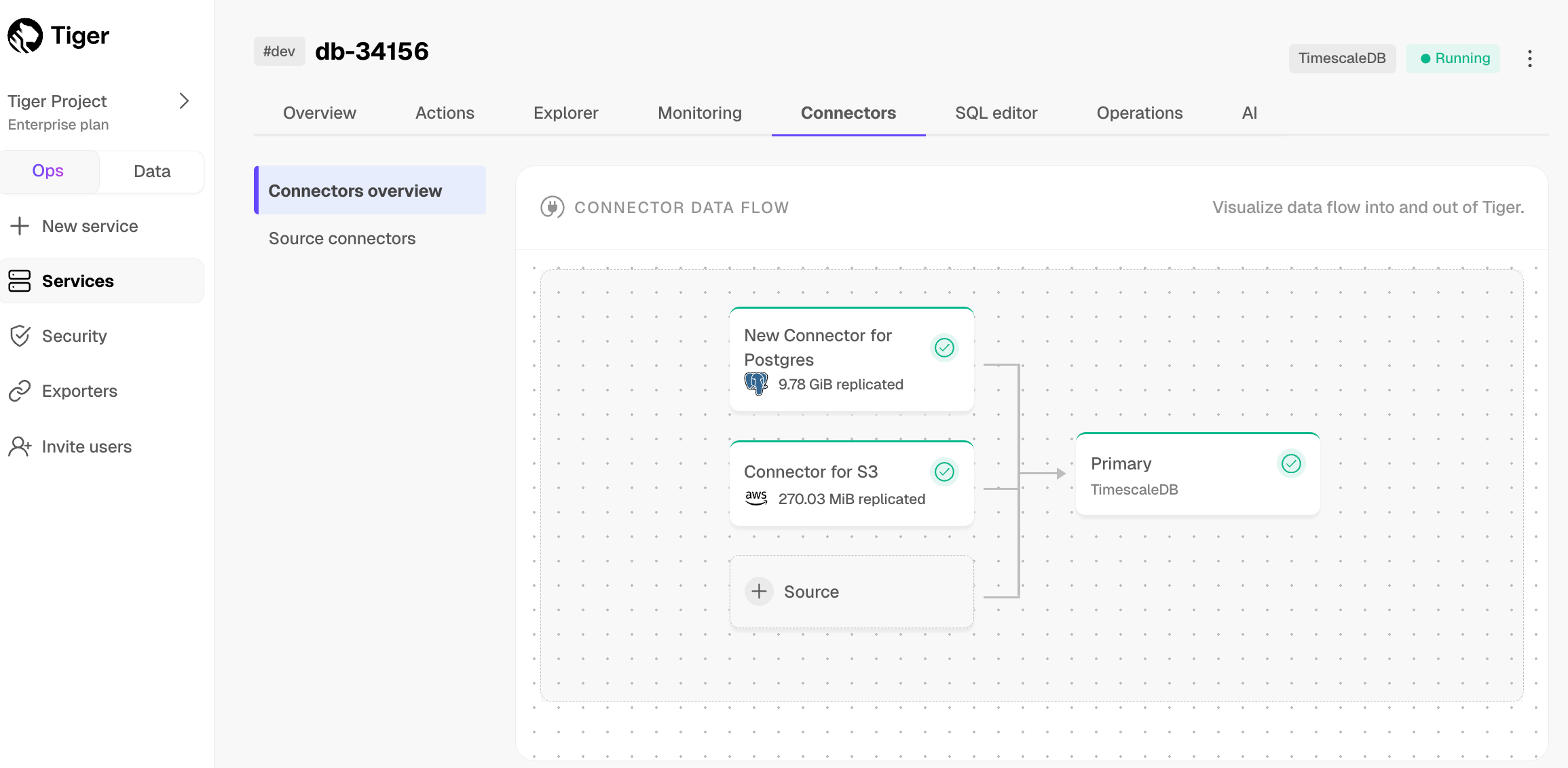
You can use the source S3 connector to synchronize your existing and new data. Here's what the connector can do:
Sync data from an S3 bucket instance to a Tiger Cloud service:
- Use glob patterns to identify the objects to sync.
- Watch an S3 bucket for new files and import them automatically. It runs on a configurable schedule and tracks processed files.
- Important: The connector processes files in lexicographical order. It uses the name of the last file processed as a marker and fetches only files later in the alphabet in subsequent queries. Files added with names earlier in the alphabet than the marker are skipped and never synced. For example, if you add the file Bob when the marker is at Elephant, Bob is never processed.
- For large backlogs, check every minute until caught up.
Sync data from multiple file formats:
- CSV: check for compression in GZ and ZIP format, then process using timescaledb-parallel-copy.
- Parquet: convert to CSV, then process using timescaledb-parallel-copy.
The source S3 connector offers an option to enable a hypertable during the file-to-table schema mapping setup. You can enable columnstore and continuous aggregates through the SQL editor once the connector has started running.
The connector offers a default 1-minute polling interval. This means that Tiger Cloud checks the S3 source every minute for new data. You can customize this interval by setting up a cron expression.
The source S3 connector continuously imports data from an Amazon S3 bucket into your database. It monitors your S3 bucket for new files matching a specified pattern and automatically imports them into your designated database table.
Note: the connector currently only syncs existing and new files—it does not support updating or deleting records based on updates and deletes from S3 to tables in a Tiger Cloud service.
Early access: this source S3 connector is not supported for production use. If you have any questions or feedback, talk to us in #livesync in the Tiger Community.
To follow the steps on this page:
- Create a target Tiger Cloud service with real-time analytics enabled.
You need your connection details.
- Ensure access to a standard Amazon S3 bucket containing your data files.
Directory buckets are not supported.
Configure access credentials for the S3 bucket. The following credentials are supported:
Configure the trust policy. Set the:
Principal:arn:aws:iam::142548018081:role/timescale-s3-connections.- `ExternalID`: set to the [Tiger Cloud project and Tiger Cloud service ID][connection-project-service-id] of the service you are syncing to in the format `<projectId>/<serviceId>`.
This is to avoid the confused deputy problem.
- Give the following access permissions:
s3:GetObject.- `s3:ListBucket`.File naming: Files must follow lexicographical ordering conventions. Files with names that sort earlier than already-processed files are permanently skipped. Example: if
file_2024_01_15.csvhas been processed, a file namedfile_2024_01_10.csvadded later will never be synced. Recommended naming patterns: timestamps (for example,YYYY-MM-DD-HHMMSS), sequential numbers with fixed padding (for example,file_00001,file_00002).CSV:
- Maximum file size: 1 GB
To increase this limit, contact sales@tigerdata.com
- Maximum row size: 2 MB
- Supported compressed formats:
- GZ
- ZIP
- Advanced settings:
- Delimiter: the default character is
,, you can choose a different delimiter - Skip header: skip the first row if your file has headers
- Delimiter: the default character is
- Parquet:
- Maximum file size: 1 GB
- Maximum row size: 2 MB
- Sync iteration:
To prevent system overload, the connector tracks up to 100 files for each sync iteration. Additional checks only fill empty queue slots.
Synchronize data to your Tiger Cloud service
To sync data from your S3 bucket to your Tiger Cloud service using Tiger Cloud Console:
- Connect to your Tiger Cloud service
In Tiger Cloud Console, select the service to sync live data to.
- Connect the source S3 bucket to the target service
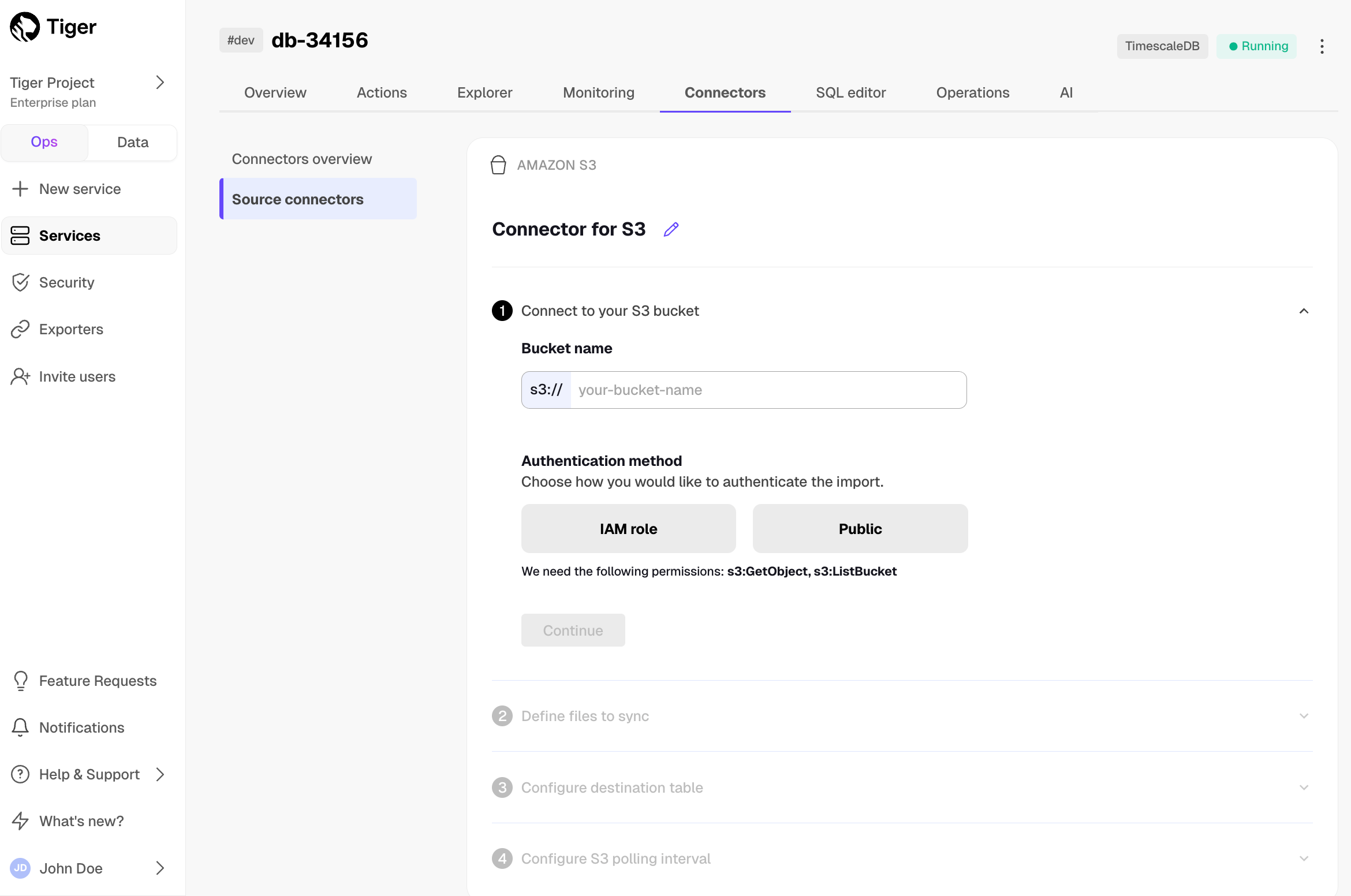
- Click
Connectors>Amazon S3.- Click the pencil icon, then set the name for the new connector.
- Set the
Bucket nameandAuthentication method, then clickContinue.
For instruction on creating the IAM role to connect your S3 bucket, click Learn how. Tiger Cloud Console connects to the source bucket.
- In
Define files to sync, choose theFile typeand set theGlob pattern.
Use the following patterns:
  - `<folder name>/*`: match all files in a folder. Also, any pattern ending with `/` is treated as  `/*`.
  - `<folder name>/**`: match all recursively.
  - `<folder name>/**/*.csv`: match a specific file type.
The source S3 connector uses prefix filters where possible, place patterns carefully at the end of your glob expression.
AWS S3 doesn't support complex filtering. If your expression filters too many files, the list operation may time out.
Click the search icon. You see the files to sync. Click
Continue.Optimize the data to synchronize in hypertables
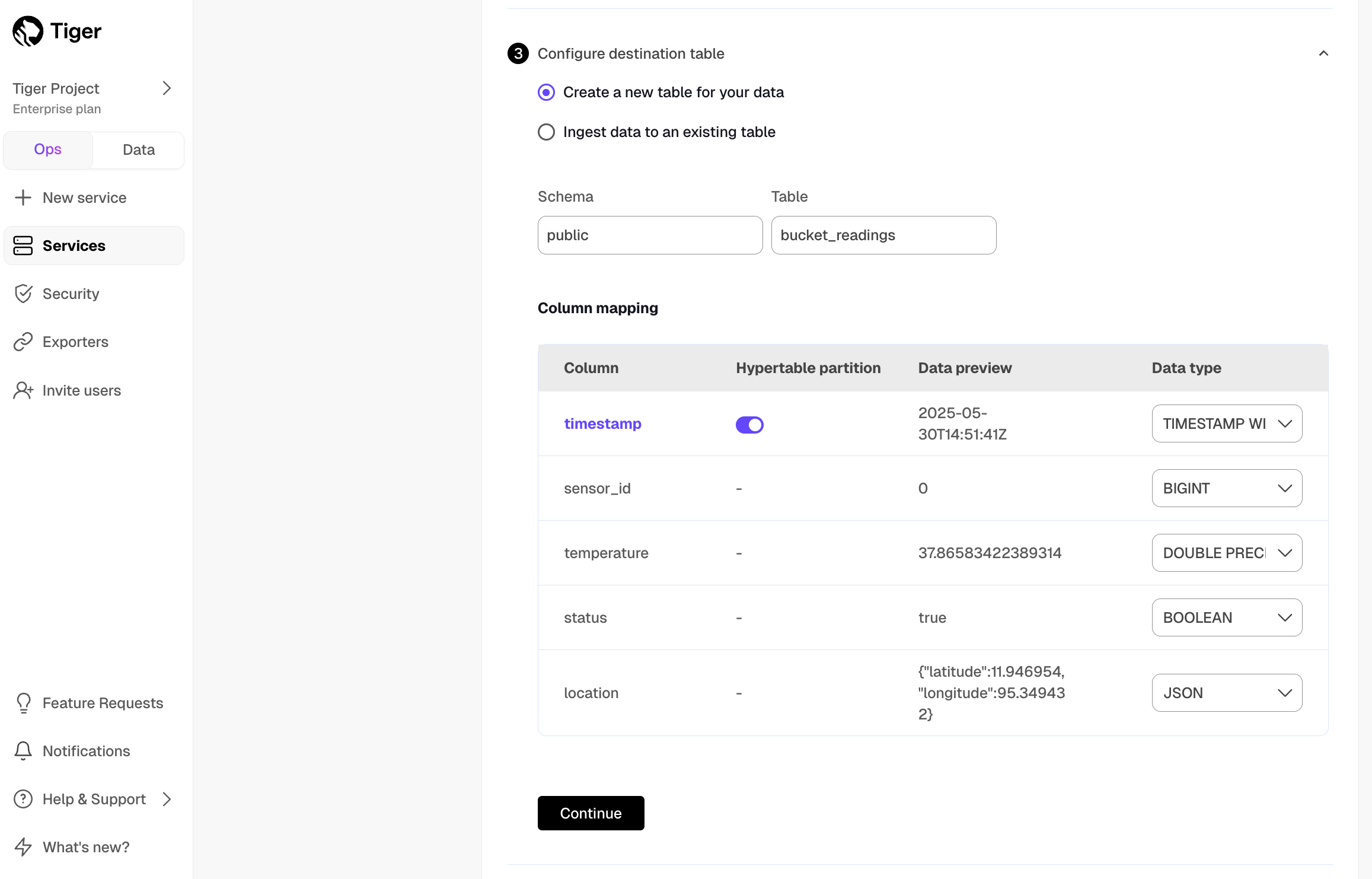
Tiger Cloud Console checks the file schema and, if possible, suggests the column to use as the time dimension in a hypertable.
- Choose
Create a new table for your dataorIngest data to an existing table.- Choose the
Data typefor each column, then clickContinue. - Choose the interval. This can be a minute, an hour, or use a cron expression.
- Click
Start Connector.
- Choose the
Tiger Cloud Console starts the connection between the source database and the target service and displays the progress.
Monitor synchronization
To view the amount of data replicated, click
Connectors. The diagram inConnector data flowgives you an overview of the connectors you have created, their status, and how much data has been replicated.
- To view file import statistics and logs, click
Connectors>Source connectors, then select the name of your connector in the table.
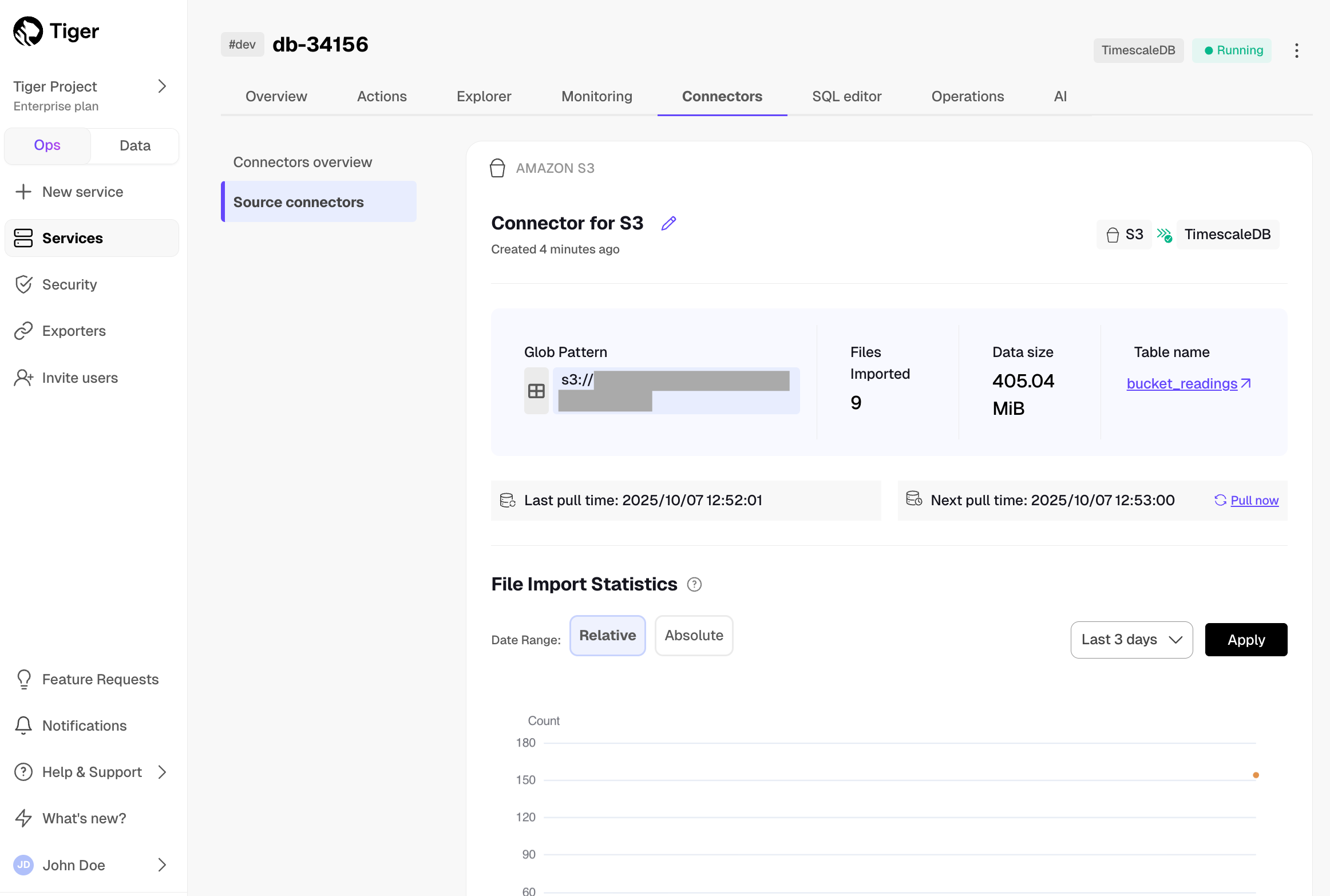
Manage the connector
To pause the connector, click
Connectors>Source connectors. Open the three-dot menu next to your connector in the table, then clickPause.
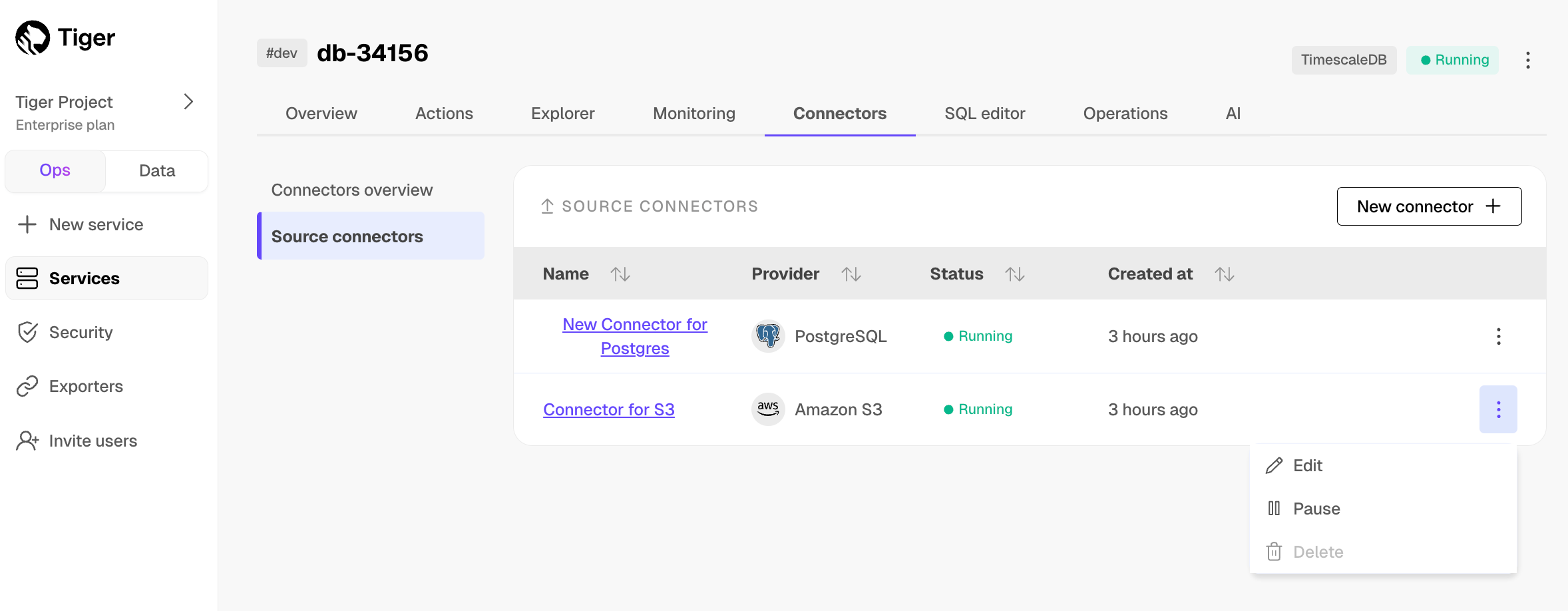
- To edit the connector, click
Connectors>Source connectors. Open the three-dot menu next to your connector in the table, then clickEditand scroll down toModify your Connector. You must pause the connector before editing it.
- To pause or delete the connector, click
Connectors>Source connectors, then open the three-dot menu on the right and select an option. You must pause the connector before deleting it.
And that is it, you are using the source S3 connector to synchronize all the data, or specific files, from an S3 bucket to your Tiger Cloud service in real time.
===== PAGE: https://docs.tigerdata.com/migrate/livesync-for-kafka/ =====
Create a read-only replica using Aiven client
URL: llms-txt#create-a-read-only-replica-using-aiven-client
Contents:
- Prerequisites
- Creating a read-only replica of your service
- Example
- More Docker options
- View logs in Docker
- More Docker options
- View logs in Docker
Read-only replicas enable you to perform read-only queries against the replica and reduce the load on the primary server. It is also a good way to optimize query response times across different geographical locations, because the replica can be placed in different regions or even different cloud providers.
Before you begin, make sure you have:
- Created a service.
- Installed Aiven Client.
Creating a read-only replica of your service
In the Aiven client, connect to your service.
Switch to the project that contains the service you want to create a read-only replica for:
List the MST_SERVICE_SHORTs in the project, and make a note of the service that you want to create a read-only replica for. It is listed under the
SERVICE_NAMEcolumn in the output:Get the details of the service that you want to fork:
Create a read-only replica:
To create a fork named replica-fork for a service named timescaledb with
these parameters:
PROJECT_ID:fork-projectCLOUD_NAME:timescale-aws-us-east-1PLAN_TYPE:timescale-basic-100-compute-optimized
You can switch to project-fork and view the newly created replica-fork using:
===== PAGE: https://docs.tigerdata.com/_partials/_install-self-hosted-docker-based/ =====
- Run the TimescaleDB Docker image
The TimescaleDB HA Docker image offers the most complete
TimescaleDB experience. It uses [Ubuntu][ubuntu], includes
[TimescaleDB Toolkit](https://github.com/timescale/timescaledb-toolkit), and support for PostGIS and Patroni.
To install the latest release based on Postgres 17:
TimescaleDB is pre-created in the default Postgres database and is added by default to any new database you create in this image.
- Run the container
Replace </a/local/data/folder> with the path to the folder you want to keep your data in the following command.
If you are running multiple container instances, change the port each Docker instance runs on.
On UNIX-based systems, Docker modifies Linux IP tables to bind the container. If your system uses Linux Uncomplicated Firewall (UFW), Docker may
[override your UFW port binding settings][override-binding]. To prevent this, add `DOCKER_OPTS="--iptables=false"` to `/etc/default/docker`.
- Connect to a database on your Postgres instance
The default user and database are both postgres. You set the password in POSTGRES_PASSWORD in the previous step. The default command to connect to Postgres is:
- Check that TimescaleDB is installed
You see the list of installed extensions:
Press q to exit the list of extensions.
More Docker options
If you want to access the container from the host but avoid exposing it to the
outside world, you can bind to 127.0.0.1 instead of the public interface, using this command:
If you don't want to install psql and other Postgres client tools locally,
or if you are using a Microsoft Windows host system, you can connect using the
version of psql that is bundled within the container with this command:
When you install TimescaleDB using a Docker container, the Postgres settings
are inherited from the container. In most cases, you do not need to adjust them.
However, if you need to change a setting, you can add -c setting=value to your
Docker run command. For more information, see the
Docker documentation.
The link provided in these instructions is for the latest version of TimescaleDB on Postgres 17. To find other Docker tags you can use, see the Dockerhub repository.
View logs in Docker
If you have TimescaleDB installed in a Docker container, you can view your logs
using Docker, instead of looking in /var/lib/logs or /var/logs. For more
information, see the Docker documentation on logs.
- Run the TimescaleDB Docker image
The light-weight TimescaleDB Docker image uses Alpine and does not contain TimescaleDB Toolkit or support for PostGIS and Patroni.
To install the latest release based on Postgres 17:
TimescaleDB is pre-created in the default Postgres database and added by default to any new database you create in this image.
- Run the container
If you are running multiple container instances, change the port each Docker instance runs on.
On UNIX-based systems, Docker modifies Linux IP tables to bind the container. If your system uses Linux Uncomplicated Firewall (UFW), Docker may override your UFW port binding settings. To prevent this, add DOCKER_OPTS="--iptables=false" to /etc/default/docker.
- Connect to a database on your Postgres instance
The default user and database are both postgres. You set the password in POSTGRES_PASSWORD in the previous step. The default command to connect to Postgres in this image is:
- Check that TimescaleDB is installed
You see the list of installed extensions:
Press q to exit the list of extensions.
More Docker options
If you want to access the container from the host but avoid exposing it to the
outside world, you can bind to 127.0.0.1 instead of the public interface, using this command:
If you don't want to install psql and other Postgres client tools locally,
or if you are using a Microsoft Windows host system, you can connect using the
version of psql that is bundled within the container with this command:
Existing containers can be stopped using docker stop and started again with
docker start while retaining their volumes and data. When you create a new
container using the docker run command, by default you also create a new data
volume. When you remove a Docker container with docker rm, the data volume
persists on disk until you explicitly delete it. You can use the docker volume
ls command to list existing docker volumes. If you want to store the data from
your Docker container in a host directory, or you want to run the Docker image
on top of an existing data directory, you can specify the directory to mount a
data volume using the -v flag:
When you install TimescaleDB using a Docker container, the Postgres settings
are inherited from the container. In most cases, you do not need to adjust them.
However, if you need to change a setting, you can add -c setting=value to your
Docker run command. For more information, see the
Docker documentation.
The link provided in these instructions is for the latest version of TimescaleDB on Postgres 16. To find other Docker tags you can use, see the Dockerhub repository.
View logs in Docker
If you have TimescaleDB installed in a Docker container, you can view your logs
using Docker, instead of looking in /var/log. For more
information, see the Docker documentation on logs.
===== PAGE: https://docs.tigerdata.com/_partials/_install-self-hosted-source-based/ =====
Install the latest Postgres source
At the command prompt, clone the TimescaleDB GitHub repository:
Change into the cloned directory:
Checkout the latest release. You can find the latest release tag on
our [Releases page][gh-releases]:
This command produces an error that you are now in detached head state. It
    is expected behavior, and it occurs because you have checked out a tag, and
    not a branch. Continue with the steps in this procedure as normal.
Build the source
Bootstrap the build system:
For installation on Microsoft Windows, you might need to add the pg_config
    and `cmake` file locations to your path. In the Windows Search tool, search
    for `system environment variables`. The path for `pg_config` should be
    `C:\Program Files\PostgreSQL\<version>\bin`. The path for `cmake` is within
    the Visual Studio directory.
- Build the extension:
- Install TimescaleDB
- Configure Postgres
If you have more than one version of Postgres installed, TimescaleDB can only
be associated with one of them. The TimescaleDB build scripts use `pg_config` to
find out where Postgres stores its extension files, so you can use `pg_config`
to find out which Postgres installation TimescaleDB is using.
Locate the
postgresql.confconfiguration file:Open the
postgresql.conffile and updateshared_preload_librariesto:
If you use other preloaded libraries, make sure they are comma separated.
- Tune your Postgres instance for TimescaleDB
This script is included with the timescaledb-tools package when you install TimescaleDB.
For more information, see [configuration][config].
- Restart the Postgres instance:
Set the user password
Log in to Postgres as
postgres
You are in the psql shell.
- Set the password for
postgres
When you have set the password, type \q to exit psql.
===== PAGE: https://docs.tigerdata.com/_partials/_install-self-hosted-homebrew-based/ =====
- Install Homebrew, if you don't already have it:
For more information about Homebrew, including installation instructions,
see the [Homebrew documentation][homebrew].
At the command prompt, add the TimescaleDB Homebrew tap:
Install TimescaleDB and psql:
Update your path to include psql.
On Intel chips, the symbolic link is added to /usr/local/bin. On Apple
Silicon, the symbolic link is added to `/opt/homebrew/bin`.
Run the
timescaledb-tunescript to configure your database:Change to the directory where the setup script is located. It is typically, located at
/opt/homebrew/Cellar/timescaledb/<VERSION>/bin/, where<VERSION>is the version oftimescaledbthat you installed:Run the setup script to complete installation.
Log in to Postgres as
postgres
You are in the psql shell.
- Set the password for
postgres
When you have set the password, type \q to exit psql.
===== PAGE: https://docs.tigerdata.com/_partials/_install-self-hosted-macports-based/ =====
- Install MacPorts by downloading and running the package installer.
For more information about MacPorts, including installation instructions,
see the [MacPorts documentation][macports].
- Install TimescaleDB and psql:
To view the files installed, run:
MacPorts does not install the timescaledb-tools package or run the timescaledb-tune
script. For more information about tuning your database, see the [TimescaleDB tuning tool][timescale-tuner].
- Log in to Postgres as
postgres
You are in the psql shell.
- Set the password for
postgres
When you have set the password, type \q to exit psql.
===== PAGE: https://docs.tigerdata.com/_partials/_install-self-hosted-windows-based/ =====
Install the latest version of Postgres and psql
Download Postgres, then run the installer.
In the
Select Componentsdialog, checkCommand Line Tools, along with any other componentsyou want to install, and click `Next`.Complete the installation wizard.
Check that you can run
pg_config.If you cannot run `pg_config` from the command line, in the Windows Search tool, enter `system environment variables`. The path should be `C:\Program Files\PostgreSQL\<version>\bin`.Install TimescaleDB
Unzip the TimescaleDB installer to
<install_dir>, that is, your selected directory.
Best practice is to use the latest version.
In
<install_dir>\timescaledb, right-clicksetup.exe, then chooseRun as Administrator.Complete the installation wizard.
If you see an error like could not load library "C:/Program Files/PostgreSQL/17/lib/timescaledb-2.17.2.dll": The specified module could not be found., use
[Dependencies][dependencies] to ensure that your system can find the compatible DLLs for this release of TimescaleDB.
- Tune your Postgres instance for TimescaleDB
Run the timescaledb-tune script included in the timescaledb-tools package with TimescaleDB. For more
information, see [configuration][config].
- Log in to Postgres as
postgres
You are in the psql shell.
- Set the password for
postgres
When you have set the password, type \q to exit psql.
===== LINK REFERENCES =====
Examples:
Example 1 (bash):
avn project switch <PROJECT>
Example 2 (bash):
avn service list
Example 3 (bash):
avn service get <SERVICE_NAME>
Example 4 (bash):
avn service create <NAME_OF_REPLICA> --project <PROJECT_ID>\
    -t pg --plan <PLAN_TYPE> --cloud timescale-aws-us-east-1\
    -c pg_read_replica=true\
    -c service_to_fork_from=<NAME_OF_SERVICE_TO_FORK>\
    -c pg_version=11 -c variant=timescale
Optimize full text search with BM25
URL: llms-txt#optimize-full-text-search-with-bm25
Contents:
- Prerequisites
- Install pg_textsearch
- Create BM25 indexes on your data
- Optimize search queries for performance
- Build hybrid search with semantic and keyword search
- Configuration options
- Current limitations
Postgres full-text search at scale consistently hits a wall where performance degrades catastrophically.
Tiger Data's pg_textsearch brings modern BM25-based full-text search directly into Postgres,
with a memtable architecture for efficient indexing and ranking. pg_textsearch integrates seamlessly with SQL and
provides better search quality and performance than the Postgres built-in full-text search.
BM25 scores in pg_textsearch are returned as negative values, where lower (more negative) numbers indicate better
matches. pg_textsearch implements the following:
- Corpus-aware ranking: BM25 uses inverse document frequency to weight rare terms higher
- Term frequency saturation: prevents documents with excessive term repetition from dominating results
- Length normalization: adjusts scores based on document length relative to corpus average
- Relative ranking: focuses on rank order rather than absolute score values
This page shows you how to install pg_textsearch, configure BM25 indexes, and optimize your search capabilities using
the following best practice:
- Memory planning: size your
index_memory_limitbased on corpus vocabulary and document count - Language configuration: choose appropriate text search configurations for your data language
- Hybrid search: combine with pgvector or pgvectorscale for applications requiring both semantic and keyword search
- Query optimization: use score thresholds to filter low-relevance results
- Index monitoring: regularly check index usage and memory consumption
Early access: October 2025 this preview release is designed for development and staging environments. It is not recommended for use with hypertables.
To follow the steps on this page:
- Create a target Tiger Cloud service with the Real-time analytics capability.
You need your connection details. This procedure also works for self-hosted TimescaleDB.
Install pg_textsearch
To install this Postgres extension:
- Connect to your Tiger Cloud service
In Tiger Cloud Console open an SQL editor. You can also connect to your service using psql.
- Enable the extension on your Tiger Cloud service
For new services, simply enable the extension:
For existing services, update your instance, then enable the extension:
The extension may not be available until after your next scheduled maintenance window. To pick up the update
immediately, manually pause and restart your service.
- Verify the installation
You have installed pg_textsearch on Tiger Cloud.
Create BM25 indexes on your data
BM25 indexes provide modern relevance ranking that outperforms Postgres's built-in ts_rank functions by using corpus statistics and better algorithmic design.
To create a BM25 index with pg_textsearch:
Create a table with text content
Insert sample data
Create a BM25 index
BM25 supports single-column indexes only.
You have created a BM25 index for full-text search.
Optimize search queries for performance
Use efficient query patterns to leverage BM25 ranking and optimize search performance.
Perform ranked searches using the distance operator
Filter results by score threshold
Combine with standard SQL operations
Verify index usage with EXPLAIN
You have optimized your search queries for BM25 ranking.
Build hybrid search with semantic and keyword search
Combine pg_textsearch with pgvector or pgvectorscale to build powerful hybrid search systems that use both semantic vector search and keyword BM25 search.
Enable the vectorscale extension on your Tiger Cloud service
Create a table with both text content and vector embeddings
Create indexes for both search types
Perform hybrid search using reciprocal rank fusion
Adjust relative weights for different search types
You have implemented hybrid search combining semantic and keyword search.
Configuration options
Customize pg_textsearch behavior for your specific use case and data characteristics.
- Configure the memory limit
The size of the memtable depends primarily on the number of distinct terms in your corpus. A corpus with longer documents or more varied vocabulary requires more memory per document.
Configure language-specific text processing
Tune BM25 parameters
Monitor index usage and memory consumption
Check index usage statistics
View detailed index information
You have configured pg_textsearch for optimal performance. For production applications, consider implementing result
caching and pagination to improve user experience with large result sets.
Current limitations
This preview release focuses on core BM25 functionality. It has the following limitations:
- Memory-only storage: indexes are limited by
pg_textsearch.index_memory_limit(default 64MB) - No phrase queries: cannot search for exact multi-word phrases yet
These limitations will be addressed in upcoming releases with disk-based segments and expanded query capabilities.
===== PAGE: https://docs.tigerdata.com/use-timescale/metrics-logging/datadog/ =====
Examples:
Example 1 (sql):
CREATE EXTENSION pg_textsearch;
Example 2 (sql):
SELECT * FROM pg_extension WHERE extname = 'pg_textsearch';
Example 3 (sql):
CREATE TABLE products (
       id serial PRIMARY KEY,
       name text,
       description text,
       category text,
       price numeric
   );
Example 4 (sql):
INSERT INTO products (name, description, category, price) VALUES
   ('Mechanical Keyboard', 'Durable mechanical switches with RGB backlighting for gaming and productivity', 'Electronics', 149.99),
   ('Ergonomic Mouse', 'Wireless mouse with ergonomic design to reduce wrist strain during long work sessions', 'Electronics', 79.99),
   ('Standing Desk', 'Adjustable height desk for better posture and productivity throughout the workday', 'Furniture', 599.99);
Prometheus endpoint for Managed Service for TimescaleDB
URL: llms-txt#prometheus-endpoint-for-managed-service-for-timescaledb
Contents:
- Prerequisites
- Enabling Prometheus service integration
You can get more insights into the performance of your service by monitoring it using Prometheus, a popular open source metrics-based systems monitoring solution.
Before you begin, make sure you have:
- Created a service.
- Made a note of the
PortandHostfor your service.
Enabling Prometheus service integration
- In MST Console, choose a project and navigate to
Integration Endpoints. - In the
Integration endpointspage, navigate toPrometheus, and clickCreate new. - In the
Create new Prometheus endpointdialog, complete these fields:
- In the
Endpoint namefield, type a name for your endpoint.- In the
Usernamefield, type your username. - In the
Passwordfield, type your password. - Click
Createto create the endpoint.
- In the
These details are used when setting up your Prometheus installation, in the
`prometheus.yml` configuration file. This allows you to make this Managed Service for TimescaleDB endpoint a target for Prometheus to scrape.
Use this sample configuration file to set up your Prometheus installation, by substituting
<PORT>,<HOST>,<USER>, and<PASSWORD>with those of your service:In the MST Console, navigate to
Servicesand select the service you want to monitor.In the
Integrationstab, go toExternal integrationssection and selectPrometheus.In the
Prometheus integrationsdialog, select the Prometheus endpoint that you created.Click
Enable.
The Prometheus endpoint is listed under Enabled integrations for the
service.
===== PAGE: https://docs.tigerdata.com/mst/aiven-client/replicas-cli/ =====
Examples:
Example 1 (yaml):
global:
     scrape_interval:     10s
     evaluation_interval: 10s
    scrape_configs:
     - job_name: prometheus
       scheme: https
       static_configs:
         - targets: ['<HOST>:<PORT>']
       tls_config:
         insecure_skip_verify: true
       basic_auth:
         username: <USER>
         password: <PASSWORD>
    remote_write:
     - url: "http://<HOST>:9201/write"
    remote_read:
     - url: "http://<HOST>:9201/read"
Contribute to Tiger Data
URL: llms-txt#contribute-to-tiger-data
Contents:
- Contribute to the code for Tiger Data products
- Contribute to Tiger Data documentation
TimescaleDB, pgai, pgvectorscale, TimescaleDB Toolkit, and the Tiger Data documentation are all open source. They are available in GitHub for you to use, review, and update. This page shows you where you can add to Tiger Data products.
Contribute to the code for Tiger Data products
Tiger Data appreciates any help the community can provide to make its products better! You can:
- Open an issue with a bug report, build issue, feature request or suggestion.
- Fork a corresponding repository and submit a pull request.
Head over to the Tiger Data source repositories to learn, review, and help improve our products!
- TimescaleDB: a Postgres extension for high-performance real-time analytics on time-series and event data.
- pgai: a suite of tools to develop RAG, semantic search, and other AI applications more easily with Postgres.
- pgvectorscale: a complement to pgvector for higher performance embedding search and cost-efficient storage for AI applications.
- TimescaleDB Toolkit: all things analytics when using TimescaleDB, with a particular focus on developer ergonomics and performance.
Contribute to Tiger Data documentation
Tiger Data documentation is hosted in the docs GitHub repository and open for contribution from all community members.
See the README and contribution guide for details.
===== PAGE: https://docs.tigerdata.com/about/release-notes/ =====
Multi-node administration
URL: llms-txt#multi-node-administration
Contents:
- Distributed role management
- Creating a distributed role
- Alter a distributed role
- Manage distributed databases
- Alter a distributed database
- Drop a distributed database
- Create, alter, and drop schemas
- Prepare for role removal with DROP OWNED
- Manage privileges
- Manage tablespaces
Multi-node support is sunsetted.
TimescaleDB v2.13 is the last release that includes multi-node support for Postgres versions 13, 14, and 15.
Multi-node TimescaleDB allows you to administer your cluster directly from the access node. When your environment is set up, you do not need to log directly into the data nodes to administer your database.
When you perform an administrative task, such as adding a new column, changing privileges, or adding an index on a distributed hypertable, you can perform the task from the access node and it is applied to all the data nodes. If a command is executed on a regular table, however, the effects of that command are only applied locally on the access node. Similarly, if a command is executed directly on a data node, the result is only visible on that data node.
Commands that create or modify schemas, roles, tablespaces, and
settings in a distributed database are not automatically distributed
either. That is because these objects and settings sometimes need to
be different on the access node compared to the data nodes, or even
vary among data nodes. For example, the data nodes could have unique
CPU, memory, and disk configurations. The node differences make it
impossible to assume that a single configuration works for all
nodes. Further, some settings need to be different on the publicly
accessible access node compared to data nodes, such as having
different connection limits. A role might not have the LOGIN
privilege on the access node, but it needs this privilege on data
nodes so that the access node can connect.
Roles and tablespaces are also shared across multiple databases on the same instance. Some of these databases might be distributed and some might not be, or be configured with a different set of data nodes. Therefore, it is not possible to know for sure when a role or tablespace should be distributed to a data node given that these commands can be executed from within different databases, that need not be distributed.
To administer a multi-node cluster from the access node, you can use
the distributed_exec function. This function
allows full control over creating and configuring, database settings,
schemas, roles, and tablespaces across all data nodes.
The rest of this section describes in more detail how specific administrative tasks are handled in a multi-node environment.
Distributed role management
In a multi-node environment, you need to manage roles on each Postgres instance independently, because roles are instance-level objects that are shared across both distributed and non-distributed databases that each can be configured with a different set of data nodes or none at all. Therefore, an access node does not automatically distribute roles or role management commands across its data nodes. When a data node is added to a cluster, it is assumed that it already has the proper roles necessary to be consistent with the rest of the nodes. If this is not the case, you might encounter unexpected errors when you try to create or alter objects that depend on a role that is missing or set incorrectly.
To help manage roles from the access node, you can use the
distributed_exec function. This is useful for
creating and configuring roles across all data nodes in the
current database.
Creating a distributed role
When you create a distributed role, it is important to consider that the same role might require different configuration on the access node compared to the data nodes. For example, a user might require a password to connect to the access node, while certificate authentication is used between nodes within the cluster. You might also want a connection limit for external connections, but allow unlimited internal connections to data nodes. For example, the following user can use a password to make 10 connections to the access node but has no limits connecting to the data nodes:
For more information about setting up authentication, see the multi-node authentication section.
Some roles can also be configured without the LOGIN attribute on
the access node. This allows you to switch to the role locally, but not
connect with the user from a remote location. However, to be able to
connect from the access node to a data node as that user, the data
nodes need to have the role configured with the LOGIN attribute
enabled. To create a non-login role for a multi-node setup, use these
commands:
To allow a new role to create distributed hypertables it also needs to be granted usage on data nodes, for example:
By granting usage on some data nodes, but not others, you can restrict usage to a subset of data nodes based on the role.
Alter a distributed role
When you alter a distributed role, use the same process as creating
roles. The role needs to be altered on the access node and on the data
nodes in two separate steps. For example, add the CREATEROLE
attribute to a role as follows:
Manage distributed databases
A distributed database can contain both distributed and non-distributed objects. In general, when a command is issued to alter a distributed object, it applies to all nodes that have that object (or a part of it).
However, in some cases settings should be different depending on node, because nodes might be provisioned differently (having, for example, varying levels of CPU, memory, and disk capabilities) and the role of the access node is different from a data node's.
This section describes how and when commands on distributed objects are applied across all data nodes when executed from within a distributed database.
Alter a distributed database
The ALTER DATABASE command is only applied locally
on the access node. This is because database-level configuration often
needs to be different across nodes. For example, this is a setting that
might differ depending on the CPU capabilities of the node:
The database names can also differ between nodes, even if the databases are part of the same distributed database. When you rename a data node's database, also make sure to update the configuration of the data node on the access node so that it references the new database name.
Drop a distributed database
When you drop a distributed database on the access node, it does not automatically drop the corresponding databases on the data nodes. In this case, you need to connect directly to each data node and drop the databases locally.
A distributed database is not automatically dropped across all nodes, because the information about data nodes lives within the distributed database on the access node, but it is not possible to read it when executing the drop command since it cannot be issued when connected to the database.
Additionally, if a data node has permanently failed, you need to be able to drop a database even if one or more data nodes are not responding.
It is also good practice to leave the data intact on a data node if possible. For example, you might want to back up a data node even after a database was dropped on the access node.
Alternatively, you can delete the data nodes with
the drop_database option prior to dropping the database on the
access node:
Create, alter, and drop schemas
When you create, alter, or drop schemas, the commands are not automatically applied across all data nodes. A missing schema is, however, created when a distributed hypertable is created, and the schema it belongs to does not exist on a data node.
To manually create a schema across all data nodes, use this command:
If a schema is created with a particular authorization, then the authorized role must also exist on the data nodes prior to issuing the command. The same things applies to altering the owner of an existing schema.
Prepare for role removal with DROP OWNED
The DROP OWNED command is used to drop all objects owned
by a role and prepare the role for removal. Execute the following
commands to prepare a role for removal across all data nodes in a
distributed database:
Note, however, that the role might still own objects in other databases after these commands have been executed.
Manage privileges
Privileges configured using GRANT or REVOKE
statements are applied to all data nodes when they are run on a
distributed hypertable. When granting privileges on other objects, the
command needs to be manually distributed with
distributed_exec.
Set default privileges
Default privileges need to be manually modified using
distributed_exec, if they are to apply across
all data nodes. The roles and schemas that the default privileges
reference need to exist on the data nodes prior to executing the
command.
New data nodes are assumed to already have any altered default privileges. The default privileges are not automatically applied retrospectively to new data nodes.
Manage tablespaces
Nodes might be configured with different disks, and therefore tablespaces need to be configured manually on each node. In particular, an access node might not have the same storage configuration as data nodes, since it typically does not store a lot of data. Therefore, it is not possible to assume that the same tablespace configuration exists across all nodes in a multi-node cluster.
===== PAGE: https://docs.tigerdata.com/self-hosted/multinode-timescaledb/about-multinode/ =====
Examples:
Example 1 (sql):
CREATE ROLE alice WITH LOGIN PASSWORD 'mypassword' CONNECTION LIMIT 10;
CALL distributed_exec($$ CREATE ROLE alice WITH LOGIN CONNECTION LIMIT -1; $$);
Example 2 (sql):
CREATE ROLE alice WITHOUT LOGIN;
CALL distributed_exec($$ CREATE ROLE alice WITH LOGIN; $$);
Example 3 (sql):
GRANT USAGE ON FOREIGN SERVER dn1,dn2,dn3 TO alice;
Example 4 (sql):
ALTER ROLE alice CREATEROLE;
CALL distributed_exec($$ ALTER ROLE alice CREATEROLE; $$);
Back up and recover your Tiger Cloud services
URL: llms-txt#back-up-and-recover-your-tiger-cloud-services
Contents:
- Automatic backups
- Enable cross-region backup
- Create a point-in-time recovery fork
- Create a service fork
Tiger Cloud provides comprehensive backup and recovery solutions to protect your data, including automatic daily backups, cross-region protection, and point-in-time recovery.
Tiger Cloud automatically handles backup for your Tiger Cloud services using the pgBackRest tool. You don't need to perform
backups manually. What's more, with cross-region backup, you are protected when an entire AWS region goes down.
Tiger Cloud automatically creates one full backup every week, and incremental backups every day in the same region as your service. Additionally, all Write-Ahead Log (WAL) files are retained back to the oldest full backup. This means that you always have a full backup available for the current and previous week:
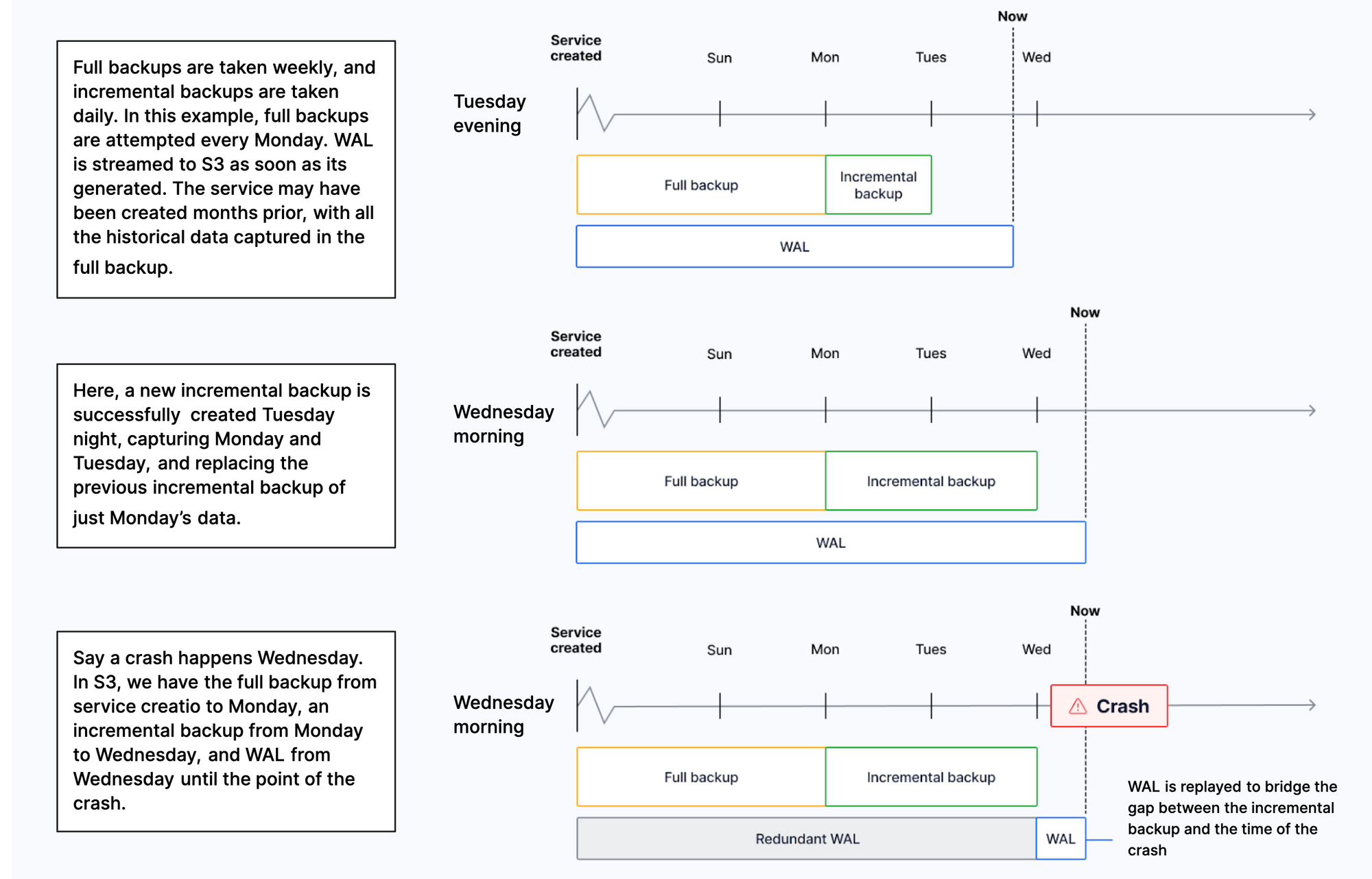
On Scale and Performance pricing plans, you can check the list of backups for the previous 14 days in Tiger Cloud Console. To do so, select your service, then click Operations > Backup and restore > Backup history.
In the event of a storage failure, a service automatically recovers from a backup to the point of failure. If the whole availability zone goes down, your Tiger Cloud services are recovered in a different zone. In the event of a user error, you can create a point-in-time recovery fork.
Enable cross-region backup
For added reliability, you can enable cross-region backup. This protects your data when an entire AWS region goes down. In this case, you have two identical backups of your service at any time, but one of them is in a different AWS region. Cross-region backups are updated daily and weekly in the same way as a regular backup. You can have one cross-region backup for a service.
You enable cross-region backup when you create a service, or configure it for an existing service in Tiger Cloud Console:
In Console, select your service and click
Operations>Backup & restore.In
Cross-region backup, select the region in the dropdown and clickEnable backup.
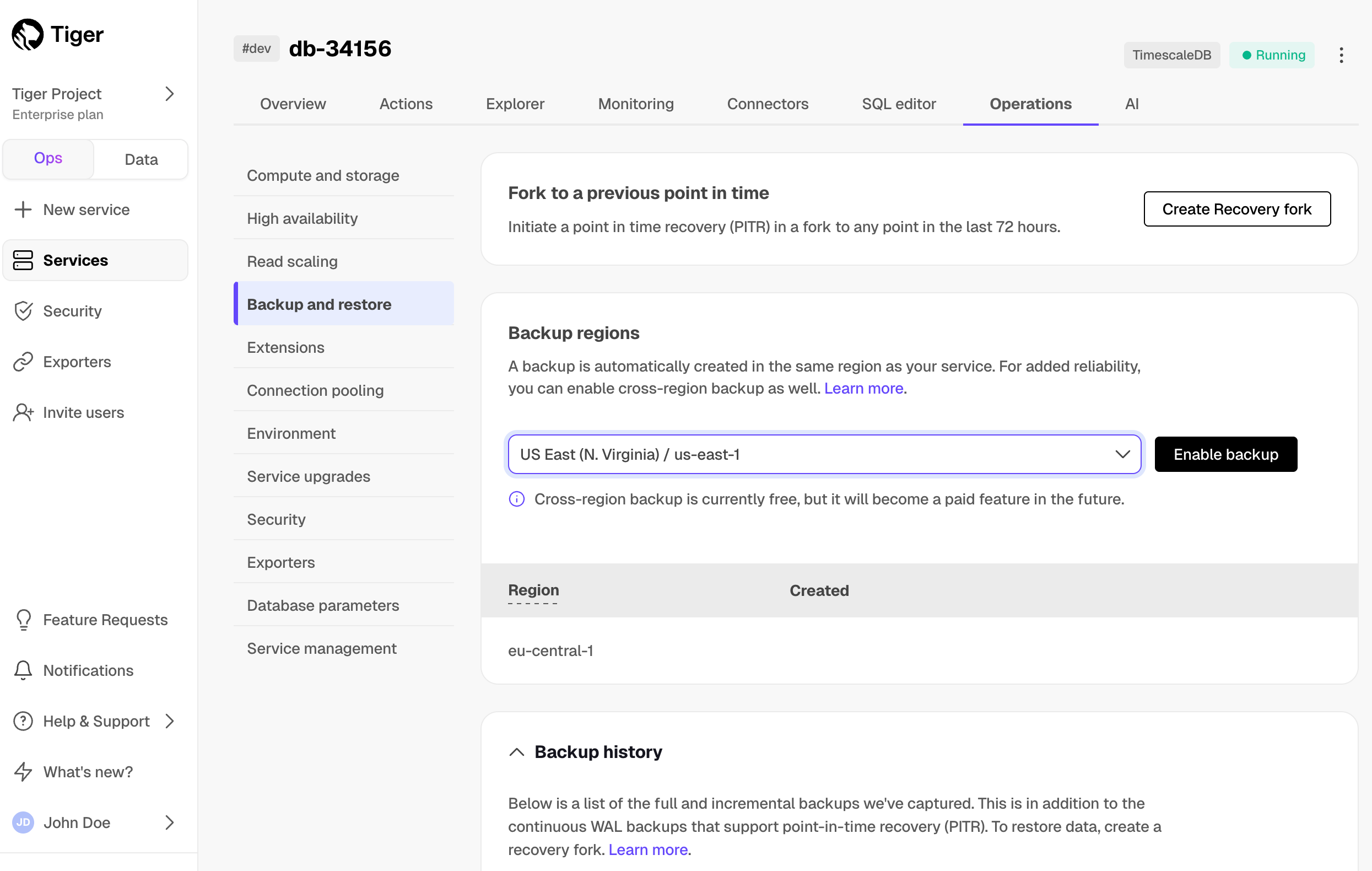
You can now see the backup, its region, and creation date in a list.
You can have one cross-region backup per service. To change the region of your backup:
In Console, select your service and click
Operations>Backup & restore.Click the trash icon next to the existing backup to disable it.
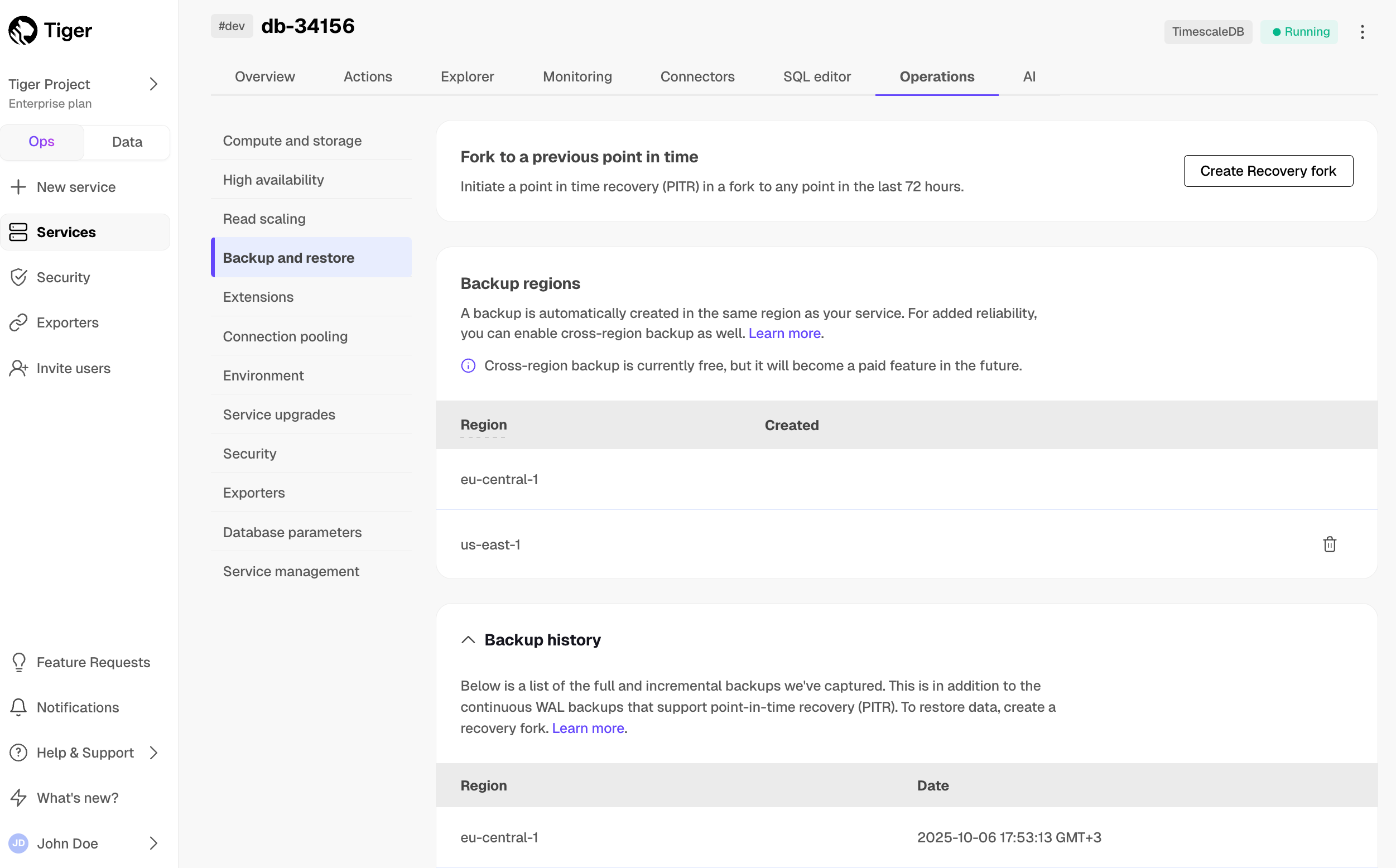
- Create a new backup in a different region.
Create a point-in-time recovery fork
To recover your service from a destructive or unwanted action, create a point-in-time recovery fork. You can recover a service to any point within the period defined by your pricing plan. The provision time for the recovery fork is typically less than twenty minutes, but can take longer depending on the amount of WAL to be replayed. The original service stays untouched to avoid losing data created since the time of recovery.
All tiered data remains recoverable during the PITR period. When restoring to any point-in-time recovery fork, your service contains all data that existed at that moment - whether it was stored in high-performance or low-cost storage.
When you restore a recovery fork:
- Data restored from a PITR point is placed into high-performance storage
- The tiered data, as of that point in time, remains in tiered storage
To avoid paying for compute for the recovery fork and the original service, pause the original to only pay storage costs.
You initiate a point-in-time recovery from a same-region or cross-region backup in Tiger Cloud Console:
- In Tiger Cloud Console, from the
Serviceslist, ensure the service you want to recover has a status ofRunningorPaused. - Navigate to
Operations>Service managementand clickCreate recovery fork. - Select the recovery point, ensuring the correct time zone (UTC offset).
- Configure the fork.
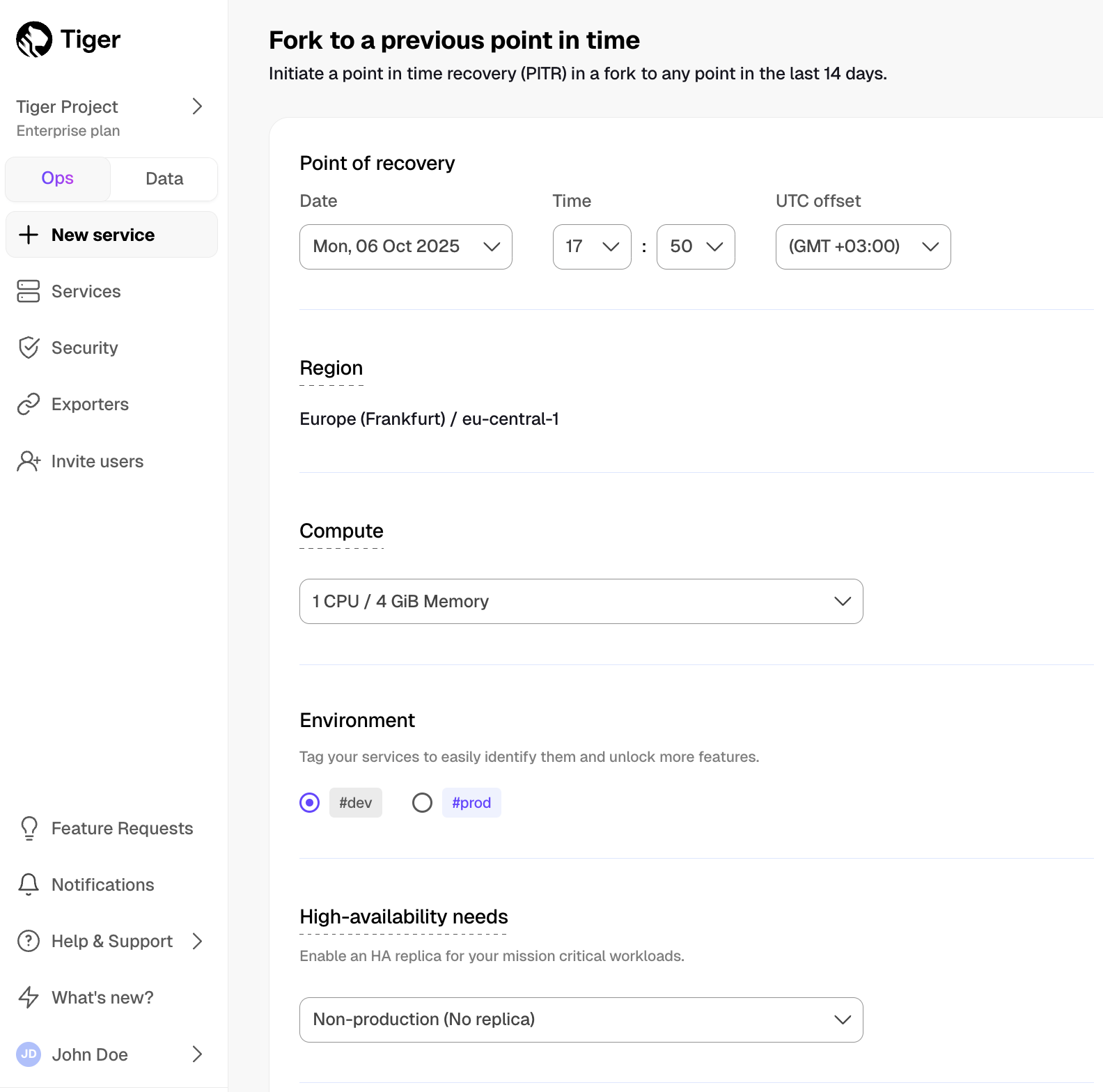
You can configure the compute resources, add an HA replica, tag your fork, and
add a connection pooler. Best practice is to match
the same configuration you had at the point you want to recover to.
- Confirm by clicking
Create recovery fork.
A fork of the service is created. The recovered service shows in Services with a label specifying which service it has been forked from.
- Update the connection strings in your app
Since the point-in-time recovery is done in a fork, to migrate your
application to the point of recovery, change the connection
strings in your application to use the fork.
Contact us, and we will assist in recovering your service.
Create a service fork
To manage development forks:
- Install Tiger CLI
Use the terminal to install the CLI:
Set up API credentials
Log Tiger CLI into your Tiger Data account:
Tiger CLI opens Console in your browser. Log in, then click Authorize.
You can have a maximum of 10 active client credentials. If you get an error, open credentials
and delete an unused credential.
- Select a Tiger Cloud project:
If only one project is associated with your account, this step is not shown.
Where possible, Tiger CLI stores your authentication information in the system keychain/credential manager.
  If that fails, the credentials are stored in `~/.config/tiger/credentials` with restricted file permissions (600).
  By default, Tiger CLI stores your configuration in `~/.config/tiger/config.yaml`.
- Test your authenticated connection to Tiger Cloud by listing services
This call returns something like:
- No services:

- One or more services:
- Fork the service
By default a fork matches the resource of the parent Tiger Cloud services. For paid plans specify --cpu and/or --memory for dedicated resources.
You see something like:
When you are done, delete your forked service
Use the CLI to request service delete:
Validate the service delete:
You see something like:
===== PAGE: https://docs.tigerdata.com/use-timescale/fork-services/ =====
Examples:
Example 1 (shell):
curl -s https://packagecloud.io/install/repositories/timescale/tiger-cli/script.deb.sh | sudo os=any dist=any bash
    sudo apt-get install tiger-cli
Example 2 (shell):
curl -s https://packagecloud.io/install/repositories/timescale/tiger-cli/script.deb.sh | sudo os=any dist=any bash
    sudo apt-get install tiger-cli
Example 3 (shell):
curl -s https://packagecloud.io/install/repositories/timescale/tiger-cli/script.rpm.sh | sudo os=rpm_any dist=rpm_any bash
    sudo yum install tiger-cli
Example 4 (shell):
curl -s https://packagecloud.io/install/repositories/timescale/tiger-cli/script.rpm.sh | sudo os=rpm_any dist=rpm_any bash
    sudo yum install tiger-cli
Analyze the Bitcoin blockchain
URL: llms-txt#analyze-the-bitcoin-blockchain
Contents:
- Prerequisites
- Steps in this tutorial
- About analyzing the Bitcoin blockchain with Tiger Cloud
The financial industry is extremely data-heavy and relies on real-time and historical data for decision-making, risk assessment, fraud detection, and market analysis. Tiger Data simplifies management of these large volumes of data, while also providing you with meaningful analytical insights and optimizing storage costs.
In this tutorial, you use Tiger Cloud to ingest, store, and analyze transactions on the Bitcoin blockchain.
Blockchains are, at their essence, a distributed database. The transactions in a blockchain are an example of time-series data. You can use TimescaleDB to query transactions on a blockchain, in exactly the same way as you might query time-series transactions in any other database.
Before you begin, make sure you have:
- Signed up for a free Tiger Data account.
- [](#)Signed up for a Grafana account to graph your queries.
Steps in this tutorial
This tutorial covers:
About analyzing the Bitcoin blockchain with Tiger Cloud
This tutorial uses a sample Bitcoin dataset to show you how to aggregate blockchain transaction data, and construct queries to analyze information from the aggregations. The queries in this tutorial help you determine if a cryptocurrency has a high transaction fee, shows any correlation between transaction volumes and fees, or if it's expensive to mine.
It starts by setting up and connecting to a Tiger Cloud service, create tables,
and load data into the tables using psql. If you have already completed the
beginner blockchain tutorial, then you already have the
dataset loaded, and you can skip straight to the queries.
You then learn how to conduct analysis on your dataset using Timescale hyperfunctions. It walks you through creating a series of continuous aggregates, and querying the aggregates to analyze the data. You can also use those queries to graph the output in Grafana.
===== PAGE: https://docs.tigerdata.com/tutorials/financial-tick-data/ =====
Try the key features in Tiger Data products
URL: llms-txt#try-the-key-features-in-tiger-data-products
Contents:
- Prerequisites
- Optimize time-series data in hypertables with hypercore
- Enhance query performance for analytics
- Write fast and efficient analytical queries
- Slash storage charges
- Reduce the risk of downtime and data loss
Tiger Cloud offers managed database services that provide a stable and reliable environment for your applications.
Each Tiger Cloud service is a single optimised Postgres instance extended with innovations such as TimescaleDB in the database engine, in a cloud infrastructure that delivers speed without sacrifice. A radically faster Postgres for transactional, analytical, and agentic workloads at scale.
Tiger Cloud scales Postgres to ingest and query vast amounts of live data. Tiger Cloud provides a range of features and optimizations that supercharge your queries while keeping the costs down. For example:
- The hypercore row-columnar engine in TimescaleDB makes queries up to 350x faster, ingests 44% faster, and reduces storage by 90%.
- Tiered storage in Tiger Cloud seamlessly moves your data from high performance storage for frequently accessed data to low cost bottomless storage for rarely accessed data.
The following figure shows how TimescaleDB optimizes your data for superfast real-time analytics:
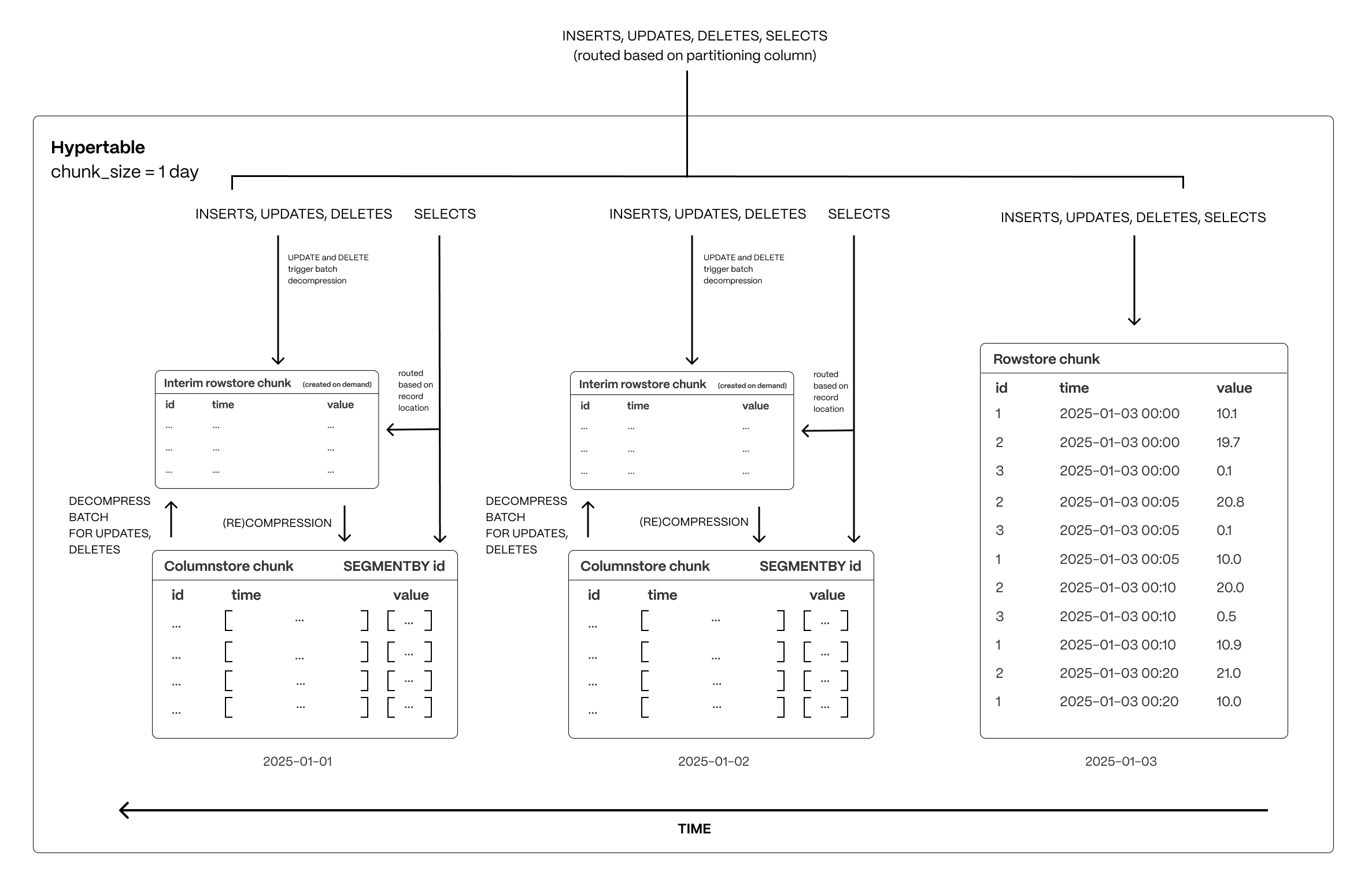
This page shows you how to rapidly implement the features in Tiger Cloud that enable you to ingest and query data faster while keeping the costs low.
To follow the steps on this page:
- Create a target Tiger Cloud service with the Real-time analytics capability.
You need your connection details. This procedure also works for self-hosted TimescaleDB.
Optimize time-series data in hypertables with hypercore
Time-series data represents the way a system, process, or behavior changes over time. Hypertables are Postgres tables that help you improve insert and query performance by automatically partitioning your data by time. Each hypertable is made up of child tables called chunks. Each chunk is assigned a range of time, and only contains data from that range. When you run a query, TimescaleDB identifies the correct chunk and runs the query on it, instead of going through the entire table. You can also tune hypertables to increase performance even more.
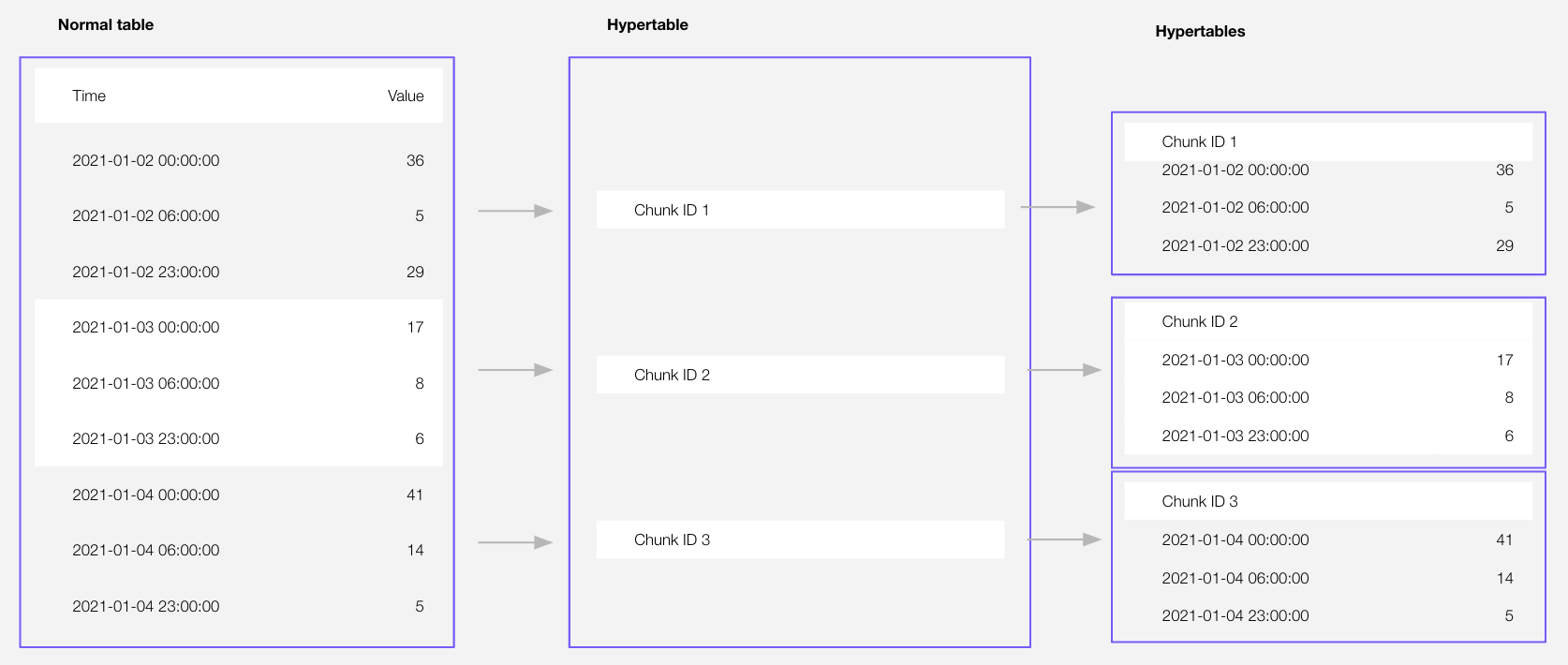
Hypercore is the hybrid row-columnar storage engine in TimescaleDB used by hypertables. Traditional databases force a trade-off between fast inserts (row-based storage) and efficient analytics (columnar storage). Hypercore eliminates this trade-off, allowing real-time analytics without sacrificing transactional capabilities.
Hypercore dynamically stores data in the most efficient format for its lifecycle:
- Row-based storage for recent data: the most recent chunk (and possibly more) is always stored in the rowstore, ensuring fast inserts, updates, and low-latency single record queries. Additionally, row-based storage is used as a writethrough for inserts and updates to columnar storage.
- Columnar storage for analytical performance: chunks are automatically compressed into the columnstore, optimizing storage efficiency and accelerating analytical queries.
Unlike traditional columnar databases, hypercore allows data to be inserted or modified at any stage, making it a flexible solution for both high-ingest transactional workloads and real-time analytics—within a single database.
Hypertables exist alongside regular Postgres tables. You use regular Postgres tables for relational data, and interact with hypertables and regular Postgres tables in the same way.
This section shows you how to create regular tables and hypertables, and import relational and time-series data from external files.
Import some time-series data into hypertables
Unzip crypto_sample.zip to a
<local folder>.
This test dataset contains:
     - Second-by-second data for the most-traded crypto-assets. This time-series data is best suited for
       optimization in a [hypertable][hypertables-section].
     - A list of asset symbols and company names. This is best suited for a regular relational table.
To import up to 100 GB of data directly from your current Postgres-based database,
   [migrate with downtime][migrate-with-downtime] using native Postgres tooling. To seamlessly import 100GB-10TB+
   of data, use the [live migration][migrate-live] tooling supplied by Tiger Data. To add data from non-Postgres data
   sources, see [Import and ingest data][data-ingest].
- Upload data into a hypertable:
To more fully understand how to create a hypertable, how hypertables work, and how to optimize them for
   performance by tuning chunk intervals and enabling chunk skipping, see
   [the hypertables documentation][hypertables-section].
The Tiger Cloud Console data upload creates hypertables and relational tables from the data you are uploading:
      1. In [Tiger Cloud Console][portal-ops-mode], select the service to add data to, then click `Actions` > `Import data` > `Upload .CSV`.
      1. Click to browse, or drag and drop `<local folder>/tutorial_sample_tick.csv` to upload.
      1. Leave the default settings for the delimiter, skipping the header, and creating a new table.
      1. In `Table`, provide `crypto_ticks` as the new table name.
      1. Enable `hypertable partition` for the `time` column and click `Process CSV file`.
The upload wizard creates a hypertable containing the data from the CSV file.
1. When the data is uploaded, close `Upload .CSV`.
If you want to have a quick look at your data, press Run .
1. Repeat the process with `<local folder>/tutorial_sample_assets.csv` and rename to `crypto_assets`.
There is no time-series data in this table, so you don't see the hypertable partition option.
In Terminal, navigate to
<local folder>and connect to your service.You use your [connection details][connection-info] to fill in this Postgres connection string.Create tables for the data to import:
- For the time-series data:
- In your sql client, create a hypertable:
Create a hypertable for your time-series data using CREATE TABLE.
            For [efficient queries][secondary-indexes], remember to `segmentby` the column you will
            use most often to filter your data. For example:
If you are self-hosting TimescaleDB v2.19.3 and below, create a Postgres relational table, then convert it using create_hypertable. You then enable hypercore with a call to ALTER TABLE.
- For the relational data:
In your sql client, create a normal Postgres table:
1. Speed up data ingestion:
When you set timescaledb.enable_direct_compress_copy your data gets compressed in memory during ingestion with COPY statements.
By writing the compressed batches immediately in the columnstore, the IO footprint is significantly lower.
Also, the columnstore policy you set is less important, INSERT already produces compressed chunks.
Please note that this feature is a tech preview and not production-ready. Using this feature could lead to regressed query performance and/or storage ratio, if the ingested batches are not correctly ordered or are of too high cardinality.
To enable in-memory data compression during ingestion:
Important facts
- High cardinality use cases do not produce good batches and lead to degreaded query performance.
- The columnstore is optimized to store 1000 records per batch, which is the optimal format for ingestion per segment by.
- WAL records are written for the compressed batches rather than the individual tuples.
- Currently only
COPYis support,INSERTwill eventually follow. - Best results are achieved for batch ingestion with 1000 records or more, upper boundary is 10.000 records.
- Continous Aggregates are not supported at the moment.
Upload the dataset to your service:
Have a quick look at your data
You query hypertables in exactly the same way as you would a relational Postgres table.
Use one of the following SQL editors to run a query and see the data you uploaded:
- **Data mode**:  write queries, visualize data, and share your results in [Tiger Cloud Console][portal-data-mode] for all your Tiger Cloud services. This feature is not available under the Free pricing plan.
- **SQL editor**: write, fix, and organize SQL faster and more accurately in [Tiger Cloud Console][portal-ops-mode] for a Tiger Cloud service.
- **psql**: easily run queries on your Tiger Cloud services or self-hosted TimescaleDB deployment from Terminal.
Enhance query performance for analytics
Hypercore is the TimescaleDB hybrid row-columnar storage engine, designed specifically for real-time analytics and powered by time-series data. The advantage of hypercore is its ability to seamlessly switch between row-oriented and column-oriented storage. This flexibility enables TimescaleDB to deliver the best of both worlds, solving the key challenges in real-time analytics.
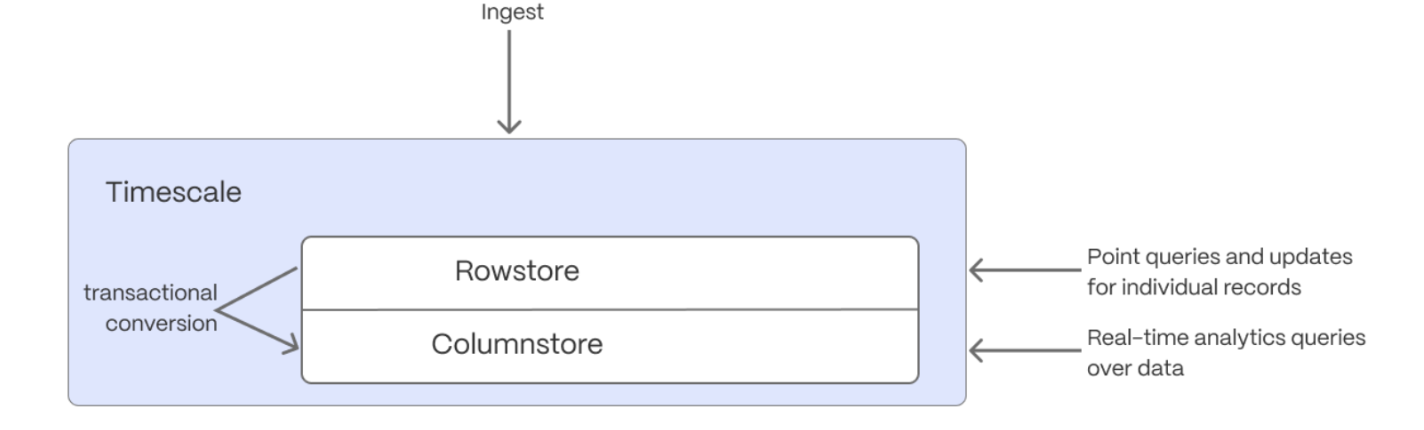
When TimescaleDB converts chunks from the rowstore to the columnstore, multiple records are grouped into a single row. The columns of this row hold an array-like structure that stores all the data. Because a single row takes up less disk space, you can reduce your chunk size by up to 98%, and can also speed up your queries. This helps you save on storage costs, and keeps your queries operating at lightning speed.
hypercore is enabled by default when you call CREATE TABLE. Best practice is to compress data that is no longer needed for highest performance queries, but is still accessed regularly in the columnstore. For example, yesterday's market data.
- Add a policy to convert chunks to the columnstore at a specific time interval
For example, yesterday's data:
If you have not configured a segmentby column, TimescaleDB chooses one for you based on the data in your
hypertable. For more information on how to tune your hypertables for the best performance, see
efficient queries.
- View your data space saving
When you convert data to the columnstore, as well as being optimized for analytics, it is compressed by more than
90%. This helps you save on storage costs and keeps your queries operating at lightning speed. To see the amount of space
saved, click Explorer > public > crypto_ticks.
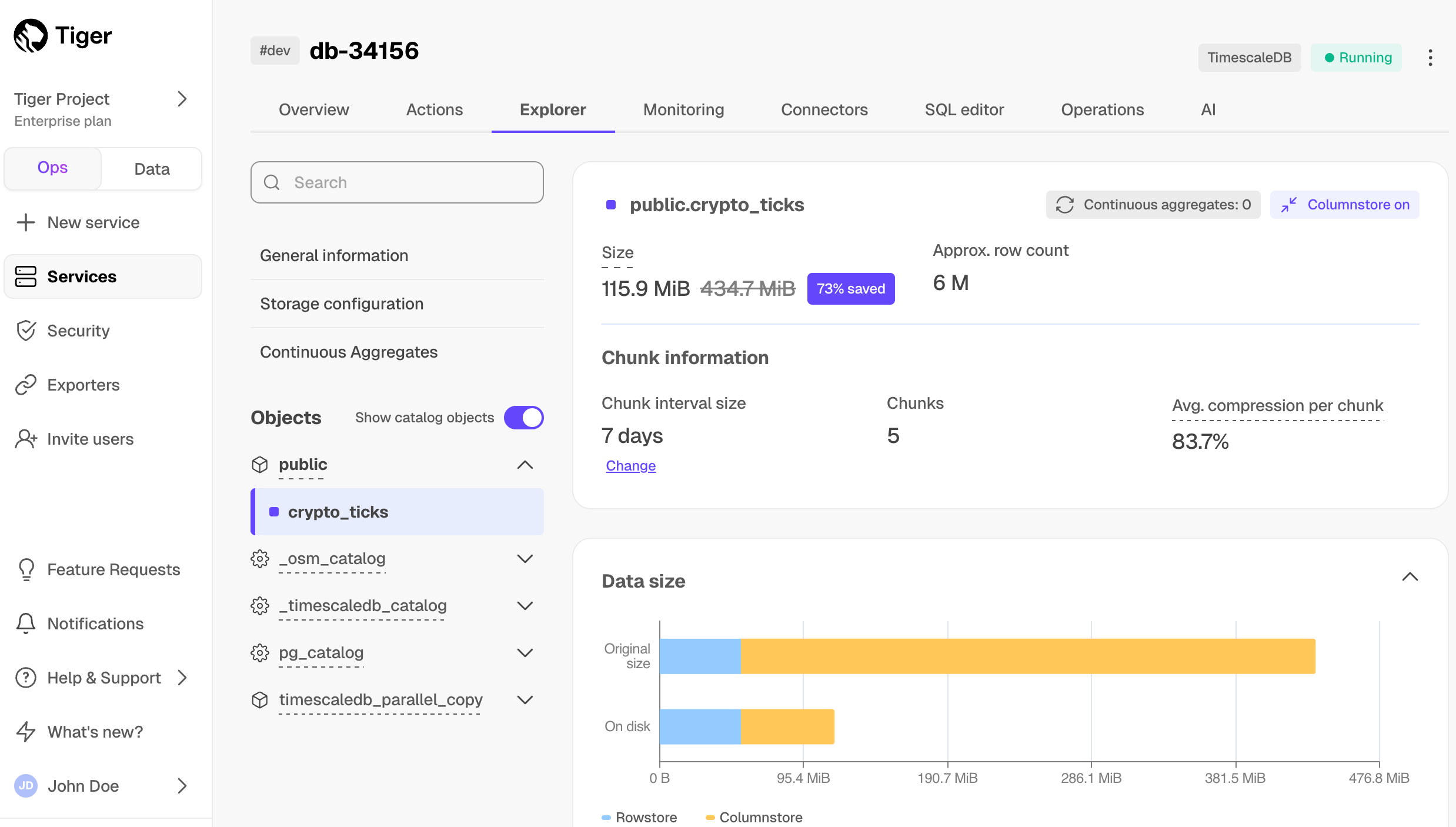
Write fast and efficient analytical queries
Aggregation is a way of combing data to get insights from it. Average, sum, and count are all examples of simple aggregates. However, with large amounts of data, aggregation slows things down, quickly. Continuous aggregates are a kind of hypertable that is refreshed automatically in the background as new data is added, or old data is modified. Changes to your dataset are tracked, and the hypertable behind the continuous aggregate is automatically updated in the background.
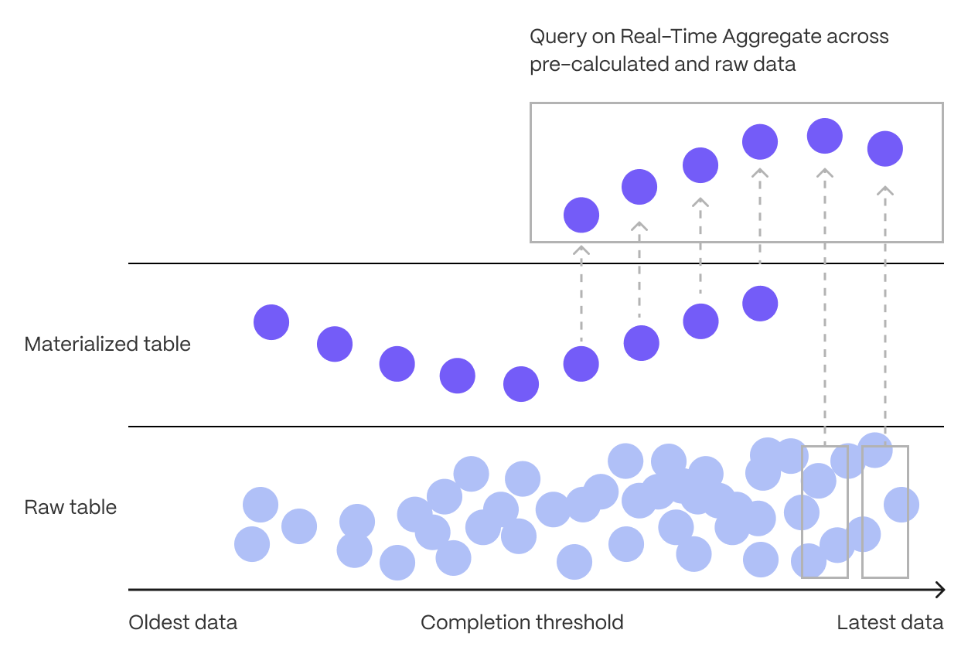
You create continuous aggregates on uncompressed data in high-performance storage. They continue to work on data in the columnstore and rarely accessed data in tiered storage. You can even create continuous aggregates on top of your continuous aggregates.
You use time buckets to create a continuous aggregate. Time buckets aggregate data in hypertables by time interval. For example, a 5-minute, 1-hour, or 3-day bucket. The data grouped in a time bucket uses a single timestamp. Continuous aggregates minimize the number of records that you need to look up to perform your query.
This section shows you how to run fast analytical queries using time buckets and continuous aggregate in Tiger Cloud Console. You can also do this using psql.
This feature is not available under the Free pricing plan.
- Connect to your service
In Tiger Cloud Console, select your service in the connection drop-down in the top right.
- Create a continuous aggregate
For a continuous aggregate, data grouped using a time bucket is stored in a
Postgres `MATERIALIZED VIEW` in a hypertable. `timescaledb.continuous` ensures that this data
is always up to date.
In data mode, use the following code to create a continuous aggregate on the real-time data in
the `crypto_ticks` table:
This continuous aggregate creates the candlestick chart data you use to visualize
the price change of an asset.
Create a policy to refresh the view every hour
Have a quick look at your data
You query continuous aggregates exactly the same way as your other tables. To query the assets_candlestick_daily
continuous aggregate for all assets:
- In Tiger Cloud Console, select the service you uploaded data to
- Click
Explorer>Continuous Aggregates>Create a Continuous Aggregatenext to thecrypto_tickshypertable - Create a view called
assets_candlestick_dailyon thetimecolumn with an interval of1 day, then clickNext step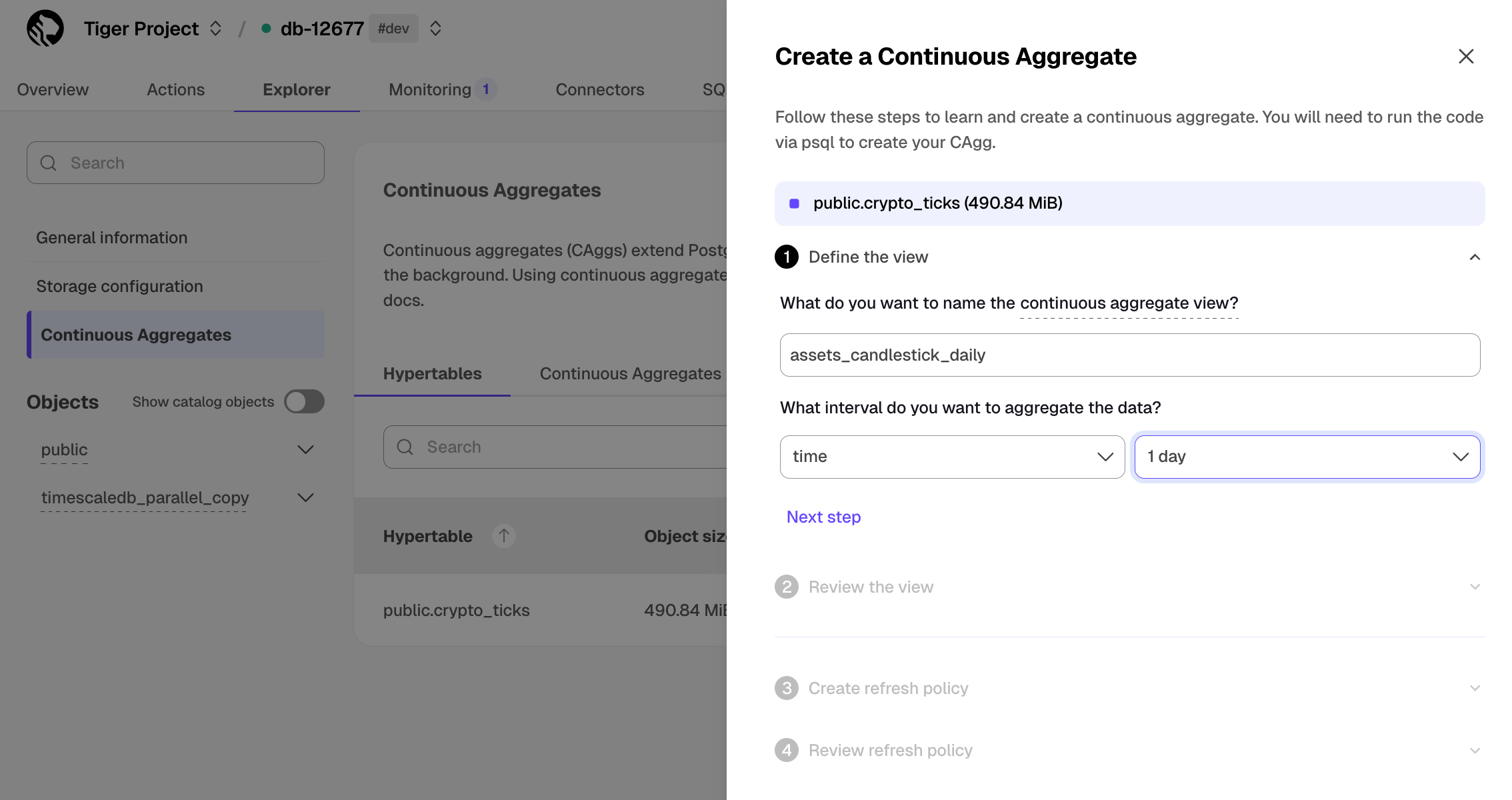
Update the view SQL with the following functions, then click
RunWhen the view is created, click
Next stepDefine a refresh policy with the following values:
How far back do you want to materialize?:3 weeksWhat recent data to exclude?:24 hoursHow often do you want the job to run?:3 hours
Click
Next step, then clickRun
Tiger Cloud creates the continuous aggregate and displays the aggregate ID in Tiger Cloud Console. Click DONE to close the wizard.
To see the change in terms of query time and data returned between a regular query and
a continuous aggregate, run the query part of the continuous aggregate
( SELECT ...GROUP BY day, symbol; ) and compare the results.
Slash storage charges
In the previous sections, you used continuous aggregates to make fast analytical queries, and hypercore to reduce storage costs on frequently accessed data. To reduce storage costs even more, you create tiering policies to move rarely accessed data to the object store. The object store is low-cost bottomless data storage built on Amazon S3. However, no matter the tier, you can query your data when you need. Tiger Cloud seamlessly accesses the correct storage tier and generates the response.
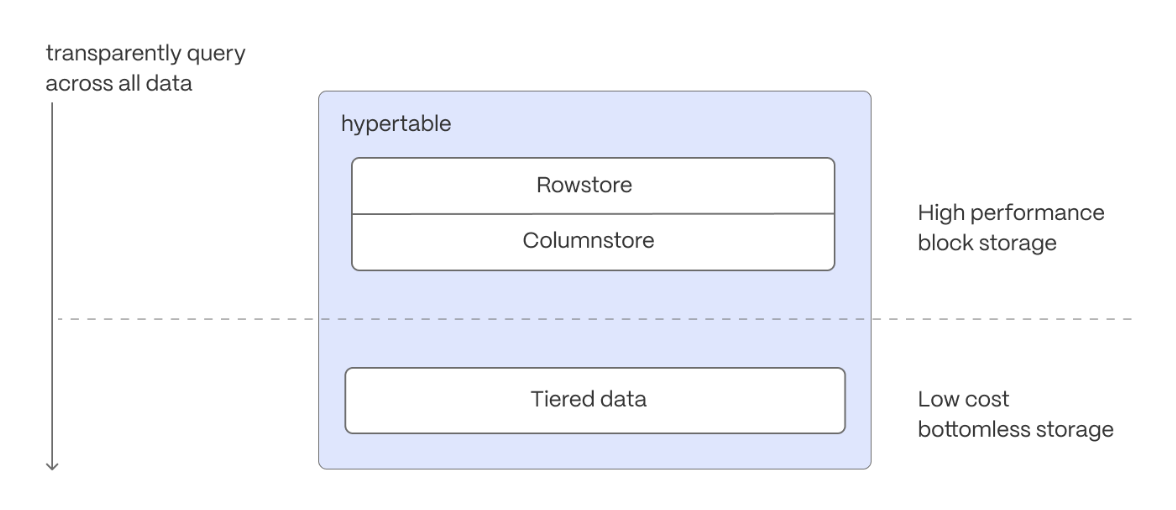
To set up data tiering:
Enable data tiering
In Tiger Cloud Console, select the service to modify.
In
Explorer, clickStorage configuration>Tiering storage, then clickEnable tiered storage.
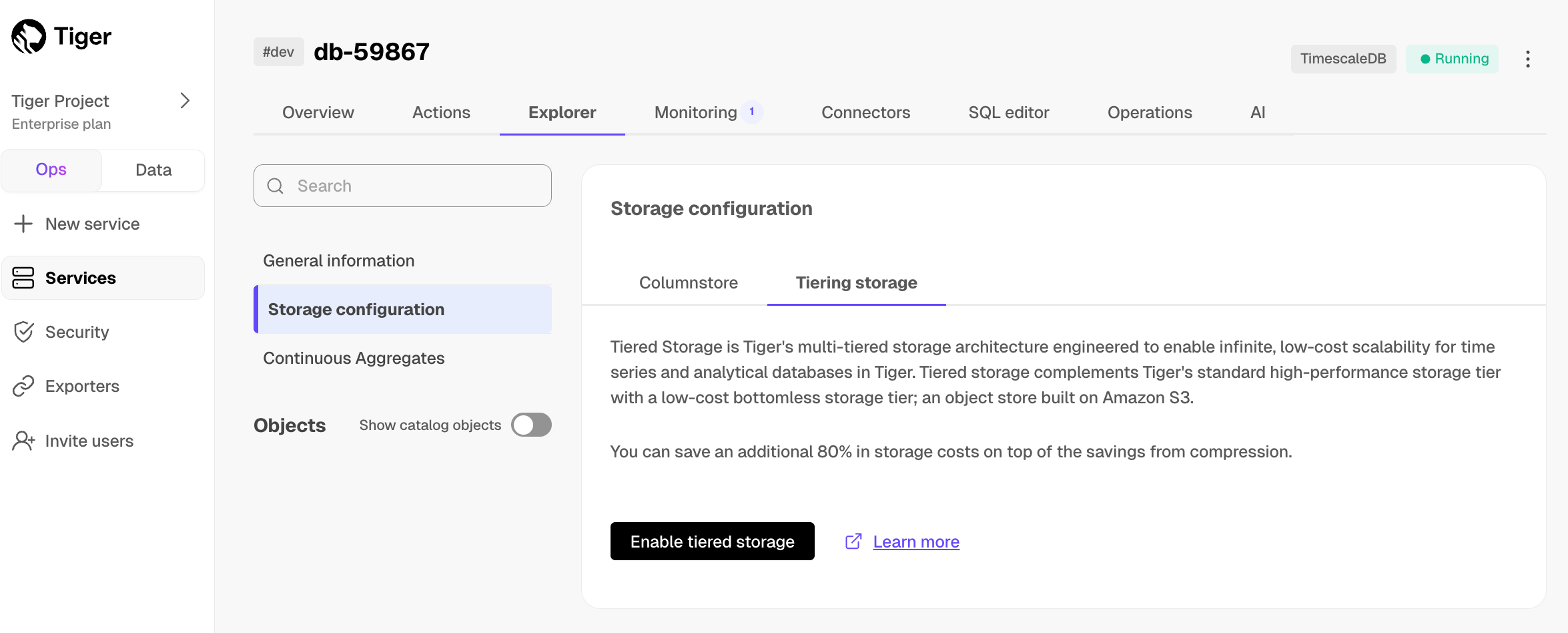
When tiered storage is enabled, you see the amount of data in the tiered object storage.
- Set the time interval when data is tiered
In Tiger Cloud Console, click Data to switch to the data mode, then enable data tiering on a hypertable with the following query:
- Query tiered data
You enable reads from tiered data for each query, for a session or for all future
sessions. To run a single query on tiered data:
Enable reads on tiered data:
Query the data:
Disable reads on tiered data:
For more information, see Querying tiered data.
Reduce the risk of downtime and data loss
By default, all Tiger Cloud services have rapid recovery enabled. However, if your app has very low tolerance for downtime, Tiger Cloud offers high-availability replicas. HA replicas are exact, up-to-date copies of your database hosted in multiple AWS availability zones (AZ) within the same region as your primary node. HA replicas automatically take over operations if the original primary data node becomes unavailable. The primary node streams its write-ahead log (WAL) to the replicas to minimize the chances of data loss during failover.
- In Tiger Cloud Console, select the service to enable replication for.
- Click
Operations, then selectHigh availability. - Choose your replication strategy, then click
Change configuration.
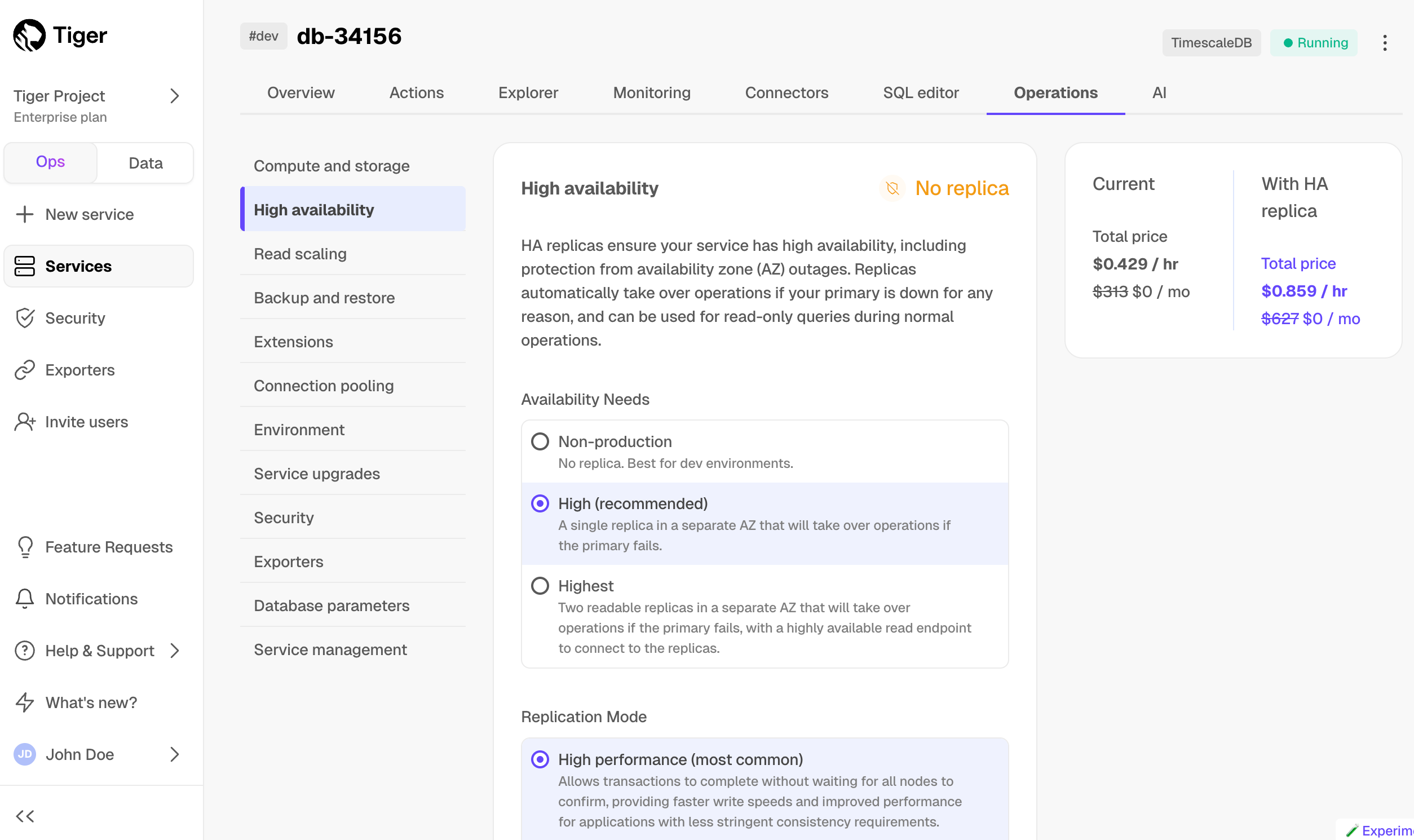
- In
Change high availability configuration, clickChange config.
For more information, see High availability.
What next? See the use case tutorials, interact with the data in your Tiger Cloud service using your favorite programming language, integrate your Tiger Cloud service with a range of third-party tools, plain old Use Tiger Data products, or dive into the API.
===== PAGE: https://docs.tigerdata.com/getting-started/start-coding-with-timescale/ =====
Examples:
Example 1 (bash):
psql -d "postgres://<username>:<password>@<host>:<port>/<database-name>"
Example 2 (sql):
CREATE TABLE crypto_ticks (
                  "time" TIMESTAMPTZ,
                  symbol TEXT,
                  price DOUBLE PRECISION,
                  day_volume NUMERIC
                ) WITH (
                   tsdb.hypertable,
                   tsdb.partition_column='time',
                   tsdb.segmentby = 'symbol'
                );
Example 3 (sql):
CREATE TABLE crypto_assets (
              symbol TEXT NOT NULL,
              name TEXT NOT NULL
             );
Example 4 (sql):
SET timescaledb.enable_direct_compress_copy=on;
Multi-node authentication
URL: llms-txt#multi-node-authentication
Contents:
- Trust authentication
- Setting up trust authentication
- Password authentication
- Setting up password authentication
- Certificate authentication
- Generating a self-signed root certificate for the access node
- Generating keys and certificates for data nodes
- Configuring data nodes to use SSL authentication
- Creating certificates and keys for the access node
- Setting up additional user roles
Multi-node support is sunsetted.
TimescaleDB v2.13 is the last release that includes multi-node support for Postgres versions 13, 14, and 15.
When you have your instances set up, you need to configure them to accept connections from the access node to the data nodes. The authentication mechanism you choose for this can be different than the one used by external clients to connect to the access node.
How you set up your multi-node cluster depends on which authentication mechanism you choose. The options are:
- Trust authentication. This is the simplest approach, but also the least secure. This is a good way to start if you are trying out multi-node, but is not recommended for production clusters.
- Pasword authentication. Every user role requires an internal password for establishing connections between the access node and the data nodes. This method is easier to set up than certificate authentication, but provides only a basic level of protection.
- Certificate authentication. Every user role requires a certificate from a certificate authority to establish connections between the access node and the data nodes. This method is more complex to set up than password authentication, but more secure and easier to automate.
Going beyond the simple trust approach to create a secure system can be complex, but it is important to secure your database appropriately for your environment. We do not recommend any one security model, but encourage you to perform a risk assessment and implement the security model that best suits your environment.
Trust authentication
Trusting all incoming connections is the quickest way to get your multi-node environment up and running, but it is not a secure method of operation. Use this only for developing a proof of concept, do not use this method for production installations.
The trust authentication method allows insecure access to all nodes. Do not use this method in production. It is not a secure method of operation.
Setting up trust authentication
Connect to the access node with
psql, and locate thepg_hba.conffile:Open the
pg_hba.conffile in your preferred text editor, and add this line. In this example, the access node is located at IP192.0.2.20with a mask length of32. You can add one of these two lines:
bash
pg_ctl reload
sql
CREATE ROLE testrole;
sql
GRANT USAGE ON FOREIGN SERVER <data node name>, <data node name>, ... TO testrole;
sql
CALL distributed_exec($$ CREATE ROLE testrole LOGIN $$);
txt
password_encryption = 'scram-sha-256'  # md5 or scram-sha-256
sql
SHOW hba_file
txt
host    all       all   192.0.2.20   scram-sha-256 #where '192.0.2.20' is the access node IP
bash
*:*:*:postgres:xyzzy #assuming 'xyzzy' is the password for the 'postgres' user
bash
chmod 0600 passfile
bash
pg_ctl reload
sql
CREATE ROLE testrole PASSWORD 'clientpass' LOGIN;
GRANT USAGE ON FOREIGN SERVER <data node name>, <data node name>, ... TO testrole;
sql
CALL distributed_exec($$ CREATE ROLE testrole PASSWORD 'internalpass' LOGIN $$);
bash
*:*:*:testrole:internalpass #assuming 'internalpass' is the password used to connect to data nodes
bash
openssl genpkey -algorithm rsa -out auth.key
bash
openssl req -new -key auth.key -days 3650 -out root.crt -x509
txt
Country Name (2 letter code) [AU]:US
State or Province Name (full name) [Some-State]:New York
Locality Name (eg, city) []:New York
Organization Name (eg, company) [Internet Widgets Pty Ltd]:Example Company Pty Ltd
Organizational Unit Name (eg, section) []:
Common Name (e.g. server FQDN or YOUR name) []:http://cert.example.com/
Email Address []:
bash
openssl req -out server.csr -new -newkey rsa:2048 -nodes \
-keyout server.key
bash
openssl ca -extensions v3_intermediate_ca -days 3650 -notext \
-md sha256 -in server.csr -out server.crt
txt
ssl = on
ssl_ca_file = 'root.crt'
ssl_cert_file = 'server.crt'
ssl_key_file = 'server.key'
txt
hostssl   all       all         all       cert    clientcert=1
bash
pguser=postgres
base=`echo -n $pguser | md5sum | cut -c1-32`
subj="/C=US/ST=New York/L=New York/O=Timescale/OU=Engineering/CN=$pguser"
key_file="timescaledb/certs/$base.key"
crt_file="timescaledb/certs/$base.crt"
bash
openssl genpkey -algorithm RSA -out "$key_file"
bash
openssl req -new -sha256 -key $key_file -out "$base.csr" -subj "$subj"
bash
openssl ca -batch -keyfile server.key -extensions v3_intermediate_ca \
  -days 3650 -notext -md sha256 -in "$base.csr" -out "$crt_file"
rm $base.csr
bash
cat >>$crt_file <server.crt
sql
CREATE ROLE testrole;
GRANT USAGE ON FOREIGN SERVER <data node name>, <data node name>, ... TO testrole;
sql
CALL distributed_exec($$ CREATE ROLE testrole LOGIN $$);
```
===== PAGE: https://docs.tigerdata.com/self-hosted/multinode-timescaledb/multinode-grow-shrink/ =====
Examples:
Example 1 (sql):
SHOW hba_file;
Example 2 (txt):
host    all             all             192.0.2.20/32            trust


    host    all             all             192.0.2.20      255.255.255.255    trust

1.  At the command prompt, reload the server configuration:
Example 3 (unknown):
On some operating systems, you might need to use the `pg_ctlcluster` command
    instead.

1.  If you have not already done so, add the data nodes to the access node. For
    instructions, see the [multi-node setup][multi-node-setup] section.
1.  On the access node, create the trust role. In this example, we call
    the role `testrole`:
Example 4 (unknown):
**OPTIONAL**: If external clients need to connect to the access node
    as `testrole`, add the `LOGIN` option when you create the role. You can
    also add the `PASSWORD` option if you want to require external clients to
    enter a password.
1.  Allow the trust role to access the foreign server objects for the data
    nodes. Make sure you include all the data node names:
Versions are mismatched when dumping and restoring a database
URL: llms-txt#versions-are-mismatched-when-dumping-and-restoring-a-database
The Postgres pg_dump command does not allow you to specify which version of
the extension to use when backing up. This can create problems if you have a
more recent version installed. For example, if you create the backup using an
older version of TimescaleDB, and when you restore it uses the current version,
without giving you an opportunity to upgrade first.
You can work around this problem when you are restoring from backup by making sure the new Postgres instance has the same extension version as the original database before you perform the restore. After the data is restored, you can upgrade the version of TimescaleDB.
===== PAGE: https://docs.tigerdata.com/_troubleshooting/self-hosted/upgrade-fails-already-loaded/ =====
remove_reorder_policy()
URL: llms-txt#remove_reorder_policy()
Contents:
- Samples
- Required arguments
- Optional arguments
Remove a policy to reorder a particular hypertable.
removes the existing reorder policy for the conditions table if it exists.
Required arguments
| Name | Type | Description |
|---|---|---|
hypertable |
REGCLASS | Name of the hypertable from which to remove the policy. |
Optional arguments
| Name | Type | Description |
|---|---|---|
if_exists |
BOOLEAN | Set to true to avoid throwing an error if the reorder_policy does not exist. A notice is issued instead. Defaults to false. |
===== PAGE: https://docs.tigerdata.com/api/hypertable/reorder_chunk/ =====
Examples:
Example 1 (sql):
SELECT remove_reorder_policy('conditions', if_exists => true);
show_policies()
URL: llms-txt#show_policies()
Contents:
- Samples
- Required arguments
- Returns
Show all policies that are currently set on a continuous aggregate.
Experimental features could have bugs. They might not be backwards compatible, and could be removed in future releases. Use these features at your own risk, and do not use any experimental features in production.
Given a continuous aggregate named example_continuous_aggregate, show all the
policies set on it:
Example of returned data:
Required arguments
|Name|Type|Description|
|-|-|-|
|relation|REGCLASS|The continuous aggregate to display policies for|
|Column|Type|Description|
|-|-|-|
|show_policies|JSONB|Details for each policy set on the continuous aggregate|
===== PAGE: https://docs.tigerdata.com/api/hypercore/alter_table/ =====
Examples:
Example 1 (sql):
timescaledb_experimental.show_policies(
     relation REGCLASS
) RETURNS SETOF JSONB
Example 2 (sql):
SELECT timescaledb_experimental.show_policies('example_continuous_aggregate');
Example 3 (bash):
show_policies
--------------------------------------------------------------------------------
{"policy_name": "policy_compression", "compress_after": 11, "compress_interval": "@ 1 day"}
{"policy_name": "policy_refresh_continuous_aggregate", "refresh_interval": "@ 1 hour", "refresh_end_offset": 1, "refresh_start_offset": 10}
{"drop_after": 20, "policy_name": "policy_retention", "retention_interval": "@ 1 day"}
Set up Virtual Private Cloud (VPC) peering on GCP
URL: llms-txt#set-up-virtual-private-cloud-(vpc)-peering-on-gcp
Contents:
- Before you begin
- Configuring a VPC peering on GCP
You can configure VPC peering for your Managed Service for TimescaleDB project, using VPC provided by GCP.
- Set up a VPC peering for your project in MST.
- In your GCP console, click the project name and make a note of the
Project ID. - In your GCP console, go to
VPC Networks, find the VPC that you want to connect, and make a note of the network name for that VPC.
Configuring a VPC peering on GCP
To set up VPC peering for your project:
In MST Console, click
VPCand select the VPC connection that you created.Type the project ID of your GCP project in
GCP Project ID.Type the network name of the VPC in GCP in
GCP VPC network name.Click
Add peering connection.
A new connection with a status of Pending Peer is listed in your GCP
console. Make a note of the project name and the network name.
- In the GCP console, go to
VPC>VPC network peeringand selectCreate Connection. - Type a name for the peering connection and type the project ID and network name that you made a note of.
- Click
Create.
After the peering is successful, it is active in both MST_CONSOLE_SHORT and your GCP console.
===== PAGE: https://docs.tigerdata.com/mst/vpc-peering/vpc-peering/ =====
About services
URL: llms-txt#about-services
Contents:
- Service users
You manage your Tiger Cloud services and interact with your data in Tiger Cloud Console using the following modes:
| Ops mode | Data mode |
|---|---|
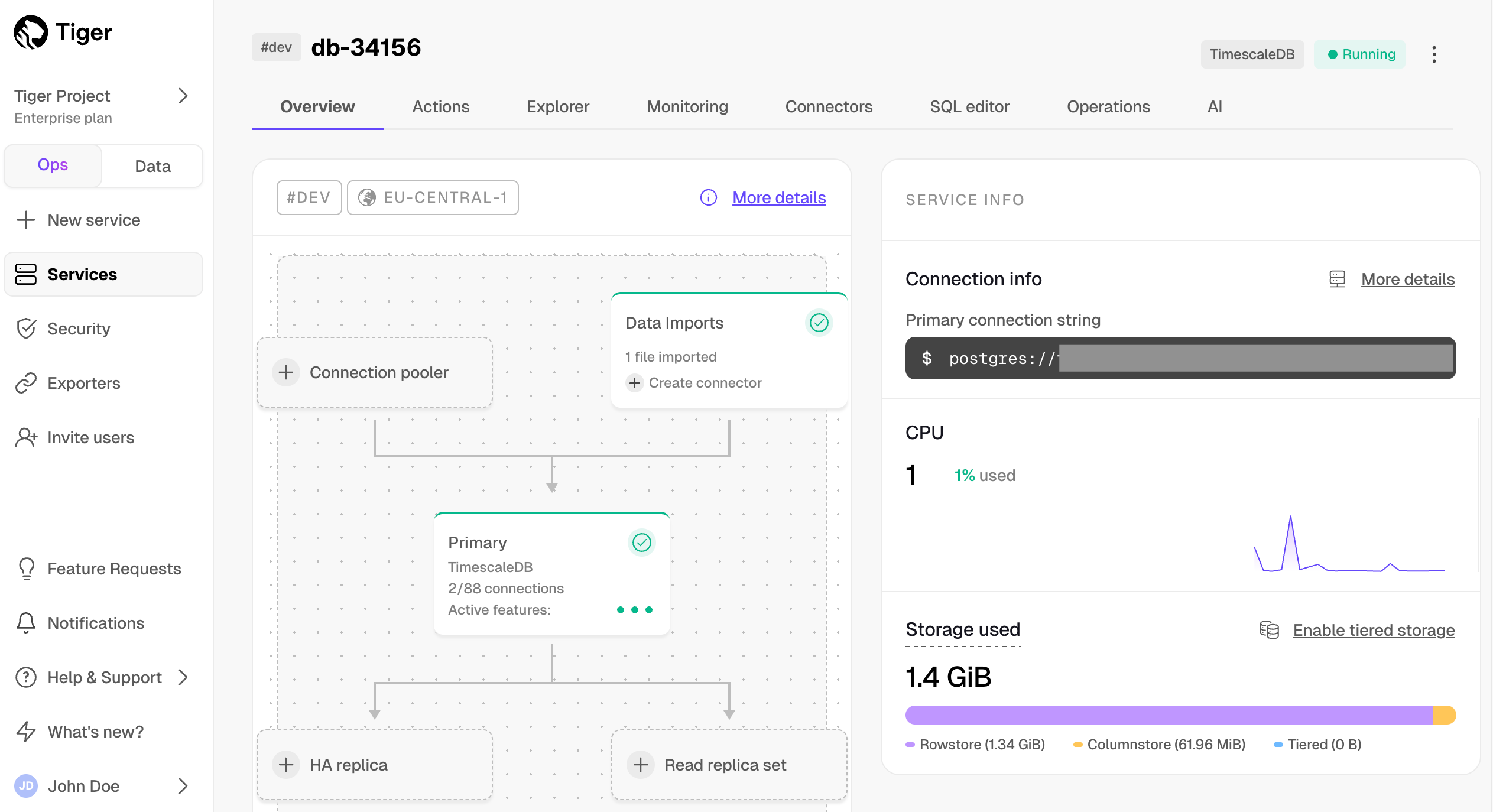 |
|
You use the ops mode to:
|
Powered by PopSQL, you use the data mode to:
|
When you log into Tiger Cloud Console, you see the
project overview. Click a service to view run-time data and connection information.
Click Operations to configure your service.
Each service hosts a single database managed for you by Tiger Cloud. If you need more than one database, create a new service.
By default, when you create a new service, a new tsdbadmin user is created.
This is the user that you use to connect to your new service.
The tsdbadmin user is the owner of the database, but is not a superuser. You
cannot access the postgres user. There is no superuser access to Tiger Cloud databases.
In your service, the tsdbadmin user can create another user
with any other role. For a complete list of roles available, see the
Postgres role attributes documentation.
You cannot create multiple databases in a single service. If you need data isolation, use schemas or create additional services.
===== PAGE: https://docs.tigerdata.com/use-timescale/services/change-resources/ =====
Analyze financial tick data with TimescaleDB
URL: llms-txt#analyze-financial-tick-data-with-timescaledb
Contents:
- OHLCV data and candlestick charts
- Steps in this tutorial
The financial industry is extremely data-heavy and relies on real-time and historical data for decision-making, risk assessment, fraud detection, and market analysis. Tiger Data simplifies management of these large volumes of data, while also providing you with meaningful analytical insights and optimizing storage costs.
To analyze financial data, you can chart the open, high, low, close, and volume (OHLCV) information for a financial asset. Using this data, you can create candlestick charts that make it easier to analyze the price changes of financial assets over time. You can use candlestick charts to examine trends in stock, cryptocurrency, or NFT prices.
In this tutorial, you use real raw financial data provided by Twelve Data, create an aggregated candlestick view, query the aggregated data, and visualize the data in Grafana.
OHLCV data and candlestick charts
The financial sector regularly uses candlestick charts to visualize the price change of an asset. Each candlestick represents a time period, such as one minute or one hour, and shows how the asset's price changed during that time.
Candlestick charts are generated from the open, high, low, close, and volume data for each financial asset during the time period. This is often abbreviated as OHLCV:
- Open: opening price
- High: highest price
- Low: lowest price
- Close: closing price
- Volume: volume of transactions
TimescaleDB is well suited to storing and analyzing financial candlestick data, and many Tiger Data community members use it for exactly this purpose. Check out these stories from some Tiger Datacommunity members:
- How Trading Strategy built a data stack for crypto quant trading
- How Messari uses data to open the cryptoeconomy to everyone
- How I power a (successful) crypto trading bot with TimescaleDB
Steps in this tutorial
This tutorial shows you how to ingest real-time time-series data into a Tiger Cloud service:
- Ingest data into a service: load data from Twelve Data into your TimescaleDB database.
- Query your dataset: create candlestick views, query the aggregated data, and visualize the data in Grafana.
- Compress your data using hypercore: learn how to store and query your financial tick data more efficiently using compression feature of TimescaleDB.
To create candlestick views, query the aggregated data, and visualize the data in Grafana, see the ingest real-time websocket data section.
===== PAGE: https://docs.tigerdata.com/tutorials/financial-ingest-real-time/ =====
Identify and resolve issues with indexes in Managed Service for TimescaleDB
URL: llms-txt#identify-and-resolve-issues-with-indexes-in-managed-service-for-timescaledb
Contents:
- Rebuild non-unique indexes
- Rebuild unique indexes
- Identify conflicting duplicated rows
Postgres indexes can be corrupted for a variety of reasons, including
software bugs, hardware failures, or unexpected duplicated data. REINDEX allows
you to rebuild the index in such situations.
Rebuild non-unique indexes
You can rebuild corrupted indexes that do not have UNIQUE in their definition.
You can run the REINDEX command for all indexes of a table (REINDEX TABLE),
and for all indexes in the entire database (REINDEX DATABASE).
For more information on the REINDEX command, see the Postgres documentation.
This command creates a new index that replaces the old one:
When you use REINDEX, the tables are locked and you may not be able to use the
database, until the operation is complete.
In some cases, you might need to manually build a second index concurrently with the old index, and then remove the old index:
Rebuild unique indexes
A UNIQUE index works on one or more columns where the combination is unique
in the table. When the index is corrupted or disabled, duplicated
physical rows appear in the table, breaking the uniqueness constraint of the
index. When you try to rebuild an index that is not unique, the REINDEX command fails.
To resolve this issue, first remove the duplicate rows from the table and then
rebuild the index.
Identify conflicting duplicated rows
To identify conflicting duplicate rows, you need to run a query that counts the number of rows for each combination of columns included in the index definition.
For example, this route table has a unique_route_index index defining
unique rows based on the combination of the source and destination columns:
If the unique_route_index is corrupt, you can find duplicated rows in the
route table using this query:
The query groups the data by the same source and destination fields defined
in the index, and filters any entries with more than one occurrence.
Resolve the problematic entries in the rows by manually deleting or merging the
entries until no duplicates exist. After all duplicate entries are removed, you
can use the REINDEX command to rebuild the index.
===== PAGE: https://docs.tigerdata.com/about/whitepaper/ =====
Examples:
Example 1 (sql):
REINDEX INDEX <index-name>;
Example 2 (sql):
CREATE INDEX CONCURRENTLY test_index_new ON table_a (...);
DROP INDEX CONCURRENTLY test_index_old;
ALTER INDEX test_index_new RENAME TO test_index;
Example 3 (sql):
CREATE TABLE route(
    source TEXT,
    destination TEXT,
    description TEXT
    );

CREATE UNIQUE INDEX unique_route_index
    ON route (source, destination);
Example 4 (sql):
SELECT
    source,
    destination,
    count
FROM
    (SELECT
        source,
        destination,
        COUNT(*) AS count
    FROM route
    GROUP BY
        source,
        destination) AS foo
WHERE count > 1;
SAML (Security Assertion Markup Language)
URL: llms-txt#saml-(security-assertion-markup-language)
Contents:
- SAML offers many benefits for the Enterprise including:
- Reach out to your CSM/sales contact to get started. The connection process looks like the following:
Tiger Cloud offers SAML authentication as part of its Enterprise offering. SAML (Security Assertion Markup Language) is an open standard for exchanging authentication and authorization data between parties. With SAML enabled Tiger Cloud customers can log into their Tiger Data account using their existing SSO service provider credentials.
Tiger Cloud supports most SAML providers that can handle IDP-initiated login
SAML offers many benefits for the Enterprise including:
- Improved security: SAML centralizes user authentication with an identity provider (IdP). This makes it more difficult for attackers to gain access to user accounts.
- Reduced IT costs: SAML can help companies reduce IT costs by eliminating the need to manage multiple user accounts and passwords.
- Improved user experience: SAML makes it easier for users to access multiple applications and resources.
Reach out to your CSM/sales contact to get started. The connection process looks like the following:
- Configure the IdP to support SAML authentication. This will involve creating a new application and configuring the IdP with the settings provided by your contact.
- Provide your contact with the requested details about your IdP.
- Test the SAML authentication process to make sure that it is working correctly.
===== PAGE: https://docs.tigerdata.com/use-timescale/schema-management/alter/ =====
Querying Tiered Data
URL: llms-txt#querying-tiered-data
Contents:
- Enable querying tiered data for a single query
- Enable querying tiered data for a single session
- Enable querying tiered data in all future sessions
- Query data in the object storage tier
- Performance considerations
Once rarely used data is tiered and migrated to the object storage tier, it can still be queried
with standard SQL by enabling the timescaledb.enable_tiered_reads GUC.
By default, the GUC is set to false, so that queries do not touch tiered data.
The timescaledb.enable_tiered_reads GUC, or Grand Unified Configuration variable, is a setting
that controls if tiered data is queried. The configuration variable can be set at different levels,
including globally for the entire database server, for individual databases, and for individual
sessions.
With tiered reads enabled, you can query your data normally even when it's distributed across different storage tiers.
Your hypertable is spread across the tiers, so queries and JOINs work and fetch the same data as usual.
By default, tiered data is not accessed by queries. Querying tiered data may slow down query performance as the data is not stored locally on the high-performance storage tier. See Performance considerations.
Enable querying tiered data for a single query
- Enable
timescaledb.enable_tiered_readsbefore querying the hypertable with tiered data and reset it after it is complete:
This queries data from all chunks including tiered chunks and non tiered chunks:
Enable querying tiered data for a single session
All future queries within a session can be enabled to use the object storage tier by enabling timescaledb.enable_tiered_reads within a session.
- Enable
timescaledb.enable_tiered_readsfor an entire session:
All future queries in that session are configured to read from tiered data and locally stored data.
Enable querying tiered data in all future sessions
You can also enable queries to read from tiered data always by following these steps:
- Enable
timescaledb.enable_tiered_readsfor all future sessions:
In all future created sessions, timescaledb.enable_tiered_reads initializes with enabled.
Query data in the object storage tier
This section illustrates how querying tiered storage works.
Consider a simple database with a standard devices table and a metrics hypertable. After enabling tiered storage, you can see which chunks are tiered to the object storage tier:
The following query fetches data only from the object storage tier. This makes sense based on the
WHERE clause specified by the query and the chunk ranges listed above for this
hypertable.
If your query does not need to touch the object storage tier, it will only
process the chunks in the standard storage. The following query refers to newer data that is not yet tiered to the object storage tier.
Match tiered objects :0 in the plan indicates that no tiered data matches the query constraint. So data in the object storage is not touched at all.
Here is another example with a JOIN that does not touch tiered data:
Performance considerations
Queries over tiered data are expected to be slower than over local data. However, in a limited number of scenarios tiered reads can impact query planning time over local data as well. In order to prevent any unexpected performance degradation for application queries, we keep the GUC timescaledb.enable_tiered_reads set to false.
Queries without time boundaries specified are expected to perform slower when querying tiered data, both during query planning and during query execution. TimescaleDBs chunk exclusion algorithms cannot be applied for this case.
Queries with predicates computed at runtime (such as
NOW()) are not always optimized at planning time and as a result might perform slower than statically assigned values when querying against the object storage tier.
For example, this query is optimized at planning time:
The following query does not do chunk pruning at query planning time:
At the moment, queries against tiered data work best when the query optimizer can apply planning time optimizations.
- Text and non-native types (JSON, JSONB, GIS) filtering is slower when querying tiered data.
===== PAGE: https://docs.tigerdata.com/use-timescale/data-tiering/about-data-tiering/ =====
Examples:
Example 1 (sql):
set timescaledb.enable_tiered_reads = true; SELECT count(*) FROM example; set timescaledb.enable_tiered_reads = false;
Example 2 (sql):
||count|
     |---|
     |1000|
Example 3 (sql):
set timescaledb.enable_tiered_reads = true;
Example 4 (sql):
alter database tsdb set timescaledb.enable_tiered_reads = true;
Statistical aggregation
URL: llms-txt#statistical-aggregation
To make common statistical aggregates easier to work with in window functions and continuous aggregates, TimescaleDB provides common statistical aggregates in a slightly different form than otherwise available in Postgres.
This example calculates the average, standard deviation, and kurtosis of
a value in the measurements table:
This uses a two-step aggregation process. The first step is an aggregation step (stats_agg(val)),
which creates a machine-readable form of the aggregate. The second step is an accessor.
The available accessors are average, stddev, and kurtosis. The accessors
run final calculations and output the calculated value in a human-readable way.
This makes it easier to construct your queries, because it distinguishes the
parameters, and makes it clear which aggregates are being re-aggregated or
rolled up. Additionally, because this query syntax is used in all TimescaleDB Toolkit queries, when you are used to it, you can use it to construct more and
more complicated queries.
A more complex example uses window functions to calculate tumbling window
statistical aggregates. The statistical aggregate is first calculated over each
minute in the subquery and then the rolling aggregate is used to re-aggregate
it over each 15 minute period preceding. The accessors remain the same as the
previous example:
For some more technical details and usage examples of the two-step aggregation method, see the blog post on aggregates or the developer documentation.
The stats_agg aggregate is available in two forms, a one-dimensional
aggregate shown earlier in this section, and a two-dimensional aggregate.
The two-dimensional aggregate takes in two variables (Y, X), which are
dependent and independent variables respectively. The two-dimensional
aggregate performs all the same calculations on each individual variable
as performing separate one-dimensional aggregates would, and
additionally performs linear regression on the two variables. Accessors
for one-dimensional values append a _y or _x to the name. For
example:
For more information about statistical aggregation API calls, see the hyperfunction API documentation.
===== PAGE: https://docs.tigerdata.com/use-timescale/hyperfunctions/counter-aggregation/ =====
Examples:
Example 1 (sql):
SELECT
    time_bucket('10 min'::interval, ts),
    average(stats_agg(val)),
    stddev(stats_agg(val), 'pop'),
    kurtosis(stats_agg(val), 'pop')
FROM measurements
GROUP BY 1;
Example 2 (sql):
SELECT
    bucket,
    average(rolling(stats_agg) OVER fifteen_min),
    stddev(rolling(stats_agg) OVER fifteen_min, 'pop'),
    kurtosis(rolling(stats_agg) OVER fifteen_min, 'pop')
FROM (SELECT
        time_bucket('1 min'::interval, ts) AS bucket,
        stats_agg(val)
     FROM measurements
     GROUP BY 1) AS stats
WINDOW fifteen_min as (ORDER BY bucket ASC RANGE '15 minutes' PRECEDING);
Example 3 (sql):
SELECT
    average_y(stats_agg(val2, val1)), -- equivalent to average(stats_agg(val2))
    stddev_x(stats_agg(val2, val1)), -- equivalent to stddev(stats_agg(val1))
    slope(stats_agg(val2, val1)) -- the slope of the least squares fit line of the values in val2 & val1
FROM measurements_multival;
delete_job()
URL: llms-txt#delete_job()
Contents:
- Samples
- Required arguments
Delete a job registered with the automation framework. This works for jobs as well as policies.
If the job is currently running, the process is terminated.
Delete the job with the job id 1000:
Required arguments
| Name | Type | Description |
|---|---|---|
job_id |
INTEGER | TimescaleDB background job id |
===== PAGE: https://docs.tigerdata.com/api/jobs-automation/run_job/ =====
Examples:
Example 1 (sql):
SELECT delete_job(1000);
LlamaIndex Integration for pgvector and Tiger Data Vector
URL: llms-txt#llamaindex-integration-for-pgvector-and-tiger-data-vector
Contents:
- LlamaIndex integration for pgvector and Tiger Data Vector
LlamaIndex integration for pgvector and Tiger Data Vector
LlamaIndex is a popular data framework for connecting custom data sources to large language models (LLMs). Tiger Data Vector has a native LlamaIndex integration that supports all the features of pgvector and Tiger Data Vector. It enables you to use Tiger Data Vector as a vector store and leverage all its capabilities in your applications built with LlamaIndex.
Here are resources about using Tiger Data Vector with LlamaIndex:
- Getting started with LlamaIndex and TigerData Vector: You'll learn how to use Tiger Data Vector for (1) similarity search, (2) time-based vector search, (3) faster search with indexes, and (4) retrieval and query engine.
- Time-based retrieval: Learn how to power RAG applications with time-based retrieval.
- Llama Pack: Auto Retrieval with time-based search: This pack demonstrates performing auto-retrieval for hybrid search based on both similarity and time, using the timescale-vector (Postgres) vector store.
- Learn more about TigerData Vector and LlamaIndex : How Tiger Data Vector is a better Postgres for AI applications.
===== PAGE: https://docs.tigerdata.com/ai/pgvectorizer/ =====
High availability
URL: llms-txt#high-availability
Contents:
- Backups
- Storage redundancy
- Instance redundancy
- Zonal redundancy
- Replication
- Failover
High availability (HA) is achieved by increasing redundancy and resilience. To increase redundancy, parts of the system are replicated, so that they are on standby in the event of a failure. To increase resilience, recovery processes switch between these standby resources as quickly as possible.
Tiger Cloud is a fully managed service with automatic backup and restore, high availability with replication, seamless scaling and resizing, and much more. You can try Tiger Cloud free for thirty days.
For some systems, recovering from backup alone can be a suitable availability strategy.
For more information about backups in self-hosted TimescaleDB, see the backup and restore section in the TimescaleDB documentation.
Storage redundancy
Storage redundancy refers to having multiple copies of a database's data files. If the storage currently attached to a Postgres instance corrupts or otherwise becomes unavailable, the system can replace its current storage with one of the copies.
Instance redundancy
Instance redundancy refers to having replicas of your database running simultaneously. In the case of a database failure, a replica is an up-to-date, running database that can take over immediately.
While the public cloud is highly reliable, entire portions of the cloud can be unavailable at times. TimescaleDB does not protect against Availability Zone failures unless the user is using HA replicas. We do not currently offer multi-cloud solutions or protection from an AWS Regional failure.
TimescaleDB supports replication using Postgres's built-in streaming replication. Using logical replication with TimescaleDB is not recommended, as it requires schema synchronization between the primary and replica nodes and replicating partition root tables, which are not currently supported.
Postgres achieves streaming replication by having replicas continuously stream the WAL from the primary database. See the official replication documentation for details. For more information about how Postgres implements Write-Ahead Logging, see their WAL Documentation.
Postgres offers failover functionality where a replica is promoted to primary
in the event of a failure on the primary. This is done using
pg_ctl or the trigger_file, but it does not provide
out-of-the-box support for automatic failover. Read more in the Postgres
failover documentation. Patroni offers a
configurable high availability solution with automatic failover functionality.
===== PAGE: https://docs.tigerdata.com/self-hosted/distributed-hypertables/insert/ =====
Maintenance
URL: llms-txt#maintenance
Contents:
- Non-critical maintenance updates
- Adjusting your maintenance window
- Critical updates
On Managed Service for TimescaleDB, software updates are handled automatically, and you do not need to perform any actions to keep up to date.
Non-critical software updates are applied during a maintenance window that you can define to suit your workload. If a security vulnerability is found that affects you, maintenance might be performed outside of your scheduled maintenance window.
After maintenance updates have been applied, if a new version of the TimescaleDB binary has been installed, you need to update the extension to use the new version. To do this, use this command:
After a maintenance update, the DNS name remains the same, but the IP address it points to changes.
Non-critical maintenance updates
Non-critical upgrades are made available before the upgrade is performed
automatically. During this time you can click Apply upgrades to start the
upgrade at any time. However, after the time expires, usually around a week,
the upgrade is triggered automatically in the next available maintenance window
for your service. You can configure the maintenance window so that these
upgrades are started only at a particular time, on a set day of the week. If
there are no pending upgrades available during a regular maintenance window, no
changes are performed.
When you are considering your maintenance window schedule, you might prefer to choose a day and time that usually has very low activity, such as during the early hours of the morning, or over the weekend. This can help minimize the impact of a short service interruption. Alternatively, you might prefer to have your maintenance window occur during office hours, so that you can monitor your system during the upgrade.
Adjusting your maintenance window
- In MST Console, click the service that you want to manage the maintenance window for.
- Click the ellipses (...) to the right of
Maintenance, then clickChange maintenence window. - In the
Service Maintenance Windowdialog, select the day of the week and the time (in Universal Coordinated Time) you want the maintenance window to start. Maintenance windows can run for up to four hours.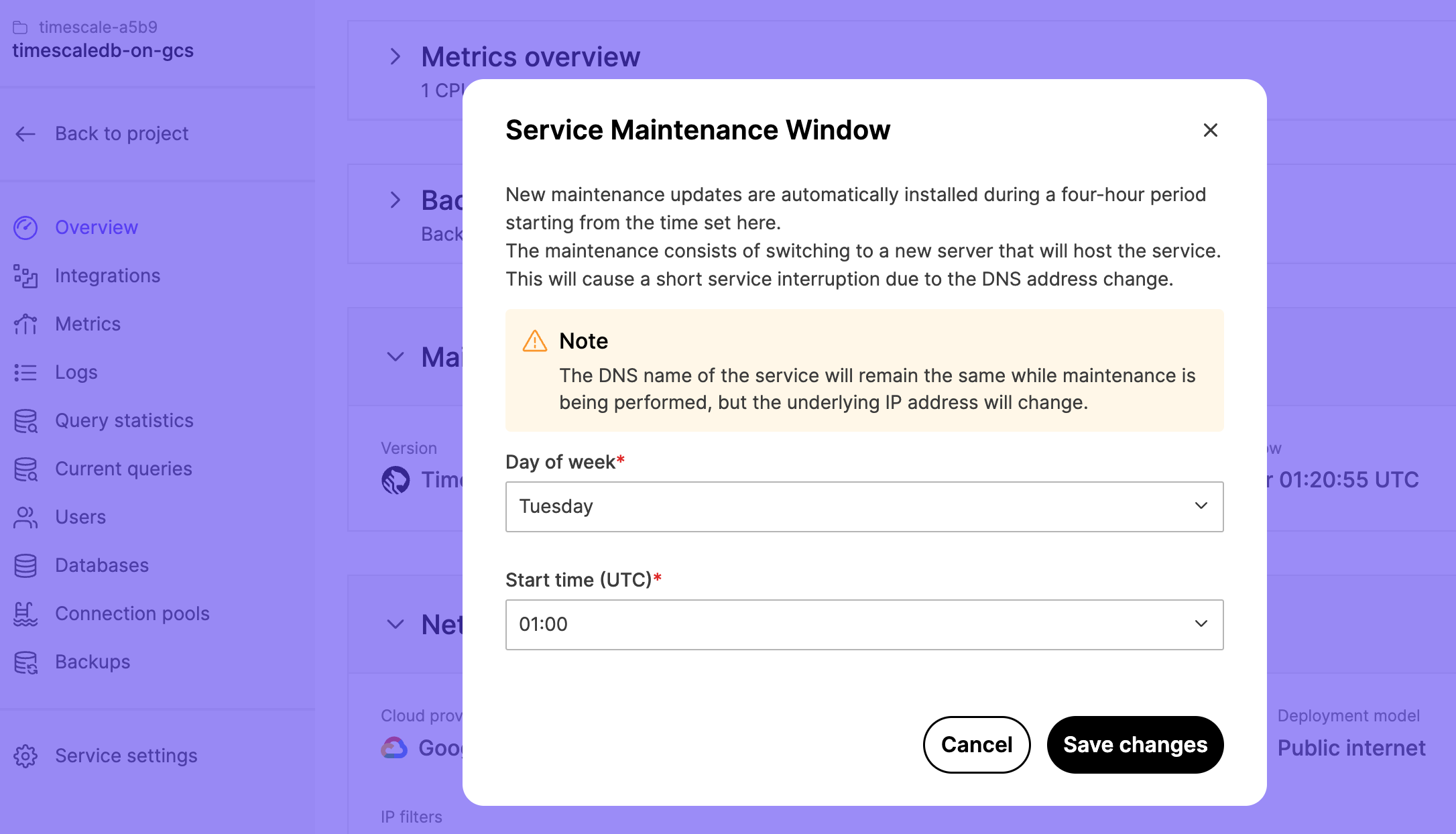
- Click
Save Changes.
Critical upgrades and security fixes are installed outside normal maintenance windows when necessary, and sometimes require a short outage.
Upgrades are performed as rolling upgrades where completely new server instances are built alongside the old ones. When the new instances are up and running they are synchronized with the old servers, and a controlled automatic failover is performed to switch the service to the new upgraded servers. The old servers are retired automatically after the new servers have taken over. The controlled failover is a very quick and safe operation and it takes less than a minute to get clients connected again. In most cases, there is five to ten second outage during this process.
===== PAGE: https://docs.tigerdata.com/mst/failover/ =====
Examples:
Example 1 (sql):
ALTER EXTENSION timescaledb UPDATE;
Service management
URL: llms-txt#service-management
Contents:
- Fork a service
- Create a service fork using the CLI
- Reset your service password
- Pause a service
- Delete a service
In the Service management section of the Operations dashboard, you can fork
your service, reset the password, pause, or delete the service.
When you a fork a service, you create its exact copy including
the underlying database. This allows you to create a copy that you can use for
testing purposes, or to prepare for a major version upgrade. The only difference
between the original and the forked service is that the tsdbadmin user has a
different password.
The fork is created by restoring from backup and applying the write-ahead log. The data is fetched from Amazon S3, so forking doesn't tax the running instance.
You can fork services that have a status of Running or Paused. You cannot
fork services while they have a status of In progress. Wait for the service to
complete the transition before you start forking.
Forks only have data up to the point when the original service was forked. Any data written to the original service after the time of forking does not appear in the fork. If you want the fork to assume operations from the original service, pause your main service before forking to avoid any data discrepancy between services.
- In Tiger Cloud Console, from the
Serviceslist, ensure the service you want to form has a status ofRunningorPaused, then click the name of the service you want to fork. - Navigate to the
Operationstab. - In the
Service managementsection, clickFork service. In the dialog, confirm by clickingFork service. The forked service takes a few minutes to start. - [](#)To change the configuration of your fork, click
Advanced options. You can set different compute and storage options, separate from your original service. - Confirm by clicking
Fork service. The forked service takes a few minutes to start. - The forked service shows in the
Servicesdashboard with a label stating which service it has been forked from.
Create a service fork using the CLI
To manage development forks:
- Install Tiger CLI
Use the terminal to install the CLI:
Set up API credentials
Log Tiger CLI into your Tiger Data account:
Tiger CLI opens Console in your browser. Log in, then click Authorize.
You can have a maximum of 10 active client credentials. If you get an error, open credentials
and delete an unused credential.
- Select a Tiger Cloud project:
If only one project is associated with your account, this step is not shown.
Where possible, Tiger CLI stores your authentication information in the system keychain/credential manager.
  If that fails, the credentials are stored in `~/.config/tiger/credentials` with restricted file permissions (600).
  By default, Tiger CLI stores your configuration in `~/.config/tiger/config.yaml`.
- Test your authenticated connection to Tiger Cloud by listing services
This call returns something like:
- No services:

- One or more services:
- Fork the service
By default a fork matches the resource of the parent Tiger Cloud services. For paid plans specify --cpu and/or --memory for dedicated resources.
You see something like:
When you are done, delete your forked service
Use the CLI to request service delete:
Validate the service delete:
You see something like:
Reset your service password
You can reset your service password from the Operations dashboard. This is the
password you use to connect to your service, not the password for Tiger Cloud Console. To reset your Console password, navigate to the Account page.
When you reset your service password, you are prompted for your Console password. When you have authenticated, you can create a new service password, ask Console to auto-generate a password, or switch your authentication type between SCRAM and MD5.
SCRAM (salted challenge response authentication mechanism) and MD5 (message digest algorithm 5) are cryptographic authentication mechanisms. Tiger Cloud Console uses SCRAM by default. It is more secure and strongly recommended. The MD5 option is provided for compatibility with older clients.
You can pause a service if you want to stop it running temporarily. When you pause a service, you are no longer billed for compute resources. However, you do need to continue paying for any storage you are using. Pausing a service ensures that it is still available, and is ready to be restarted at any time.
You can delete a service to remove it completely. This removes the service and its underlying data from the server. You cannot recover a deleted service.
===== PAGE: https://docs.tigerdata.com/use-timescale/services/connection-pooling/ =====
Examples:
Example 1 (shell):
curl -s https://packagecloud.io/install/repositories/timescale/tiger-cli/script.deb.sh | sudo os=any dist=any bash
    sudo apt-get install tiger-cli
Example 2 (shell):
curl -s https://packagecloud.io/install/repositories/timescale/tiger-cli/script.deb.sh | sudo os=any dist=any bash
    sudo apt-get install tiger-cli
Example 3 (shell):
curl -s https://packagecloud.io/install/repositories/timescale/tiger-cli/script.rpm.sh | sudo os=rpm_any dist=rpm_any bash
    sudo yum install tiger-cli
Example 4 (shell):
curl -s https://packagecloud.io/install/repositories/timescale/tiger-cli/script.rpm.sh | sudo os=rpm_any dist=rpm_any bash
    sudo yum install tiger-cli
Hypercore
URL: llms-txt#hypercore
Contents:
- Hypercore workflow
- Limitations
Hypercore is a hybrid row-columnar storage engine in TimescaleDB. It is designed specifically for real-time analytics and powered by time-series data. The advantage of hypercore is its ability to seamlessly switch between row-oriented and column-oriented storage, delivering the best of both worlds:
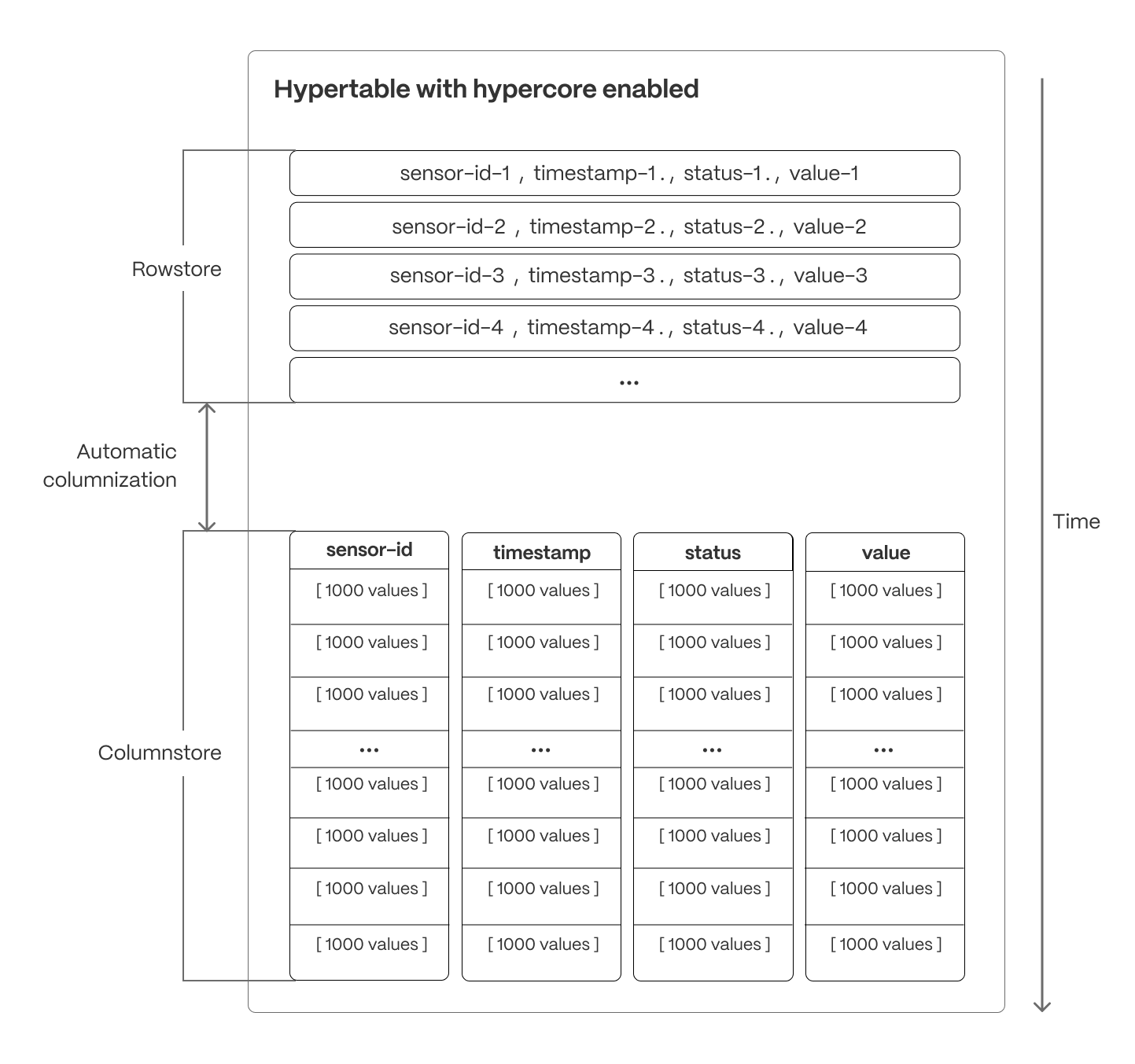
Hypercore solves the key challenges in real-time analytics:
- High ingest throughput
- Low-latency ingestion
- Fast query performance
- Efficient handling of data updates and late-arriving data
- Streamlined data management
Hypercore’s hybrid approach combines the benefits of row-oriented and column-oriented formats:
Fast ingest with rowstore: new data is initially written to the rowstore, which is optimized for high-speed inserts and updates. This process ensures that real-time applications easily handle rapid streams of incoming data. Mutability—upserts, updates, and deletes happen seamlessly.
Efficient analytics with columnstore: as the data cools and becomes more suited for analytics, it is automatically converted to the columnstore. This columnar format enables fast scanning and aggregation, optimizing performance for analytical workloads while also saving significant storage space.
Faster queries on compressed data in columnstore: in the columnstore conversion, hypertable chunks are compressed by up to 98%, and organized for efficient, large-scale queries. Combined with chunk skipping, this helps you save on storage costs and keeps your queries operating at lightning speed.
Fast modification of compressed data in columnstore: just use SQL to add or modify data in the columnstore. TimescaleDB is optimized for superfast INSERT and UPSERT performance.
Full mutability with transactional semantics: regardless of where data is stored, hypercore provides full ACID support. Like in a vanilla Postgres database, inserts and updates to the rowstore and columnstore are always consistent, and available to queries as soon as they are completed.
For an in-depth explanation of how hypertables and hypercore work, see the Data model.
Since TimescaleDB v2.18.0
Hypercore workflow
Best practice for using hypercore is to:
- Enable columnstore
Create a hypertable for your time-series data using CREATE TABLE.
For efficient queries on data in the columnstore, remember to segmentby the column you will
use most often to filter your data. For example:
If you are self-hosting TimescaleDB v2.19.3 and below, create a Postgres relational table, then convert it using create_hypertable. You then enable hypercore with a call to ALTER TABLE.
- Add a policy to move chunks to the columnstore at a specific time interval
For example, 7 days after the data was added to the table:
- View the policies that you set or the policies that already exist
See timescaledb_information.jobs.
You can also convert_to_columnstore and convert_to_rowstore manually for more fine-grained control over your data.
Chunks in the columnstore have the following limitations:
ROW LEVEL SECURITYis not supported on chunks in the columnstore.
===== PAGE: https://docs.tigerdata.com/api/continuous-aggregates/ =====
Examples:
Example 1 (sql):
CREATE TABLE crypto_ticks (
        "time" TIMESTAMPTZ,
        symbol TEXT,
        price DOUBLE PRECISION,
        day_volume NUMERIC
     ) WITH (
       tsdb.hypertable,
       tsdb.partition_column='time',
       tsdb.segmentby='symbol',
       tsdb.orderby='time DESC'
     );
Example 2 (sql):
ALTER MATERIALIZED VIEW assets_candlestick_daily set (
        timescaledb.enable_columnstore = true,
        timescaledb.segmentby = 'symbol' );
Example 3 (unknown):
See [add_columnstore_policy][add_columnstore_policy].

1. **View the policies that you set or the policies that already exist**
Contribute to Tiger Data documentation
URL: llms-txt#contribute-to-tiger-data-documentation
Contents:
- Language
- Edit individual pages
- Edit the navigation hierarchy
- Reuse text in multiple pages
- Formatting
- Variables
- Links
- Visuals
- SEO optimization
- Docs for deprecated products
Tiger Data documentation is open for contribution from all community members. The current source is in this repository.
This page explains the structure and language guidelines for contributing to Tiger Data documentation. See the README for how to contribute.
Write in a clear, concise, and actionable manner. Tiger Data documentation uses the Google Developer Documentation Style Guide with the following exceptions:
- Do not capitalize the first word after a colon.
- Use code font (back ticks) for UI elements instead of semi-bold.
Edit individual pages
Each major doc section has a dedicated directory with .md files inside, representing its child pages. This includes an index.md file that serves as a landing page for that doc section by default, unless specifically changed in the navigation tree. To edit a page, modify the corresponding .md file following these recommendations:
Regular pages should include:
A short intro describing the main subject of the page.
- A visual illustrating the main concept, if relevant.
- Paragraphs with descriptive headers, organizing the content into logical sections.
- Procedures to describe the sequence of steps to reach a certain goal. For example, create a Tiger Cloud service.
- Other visual aids, if necessary.
- Links to other relevant resources.
API pages should include:
The function name, with empty parentheses if it takes arguments.
- A brief, specific description of the function, including any possible warnings.
- One or two samples of the function being used to demonstrate argument syntax.
- An argument table with
Name,Type,Default,Required,Descriptioncolumns. - A return table with
Column,Type, andDescriptioncolumns.
Troubleshooting pages are not written as whole Markdown files, but are programmatically assembled from individual files in the
_troubleshootingfolder. Each entry describes a single troubleshooting case and its solution, and contains the following front matter:
|Key| Type |Required| Description |
|-|-------|-|---------------------------------------------------------------------------------------------------------------------------------------------------------------------------------------|
|`title`| string                                              |✅| The title of the troubleshooting entry, displayed as a heading above it                                                                                                               |
|`section`| The literal string `troubleshooting`                |✅| Must be `troubleshooting`, used to identify troubleshooting entries during site build                                                                                                 |
|`products` or `topics`| array of strings                                    |✅ (can have either or both, but must have at least one)| The products or topics related to the entry. The entry shows up on the troubleshooting pages for the listed products and topics.                                                      |
|`errors`| object of form `{language: string, message: string}` |❌| The error, if any, related to the troubleshooting entry. Displayed as a code block right underneath the title. `language` is the programming language to use for syntax highlighting. |
|`keywords`| array of strings                                    |❌| These are displayed at the bottom of every troubleshooting page. Each keyword links to a collection of all pages associated with that keyword.                                        |
|`tags`| array of strings                                    |❌| Concepts, actions, or things associated with the troubleshooting entry. These are not displayed in the UI, but they affect the calculation of related pages.                          |
Beneath the front matter, describe the error and its solution in regular Markdown. You can also use any other components allowed within the docs site.
The entry shows up on the troubleshooting pages for its associated products and topics. If the page doesn't already exist, add an entry for it in the page
index, setting `type` to `placeholder`. See [Navigation tree](#navigation-tree).
Edit the navigation hierarchy
The navigation hierarchy of a doc section is governed by page-index/page-index.js within the corresponding directory. For example:
See Use Tiger Cloud section navigation for reference.
To change the structure, add or delete pages in a section, modify the corresponding page-index.js. An entry in a page-index.js includes the following fields:
| Key | Type | Required | Description |
|---|---|---|---|
href |
string | ✅ | The URL segment to use for the page. If there is a corresponding Markdown file, href must match the name of the Markdown file, minus the file extension. |
title |
string | ✅ | The title of the page, used as the page name within the TOC on the left. Must be the same as the first header in the corresponding Markdown file. |
excerpt |
string | ✅ | The short description of the page, used for the page card if pageComponents is set to featured-cards. Should be up to 100 characters. See pageComponents for details. |
type |
One of [directory, placeholder, redirect-to-child-page] |
❌ | If no type is specified, the page is built as a regular webpage. The structure of its children, if present, is defined by children entries and the corresponding structure of subfolders. If the type is directory, the corresponding file becomes a directory. The difference of the directory page is that its child pages sit at the same level as the directory page. They only become children during the site build. If the type is placeholder, the corresponding page is produced programmatically upon site build. If not produced, the link in the navigation tree returns a 404. In particular, this is used for troubleshooting pages. If the type is redirect-to-child-page, no page is built and the link in the navigation tree goes directly to the first child. |
children |
Array of page entries | ❌ | Child pages of the current page. For regular pages, the children should be located in a directory with the same name as the parent. The parent is the index.md file in that directory. Fordirectory pages, the children should be located in the same directory as the parent. |
pageComponents |
One of [['featured-cards'], ['content-list']] |
❌ | Any page that has child pages can list its children in either card or list style at the bottom of the page. Specify the desired style with this key. |
featuredChildren |
Array of URLs | ❌ | Similar to pageComponents, this displays the children of the current page, but only the selected ones. |
index |
string | ❌ | If a section landing page needs to be different from the index.md file in that directory, this field specifies the corresponding Markdown file name. |
Reuse text in multiple pages
Partials allow you to reuse snippets of content in multiple places. All partials
live in the _partials top-level directory. To make a new partial, create a new
.md file in this directory. The filename must start with an underscore. Then import it into the target page as an .mdx file and reference in the relevant place. See Formatting examples.
In addition to all the regular Markdown formatting, the following elements are available for Tiger Data docs:
- Procedure blocks
- Highlight blocks
- Tabs
- Code blocks without line numbers and the copy button
- Multi-tab code blocks
- Tags
See Formatting examples for how to use them.
Tiger Data documentation uses variables for its product names, features, and UI elements in Tiger Cloud Console with the following syntax: $VARIABLE_NAME. Variables do not work inside the following:
- Front matter on each page
- HTML tables and tabs
See the full list of available variables.
- Internal page links: internal links do not need to include the domain name
https://docs.tigerdata.com. Use the:currentVersion:variable instead oflatestin the URL. - External links: input external links as is.
See Formatting examples for details.
When adding screenshots to the docs, aim for a full-screen view to provide better context. Reduce the size of your browser so there is as little wasted space as possible.
Attach the image to your issue or PR, and the doc team uploads and inserts it for you.
To make a documentation page more visible and clear for Google:
Include the
titleandexcerptmeta tags at the top of the page. These represent meta title and description required for SEO optimization.title: up to 60 characters, a short description of the page contents. In most cases a variation of the page title.excerpt: under 200 characters, a longer description of the page contents. In most cases a variation of the page intro.
Summarize the contents of each paragraph in the first sentence of that paragraph.
Include main page keywords into the meta tags, page title, first header, and intro. These are usually the names of features described in the page. For example, for a page dedicated to creating hypertables, you can use the keyword hypertable in the following way:
Title: Create a hypertable in Tiger Cloud
- Description: Turn a regular Postgres table into a hypertable in a few steps, using Tiger Cloud Console.
- First header: Create a hypertable
Docs for deprecated products
The previous documentation source is in the deprecated repository called docs.timescale.com-content.
===== PAGE: https://docs.tigerdata.com/mst/index/ =====
Examples:
Example 1 (js):
{
        title: "Tiger Cloud services",
        href: "services",
        excerpt: "About Tiger Cloud services",
        children: [
          {
            title: "Services overview",
            href: "service-overview",
            excerpt: "Tiger Cloud services overview",
          },
          {
            title: "Service explorer",
            href: "service-explorer",
            excerpt: "Tiger Cloud services explorer",
          },
          {
            title: "Troubleshooting Tiger Cloud services",
            href: "troubleshooting",
            type: "placeholder",
          },
        ],
      },
Indexing data
URL: llms-txt#indexing-data
Contents:
- Default indexes
- OldCreateHypertable
- Best practices for indexing
You can use an index on your database to speed up read operations. You can create an index on any combination of columns. TimescaleDB supports all table objects supported within Postgres, including data types, indexes, and triggers.
You can create an index using the CREATE INDEX command. For example, to create
an index that sorts first by location, then by time, in descending order:
You can run this command before or after you convert a regular Postgres table to a hypertable.
Some indexes are created by default when you perform certain actions on your database.
When you create a hypertable with a call to CREATE TABLE, a time index
is created on your data. If you want to manually create a time index, you can use this command:
You can also create an additional index on another column and time. For example:
TimescaleDB also creates sparse indexes per compressed chunk for optimization. You can manually set up those indexes when you call CREATE TABLE or ALTER_TABLE.
For more information about the order to use when declaring indexes, see the about indexing section.
If you do not want to create default indexes, you can set
create_default_indexes to false when you create a hypertable. For example:
OldCreateHypertable
Refer to the installation documentation for detailed setup instructions.
Best practices for indexing
If you have sparse data, with columns that are often NULL, you can add a clause
to the index, saying WHERE column IS NOT NULL. This prevents the index from
indexing NULL data, which can lead to a more compact and efficient index. For
example:
To define an index as a UNIQUE or PRIMARY KEY index, the index must include
the time column and the partitioning column, if you are using one. For example,
a unique index must include at least the (time, location) columns, in addition
to any other columns you want to use. Generally,
time-series data uses UNIQUE indexes more rarely than relational data.
If you do not want to create an index in a single transaction, you can use the
CREATE_INDEX
function. This uses a separate function to create an index on each chunk,
instead of a single transaction for the entire hypertable. This means that you
can perform other actions on the table while the index is being created, rather
than having to wait until index creation is complete.
You can also use the
Postgres WITH clause
to perform indexing transactions on an individual chunk.
===== PAGE: https://docs.tigerdata.com/use-timescale/schema-management/triggers/ =====
Examples:
Example 1 (sql):
CREATE INDEX ON conditions (location, time DESC);
Example 2 (sql):
CREATE INDEX ON conditions (time DESC);
Example 3 (sql):
CREATE INDEX ON conditions (location, time DESC);
Example 4 (sql):
CREATE TABLE conditions (
  time        TIMESTAMPTZ       NOT NULL,
  location    TEXT              NOT NULL,
  device      TEXT              NOT NULL,
  temperature DOUBLE PRECISION  NULL,
  humidity    DOUBLE PRECISION  NULL
) WITH (
  tsdb.hypertable,
  tsdb.partition_column='time',
  tsdb.create_default_indexes=false
);
Get faster DISTINCT queries with SkipScan
URL: llms-txt#get-faster-distinct-queries-with-skipscan
Contents:
- Speed up
DISTINCTqueries - Use SkipScan queries
Tiger Data SkipScan dramatically speeds up DISTINCT queries. It jumps directly to the first row of each distinct value in an
index instead of scanning all rows. First introduced for the rowstore hypertables and relational tables,
SkipScan now extends to columnstore hypertables, distinct aggregates like COUNT(DISTINCT), and even multiple columns.
Since TimescaleDB v2.2.0
Speed up DISTINCT queries
You use DISTINCT queries to get only the unique values in your data. For example, the IDs of customers who placed orders, the countries where your users are located, or the devices reporting into an IoT system. You might also have graphs and alarms that repeatedly query the most recent values for every device or service.
As your tables get larger, DISTINCT queries tend to get slower. Even when your index matches
the exact order and columns for these kinds of queries, Postgres (without SkipScan) has to scan the
entire index and then run deduplication. As the table grows, this operation keeps
getting slower.
SkipScan is an optimization for DISTINCT and DISTINCT ON queries, including multi-column DISTINCT. SkipScan allows queries to incrementally jump from one ordered value to the next,
without reading the rows in between. Conceptually, SkipScan is a regular IndexScan that skips across an
index looking for the next value that is greater than the current value.
When you issue a query that uses SkipScan, the EXPLAIN output includes a new Custom Scan (SkipScan)
operator, or node, that can quickly return distinct items from a properly
ordered index. As it locates one item, the SkipScan node quickly restarts the search for
the next item. This is a much more efficient way of finding distinct items in an
ordered index.
SkipScan cost is based on the ratio of distinct tuples to total tuples. If the number of distinct tuples is close to the total number of tuples, SkipScan is unlikely to be used due to its higher estimated cost.
Multi-column SkipScan is supported for queries that do not produce NULL distinct values. For example:
For benchmarking information on how SkipScan compares to regular DISTINCT
queries, see the SkipScan blog post.
Use SkipScan queries
Rowstore: create an index starting with the
DISTINCTcolumns, followed by your time sort. If theDISTINCTcolumns are not the first in your index, ensure any leading columns are used as constraints in your query. This means that if you are asking a question such as "retrieve a list of unique IDs in order" and "retrieve the last reading of each ID," you need at least one index like this:Columnstore: set
timescaledb.compress_segmentbyto the distinct columns andcompress_orderbyto match your query’s sort. Compress your historical chunks.
With your index set up correctly, you should start to see immediate benefit for
DISTINCT queries. When SkipScan is chosen for your query, the EXPLAIN
ANALYZE output shows one or more Custom Scan (SkipScan) nodes, like this:
===== PAGE: https://docs.tigerdata.com/use-timescale/configuration/about-configuration/ =====
Examples:
Example 1 (sql):
CREATE INDEX ON metrics(region, device, metric_type);
-- All distinct columns have filters which don't allow NULLs: can use SkipScan
SELECT DISTINCT ON (region, device, metric_type) *
FROM   metrics
WHERE region IN ('UK','EU','JP') AND device > 1 AND metric_type IS NOT NULL
ORDER  BY region, device, metric_type, time DESC;
-- Distinct columns are declared NOT NULL: can use SkipScan with index on (region, device)
CREATE TABLE metrics(region TEXT NOT NULL, device INT NOT NULL, ...);
SELECT DISTINCT ON (region, device) *
FROM   metrics
ORDER  BY region, device, time DESC;
Example 2 (sql):
CREATE INDEX "cpu_customer_tags_id_time_idx" \
    ON readings (customer_id, tags_id, time DESC)
Example 3 (sql):
->  Unique
  ->  Merge Append
    Sort Key: _hyper_8_79_chunk.tags_id, _hyper_8_79_chunk."time" DESC
     ->  Custom Scan (SkipScan) on _hyper_8_79_chunk
      ->  Index Only Scan using _hyper_8_79_chunk_cpu_tags_id_time_idx on _hyper_8_79_chunk
          Index Cond: (tags_id > NULL::integer)
     ->  Custom Scan (SkipScan) on _hyper_8_80_chunk
      ->  Index Only Scan using _hyper_8_80_chunk_cpu_tags_id_time_idx on _hyper_8_80_chunk
         Index Cond: (tags_id > NULL::integer)
Analyze the Bitcoin blockchain - set up dataset
URL: llms-txt#analyze-the-bitcoin-blockchain---set-up-dataset
About data retention
URL: llms-txt#about-data-retention
Contents:
- Drop data by chunk
In modern applications, data grows exponentially. As data gets older, it often becomes less useful in day-to-day operations. However, you still need it for analysis. TimescaleDB elegantly solves this problem with automated data retention policies.
Data retention policies delete raw old data for you on a schedule that you define. By combining retention policies with continuous aggregates, you can downsample your data and keep useful summaries of it instead. This lets you analyze historical data - while also saving on storage.
Drop data by chunk
TimescaleDB data retention works on chunks, not on rows. Deleting data
row-by-row, for example, with the Postgres DELETE command, can be slow. But
dropping data by the chunk is faster, because it deletes an entire file from
disk. It doesn't need garbage collection and defragmentation.
Whether you use a policy or manually drop chunks, TimescaleDB drops data by the chunk. It only drops chunks where all the data is within the specified time range.
For example, consider the setup where you have 3 chunks containing data:
- More than 36 hours old
- Between 12 and 36 hours old
- From the last 12 hours
You manually drop chunks older than 24 hours. Only the oldest chunk is deleted. The middle chunk is retained, because it contains some data newer than 24 hours. No individual rows are deleted from that chunk.
===== PAGE: https://docs.tigerdata.com/use-timescale/continuous-aggregates/refresh-policies/ =====
Upload a file into your service using Tiger Cloud Console
URL: llms-txt#upload-a-file-into-your-service-using-tiger-cloud-console
Contents:
- Prerequisites
- Prerequisites
You can upload files into your service using Tiger Cloud Console. This page explains how to upload CSV, Parquet, and text files, from your local machine and from an S3 bucket.
Tiger Cloud Console enables you to drag and drop files to upload from your local machine.
To follow the steps on this page:
- Create a target Tiger Cloud service with real-time analytics enabled.
To upload a CSV file to your service:
- Select your service in Console, then click
Actions>Import data>Upload your files>Upload CSV file
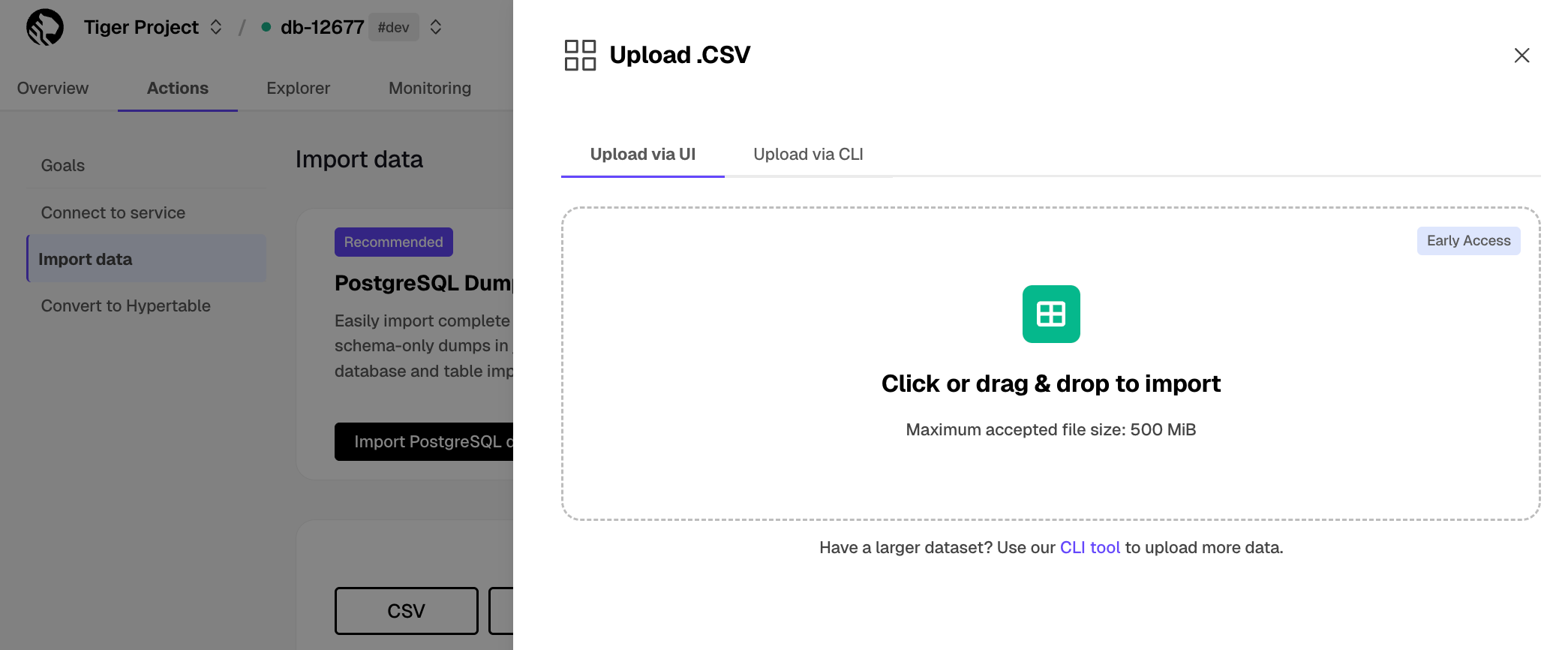
- Click to browse, or drag the file to import
- Configure the import
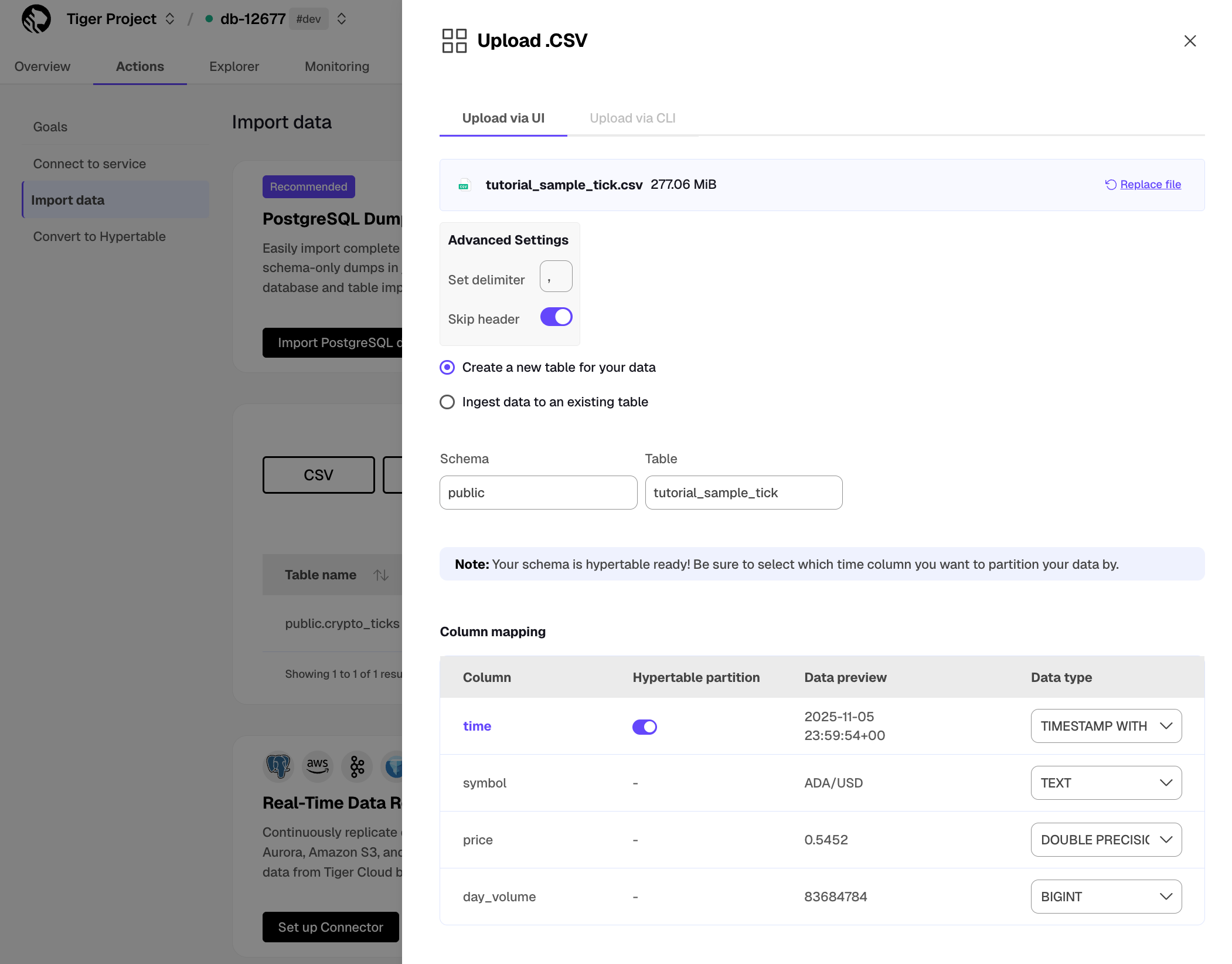
- Set a delimiter.
- Toggle to skip or keep the header.
- Select to ingest the data into an existing table or create a new one.
- Provide the new or existing table name.
- For a new table with a time column, toggle the time column to create a hypertable instead of a regular table.
- Click
Process CSV file
When the processing is completed, to find the data your imported, click Explorer.
To upload a Parquet file to your service:
- Select your service in Console, then click
Actions>Import data>Upload your files>Upload Parquet file
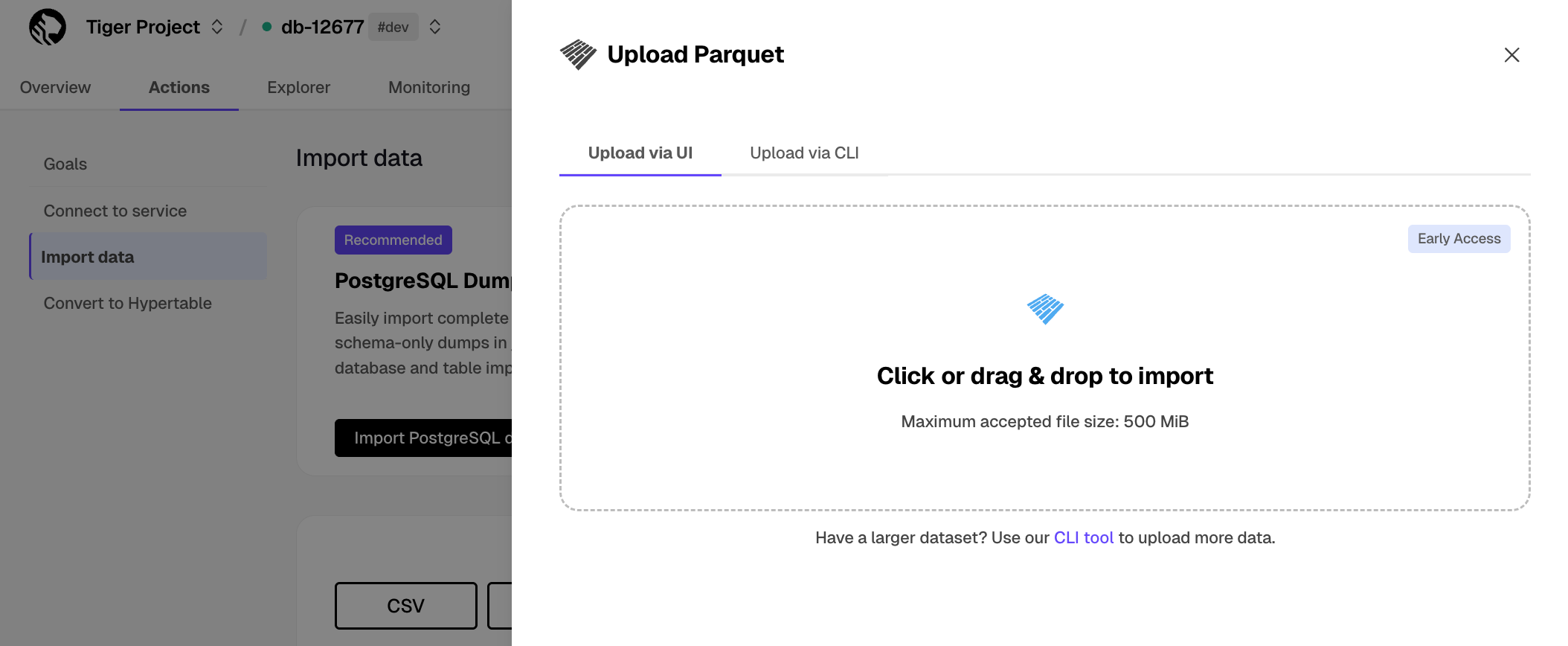
- Click to browse, or drag the file to import
- Configure the import
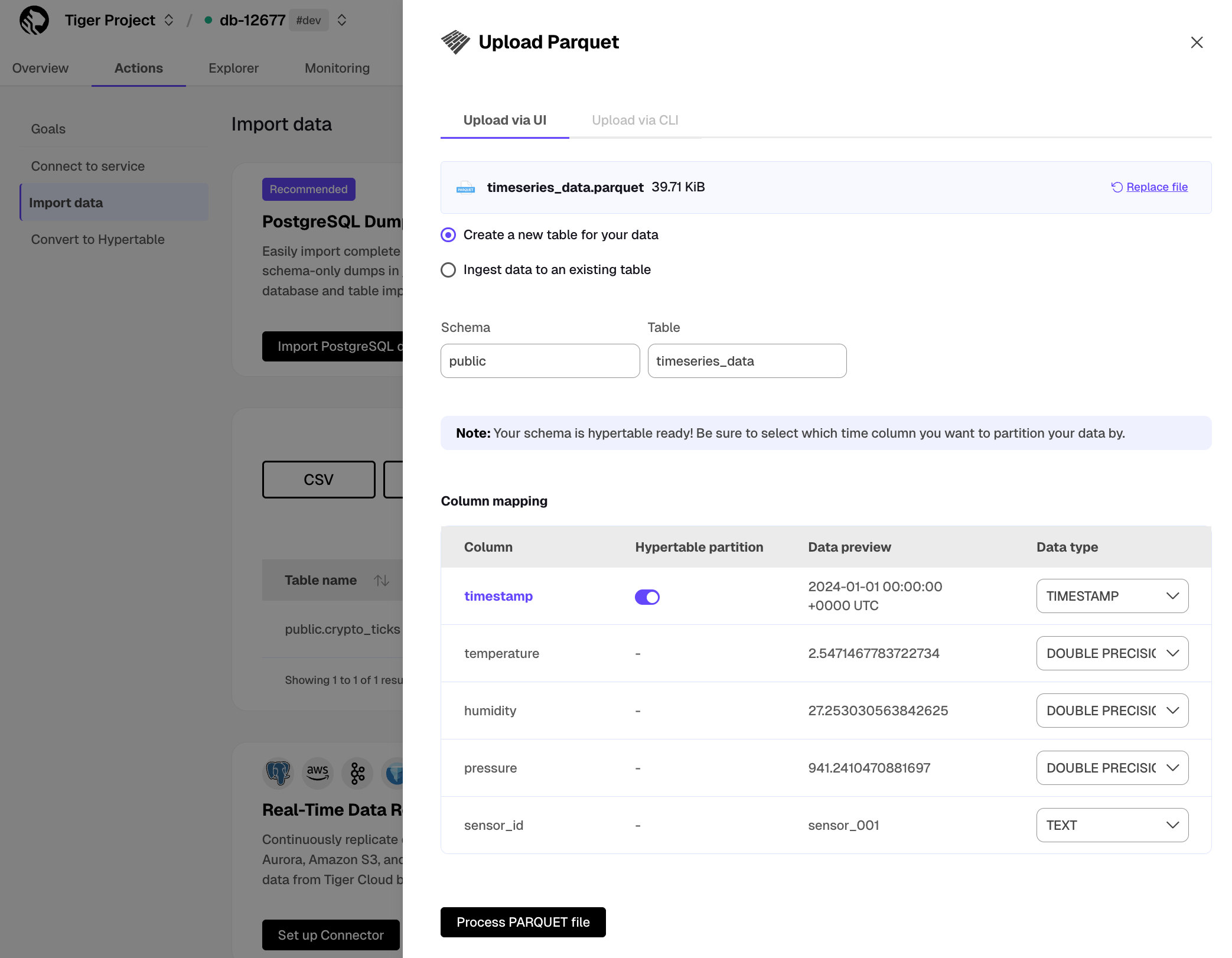
- Select to ingest the data into an existing table or create a new one.
- Provide the new or existing table name.
- For a new table with a time column, toggle the time column to create a hypertable instead of a regular table.
- Click
Process Parquet file
When the processing is completed, to find the data your imported, click Explorer.
To upload a TXT or MD file to your service:
- Select your service in Console, then click
Actions>Import data>Upload your files>Upload Text file
- Click to browse, or drag and drop the file to import
- Configure the import
Provide a name to create a new table, or select an existing table to add data to.
- Click
Upload files
When the upload is finished, find your data imported to a new or existing table in Explorer.
Tiger Cloud Console enables you to upload CSV and Parquet files, including archives compressed using GZIP and ZIP, by connecting to an S3 bucket.
This feature is not available under the Free pricing plan.
To follow the steps on this page:
Create a target Tiger Cloud service with real-time analytics enabled.
Ensure access to a standard Amazon S3 bucket containing your data files.
Configure access credentials for the S3 bucket. The following credentials are supported:
To import a CSV file from an S3 bucket:
Select your service in Console, then click
Actions>Import data>Explore import options>Import from S3Select your file in the S3 bucket
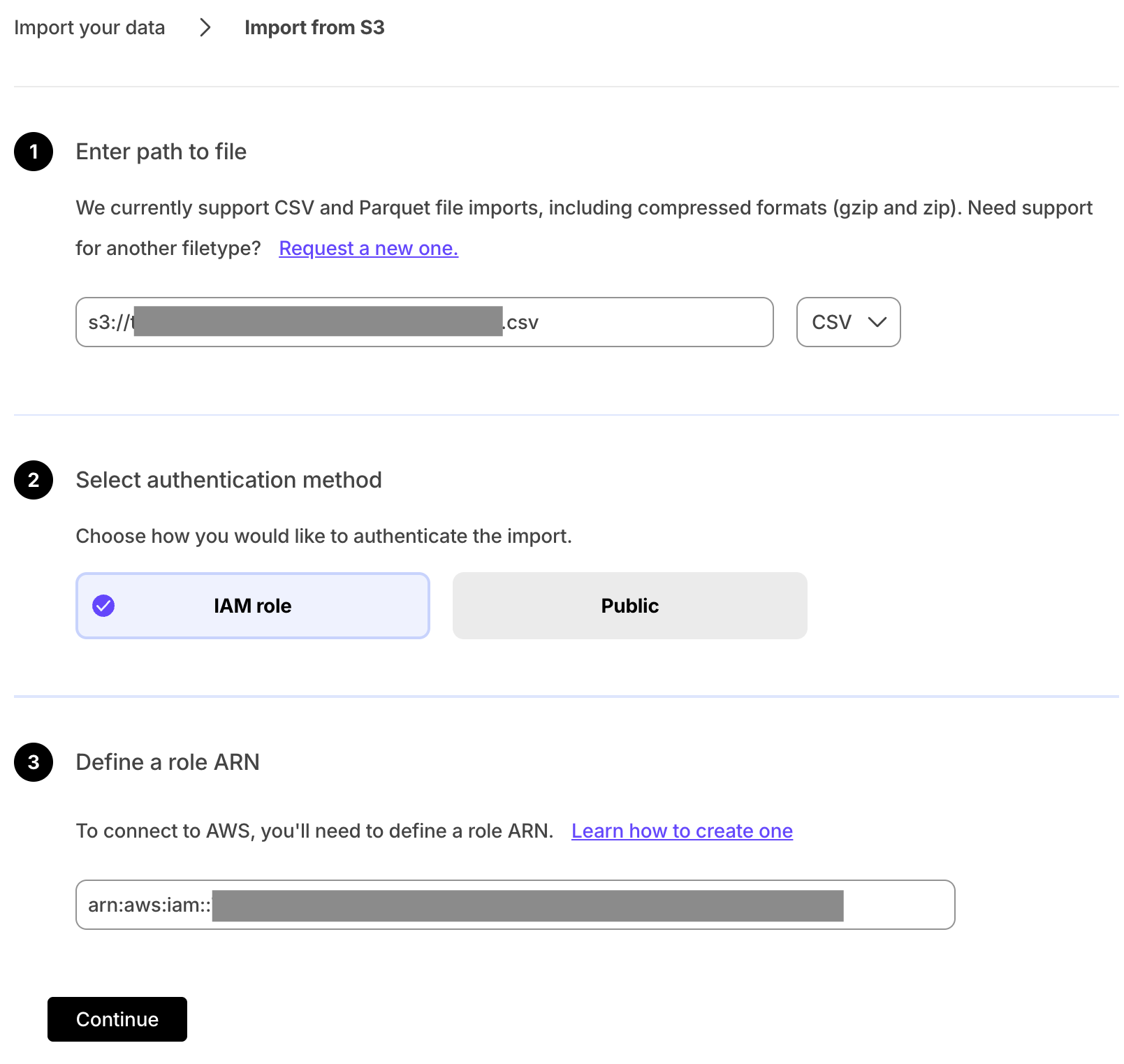
Provide your file path.
- Select
CSVin the file type dropdown. - Select the authentication method:
IAM roleand provide the role.Public.
- Click
Continue.
- Select
Configure the import
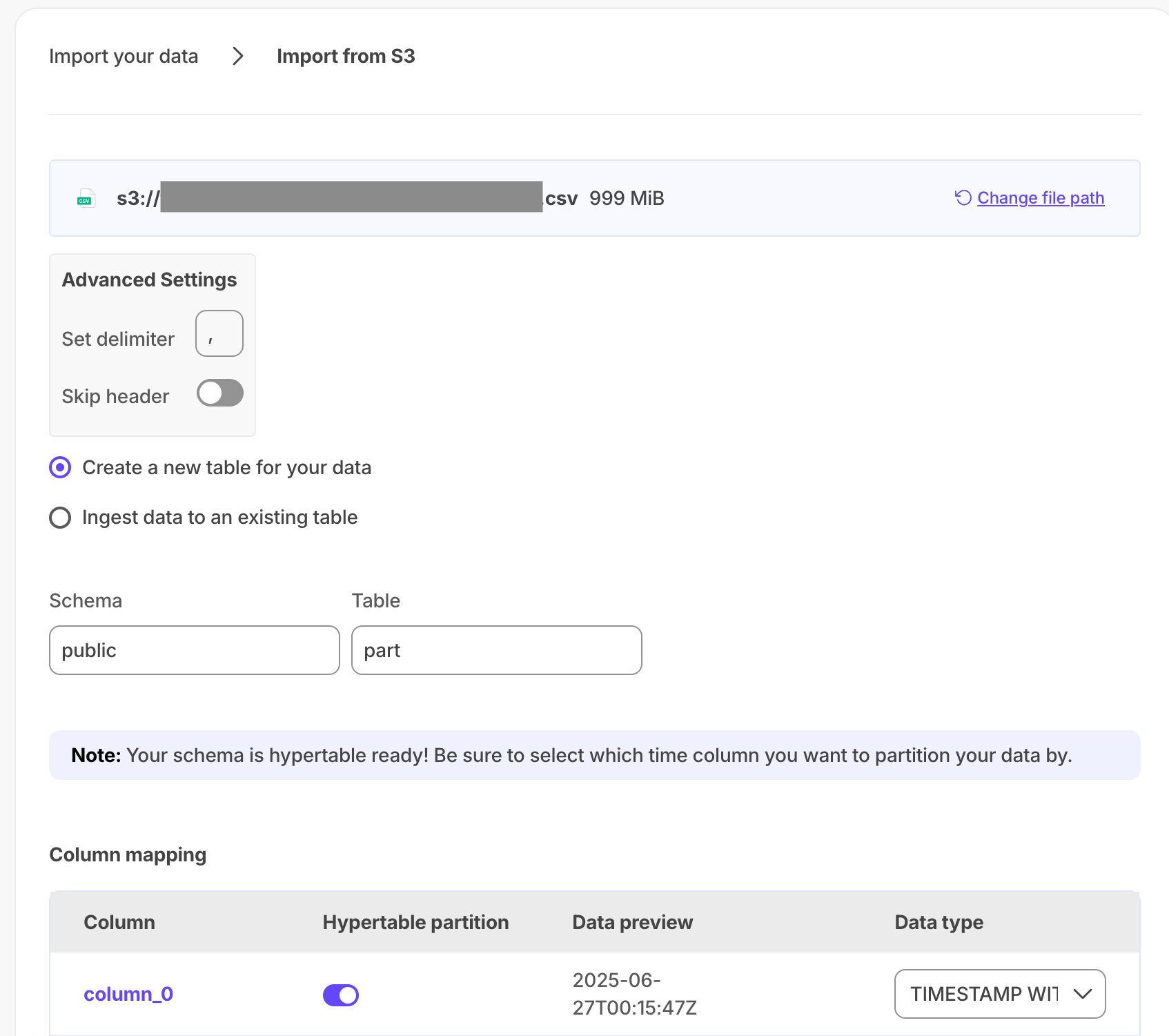
- Set a delimiter.
- Toggle to skip or keep the header.
- Select to ingest the data into an existing table or create a new one.
- Provide the new or existing table name.
- For a new table with a time column, toggle the time column to create a hypertable instead of a regular table.
- Click
Process CSV file
When the processing is completed, to find the data your imported, click Explorer.
To import a Parquet file from an S3 bucket:
Select your service in Console, then click
Actions>Import from S3Select your file in the S3 bucket
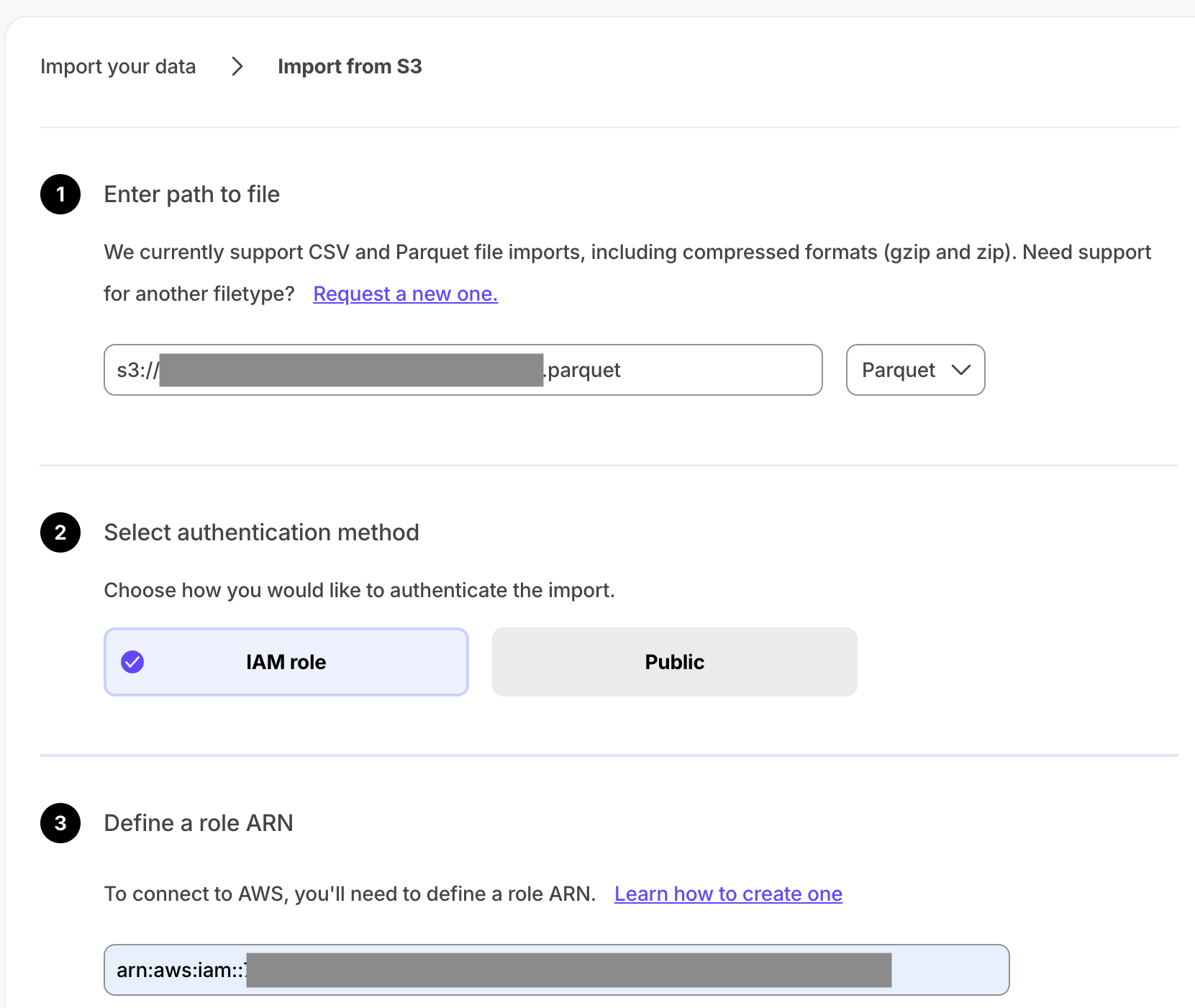
Provide your file path.
- Select
Parquetin the file type dropdown. - Select the authentication method:
IAM roleand provide the role.Public.
- Click
Continue.
- Select
Configure the import
- Select
Create a new table for your dataorIngest data to an existing table.- Provide the new or existing table name.
- For a new table with a time column, toggle the time column to create a hypertable instead of a regular table.
- Click
Process Parquet file
When the processing is completed, to find the data your imported, click Explorer.
And that is it, you have imported your data to your Tiger Cloud service.
===== PAGE: https://docs.tigerdata.com/migrate/upload-file-using-terminal/ =====
Analyze the Bitcoin blockchain - query the data
URL: llms-txt#analyze-the-bitcoin-blockchain---query-the-data
Contents:
- Create continuous aggregates
- Continuous aggregate: transactions
- Is there any connection between the number of transactions and the transaction fees?
- Finding a connection between the number of transactions and the transaction fees
- Does the transaction volume affect the BTC-USD rate?
- Finding the transaction volume and the BTC-USD rate
- Do more transactions in a block mean the block is more expensive to mine?
- Finding if more transactions in a block mean the block is more expensive to mine
- Finding if higher block weight means the block is more expensive to mine
- What percentage of the average miner's revenue comes from fees compared to block rewards?
When you have your dataset loaded, you can create some continuous aggregates, and start constructing queries to discover what your data tells you. This tutorial uses TimescaleDB hyperfunctions to construct queries that are not possible in standard Postgres.
In this section, you learn how to write queries that answer these questions:
- Is there any connection between the number of transactions and the transaction fees?
- Does the transaction volume affect the BTC-USD rate?
- Do more transactions in a block mean the block is more expensive to mine?
- What percentage of the average miner's revenue comes from fees compared to block rewards?
- How does block weight affect miner fees?
- What's the average miner revenue per block?
Create continuous aggregates
You can use continuous aggregates to simplify and speed up your
queries. For this tutorial, you need three continuous aggregates, focusing on
three aspects of the dataset: Bitcoin transactions, blocks, and coinbase
transactions. In each continuous aggregate definition, the time_bucket()
function controls how large the time buckets are. The examples all use 1-hour
time buckets.
Continuous aggregate: transactions
- Connect to the Tiger Cloud service that contains the Bitcoin dataset.
At the psql prompt, create a continuous aggregate called
one_hour_transactions. This view holds aggregated data about each hour of transactions:Add a refresh policy to keep the continuous aggregate up-to-date:
Create a continuous aggregate called
one_hour_blocks. This view holds aggregated data about all the blocks that were mined each hour:Add a refresh policy to keep the continuous aggregate up-to-date:
Create a continuous aggregate called
one_hour_coinbase. This view holds aggregated data about all the transactions that miners received as rewards each hour:Add a refresh policy to keep the continuous aggregate up-to-date:
Is there any connection between the number of transactions and the transaction fees?
Transaction fees are a major concern for blockchain users. If a blockchain is too expensive, you might not want to use it. This query shows you whether there's any correlation between the number of Bitcoin transactions and the fees. The time range for this analysis is the last 2 days.
If you choose to visualize the query in Grafana, you can see the average transaction volume and the average fee per transaction, over time. These trends might help you decide whether to submit a transaction now or wait a few days for fees to decrease.
Finding a connection between the number of transactions and the transaction fees
- Connect to the Tiger Cloud service that contains the Bitcoin dataset.
At the psql prompt, use this query to average transaction volume and the fees from the
one_hour_transactionscontinuous aggregate:The data you get back looks a bit like this:
[](#)To visualize this in Grafana, create a new panel, select the Bitcoin dataset as your data source, and type the query from the previous step. In the
Format assection, selectTime series.
<img
class="main-content__illustration"
src="https://assets.timescale.com/docs/images/grafana-transactions-fees.webp"
width={1375} height={944}
alt="Visualizing number of transactions and fees"
/>
Does the transaction volume affect the BTC-USD rate?
In cryptocurrency trading, there's a lot of speculation. You can adopt a data-based trading strategy by looking at correlations between blockchain metrics, such as transaction volume and the current exchange rate between Bitcoin and US Dollars.
If you choose to visualize the query in Grafana, you can see the average transaction volume, along with the BTC to US Dollar conversion rate.
Finding the transaction volume and the BTC-USD rate
- Connect to the Tiger Cloud service that contains the Bitcoin dataset.
At the psql prompt, use this query to return the trading volume and the BTC to US Dollar exchange rate:
The data you get back looks a bit like this:
[](#)To visualize this in Grafana, create a new panel, select the Bitcoin dataset as your data source, and type the query from the previous step. In the
Format assection, selectTime series.[](#)To make this visualization more useful, add an override to put the fees on a different Y-axis. In the options panel, add an override for the
btc-usd ratefield forAxis > Placementand chooseRight.
<img
class="main-content__illustration"
src="https://assets.timescale.com/docs/images/grafana-volume-rate.webp"
width={1375} height={944}
alt="Visualizing transaction volume and BTC-USD conversion rate"
/>
Do more transactions in a block mean the block is more expensive to mine?
The number of transactions in a block can influence the overall block mining fee. For this analysis, a larger time frame is required, so increase the analyzed time range to 5 days.
If you choose to visualize the query in Grafana, you can see that the more transactions in a block, the higher the mining fee becomes.
Finding if more transactions in a block mean the block is more expensive to mine
- Connect to the Tiger Cloud service that contains the Bitcoin dataset.
At the psql prompt, use this query to return the number of transactions in a block, compared to the mining fee:
The data you get back looks a bit like this:
[](#)To visualize this in Grafana, create a new panel, select the Bitcoin dataset as your data source, and type the query from the previous step. In the
Format assection, selectTime series.[](#)To make this visualization more useful, add an override to put the fees on a different Y-axis. In the options panel, add an override for the
mining feefield forAxis > Placementand chooseRight.
<img
class="main-content__illustration"
src="https://assets.timescale.com/docs/images/grafana-transactions-miningfee.webp"
width={1375} height={944}
alt="Visualizing transactions in a block and the mining fee"
/>
You can extend this analysis to find if there is the same correlation between block weight and mining fee. More transactions should increase the block weight, and boost the miner fee as well.
If you choose to visualize the query in Grafana, you can see the same kind of high correlation between block weight and mining fee. The relationship weakens when the block weight gets close to its maximum value, which is 4 million weight units, in which case it's impossible for a block to include more transactions.
Finding if higher block weight means the block is more expensive to mine
- Connect to the Tiger Cloud service that contains the Bitcoin dataset.
At the psql prompt, use this query to return the block weight, compared to the mining fee:
The data you get back looks a bit like this:
[](#)To visualize this in Grafana, create a new panel, select the Bitcoin dataset as your data source, and type the query from the previous step. In the
Format assection, selectTime series.[](#)To make this visualization more useful, add an override to put the fees on a different Y-axis. In the options panel, add an override for the
mining feefield forAxis > Placementand chooseRight.
<img
class="main-content__illustration"
src="https://assets.timescale.com/docs/images/grafana-blockweight-miningfee.webp"
width={1375} height={944}
alt="Visualizing blockweight and the mining fee"
/>
What percentage of the average miner's revenue comes from fees compared to block rewards?
In the previous queries, you saw that mining fees are higher when block weights and transaction volumes are higher. This query analyzes the data from a different perspective. Miner revenue is not only made up of miner fees, it also includes block rewards for mining a new block. This reward is currently 6.25 BTC, and it gets halved every four years. This query looks at how much of a miner's revenue comes from fees, compares to block rewards.
If you choose to visualize the query in Grafana, you can see that most miner revenue actually comes from block rewards. Fees never account for more than a few percentage points of overall revenue.
Finding what percentage of the average miner's revenue comes from fees compared to block rewards
- Connect to the Tiger Cloud service that contains the Bitcoin dataset.
At the psql prompt, use this query to return coinbase transactions, along with the block fees and rewards:
The data you get back looks a bit like this:
[](#)To visualize this in Grafana, create a new panel, select the Bitcoin dataset as your data source, and type the query from the previous step. In the
Format assection, selectTime series.[](#)To make this visualization more useful, stack the series to 100%. In the options panel, in the
Graph stylessection, forStack seriesselect100%.
<img
class="main-content__illustration"
src="https://assets.timescale.com/docs/images/grafana-coinbase-revenue.webp"
width={1375} height={944}
alt="Visualizing coinbase revenue sources"
/>
How does block weight affect miner fees?
You've already found that more transactions in a block mean it's more expensive to mine. In this query, you ask if the same is true for block weights? The more transactions a block has, the larger its weight, so the block weight and mining fee should be tightly correlated. This query uses a 12-hour moving average to calculate the block weight and block mining fee over time.
If you choose to visualize the query in Grafana, you can see that the block weight and block mining fee are tightly connected. In practice, you can also see the four million weight units size limit. This means that there's still room to grow for individual blocks, and they could include even more transactions.
Finding how block weight affects miner fees
- Connect to the Tiger Cloud service that contains the Bitcoin dataset.
At the psql prompt, use this query to return block weight, along with the block fees and rewards:
The data you get back looks a bit like this:
[](#)To visualize this in Grafana, create a new panel, select the Bitcoin dataset as your data source, and type the query from the previous step. In the
Format assection, selectTime series.[](#)To make this visualization more useful, add an override to put the fees on a different Y-axis. In the options panel, add an override for the
mining feefield forAxis > Placementand chooseRight.
<img
class="main-content__illustration"
src="https://assets.timescale.com/docs/images/grafana-blockweight-rewards.webp"
width={1375} height={944}
alt="Visualizing block weight and mining fees"
/>
What's the average miner revenue per block?
In this final query, you analyze how much revenue miners actually generate by mining a new block on the blockchain, including fees and block rewards. To make the analysis more interesting, add the Bitcoin to US Dollar exchange rate, and increase the time range.
Finding the average miner revenue per block
- Connect to the Tiger Cloud service that contains the Bitcoin dataset.
At the psql prompt, use this query to return the average miner revenue per block, with a 12-hour moving average:
The data you get back looks a bit like this:
[](#)To visualize this in Grafana, create a new panel, select the Bitcoin dataset as your data source, and type the query from the previous step. In the
Format assection, selectTime series.[](#)To make this visualization more useful, add an override to put the US Dollars on a different Y-axis. In the options panel, add an override for the
mining feefield forAxis > Placementand chooseRight.
<img
class="main-content__illustration"
src="https://assets.timescale.com/docs/images/grafana-blockweight-revenue.webp"
width={1375} height={944}
alt="Visualizing block revenue over time"
/>
===== PAGE: https://docs.tigerdata.com/tutorials/nyc-taxi-cab/dataset-nyc/ =====
Examples:
Example 1 (sql):
CREATE MATERIALIZED VIEW one_hour_transactions
    WITH (timescaledb.continuous) AS
    SELECT time_bucket('1 hour', time) AS bucket,
       count(*) AS tx_count,
       sum(fee) AS total_fee_sat,
       sum(fee_usd) AS total_fee_usd,
       stats_agg(fee) AS stats_fee_sat,
       avg(size) AS avg_tx_size,
       avg(weight) AS avg_tx_weight,
       count(
             CASE
                WHEN (fee > output_total) THEN hash
                ELSE NULL
             END) AS high_fee_count
      FROM transactions
      WHERE (is_coinbase IS NOT TRUE)
    GROUP BY bucket;
Example 2 (sql):
SELECT add_continuous_aggregate_policy('one_hour_transactions',
       start_offset => INTERVAL '3 hours',
       end_offset => INTERVAL '1 hour',
       schedule_interval => INTERVAL '1 hour');
Example 3 (sql):
CREATE MATERIALIZED VIEW one_hour_blocks
    WITH (timescaledb.continuous) AS
    SELECT time_bucket('1 hour', time) AS bucket,
       block_id,
       count(*) AS tx_count,
       sum(fee) AS block_fee_sat,
       sum(fee_usd) AS block_fee_usd,
       stats_agg(fee) AS stats_tx_fee_sat,
       avg(size) AS avg_tx_size,
       avg(weight) AS avg_tx_weight,
       sum(size) AS block_size,
       sum(weight) AS block_weight,
       max(size) AS max_tx_size,
       max(weight) AS max_tx_weight,
       min(size) AS min_tx_size,
       min(weight) AS min_tx_weight
    FROM transactions
    WHERE is_coinbase IS NOT TRUE
    GROUP BY bucket, block_id;
Example 4 (sql):
SELECT add_continuous_aggregate_policy('one_hour_blocks',
       start_offset => INTERVAL '3 hours',
       end_offset => INTERVAL '1 hour',
       schedule_interval => INTERVAL '1 hour');
Query the Bitcoin blockchain - query data
URL: llms-txt#query-the-bitcoin-blockchain---query-data
Contents:
- What are the five most recent coinbase transactions?
- Finding the five most recent coinbase transactions
- What are the five most recent transactions?
- Finding the five most recent transactions
- What are the five most recent blocks?
- Finding the five most recent blocks
When you have your dataset loaded, you can start constructing some queries to discover what your data tells you. In this section, you learn how to write queries that answer these questions:
- What are the five most recent coinbase transactions?
- What are the five most recent transactions?
- What are the five most recent blocks?
What are the five most recent coinbase transactions?
In the last procedure, you excluded coinbase transactions from the results.
Coinbase transactions are the first transaction in a block, and
they include the reward a coin miner receives for mining the coin. To find out
the most recent coinbase transactions, you can use a similar SELECT statement,
but search for transactions that are coinbase instead. If you include the
transaction value in US Dollars again, you'll notice that the value is $0 for
each. This is because the coin has not transferred ownership in coinbase
transactions.
Finding the five most recent coinbase transactions
- Connect to the Tiger Cloud service that contains the Bitcoin dataset.
At the psql prompt, use this query to select the five most recent coinbase transactions:
The data you get back looks a bit like this:
What are the five most recent transactions?
This dataset contains Bitcoin transactions for the last five days. To find out
the most recent transactions in the dataset, you can use a SELECT statement.
In this case, you want to find transactions that are not coinbase transactions,
sort them by time in descending order, and take the top five results. You also
want to see the block ID, and the value of the transaction in US Dollars.
Finding the five most recent transactions
- Connect to the Tiger Cloud service that contains the Bitcoin dataset.
At the psql prompt, use this query to select the five most recent non-coinbase transactions:
The data you get back looks a bit like this:
What are the five most recent blocks?
In this procedure, you use a more complicated query to return the five most recent blocks, and show some additional information about each, including the block weight, number of transactions in each block, and the total block value in US Dollars.
Finding the five most recent blocks
- Connect to the Tiger Cloud service that contains the Bitcoin dataset.
At the psql prompt, use this query to select the five most recent coinbase transactions:
The data you get back looks a bit like this:
===== PAGE: https://docs.tigerdata.com/tutorials/OLD-financial-candlestick-tick-data/create-candlestick-aggregates/ =====
Examples:
Example 1 (sql):
SELECT time, hash, block_id, fee_usd  FROM transactions
    WHERE is_coinbase IS TRUE
    ORDER BY time DESC
    LIMIT 5;
Example 2 (sql):
time          |                               hash                               | block_id | fee_usd
    ------------------------+------------------------------------------------------------------+----------+---------
     2023-06-12 23:54:18+00 | 22e4610bc12d482bc49b7a1c5b27ad18df1a6f34256c16ee7e499b511e02d71e |   794111 |       0
     2023-06-12 23:53:08+00 | dde958bb96a302fd956ced32d7b98dd9860ff82d569163968ecfe29de457fedb |   794110 |       0
     2023-06-12 23:44:50+00 | 75ac1fa7febe1233ee57ca11180124c5ceb61b230cdbcbcba99aecc6a3e2a868 |   794109 |       0
     2023-06-12 23:44:14+00 | 1e941d66b92bf0384514ecb83231854246a94c86ff26270fbdd9bc396dbcdb7b |   794108 |       0
     2023-06-12 23:41:08+00 | 60ae50447254d5f4561e1c297ee8171bb999b6310d519a0d228786b36c9ffacf |   794107 |       0
    (5 rows)
Example 3 (sql):
SELECT time, hash, block_id, fee_usd  FROM transactions
    WHERE is_coinbase IS NOT TRUE
    ORDER BY time DESC
    LIMIT 5;
Example 4 (sql):
time          |                               hash                               | block_id | fee_usd
    ------------------------+------------------------------------------------------------------+----------+---------
     2023-06-12 23:54:18+00 | 6f709d52e9aa7b2569a7f8c40e7686026ede6190d0532220a73fdac09deff973 |   794111 |   7.614
     2023-06-12 23:54:18+00 | ece5429f4a76b1603aecbee31bf3d05f74142a260e4023316250849fe49115ae |   794111 |   9.306
     2023-06-12 23:54:18+00 | 54a196398880a7e2e38312d4285fa66b9c7129f7d14dc68c715d783322544942 |   794111 | 13.1928
     2023-06-12 23:54:18+00 | 3e83e68735af556d9385427183e8160516fafe2f30f30405711c4d64bf0778a6 |   794111 |  3.5416
     2023-06-12 23:54:18+00 | ca20d073b1082d7700b3706fe2c20bc488d2fc4a9bb006eb4449efe3c3fc6b2b |   794111 |  8.6842
    (5 rows)
Integrate AI with Tiger Data
URL: llms-txt#integrate-ai-with-tiger-data
Contents:
- Tiger Eon for complete organizational AI
- Tiger Agents for Work for enterprise Slack AI
- Tiger MCP Server for direct AI Assistant integration
- pgvectorscale and️ pgvector
- Vector similarity search: How does it work
- Embedding models
You can build and deploy AI Assistants that understand, analyze, and act on your organizational data using Tiger Data. Whether you're building semantic search applications, recommendation systems, or intelligent agents that answer complex business questions, Tiger Data provides the tools and infrastructure you need.
Tiger Data's AI ecosystem combines Postgres with advanced vector capabilities, intelligent agents, and seamless integrations. Your AI Assistants can:
- Access organizational knowledge from Slack, GitHub, Linear, and other data sources
- Understand context using advanced vector search and embeddings across large datasets
- Execute tasks, generate reports, and interact with your Tiger Cloud services through natural language
- Scale reliably with enterprise-grade performance for concurrent conversations
Tiger Eon for complete organizational AI
Tiger Eon automatically integrates Tiger Agents for Work with your organizational data. You can:
- Get instant access to company knowledge from Slack, GitHub, and Linear
- Process data in real-time as conversations and updates happen
- Store data efficiently with time-series partitioning and compression
- Deploy quickly with Docker and an interactive setup wizard
Use Eon when you want to unlock knowledge from your communication and development tools.
Tiger Agents for Work for enterprise Slack AI
Tiger Agents for Work provides enterprise-grade Slack-native AI agents. You get:
- Durable event handling with Postgres-backed processing
- Horizontal scalability across multiple Tiger Agent instances
- Flexibility to choose AI models and customize prompts
- Integration with specialized data sources through MCP servers
- Complete observability and monitoring with Logfire
Use Tiger Agents for Work when you need reliable, customizable AI agents for high-volume conversations.
Tiger MCP Server for direct AI Assistant integration
The Tiger Model Context Protocol Server integrates directly with popular AI Assistants. You can:
- Work with Claude Code, Cursor, VS Code, and other editors
- Manage services and optimize queries through natural language
- Access comprehensive Tiger Data documentation during development
- Use secure authentication and access control
Use the Tiger MCP Server when you want to manage Tiger Data resources from your AI Assistant.
pgvectorscale and️ pgvector
Pgvector is a popular open source extension for vector storage and similarity search in Postgres and pgvectorscale adds advanced indexing capabilities to pgvector. pgai on Tiger Cloud offers both extensions so you can use all the capabilities already available in pgvector (like HNSW and ivfflat indexes) and also make use of the StreamingDiskANN index in pgvectorscale to speed up vector search.
This makes it easy to migrate your existing pgvector deployment and take advantage of the additional performance features in pgvectorscale. You also have the flexibility to create different index types suited to your needs. See the vector search indexing section for more information.
Embeddings offer a way to represent the semantic essence of data and to allow comparing data according to how closely related it is in terms of meaning. In the database context, this is extremely powerful: think of this as full-text search on steroids. Vector databases allow storing embeddings associated with data and then searching for embeddings that are similar to a given query.
Semantic search: transcend the limitations of traditional keyword-driven search methods by creating systems that understand the intent and contextual meaning of a query, thereby returning more relevant results. Semantic search doesn't just seek exact word matches; it grasps the deeper intent behind a user's query. The result? Even if search terms differ in phrasing, relevant results are surfaced. Taking advantage of hybrid search, which marries lexical and semantic search methodologies, offers users a search experience that's both rich and accurate. It's not just about finding direct matches anymore; it's about tapping into contextually and conceptually similar content to meet user needs.
Recommendation systems: imagine a user who has shown interest in several articles on a singular topic. With embeddings, the recommendation engine can delve deep into the semantic essence of those articles, surfacing other database items that resonate with the same theme. Recommendations, thus, move beyond just the superficial layers like tags or categories and dive into the very heart of the content.
Retrieval augmented generation (RAG): supercharge generative AI by providing additional context to Large Language Models (LLMs) like OpenAI's GPT-4, Anthropic's Claude 2, and open source modes like Llama 2. When a user poses a query, relevant database content is fetched and used to supplement the query as additional information for the LLM. This helps reduce LLM hallucinations, as it ensures the model's output is more grounded in specific and relevant information, even if it wasn't part of the model's original training data.
Clustering: embeddings also offer a robust solution for clustering data. Transforming data into these vectorized forms allows for nuanced comparisons between data points in a high-dimensional space. Through algorithms like K-means or hierarchical clustering, data can be categorized into semantic categories, offering insights that surface-level attributes might miss. This surfaces inherent data patterns, enriching both exploration and decision-making processes.
Vector similarity search: How does it work
On a high level, embeddings help a database to look for data that is similar to a given piece of information (similarity search). This process includes a few steps:
- First, embeddings are created for data and inserted into the database. This can take place either in an application or in the database itself.
- Second, when a user has a search query (for example, a question in chat), that query is then transformed into an embedding.
- Third, the database takes the query embedding and searches for the closest matching (most similar) embeddings it has stored.
Under the hood, embeddings are represented as a vector (a list of numbers) that capture the essence of the data. To determine the similarity of two pieces of data, the database uses mathematical operations on vectors to get a distance measure (commonly Euclidean or cosine distance). During a search, the database should return those stored items where the distance between the query embedding and the stored embedding is as small as possible, suggesting the items are most similar.
pgai on Tiger Cloud works with the most popular embedding models that have output vectors of 2,000 dimensions or less.:
- OpenAI embedding models: text-embedding-ada-002 is OpenAI's recommended embedding generation model.
- Cohere representation models: Cohere offers many models that can be used to generate embeddings from text in English or multiple languages.
And here are some popular choices for image embeddings:
- OpenAI CLIP: Useful for applications involving text and images.
- VGG
- Vision Transformer (ViT)
===== PAGE: https://docs.tigerdata.com/api/hyperfunctions/ =====
Migrate the entire database at once
URL: llms-txt#migrate-the-entire-database-at-once
Contents:
- Prerequisites
- Migrating the entire database at once
Migrate smaller databases by dumping and restoring the entire database at once. This method works best on databases smaller than 100 GB. For larger databases, consider migrating your schema and data separately.
Depending on your database size and network speed, migration can take a very long time. You can continue reading from your source database during this time, though performance could be slower. To avoid this problem, fork your database and migrate your data from the fork. If you write to tables in your source database during the migration, the new writes might not be transferred to Timescale. To avoid this problem, see Live migration.
Before you begin, check that you have:
- Installed the Postgres
pg_dumpandpg_restoreutilities. - Installed a client for connecting to Postgres. These instructions use
psql, but any client works. - Created a new empty database in your self-hosted TimescaleDB instance. For more information, see Install TimescaleDB. Provision your database with enough space for all your data.
- Checked that any other Postgres extensions you use are compatible with Timescale. For more information, see the list of compatible extensions. Install your other Postgres extensions.
- Checked that you're running the same major version of Postgres on both your target and source databases. For information about upgrading Postgres on your source database, see the upgrade instructions for self-hosted TimescaleDB.
- Checked that you're running the same major version of TimescaleDB on both your target and source databases. For more information, see upgrade self-hosted TimescaleDB.
To speed up migration, compress your data into the columnstore. You can compress any chunks where data is not currently inserted, updated, or deleted. When you finish the migration, you can decompress chunks back to the rowstore as needed for normal operation. For more information about the rowstore and columnstore compression, see hypercore.
Migrating the entire database at once
Dump all the data from your source database into a
dump.bakfile, using your source database connection details. If you are prompted for a password, use your source database credentials:Connect to your self-hosted TimescaleDB instance using your connection details:
Prepare your self-hosted TimescaleDB instance for data restoration by using
timescaledb_pre_restoreto stop background workers:At the command prompt, restore the dumped data from the
dump.bakfile into your self-hosted TimescaleDB instance, using your connection details. To avoid permissions errors, include the--no-ownerflag:At the
psqlprompt, return your self-hosted TimescaleDB instance to normal operations by using thetimescaledb_post_restorecommand:Update your table statistics by running
ANALYZEon your entire dataset:
===== PAGE: https://docs.tigerdata.com/self-hosted/migration/schema-then-data/ =====
Examples:
Example 1 (bash):
pg_dump -U <SOURCE_DB_USERNAME> -W \
    -h <SOURCE_DB_HOST> -p <SOURCE_DB_PORT> -Fc -v \
    -f dump.bak <SOURCE_DB_NAME>
Example 2 (bash):
psql “postgres://<USERNAME>:<PASSWORD>@<HOST>:<PORT>/<DATABASE>?sslmode=require”
Example 3 (sql):
SELECT timescaledb_pre_restore();
Example 4 (bash):
pg_restore -U tsdbadmin -W \
-h <CLOUD_HOST> -p <CLOUD_PORT> --no-owner \
-Fc -v -d tsdb dump.bak
Billing and account management
URL: llms-txt#billing-and-account-management
Contents:
- Disaggregated, consumption-based compute and storage
- Use Tiger Cloud for free
- Upgrade or downgrade your pricing plans at any time
- Monitor usage and costs
- Tiger Data support
- Charging for HA and read replicas
- Charging over regions
- Features included in each pricing plan
- Example billing calculation
- Manage your Tiger Cloud pricing plan
As we enhance our offerings and align them with your evolving needs, pricing plans provide more value, flexibility, and efficiency for your business. Whether you're a growing startup or a well-established enterprise, our plans are structured to support your journey towards greater success.
This page explains pricing plans for Tiger Cloud, and how to easily manage your Tiger Data account.
Pricing plans give you:
- Enhanced performance: with increased CPU and storage capacities, your apps run smoother and more efficiently, even under heavy loads.
- Improved scalability: as your business grows, so do your demands. Pricing plans scale with you, they provide the resources and support you need at each stage of your growth. Scale up or down based on your current needs, ensuring that you only pay for what you use.
- Better support: access to enhanced support options, including production support and dedicated account management, ensures you have the help you need when you need it.
- Greater flexibility: we know that one size doesn't fit all. Pricing plans give you the flexibility to choose the features and support levels that best match your business and engineering requirements. The ability to add features like I/O boost and customize your pricing plan means you can tailor Tiger Cloud services to fit your specific needs.
- Cost efficiency: by aligning our pricing with the value delivered, we ensure that you get the most out of every dollar spent. Our goal is to help you achieve more with less.
It’s that simple! You don't pay for automated backups or networking costs, such as data ingest or egress. There are no per-query fees, nor additional costs to read or write data. It's all completely transparent, easily understood, and up to you.
Using self-hosted TimescaleDB and our open-source products is still free.
If you create a Tiger Data account from AWS Marketplace, the pricing options are pay-as-you-go and annual commit. See AWS pricing for details.
Disaggregated, consumption-based compute and storage
With Tiger Cloud, you are not limited to pre-set compute and storage. Get as much as you need when provisioning your services or later, as your needs grow.
Compute: pay only for the compute resources you run. Compute is metered on an hourly basis, and you can scale it up to 64,000 IOPS at any time. You can also scale out using replicas as your application grows. We also provide services to help you lower your compute needs while improving query performance. Tiger Cloud is very efficient and generally needs less compute than other databases to deliver the same performance. The best way to size your needs is to sign up for a free trial and test with a realistic workload.
Storage: pay only for the storage you consume. You have high-performance storage for more-accessed data, and low-cost bottomless storage in S3 for other data. The high-performance storage offers you up to 64 TB of compressed (typically 80-100 TB uncompressed) data and is metered on your average GB consumption per hour. We can help you compress your data by up to 98% so you pay even less. For low-cost storage, Tiger Data charges only for the size of your data in S3 in the Apache Parquet format, regardless of whether it was compressed in Tiger Cloud before tiering. There are no additional expenses, such as data transfer or compute. For easy upgrades, each service stores the TimescaleDB binaries. This contributes up to 900 MB to overall storage, which amounts to less than $.80/month in additional storage costs.
Use Tiger Cloud for free
Are you just starting out with Tiger Cloud? On our Free pricing plan, you can create up to 2 zero-cost services with limited resources. When a free service reaches the resource limit, it converts to a read-only state.
The Free pricing plan and services are currently in beta.
Ready to try a more feature-rich paid plan? Activate a 30-day free trial of our Performance (no credit card required) or Scale plan. After your trial ends, we may remove your data unless you’ve added a payment method.
After you have completed your 30-day trial period, choose the pricing plan that suits your business and engineering needs. And even when you upgrade from the Free pricing plan, you can still have up to 2 zero-cost services—or convert the ones you already have into standard ones, to have more resources.
If you want to try out features in a higher pricing plan before upgrading, contact us.
Upgrade or downgrade your pricing plans at any time
You can upgrade or downgrade between the Free, Performance, and Scale plans whenever you want using Tiger Cloud Console. To downgrade to the Free plan, you must only have free services running in your project.
If you switch your pricing plan mid-month, your prices are prorated to when you switch. Your services are not interrupted when you switch, so you can keep working without any hassle. To move to Enterprise, get in touch with Tiger Data.
Monitor usage and costs
You keep track of your monthly usage in Tiger Cloud Console. Console shows your resource usage and dashboards with performance insights. This allows you to closely monitor your services’ performance, and any need to scale your services or upgrade your pricing plan.
Console also shows your month-to-date accrued charges, as well as a forecast of your expected month-end bill. Your previous invoices are also available as PDFs for download.
You are charged for all active services in your account, even if you are not actively using them. To reduce costs, pause or delete your unused services.
Tiger Data support
Tiger Data runs a global support organization with Customer Satisfaction (CSAT) scores above 99%. Support covers all timezones, and is fully staffed at weekend hours.
All paid pricing plans have free Developer Support through email with a target response time of 1 business day; we are often faster. If you need 24x7 responsiveness, talk to us about Production Support.
Charging for HA and read replicas
HA and read replicas are both charged at the same rate as your primary services, based on the compute and primary storage consumed by your replicas. Data tiered to our bottomless storage tier is shared by all database replicas; replicas accessing tiered storage do not add to your bill.
Charging over regions
Storage is priced the same across all regions. However, compute prices vary depending on the region. This is because our cloud provider (AWS) prices infrastructure differently based on region.
Features included in each pricing plan
The available pricing plans are:
- Free: for small non-production projects.
- Performance: for cost-focused, smaller projects. No credit card required to start.
- Scale: for developers handling critical and demanding apps.
- Enterprise: for enterprises with mission-critical apps.
The Free pricing plan and services are currently in beta.
The features included in each pricing plan are:
| Feature | Free | Performance | Scale | Enterprise |
|---|---|---|---|---|
| Compute and storage | ||||
| Number of services | Up to 2 free services | Up to 2 free and 4 standard services | Up to 2 free and and unlimited standard services | Up to 2 free and and unlimited standard services |
| CPU limit per service | Shared | Up to 8 CPU | Up to 32 CPU | Up to 64 CPU |
| Memory limit per service | Shared | Up to 32 GB | Up to 128 GB | Up to 256 GB |
| Storage limit per service | 750 MB | Up to 16 TB | Up to 16 TB | Up to 64 TB |
| Bottomless storage on S3 | Unlimited | Unlimited | ||
| Independently scale compute and storage | Standard services only | Standard services only | Standard services only | |
| Data services and workloads | ||||
| Relational | ✓ | ✓ | ✓ | ✓ |
| Time-series | ✓ | ✓ | ✓ | ✓ |
| Vector search | ✓ | ✓ | ✓ | ✓ |
| AI workflows (coming soon) | ✓ | ✓ | ✓ | ✓ |
| Cloud SQL editor | 3 seats | 3 seats | 10 seats | 20 seats |
| Charts | ✓ | ✓ | ✓ | ✓ |
| Dashboards | 2 | Unlimited | Unlimited | |
| Storage and performance | ||||
| IOPS | Shared | 3,000 - 5,000 | 5,000 - 8,000 | 5,000 - 8,000 |
| Bandwidth (autoscales) | Shared | 125 - 250 Mbps | 250 - 500 Mbps | Up to 500 mbps |
| I/O boost | Add-on: Up to 16K IOPS, 1000 Mbps BW |
Add-on: Up to 32K IOPS, 4000 Mbps BW |
||
| Availability and monitoring | ||||
| High-availability replicas (Automated multi-AZ failover) |
✓ | ✓ | ✓ | |
| Read replicas | ✓ | ✓ | ||
| Cross-region backup | ✓ | |||
| Backup reports | 14 days | 14 days | ||
| Point-in-time recovery and forking | 1 day | 3 days | 14 days | 14 days |
| Performance insights | Limited | ✓ | ✓ | ✓ |
| Metrics and log exporters | ✓ | ✓ | ||
| Security and compliance | ||||
| Role-based access | ✓ | ✓ | ✓ | ✓ |
| End-to-end encryption | ✓ | ✓ | ✓ | ✓ |
| Private Networking (VPC) | 1 multi-attach VPC | Unlimited multi-attach VPCs | Unlimited multi-attach VPCs | |
| AWS Transit Gateway | ✓ | ✓ | ||
| HIPAA compliance | ✓ | |||
| IP address allow list | 1 list with up to 10 IP addresses | 1 list with up to 10 IP addresses | Up to 10 lists with up to 10 IP addresses each | Up to 10 lists with up to 100 IP addresses each |
| Multi-factor authentication | ✓ | ✓ | ✓ | ✓ |
| Federated authentication (SAML) | ✓ | |||
| SOC 2 Type 2 report | ✓ | ✓ | ||
| Penetration testing report | ✓ | |||
| Security questionnaire and review | ✓ | |||
| Pay by invoice | Available at minimum spend | Available at minimum spend | ✓ | |
| Uptime SLAs | Standard | Standard | Enterprise | |
| Support and technical services | ||||
| Community support | ✓ | ✓ | ✓ | ✓ |
| Email support | ✓ | ✓ | ✓ | |
| Production support | Add-on | Add-on | ✓ | |
| Named account manager | ✓ | |||
| JOIN services (Jumpstart Onboarding and INtegration) | Available at minimum spend | ✓ |
For a personalized quote, get in touch with Tiger Data.
Example billing calculation
You are billed at the end of each month in arrears, based on your actual usage that month. Your monthly invoice includes an itemized cost accounting for each Tiger Cloud service and any additional charges.
Tiger Cloud charges are based on consumption:
- Compute: metered on an hourly basis. You can scale compute up and down at any time.
- Storage: metered based on your average GB consumption per hour. Storage grows and shrinks automatically with your data.
Your monthly price for compute and storage is computed similarly. For example, over the last month your Tiger Cloud service has been running compute for 500 hours total:
- 375 hours with 2 CPU
- 125 hours 4 CPU
Compute cost = (375 x hourly price for 2 CPU) + (125 x hourly price for 4 CPU)
Some add-ons such as tiered storage, HA replicas, and connection pooling may incur additional charges. These charges are clearly marked in your billing snapshot in Tiger Cloud Console.
Manage your Tiger Cloud pricing plan
You handle all details about your Tiger Cloud project including updates to your pricing plan, payment methods, and add-ons in the billing section in Tiger Cloud Console:
Details: an overview of your pricing plan, usage, and payment details. You can add up to three credit cards to your
Wallet. If you prefer to pay by invoice, contact Tiger Data and ask to change to corporate billing.History: the list of your downloadable Tiger Cloud invoices.
Emails: the addresses Tiger Data uses to communicate with you. Payment confirmations and alerts are sent to the email address you signed up with. Add another address to send details to other departments in your organization.
Pricing plan: choose the pricing plan supplying the features that suit your business and engineering needs.
Add-ons: add
Production supportand improved database performance for mission-critical workloads.
AWS Marketplace pricing
When you get Tiger Cloud at AWS Marketplace, the following pricing options are available:
- Pay-as-you-go: your consumption is calculated at the end of the month and included in your AWS invoice. No upfront costs, standard Tiger Cloud rates apply.
- Annual commit: your consumption is calculated at the end of the month ensuring predictable pricing and seamless billing through your AWS account. We confirm the contract terms with you before finalizing the commitment.
===== PAGE: https://docs.tigerdata.com/about/changelog/ =====
Integrations for Managed Service for TimescaleDB
URL: llms-txt#integrations-for-managed-service-for-timescaledb
Managed Service for TimescaleDB integrates with the other tools you are already using. You can combine your services with third-party tools and build a complete cloud data platform.
You can integrate Managed Service for TimescaleDB with:
- Grafana
- Loggly
- Datadog
- Prometheus
- Syslog
- External Elasticsearch
- External OpenSearch
===== PAGE: https://docs.tigerdata.com/mst/extensions/ =====
add_data_node()
URL: llms-txt#add_data_node()
Contents:
- Required arguments
- Optional arguments
- Returns
- Errors
- Privileges
- Sample usage
Multi-node support is sunsetted.
TimescaleDB v2.13 is the last release that includes multi-node support for Postgres versions 13, 14, and 15.
Add a new data node on the access node to be used by distributed
hypertables. The data node is automatically used by distributed
hypertables that are created after the data node has been added, while
existing distributed hypertables require an additional
attach_data_node.
If the data node already exists, the command aborts with either an
error or a notice depending on the value of if_not_exists.
For security purposes, only superusers or users with necessary privileges can add data nodes (see below for details). When adding a data node, the access node also tries to connect to the data node and therefore needs a way to authenticate with it. TimescaleDB currently supports several different such authentication methods for flexibility (including trust, user mappings, password, and certificate methods). Refer to Setting up Multi-Node TimescaleDB for more information about node-to-node authentication.
Unless bootstrap is false, the function attempts to bootstrap
the data node by:
- Creating the database given in
databasethat serve as the new data node. - Loading the TimescaleDB extension in the new database.
- Setting metadata to make the data node part of the distributed database.
Note that user roles are not automatically created on the new data
node during bootstrapping. The distributed_exec
procedure can be used to create additional roles on the data node
after it is added.
Required arguments
| Name | Description |
|---|---|
node_name |
Name for the data node. |
host |
Host name for the remote data node. |
Optional arguments
| Name | Description |
|---|---|
database |
Database name where remote hypertables are created. The default is the current database name. |
port |
Port to use on the remote data node. The default is the Postgres port used by the access node on which the function is executed. |
if_not_exists |
Do not fail if the data node already exists. The default is FALSE. |
bootstrap |
Bootstrap the remote data node. The default is TRUE. |
password |
Password for authenticating with the remote data node during bootstrapping or validation. A password only needs to be provided if the data node requires password authentication and a password for the user does not exist in a local password file on the access node. If password authentication is not used, the specified password is ignored. |
| Column | Description |
|---|---|
node_name |
Local name to use for the data node |
host |
Host name for the remote data node |
port |
Port for the remote data node |
database |
Database name used on the remote data node |
node_created |
Was the data node created locally |
database_created |
Was the database created on the remote data node |
extension_created |
Was the extension created on the remote data node |
An error is given if:
- The function is executed inside a transaction.
- The function is executed in a database that is already a data node.
- The data node already exists and
if_not_existsisFALSE. - The access node cannot connect to the data node due to a network failure or invalid configuration (for example, wrong port, or there is no way to authenticate the user).
- If
bootstrapisFALSEand the database was not previously bootstrapped.
To add a data node, you must be a superuser or have the USAGE
privilege on the timescaledb_fdw foreign data wrapper. To grant such
privileges to a regular user role, do:
Note, however, that superuser privileges might still be necessary on the data node in order to bootstrap it, including creating the TimescaleDB extension on the data node unless it is already installed.
If you have an existing hypertable conditions and want to use time
as the range partitioning column and location as the hash partitioning
column. You also want to distribute the chunks of the hypertable on two
data nodes dn1.example.com and dn2.example.com:
If you want to create a distributed database with the two data nodes local to this instance, you can write:
Note that this does not offer any performance advantages over using a regular hypertable, but it can be useful for testing.
===== PAGE: https://docs.tigerdata.com/api/distributed-hypertables/detach_data_node/ =====
Examples:
Example 1 (sql):
GRANT USAGE ON FOREIGN DATA WRAPPER timescaledb_fdw TO <newrole>;
Example 2 (sql):
SELECT add_data_node('dn1', host => 'dn1.example.com');
SELECT add_data_node('dn2', host => 'dn2.example.com');
SELECT create_distributed_hypertable('conditions', 'time', 'location');
Example 3 (sql):
SELECT add_data_node('dn1', host => 'localhost', database => 'dn1');
SELECT add_data_node('dn2', host => 'localhost', database => 'dn2');
SELECT create_distributed_hypertable('conditions', 'time', 'location');
Create a read-only replica of Postgres
URL: llms-txt#create-a-read-only-replica-of-postgres
Contents:
- Creating a replica of Postgres
- Using read-only replica for the service on MST
Postgres read-only replicas allow you to perform read-only queries against the replica and reduce the load on the primary server. You can optimize query response times across different geographical locations because the replica can be created in different regions or on different cloud providers. For information about creating a read-only replica using the Aiven client, see the documentation on creating a read replica using the CLI.
If you are running a Managed Service for TimescaleDB Pro plan, you have standby nodes available in a high availability setup. The standby nodes support read-only queries to reduce the effect of slow queries on the primary node.
Creating a replica of Postgres
In MST Console, click the service you want to create a remote replica for.
In
Overview, clickCreate a read replica.In
Create a PostgreSQL read replica, type a name for the remote replica, select the cloud provider, location, plan that you want to use, and clickCreate.
When the read-only replica is created it is listed as a service in your
project. The Overview tab of the replica also lists the name of the primary
service for the replica. To promote a read-only replica as a master database,
click the Promote to master button.
Using read-only replica for the service on MST
In the
Overviewpage of the read-only replica for the service on MST, copy theService URI.At the psql prompt, connect to the read-only service:
To check whether you are connected to a primary or replica node:
If the output is TRUE you are connected to the replica, and if the output is
`FALSE` you are connected to the primary server.
Managed Service for TimescaleDB uses asynchronous replication, so some lag is
expected. When you run an INSERT operation on the primary node, a small
delay of less than a second is expected for the change to propagate to the
replica.
===== PAGE: https://docs.tigerdata.com/mst/maintenance/ =====
Examples:
Example 1 (sql):
psql <SERVICE_URI>
Example 2 (sql):
SELECT * FROM pg_is_in_recovery();
alter_policies()
URL: llms-txt#alter_policies()
Contents:
- Samples
- Required arguments
- Optional arguments
- Returns
Alter refresh, columnstore, or data retention policies on a continuous aggregate. The altered columnstore and retention policies apply to the continuous aggregate, not to the original hypertable.
Experimental features could have bugs. They might not be backwards compatible, and could be removed in future releases. Use these features at your own risk, and do not use any experimental features in production.
Given a continuous aggregate named example_continuous_aggregate with an
existing columnstore policy, alter the columnstore policy to compress data older
than 16 days:
Required arguments
|Name|Type|Description|
|-|-|-|
|relation|REGCLASS|The continuous aggregate that you want to alter policies for|
Optional arguments
|Name|Type| Description |
|-|-|---------------------------------------------------------------------------------------------------------------------------------------------------|
|if_not_exists|BOOL| When true, prints a warning instead of erroring if the policy doesn't exist. Defaults to false. |
|refresh_start_offset|INTERVAL or INTEGER| The start of the continuous aggregate refresh window, expressed as an offset from the policy run time. |
|refresh_end_offset|INTERVAL or INTEGER| The end of the continuous aggregate refresh window, expressed as an offset from the policy run time. Must be greater than refresh_start_offset. |
|compress_after|INTERVAL or INTEGER| Continuous aggregate chunks are compressed into the columnstore if they exclusively contain data older than this interval. |
|drop_after|INTERVAL or INTEGER| Continuous aggregate chunks are dropped if they exclusively contain data older than this interval. |
For arguments that could be either an INTERVAL or an INTEGER, use an
INTERVAL if your time bucket is based on timestamps. Use an INTEGER if your
time bucket is based on integers.
Returns true if successful.
===== PAGE: https://docs.tigerdata.com/api/continuous-aggregates/remove_continuous_aggregate_policy/ =====
Examples:
Example 1 (sql):
timescaledb_experimental.alter_policies(
relation REGCLASS,
if_exists BOOL = false,
refresh_start_offset "any" = NULL,
refresh_end_offset "any" = NULL,
compress_after "any" = NULL,
drop_after "any" = NULL
) RETURNS BOOL
Example 2 (sql):
SELECT timescaledb_experimental.alter_policies(
'continuous_agg_max_mat_date',
compress_after => '16 days'::interval
);
Integrate Microsoft Azure with Tiger Cloud
URL: llms-txt#integrate-microsoft-azure-with-tiger-cloud
Contents:
- Prerequisites
- Connect your Microsoft Azure infrastructure to your Tiger Cloud services
Microsoft Azure is a cloud computing platform and services suite, offering infrastructure, AI, analytics, security, and developer tools to help businesses build, deploy, and manage applications.
This page explains how to integrate your Microsoft Azure infrastructure with Tiger Cloud using AWS Transit Gateway.
To follow the steps on this page:
- Create a target Tiger Cloud service with the Real-time analytics capability.
You need your connection details.
- Set up AWS Transit Gateway.
Connect your Microsoft Azure infrastructure to your Tiger Cloud services
To connect to Tiger Cloud:
- Connect your infrastructure to AWS Transit Gateway
Establish connectivity between Azure and AWS. See the AWS architectural documentation for details.
Create a Peering VPC in Tiger Cloud Console
In
Security>VPC, clickCreate a VPC:
- Choose your region and IP range, name your VPC, then click
Create VPC:
Your service and Peering VPC must be in the same AWS region. The number of Peering VPCs you can create in your project depends on your pricing plan. If you need another Peering VPC, either contact support@tigerdata.com or change your plan in Tiger Cloud Console.
Add a peering connection:
In the
VPC Peeringcolumn, clickAdd.- Provide your AWS account ID, Transit Gateway ID, CIDR ranges, and AWS region. Tiger Cloud creates a new isolated connection for every unique Transit Gateway ID.
Click
Add connection.Accept and configure peering connection in your AWS account
Once your peering connection appears as Processing, you can accept and configure it in AWS:
Accept the peering request coming from Tiger Cloud. The request can take up to 5 min to arrive. Within 5 more minutes after accepting, the peering should appear as
Connectedin Tiger Cloud Console.Configure at least the following in your AWS account networking:
- Your subnet route table to route traffic to your Transit Gateway for the Peering VPC CIDRs.
- Your Transit Gateway route table to route traffic to the newly created Transit Gateway peering attachment for the Peering VPC CIDRs.
- Security groups to allow outbound TCP 5432.
Attach a Tiger Cloud service to the Peering VPC In Tiger Cloud Console
Select the service you want to connect to the Peering VPC.
- Click
Operations>Security>VPC. - Select the VPC, then click
Attach VPC.
- Click
You cannot attach a Tiger Cloud service to multiple Tiger Cloud VPCs at the same time.
You have successfully integrated your Microsoft Azure infrastructure with Tiger Cloud.
===== PAGE: https://docs.tigerdata.com/migrate/index/ =====
Key vector database concepts for understanding pgvector
URL: llms-txt#key-vector-database-concepts-for-understanding-pgvector
Contents:
Vectordata type provided by pgvector- Querying vectors using pgvector
- Vector distance types
- Vector search indexing (approximate nearest neighbor search)
- Recommended index types
Vector data type provided by pgvector
Vectors inside of the database are stored in regular Postgres tables using vector columns. The vector column type is provided by the pgvector extension. A common way to store vectors is alongside the data they have indexed. For example, to store embeddings for documents, a common table structure is:
This table contains a primary key, a foreign key to the document table, some metadata, the text being embedded (in the contents column), and the embedded vector.
This may seem like a bit of a weird design: why aren't the embeddings simply a separate column in the document table? The answer has to do with context length limits of embedding models and of LLMs. When embedding data, there is a limit to the length of content you can embed (for example, OpenAI's ada-002 has a limit of 8191 tokens ), and so, if you are embedding a long piece of text, you have to break it up into smaller chunks and embed each chunk individually. Therefore, when thinking about this at the database layer, there is usually a one-to-many relationship between the thing being embedded and the embeddings which is represented by a foreign key from the embedding to the thing.
Of course, if you do not want to store the original data in the database and you are just storing only the embeddings, that's totally fine too. Just omit the foreign key from the table. Another popular alternative is to put the foreign key into the metadata JSONB.
Querying vectors using pgvector
The canonical query for vectors is for the closest query vectors to an embedding of the user's query. This is also known as finding the K nearest neighbors.
In the example query below, $1 is a parameter taking a query embedding, and the <=> operator calculates the distance between the query embedding and embedding vectors stored in the database (and returns a float value).
The query above returns the 10 rows with the smallest distance between the query's embedding and the row's embedding. Of course, this being Postgres, you can add additional WHERE clauses (such as filters on the metadata), joins, etc.
Vector distance types
The query shown above uses something called cosine distance (using the <=> operator) as a measure of how similar two embeddings are. But, there are multiple ways to quantify how far apart two vectors are from each other.
In practice, the choice of distance measure doesn't matters much and it is recommended to just stick with cosine distance for most applications.
Description of cosine distance, negative inner product, and Euclidean distance
Here's a succinct description of three common vector distance measures
Cosine distance a.k.a. angular distance: This measures the cosine of the angle between two vectors. It's not a true "distance" in the mathematical sense but a similarity measure, where a smaller angle corresponds to a higher similarity. The cosine distance is particularly useful in high-dimensional spaces where the magnitude of the vectors (their length) is less important, such as in text analysis or information retrieval. It ranges from -1 (meaning exactly opposite) to 1 (exactly the same), with 0 typically indicating orthogonality (no similarity). See here for more on cosine similarity.
Negative inner product: This is simply the negative of the inner product (also known as the dot product) of two vectors. The inner product measures vector similarity based on the vectors' magnitudes and the cosine of the angle between them. A higher inner product indicates greater similarity. However, it's important to note that, unlike cosine similarity, the magnitude of the vectors influences the inner product.
Euclidean distance: This is the "ordinary" straight-line distance between two points in Euclidean space. In terms of vectors, it's the square root of the sum of the squared differences between corresponding elements of the vectors. This measure is sensitive to the magnitude of the vectors and is widely used in various fields such as clustering and nearest neighbor search.
Many embedding systems (for example OpenAI's ada-002) use vectors with length 1 (unit vectors). For those systems, the rankings (ordering) of all three measures is the same. In particular,
- The cosine distance is
1−dot product. - The negative inner product is
−dot product. - The Euclidean distance is related to the dot product, where the squared Euclidean distance is
2(1−dot product).
Recommended vector distance for use in Postgres
Using cosine distance, especially on unit vectors, is recommended. These recommendations are based on OpenAI's recommendation as well as the fact that the ranking of different distances on unit vectors is preserved.
Vector search indexing (approximate nearest neighbor search)
In Postgres and other relational databases, indexing is a way to speed up queries. For vector data, indexes speed up the similarity search query shown above where you find the most similar embedding to some given query embedding. This problem is often referred to as finding the K nearest neighbors.
The term "index" in the context of vector databases has multiple meanings. It can refer to both the storage mechanism for your data and the tool that enhances query efficiency. These docs use the latter meaning.
Finding the K nearest neighbors is not a new problem in Postgres, but existing techniques only work with low-dimensional data. These approaches cease to be effective when dealing with data larger than approximately 10 dimensions due to the "curse of dimensionality." Given that embeddings often consist of more than a thousand dimensions(OpenAI's are 1,536) new techniques had to be developed.
There are no known exact algorithms for efficiently searching in such high-dimensional spaces. Nevertheless, there are excellent approximate algorithms that fall into the category of approximate nearest neighbor algorithms.
There are 3 different indexing algorithms available as part of pgai on Tiger Cloud: StreamingDiskANN, HNSW, and ivfflat. The table below illustrates the high-level differences between these algorithms:
| Algorithm | Build Speed | Query Speed | Need to rebuild after updates |
|---|---|---|---|
| StreamingDiskANN | Fast | Fastest | No |
| HNSW | Fast | Fast | No |
| ivfflat | Fastest | Slowest | Yes |
See the performance benchmarks for details on how the each index performs on a dataset of 1 million OpenAI embeddings.
Recommended index types
For most applications, the StreamingDiskANN index is recommended.
===== PAGE: https://docs.tigerdata.com/ai/sql-interface-for-pgvector-and-timescale-vector/ =====
Examples:
Example 1 (sql):
CREATE TABLE IF NOT EXISTS document_embedding (
id BIGINT PRIMARY KEY GENERATED BY DEFAULT AS IDENTITY,
document_id BIGINT FOREIGN KEY(document.id)
metadata JSONB,
contents TEXT,
embedding VECTOR(1536)
)
Example 2 (sql):
SELECT *
FROM document_embedding
ORDER BY embedding <=> $1
LIMIT 10
Export metrics to Amazon Cloudwatch
URL: llms-txt#export-metrics-to-amazon-cloudwatch
Contents:
- Prerequisites
- Create a data exporter
- Manage a data exporter
- Attach a data exporter to a Tiger Cloud service
- Monitor Tiger Cloud service metrics
- Edit a data exporter
- Delete a data exporter
- Reference
You can export telemetry data from your Tiger Cloud services with the time-series and analytics capability enabled to Amazon CloudWatch. Available metrics include CPU usage, RAM usage, and storage. This integration is available for Scale or Enterprise pricing plans.
This page shows you how to create an Amazon CloudWatch exporter in Tiger Cloud Console, and manage the lifecycle of data exporters.
To follow the steps on this page:
- Create a target Tiger Cloud service with real-time analytics enabled.
Create a data exporter
Tiger Cloud data exporters send telemetry data from a Tiger Cloud service to a third-party monitoring tools. You create an exporter on the project level, in the same AWS region as your service:
- In Tiger Cloud Console, open Exporters
- Click
New exporter - Select the data type and specify
AWS CloudWatchfor provider
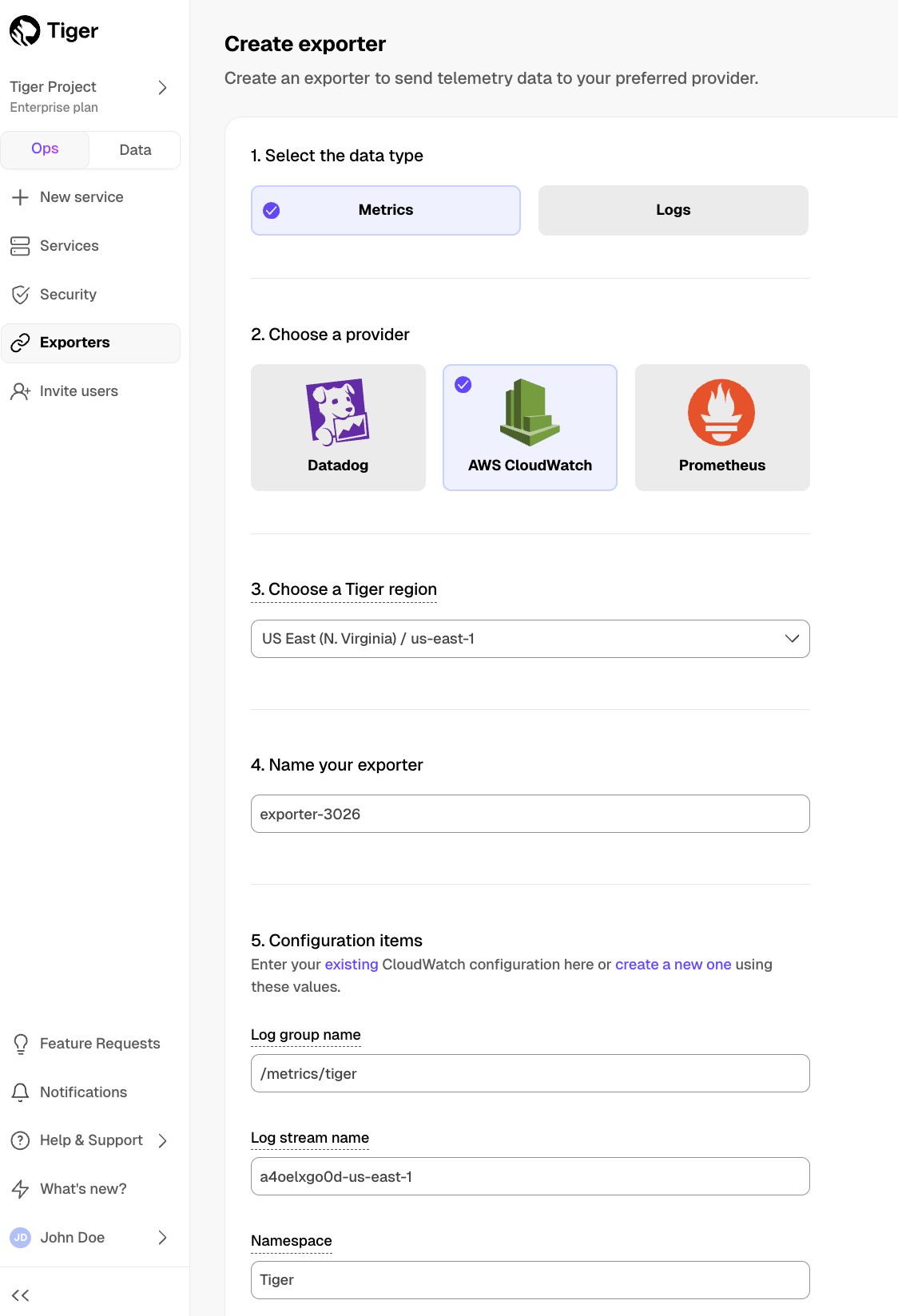
- Provide your AWS CloudWatch configuration
- The AWS region must be the same for your Tiger Cloud exporter and AWS CloudWatch Log group.
- The exporter name appears in Tiger Cloud Console, best practice is to make this name easily understandable.
- For CloudWatch credentials, either use an existing CloudWatch Log group or create a new one. If you're uncertain, use the default values. For more information, see Working with log groups and log streams.
- Choose the authentication method to use for the exporter
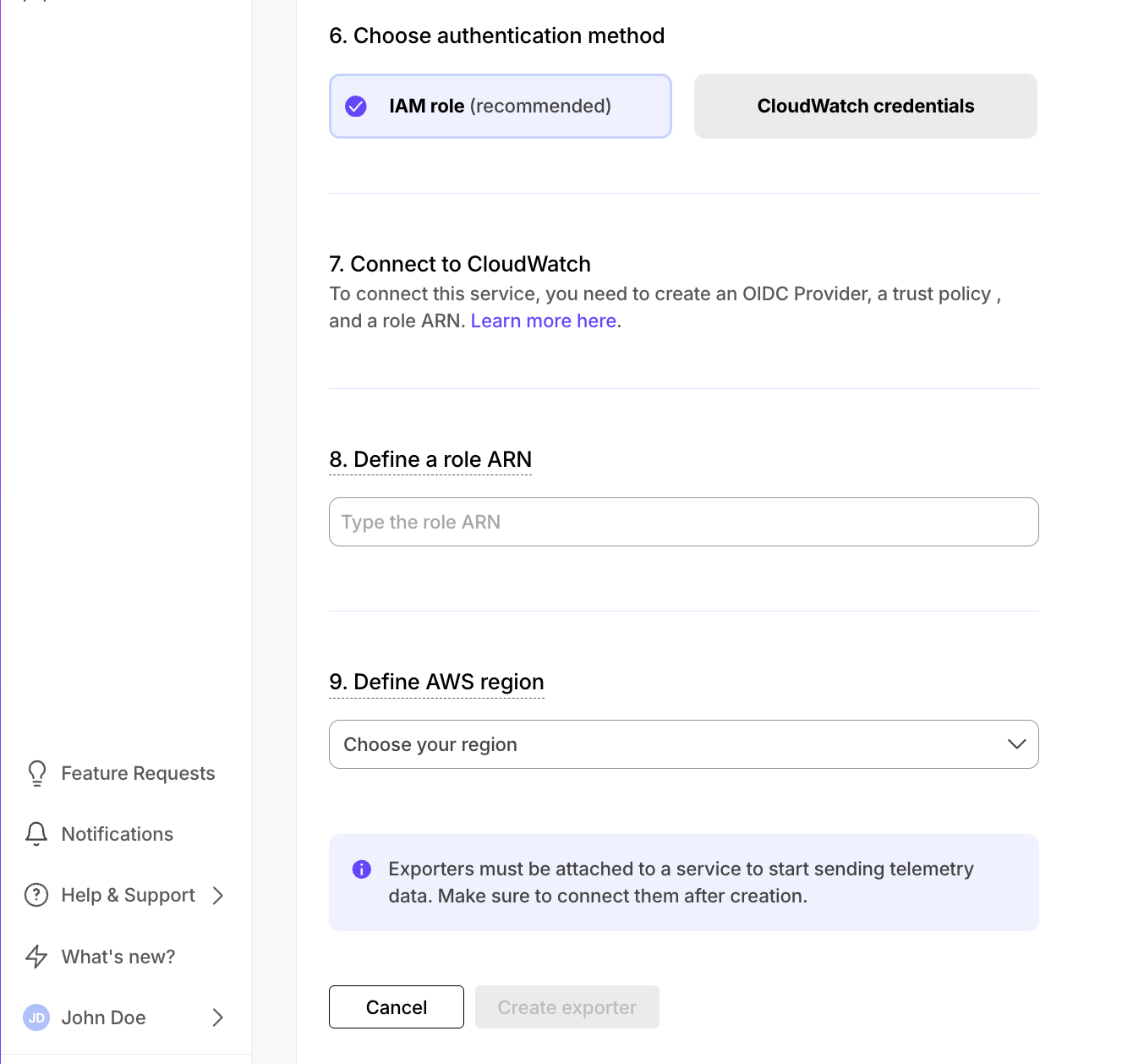
In AWS, navigate to IAM > Identity providers, then click
Add provider.Update the new identity provider with your details:
Set Provider URL to the region where you are creating your exporter.
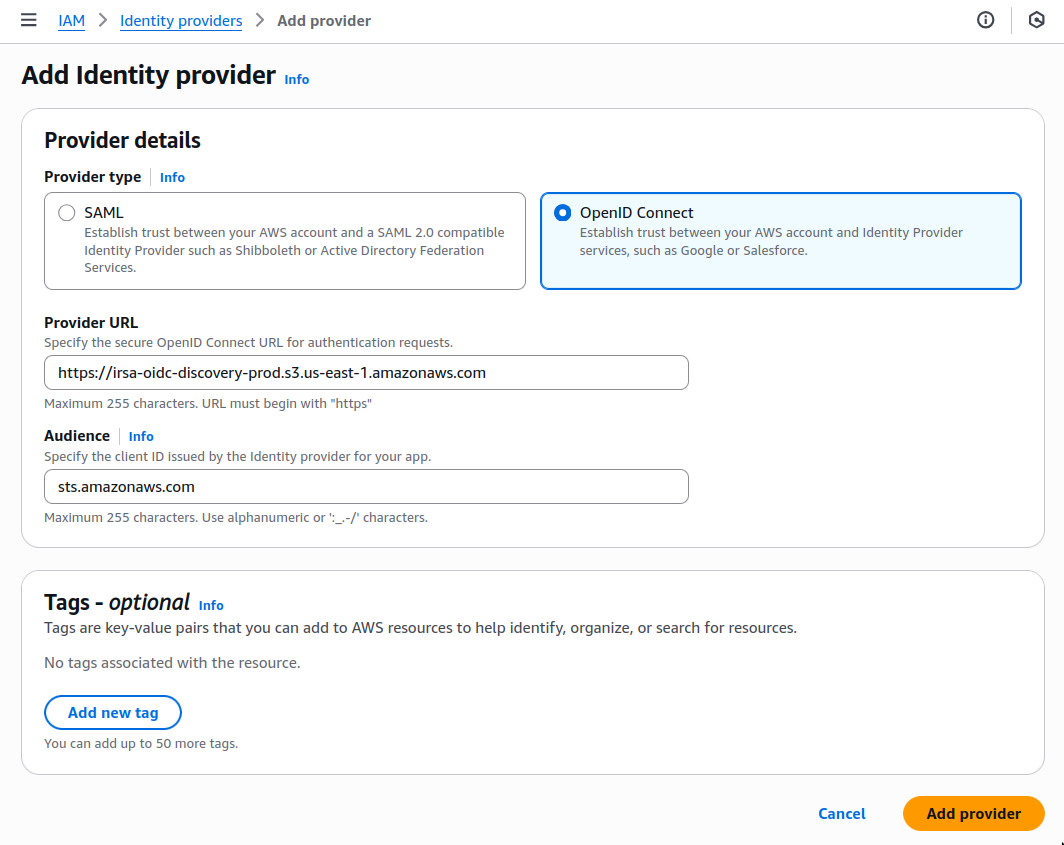
Click
Add provider.In AWS, navigate to IAM > Roles, then click
Create role.Add your identity provider as a Web identity role and click
Next.
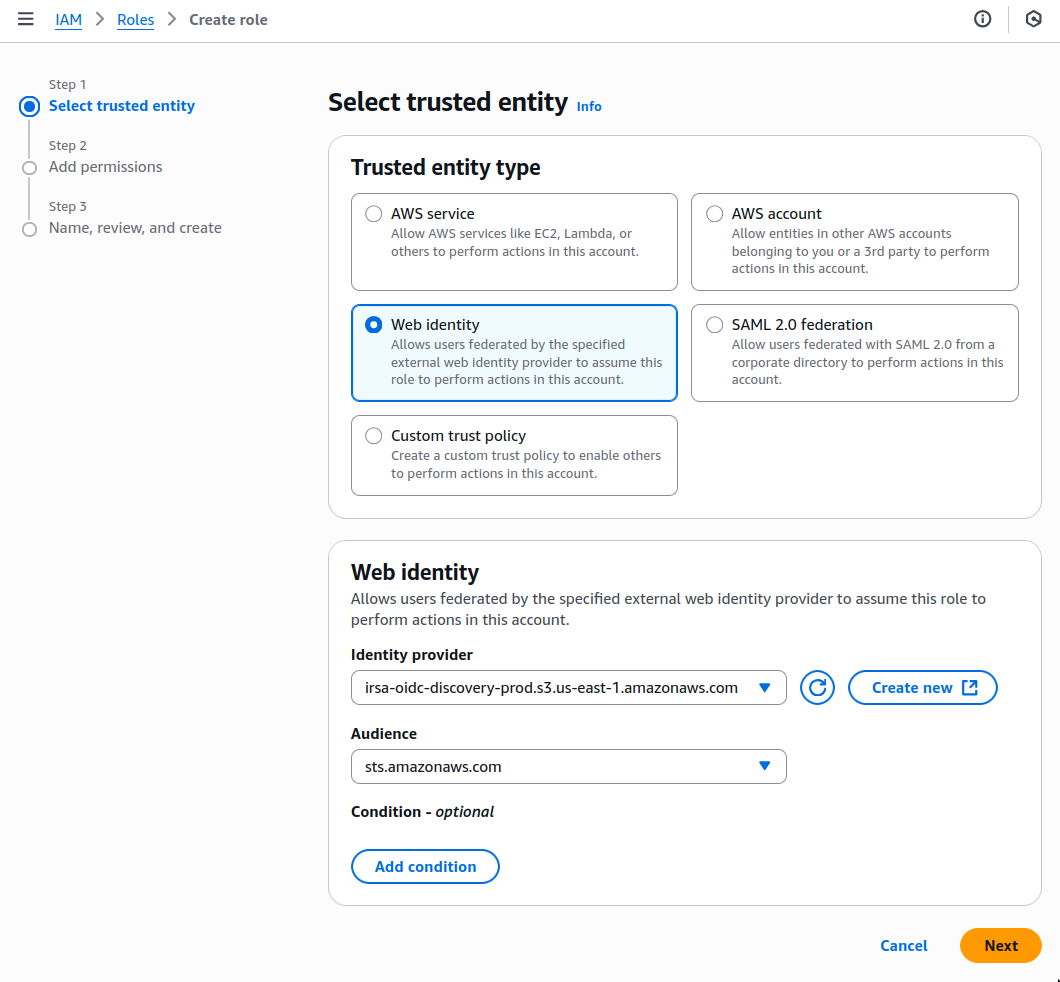
- Set the following permission and trust policies:
- Role with a Trust Policy:
When you use CloudWatch credentials, you link an Identity and Access Management (IAM)
user with access to CloudWatch only with your Tiger Cloud service:
- Retrieve the user information from IAM > Users in AWS console.
If you do not have an AWS user with access restricted to CloudWatch only,
[create one][create-an-iam-user].
For more information, see [Creating IAM users (console)][aws-access-keys].
- Enter the credentials for the AWS IAM user.
AWS keys give access to your AWS services. To keep your AWS account secure, restrict users to the minimum required permissions. Always store your keys in a safe location. To avoid this issue, use the IAM role authentication method.
- Select the AWS Region your CloudWatch services run in, then click
Create exporter.
Manage a data exporter
This section shows you how to attach, monitor, edit, and delete a data exporter.
Attach a data exporter to a Tiger Cloud service
To send telemetry data to an external monitoring tool, you attach a data exporter to your Tiger Cloud service. You can attach only one exporter to a service.
To attach an exporter:
- In Tiger Cloud Console, choose the service
- Click
Operations>Exporters - Select the exporter, then click
Attach exporter - If you are attaching a first
Logsdata type exporter, restart the service
Monitor Tiger Cloud service metrics
You can now monitor your service metrics. Use the following metrics to check the service is running correctly:
timescale.cloud.system.cpu.usage.millicorestimescale.cloud.system.cpu.total.millicorestimescale.cloud.system.memory.usage.bytestimescale.cloud.system.memory.total.bytestimescale.cloud.system.disk.usage.bytestimescale.cloud.system.disk.total.bytes
Additionally, use the following tags to filter your results.
|Tag|Example variable| Description |
|-|-|----------------------------|
|host|us-east-1.timescale.cloud| |
|project-id|| |
|service-id|| |
|region|us-east-1| AWS region |
|role|replica or primary| For service with replicas |
|node-id|| For multi-node services |
Edit a data exporter
To update a data exporter:
- In Tiger Cloud Console, open Exporters
- Next to the exporter you want to edit, click the menu >
Edit - Edit the exporter fields and save your changes
You cannot change fields such as the provider or the AWS region.
Delete a data exporter
To remove a data exporter that you no longer need:
Disconnect the data exporter from your Tiger Cloud services
In Tiger Cloud Console, choose the service.
- Click
Operations>Exporters. - Click the trash can icon.
- Repeat for every service attached to the exporter you want to remove.
- Click
The data exporter is now unattached from all services. However, it still exists in your project.
Delete the exporter on the project level
In Tiger Cloud Console, open Exporters
- Next to the exporter you want to edit, click menu >
Delete - Confirm that you want to delete the data exporter.
- Next to the exporter you want to edit, click menu >
When you create the IAM OIDC provider, the URL must match the region you create the exporter in. It must be one of the following:
| Region | Zone | Location | URL |
|---|---|---|---|
ap-southeast-1 |
Asia Pacific | Singapore | irsa-oidc-discovery-prod-ap-southeast-1.s3.ap-southeast-1.amazonaws.com |
ap-southeast-2 |
Asia Pacific | Sydney | irsa-oidc-discovery-prod-ap-southeast-2.s3.ap-southeast-2.amazonaws.com |
ap-northeast-1 |
Asia Pacific | Tokyo | irsa-oidc-discovery-prod-ap-northeast-1.s3.ap-northeast-1.amazonaws.com |
ca-central-1 |
Canada | Central | irsa-oidc-discovery-prod-ca-central-1.s3.ca-central-1.amazonaws.com |
eu-central-1 |
Europe | Frankfurt | irsa-oidc-discovery-prod-eu-central-1.s3.eu-central-1.amazonaws.com |
eu-west-1 |
Europe | Ireland | irsa-oidc-discovery-prod-eu-west-1.s3.eu-west-1.amazonaws.com |
eu-west-2 |
Europe | London | irsa-oidc-discovery-prod-eu-west-2.s3.eu-west-2.amazonaws.com |
sa-east-1 |
South America | São Paulo | irsa-oidc-discovery-prod-sa-east-1.s3.sa-east-1.amazonaws.com |
us-east-1 |
United States | North Virginia | irsa-oidc-discovery-prod.s3.us-east-1.amazonaws.com |
us-east-2 |
United States | Ohio | irsa-oidc-discovery-prod-us-east-2.s3.us-east-2.amazonaws.com |
us-west-2 |
United States | Oregon | irsa-oidc-discovery-prod-us-west-2.s3.us-west-2.amazonaws.com |
===== PAGE: https://docs.tigerdata.com/use-timescale/data-retention/create-a-retention-policy/ =====
Examples:
Example 1 (json):
{
"Version": "2012-10-17",
"Statement": [
{
"Effect": "Allow",
"Action": [
"logs:PutLogEvents",
"logs:CreateLogGroup",
"logs:CreateLogStream",
"logs:DescribeLogStreams",
"logs:DescribeLogGroups",
"logs:PutRetentionPolicy",
"xray:PutTraceSegments",
"xray:PutTelemetryRecords",
"xray:GetSamplingRules",
"xray:GetSamplingTargets",
"xray:GetSamplingStatisticSummaries",
"ssm:GetParameters"
],
"Resource": "*"
}
]
}
Example 2 (json):
{
"Version": "2012-10-17",
"Statement": [
{
"Effect": "Allow",
"Principal": {
"Federated": "arn:aws:iam::12345678910:oidc-provider/irsa-oidc-discovery-prod.s3.us-east-1.amazonaws.com"
},
"Action": "sts:AssumeRoleWithWebIdentity",
"Condition": {
"StringEquals": {
"irsa-oidc-discovery-prod.s3.us-east-1.amazonaws.com:aud": "sts.amazonaws.com"
}
}
},
{
"Sid": "Statement1",
"Effect": "Allow",
"Principal": {
"AWS": "arn:aws:iam::12345678910:role/my-exporter-role"
},
"Action": "sts:AssumeRole"
}
]
}
Write data
URL: llms-txt#write-data
Writing data in TimescaleDB works the same way as writing data to regular
Postgres. You can add and modify data in both regular tables and hypertables
using INSERT, UPDATE, and DELETE statements.
- Learn about writing data in TimescaleDB
- Insert data into hypertables
- Update data in hypertables
- Upsert data into hypertables
- Delete data from hypertables
For more information about using third-party tools to write data into TimescaleDB, see the Ingest data from other sources section.
===== PAGE: https://docs.tigerdata.com/use-timescale/query-data/ =====
Get started with Tiger Data
URL: llms-txt#get-started-with-tiger-data
A Tiger Cloud service is a single optimised Postgres instance extended with innovations in the database engine such as TimescaleDB, in a cloud infrastructure that delivers speed without sacrifice.
A Tiger Cloud service is a radically faster Postgres database for transactional, analytical, and agentic workloads at scale.
It’s not a fork. It’s not a wrapper. It is Postgres—extended with innovations in the database engine and cloud infrastructure to deliver speed (10-1000x faster at scale) without sacrifice. A Tiger Cloud service brings together the familiarity and reliability of Postgres with the performance of purpose-built engines.
Tiger Cloud is the fastest Postgres cloud. It includes everything you need to run Postgres in a production-reliable, scalable, observable environment.
This section shows you how to:
- Create and connect to a Tiger Cloud service: choose the capabilities that match your business and engineering needs on Tiger Data's cloud-based Postgres platform.
- Try the main features in Tiger Data products: rapidly implement the features in Tiger Cloud that enable you to ingest and query data faster while keeping the costs low.
- Start coding with Tiger Data: quickly integrate Tiger Cloud and TimescaleDB into your apps using your favorite programming language.
- Run queries from Tiger Cloud Console: securely interact with your data in the Tiger Cloud Console UI.
What next? Try the key features offered by Tiger Data, see the tutorials, interact with the data in your Tiger Cloud service using your favorite programming language, integrate your Tiger Cloud service with a range of third-party tools, plain old Use Tiger Data products, or dive into the API reference.
===== PAGE: https://docs.tigerdata.com/ai/index/ =====
Migrate with timescaledb-backfill
URL: llms-txt#migrate-with-timescaledb-backfill
Contents:
- Limitations
- Installation
- How to use
- Usage examples
- Stop and resume
- Inspect tasks progress
Dual-write and backfill is a method to write from your application to two
databases at once, and gives tooling and guidance to move your existing data
from the one database to the other. It is specifically catered for, and relies
on, your data being predominantly append-only time-series data. As such, it
comes with some caveats and prerequisites which live migration does not
(dual-write and backfill does not support executing UPDATE or DELETE
statements on your data). Additionally, it requires you to make changes to the
ingest pipeline of your application.
The timescaledb-backfill tool is a command-line utility designed to support
migrations from Tiger Cloud services by copying historic data from one database
to another ("backfilling"). timescaledb-backfill efficiently copies
hypertable and continuous aggregates chunks directly, without the need for
intermediate storage, or converting chunks from the columnstore to the rowstore. It operates
transactionally, ensuring data integrity throughout the migration process. It
is designed to be used in the dual-write and backfill
migration procedure.
- The tool only supports backfilling of hypertables. Schema migrations and non-hypertable migrations should be handled separately before using this tool.
- The tool is optimized for append-only workloads. Other scenarios may not be fully supported.
- To prevent continuous aggregates from refreshing with incomplete data, any refresh and retention policies targeting the tables that are going to be backfilled should be turned off.
The tool performs best when executed in an instance located close to the target database. The ideal scenario is an EC2 instance located in the same region as the Tiger Cloud service. Use a Linux-based distribution on x86_64.
With the instance that will run the timescaledb-backfill ready, log in and download the tool's binary:
The timescaledb-backfill tool offers four main commands: stage, copy,
verify and clean. The workflow involves creating tasks, copying chunks,
verifying data integrity and cleaning up the administrative schema after the
migration.
In the context of migrations, your existing production database is referred to as the SOURCE database, the Tiger Cloud service that you are migrating your data to is the TARGET.
- Stage Command: is used to create copy tasks for hypertable chunks based
on the specified completion point (
--until). If a starting point (--from) is not specified, data will be copied from the beginning of time up to the completion point (--until). An optional filter (--filter) can be used to refine the hypertables and continuous aggregates targeted for staging.
The tables to be included in the stage can be controlled by providing filtering options:
--filter: this option accepts a POSIX regular expression to match schema-qualified hypertable names or continuous aggregate view names. Only hypertables and/or continuous aggregates matching the filter are staged.
By default, the filter includes only the matching objects, and does not concern itself with dependencies between objects. Depending on what is intended, this could be problematic for continuous aggregates, as they form a dependency hierarchy. This behaviour can be modified through cascade options.
For example, assuming a hierarchy of continuous aggregates for hourly, daily,
and weekly rollups of data in an underlying hypertable called raw_data (all
in the public schema). This could look as follows:
If the filter --filter='^public\.raw_data$' is applied, then no data from the
continuous aggregates is staged. If the filter
--filter='^public\.daily_agg$' is applied, then only materialized data in the
continuous aggregate daily_agg is staged.
--cascade-up: when activated, this option ensures that any continuous
aggregates which depend on the filtered object are included in the staging
process. It is called "cascade up" because it cascades up the hierarchy.
Using the example from before, if the filter
--filter='^public\.raw_data$' --cascade up is applied, the data in raw_data,
hourly_agg, daily_agg, and monthly_agg is staged.
--cascade-down: when activated, this option ensures that any objects which
the filtered object depends on are included in the staging process. It is
called "cascade down" because it cascades down the hierarchy.
Using the example from before, if the filter
--filter='^public\.daily_agg$' --cascade-down is applied, the data in
daily_agg, hourly_agg, and raw_data is staged.
The --cascade-up and --cascade-down options can be combined. Using the
example from before, if the filter
--filter='^public\.daily_agg$' --cascade-up --cascade-down is applied, data in
all objects in the example scenario is staged.
- Copy Command: processes the tasks created during the staging phase and copies the corresponding hypertable chunks to the target Tiger Cloud service.
In addition to the --source and --target parameters, the copy command
takes one optional parameter:
--parallelism specifies the number of COPY jobs which will be run in
parallel, the default is 8. It should ideally be set to the number of cores
that the source and target database have, and is the most important parameter
in dictating both how much load the source database experiences, and how
quickly data is transferred from the source to the target database.
- Verify Command: checks for discrepancies between the source and target chunks' data. It compares the results of the count for each chunk's table, as well as per-column count, max, min, and sum values (when applicable, depending on the column data type).
In addition to the --source and --target parameters, the verify command
takes one optional parameter:
--parallelism specifies the number of verification jobs which will be run
in parallel, the default is 8. It should ideally be set to the number of cores
that the source and target database have, and is the most important parameter
in dictating both how much load the source and target databases experience
during verification, and how long it takes for verification to complete.
- Refresh Continuous Aggregates Command: refreshes the continuous aggregates of the target system. It covers the period from the last refresh in the target to the last refresh in the source, solving the problem of continuous aggregates being outdated beyond the coverage of the refresh policies.
To refresh the continuous aggregates, the command executes the following SQL statement for all the matched continuous aggregates:
The continuous aggregates to be refreshed can be controlled by providing filtering options:
--filter: this option accepts a POSIX regular expression to match
schema-qualified hypertable continuous aggregate view names.
By default, the filter includes only the matching objects, and does not concern itself with dependencies between objects. Depending on what is intended, this could be problematic as continuous aggregates form a dependency hierarchy. This behaviour can be modified through cascade options.
For example, assuming a hierarchy of continuous aggregates for hourly, daily,
and weekly rollups of data in an underlying hypertable called raw_data (all
in the public schema). This could look as follows:
If the filter --filter='^public\.daily_agg$' is applied, only
materialized data in the continuous aggregate daily_agg will be updated.
However, this approach can lead to potential issues. For example, if
hourly_agg is not up to date, then daily_agg won't be either, as it
requires the missing data from hourly_agg. Additionally, it's important to
remember to refresh monthly_agg at some point to ensure its data remains
current. In both cases, relying solely on refresh policies may result in data
gaps if the policy doesn't cover the entire required period.
--cascade-up: when activated, this option ensures that any continuous
aggregates which depend on the filtered object are refreshed. It is called
"cascade up" because it cascades up the hierarchy. Using the example from
before, if the filter --filter='^public\.daily_agg$' --cascade up is
applied, the hourly_agg, daily_agg, and monthly_agg will be refreshed.
--cascade-down: when activated, this option ensures that any continuous
aggregates which the filtered object depends on are refreshed. It is called
"cascade down" because it cascades down the hierarchy. Using the example from
before, if the filter --filter='^public\.daily_agg$' --cascade-down is
applied, the data in daily_agg and hourly_agg will be refreshed.
The --cascade-up and --cascade-down options can be combined. Using the
example from before, if the filter --filter='^public\.daily_agg$'
--cascade-up --cascade-down is applied, then all the continuous aggregates
will be refreshed.
Clean Command: removes the administrative schema (
__backfill) that was used to store the tasks once the migration is completed successfully.Backfilling with a filter and until date:
Running multiple stages with different filters and until dates:
Backfilling a specific period of time with from and until:
Refreshing a continuous aggregates hierarchy
The copy command can be safely stopped by sending an interrupt signal
(SIGINT) to the process. This can be achieved by using the Ctrl-C keyboard
shortcut from the terminal where the tool is currently running.
When the tool receives the first signal, it interprets it as a request for a graceful shutdown. It then notifies the copy workers that they should exit once they finish copying the chunk they are currently processing. Depending on the chunk size, this could take many minutes to complete.
When a second signal is received, it forces the tool to shut down immediately, interrupting all ongoing work. Due to the tool's usage of transactions, there is no risk of data inconsistency when using forced shutdown.
While a graceful shutdown waits for in-progress chunks to finish copying, a force shutdown rolls back the in-progress copy transactions. Any data copied into those chunks is lost, but the database is left in a transactional consistent state, and the backfill process can be safely resumed.
Inspect tasks progress
Each hypertable chunk that's going to be backfilled has a corresponding task
stored in the target's database __backfill.task table. You can use this
information to inspect the backfill's progress:
===== PAGE: https://docs.tigerdata.com/use-timescale/query-data/about-query-data/ =====
Examples:
Example 1 (sh):
wget https://assets.timescale.com/releases/timescaledb-backfill-x86_64-linux.tar.gz
tar xf timescaledb-backfill-x86_64-linux.tar.gz
sudo mv timescaledb-backfill /usr/local/bin/
Example 2 (sh):
timescaledb-backfill stage --source source --target target --until '2016-01-02T00:00:00'
Example 3 (unknown):
raw_data -> hourly_agg -> daily_agg -> monthly_agg
Example 4 (sh):
timescaledb-backfill stage --source source --target target \
--until '2016-01-02T00:00:00' \
--filter '^public\.daily_agg$' \
--cascade-up \
--cascade-down
Integrate Amazon CloudWatch with Tiger Cloud
URL: llms-txt#integrate-amazon-cloudwatch-with-tiger-cloud
Contents:
- Prerequisites
- Create a data exporter
- Attach a data exporter to a Tiger Cloud service
- Monitor Tiger Cloud service metrics
- Edit a data exporter
- Delete a data exporter
- Reference
Amazon CloudWatch is a monitoring and observability service designed to help collect, analyze, and act on data from applications, infrastructure, and services running in AWS and on-premises environments.
You can export telemetry data from your Tiger Cloud services with the time-series and analytics capability enabled to CloudWatch. The available metrics include CPU usage, RAM usage, and storage. This integration is available for Scale and Enterprise pricing tiers.
This pages explains how to export telemetry data from your Tiger Cloud service into CloudWatch by creating a Tiger Cloud data exporter, then attaching it to the service.
To follow the steps on this page:
- Create a target Tiger Cloud service with the Real-time analytics capability.
You need your connection details.
- Sign up for Amazon CloudWatch.
Create a data exporter
A Tiger Cloud data exporter sends telemetry data from a Tiger Cloud service to a third-party monitoring tool. You create an exporter on the project level, in the same AWS region as your service:
- In Tiger Cloud Console, open Exporters
- Click
New exporter - Select the data type and specify
AWS CloudWatchfor provider
- Provide your AWS CloudWatch configuration
- The AWS region must be the same for your Tiger Cloud exporter and AWS CloudWatch Log group.
- The exporter name appears in Tiger Cloud Console, best practice is to make this name easily understandable.
- For CloudWatch credentials, either use an existing CloudWatch Log group or create a new one. If you're uncertain, use the default values. For more information, see Working with log groups and log streams.
- Choose the authentication method to use for the exporter
In AWS, navigate to IAM > Identity providers, then click
Add provider.Update the new identity provider with your details:
Set Provider URL to the region where you are creating your exporter.
Click
Add provider.In AWS, navigate to IAM > Roles, then click
Create role.Add your identity provider as a Web identity role and click
Next.
- Set the following permission and trust policies:
- Role with a Trust Policy:
When you use CloudWatch credentials, you link an Identity and Access Management (IAM)
user with access to CloudWatch only with your Tiger Cloud service:
- Retrieve the user information from IAM > Users in AWS console.
If you do not have an AWS user with access restricted to CloudWatch only,
[create one][create-an-iam-user].
For more information, see [Creating IAM users (console)][aws-access-keys].
- Enter the credentials for the AWS IAM user.
AWS keys give access to your AWS services. To keep your AWS account secure, restrict users to the minimum required permissions. Always store your keys in a safe location. To avoid this issue, use the IAM role authentication method.
- Select the AWS Region your CloudWatch services run in, then click
Create exporter.
Attach a data exporter to a Tiger Cloud service
To send telemetry data to an external monitoring tool, you attach a data exporter to your Tiger Cloud service. You can attach only one exporter to a service.
To attach an exporter:
- In Tiger Cloud Console, choose the service
- Click
Operations>Exporters - Select the exporter, then click
Attach exporter - If you are attaching a first
Logsdata type exporter, restart the service
Monitor Tiger Cloud service metrics
You can now monitor your service metrics. Use the following metrics to check the service is running correctly:
timescale.cloud.system.cpu.usage.millicorestimescale.cloud.system.cpu.total.millicorestimescale.cloud.system.memory.usage.bytestimescale.cloud.system.memory.total.bytestimescale.cloud.system.disk.usage.bytestimescale.cloud.system.disk.total.bytes
Additionally, use the following tags to filter your results.
|Tag|Example variable| Description |
|-|-|----------------------------|
|host|us-east-1.timescale.cloud| |
|project-id|| |
|service-id|| |
|region|us-east-1| AWS region |
|role|replica or primary| For service with replicas |
|node-id|| For multi-node services |
Edit a data exporter
To update a data exporter:
- In Tiger Cloud Console, open Exporters
- Next to the exporter you want to edit, click the menu >
Edit - Edit the exporter fields and save your changes
You cannot change fields such as the provider or the AWS region.
Delete a data exporter
To remove a data exporter that you no longer need:
Disconnect the data exporter from your Tiger Cloud services
In Tiger Cloud Console, choose the service.
- Click
Operations>Exporters. - Click the trash can icon.
- Repeat for every service attached to the exporter you want to remove.
- Click
The data exporter is now unattached from all services. However, it still exists in your project.
Delete the exporter on the project level
In Tiger Cloud Console, open Exporters
- Next to the exporter you want to edit, click menu >
Delete - Confirm that you want to delete the data exporter.
- Next to the exporter you want to edit, click menu >
When you create the IAM OIDC provider, the URL must match the region you create the exporter in. It must be one of the following:
| Region | Zone | Location | URL |
|---|---|---|---|
ap-southeast-1 |
Asia Pacific | Singapore | irsa-oidc-discovery-prod-ap-southeast-1.s3.ap-southeast-1.amazonaws.com |
ap-southeast-2 |
Asia Pacific | Sydney | irsa-oidc-discovery-prod-ap-southeast-2.s3.ap-southeast-2.amazonaws.com |
ap-northeast-1 |
Asia Pacific | Tokyo | irsa-oidc-discovery-prod-ap-northeast-1.s3.ap-northeast-1.amazonaws.com |
ca-central-1 |
Canada | Central | irsa-oidc-discovery-prod-ca-central-1.s3.ca-central-1.amazonaws.com |
eu-central-1 |
Europe | Frankfurt | irsa-oidc-discovery-prod-eu-central-1.s3.eu-central-1.amazonaws.com |
eu-west-1 |
Europe | Ireland | irsa-oidc-discovery-prod-eu-west-1.s3.eu-west-1.amazonaws.com |
eu-west-2 |
Europe | London | irsa-oidc-discovery-prod-eu-west-2.s3.eu-west-2.amazonaws.com |
sa-east-1 |
South America | São Paulo | irsa-oidc-discovery-prod-sa-east-1.s3.sa-east-1.amazonaws.com |
us-east-1 |
United States | North Virginia | irsa-oidc-discovery-prod.s3.us-east-1.amazonaws.com |
us-east-2 |
United States | Ohio | irsa-oidc-discovery-prod-us-east-2.s3.us-east-2.amazonaws.com |
us-west-2 |
United States | Oregon | irsa-oidc-discovery-prod-us-west-2.s3.us-west-2.amazonaws.com |
===== PAGE: https://docs.tigerdata.com/integrations/pgadmin/ =====
Examples:
Example 1 (json):
{
"Version": "2012-10-17",
"Statement": [
{
"Effect": "Allow",
"Action": [
"logs:PutLogEvents",
"logs:CreateLogGroup",
"logs:CreateLogStream",
"logs:DescribeLogStreams",
"logs:DescribeLogGroups",
"logs:PutRetentionPolicy",
"xray:PutTraceSegments",
"xray:PutTelemetryRecords",
"xray:GetSamplingRules",
"xray:GetSamplingTargets",
"xray:GetSamplingStatisticSummaries",
"ssm:GetParameters"
],
"Resource": "*"
}
]
}
Example 2 (json):
{
"Version": "2012-10-17",
"Statement": [
{
"Effect": "Allow",
"Principal": {
"Federated": "arn:aws:iam::12345678910:oidc-provider/irsa-oidc-discovery-prod.s3.us-east-1.amazonaws.com"
},
"Action": "sts:AssumeRoleWithWebIdentity",
"Condition": {
"StringEquals": {
"irsa-oidc-discovery-prod.s3.us-east-1.amazonaws.com:aud": "sts.amazonaws.com"
}
}
},
{
"Sid": "Statement1",
"Effect": "Allow",
"Principal": {
"AWS": "arn:aws:iam::12345678910:role/my-exporter-role"
},
"Action": "sts:AssumeRole"
}
]
}
Multi-node
URL: llms-txt#multi-node
Contents:
- Set up multi-node
- Setting up multi-node
- Attach a data exporter to a Tiger Cloud service
- Monitor Tiger Cloud service metrics
- Edit a data exporter
- Delete a data exporter
- Reference
- Set your connection strings
- Align the extensions on the source and target
- Tune your source database
If you have a larger workload, you might need more than one Timescale instance. Multi-node can give you faster data ingest, and more responsive and efficient queries for many large workloads.
This section shows you how to use multi-node on Timescale. You can also set up multi-node on self-hosted TimescaleDB.
Early access: TimescaleDB v2.18.0
In some cases, your processing speeds could be slower in a multi-node cluster, because distributed hypertables need to push operations down to the various data nodes. It is important that you understand multi-node architecture before you begin, and plan your database according to your specific environment.
To create a multi-node cluster, you need an access node that stores metadata for the distributed hypertable and performs query planning across the cluster, and any number of data nodes that store subsets of the distributed hypertable dataset and run queries locally.
Setting up multi-node
- Log in to your Tiger Cloud account and click
Create Service. - Click
Advanced configuration. - Under
Choose your architecture, clickMulti-node. - The customer support team contacts you. When your request is approved, return to the screen for creating a multi-node service.
- Choose your preferred region, or accept the default region of
us-east-1. - Accept the default for the data nodes, or click
Editto choose the number of data nodes, and their compute and disk size. - Accept the default for the access node, or click
Editto choose the compute and disk size. - Click
Create service. Take a note of the service information, you need these details to connect to your multi-node cluster. The service takes a few minutes to start up. - When the service is ready, you can see the service in the Service Overview page. Click on the name of your new multi-node service to see more information, and to make changes.
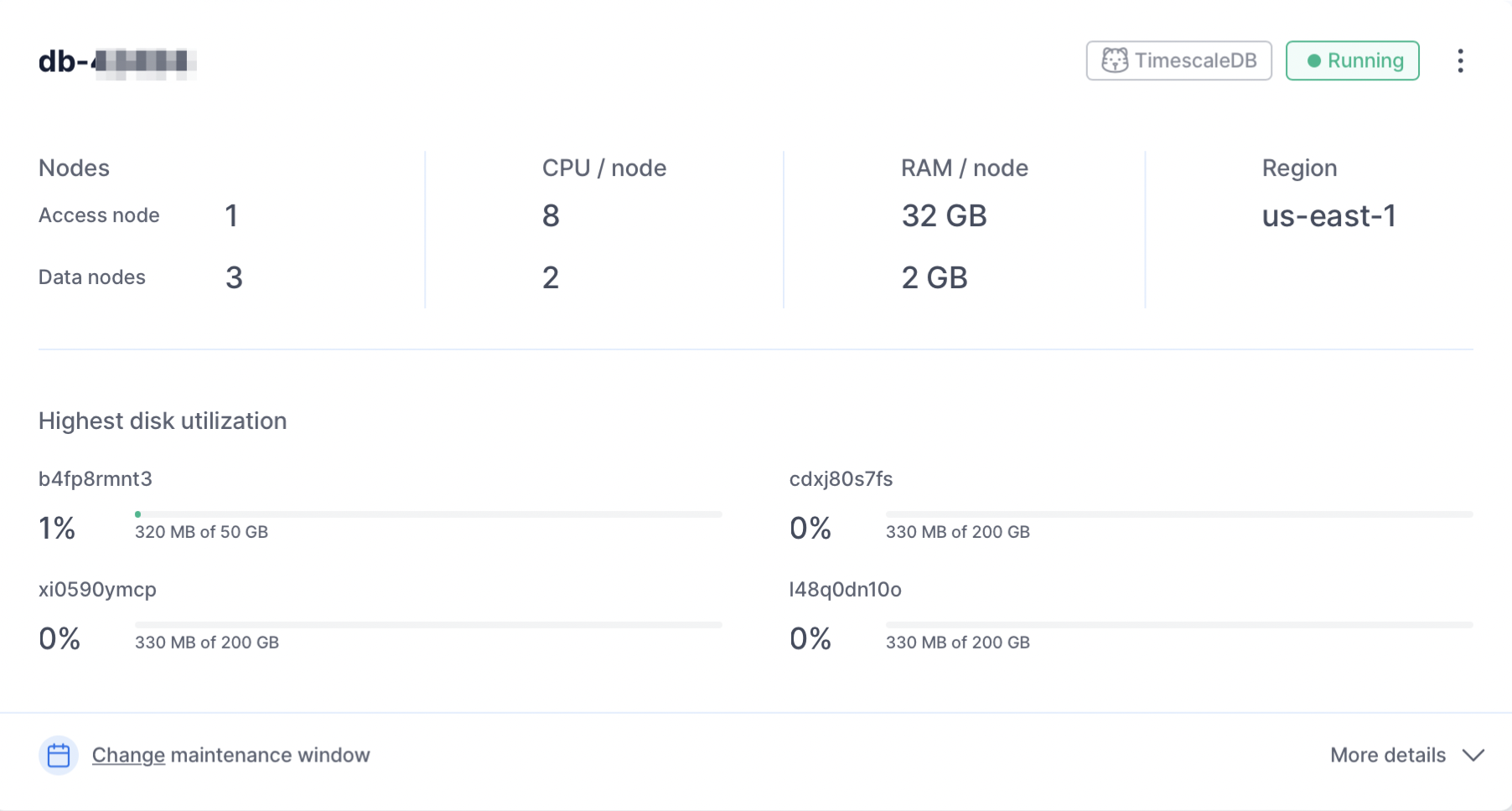
===== PAGE: https://docs.tigerdata.com/_partials/_migrate_live_migration_rds_roles/ =====
AWS RDS does not permit dumping of roles with passwords, which
is why the above command is executed with the --no-role-passwords. However,
when the migration of roles to your Tiger Cloud service is complete, you
need to manually assign passwords to the necessary roles using the following
command:ALTER ROLE name WITH PASSWORD 'password';
Tiger Cloud services do not support roles with superuser access. If your SQL dump includes roles that have such permissions, you'll need to modify the file to be compliant with the security model.
You can use the following sed command to remove unsupported statements and
permissions from your roles.sql file:
This command works only with the GNU implementation of sed (sometimes referred
to as gsed). For the BSD implementation (the default on macOS), you need to
add an extra argument to change the -i flag to -i ''.
To check the sed version, you can use the command sed --version. While the
GNU version explicitly identifies itself as GNU, the BSD version of sed
generally doesn't provide a straightforward --version flag and simply outputs
an "illegal option" error.
A brief explanation of this script is:
CREATE ROLE "postgres"; andALTER ROLE "postgres": These statements are removed because they require superuser access, which is not supported by Timescale.(NO)SUPERUSER|(NO)REPLICATION|(NO)BYPASSRLS: These are permissions that require superuser access.CREATE ROLE "rds,ALTER ROLE “rds,TO "rds,GRANT "rds: Any creation or alteration of rds prefixed roles are removed because of their lack of any use in a Tiger Cloud service. Similarly, any grants to or from "rds" prefixed roles are ignored as well.GRANTED BY role_specification: The GRANTED BY clause can also have permissions that require superuser access and should therefore be removed. Note: Per the TimescaleDB documentation, the GRANTOR in the GRANTED BY clause must be the current user, and this clause mainly serves the purpose of SQL compatibility. Therefore, it's safe to remove it.
===== PAGE: https://docs.tigerdata.com/_partials/_migrate_set_up_align_db_extensions_timescaledb/ =====
Ensure that the source and target databases are running the same version of TimescaleDB.
Check the version of TimescaleDB running on your Tiger Cloud service:
Update the TimescaleDB extension in your source database to match the target service:
If the TimescaleDB extension is the same version on the source database and target service,
you do not need to do this.
For more information and guidance, see Upgrade TimescaleDB.
Ensure that the Tiger Cloud service is running the Postgres extensions used in your source database.
Check the extensions on the source database:
- For each extension, enable it on your target Tiger Cloud service:
===== PAGE: https://docs.tigerdata.com/_partials/_beta/ =====
This feature is in beta. Beta features are experimental, and should not be used on production systems. If you have feedback, reach out to your customer success manager, or contact us.
===== PAGE: https://docs.tigerdata.com/_partials/_manage-a-data-exporter/ =====
Attach a data exporter to a Tiger Cloud service
To send telemetry data to an external monitoring tool, you attach a data exporter to your Tiger Cloud service. You can attach only one exporter to a service.
To attach an exporter:
- In Tiger Cloud Console, choose the service
- Click
Operations>Exporters - Select the exporter, then click
Attach exporter - If you are attaching a first
Logsdata type exporter, restart the service
Monitor Tiger Cloud service metrics
You can now monitor your service metrics. Use the following metrics to check the service is running correctly:
timescale.cloud.system.cpu.usage.millicorestimescale.cloud.system.cpu.total.millicorestimescale.cloud.system.memory.usage.bytestimescale.cloud.system.memory.total.bytestimescale.cloud.system.disk.usage.bytestimescale.cloud.system.disk.total.bytes
Additionally, use the following tags to filter your results.
|Tag|Example variable| Description |
|-|-|----------------------------|
|host|us-east-1.timescale.cloud| |
|project-id|| |
|service-id|| |
|region|us-east-1| AWS region |
|role|replica or primary| For service with replicas |
|node-id|| For multi-node services |
Edit a data exporter
To update a data exporter:
- In Tiger Cloud Console, open Exporters
- Next to the exporter you want to edit, click the menu >
Edit - Edit the exporter fields and save your changes
You cannot change fields such as the provider or the AWS region.
Delete a data exporter
To remove a data exporter that you no longer need:
Disconnect the data exporter from your Tiger Cloud services
In Tiger Cloud Console, choose the service.
- Click
Operations>Exporters. - Click the trash can icon.
- Repeat for every service attached to the exporter you want to remove.
- Click
The data exporter is now unattached from all services. However, it still exists in your project.
Delete the exporter on the project level
In Tiger Cloud Console, open Exporters
- Next to the exporter you want to edit, click menu >
Delete - Confirm that you want to delete the data exporter.
- Next to the exporter you want to edit, click menu >
When you create the IAM OIDC provider, the URL must match the region you create the exporter in. It must be one of the following:
| Region | Zone | Location | URL |
|---|---|---|---|
ap-southeast-1 |
Asia Pacific | Singapore | irsa-oidc-discovery-prod-ap-southeast-1.s3.ap-southeast-1.amazonaws.com |
ap-southeast-2 |
Asia Pacific | Sydney | irsa-oidc-discovery-prod-ap-southeast-2.s3.ap-southeast-2.amazonaws.com |
ap-northeast-1 |
Asia Pacific | Tokyo | irsa-oidc-discovery-prod-ap-northeast-1.s3.ap-northeast-1.amazonaws.com |
ca-central-1 |
Canada | Central | irsa-oidc-discovery-prod-ca-central-1.s3.ca-central-1.amazonaws.com |
eu-central-1 |
Europe | Frankfurt | irsa-oidc-discovery-prod-eu-central-1.s3.eu-central-1.amazonaws.com |
eu-west-1 |
Europe | Ireland | irsa-oidc-discovery-prod-eu-west-1.s3.eu-west-1.amazonaws.com |
eu-west-2 |
Europe | London | irsa-oidc-discovery-prod-eu-west-2.s3.eu-west-2.amazonaws.com |
sa-east-1 |
South America | São Paulo | irsa-oidc-discovery-prod-sa-east-1.s3.sa-east-1.amazonaws.com |
us-east-1 |
United States | North Virginia | irsa-oidc-discovery-prod.s3.us-east-1.amazonaws.com |
us-east-2 |
United States | Ohio | irsa-oidc-discovery-prod-us-east-2.s3.us-east-2.amazonaws.com |
us-west-2 |
United States | Oregon | irsa-oidc-discovery-prod-us-west-2.s3.us-west-2.amazonaws.com |
===== PAGE: https://docs.tigerdata.com/_partials/_early_access_2_18_0/ =====
Early access: TimescaleDB v2.18.0
===== PAGE: https://docs.tigerdata.com/_partials/_multi-node-deprecation/ =====
Multi-node support is sunsetted.
TimescaleDB v2.13 is the last release that includes multi-node support for Postgres versions 13, 14, and 15.
===== PAGE: https://docs.tigerdata.com/_partials/_migrate_prerequisites/ =====
Best practice is to use an Ubuntu EC2 instance hosted in the same region as your Tiger Cloud service to move data. That is, the machine you run the commands on to move your data from your source database to your target Tiger Cloud service.
Before you move your data:
- Create a target Tiger Cloud service.
Each Tiger Cloud service has a single Postgres instance that supports the most popular extensions. Tiger Cloud services do not support tablespaces, and there is no superuser associated with a service. Best practice is to create a Tiger Cloud service with at least 8 CPUs for a smoother experience. A higher-spec instance can significantly reduce the overall migration window.
- To ensure that maintenance does not run while migration is in progress, best practice is to adjust the maintenance window.
===== PAGE: https://docs.tigerdata.com/_partials/_migrate_open_support_request/ =====
You can open a support request directly from Tiger Cloud Console, or by email to support@tigerdata.com.
===== PAGE: https://docs.tigerdata.com/_partials/_install-self-hosted-debian-based-end/ =====
Update your local repository list
Install TimescaleDB
To install a specific TimescaleDB release, set the version. For example:
sudo apt-get install timescaledb-2-postgresql-14='2.6.0*' timescaledb-2-loader-postgresql-14='2.6.0*'
Older versions of TimescaleDB may not support all the OS versions listed on this page.
- Tune your Postgres instance for TimescaleDB
By default, this script is included with the timescaledb-tools package when you install TimescaleDB. Use the prompts to tune your development or production environment. For more information on manual configuration, see Configuration. If you have an issue, run sudo apt install timescaledb-tools.
Restart Postgres
Log in to Postgres as
postgres
You are in the psql shell.
- Set the password for
postgres
When you have set the password, type \q to exit psql.
===== PAGE: https://docs.tigerdata.com/_partials/_prereqs-cloud-and-self/ =====
To follow the procedure on this page you need to:
- Create a target Tiger Cloud service.
This procedure also works for self-hosted TimescaleDB.
===== PAGE: https://docs.tigerdata.com/_partials/_migrate_live_setup_environment_awsrds/ =====
Set your connection strings
These variables hold the connection information for the source database and target Tiger Cloud service. In Terminal on your migration machine, set the following:
You find the connection information for your Tiger Cloud service in the configuration file you downloaded when you created the service.
Avoid using connection strings that route through connection poolers like PgBouncer or similar tools. This tool requires a direct connection to the database to function properly.
Align the extensions on the source and target
Ensure that the Tiger Cloud service is running the Postgres extensions used in your source database.
Check the extensions on the source database:
- For each extension, enable it on your target Tiger Cloud service:
Tune your source database
Updating parameters on a Postgres instance will cause an outage. Choose a time that will cause the least issues to tune this database.
Update the DB instance parameter group for your source database
In https://console.aws.amazon.com/rds/home#databases:, select the RDS instance to migrate.
Click
Configuration, scroll down and note theDB instance parameter group, then clickParameter groups
<img class="main-content__illustration"
src="https://assets.timescale.com/docs/images/migrate/awsrds-parameter-groups.png"
alt="Create security rule to enable RDS EC2 connection"/>
Click
Create parameter group, fill in the form with the following values, then clickCreate.- Parameter group name - whatever suits your fancy.
- Description - knock yourself out with this one.
- Engine type -
PostgreSQL - Parameter group family - the same as
DB instance parameter groupin yourConfiguration. - In
Parameter groups, select the parameter group you created, then clickEdit. - Update the following parameters, then click
Save changes.rds.logical_replicationset to1: record the information needed for logical decoding.wal_sender_timeoutset to0: disable the timeout for the sender process.
In RDS, navigate back to your databases, select the RDS instance to migrate, and click
Modify.Scroll down to
Database options, select your new parameter group, and clickContinue.- Click
Apply immediatelyor choose a maintenance window, then clickModify DB instance.
- Click
Changing parameters will cause an outage. Wait for the database instance to reboot before continuing.
Verify that the settings are live in your database.
Enable replication
DELETEandUPDATEoperations
Replica identity assists data replication by identifying the rows being modified. Your options are that each table and hypertable in the source database should either have:
- A primary key: data replication defaults to the primary key of the table being replicated. Nothing to do.
- A viable unique index: each table has a unique, non-partial, non-deferrable index that includes only columns
marked as
NOT NULL. If a UNIQUE index does not exist, create one to assist the migration. You can delete if after migration.
For each table, set REPLICA IDENTITY to the viable unique index:
- No primary key or viable unique index: use brute force.
For each table, set REPLICA IDENTITY to FULL:
For each UPDATE or DELETE statement, Postgres reads the whole table to find all matching rows. This results
in significantly slower replication. If you are expecting a large number of UPDATE or DELETE operations on the table,
best practice is to not use FULL.
===== PAGE: https://docs.tigerdata.com/_partials/_migrate_source_target_note/ =====
In the context of migrations, your existing production database is referred to as the SOURCE database, the Tiger Cloud service that you are migrating your data to is the TARGET.
===== PAGE: https://docs.tigerdata.com/_partials/_not-available-in-free-plan/ =====
This feature is not available under the Free pricing plan.
===== PAGE: https://docs.tigerdata.com/_partials/_migrate_live_migration_docker_subcommand/ =====
Next, download the live-migration docker image:
Live-migration contains 3 subcommands:
- Snapshot
- Clean
- Migrate
the snapshot subcommand creates a Postgres snapshot connection to the source
database along with a replication slot. This is pre-requisite before running
the migrate subcommand.
The migrate subcommand carries out the live-migration process by taking help
of the snapshot and replication slot created by the snapshot subcommand.
The clean subcommand is designed to remove resources related to live migration.
It should be run once the migration has successfully completed or, if you need
to restart the migration process from the very start. You should not run clean
if you want to resume the last interrupted live migration.
3.a Create a snapshot
Execute this command to establish a snapshot connection; do not interrupt the process.
For convenience, consider using a terminal multiplexer such as tmux or screen, which
enables the command to run in the background.
In addition to creating a snapshot, this process also validates prerequisites on the source and target to ensure the database instances are ready for replication.
For example, it checks if all tables on the source have either a PRIMARY KEY or REPLICA IDENTITY set. If not, it displays a warning message listing the tables without REPLICA IDENTITY and waits for user confirmation before proceeding with the snapshot creation.
3.b Perform live-migration
The migrate subcommand supports following flags
Next, we will start the migration process. Open a new terminal and initiate the live migration, and allow it to run uninterrupted.
If the migrate command stops for any reason during execution, you can resume
the migration from where it left off by adding a --resume flag. This is only
possible if the snapshot command is intact and if a volume mount, such
as ~/live-migration, is utilized.
===== PAGE: https://docs.tigerdata.com/_partials/_migrate_live_migration_step2/ =====
For the sake of convenience, connection strings to the source and target
databases are referred to as source and target throughout this guide.
This can be set in your shell, for example:
Do not use a Tiger Cloud connection pooler connection for live migration. There
are a number of issues which can arise when using a connection pooler, and no
advantage. Very small instances may not have enough connections configured by
default, in which case you should modify the value of max_connections, in
your instance, as shown on Configure database parameters.
It's important to ensure that the old_snapshot_threshold value is set to the
default value of -1 in your source database. This prevents Postgres from
treating the data in a snapshot as outdated. If this value is set other than
-1, it might affect the existing data migration step.
To check the current value of old_snapshot_threshold, run the command:
If the query returns something other than -1, you must change it.
If you have a superuser on a self-hosted database, run the following command:
Otherwise, if you are using a managed service, use your cloud provider's
configuration mechanism to set old_snapshot_threshold to -1.
Next, you should set wal_level to logical so that the write-ahead log (WAL)
records information that is needed for logical decoding.
To check the current value of wal_level, run the command:
If the query returns something other than logical, you must change it.
If you have a superuser on a self-hosted database, run the following command:
Otherwise, if you are using a managed service, use your cloud provider's
configuration mechanism to set wal_level to logical.
Restart your database for the changes to take effect, and verify that the settings are reflected in your database.
===== PAGE: https://docs.tigerdata.com/_partials/_prometheus-integrate/ =====
Prometheus is an open-source monitoring system with a dimensional data model, flexible query language, and a modern alerting approach.
This page shows you how to export your service telemetry to Prometheus:
- For Tiger Cloud, using a dedicated Prometheus exporter in Tiger Cloud Console.
- For self-hosted TimescaleDB, using Postgres Exporter.
To follow the steps on this page:
- Download and run Prometheus.
- For Tiger Cloud:
Create a target Tiger Cloud service with the time-series and analytics capability enabled.
- For self-hosted TimescaleDB:
- Create a target self-hosted TimescaleDB instance. You need your connection details.
- Install Postgres Exporter. To reduce latency and potential data transfer costs, install Prometheus and Postgres Exporter on a machine in the same AWS region as your Tiger Cloud service.
Export Tiger Cloud service telemetry to Prometheus
To export your data, do the following:
To export metrics from a Tiger Cloud service, you create a dedicated Prometheus exporter in Tiger Cloud Console, attach it to your service, then configure Prometheus to scrape metrics using the exposed URL. The Prometheus exporter exposes the metrics related to the Tiger Cloud service like CPU, memory, and storage. To scrape other metrics, use Postgres Exporter as described for self-hosted TimescaleDB. The Prometheus exporter is available for Scale and Enterprise pricing plans.
Create a Prometheus exporter
In Tiger Cloud Console, click
Exporters>+ New exporter.Select
Metricsfor data type andPrometheusfor provider.
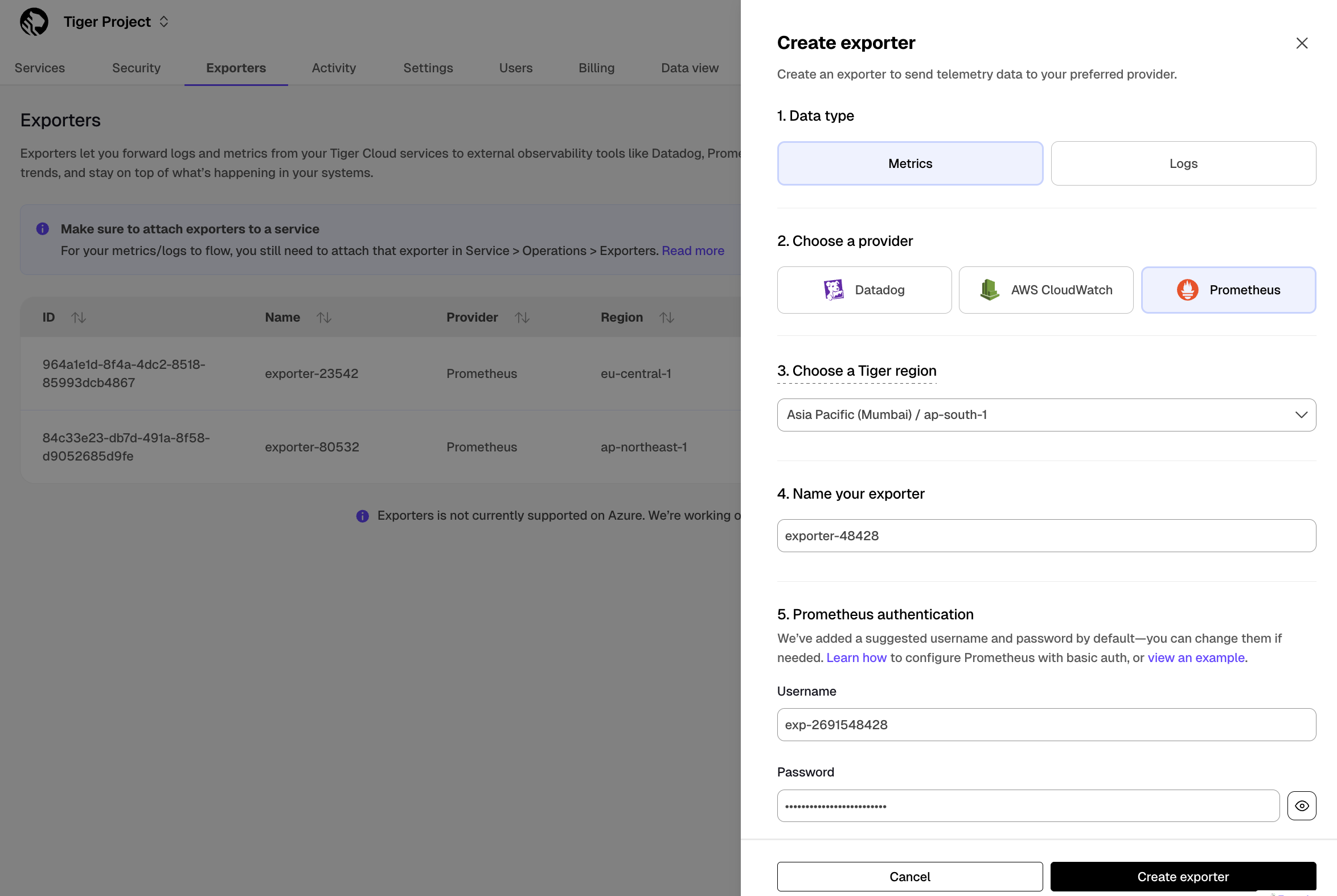
Choose the region for the exporter. Only services in the same project and region can be attached to this exporter.
Name your exporter.
Change the auto-generated Prometheus credentials, if needed. See official documentation on basic authentication in Prometheus.
Attach the exporter to a service
Select a service, then click
Operations>Exporters.Select the exporter in the drop-down, then click
Attach exporter.
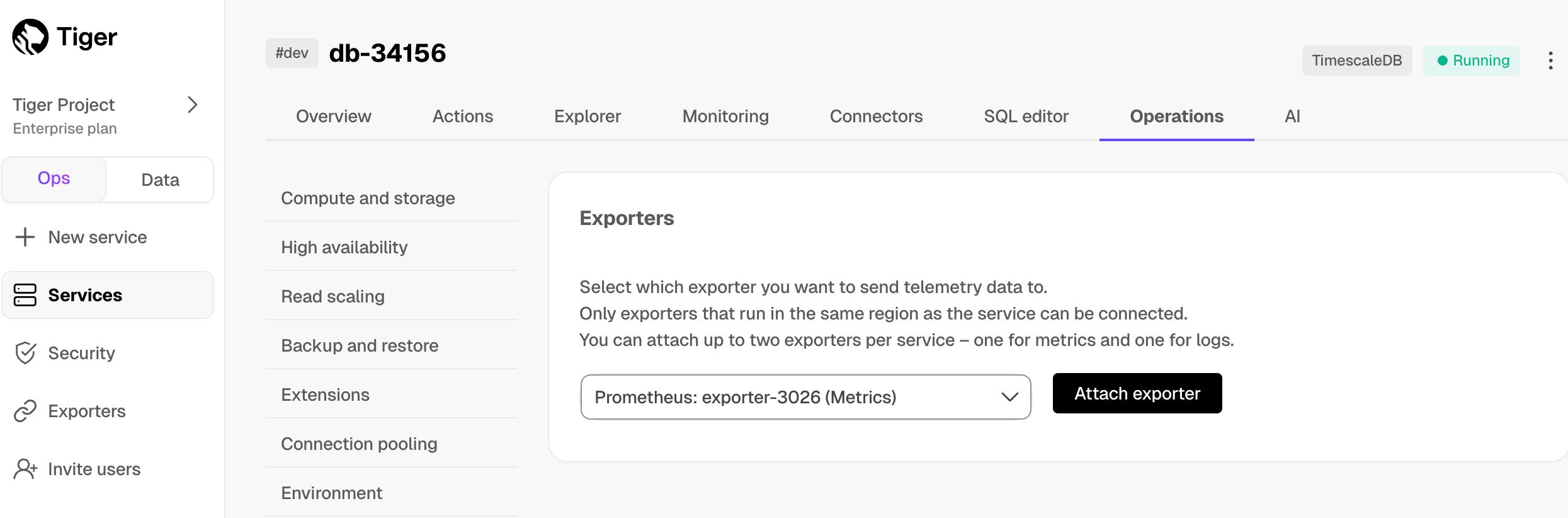
The exporter is now attached to your service. To unattach it, click the trash icon in the exporter list.
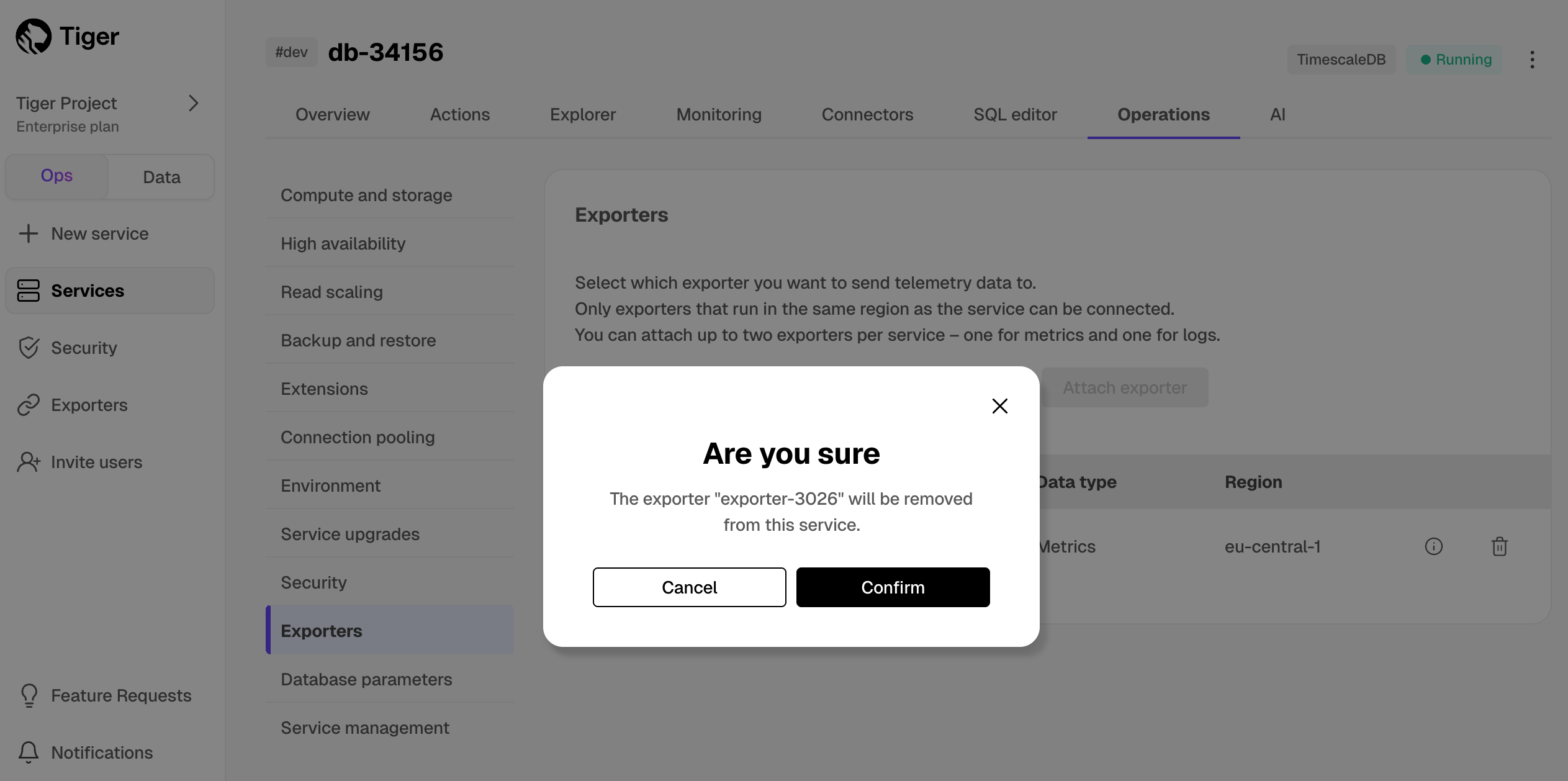
Configure the Prometheus scrape target
Select your service, then click
Operations>Exportersand click the information icon next to the exporter. You see the exporter details.
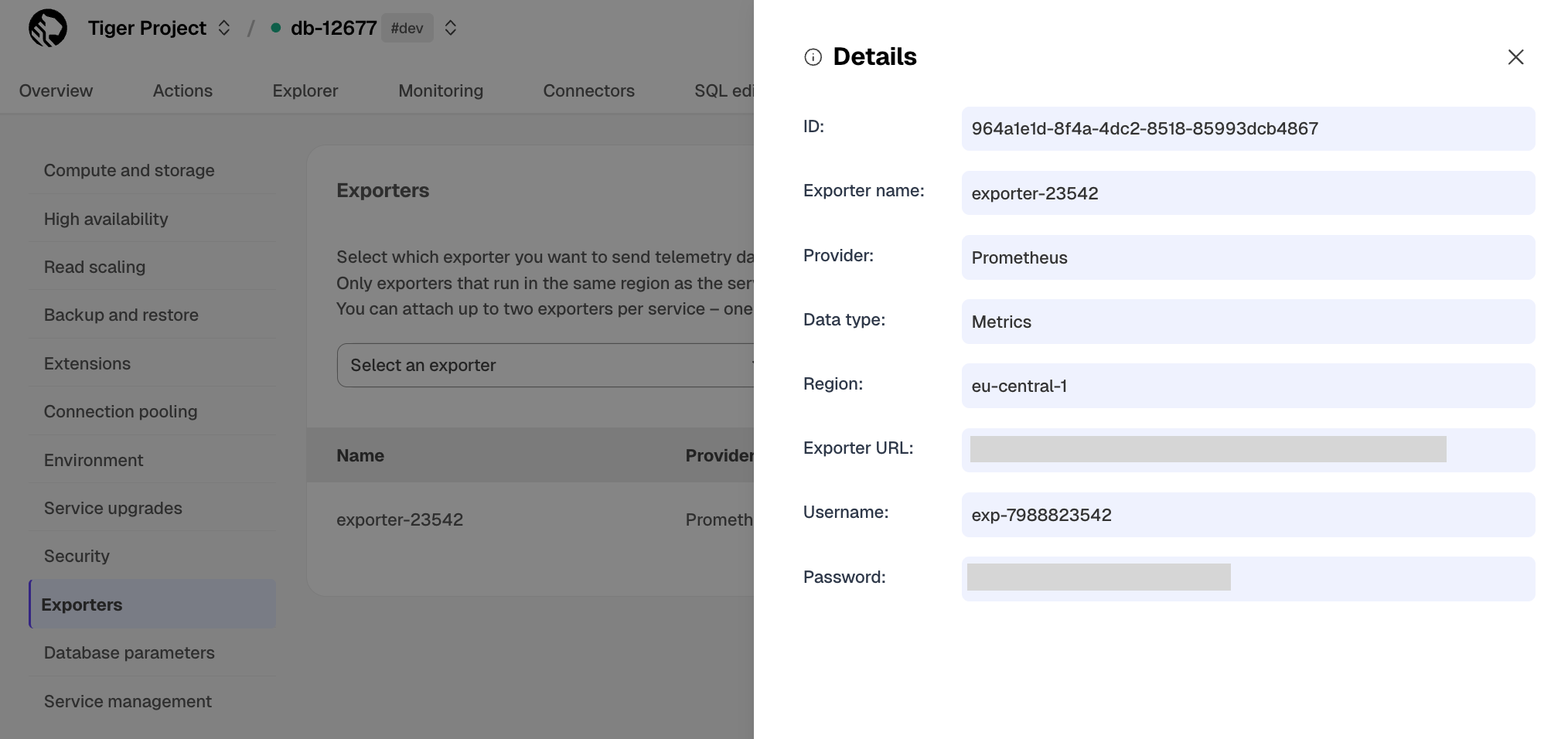
Copy the exporter URL.
In your Prometheus installation, update
prometheus.ymlto point to the exporter URL as a scrape target:
See the Prometheus documentation for details on configuring scrape targets.
You can now monitor your service metrics. Use the following metrics to check the service is running correctly:
timescale.cloud.system.cpu.usage.millicorestimescale.cloud.system.cpu.total.millicorestimescale.cloud.system.memory.usage.bytestimescale.cloud.system.memory.total.bytestimescale.cloud.system.disk.usage.bytestimescale.cloud.system.disk.total.bytes
Additionally, use the following tags to filter your results.
|Tag|Example variable| Description |
|-|-|----------------------------|
|`host`|`us-east-1.timescale.cloud`| |
|`project-id`|| |
|`service-id`|| |
|`region`|`us-east-1`| AWS region |
|`role`|`replica` or `primary`| For service with replicas |
To export metrics from self-hosted TimescaleDB, you import telemetry data about your database to Postgres Exporter, then configure Prometheus to scrape metrics from it. Postgres Exporter exposes metrics that you define, excluding the system metrics.
Create a user to access telemetry data about your database
Connect to your database in
psqlusing your connection details.Create a user named
monitoringwith a secure password:Grant the
pg_read_all_statspermission to themonitoringuser:Import telemetry data about your database to Postgres Exporter
Connect Postgres Exporter to your database:
Use your connection details to import telemetry data about your database. You connect as
the `monitoring` user:
Local installation:
- Docker:
- Check the metrics for your database in the Prometheus format:
Navigate to http://<exporter-host>:9187/metrics.
Configure Prometheus to scrape metrics
In your Prometheus installation, update
prometheus.ymlto point to your Postgres Exporter instance as a scrape target. In the following example, you replace<exporter-host>with the hostname or IP address of the PostgreSQL Exporter.
If prometheus.yml has not been created during installation, create it manually. If you are using Docker, you can
find the IPAddress in `Inspect` > `Networks` for the container running Postgres Exporter.
Restart Prometheus.
Check the Prometheus UI at
http://<prometheus-host>:9090/targetsandhttp://<prometheus-host>:9090/tsdb-status.
You see the Postgres Exporter target and the metrics scraped from it.
You can further visualize your data with Grafana. Use the Grafana Postgres dashboard or create a custom dashboard that suits your needs.
===== PAGE: https://docs.tigerdata.com/_partials/_early_access_11_25/ =====
Early access: October 2025
===== PAGE: https://docs.tigerdata.com/_partials/_devops-cli-service-forks/ =====
To manage development forks:
- Install Tiger CLI
Use the terminal to install the CLI:
Set up API credentials
Log Tiger CLI into your Tiger Data account:
Tiger CLI opens Console in your browser. Log in, then click Authorize.
You can have a maximum of 10 active client credentials. If you get an error, open credentials
and delete an unused credential.
- Select a Tiger Cloud project:
If only one project is associated with your account, this step is not shown.
Where possible, Tiger CLI stores your authentication information in the system keychain/credential manager.
If that fails, the credentials are stored in `~/.config/tiger/credentials` with restricted file permissions (600).
By default, Tiger CLI stores your configuration in `~/.config/tiger/config.yaml`.
- Test your authenticated connection to Tiger Cloud by listing services
This call returns something like:
- No services:
- One or more services:
- Fork the service
By default a fork matches the resource of the parent Tiger Cloud services. For paid plans specify --cpu and/or --memory for dedicated resources.
You see something like:
When you are done, delete your forked service
Use the CLI to request service delete:
Validate the service delete:
You see something like:
===== PAGE: https://docs.tigerdata.com/_partials/_cloud-intro/ =====
Tiger Cloud is the modern Postgres data platform for all your applications. It enhances Postgres to handle time series, events, real-time analytics, and vector search—all in a single database alongside transactional workloads.
You get one system that handles live data ingestion, late and out-of-order updates, and low latency queries, with the performance, reliability, and scalability your app needs. Ideal for IoT, crypto, finance, SaaS, and a myriad other domains, Tiger Cloud allows you to build data-heavy, mission-critical apps while retaining the familiarity and reliability of Postgres.
===== PAGE: https://docs.tigerdata.com/_partials/_add-timescaledb-to-a-database/ =====
- Connect to a database on your Postgres instance
In Postgres, the default user and database are both postgres. To use a
different database, set <database-name> to the name of that database:
Add TimescaleDB to the database
Check that TimescaleDB is installed
You see the list of installed extensions:
Press q to exit the list of extensions.
===== PAGE: https://docs.tigerdata.com/_partials/_cloudtrial_unused/ =====
- Get started at the click of a button
- Get access to advanced cloud features like transparent bottomless object storage
- Don't waste time running high performance, highly available TimescaleDB and Postgres in the cloud
===== PAGE: https://docs.tigerdata.com/_partials/_integration-debezium-self-hosted-config-database/ =====
Configure your self-hosted Postgres deployment
Open
postgresql.conf.
The Postgres configuration files are usually located in:
- Docker:
/home/postgres/pgdata/data/- Linux:
/etc/postgresql/<version>/main/or/var/lib/pgsql/<version>/data/ - MacOS:
/opt/homebrew/var/postgresql@<version>/ - Windows:
C:\Program Files\PostgreSQL\<version>\data\
- Linux:
- Enable logical replication.
Modify the following settings in postgresql.conf:
- Open
pg_hba.confand enable host replication.
To allow replication connections, add the following:
This permission is for the debezium Postgres user running on a local or Docker deployment. For more about replication
permissions, see [Configuring Postgres to allow replication with the Debezium connector host][debezium-replication-permissions].
- Connect to your self-hosted TimescaleDB instance
Use psql.
- Create a Debezium user in Postgres
Create a user with the LOGIN and REPLICATION permissions:
Enable a replication spot for Debezium
Create a table for Debezium to listen to:
Turn the table into a hypertable:
Debezium also works with continuous aggregates.
- Create a publication and enable a replication slot:
===== PAGE: https://docs.tigerdata.com/_partials/_migrate_self_postgres_check_versions/ =====
To see the versions of Postgres and TimescaleDB running in a self-hosted database instance:
- Set your connection string
This variable holds the connection information for the database to upgrade:
- Retrieve the version of Postgres that you are running
Postgres returns something like:
- Retrieve the version of TimescaleDB that you are running
Postgres returns something like:
===== PAGE: https://docs.tigerdata.com/_partials/_create-hypertable-energy/ =====
Optimize time-series data in hypertables
Hypertables are Postgres tables in TimescaleDB that automatically partition your time-series data by time. Time-series data represents the way a system, process, or behavior changes over time. Hypertables enable TimescaleDB to work efficiently with time-series data. Each hypertable is made up of child tables called chunks. Each chunk is assigned a range of time, and only contains data from that range. When you run a query, TimescaleDB identifies the correct chunk and runs the query on it, instead of going through the entire table.
Hypercore is the hybrid row-columnar storage engine in TimescaleDB used by hypertables. Traditional databases force a trade-off between fast inserts (row-based storage) and efficient analytics (columnar storage). Hypercore eliminates this trade-off, allowing real-time analytics without sacrificing transactional capabilities.
Hypercore dynamically stores data in the most efficient format for its lifecycle:
- Row-based storage for recent data: the most recent chunk (and possibly more) is always stored in the rowstore, ensuring fast inserts, updates, and low-latency single record queries. Additionally, row-based storage is used as a writethrough for inserts and updates to columnar storage.
- Columnar storage for analytical performance: chunks are automatically compressed into the columnstore, optimizing storage efficiency and accelerating analytical queries.
Unlike traditional columnar databases, hypercore allows data to be inserted or modified at any stage, making it a flexible solution for both high-ingest transactional workloads and real-time analytics—within a single database.
Because TimescaleDB is 100% Postgres, you can use all the standard Postgres tables, indexes, stored procedures, and other objects alongside your hypertables. This makes creating and working with hypertables similar to standard Postgres.
- To create a hypertable to store the energy consumption data, call CREATE TABLE.
If you are self-hosting TimescaleDB v2.19.3 and below, create a Postgres relational table, then convert it using create_hypertable. You then enable hypercore with a call to ALTER TABLE.
===== PAGE: https://docs.tigerdata.com/_partials/_livesync-limitations/ =====
This works for Postgres databases only as source. TimescaleDB is not yet supported.
The source must be running Postgres 13 or later.
Schema changes must be co-ordinated.
Make compatible changes to the schema in your Tiger Cloud service first, then make the same changes to the source Postgres instance.
- Ensure that the source Postgres instance and the target Tiger Cloud service have the same extensions installed.
The source Postgres connector does not create extensions on the target. If the table uses column types from an extension, first create the extension on the target Tiger Cloud service before syncing the table.
There is WAL volume growth on the source Postgres instance during large table copy.
Continuous aggregate invalidation
The connector uses session_replication_role=replica during data replication,
which prevents table triggers from firing. This includes the internal
triggers that mark continuous aggregates as invalid when underlying data
changes.
If you have continuous aggregates on your target database, they do not automatically refresh for data inserted during the migration. This limitation only applies to data below the continuous aggregate's materialization watermark. For example, backfilled data. New rows synced above the continuous aggregate watermark are used correctly when refreshing.
- Missing data in continuous aggregates for the migration period.
- Stale aggregate data.
- Queries returning incomplete results.
If the continuous aggregate exists in the source database, best
practice is to add it to the Postgres connector publication. If it only exists on the
target database, manually refresh the continuous aggregate using the force
option of refresh_continuous_aggregate.
===== PAGE: https://docs.tigerdata.com/_partials/_financial-industry-data-analysis/ =====
The financial industry is extremely data-heavy and relies on real-time and historical data for decision-making, risk assessment, fraud detection, and market analysis. Tiger Data simplifies management of these large volumes of data, while also providing you with meaningful analytical insights and optimizing storage costs.
===== PAGE: https://docs.tigerdata.com/_partials/_migrate_live_setup_environment_postgres/ =====
Set your connection strings
These variables hold the connection information for the source database and target Tiger Cloud service. In Terminal on your migration machine, set the following:
You find the connection information for your Tiger Cloud service in the configuration file you downloaded when you created the service.
Avoid using connection strings that route through connection poolers like PgBouncer or similar tools. This tool requires a direct connection to the database to function properly.
Align the extensions on the source and target
Ensure that the Tiger Cloud service is running the Postgres extensions used in your source database.
Check the extensions on the source database:
- For each extension, enable it on your target Tiger Cloud service:
Tune your source database
You need admin rights to to update the configuration on your source database. If you are using
a managed service, follow the instructions in the From AWS RDS/Aurora tab on this page.
- Install the
wal2jsonextension on your source database
Install wal2json on your source database.
- Prevent Postgres from treating the data in a snapshot as outdated
This is not applicable if the source database is Postgres 17 or later.
Set the write-Ahead Log (WAL) to record the information needed for logical decoding
Restart the source database
Your configuration changes are now active. However, verify that the settings are live in your database.
- Enable live-migration to replicate
DELETEandUPDATEoperations
Replica identity assists data replication by identifying the rows being modified. Your options are that each table and hypertable in the source database should either have:
- A primary key: data replication defaults to the primary key of the table being replicated. Nothing to do.
- A viable unique index: each table has a unique, non-partial, non-deferrable index that includes only columns
marked as
NOT NULL. If a UNIQUE index does not exist, create one to assist the migration. You can delete if after migration.
For each table, set REPLICA IDENTITY to the viable unique index:
- No primary key or viable unique index: use brute force.
For each table, set REPLICA IDENTITY to FULL:
For each UPDATE or DELETE statement, Postgres reads the whole table to find all matching rows. This results
in significantly slower replication. If you are expecting a large number of UPDATE or DELETE operations on the table,
best practice is to not use FULL.
===== PAGE: https://docs.tigerdata.com/_partials/_migrate_using_postgres_copy/ =====
Restoring data into a Tiger Cloud service with COPY
Connect to your Tiger Cloud service:
Restore the data to your Tiger Cloud service:
Repeat for each table and hypertable you want to migrate.
===== PAGE: https://docs.tigerdata.com/_partials/_services-intro/ =====
A Tiger Cloud service is a single optimised Postgres instance extended with innovations in the database engine and cloud infrastructure to deliver speed without sacrifice. A Tiger Cloud service is 10-1000x faster at scale! It is ideal for applications requiring strong data consistency, complex relationships, and advanced querying capabilities. Get ACID compliance, extensive SQL support, JSON handling, and extensibility through custom functions, data types, and extensions.
Each service is associated with a project in Tiger Cloud. Each project can have multiple services. Each user is a member of one or more projects.
You create free and standard services in Tiger Cloud Console, depending on your pricing plan. A free service comes at zero cost and gives you limited resources to get to know Tiger Cloud. Once you are ready to try out more advanced features, you can switch to a paid plan and convert your free service to a standard one.
The Free pricing plan and services are currently in beta.
To the Postgres you know and love, Tiger Cloud adds the following capabilities:
Standard services:
Real-time analytics: store and query time-series data at scale for real-time analytics and other use cases. Get faster time-based queries with hypertables, continuous aggregates, and columnar storage. Save money by compressing data into the columnstore, moving cold data to low-cost bottomless storage in Amazon S3, and deleting old data with automated policies.
- AI-focused: build AI applications from start to scale. Get fast and accurate similarity search with the pgvector and pgvectorscale extensions.
- Hybrid applications: get a full set of tools to develop applications that combine time-based data and AI.
All standard Tiger Cloud services include the tooling you expect for production and developer environments: live migration, automatic backups and PITR, high availability, read replicas, data forking, connection pooling, tiered storage, usage-based storage, secure in-Tiger Cloud Console SQL editing, service metrics and insights, streamlined maintenance, and much more. Tiger Cloud continuously monitors your services and prevents common Postgres out-of-memory crashes.
Postgres with TimescaleDB and vector extensions
Free services offer limited resources and a basic feature scope, perfect to get to know Tiger Cloud in a development environment.
===== PAGE: https://docs.tigerdata.com/_partials/_mst-intro/ =====
Managed Service for TimescaleDB (MST) is TimescaleDB hosted on Azure and GCP. MST is offered in partnership with Aiven.
===== PAGE: https://docs.tigerdata.com/_partials/_migrate_live_migrate_data/ =====
Migrate your data, then start downtime
- Pull the live-migration docker image to you migration machine
To list the available commands, run:
To see the available flags for each command, run --help for that command. For example:
- Create a snapshot image of your source database in your Tiger Cloud service
This process checks that you have tuned your source database and target service correctly for replication, then creates a snapshot of your data on the migration machine:
Live-migration supplies information about updates you need to make to the source database and target service. For example:
If you have warnings, stop live-migration, make the suggested changes and start again.
- Synchronize data between your source database and your Tiger Cloud service
This command migrates data from the snapshot to your Tiger Cloud service, then streams
transactions from the source to the target.
If the source Postgres version is 17 or later, you need to pass additional
flag -e PGVERSION=17 to the migrate command.
After migrating the schema, live-migration prompts you to create hypertables for tables that
contain time-series data in your Tiger Cloud service. Run create_hypertable() to convert these
table. For more information, see the Hypertable docs.
During this process, you see the migration process:
If migrate stops add --resume to start from where it left off.
Once the data in your target Tiger Cloud service has almost caught up with the source database, you see the following message:
Wait until replay_lag is down to a few kilobytes before you move to the next step. Otherwise, data
replication may not have finished.
Start app downtime
Stop your app writing to the source database, then let the the remaining transactions finish to fully sync with the target. You can use tools like the
pg_topCLI orpg_stat_activityto view the current transaction on the source database.Stop Live-migration.
Live-migration continues the remaining work. This includes copying
TimescaleDB metadata, sequences, and run policies. When the migration completes,
you see the following message:
===== PAGE: https://docs.tigerdata.com/_partials/_hypershift-intro/ =====
You can use hypershift to migrate existing Postgres databases in one step, and enable compression and create hypertables instantly.
Use Hypershift to migrate your data to a Tiger Cloud service from these sources:
- Standard Postgres databases
- Amazon RDS databases
- Other Tiger Data databases, including Managed Service for TimescaleDB and self-hosted TimescaleDB
===== PAGE: https://docs.tigerdata.com/_partials/_import-data-nyc-taxis/ =====
Hypertables are Postgres tables in TimescaleDB that automatically partition your time-series data by time. Time-series data represents the way a system, process, or behavior changes over time. Hypertables enable TimescaleDB to work efficiently with time-series data. Each hypertable is made up of child tables called chunks. Each chunk is assigned a range of time, and only contains data from that range. When you run a query, TimescaleDB identifies the correct chunk and runs the query on it, instead of going through the entire table.
Hypercore is the hybrid row-columnar storage engine in TimescaleDB used by hypertables. Traditional databases force a trade-off between fast inserts (row-based storage) and efficient analytics (columnar storage). Hypercore eliminates this trade-off, allowing real-time analytics without sacrificing transactional capabilities.
Hypercore dynamically stores data in the most efficient format for its lifecycle:
- Row-based storage for recent data: the most recent chunk (and possibly more) is always stored in the rowstore, ensuring fast inserts, updates, and low-latency single record queries. Additionally, row-based storage is used as a writethrough for inserts and updates to columnar storage.
- Columnar storage for analytical performance: chunks are automatically compressed into the columnstore, optimizing storage efficiency and accelerating analytical queries.
Unlike traditional columnar databases, hypercore allows data to be inserted or modified at any stage, making it a flexible solution for both high-ingest transactional workloads and real-time analytics—within a single database.
Because TimescaleDB is 100% Postgres, you can use all the standard Postgres tables, indexes, stored procedures, and other objects alongside your hypertables. This makes creating and working with hypertables similar to standard Postgres.
Import time-series data into a hypertable
Unzip nyc_data.tar.gz to a
<local folder>.
This test dataset contains historical data from New York's yellow taxi network.
To import up to 100GB of data directly from your current Postgres-based database,
[migrate with downtime][migrate-with-downtime] using native Postgres tooling. To seamlessly import 100GB-10TB+
of data, use the [live migration][migrate-live] tooling supplied by Tiger Data. To add data from non-Postgres
data sources, see [Import and ingest data][data-ingest].
In Terminal, navigate to
<local folder>and update the following string with your connection details to connect to your service.Create an optimized hypertable for your time-series data:
Create a hypertable with hypercore enabled by default for your
time-series data using [CREATE TABLE][hypertable-create-table]. For [efficient queries][secondary-indexes] on data in the columnstore, remember to `segmentby` the column you will use most often to filter your data.
In your sql client, run the following command:
If you are self-hosting TimescaleDB v2.19.3 and below, create a Postgres relational table, then convert it using create_hypertable. You then enable hypercore with a call to ALTER TABLE.
Add another dimension to partition your hypertable more efficiently:
Create an index to support efficient queries by vendor, rate code, and passenger count:
Create Postgres tables for relational data:
Add a table to store the payment types data:
Add a table to store the rates data:
Upload the dataset to your service
Have a quick look at your data
You query hypertables in exactly the same way as you would a relational Postgres table.
Use one of the following SQL editors to run a query and see the data you uploaded:
- **Data mode**: write queries, visualize data, and share your results in [Tiger Cloud Console][portal-data-mode] for all your Tiger Cloud services.
- **SQL editor**: write, fix, and organize SQL faster and more accurately in [Tiger Cloud Console][portal-ops-mode] for a Tiger Cloud service.
- **psql**: easily run queries on your Tiger Cloud services or self-hosted TimescaleDB deployment from Terminal.
For example:
- Display the number of rides for each fare type:
This simple query runs in 3 seconds. You see something like:
| rate_code | num_trips |
|-----------------|-----------|
|1 | 2266401|
|2 | 54832|
|3 | 4126|
|4 | 967|
|5 | 7193|
|6 | 17|
|99 | 42|
To select all rides taken in the first week of January 2016, and return the total number of trips taken for each rate code:
On this large amount of data, this analytical query on data in the rowstore takes about 59 seconds. You see something like:
| description | num_trips |
|-----------------|-----------|
| group ride | 17 |
| JFK | 54832 |
| Nassau or Westchester | 967 |
| negotiated fare | 7193 |
| Newark | 4126 |
| standard rate | 2266401 |
===== PAGE: https://docs.tigerdata.com/_partials/_create-hypertable-twelvedata-stocks/ =====
Optimize time-series data in hypertables
Hypertables are Postgres tables in TimescaleDB that automatically partition your time-series data by time. Time-series data represents the way a system, process, or behavior changes over time. Hypertables enable TimescaleDB to work efficiently with time-series data. Each hypertable is made up of child tables called chunks. Each chunk is assigned a range of time, and only contains data from that range. When you run a query, TimescaleDB identifies the correct chunk and runs the query on it, instead of going through the entire table.
Hypercore is the hybrid row-columnar storage engine in TimescaleDB used by hypertables. Traditional databases force a trade-off between fast inserts (row-based storage) and efficient analytics (columnar storage). Hypercore eliminates this trade-off, allowing real-time analytics without sacrificing transactional capabilities.
Hypercore dynamically stores data in the most efficient format for its lifecycle:
- Row-based storage for recent data: the most recent chunk (and possibly more) is always stored in the rowstore, ensuring fast inserts, updates, and low-latency single record queries. Additionally, row-based storage is used as a writethrough for inserts and updates to columnar storage.
- Columnar storage for analytical performance: chunks are automatically compressed into the columnstore, optimizing storage efficiency and accelerating analytical queries.
Unlike traditional columnar databases, hypercore allows data to be inserted or modified at any stage, making it a flexible solution for both high-ingest transactional workloads and real-time analytics—within a single database.
Because TimescaleDB is 100% Postgres, you can use all the standard Postgres tables, indexes, stored procedures, and other objects alongside your hypertables. This makes creating and working with hypertables similar to standard Postgres.
- Connect to your Tiger Cloud service
In Tiger Cloud Console open an SQL editor. You can also connect to your service using psql.
- Create a hypertable to store the real-time stock data
If you are self-hosting TimescaleDB v2.19.3 and below, create a Postgres relational table, then convert it using create_hypertable. You then enable hypercore with a call to ALTER TABLE.
- Create an index to support efficient queries
Index on the symbol and time columns:
Create standard Postgres tables for relational data
When you have other relational data that enhances your time-series data, you can
create standard Postgres tables just as you would normally. For this dataset,
there is one other table of data called company.
- Add a table to store the company data
You now have two tables in your Tiger Cloud service. One hypertable
named stocks_real_time, and one regular Postgres table named company.
===== PAGE: https://docs.tigerdata.com/_partials/_tiered-storage-billing/ =====
For low-cost storage, Tiger Data charges only for the size of your data in S3 in the Apache Parquet format, regardless of whether it was compressed in Tiger Cloud before tiering. There are no additional expenses, such as data transfer or compute.
===== PAGE: https://docs.tigerdata.com/_partials/_create-hypertable-blockchain/ =====
Optimize time-series data using hypertables
Hypertables are Postgres tables in TimescaleDB that automatically partition your time-series data by time. Time-series data represents the way a system, process, or behavior changes over time. Hypertables enable TimescaleDB to work efficiently with time-series data. Each hypertable is made up of child tables called chunks. Each chunk is assigned a range of time, and only contains data from that range. When you run a query, TimescaleDB identifies the correct chunk and runs the query on it, instead of going through the entire table.
Hypercore is the hybrid row-columnar storage engine in TimescaleDB used by hypertables. Traditional databases force a trade-off between fast inserts (row-based storage) and efficient analytics (columnar storage). Hypercore eliminates this trade-off, allowing real-time analytics without sacrificing transactional capabilities.
Hypercore dynamically stores data in the most efficient format for its lifecycle:
- Row-based storage for recent data: the most recent chunk (and possibly more) is always stored in the rowstore, ensuring fast inserts, updates, and low-latency single record queries. Additionally, row-based storage is used as a writethrough for inserts and updates to columnar storage.
- Columnar storage for analytical performance: chunks are automatically compressed into the columnstore, optimizing storage efficiency and accelerating analytical queries.
Unlike traditional columnar databases, hypercore allows data to be inserted or modified at any stage, making it a flexible solution for both high-ingest transactional workloads and real-time analytics—within a single database.
Because TimescaleDB is 100% Postgres, you can use all the standard Postgres tables, indexes, stored procedures, and other objects alongside your hypertables. This makes creating and working with hypertables similar to standard Postgres.
- Connect to your Tiger Cloud service
In Tiger Cloud Console open an SQL editor. The in-Console editors display the query speed. You can also connect to your service using psql.
- Create a hypertable for your time-series data using CREATE TABLE.
For efficient queries on data in the columnstore, remember to
segmentbythe column you will use most often to filter your data:
If you are self-hosting TimescaleDB v2.19.3 and below, create a Postgres relational table, then convert it using create_hypertable. You then enable hypercore with a call to ALTER TABLE.
Create an index on the
hashcolumn to make queries for individual transactions faster:Create an index on the
block_idcolumn to make block-level queries faster:
When you create a hypertable, it is partitioned on the time column. TimescaleDB automatically creates an index on the time column. However, you'll often filter your time-series data on other columns as well. You use indexes to improve query performance.
- Create a unique index on the
timeandhashcolumns to make sure you don't accidentally insert duplicate records:
===== PAGE: https://docs.tigerdata.com/_partials/_migrate_live_run_cleanup/ =====
- Validate the migrated data
The contents of both databases should be the same. To check this you could compare the number of rows, or an aggregate of columns. However, the best validation method depends on your app.
- Stop app downtime
Once you are confident that your data is successfully replicated, configure your apps to use your Tiger Cloud service.
- Cleanup resources associated with live-migration from your migration machine
This command removes all resources and temporary files used in the migration process. When you run this command, you can no longer resume live-migration.
===== PAGE: https://docs.tigerdata.com/_partials/_timescale-cloud-services/ =====
Tiger Cloud services run optimized Tiger Data extensions on latest Postgres, in a highly secure cloud environment. Each service is a specialized database instance tuned for your workload. Available capabilities are:
<tr>
<th>Capability</th>
<th>Extensions</th>
</tr>
</thead>
<tbody>
<tr>
<td><strong>Real-time analytics</strong> <p>Lightning-fast ingest and querying of time-based and event data.</p></td>
<td><ul><li>TimescaleDB</li><li>TimescaleDB Toolkit</li></ul> </td>
</tr>
<tr>
<td ><strong>AI and vector </strong><p>Seamlessly build RAG, search, and AI agents.</p></td>
<td><ul><li>TimescaleDB</li><li>pgvector</li><li>pgvectorscale</li><li>pgai</li></ul></td>
</tr>
<tr>
<td ><strong>Hybrid</strong><p>Everything for real-time analytics and AI workloads, combined.</p></td>
<td><ul><li>TimescaleDB</li><li>TimescaleDB Toolkit</li><li>pgvector</li><li>pgvectorscale</li><li>pgai</li></ul></td>
</tr>
<tr>
<td ><strong>Support</strong></td>
<td><ul><li>24/7 support no matter where you are.</li><li> Continuous incremental backup/recovery. </li><li>Point-in-time forking/branching.</li><li>Zero-downtime upgrades. </li><li>Multi-AZ high availability. </li><li>An experienced global ops and support team that can build and manage Postgres at scale.</li></ul></td>
</tr>
</tbody>
===== PAGE: https://docs.tigerdata.com/_partials/_migrate_set_up_source_and_target/ =====
For the sake of convenience, connection strings to the source and target
databases are referred to as source and target throughout this guide.
This can be set in your shell, for example:
===== PAGE: https://docs.tigerdata.com/_partials/_start-coding-ruby/ =====
Examples:
Example 1 (bash):
pg_dumpall -d "source" \
--quote-all-identifiers \
--roles-only \
--no-role-passwords \
--file=roles.sql
Example 2 (bash):
sed -i -E \
-e '/CREATE ROLE "postgres";/d' \
-e '/ALTER ROLE "postgres"/d' \
-e '/CREATE ROLE "rds/d' \
-e '/ALTER ROLE "rds/d' \
-e '/TO "rds/d' \
-e '/GRANT "rds/d' \
-e 's/(NO)*SUPERUSER//g' \
-e 's/(NO)*REPLICATION//g' \
-e 's/(NO)*BYPASSRLS//g' \
-e 's/GRANTED BY "[^"]*"//g' \
roles.sql
Example 3 (bash):
psql target -c "SELECT extversion FROM pg_extension WHERE extname = 'timescaledb';"
Example 4 (bash):
psql source -c "ALTER EXTENSION timescaledb UPDATE TO '<version here>';"
Integrate Managed Service for TimescaleDB as a data source in Grafana
URL: llms-txt#integrate-managed-service-for-timescaledb-as-a-data-source-in-grafana
Contents:
- Prerequisites
- Configure Managed Service for TimescaleDB as a data source
- Configuring Managed Service for TimescaleDB as a data source
You can integrate Managed Service for TimescaleDB with Grafana to visualize your data. Grafana service in MST has built-in Prometheus, Postgres, Jaeger, and other data source plugins that allow you to query and visualize data from a compatible database.
Before you begin, make sure you have:
- Created a service
- Created a Grafana service
Configure Managed Service for TimescaleDB as a data source
You can configure a service as a data source to a Grafana service to query and visualize the data from the database.
Configuring Managed Service for TimescaleDB as a data source
- In MST Console, click the service that you want to add as a data source for the Grafana service.
- In the
Overviewtab for the service go to theService Integrationssection. - Click the
Set up integrationbutton. - In the
Available service integrations for TimescaleDBdialog, click theUse Integrationbutton forDatasource. - In the dialog that appears, choose the Grafana service in the drop-down menu,
and click the
Enablebutton. - In the
Servicesview, click the Grafana service to which you added the MST service as a data source. - In the
Overviewtab for the Grafana service, make a note of theUserandPasswordfields. - In the
Overviewtab for the Grafana service, click the link in theService URIfield to open Grafana. - Log in to Grafana with your service credentials.
- Navigate to
Configuration→Data sources. The data sources page lists Managed Service for TimescaleDB as a configured data source for the Grafana instance.
When you have configured Managed Service for TimescaleDB as a data source in Grafana, you can create panels that are populated with data using SQL.
===== PAGE: https://docs.tigerdata.com/mst/integrations/google-data-studio-mst/ =====
Read scaling
URL: llms-txt#read-scaling
Contents:
- What is read replication?
- Prerequisites
- Create a read replica set
- Edit a read replica set
- Manage data lag for your read replica sets
- Delete a read replica set
When read-intensive workloads compete with high ingest rates, your primary data instance can become a bottleneck. Spiky query traffic, analytical dashboards, and business intelligence tools risk slowing down ingest performance and disrupting critical write operations.
With read replica sets in Tiger Cloud, you can scale reads horizontally and keep your applications responsive. By offloading queries to replicas, your service maintains high ingest throughput while serving large or unpredictable read traffic with ease. This approach not only protects write performance but also gives you confidence that your read-heavy apps and BI workloads will run smoothly—even under pressure.
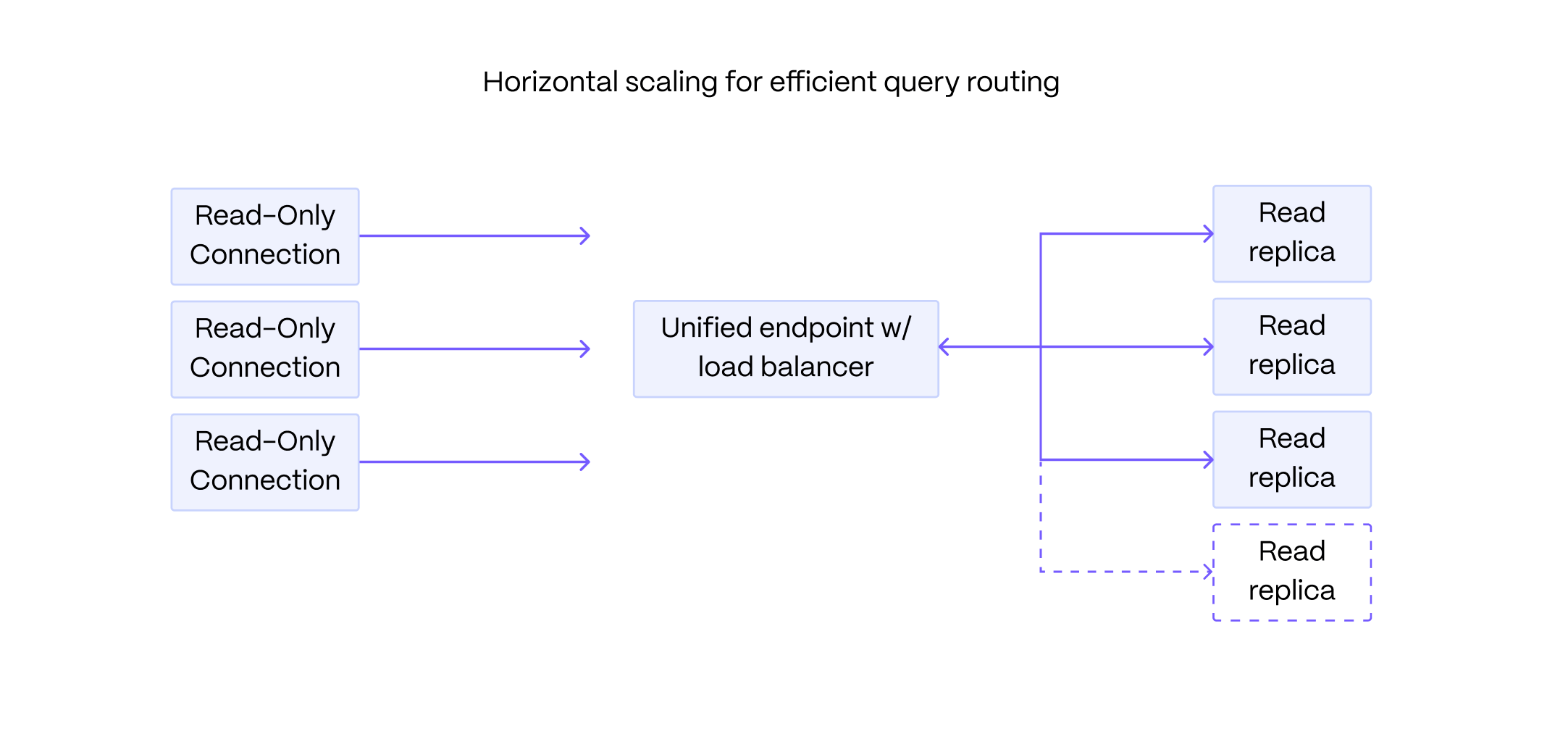
This page shows you how to create and manage read replica sets in Tiger Cloud Console.
What is read replication?
A read replica is a read-only copy of your primary database instance. Queries on read replicas have minimal impact on the performance of the primary instance. This enables you to interact with up-to-date production data for analysis, or to scale out reads beyond the limits of your primary instance. Read replicas can be short-lived and deleted when a session of data analysis is complete, or long-running to power an application or a business intelligence tool.
A read replica set in Tiger Cloud is a group of one or more read replica nodes that are accessed through the same endpoint. You query each set as a single replica. Tiger Cloud balances the load between the nodes in the set for you.
You can create as many read replica sets as you need. For security and resource isolation, each read replica set has unique connection details.
You use read replica sets for horizontal read scaling. To limit data loss for your Tiger Cloud services, use high-availability replicas.
To follow this procedure:
- Create a target Tiger Cloud service.
- Create a read-only user on the primary data instance.
A user with read-only permissions cannot make changes in the primary database. This user is propagated to the read replica set when you create it.
Create a read replica set
To create a secure read replica set for your read-intensive apps:
In Tiger Cloud Console, select your target service
Click
Operations>Read scaling>Add a read replica setConfigure your replica set
Configure the number of nodes, compute size, connection pooling, and the name for your replica, then click Create read replica set.
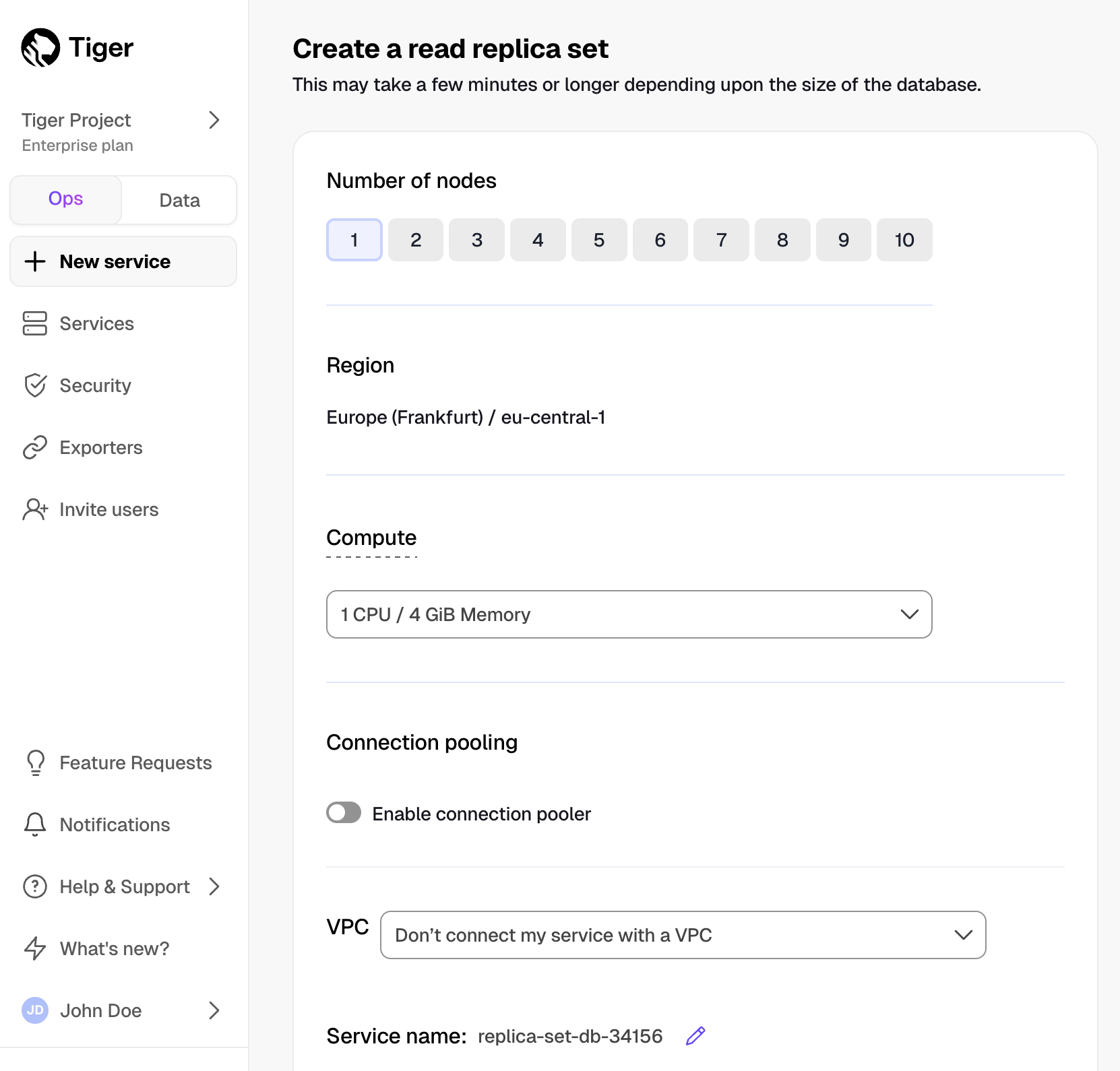
- Save the connection information
The username and password of a read replica set are the same as the primary service. They cannot be changed independently.
The connection information for each read replica set is unique. You can add or remove nodes from an existing set and the connection information of that set will remain the same. To find the connection information for an existing read replica set:
Select the primary service in Tiger Cloud Console.
Click
Operations>Read scaling.Click the 🔗 icon next to the replica set in the list.
Edit a read replica set
You can edit an existing read replica set to better handle your reads. This includes changing the number of nodes, compute size, storage, and IOPS, as well as configuring VPC and other features.
To change the compute and storage configuration of your read replica set:
- In Tiger Cloud Console, expand and click the read replica set under your primary service
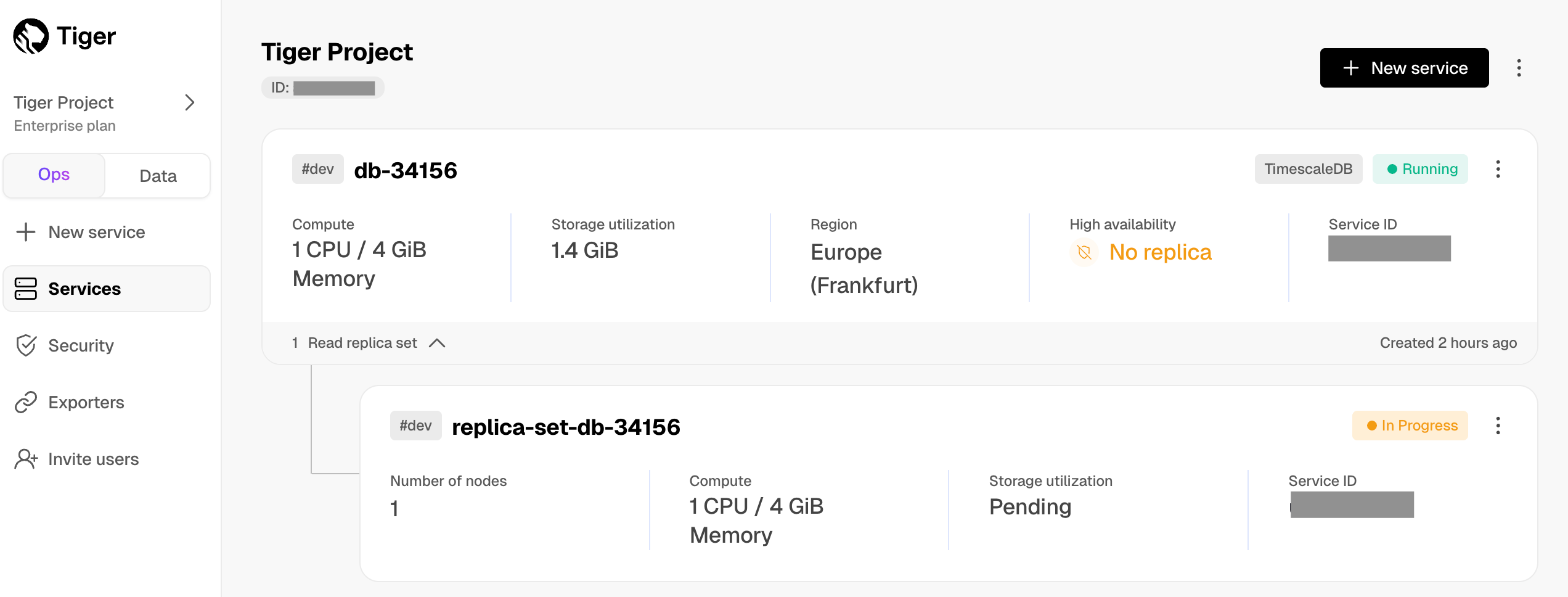
- Click
Operations>Compute and storage
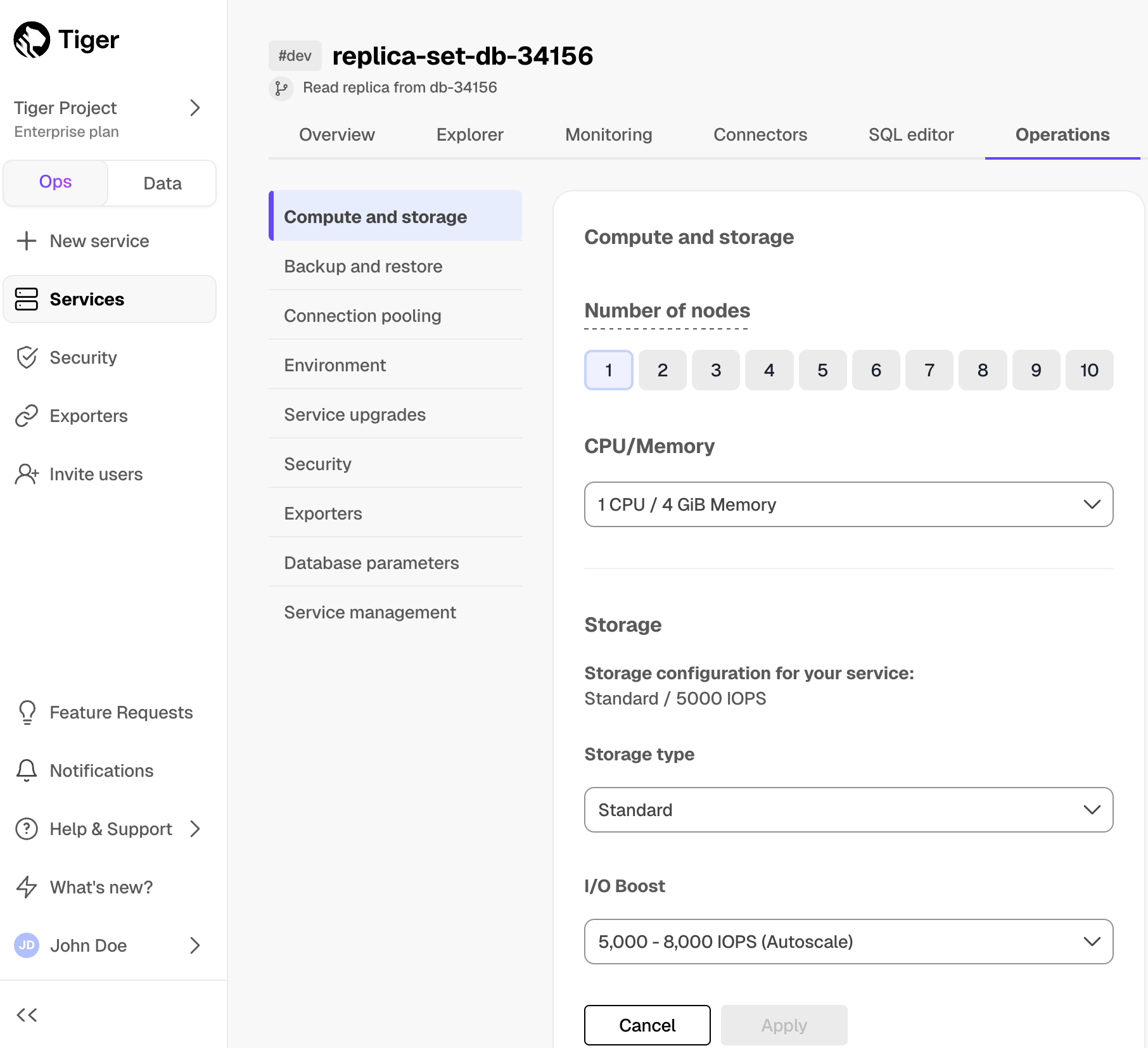
- Change the replica configuration and click
Apply
Manage data lag for your read replica sets
Read replica sets use asynchronous replication. This can cause a slight lag in data to the primary database instance. The lag is measured in bytes, against the current state of the primary instance. To check the status and lag for your read replica set:
In Tiger Cloud Console, select your primary service
Click
Operations>Read scaling
You see a list of configured read replica sets for this service, including their status and lag:
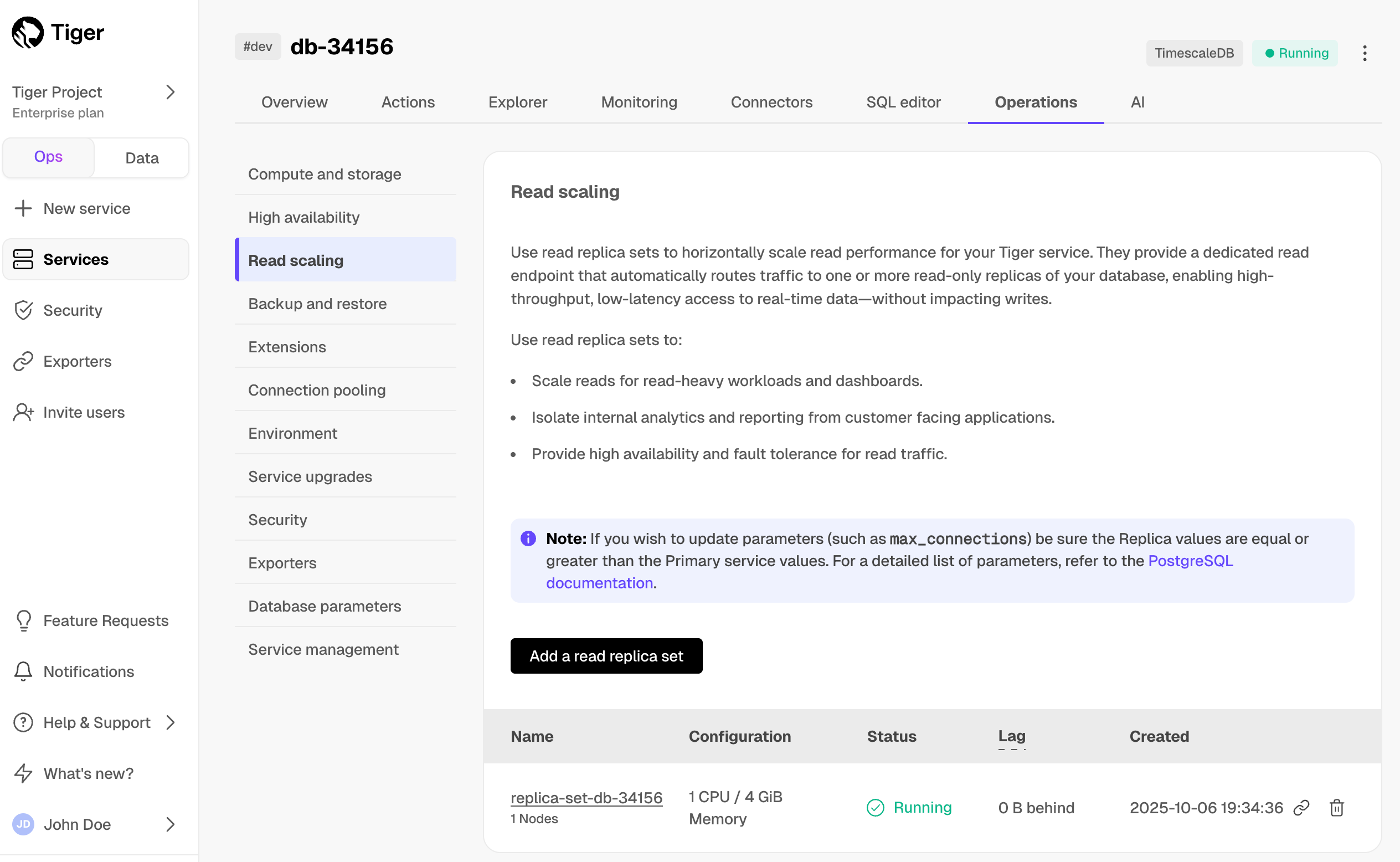
Configure the allowable lag
Select the replica set in the list.
- Click
Operations>Database parameters. - Adjust
max_standby_streaming_delayandmax_standby_archive_delay.
- Click
This is not recommended for cases where changes must be immediately represented, for example, for user credentials.
Delete a read replica set
To delete a replica set:
In Tiger Cloud Console, select your primary service
Click
Operations>Read scalingClick the trash icon next to a replica set
Confirm the deletion when prompted.
===== PAGE: https://docs.tigerdata.com/use-timescale/ha-replicas/high-availability/ =====
Ingest data using Telegraf
URL: llms-txt#ingest-data-using-telegraf
Contents:
- Prerequisites
- Link Telegraf to your service
- View the metrics collected by Telegraf
Telegraf is a server-based agent that collects and sends metrics and events from databases, systems, and IoT sensors. Telegraf is an open source, plugin-driven tool for the collection and output of data.
To view metrics gathered by Telegraf and stored in a hypertable in a Tiger Cloud service.
- Link Telegraf to your Tiger Cloud service: create a Telegraf configuration
- View the metrics collected by Telegraf: connect to your service and query the metrics table
Best practice is to use an Ubuntu EC2 instance hosted in the same region as your Tiger Cloud service as a migration machine. That is, the machine you run the commands on to move your data from your source database to your target Tiger Cloud service.
Before you migrate your data:
- Create a target Tiger Cloud service.
Each Tiger Cloud service has a single database that supports the most popular extensions. Tiger Cloud services do not support tablespaces, and there is no superuser associated with a service. Best practice is to create a Tiger Cloud service with at least 8 CPUs for a smoother experience. A higher-spec instance can significantly reduce the overall migration window.
To ensure that maintenance does not run during the process, adjust the maintenance window.
Link Telegraf to your service
To create a Telegraf configuration that exports data to a hypertable in your service:
- Set up your service connection string
This variable holds the connection information for the target Tiger Cloud service.
In the terminal on the source machine, set the following:
See where to find your connection details.
- Generate a Telegraf configuration file
In Terminal, run the following:
telegraf.conf configures a CPU input plugin that samples
various metrics about CPU usage, and the Postgres output plugin. `telegraf.conf`
also includes all available input, output, processor, and aggregator
plugins. These are commented out by default.
- Test the configuration
You see an output similar to the following:
Configure the Postgres output plugin
In
telegraf.conf, in the[[outputs.postgresql]]section, setconnectionto the value of target.Use hypertables when Telegraf creates a new table:
In the section that begins with the comment `## Templated statements to execute
when creating a new table`, add the following template:
The by_range dimension builder was added to TimescaleDB 2.13.
View the metrics collected by Telegraf
This section shows you how to generate system metrics using Telegraf, then connect to your service and query the metrics hypertable.
- Collect system metrics using Telegraf
Run the following command for a 30 seconds:
Telegraf uses loaded inputs cpu and outputs postgresql along with
`global tags`, the intervals when the agent collects data from the inputs, and
flushes to the outputs.
View the metrics
Connect to your Tiger Cloud service:
View the metrics collected in the
cputable intsdb:
You see something like:
To view the average usage per CPU core, use SELECT cpu, avg(usage_user) FROM cpu GROUP BY cpu;.
For more information about the options that you can configure in Telegraf, see the PostgreQL output plugin.
===== PAGE: https://docs.tigerdata.com/integrations/supabase/ =====
Examples:
Example 1 (bash):
export TARGET=postgres://tsdbadmin:<PASSWORD>@<HOST>:<PORT>/tsdb?sslmode=require
Example 2 (bash):
telegraf --input-filter=cpu --output-filter=postgresql config > telegraf.conf
Example 3 (bash):
telegraf --config telegraf.conf --test
Example 4 (bash):
2022-11-28T12:53:44Z I! Starting Telegraf 1.24.3
2022-11-28T12:53:44Z I! Available plugins: 208 inputs, 9 aggregators, 26 processors, 20 parsers, 57 outputs
2022-11-28T12:53:44Z I! Loaded inputs: cpu
2022-11-28T12:53:44Z I! Loaded aggregators:
2022-11-28T12:53:44Z I! Loaded processors:
2022-11-28T12:53:44Z W! Outputs are not used in testing mode!
2022-11-28T12:53:44Z I! Tags enabled: host=localhost
> cpu,cpu=cpu0,host=localhost usage_guest=0,usage_guest_nice=0,usage_idle=90.00000000087311,usage_iowait=0,usage_irq=0,usage_nice=0,usage_softirq=0,usage_steal=0,usage_system=6.000000000040018,usage_user=3.999999999996362 1669640025000000000
> cpu,cpu=cpu1,host=localhost usage_guest=0,usage_guest_nice=0,usage_idle=92.15686274495818,usage_iowait=0,usage_irq=0,usage_nice=0,usage_softirq=0,usage_steal=0,usage_system=5.882352941192206,usage_user=1.9607843136712912 1669640025000000000
> cpu,cpu=cpu2,host=localhost usage_guest=0,usage_guest_nice=0,usage_idle=91.99999999982538,usage_iowait=0,usage_irq=0,usage_nice=0,usage_softirq=0,usage_steal=0,usage_system=3.999999999996362,usage_user=3.999999999996362 1669640025000000000
Connection pools
URL: llms-txt#connection-pools
Contents:
- Connection pooling modes
- Transaction pooling mode
- Session pooling mode
- Statement pooling mode
- Set up a connection pool
- Setting up a connection pool
When you connect to your database, you consume server resources. If you have a lot of connections to your database, you can consume a lot of server resources. One way to mitigate this is to use connection pooling, which allows you to have high numbers of connections, but keep your server resource use low. The more client connections you have to your database, the more useful connection pooling becomes.
By default, Postgres creates a separate backend process for each connection to the server. Connection pooling uses a tool called PGBouncer to pool multiple connections to a single backend process. PGBouncer automatically interleaves the client queries to use a limited number of backend connections more efficiently, leading to lower resource use on the server and better total performance.
Without connection pooling, the database connections are handled directly by
Postgres backend processes, one process per connection:
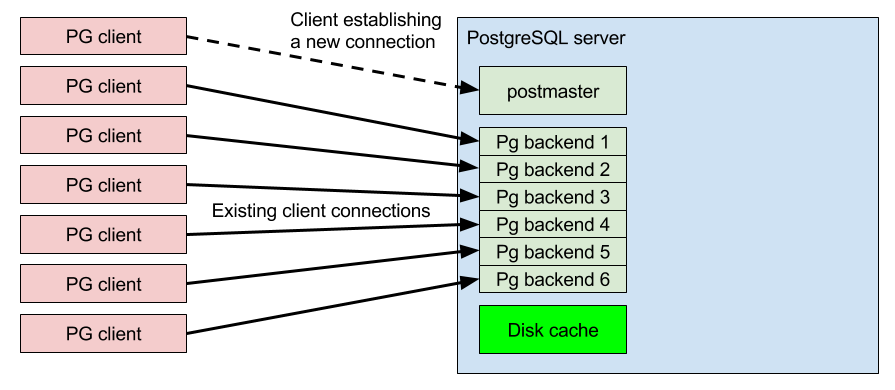
When you add connection pooling, fewer backend connections are required. This
frees up server resources for other tasks, such as disk caching:
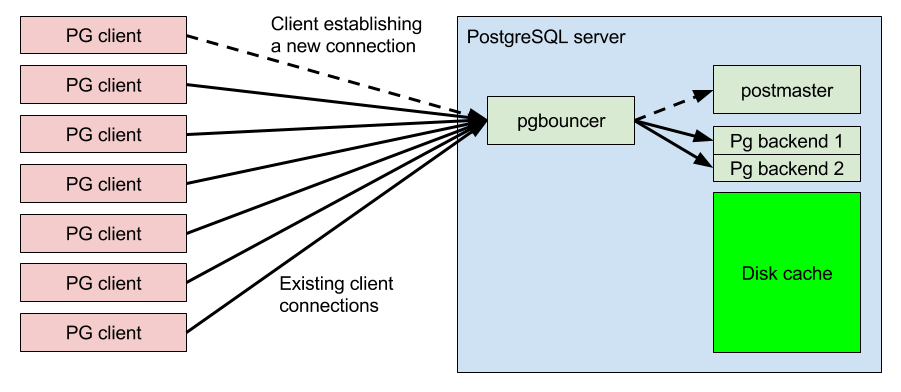
Connection pooling allows you to handle up to 5000 database client connections simultaneously. You can calculate how many connections you can handle by the number of CPU cores you have available. You should have at least one connection per core, but make sure you are not overloading each core. A good number of connections to aim for is three to five times the available CPU cores, depending on your workload.
Connection pooling modes
There are several different pool modes:
- Transaction (default)
- Session
- Statement
Transaction pooling mode
This is the default pooling mode. It allows each client connection to take turns using a backend connection during a single transaction. When the transaction is committed, the backend connection is returned back into the pool and the next waiting client connection reuses the same connection immediately. This provides quick response times for queries as long as the most transactions are performed quickly. This is the most commonly used mode.
Session pooling mode
This mode holds a client connection until the client disconnects. When the client disconnects, the server connection is returned back into the connection pool free connection list, to wait for the next client connection. Client connections are accepted at TCP level, but their queries only proceed when another client disconnects and frees up the backend connection back into the pool. This mode is useful when you require a wait queue for incoming connections, while keeping the server memory usage low. However, it is not useful in most common scenarios because the backend connections are recycled very slowly.
Statement pooling mode
This mode is similar to the transaction pool mode, except that instead of allowing a full transaction to be run, it cycles the server side connections after each and every database statement (SELECT, INSERT, UPDATE, DELETE, for example). Transactions containing multiple SQL statements are not allowed in this mode. This mode is best suited to specialized workloads that use sharding front-end proxies.
Set up a connection pool
You can set up a connection pool from the MST Console. Make sure you have already created a service that you want to add connection pooling to.
Setting up a connection pool
- In MST Console, navigate to the
Serviceslist, and click the name of the service you want to add connection pooling to. - In the
Service overviewpage, navigate to thePoolstab. When you have created some pools, they are shown here. - Click
Add Poolto create a new pool. - In the
Create New Connection Pooldialog, use these settings:- In the
Pool namefield, type a name for your new pool. This name becomes the databasedbnameconnection parameter for your pooled client connectons. - In the
Databasefield, select a database to connect to. Each pool can only connect to one database. - In the
Pool Modefield, select which pool mode to use. - In the
Pool Sizefield, select the maximum number of server connections this pool can use at any one time. - In the
Usernamefield, select which database username to connect to the database with.
- In the
- Click
Createto create the pool, and see the details of the new pool in the list. You can clickInfonext to the pool details to see more information, including the URI and port details.
Pooled servers use a different port number than regular servers. This allows you to use both pooled and un-pooled connections at the same time.
===== PAGE: https://docs.tigerdata.com/mst/viewing-service-logs/ =====
About querying data
URL: llms-txt#about-querying-data
Querying data in TimescaleDB works just like querying data in Postgres. You can reuse your existing queries if you're moving from another Postgres database.
TimescaleDB also provides some additional features to help with data analysis:
- Use PopSQL to work on data with centralized SQL queries, interactive visuals and real-time collaboration
- The
SkipScanfeature speeds upDISTINCTqueries - Hyperfunctions improve the experience of writing many data analysis queries
- Function pipelines bring functional programming to SQL queries, making it easier to perform consecutive transformations of data
===== PAGE: https://docs.tigerdata.com/use-timescale/query-data/select/ =====
Connection pooling
URL: llms-txt#connection-pooling
Contents:
- User authentication
- Creating a new user with custom settings
- Pool types
- Connection pool sizes
- Add a connection pooler
- Adding a connection pooler
- Remove a connection pooler
- pgBouncer statistics commands
- VPC and connection pooling
You can scale your Tiger Cloud service connections and improve its performance by
using connection poolers. Tiger Cloud uses pgBouncer for connection pooling.
If your service needs a large number of short-lived connections, a connection pooler is a great way to improve performance. For example, web, serverless, and IoT applications often use an event-based architecture where data is read or written from the database for a very short amount of time.
Your application rapidly opens and closes connections while the pooler maintains a set of long-running connections to the service. This improves performance because the pooler opens the connections in advance, allowing the application to open many short-lived connections, while the service opens few, long-lived connections.
User authentication
By default, the poolers have authentication to the service, so you can use any
custom users you already have set up without further configuration. You can
continue using the tsdbadmin user if that is your preferred method. However,
you might need to add custom configurations for some cases such as
statement_timeout for a pooler user.
Creating a new user with custom settings
Connect to your service as the
tsdbadminuser, and create a new role named<MY_APP>with the password as<PASSWORD>:Change the
statement_timeoutsettings to 2 seconds for this user:In a new terminal window, connect on the pooler with the new user
<MY_APP>:
The output looks something like this:
<CodeBlock canCopy={false}
showLineNumbers={true}
children={`
psql (15.3 (Homebrew), server 15.4 (Ubuntu 15.4-1.pgdg22.04+1))
SSL connection (protocol: TLSv1.3, cipher: TLS_AES_256_GCM_SHA384, compression: off)
Type "help" for help.
`} />
- Check that the settings are correct by logging in as the
<MY_APP>user:
Check the statement_timeout setting is correct for the <MY_APP> user:
When you create a connection pooler, there are two pool types to choose from: session or transaction. Each pool type uses a different mode to handle connections.
Session pools allocate a connection from the pool until they are closed by the application, similar to a regular Postgres connection. When the application closes the connection, it is sent back to the pool.
Transaction pool connections are allocated only for the duration of the transaction, releasing the connection back to the pool when the transaction ends. If your application opens and closes connections frequently, choose the transaction pool type.
By default, the pooler supports both modes simultaneously. However, the connection string you use to connect your application is different, depending on whether you want a session or transaction pool type. When you create a connection pool in the Tiger Cloud Console, you are given the correct connection string for the mode you choose.
For example, a connection string to connect directly to your service looks a bit like this:
:@service.example.cloud.timescale.com:30133/tsdb?sslmode=require `} />
A session pool connection string is the same, but uses a different port number, like this:
:@service.example.cloud.timescale.com:29303/tsdb?sslmode=require `} />
The transaction pool connection string uses the same port number as a session pool connection, but uses a different database name, like this:
:@service.example.cloud.timescale.com:29303/tsdb_transaction?sslmode=require `} />
Make sure you check the Tiger Cloud Console output for the correct connection string to use in your application.
Connection pool sizes
A connection pooler manages connections to both the service itself, and the client application. It keeps a fixed number of connections open with the service, while allowing clients to open and close connections. Clients can request a connection from the session pool or the transaction pool. The connection pooler will then allocate the connection if there is one free.
The number of client connections allowed to each pool is proportional to the
max_connections parameter set for the service. The session pool can have a
maximum of max_connections - 17 client connections, while the transaction
pool can have a maximum of (max_connections - 17) * 20 client connections.
Of the 17 reserved connections that are not allocated to either pool, 12 are reserved for the database superuser by default, and another 5 for Tiger Cloud operations.
For example, if max_connections is set to 500, the maximum number of client
connections for your session pool is 483 (500 - 17) and 9,660 (483 * 20) for
your transaction pool. The default value of max_connections varies depending
on your service's compute size.
Add a connection pooler
When you create a new service, you can also create a connection pooler. Alternatively, you can add a connection pooler to an existing service in Console.
Adding a connection pooler
- Log in to Console and click the service you want to add a connection pooler to.
- In
Operations, clickConnection pooling>Add pooler.
Your pooler connection details are displayed
in the `Connection pooling` tab. Use this information to connect to your transaction or session
pooler. For more information about the
different pool types, see the [pool types][about-connection-pooling-types]
section.
Remove a connection pooler
If you no longer need a connection pooler, you can remove it in Console. When you have removed your connection pooler, make sure that you also update your application to adjust the port it uses to connect to your service.
- In Console, select the service you want to remove a connection pooler from.
- Select
Operations, thenConnection pooling. - Click
Remove connection pooler.
Confirm that you want to remove the connection pooler.
After you have removed a pooler, if you add it back in the future, it uses the same connection string and port that was used before.
pgBouncer statistics commands
- Connect to your service.
- Switch to the
pgbouncerdatabase:\c pgbouncer - Run any read-only command for the pgBouncer cli (e.g.,
SHOW STATS;). - For full options, see the pgBouncer docs here.
VPC and connection pooling
VPCs are supported with connection pooling. It does not matter the order you add the pooler or connect to a VPC. Your connection strings will automatically be updated to use the VPC connection string.
===== PAGE: https://docs.tigerdata.com/use-timescale/services/service-explorer/ =====
Examples:
Example 1 (sql):
CREATE ROLE <MY_APP> LOGIN PASSWORD '<PASSWORD>';
Example 2 (sql):
ALTER ROLE my_app SET statement_timeout TO '2s';
Example 3 (bash):
❯ PGPASSWORD=<NEW_PASSWORD> psql 'postgres://my_app@service.project.tsdb.cloud.timescale.com:30477/tsdb?sslmode=require'
Example 4 (sql):
SELECT current_user;
┌──────────────┐
│ current_user │
├──────────────┤
│ my_app │
└──────────────┘
(1 row)
delete_data_node()
URL: llms-txt#delete_data_node()
Contents:
- Errors
- Required arguments
- Optional arguments
- Returns
- Sample usage
Multi-node support is sunsetted.
TimescaleDB v2.13 is the last release that includes multi-node support for Postgres versions 13, 14, and 15.
This function is executed on an access node to remove a data
node from the local database. As part of the deletion, the data node
is detached from all hypertables that are using it, if permissions
and data integrity requirements are satisfied. For more information,
see detach_data_node.
Deleting a data node is strictly a local operation; the data node itself is not affected and the corresponding remote database on the data node is left intact, including all its data. The operation is local to ensure it can complete even if the remote data node is not responding and to avoid unintentional data loss on the data node.
It is not possible to use
add_data_node to add the
same data node again without first deleting the database on the data
node or using another database. This is to prevent adding a data node
that was previously part of the same or another distributed database
but is no longer synchronized.
An error is generated if the data node cannot be detached from all attached hypertables.
Required arguments
| Name | Type | Description |
|---|---|---|
node_name |
TEXT | Name of the data node. |
Optional arguments
| Name | Type | Description |
|---|---|---|
if_exists |
BOOLEAN | Prevent error if the data node does not exist. Defaults to false. |
force |
BOOLEAN | Force removal of data nodes from hypertables unless that would result in data loss. Defaults to false. |
repartition |
BOOLEAN | Make the number of hash partitions equal to the new number of data nodes (if such partitioning exists). This ensures that the remaining data nodes are used evenly. Defaults to true. |
A boolean indicating if the operation was successful or not.
To delete a data node named dn1:
===== PAGE: https://docs.tigerdata.com/api/informational-views/chunk_compression_settings/ =====
Examples:
Example 1 (sql):
SELECT delete_data_node('dn1');
Migrate data to TimescaleDB from InfluxDB
URL: llms-txt#migrate-data-to-timescaledb-from-influxdb
Contents:
- Prerequisites
- Procedures
- Install Outflux
- Discover, validate, and transfer schema
- Schema transfer options
- Migrate data to TimescaleDB
You can migrate data to TimescaleDB from InfluxDB using the Outflux tool. Outflux is an open source tool built by Tiger Data for fast, seamless migrations. It pipes exported data directly to self-hosted TimescaleDB, and manages schema discovery, validation, and creation.
Outflux works with earlier versions of InfluxDB. It does not work with InfluxDB version 2 and later.
Before you start, make sure you have:
- A running instance of InfluxDB and a means to connect to it.
- An self-hosted TimescaleDB instance and a means to connect to it.
- Data in your InfluxDB instance.
To import data from Outflux, follow these procedures:
- Install Outflux
- Discover, validate, and transfer schema to self-hosted TimescaleDB (optional)
- Migrate data to Timescale
Install Outflux from the GitHub repository. There are builds for Linux, Windows, and MacOS.
- Go to the releases section of the Outflux repository.
- Download the latest compressed tarball for your platform.
- Extract it to a preferred location.
If you prefer to build Outflux from source, see the Outflux README for instructions.
To get help with Outflux, run ./outflux --help from the directory
where you installed it.
Discover, validate, and transfer schema
- Discover the schema of an InfluxDB measurement
- Validate whether a table exists that can hold the transferred data
- Create a new table to satisfy the schema requirements if no valid table exists
Outflux's migrate command does schema transfer and data migration in one step.
For more information, see the migrate section.
Use this section if you want to validate and transfer your schema independently
of data migration.
To transfer your schema from InfluxDB to Timescale, run outflux
schema-transfer:
To transfer all measurements from the database, leave out the measurement name argument.
This example uses the postgres user and database to connect to the self-hosted TimescaleDB instance. For other connection options and configuration, see the Outflux
Github repo.
Schema transfer options
Outflux's schema-transfer can use 1 of 4 schema strategies:
ValidateOnly: checks that self-hosted TimescaleDB is installed and that the specified database has a properly partitioned hypertable with the correct columns, but doesn't perform modificationsCreateIfMissing: runs the same checks asValidateOnly, and creates and properly partitions any missing hypertablesDropAndCreate: drops any existing table with the same name as the measurement, and creates a new hypertable and partitions it properlyDropCascadeAndCreate: performs the same action asDropAndCreate, and also executes a cascade table drop if there is an existing table with the same name as the measurement
You can specify your schema strategy by passing a value to the
--schema-strategy option in the schema-transfer command. The default
strategy is CreateIfMissing.
By default, each tag and field in InfluxDB is treated as a separate column in
your TimescaleDB tables. To transfer tags and fields as a single JSONB column,
use the flag --tags-as-json.
Migrate data to TimescaleDB
Transfer your schema and migrate your data all at once with the migrate
command.
The schema strategy and connection options are the same as for
schema-transfer. For more information, see
Discover, validate, and transfer schema.
In addition, outflux migrate also takes the following flags:
--limit: Pass a number,N, to--limitto export only the firstNrows, ordered by time.--fromandto: Pass a timestamp to--fromor--toto specify a time window of data to migrate.chunk-size: Changes the size of data chunks transferred. Data is pulled from the InfluxDB server in chunks of default size 15 000.batch-size: Changes the number of rows in an insertion batch. Data is inserted into a self-hosted TimescaleDB database in batches that are 8000 rows by default.
For more flags, see the Github documentation for outflux
migrate. Alternatively, see the command line help:
===== PAGE: https://docs.tigerdata.com/self-hosted/migration/entire-database/ =====
Examples:
Example 1 (bash):
outflux schema-transfer <DATABASE_NAME> <INFLUX_MEASUREMENT_NAME> \
--input-server=http://localhost:8086 \
--output-conn="dbname=tsdb user=tsdbadmin"
Example 2 (bash):
outflux migrate <DATABASE_NAME> <INFLUX_MEASUREMENT_NAME> \
--input-server=http://localhost:8086 \
--output-conn="dbname=tsdb user=tsdbadmin"
Example 3 (bash):
outflux migrate --help
Peer your Tiger Cloud services with AWS Transit Gateway
URL: llms-txt#peer-your-tiger-cloud-services-with-aws-transit-gateway
AWS Transit Gateway enables you to securely connect to your Tiger Cloud from AWS, Google Cloud, Microsoft Azure, or any other cloud or on-premise environment.
You use AWS Transit Gateway as a traffic controller for your network. Instead of setting up multiple direct connections to different clouds, on-premise data centers, and other AWS services, you connect everything to AWS Transit Gateway. This simplifies your network and makes it easier to manage and scale.
You can then create a peering connection between your Tiger Cloud services and AWS Transit Gateway in Tiger Cloud. This means that, no matter how big or complex your infrastructure is, you can connect securely to your Tiger Cloud services.
For enhanced security, you can add peering connections to multiple Transit Gateways with overlapping CIDRs—Tiger Cloud creates a new isolated connection for every unique Transit Gateway ID. Otherwise, the existing connection is reused for your services in the same project and region.
To configure this secure connection, you:
- Connect your infrastructure to AWS Transit Gateway.
- Create a Tiger Cloud Peering VPC with a peering connection to AWS Transit Gateway.
- Accept and configure the peering connection on your side.
- Attach individual services to the Peering VPC.
AWS Transit Gateway enables you to connect from almost any environment, this page provides examples for the most common use cases.
Create a Peering VPC in Tiger Cloud Console
In
Security>VPC, clickCreate a VPC:
- Choose your region and IP range, name your VPC, then click
Create VPC:
Your service and Peering VPC must be in the same AWS region. The number of Peering VPCs you can create in your project depends on your pricing plan. If you need another Peering VPC, either contact support@tigerdata.com or change your plan in Tiger Cloud Console.
Add a peering connection:
In the
VPC Peeringcolumn, clickAdd.- Provide your AWS account ID, Transit Gateway ID, CIDR ranges, and AWS region. Tiger Cloud creates a new isolated connection for every unique Transit Gateway ID.
Click
Add connection.Accept and configure peering connection in your AWS account
Once your peering connection appears as Processing, you can accept and configure it in AWS:
Accept the peering request coming from Tiger Cloud. The request can take up to 5 min to arrive. Within 5 more minutes after accepting, the peering should appear as
Connectedin Tiger Cloud Console.Configure at least the following in your AWS account networking:
- Your subnet route table to route traffic to your Transit Gateway for the Peering VPC CIDRs.
- Your Transit Gateway route table to route traffic to the newly created Transit Gateway peering attachment for the Peering VPC CIDRs.
- Security groups to allow outbound TCP 5432.
Attach a Tiger Cloud service to the Peering VPC In Tiger Cloud Console
Select the service you want to connect to the Peering VPC.
- Click
Operations>Security>VPC. - Select the VPC, then click
Attach VPC.
- Click
You cannot attach a Tiger Cloud service to multiple Tiger Cloud VPCs at the same time.
- Connect your infrastructure to AWS Transit Gateway
Establish connectivity between Azure and AWS. See the AWS architectural documentation for details.
Create a Peering VPC in Tiger Cloud Console
In
Security>VPC, clickCreate a VPC:
- Choose your region and IP range, name your VPC, then click
Create VPC:
Your service and Peering VPC must be in the same AWS region. The number of Peering VPCs you can create in your project depends on your pricing plan. If you need another Peering VPC, either contact support@tigerdata.com or change your plan in Tiger Cloud Console.
Add a peering connection:
In the
VPC Peeringcolumn, clickAdd.- Provide your AWS account ID, Transit Gateway ID, CIDR ranges, and AWS region. Tiger Cloud creates a new isolated connection for every unique Transit Gateway ID.
Click
Add connection.Accept and configure peering connection in your AWS account
Once your peering connection appears as Processing, you can accept and configure it in AWS:
Accept the peering request coming from Tiger Cloud. The request can take up to 5 min to arrive. Within 5 more minutes after accepting, the peering should appear as
Connectedin Tiger Cloud Console.Configure at least the following in your AWS account networking:
- Your subnet route table to route traffic to your Transit Gateway for the Peering VPC CIDRs.
- Your Transit Gateway route table to route traffic to the newly created Transit Gateway peering attachment for the Peering VPC CIDRs.
- Security groups to allow outbound TCP 5432.
Attach a Tiger Cloud service to the Peering VPC In Tiger Cloud Console
Select the service you want to connect to the Peering VPC.
- Click
Operations>Security>VPC. - Select the VPC, then click
Attach VPC.
- Click
You cannot attach a Tiger Cloud service to multiple Tiger Cloud VPCs at the same time.
- Connect your infrastructure to AWS Transit Gateway
Establish connectivity between Google Cloud and AWS. See Connect HA VPN to AWS peer gateways.
Create a Peering VPC in Tiger Cloud Console
In
Security>VPC, clickCreate a VPC:
- Choose your region and IP range, name your VPC, then click
Create VPC:
Your service and Peering VPC must be in the same AWS region. The number of Peering VPCs you can create in your project depends on your pricing plan. If you need another Peering VPC, either contact support@tigerdata.com or change your plan in Tiger Cloud Console.
Add a peering connection:
In the
VPC Peeringcolumn, clickAdd.- Provide your AWS account ID, Transit Gateway ID, CIDR ranges, and AWS region. Tiger Cloud creates a new isolated connection for every unique Transit Gateway ID.
Click
Add connection.Accept and configure peering connection in your AWS account
Once your peering connection appears as Processing, you can accept and configure it in AWS:
Accept the peering request coming from Tiger Cloud. The request can take up to 5 min to arrive. Within 5 more minutes after accepting, the peering should appear as
Connectedin Tiger Cloud Console.Configure at least the following in your AWS account networking:
- Your subnet route table to route traffic to your Transit Gateway for the Peering VPC CIDRs.
- Your Transit Gateway route table to route traffic to the newly created Transit Gateway peering attachment for the Peering VPC CIDRs.
- Security groups to allow outbound TCP 5432.
Attach a Tiger Cloud service to the Peering VPC In Tiger Cloud Console
Select the service you want to connect to the Peering VPC.
- Click
Operations>Security>VPC. - Select the VPC, then click
Attach VPC.
- Click
You cannot attach a Tiger Cloud service to multiple Tiger Cloud VPCs at the same time.
- Connect your infrastructure to AWS Transit Gateway
Establish connectivity between your on-premise infrastructure and AWS. See the Centralize network connectivity using AWS Transit Gateway.
Create a Peering VPC in Tiger Cloud Console
In
Security>VPC, clickCreate a VPC:
- Choose your region and IP range, name your VPC, then click
Create VPC:
Your service and Peering VPC must be in the same AWS region. The number of Peering VPCs you can create in your project depends on your pricing plan. If you need another Peering VPC, either contact support@tigerdata.com or change your plan in Tiger Cloud Console.
Add a peering connection:
In the
VPC Peeringcolumn, clickAdd.- Provide your AWS account ID, Transit Gateway ID, CIDR ranges, and AWS region. Tiger Cloud creates a new isolated connection for every unique Transit Gateway ID.
Click
Add connection.Accept and configure peering connection in your AWS account
Once your peering connection appears as Processing, you can accept and configure it in AWS:
Accept the peering request coming from Tiger Cloud. The request can take up to 5 min to arrive. Within 5 more minutes after accepting, the peering should appear as
Connectedin Tiger Cloud Console.Configure at least the following in your AWS account networking:
- Your subnet route table to route traffic to your Transit Gateway for the Peering VPC CIDRs.
- Your Transit Gateway route table to route traffic to the newly created Transit Gateway peering attachment for the Peering VPC CIDRs.
- Security groups to allow outbound TCP 5432.
Attach a Tiger Cloud service to the Peering VPC In Tiger Cloud Console
Select the service you want to connect to the Peering VPC.
- Click
Operations>Security>VPC. - Select the VPC, then click
Attach VPC.
- Click
You cannot attach a Tiger Cloud service to multiple Tiger Cloud VPCs at the same time.
You can now securely access your services in Tiger Cloud.
===== PAGE: https://docs.tigerdata.com/use-timescale/security/ip-allow-list/ =====
num_elements()
URL: llms-txt#num_elements()
===== PAGE: https://docs.tigerdata.com/migrate/dual-write-and-backfill/dual-write-from-timescaledb/ =====
About configuration in TimescaleDB
URL: llms-txt#about-configuration-in-timescaledb
Contents:
- Memory
- Workers
- Disk writes
- Transaction locks
By default, TimescaleDB uses the default Postgres server configuration settings. However, in some cases, these settings are not appropriate, especially if you have larger servers that use more hardware resources such as CPU, memory, and storage. This section explains some of the settings you are most likely to need to adjust.
Some of these settings are Postgres settings, and some are TimescaleDB
specific settings. For most changes, you can use the tuning tool
to adjust your configuration. For more advanced configuration settings, or to
change settings that aren't included in the timescaledb-tune tool, you can
manually adjust the postgresql.conf configuration file.
shared_bufferseffective_cache_sizework_memmaintenance_work_memmax_connections
You can adjust each of these to match the machine's available memory. To make it
easier, you can use the PgTune site to work out what settings to use:
enter your machine details, and select the data warehouse DB type to see the
suggested parameters.
You can adjust these settings with timescaledb-tune.
timescaledb.max_background_workersmax_parallel_workersmax_worker_processes
Postgres uses worker pools to provide workers for live queries and background jobs. If you do not configure these settings, your queries and background jobs could run more slowly.
TimescaleDB background workers are configured with
timescaledb.max_background_workers. Each database needs a background worker
allocated to schedule jobs. Additional workers run background jobs as required.
This setting should be the sum of the total number of databases and the total
number of concurrent background workers you want running at any one time. By
default, timescaledb-tune sets timescaledb.max_background_workers to 16.
You can change this setting directly, use the --max-bg-workers flag, or adjust
the TS_TUNE_MAX_BG_WORKERS
Docker environment variable.
TimescaleDB parallel workers are configured with max_parallel_workers. For
larger queries, Postgres automatically uses parallel workers if they are
available. Increasing this setting can improve query performance for large
queries that trigger the use of parallel workers. By default, this setting
corresponds to the number of CPUs available. You can change this parameter
directly, by adjusting the --cpus flag, or by using the TS_TUNE_NUM_CPUS
Docker environment variable.
The max_worker_processes setting defines the total pool of workers available
to both background and parallel workers, as well a small number of built-in
Postgres workers. It should be at least the sum of
timescaledb.max_background_workers and max_parallel_workers.
You can adjust these settings with timescaledb-tune.
synchronous_commit
By default, disk writes are performed synchronously, so each transaction must be
completed and a success message sent, before the next transaction can begin. You
can change this to asynchronous to increase write throughput by setting
synchronous_commit = 'off'. Note that disabling synchronous commits could
result in some committed transactions being lost. To help reduce the risk, do
not also change fsync setting. For more information about asynchronous commits
and disk write speed, see the Postgres documentation.
You can adjust these settings in the postgresql.conf configuration
file.
max_locks_per_transaction
TimescaleDB relies on table partitioning to scale time-series workloads. A hypertable needs to acquire locks on many chunks during queries, which can exhaust the default limits for the number of allowed locks held. In some cases, you might see a warning like this:
To avoid this issue, you can increase the max_locks_per_transaction setting
from the default value, which is usually 64. This parameter limits the average
number of object locks used by each transaction; individual transactions can lock
more objects as long as the locks of all transactions fit in the lock table.
For most workloads, choose a number equal to double the maximum number of chunks
you expect to have in a hypertable divided by max_connections.
This takes into account that the number of locks used by a hypertable query is
roughly equal to the number of chunks in the hypertable if you need to access
all chunks in a query, or double that number if the query uses an index.
You can see how many chunks you currently have using the
timescaledb_information.hypertables view.
Changing this parameter requires a database restart, so make sure you pick a larger
number to allow for some growth. For more information about lock management,
see the Postgres documentation.
You can adjust these settings in the postgresql.conf configuration
file.
===== PAGE: https://docs.tigerdata.com/self-hosted/configuration/timescaledb-config/ =====
Examples:
Example 1 (sql):
psql: FATAL: out of shared memory
HINT: You might need to increase max_locks_per_transaction.
Backup and restore
URL: llms-txt#backup-and-restore
TimescaleDB takes advantage of the reliable backup and restore functionality provided by Postgres. There are a few different mechanisms you can use to back up your self-hosted TimescaleDB database:
- Logical backup with pg_dump and pg_restore.
- Physical backup with
pg_basebackupor another tool. - DEPRECATED Ongoing physical backups using write-ahead log (WAL) archiving.
Tiger Cloud is a fully managed service with automatic backup and restore, high availability with replication, seamless scaling and resizing, and much more. You can try Tiger Cloud free for thirty days.
===== PAGE: https://docs.tigerdata.com/self-hosted/migration/ =====
Errors encountered during a pg_dump migration
URL: llms-txt#errors-encountered-during-a-pg_dump-migration
If you see these errors during the migration process, you can safely ignore them. The migration still occurs successfully.
===== PAGE: https://docs.tigerdata.com/tutorials/financial-tick-data/financial-tick-dataset/ =====
A particular query executes more slowly than expected
URL: llms-txt#a-particular-query-executes-more-slowly-than-expected
To troubleshoot a query, you can examine its EXPLAIN plan.
Postgres's EXPLAIN feature allows users to understand the underlying query plan that Postgres uses to execute a query. There are multiple ways that Postgres can execute a query: for example, a query might be fulfilled using a slow sequence scan or a much more efficient index scan. The choice of plan depends on what indexes are created on the table, the statistics that Postgres has about your data, and various planner settings. The EXPLAIN output let's you know which plan Postgres is choosing for a particular query. Postgres has a in-depth explanation of this feature.
To understand the query performance on a hypertable, we suggest first
making sure that the planner statistics and table maintenance is up-to-date on the hypertable
by running VACUUM ANALYZE <your-hypertable>;. Then, we suggest running the
following version of EXPLAIN:
If you suspect that your performance issues are due to slow IOs from disk, you
can get even more information by enabling the
track_io_timing variable with SET track_io_timing = 'on';
before running the above EXPLAIN.
===== PAGE: https://docs.tigerdata.com/_troubleshooting/caggs-hypertable-retention-policy-not-applying/ =====
Examples:
Example 1 (sql):
EXPLAIN (ANALYZE on, BUFFERS on) <original query>;
Back up and restore your Managed Service for TimescaleDB
URL: llms-txt#back-up-and-restore-your-managed-service-for-timescaledb
Contents:
- Logical and binary backups
- Restore a service
- Manually creating a backup
services are automatically backed up, with full backups daily, and write-ahead log (WAL) continuously recorded. All backups are encrypted.
Managed Service for TimescaleDB uses pghoard, a Postgres backup
daemon and restore tool, to store backup data in cloud object stores. The number
of backups stored and the retention time of the backup depend on the service
plan.
The size of logical backups can be different from the size of the Managed Service for TimescaleDB backup that appears on the web console. In some cases,
the difference is significant. Backup sizes that appear in the MST Console are for daily backups, before encryption and
compression. To view the size of each database, including space consumed by
indexes, you can use the \l+ command at the psql prompt.
Logical and binary backups
The two types of backups are binary backups and logical backups. Full backups
are version-specific binary backups which, when combined with WAL, allow
consistent recovery to a point in time (PITR). You can create a logical backup
with the pg_dump command.
This table lists the differences between binary and logical backups when backing up indexes, transactions, and data:
|Type|Binary|Logical| |-|-|-| |index|contains all data from indexes|does not contain index data, it contains only queries used to recreate indexes from other data| |transactions|contains uncommitted transactions|does not contain uncommitted transactions| |data|contains deleted and updated rows which have not been cleaned up by Postgres VACUUM process, and all databases, including templates|does not contain any data already deleted, and depending on the options given, the output might be compressed|
Managed Service for TimescaleDB provides a point-in-time recovery (PITR). To
restore your service from a backup, click the Restore button in the Backups
tab for your service. The backups are taken automatically by Managed Service for TimescaleDB and retained for a few days depending on your plan type.
|Plan type|Backup retention period| |-|-| |Dev|1 day| |Basic|2 days| |Pro|3 days|
Manually creating a backup
You can use pg_dump to create a backup manually. The pg_dump command allows
you to create backups that can be directly restored elsewhere if required.
Typical parameters for the command pg_dump include:
The pg_dump command can also be run against one of the standby nodes. For
example, use this command to create a backup in directory format using two
concurrent jobs. The results are stored to a directory named backup:
You can put all backup files to single tar file and upload to Amazon S3. For example:
===== PAGE: https://docs.tigerdata.com/mst/aiven-client/ =====
Examples:
Example 1 (bash):
pg_dump '<SERVICE_URL_FROM_PORTAL>' -f '<TARGET_FILE/DIR>' -j '<NUMBER_OF_JOBS>' -F '<BACKUP_FORMAT>'
Example 2 (bash):
pg_dump 'postgres://tsdbadmin:password@mypg-myproject.a.timescaledb.io:26882/defaultdb?sslmode=require' -f backup -j 2 -F directory
Example 3 (bash):
export BACKUP_NAME=backup-date -I.tartar -cf $BACKUP_NAME backup/s3cmd put $BACKUP_NAME s3://pg-backups/$BACKUP_NAME
Grand Unified Configuration (GUC) parameters
URL: llms-txt#grand-unified-configuration-(guc)-parameters
You use the following Grand Unified Configuration (GUC) parameters to optimize the behavior of your Tiger Cloud service.
The namespace of each GUC is timescaledb.
To set a GUC you specify <namespace>.<GUC name>. For example:
| Name | Type | Default | Description |
| -- | -- | -- | -- | --------------------------------------------------------------------------------------------------------------------------------------------------------------------------------------------------------------------------|
| GUC_CAGG_HIGH_WORK_MEM_NAME | INTEGER | GUC_CAGG_HIGH_WORK_MEM_VALUE | The high working memory limit for the continuous aggregate invalidation processing.
min: 64, max: MAX_KILOBYTES |
| GUC_CAGG_LOW_WORK_MEM_NAME | INTEGER | GUC_CAGG_LOW_WORK_MEM_VALUE | The low working memory limit for the continuous aggregate invalidation processing.
min: 64, max: MAX_KILOBYTES |
| auto_sparse_indexes | BOOLEAN | true | The hypertable columns that are used as index keys will have suitable sparse indexes when compressed. Must be set at the moment of chunk compression, e.g. when the compress_chunk() is called. |
| bgw_log_level | ENUM | WARNING | Log level for the scheduler and workers of the background worker subsystem. Requires configuration reload to change. |
| cagg_processing_wal_batch_size | INTEGER | 10000 | Number of entries processed from the WAL at a go. Larger values take more memory but might be more efficient.
min: 1000, max: 10000000 |
| compress_truncate_behaviour | ENUM | COMPRESS_TRUNCATE_ONLY | Defines how truncate behaves at the end of compression. 'truncate_only' forces truncation. 'truncate_disabled' deletes rows instead of truncate. 'truncate_or_delete' allows falling back to deletion. |
| compression_batch_size_limit | INTEGER | 1000 | Setting this option to a number between 1 and 999 will force compression to limit the size of compressed batches to that amount of uncompressed tuples.Setting this to 0 defaults to the max batch size of 1000.
min: 1, max: 1000 |
| compression_orderby_default_function | STRING | "_timescaledb_functions.get_orderby_defaults" | Function to use for calculating default order_by setting for compression |
| compression_segmentby_default_function | STRING | "_timescaledb_functions.get_segmentby_defaults" | Function to use for calculating default segment_by setting for compression |
| current_timestamp_mock | STRING | NULL | this is for debugging purposes |
| debug_allow_cagg_with_deprecated_funcs | BOOLEAN | false | this is for debugging/testing purposes |
| debug_bgw_scheduler_exit_status | INTEGER | 0 | this is for debugging purposes
min: 0, max: 255 |
| debug_compression_path_info | BOOLEAN | false | this is for debugging/information purposes |
| debug_have_int128 | BOOLEAN | #ifdef HAVE_INT128 true | this is for debugging purposes |
| debug_require_batch_sorted_merge | ENUM | DRO_Allow | this is for debugging purposes |
| debug_require_vector_agg | ENUM | DRO_Allow | this is for debugging purposes |
| debug_require_vector_qual | ENUM | DRO_Allow | this is for debugging purposes, to let us check if the vectorized quals are used or not. EXPLAIN differs after PG15 for custom nodes, and using the test templates is a pain |
| debug_skip_scan_info | BOOLEAN | false | Print debug info about SkipScan distinct columns |
| debug_toast_tuple_target | INTEGER | /* bootValue = */ 128 | this is for debugging purposes
min: /* minValue = */ 1, max: /* maxValue = */ 65535 |
| enable_bool_compression | BOOLEAN | true | Enable bool compression |
| enable_bulk_decompression | BOOLEAN | true | Increases throughput of decompression, but might increase query memory usage |
| enable_cagg_reorder_groupby | BOOLEAN | true | Enable group by clause reordering for continuous aggregates |
| enable_cagg_sort_pushdown | BOOLEAN | true | Enable pushdown of ORDER BY clause for continuous aggregates |
| enable_cagg_watermark_constify | BOOLEAN | true | Enable constifying cagg watermark for real-time caggs |
| enable_cagg_window_functions | BOOLEAN | false | Allow window functions in continuous aggregate views |
| enable_chunk_append | BOOLEAN | true | Enable using chunk append node |
| enable_chunk_skipping | BOOLEAN | false | Enable using chunk column stats to filter chunks based on column filters |
| enable_chunkwise_aggregation | BOOLEAN | true | Enable the pushdown of aggregations to the chunk level |
| enable_columnarscan | BOOLEAN | true | A columnar scan replaces sequence scans for columnar-oriented storage and enables storage-specific optimizations like vectorized filters. Disabling columnar scan will make PostgreSQL fall back to regular sequence scans. |
| enable_compressed_direct_batch_delete | BOOLEAN | true | Enable direct batch deletion in compressed chunks |
| enable_compressed_skipscan | BOOLEAN | true | Enable SkipScan for distinct inputs over compressed chunks |
| enable_compression_indexscan | BOOLEAN | false | Enable indexscan during compression, if matching index is found |
| enable_compression_ratio_warnings | BOOLEAN | true | Enable warnings for poor compression ratio |
| enable_compression_wal_markers | BOOLEAN | true | Enable the generation of markers in the WAL stream which mark the start and end of compression operations |
| enable_compressor_batch_limit | BOOLEAN | false | Enable compressor batch limit for compressors which can go over the allocation limit (1 GB). This feature willlimit those compressors by reducing the size of the batch and thus avoid hitting the limit. |
| enable_constraint_aware_append | BOOLEAN | true | Enable constraint exclusion at execution time |
| enable_constraint_exclusion | BOOLEAN | true | Enable planner constraint exclusion |
| enable_custom_hashagg | BOOLEAN | false | Enable creating custom hash aggregation plans |
| enable_decompression_sorted_merge | BOOLEAN | true | Enable the merge of compressed batches to preserve the compression order by |
| enable_delete_after_compression | BOOLEAN | false | Delete all rows after compression instead of truncate |
| enable_deprecation_warnings | BOOLEAN | true | Enable warnings when using deprecated functionality |
| enable_direct_compress_copy | BOOLEAN | false | Enable experimental support for direct compression during COPY |
| enable_direct_compress_copy_client_sorted | BOOLEAN | false | Correct handling of data sorting by the user is required for this option. |
| enable_direct_compress_copy_sort_batches | BOOLEAN | true | Enable batch sorting during direct compress COPY |
| enable_dml_decompression | BOOLEAN | true | Enable DML decompression when modifying compressed hypertable |
| enable_dml_decompression_tuple_filtering | BOOLEAN | true | Recheck tuples during DML decompression to only decompress batches with matching tuples |
| enable_event_triggers | BOOLEAN | false | Enable event triggers for chunks creation |
| enable_exclusive_locking_recompression | BOOLEAN | false | Enable getting exclusive lock on chunk during segmentwise recompression |
| enable_foreign_key_propagation | BOOLEAN | true | Adjust foreign key lookup queries to target whole hypertable |
| enable_job_execution_logging | BOOLEAN | false | Retain job run status in logging table |
| enable_merge_on_cagg_refresh | BOOLEAN | false | Enable MERGE statement on cagg refresh |
| enable_multikey_skipscan | BOOLEAN | true | Enable SkipScan for multiple distinct inputs |
| enable_now_constify | BOOLEAN | true | Enable constifying now() in query constraints |
| enable_null_compression | BOOLEAN | true | Enable null compression |
| enable_optimizations | BOOLEAN | true | Enable TimescaleDB query optimizations |
| enable_ordered_append | BOOLEAN | true | Enable ordered append optimization for queries that are ordered by the time dimension |
| enable_parallel_chunk_append | BOOLEAN | true | Enable using parallel aware chunk append node |
| enable_qual_propagation | BOOLEAN | true | Enable propagation of qualifiers in JOINs |
| enable_rowlevel_compression_locking | BOOLEAN | false | Use only if you know what you are doing |
| enable_runtime_exclusion | BOOLEAN | true | Enable runtime chunk exclusion in ChunkAppend node |
| enable_segmentwise_recompression | BOOLEAN | true | Enable segmentwise recompression |
| enable_skipscan | BOOLEAN | true | Enable SkipScan for DISTINCT queries |
| enable_skipscan_for_distinct_aggregates | BOOLEAN | true | Enable SkipScan for DISTINCT aggregates |
| enable_sparse_index_bloom | BOOLEAN | true | This sparse index speeds up the equality queries on compressed columns, and can be disabled when not desired. |
| enable_tiered_reads | BOOLEAN | true | Enable reading of tiered data by including a foreign table representing the data in the object storage into the query plan |
| enable_transparent_decompression | BOOLEAN | true | Enable transparent decompression when querying hypertable |
| enable_tss_callbacks | BOOLEAN | true | Enable ts_stat_statements callbacks |
| enable_uuid_compression | BOOLEAN | false | Enable uuid compression |
| enable_vectorized_aggregation | BOOLEAN | true | Enable vectorized aggregation for compressed data |
| last_tuned | STRING | NULL | records last time timescaledb-tune ran |
| last_tuned_version | STRING | NULL | version of timescaledb-tune used to tune |
| license | STRING | TS_LICENSE_DEFAULT | Determines which features are enabled |
| materializations_per_refresh_window | INTEGER | 10 | The maximal number of individual refreshes per cagg refresh. If more refreshes need to be performed, they are merged into a larger single refresh.
min: 0, max: INT_MAX |
| max_cached_chunks_per_hypertable | INTEGER | 1024 | Maximum number of chunks stored in the cache
min: 0, max: 65536 |
| max_open_chunks_per_insert | INTEGER | 1024 | Maximum number of open chunk tables per insert
min: 0, max: PG_INT16_MAX |
| max_tuples_decompressed_per_dml_transaction | INTEGER | 100000 | If the number of tuples exceeds this value, an error will be thrown and transaction rolled back. Setting this to 0 sets this value to unlimited number of tuples decompressed.
min: 0, max: 2147483647 |
| restoring | BOOLEAN | false | In restoring mode all timescaledb internal hooks are disabled. This mode is required for restoring logical dumps of databases with timescaledb. |
| shutdown_bgw_scheduler | BOOLEAN | false | this is for debugging purposes |
| skip_scan_run_cost_multiplier | REAL | 1.0 | Default is 1.0 i.e. regularly estimated SkipScan run cost, 0.0 will make SkipScan to have run cost = 0
min: 0.0, max: 1.0 |
| telemetry_level | ENUM | TELEMETRY_DEFAULT | Level used to determine which telemetry to send |
Version: 2.22.1
===== PAGE: https://docs.tigerdata.com/api/uuid-functions/uuid_timestamp/ =====
Examples:
Example 1 (sql):
SET timescaledb.enable_tiered_reads = true;
About Managed Service for TimescaleDB
URL: llms-txt#about-managed-service-for-timescaledb
Contents:
- Projects
- services
- Databases
- Service level agreement
- Service configuration plans
- High availability
- Single node
- Highly available nodes
- Connection limits
- Service termination protection
Managed Service for TimescaleDB (MST) is TimescaleDB hosted on Azure and GCP. MST is offered in partnership with Aiven.
Tiger Cloud is a high-performance developer focused cloud that provides Postgres services enhanced with our blazing fast vector search. You can securely integrate Tiger Cloud with your AWS, GCS or Azure infrastructure. Create a Tiger Cloud service and try for free.
If you need to run TimescaleDB on GCP or Azure, you're in the right place — keep reading.
Your Managed Service for TimescaleDB account has three main components: projects, services, and databases.
When you sign up for Managed Service for TimescaleDB, an empty project is created for you automatically. Projects are the highest organization level, and they contain all your services and databases. You can use projects to organize groups of services. Each project can also have its own billing settings.
To create a new project: In MST Console, click Projects > Create project.
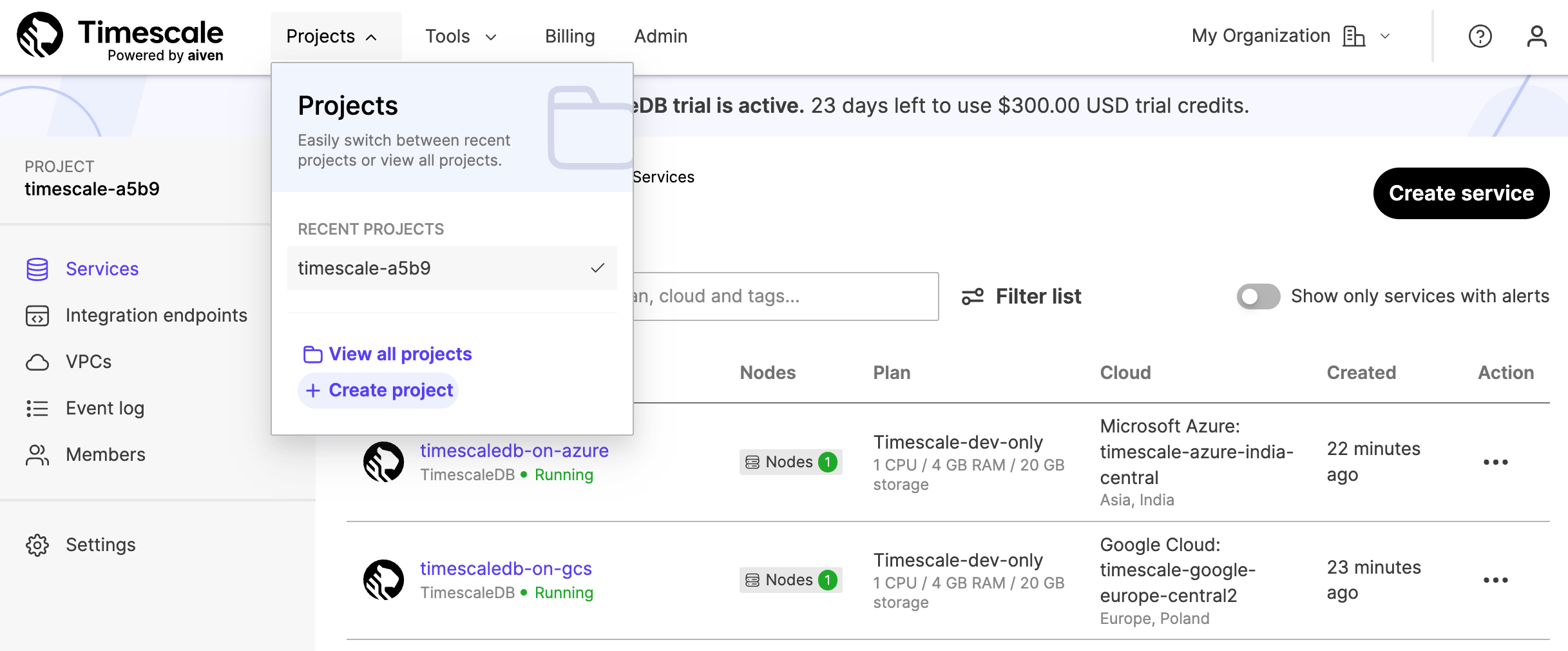
Each project contains one or more services. You can have multiple services under
each project, and each service corresponds to a cloud service provider tier. You
can access all your services from the Services tab within your projects.
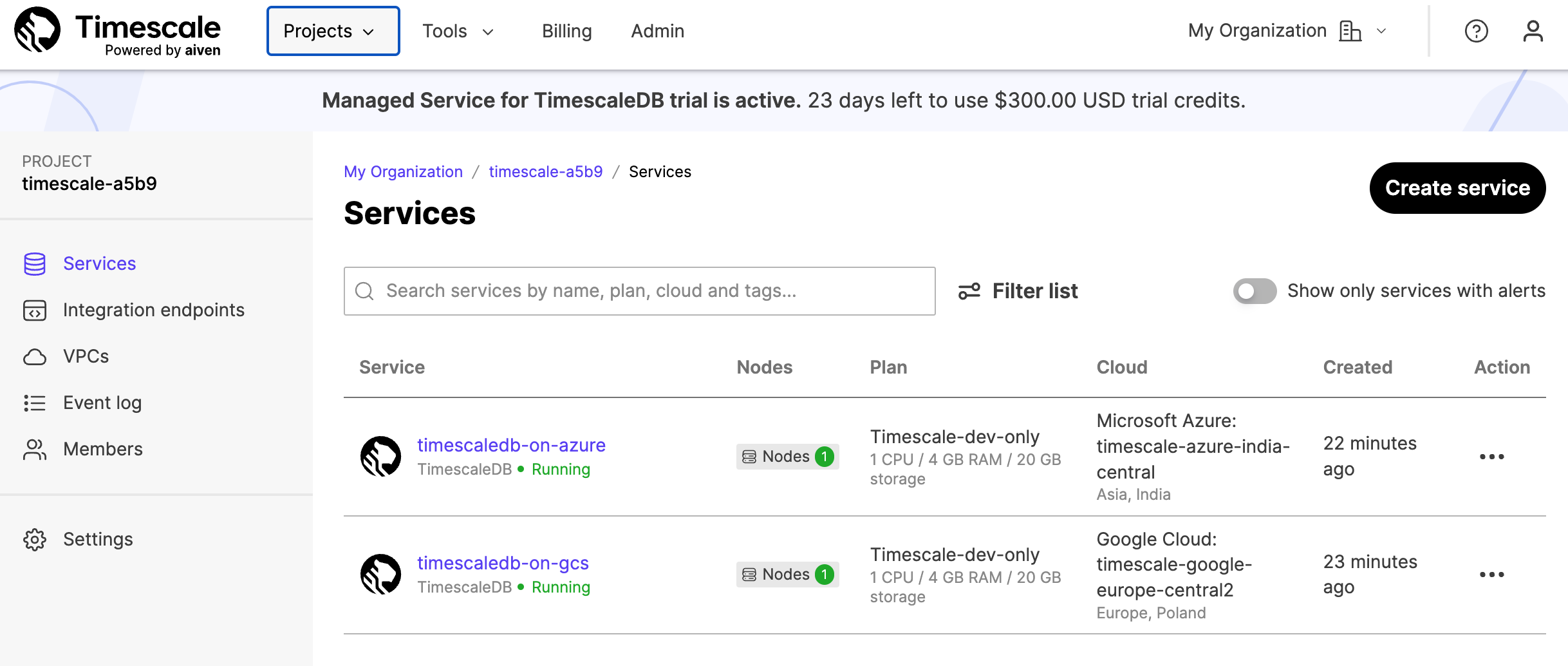
For more information about getting your first service up and running, see the Managed Service for TimescaleDB installation section.
When you have created, and named, a new Managed Service for TimescaleDB service, you cannot rename it. If you need to have your service running under a different name, you need to create a new service, and manually migrate the data. For more information about migrating data, see migrating your data.
For information about billing on Managed Service for TimescaleDB, see the billing section.
Each service can contain one or more databases. To view existing databases, or
to create a new database, select a service in the services list,
click Databases, then click Create database.
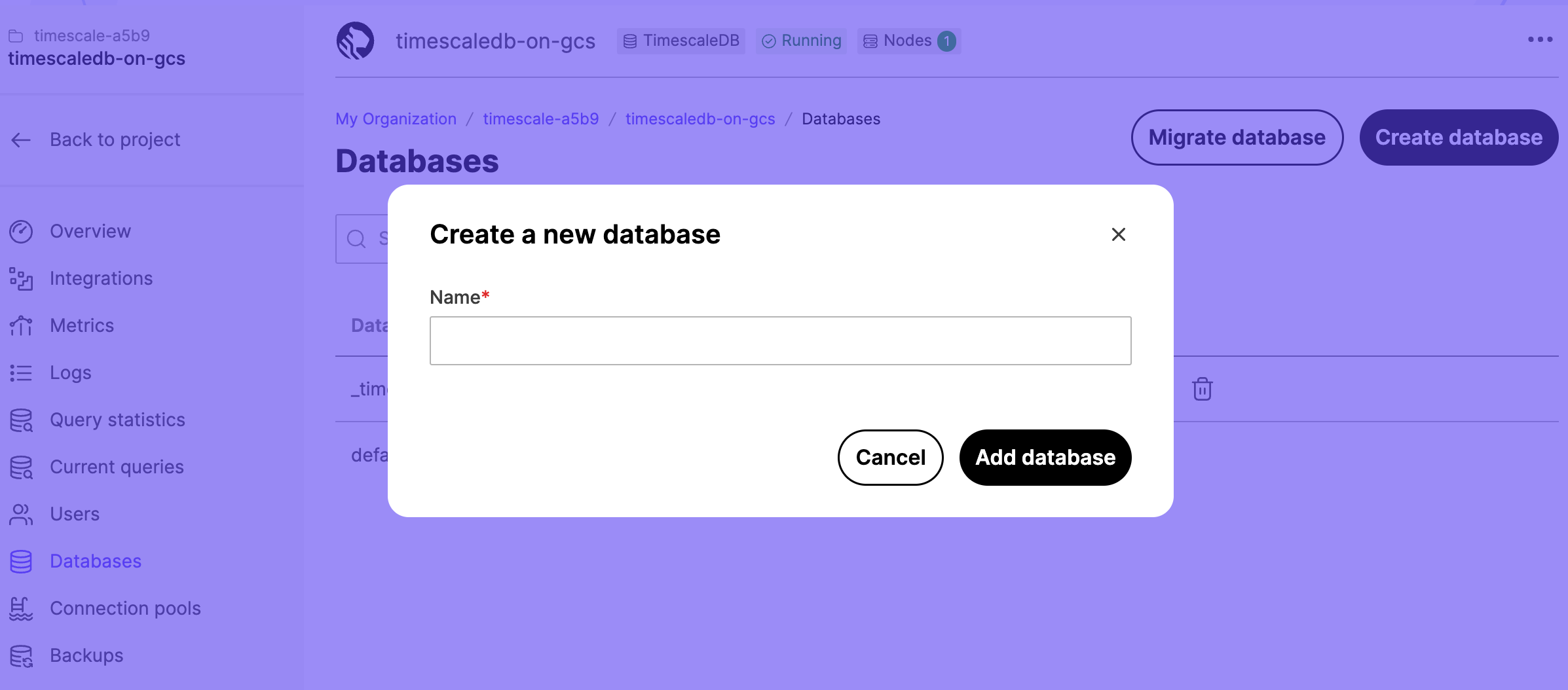
Service level agreement
Managed Service for TimescaleDB is provided through a partnership with Aiven. This provides you with a service commitment to deliver 99.99% availability. For more information, see the Aiven Service Level Agreement policy.
Service configuration plans
When you create a new service, you need to select a configuration plan. The plan determines the number of VMs the service runs in, the high availability configuration, the number of CPU cores, and size of RAM and storage volumes.
- Basic Plans: include 2 days of backups and automatic backup and restore if your instance fails.
- Dev Plans: include 1 day of backups and automatic backup and restore if your instance fails.
- Pro Plans: include 3 days of backups and automatic failover to a hot standby if your instance fails.
The Basic and Dev plans are serviced by a single virtual machine (VM) node. This means that if the node fails, the service is unavailable until a new VM is built. This can result in data loss, if some of the latest changes to the data weren't backed up before the failure. Sometimes, it can also take a long time to return the service back to normal operation, because a new VM needs to be created and restored from backups before the service can resume. The time to recover depends on the amount of data you have to restore.
The Pro plans are much more resilient to failures. A single node failure causes no data loss, and the possible downtime is minimal. If an acting TimescaleDB master node fails, an up-to-date replica node is automatically promoted to become the new master. This means there is only a small outage while applications reconnect to the database and access the new master.
You can upgrade your plan while the service is running. The service is reconfigured to run on larger VMs in the background and when the reconfiguration is complete, the DNS names are pointed to the new hosts. This can cause a short disruption to your service while DNS changes are propagated.
Within each configuration plan option, there are several plan types available:
IO-OptimizedandCompute-OptimizedThese configurations are optimized for input/output (I/O) performance, using SSD storage media.Storage-Optimized: These configurations usually have larger amounts of overall storage, using HDD storage media.Dev-Only: These configurations are typically smaller footprints, and lower cost, designed for development and testing scenarios.
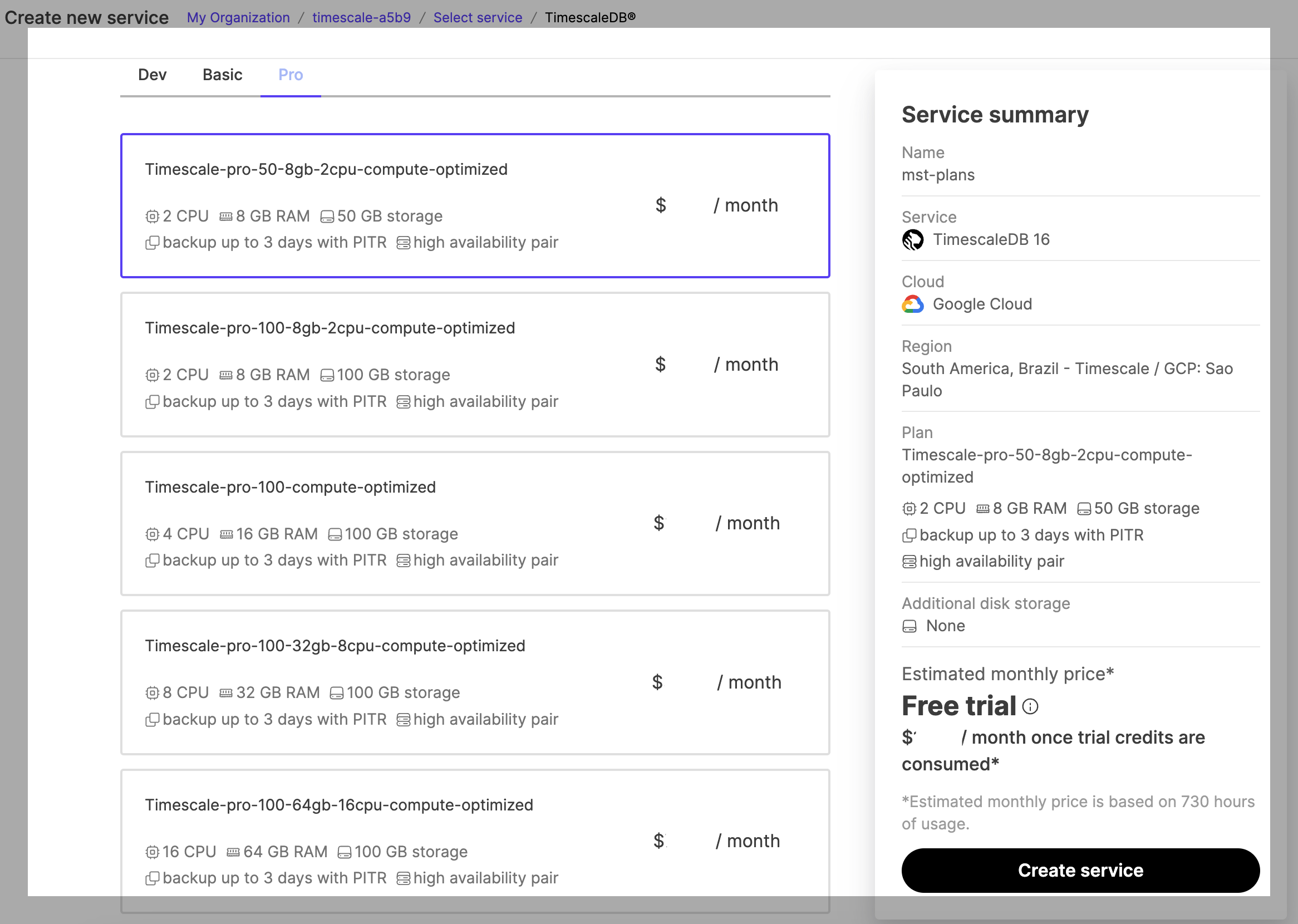
Most minor failures are handled automatically without making any changes to your service deployment. This includes failures such as service process crashes, or a temporary loss of network access. The service automatically restores normal operation when the crashed process restarts automatically or when the network access is restored.
However, more severe failure modes, such as losing a single node entirely, require more drastic recovery measures. Losing an entire node or a virtual machine could happen for example due to hardware failure or a severe software failure.
A failing node is automatically detected by the MST monitoring infrastructure. Either the node starts reporting that its own self-diagnostics is reporting problems or the node stops communicating entirely. The monitoring infrastructure automatically schedules a new replacement node to be created when this happens.
In case of database failover, the service URL of your service remains the same. Only the IP address changes to point at the new master node.
Managed Service for TimescaleDB availability features differ based on the service plan:
- Basic and Dev plans: These are single-node plans. Basic plans include a two-day backup history, and Dev plans include a one-day backup history.
- Pro plans: These are two-node plans with a master and a standby for higher availability, and three-day backup histories.
In the Basic and Dev plans, if you lose the only node from the service, it immediately starts the automatic process of creating a new replacement node. The new node starts up, restores its state from the latest available backup, and resumes the service. Because there was just a single node providing the service, the service is unavailable for the duration of the restore operation. Also, any writes made since the backup of the latest write-ahead log (WAL) file is lost. Typically this time window is limited to either five minutes, or one WAL file.
Highly available nodes
In Pro plans, if a Postgres standby fails, the master node keeps running normally and provides normal service level to the client applications. When the new replacement standby node is ready and synchronized with the master, it starts replicating the master in real time and normal operation resumes.
If the Postgres master fails, the combined information from the MST monitoring
infrastructure and the standby node is used to make a failover decision. On the
nodes, the open source monitoring daemon PGLookout, in combination with the
information from the MST system infrastructure, reports the failover. If the
master node is down completely, the standby node promotes itself as the new
master node and immediately starts serving clients. A new replacement node is
automatically scheduled and becomes the new standby node.
If both master and standby nodes fail at the same time, two new nodes are automatically scheduled for creation and become the new master and standby nodes respectively. The master node restores itself from the latest available backup, which means that there can be some degree of data loss involved. For example, any writes made since the backup of the latest write-ahead log (WAL) file can be lost.
The amount of time it takes to replace a failed node depends mainly on the cloud region and the amount of data that needs to be restored. However, in the case of services with two-node Pro plans, the surviving node keeps serving clients even during the recreation of the other node. This process is entirely automatic and requires no manual intervention.
For backups and restoration, Managed Service for TimescaleDB uses the
open source backup daemon PGHoard that MST maintains. It makes real-time
copies of write-ahead log (WAL) files to an object store in a compressed and
encrypted format.
Managed Service for TimescaleDB limits the maximum number of connections to each
service. The maximum number of allowed connections depends on your service plan.
To see the current connection limit for your service, navigate to the service
Overview tab and locate the Connection Limit section.
If you have a lot of clients or client threads connecting to your database, use connection pooling to limit the number of connections. For more information about connection pooling, see the connection pooling section.
If you have a high number of connections to your database, your service might run more slowly, and could run out of memory. Remain aware of how many open connections your have to your database at any given time.
Service termination protection
You can protect your services from accidentally being terminated, by enabling service termination protection. When termination protection is enabled, you cannot power down the service from the web console, the REST API, or with a command-line client. To power down a protected service, you need to turn off termination protection first. Termination protection does not interrupt service migrations or upgrades.
To enable service termination protection, navigate to the service Overview
tab. Locate the Termination protection section, and toggle to enable
protection.
If you run out of free sign-up credit, and have not entered a valid credit card for payment, your service is powered down, even if you have enabled termination protection.
Managed Service for TimescaleDB uses the default keep alive settings for TCP connections. The default settings are:
tcp_keepalives_idle: 7200tcp_keepalive_count: 9tcp_keepalives_interval: 75
If you have long idle database connection sessions, you might need to adjust these settings to ensure that your TCP connection remains stable. If you experience a broken TCP connection, when you reconnect make sure that your client resolves the DNS address correctly, as the underlying address changes during automatic failover.
For more information about adjusting keep alive settings, see the Postgres documentation.
Long running queries
Managed Service for TimescaleDB does not cancel database queries. If you have created a query that is taking a very long time, or that has hung, it could lock resources on your service, and could prevent database administration tasks from being performed.
You can find out if you have any long-running queries by navigating to the
service Current Queries tab. You can also cancel long running queries from
this tab.
Alternatively, you can use your connection client to view running queries with this command:
Cancel long-running queries using this command, with the PID of the query you want to cancel:
If you want to automatically cancel any query that runs over a specified length of time, you can use this command:
===== PAGE: https://docs.tigerdata.com/mst/installation-mst/ =====
Examples:
Example 1 (sql):
SELECT * FROM pg_stat_activity
WHERE state <> 'idle';
Example 2 (sql):
SELECT pg_terminate_backend(<PID>);
Example 3 (sql):
SET statement_timeout = <milliseconds>
uuid_timestamp_micros()
URL: llms-txt#uuid_timestamp_micros()
Contents:
- Samples
- Arguments
Extract a Postgres timestamp with time zone from a UUIDv7 object.
uuid contains a millisecond unix timestamp and an optional sub-millisecond fraction.
Unlike uuid_timestamp, the microsecond part of uuid is used to construct a
Postgres timestamp with microsecond precision.
Unless uuid is known to encode a valid sub-millisecond fraction, use uuid_timestamp.
Returns something like:
| Name | Type | Default | Required | Description |
|-|------------------|-|----------|-------------------------------------------------|
|uuid|UUID| - | ✔ | The UUID object to extract the timestamp from |
===== PAGE: https://docs.tigerdata.com/api/uuid-functions/to_uuidv7_boundary/ =====
Examples:
Example 1 (sql):
postgres=# SELECT uuid_timestamp_micros('019913ce-f124-7835-96c7-a2df691caa98');
Example 2 (terminaloutput):
uuid_timestamp_micros
-------------------------------
2025-09-04 10:19:13.316512+02
Connect with a stricter SSL mode
URL: llms-txt#connect-with-a-stricter-ssl-mode
Contents:
- SSL certificates
- Connect to your database with a stricter SSL mode
- Connecting to your database with a stricter SSL mode
- Verify the certificate type used by your database
The default connection string for Tiger Cloud uses the Secure Sockets Layer (SSL) mode require.
Users can choose not to use Transport Layer Security (TLS) while connecting to their databases, but connecting to production databases without encryption is strongly discouraged. To
achieve even stronger security, clients may select to verify the identity of the
server. If you want your connection client to verify the server's identity, you
can connect with an SSL mode of verify-ca or verify-full. To
do so, you need to store a copy of the certificate chain where your connection
tool can find it.
This section provides instructions for setting up a stricter SSL connection.
As part of the secure connection protocol, the server proves its identity by providing clients with a certificate. This certificate should be issued and signed by a well-known and trusted Certificate Authority.
Because requesting a certificate from a Certificate Authority takes some time, Tiger Cloud services are initialized with a self-signed certificate. This lets you start up a service immediately. After your service is started, a signed certificate is requested behind the scenes. The new certificate is usually received within 30 minutes. Your certificate is then replaced with almost no interruption. Connections are reset, and most clients reconnect automatically.
With the signed certificate, you can switch your connections to a stricter SSL
mode, such as verify-ca or verify-full.
For more information on the different SSL modes, see the Postgres SSL mode descriptions.
Connect to your database with a stricter SSL mode
To set up a stricter SSL connection:
- Generate a copy of your certificate chain and store it in the right location
- Change your Tiger Cloud connection string
Connecting to your database with a stricter SSL mode
- Use the
openssltool to connect to your Tiger Cloud service and get the certificate bundle. Store the bundle in a file calledbundle.crt.
Replace service URL with port with your Tiger Cloud connection URL:
Copy the bundle to your clipboard:
Navigate to https://whatsmychaincert.com/. This online tool generates a full certificate chain, including the root Certificate Authority certificate, which is not included in the certificate bundle returned by the database.
Paste your certificate bundle in the provided box. Check
Include Root Certificate. ClickGenerate Chain.Save the downloaded certificate chain to
~/.postgresql/root.crt.Change your Tiger Cloud connection string from
sslmode=requireto eithersslmode=verify-fullorsslmode=verify-ca. For example, to connect to your database withpsql, run:
Verify the certificate type used by your database
To check whether the certificate has been replaced yet, connect to your database instance and inspect the returned certificate. We are using two certificate providers - Google and ZeroSSL, that's why chances are you can have a certificate issued by either of those CAs:
===== PAGE: https://docs.tigerdata.com/use-timescale/security/transit-gateway/ =====
Examples:
Example 1 (shell):
openssl s_client -showcerts -partial_chain -starttls postgres \
-connect service URL with port < /dev/null 2>/dev/null | \
awk '/BEGIN CERTIFICATE/,/END CERTIFICATE/{ print }' > bundle.crt
Example 2 (shell):
pbcopy < bundle.crt
Example 3 (shell):
xclip -sel clip < bundle.crt
Example 4 (shell):
clip.exe < bundle.crt
Security
URL: llms-txt#security
Learn how Tiger Cloud protects your data and privacy.
- Learn about security in Tiger Cloud
- Restrict access to your project
- Restrict access to the data in your service
- Set up multifactor and SAML authentication
- Generate multiple client credentials instead of using your username and password
- Connect with a stricter SSL mode
- Secure your services with VPC peering
- Connect to your services from any cloud with AWS Transit Gateway
- Restrict access with an IP address allow list
===== PAGE: https://docs.tigerdata.com/use-timescale/limitations/ =====
Integrate Apache Kafka with Tiger Cloud
URL: llms-txt#integrate-apache-kafka-with-tiger-cloud
Contents:
- Prerequisites
- Install and configure Apache Kafka
- Install the sink connector to communicate with Tiger Cloud
- Create a table in your Tiger Cloud service to ingest Kafka events
- Create the Tiger Cloud sink
- Test the integration with Tiger Cloud
Apache Kafka is a distributed event streaming platform used for high-performance data pipelines, streaming analytics, and data integration. Apache Kafka Connect is a tool to scalably and reliably stream data between Apache Kafka® and other data systems. Kafka Connect is an ecosystem of pre-written and maintained Kafka Producers (source connectors) and Kafka Consumers (sink connectors) for data products and platforms like databases and message brokers.
This guide explains how to set up Kafka and Kafka Connect to stream data from a Kafka topic into your Tiger Cloud service.
To follow the steps on this page:
- Create a target Tiger Cloud service with the Real-time analytics capability.
You need your connection details. This procedure also works for self-hosted TimescaleDB.
- Java8 or higher to run Apache Kafka
Install and configure Apache Kafka
To install and configure Apache Kafka:
- Extract the Kafka binaries to a local folder
From now on, the folder where you extracted the Kafka binaries is called <KAFKA_HOME>.
- Configure and run Apache Kafka
Use the -daemon flag to run this process in the background.
- Create Kafka topics
In another Terminal window, navigate to , then call kafka-topics.sh and create the following topics:
accounts: publishes JSON messages that are consumed by the timescale-sink connector and inserted into your Tiger Cloud service.deadletter: stores messages that cause errors and that Kafka Connect workers cannot process.
Test that your topics are working correctly
Run
kafka-console-producerto send messages to theaccountstopic:Send some events. For example, type the following:
In another Terminal window, navigate to , then run
kafka-console-consumerto consume the events you just sent:
You see
- Install the Postgres connector
- Start Kafka Connect
- Verify Kafka Connect is running
Connect to your Tiger Cloud service
Create a hypertable to ingest Kafka events
Create the connection configuration
In the terminal running Kafka Connect, stop the process by pressing
Ctrl+C.Write the following configuration to
<KAFKA_HOME>/config/timescale-standalone-sink.properties, then update the<properties>with your connection details.Restart Kafka Connect with the new configuration:
Test the connection
- In the terminal running
kafka-console-producer.shenter the following json strings - Query your Tiger Cloud service for all rows in the
accountstable - Update compute resources for a service
- Out of memory errors
- For the 48 CPU / 192 GiB option, 6 CPU / 14 GiB is reserved for platform operations.
- For the 64 CPU / 256 GiB option, 6 CPU / 16 GiB is reserved for platform operations.
- Resizes the replica.
- Waits for the replica to catch up.
- Performs a switchover to the resized replica.
- Restarts the primary.
- In Console, choose the service to modify.
- Click
Operations>Compute and storage. - Select the new
CPU / Memoryallocation. You see the allocation and costs in the comparison chart - Click
Apply. Your service goes down briefly while the changes are applied. - If the normal OOM killer is triggered, the error log looks like this:
- Tiger Cloud shuts the client connection only
- Prerequisites
- Plan your upgrade path
- Upgrade your Postgres instance
- Install the Postgres client tools on your migration machine. This includes
psql, andpg_dump. - Read the release notes for the version of TimescaleDB that you are upgrading to.
- Perform a backup of your database. While TimescaleDB upgrades are performed in-place, upgrading is an intrusive operation. Always make sure you have a backup on hand, and that the backup is readable in the case of disaster.
- Upgrade TimescaleDB to 2.15
- Upgrade Postgres to 14, 15 or 16.
- Upgrade TimescaleDB to 2.18.2.
- Find the location of the Postgres binary
- Set your connection string
- Retrieve the location of the Postgres data folder
- Choose the new locations for the Postgres binary and data folders
- Using psql, perform the upgrade:
- Basic query examples
- Advanced query examples
- Getting started with LangChain and pgvectorscale: You'll learn how to use pgai on Tiger Data for (1) semantic search, (2) time-based vector search, (3) self-querying, and (4) how to create indexes to speed up queries.
- Postgres Self Querying: Learn how to use pgai on Tiger Data with self-querying in LangChain.
- Learn more about pgai on Tiger Data and LangChain: A blog post about the unique capabilities that pgai on Tiger Cloud brings to the LangChain ecosystem.
- Install and configure the Aiven client
- Create an authentication token in Managed Service for TimescaleDB
- Install the Aiven Client
- Configure Aiven Client to connect to Managed Service for TimescaleDB
- Fork services with Aiven client
- Creating a fork of your service
- Example
- Configure Grafana authentication plugins
- Integrating the Google authentication plugin
- Integrating the GitHub authentication plugin
- Connect to Managed Service for TimescaleDB
- Create a service
- Create a fork
Add authentication plugins to your attached Grafana service
- In Managed Service for TimescaleDB, click
User Informationin the top right corner. - In the
User Profilepage, navigate to theAuthenticationtab. - Click
Generate Token. - In the
Generate access tokendialog, type a descriptive name for the token. Leave the rest of the fields blank. - Copy the generated authentication token and save it.
Change to the install directory that contains the configuration files:
Open the
aiven-credentials.jsonusing any editor and update these lines with your Managed Service for TimescaleDBUser email, and theauthentication tokenthat you generated:Save the
aiven-credentials.jsonfile.To verify that you can access your services on Managed Service for TimescaleDB, type:
- Create a development copy of your production environment.
- Set up a snapshot to analyze an issue or test an upgrade.
- Create an instance in a different cloud, geographical location, or under a different plan.
In the Aiven client, connect to your service.
Switch to the project that contains the service you want to fork:
List the services in the project, and make a note of the service that you want to fork, listed under
SERVICE_NAMEcolumn in the output.Get the details of the service that you want to fork:
- PROJECT_ID:
project-fork - CLOUD_NAME:
timescale-aws-us-east-1 - PLAN_TYPE:
dashboard-1 In the Aiven Client, connect to your service.
Switch to the project that contains the Grafana service you want to integrate:
List the services in the project. Make a note of the Grafana service that you want to integrate, listed under
SERVICE_NAMEcolumn in the output.Get the details of the service that you want to integrate:
Integrate the plugin with your services using the
<CLIENT_ID>and<CLIENT_SECRET>from your Google developer console:Log in to Grafana with your service credentials.
Navigate to
Configuration→Pluginsand verify that the Google OAuth application is listed as a plugin.In the Aiven Client, connect to your service.
Switch to the project that contains the Grafana service you want to integrate:
List the services in the project, and make a note of the Grafana service that you want to integrate, listed under
SERVICE_NAMEcolumn in the output.Get the details of the service that you want to integrate:
Integrate the plugin with your service using the
<CLIENT_ID>, and<CLIENT_SECRET>from your GitHub OAuth application:Log in to Grafana with your service credentials.
Navigate to
Configuration→Plugins. The Plugins page lists GitHub OAuth application for the Grafana instance.- auth_gitlab.api_url
- auth_github.auth_url
- auth_github.token_url
In the Aiven Client, connect to your MST_SERVICE_LONG.
Switch to the project that contains the Grafana service you want to integrate:
List the services in the project. Note the Grafana service that you want to integrate, listed under
SERVICE_NAMEcolumn in the output.Get the details of the service that you want to integrate:
Integrate the plugin with your service using the
<CLIENT_ID>,<CLIENT_SECRET>, and<GITLAB_GROUPS>from your GitLab OAuth application:Log in to Grafana with your service credentials.
Navigate to
Configuration→Plugins. The Plugins page lists GitLab OAuth application for the Grafana instance.- (Optional): Made a note of these values in the SMTP server:
IP or hostname,SMTP server port,Username,Password,Sender email address, andSender name. In the Aiven client, connect to your service.
Switch to the project that contains the Grafana service you want to integrate:
List the services in the project. Note the Grafana service that you want to configure, listed under
SERVICE_NAMEcolumn in the output.Get the details of the service that you want to integrate:
Configure the Grafana service using the SMTP values:
[](#) Review all available custom options, and configure:
In the Aiven client, connect to your service.
Switch to the project that contains the service you want to create a read-only replica for:
List the services in the project. Note the service for which you will create a read-only replica. You can find it listed under the
SERVICE_NAMEcolumn in the output:Get the details of the service that you want to fork:
Create a read-only replica:
- PROJECT_ID:
fork-project - CLOUD_NAME:
timescale-aws-us-east-1 - PLAN_TYPE:
timescale-basic-100-compute-optimized - Add a user to your project
- Join a project
- Resend a project invitation
- Change your current project
- Transfer project ownership
- Leave a project
- Change roles of other users in a project
- Remove users from a project
- Owner: Tiger Cloud assigns this role to you when your project is created. As the Owner, you can add and delete other users, transfer project ownership, administer services, and edit project settings.
- Admin: the Owner assigns this role to other users in the project. A user with the Admin role has the same scope of rights as the Owner but cannot transfer project ownership.
- Developer: the Owner and Admins assign this role to other users in the project. A Developer can build, deploy, and operate services across projects, but does not have administrative privileges over users, roles, or billing. A Developer can invite other users to the project, but only with the Viewer role.
- Viewer: the Owner and Admins assign this role to other users in the project. A Viewer has limited, read-only access to Tiger Cloud Console. This means that a Viewer cannot modify services and their configurations in any way. A Viewer has no access to the data mode and has read-queries-only access to SQL editor.
In Tiger Cloud Console, click
Invite users, then clickAdd new user.Type the email address of the person that you want to add, select their role, and click
Invite user.In the invitation email, click
Accept InviteFollow the setup wizard and create a new account
- In the invitation email, click
Accept Invite Log in to Console using your company's identity provider
Click
Notifications, then accept the invitationIn Tiger Cloud Console, click
Invite users.Next to the person you want to invite to your project, click
Resend invitation.- In Tiger Cloud Console, click the project name >
Current projectin the top left. - Select the project you want to use.
In Tiger Cloud Console, click
Invite users.Next to the person you want to transfer project ownership to, click
⋮>Transfer project ownership.- Enter your password, and click
Verify. - Complete the two-factor authentication challenge and click
Confirm. In Tiger Cloud Console, click
Invite users.Click
⋮>Leave project, then clickLeave.In Tiger Cloud Console, click
Invite users.Next to the corresponding user, select another role in the dropdown.
- In Tiger Cloud Console, click
Invite users. - Next to the person you want to remove, click
⋮>Remove.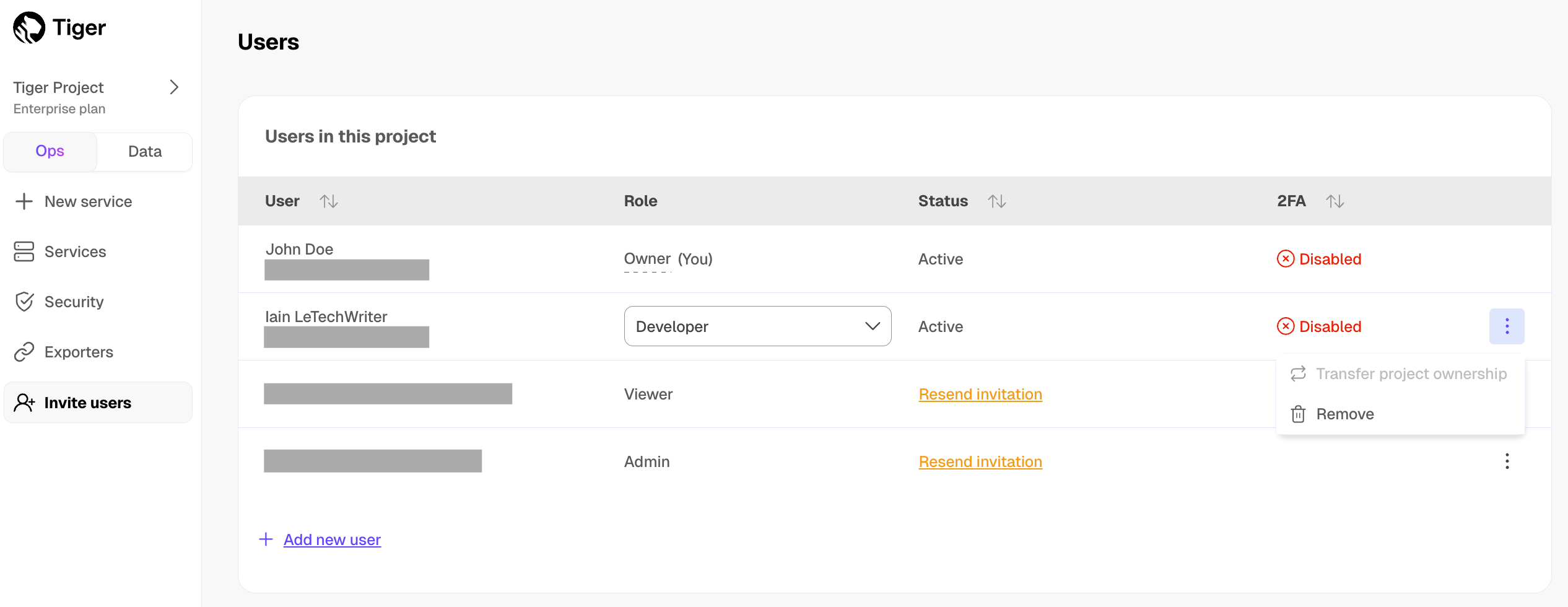
- In
Remove user, clickRemove. - Embed Postgres data with PgVectorizer
- Contribute to the Tiger Data docs
- Learn about Tiger Data
- Create an issue in this repository and describe the proposed change. Our doc team takes care of it.
- Update the docs yourself and have your change reviewed and published by our doc team.
- Get the documentation source:
- No write access? Fork this repository.
- Already have a write access? Clone this repository.
Create a branch from
latest, make your changes, and raise a pull request back tolatest.Sign a Contributor License Agreement (CLA).
- Review your changes.
- High-performance storage tier
- Standard high-performance storage
- Enhanced high-performance storage
- Low-cost object storage tier
- Enable tiered storage
- Automate tiering with policies
- Manually tier and untier chunks
- Disable tiering
You use high-performance storage to store and query frequently accessed data.
You use low-cost object storage to cut costs by migrating rarely used data from the high-performance storage. After you enable tiered storage, you then either create automated tiering policies or manually tier and untier data.
- In Tiger Cloud Console, select your service, then click
Operations>Compute and storage - Select the IOPS value in the
I/O boostdropdown - Under the Performance pricing plan, IOPS is set to 3,000 - 5,000 autoscale and cannot be changed.
- Under the Scale and Enterprise pricing plans, IOPS is set to 5,000 - 8,000 autoscale and can be upgraded to 16,000 IOPS.
- In Tiger Cloud Console, select your service, then click
Operations>Compute and storage - Select
Enhancedin theStorage typedropdown - Select the IOPS value in the
I/O boostdropdown In Tiger Cloud Console, select the service to modify
In
Explorer, clickStorage configuration>Tiering storage, then clickEnable tiered storage- Select all chunks in
examplethat are older than three days: Call
tier_chunkto manually tier each chunk:Repeat for all chunks you want to tier.
- To see which chunks are tiered into the object storage tier, use the
tiered_chunksinformational view: Check which chunks are currently tiered:
Call
untier_chunk:See the details of the chunk with
timescaledb_information.chunks:To drop all tiering policies associated with a table, call
remove_tiering_policy.Make sure that there is no tiered data associated with this hypertable:
List the tiered chunks associated with this hypertable:
If you have any tiered chunks, either untier this data, or drop these chunks from tiered storage.
Use
disable_tieringto drop all tiering-related metadata for the hypertable:Verify that tiering has been disabled by listing the hypertables that have tiering enabled:
- Prerequisites
- Query another data source
- Other Tiger Cloud services
- Postgres databases outside of Tiger Cloud
- Create a target Tiger Cloud service with the Real-time analytics capability.
- Connect to your service
- Create a server
- Create user mapping
- Import a foreign schema (recommended) or create a foreign table
Import the whole schema:
Alternatively, import a limited number of tables:
Create a foreign table. Skip if you are importing a schema:
- Connect to your database
- Create a server
- Create user mapping
- Import a foreign schema (recommended) or create a foreign table
Import the whole schema:
Alternatively, import a limited number of tables:
Create a foreign table. Skip if you are importing a schema:
- Integrates with Postgres? Integrates with your service!
- Authentication and security
- Business intelligence and data visualization
- Configuration and deployment
- Data engineering and extract, transform, load
- Data ingestion and streaming
- Development tools
- Language-specific integrations
- Logging and system administration
- Observability and alerting
- Run
SELECT timescaledb_pre_restore(), followed bySELECT timescaledb_post_restore(). - Power the service off and on again. This might cause a downtime of a few minutes while the service restores from backup and replays the write-ahead log.
- Update settings
max_prepared_transactionsenable_partitionwise_aggregatejitstatement_timeoutwal_level- Transaction isolation level
- Installing the pgvector and pgvectorscale extensions
- Creating the table for storing embeddings using pgvector
- Query the vector embeddings
- Indexing the vector data using indexes provided by pgvector and pgvectorscale
- StreamingDiskANN index
- pgvector HNSW
- pgvector ivfflat
- Project members
- Adding project members
- Service users
- Adding service users
- Multi-factor user authentication
- Configuring multi-factor authentication
- User authentication tokens
- Sign in to your MST Console.
- Check that you are in the project that you want to change the members for,
and click
Members. - In the
Project memberspage, type the email address of the member you want to add, and select a role for the member. - Click
Send invitation. - The new user is sent an email inviting them to the project, and the invite
shows in the
Pending invitationslist. You can clickWithdraw invitationto remove an invitation before it has been accepted. - When they accept the invitation, the user details show in the
Memberslist. You can edit a member role by selecting a new role in the list. You can delete a member by clicking the delete icon in the list. - Create a database
- Create a role
- Perform replication
- Bypass row level security (RLS)
- Sign in to MST Console. By
default, you start in the
Servicesview, showing any services you currently have in your project. - Click the name of the service that you want to add users to.
- Select
Users, then clickAdd service user: - In the
Usernamefield, type a name for your user. If you want to allow the user to be replicated, toggleAllow replication. ClickAdd service userto save the user. - The new user shows in the
Usernamelist. - Sign in to MST Console.
- Click the
User informationicon in the top-right of the dashboard to go to theUser profilesection. - In the
Authenticationtab, toggleTwo-factor authenticationtoEnabled, and enter your password. - On your mobile device, open the Google Authenticator app, tap
+and selectScan a QR code. - On your mobile device, scan the QR code provided by Managed Service for TimescaleDB.
- In your MST dashboard, enter the confirmation
code provided by the Google Authenticator app, and click
Enable Two-Factor Auth. - Using
timescaledb-tune - Postgres configuration and tuning
- Memory settings
- Worker settings
- Disk-write settings
- Lock settings
- TimescaleDB configuration and tuning
- Policies
- Distributed hypertables
- Administration
Open a shell in Docker to change the configuration on a running container.
Edit and then save the config file, modifying the setting for the desired configuration parameter (for example,
max_wal_size).Restart the container so the config gets reloaded.
Test to see if the change worked.
- Prerequisites
- Create a Slack app
- Install and configure your Tiger Agent instance
- Add information from MCP servers to your Tiger Agent
- Customize prompts for personalization
- Advanced configuration options
- Durable and atomic event handling: Postgres-backed event claiming ensures exactly-once processing, even under high concurrency and failure conditions
- Bounded concurrency: fixed worker pools prevent resource exhaustion while maintaining predictable performance under load
- Immediate event processing: Tiger Agents for Work provide real-time responsiveness. Events are processed within milliseconds of arrival rather than waiting for polling cycles
- Resilient retry logic: automatic retry with visibility thresholds, plus stuck or expired event cleanup
- Horizontal scalability: run multiple Tiger Agent instances simultaneously with coordinated work distribution across all instances
- AI-Powered Responses: use the AI model of your choice, you can also integrate with MCP servers
- Extensible architecture: zero code integration for basic agents. For more specialized use cases, easily customize your agent using Jinja templates
- Complete observability: detailed tracing of event flow, worker activity, and database operations with full Logfire instrumentation
- Create a Tiger Data account.
- Install the uv package manager
- Get an Anthropic API key
- Optional: get a Logfire token
Create a manifest for your Slack App
In a temporary directory, download the Tiger Agent Slack manifest template:
Edit
slack-manifest.jsonand customize your name and description of your Slack App. For example:Copy the contents of
slack-manifest.jsonto the clipboard:Create the Slack app
Go to api.slack.com/apps.
- Click
Create New App. - Select
From a manifest. - Choose your workspace, then click
Next. - Paste the contents of
slack-manifest.jsonand clickNext. - Click
Create.
- Click
Generate an app-level token
In your app settings, go to
Basic Information.- Scroll to
App-Level Tokens. - Click
Generate Token and Scopes. - Add a
Token Name, then clickAdd Scope, addconnections:writethen clickGenerate. - Copy the
xapp-*token locally and clickDone.
- Scroll to
Install your app to a Slack workspace
In the sidebar, under
Settings, clickInstall App.- Click
Install to <workspace name>, then clickAllow. - Copy the
xoxb-Bot User OAuth Token locally.
- Click
Create a project directory
Create a Tiger Agent environment with your Slack, AI Assistant, and database configuration
Download
.env.sampleto a local.envfile:- In
.env, add your Slack tokens and Anthropic API key:
- In
Add the connection details for the Tiger Cloud service you are using for this Tiger Agent:
- Save and close
.env.
- Save and close
Add the default Tiger Agent prompts to your project
Install Tiger Agents for Work to manage and run your AI-powered Slack bots
Install the Tiger Agent CLI using uv.
- Verify the installation.
Connect your Tiger Agent with Slack
Run your Tiger Agent:
If you open the explorer in Tiger Cloud Console, you can see the tables used by your Tiger Agent.
In Slack, open a public channel app and ask Tiger Agent a couple of questions. You see the response in your public channel and log messages in the terminal.
- Copy the example
mcp_config.jsonto your project - Configure your Tiger Agent to connect to the most useful MCP servers for your organization
- Restart your Tiger Agent
system_prompt.md: defines the AI Assistant's role, capabilities, and behavior patterns. This template sets the foundation for the way your Tiger Agent will respond and interact.user_prompt.md: formats the user's request with relevant context, providing the AI Assistant with the information necessary to generate an appropriate response.- Update the prompt
- Test your configuration
--model: change AI model (default:anthropic:claude-sonnet-4-20250514)--num-workers: adjust concurrent workers (default:5)--max-attempts: set retry attempts per event (default:3)- Required arguments
- Sample usage
- Prerequisites
- Upload a Datadog API key
- Uploading a Datadog API key to MST
- Activate Datadog integration for a service
- Activating Datadog integration for a service
- Datadog dashboards
- Created a service.
- Signed up for Datadog, and can log in to your Datadog dashboard.
- Created an API key in your Datadog account. For more information about creating a Datadog API key, see Datadog API and Application Keys.
- In MST Console, choose the project you want to connect to Datadog,
and click
Integration Endpoints. - Select
Datadog, then chooseCreate new. - In
Add new Datadog service integration. complete these details:- In the
Endpoint integrationsection, give your endpoint a name, and paste the API key from your Datadog dashboard. Ensure you choose the site location that matches where your Datadog service is hosted. - Optional: In the
Endpoint tagssection, you can add custom tags to help you manage your integrations.
- In the
- Click
Add endpointto save the integration.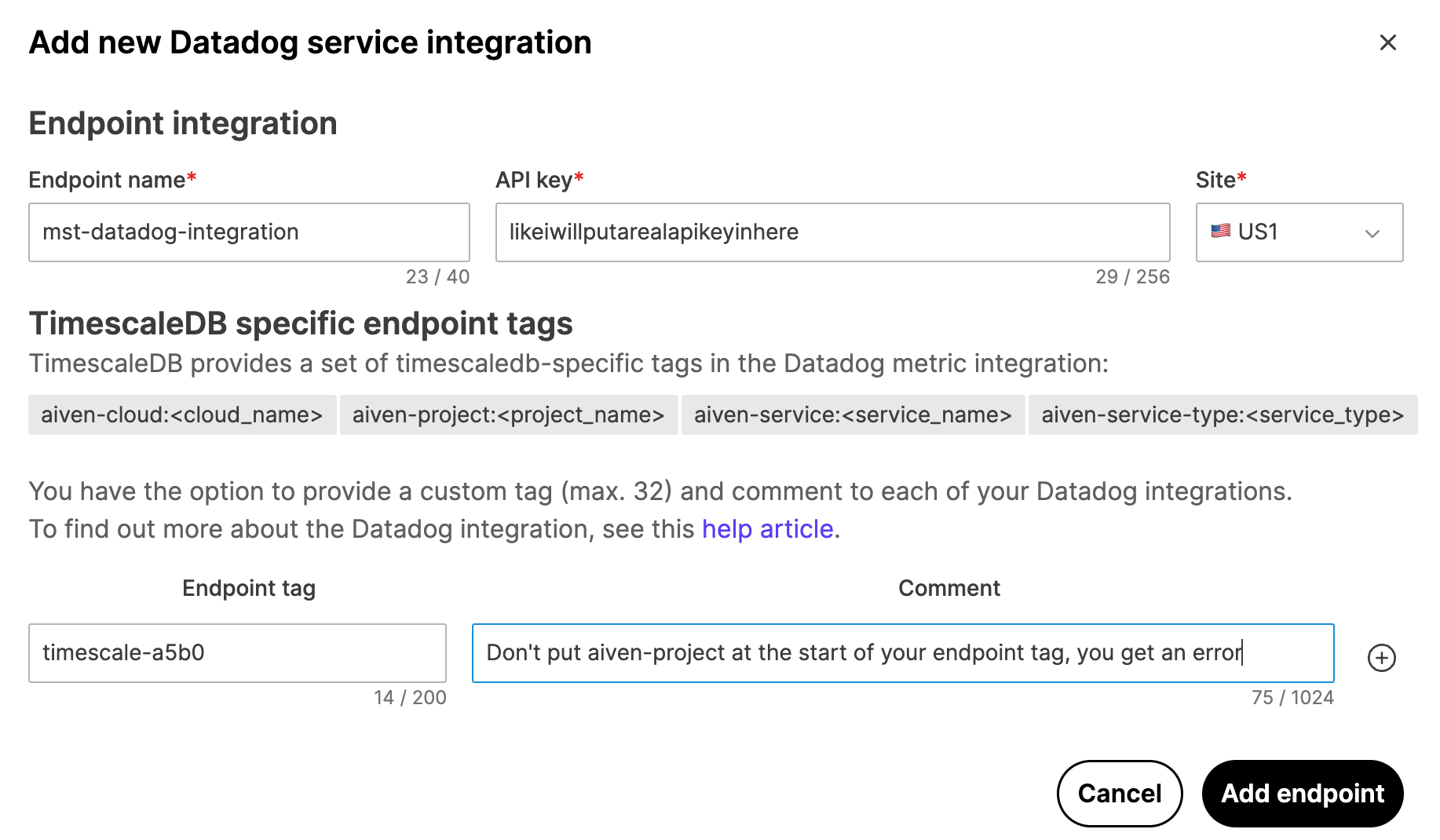
- Sign in to MST Console, navigate to
Services, and select the service you want to monitor. - In the
Integrationstab, go toExternal integrationssection and selectDatadog Metrics. - In the
Datadog integrationdialog, select the Datadog endpoint that you created. - Click
Enable. - Multiple databases
- Policies
timescaledb.max_background_workers (int)
- Tiger Cloud service tuning
timescaledb.disable_load (bool)
- Prerequisites
- Optimize time-series data in a hypertable
- Create a standard Postgres table for relational data
- Load financial data
- Connect Grafana to Tiger Cloud
- Create a target Tiger Cloud service with the Real-time analytics capability.
- Row-based storage for recent data: the most recent chunk (and possibly more) is always stored in the rowstore, ensuring fast inserts, updates, and low-latency single record queries. Additionally, row-based storage is used as a writethrough for inserts and updates to columnar storage.
- Columnar storage for analytical performance: chunks are automatically compressed into the columnstore, optimizing storage efficiency and accelerating analytical queries.
- Connect to your Tiger Cloud service
- Create a hypertable to store the real-time cryptocurrency data
- Add a table to store the asset symbol and name in a relational table
- Unzip crypto_sample.zip to a
<local folder>. - In Terminal, navigate to
<local folder>and connect to your service. - At the
psqlprompt, use theCOPYcommand to transfer data into your Tiger Cloud service. If the.csvfiles aren't in your current directory, specify the file paths in these commands: - Log in to Grafana
- Add your service as a data source
- Open
Connections>Data sources, then clickAdd new data source. - Select
PostgreSQLfrom the list. - Configure the connection:
Host URL,Database name,Username, andPassword
- Open
- Click
Save & test. - Multi-node architecture
- Distributed hypertables
- Partitioning methods
- Transactions and consistency model
- Using continuous aggregates in a multi-node environment
- Maintaining distributed transactions
- Statistics for distributed hypertables
- Calculate the median and percentile
- Calculate the cumulative sum
- Calculate the moving average
- Calculate the increase in a value
- Calculate the rate of change
- Calculate the delta
- Calculate the change in a metric within a group
- Group data into time buckets
- Get the first or last value in a column
- Generate a histogram
- Samples
- Required arguments
- Optional arguments
- Returns
- Calculation of next start on failure
verbose_log: boolean, defaults tofalse. Enable verbose logging output when running the compression policy.maxchunks_to_compress: integer, defaults to0(no limit). The maximum number of chunks to compress during a policy run.recompress: boolean, defaults totrue. Recompress partially compressed chunks.compress_after: seeadd_compression_policy.compress_created_before: seeadd_compression_policy. |
|- Samples
- Available columns
- Error retention policy
- TimescaleDB Apache 2 Edition
- TimescaleDB Community Edition
- Feature comparison
- TimescaleDB Apache 2 Edition
- TimescaleDB Community Edition
- The second deployment had a lot more problems than the other ones.
- There were some readings from February 2013 that were incorrectly categorized as a second deployment.
- The timestamps are given in a local time without time zone, resulting in some missing hours around springtime daylight savings time changes.
- What is a Tiger Cloud service?
- Create a Tiger Data account
- Create a Tiger Cloud service
- Connect to your service
Standard services:
Real-time analytics: store and query time-series data at scale for real-time analytics and other use cases. Get faster time-based queries with hypertables, continuous aggregates, and columnar storage. Save money by compressing data into the columnstore, moving cold data to low-cost bottomless storage in Amazon S3, and deleting old data with automated policies.
- AI-focused: build AI applications from start to scale. Get fast and accurate similarity search with the pgvector and pgvectorscale extensions.
- Hybrid applications: get a full set of tools to develop applications that combine time-based data and AI.
- Ensure data security with high availability and read replicas
- Save money with columnstore compression and tiered storage
- Enable Postgres extensions to add extra functionality
- Increase security using VPCs
- Perform day-to-day administration
- Write queries with autocomplete
- Visualize data with charts and dashboards
- Schedule queries and dashboards for alerts or recurring reports
- Share queries and dashboards
- Interact with your data on auto-pilot with SQL assistant
- Create a Tiger Data account: register to get access to Tiger Cloud Console as a centralized point to administer and interact with your data.
- Create a Tiger Cloud service: that is, a Postgres database instance, powered by TimescaleDB, built for production, and extended with cloud features like transparent data tiering to object storage.
- Connect to your Tiger Cloud service: to run queries, add and migrate your data from other sources.
- Sign up for a 30-day free trial
- Confirm your email address
- Select the pricing plan
- Open AWS Marketplace and search for
Tiger Cloud Select the pricing option that suits you and click
View purchase optionsReview and configure the purchase details, then click
SubscribeClick
Set up your accountat the top of the page- Sign up for a 30-day free trial
- Select the pricing plan
- In
Confirm AWS Marketplace connection, clickConnect - In the service creation page, click
+ New service. - Click
Create service. - Click
Download the configand store the configuration information you need to connect to this service in a secure location. - Check your service is running correctly
- Connect to your service
In Tiger Cloud Console, toggle
Data.Select your service in the connection drop-down in the top right.
In Tiger Cloud Console, select your service.
Click
SQL editor.Install psql.
Run the following command in the terminal using the service URL from the config file you have saved during service creation:
- Manage your services in the ops mode in Tiger Cloud Console: add read replicas and enable high availability, compress data into the columnstore, change parameters, and so on.
- Analyze your data in the data mode in Tiger Cloud Console: write queries with autocomplete, save them in folders, share them, create charts/dashboards, and much more.
- Store configuration and security information in your config file.
- Create a table with a unique constraint
- Insert or update data to a table with a unique constraint
- Insert or do nothing to a table with a unique constraint
- Inserting a new row if a matching row doesn't already exist
- Either updating the existing row, or doing nothing, if a matching row already exists
- Open MST Portal.
- Click
Forgot password. - Enter your email address, then click
Reset password. - Prerequisites
- Connect your Google Cloud infrastructure to your Tiger Cloud services
- Create a target Tiger Cloud service with the Real-time analytics capability.
- Set up AWS Transit Gateway.
- Connect your infrastructure to AWS Transit Gateway
Create a Peering VPC in Tiger Cloud Console
In
Security>VPC, clickCreate a VPC:- Choose your region and IP range, name your VPC, then click
Create VPC: Add a peering connection:
In the
VPC Peeringcolumn, clickAdd.- Provide your AWS account ID, Transit Gateway ID, CIDR ranges, and AWS region. Tiger Cloud creates a new isolated connection for every unique Transit Gateway ID.
Click
Add connection.Accept and configure peering connection in your AWS account
Accept the peering request coming from Tiger Cloud. The request can take up to 5 min to arrive. Within 5 more minutes after accepting, the peering should appear as
Connectedin Tiger Cloud Console.Configure at least the following in your AWS account networking:
- Your subnet route table to route traffic to your Transit Gateway for the Peering VPC CIDRs.
- Your Transit Gateway route table to route traffic to the newly created Transit Gateway peering attachment for the Peering VPC CIDRs.
- Security groups to allow outbound TCP 5432.
Attach a Tiger Cloud service to the Peering VPC In Tiger Cloud Console
Select the service you want to connect to the Peering VPC.
- Click
Operations>Security>VPC. - Select the VPC, then click
Attach VPC.
- Click
- Samples
- Required arguments
- Metrics
- Understand high memory usage
- Service states
- Logs
- Insights
- Jobs
- Connections
- Recommendations
- Query-level statistics with
pg_stat_statements - Pinpoint the bottleneck: check Metrics to identify exactly when CPU, memory, or storage spiked.
- Find the root cause: review Logs for errors or warnings that occurred during the incident.
- Identify the culprit: examine Insights to see which queries were running at that time and how they impacted resources.
- Check background activity: look at Jobs to see if scheduled tasks triggered the issue.
- Investigate active connections: use Connections to see what clients were connected and what queries they were running.
- CPU, in mCPU
- Memory, in GiB
- Storage used, in GiB
- Storage I/O, in ops/sec
- Storage bandwidth, in MiB/sec
- For CPU and memory: provision more for your service in
Operations>Compute and storage. - For storage, I/O, and bandwidth: these resources depend on your storage type and I/O boost settings. The standard high-performance storage gives you 16TB of compressed data on a single server, regardless of the number of hypertables in your service. See About storage tiers for how to change the available storage, I/O, and bandwidth.
Execution time: the median and P95 query execution times over the selected period. This is useful to understand the consistency and efficiency of your query's execution over time.EXPLAINplan: for queries that take more than 10 seconds to execute, there is an EXPLAIN plan collected automatically.Rows: the impact of your query on rows over time. If it's aSELECTstatement, it shows the number of rows retrieved, while for anINSERT/UPDATEstatement, it reflects the rows inserted.Plans and executions: the number of query plans and executions over time. You can use this to optimize query performance, helping you assess if you can benefit from prepared statements to reduce planning overhead.Shared buffers hit and miss: shared buffers play a critical role in Postgres's performance by caching data in memory. A shared buffer hit occurs when the required data block is found in the shared buffer memory, while a miss indicates that Postgres couldn't locate the block in memory. A miss doesn't necessarily mean a disk read, because Postgres may retrieve the data from the operating system's disk pages cache. If you observe a high number of shared buffer misses, your current shared buffers setting might be insufficient. Increasing the shared buffer size can improve cache hit rates and query speed.Cache hit ratio: measures how much of your query's data is read from shared buffers. A 100% value indicates that all the data required by the query was found in the shared buffer, while a 0% value means none of the necessary data blocks were in the shared buffers. This metric provides a clear understanding of how efficiently your query leverages shared buffers, helping you optimize data access and database performance.- To view jobs, select your service in Tiger Cloud Console, then click
Monitoring>Jobs: - Click a job ID in the list to view its config and run history:
- Click the pencil icon to edit the job config:
- Samples
- Arguments
- Required arguments
- Optional arguments
- Returns
- Errors
- Privileges
- Sample usage
- A remote data node with the provided
node_nameargument does not exist. - Samples
- Required arguments
- Optional arguments
- Returns
- Configuring a VPC peering
In MST Console, click
VPC.Click
Create VPC.Choose a cloud provider in the
Cloudlist.In the
IP rangefield, type the IP range that you want to use for the VPC connection. Use an IP range that does not overlap with any networks that you want to connect through VPC peering. For example, if your own networks use the range 10.0.0.0/8, you could set the range for your Managed Service for TimescaleDB project VPC to 192.168.0.0/24.Click
Create VPC.- Cloud provider accounts
- Virtual machines
- Project security
- Data encryption
- Networking security
- Configure allowed incoming IP addresses for your service
- Networking with VPC peering
- Customer data privacy
- In MST Console, select the service to update.
- In
Overviewcheck thePortnumber. In
Network, checkIP filters. The default value is `Open for all.Click the ellipsis (...) to the right of Network, then select
Set public IP filters.Set the
Allowed inbound IP addresses:- Schema
- Using TIMESTAMP data types
- Insert tick data
- Inserting sample data
- crypto_assets: a relational table that stores the symbols to monitor. You can also include additional information about each symbol, such as social links.
- crypto_ticks: a time-series table that stores the real-time tick data.
Download the sample
.csvfiles (provided by Twelve Data): crypto_sample.csvUnzip the file and change the directory if you need to:
At the
psqlprompt, insert the content of the.csvfiles into the database.- Prerequisites
- Install python connectivity libraries
- Create a connection between Airflow and your Tiger Cloud service
- Exchange data between Airflow and your Tiger Cloud service
- Create a target Tiger Cloud service with the Real-time analytics capability.
- Install Python3 and pip3
- Install Apache Airflow
Enable Postgres connections between Airflow and Tiger Cloud
Enable Postgres connection types in the Airflow UI
Add a connection from Airflow to your Tiger Cloud service
In your browser, navigate to
localhost:8080, then selectAdmin>Connections.- Click
+(Add a new record), then use your connection info to fill in the form. TheConnection TypeisPostgres.
- Click
- Create and execute a DAG
- In
$AIRFLOW_HOME/dags/timescale_dag.py, add the following code: - In your browser, refresh the Airflow UI.
- In
Search DAGS, typetimescale_dagand press ENTER. - Press the play icon and trigger the DAG:
- In
Verify that the data appears in Tiger Cloud
In Tiger Cloud Console, navigate to your service and click
SQL editor.- Run a query to view your data. For example:
SELECT symbol, name FROM company;.
- Run a query to view your data. For example:
- Prerequisites
- Connect your on-premise infrastructure to your Tiger Cloud services
- Create a target Tiger Cloud service with the Real-time analytics capability.
- Set up AWS Transit Gateway.
- Connect your infrastructure to AWS Transit Gateway
Create a Peering VPC in Tiger Cloud Console
In
Security>VPC, clickCreate a VPC:- Choose your region and IP range, name your VPC, then click
Create VPC: Add a peering connection:
In the
VPC Peeringcolumn, clickAdd.- Provide your AWS account ID, Transit Gateway ID, CIDR ranges, and AWS region. Tiger Cloud creates a new isolated connection for every unique Transit Gateway ID.
Click
Add connection.Accept and configure peering connection in your AWS account
Accept the peering request coming from Tiger Cloud. The request can take up to 5 min to arrive. Within 5 more minutes after accepting, the peering should appear as
Connectedin Tiger Cloud Console.Configure at least the following in your AWS account networking:
- Your subnet route table to route traffic to your Transit Gateway for the Peering VPC CIDRs.
- Your Transit Gateway route table to route traffic to the newly created Transit Gateway peering attachment for the Peering VPC CIDRs.
- Security groups to allow outbound TCP 5432.
Attach a Tiger Cloud service to the Peering VPC In Tiger Cloud Console
Select the service you want to connect to the Peering VPC.
- Click
Operations>Security>VPC. - Select the VPC, then click
Attach VPC.
- Click
- Prerequisites
- Prepare your Tiger Cloud service to ingest data from AWS Lambda
- Create the code to inject data into a Tiger Cloud service
- Deploy your Node project to AWS Lambda
- Create a target Tiger Cloud service with the Real-time analytics capability.
- Set up an AWS Account.
- Install and configure AWS CLI.
- Install NodeJS v18.x or later.
- Connect to your Tiger Cloud service
- Create a hypertable to store sensor data
Initialize a new Node.js project to hold your Lambda function
Install the Postgres client library in your project
Write a Lambda Function that inserts data into your Tiger Cloud service
Compress your code into a
.zipDeploy to AWS Lambda
- Set up environment variables
Test your AWS Lambda function
Invoke the Lambda function and send some data to your Tiger Cloud service:
Verify that the data is in your service.
- Plan your downgrade
- Downgrade TimescaleDB to a previous minor version
- Read the release notes for the TimescaleDB version you are downgrading to.
- Check which Postgres version you are currently running. You might need to upgrade to the latest Postgres version before you begin your TimescaleDB downgrade.
- Perform a backup of your database. While TimescaleDB downgrades are performed in-place, downgrading is an intrusive operation. Always make sure you have a backup on hand, and that the backup is readable in the case of disaster.
- Set your connection string
- Connect to your database instance
Downgrade the TimescaleDB extension This must be the first command you execute in the current session:
Check that you have downgraded to the correct version of TimescaleDB
- What is HA replication?
- Choose an HA strategy
- Test failover for your HA replicas
Synchronous: the primary commits its next write once the replica confirms that the previous write is complete. There is no lag between the primary and the replica. They are in the same state at all times. This is preferable if you need the highest level of data integrity. However, this affects the primary ingestion time.
Asynchronous: the primary commits its next write without the confirmation of the previous write completion. The asynchronous HA replicas often have a lag, in both time and data, compared to the primary. This is preferable if you need the shortest primary ingest time.
Non-production: no replica, best for developer environments.
High availability: a single async replica in a different AWS availability zone from your primary. Provides high availability with cost efficiency. Best for production apps.
Highest availability: two replicas in different AWS availability zones from your primary. Available replication modes are:
High performance - two async replicas. Provides the highest level of availability with two AZs and the ability to query the HA system. Best for apps where service availability is most critical.
- High data integrity - one sync replica and one async replica. The sync replica is identical to the primary at all times. Best for apps that can tolerate no data loss.
- If the primary fails, the replica becomes the primary while a new node is created, with only seconds of downtime.
- If the replica fails, a new async replica is created without impacting the primary. If you read from the async HA replica, those reads fail until the new replica is available.
- If the primary fails, one of the replicas becomes the primary while a new node is created, with the other one still available for reads.
- If the replica fails, a new async replica is created in another AZ, without impacting the primary. The newly created replica is behind the primary and the original replica while it catches up.
- If the primary fails, the sync replica becomes the primary while a new node is created, with the async one still available for reads.
- If the async replica fails, a new async replica is created. Heavy reads on the sync replica may delay the ingest time of the primary while a new async replica is created. Data integrity remains high but primary ingest performance may degrade.
- If the sync replica fails, the async replica becomes the sync one, and a new async replica is created. The primary may experience some ingest performance degradation during this time.
- In Tiger Cloud Console, select the service to enable replication for.
- Click
Operations, then selectHigh availability. - Choose your replication strategy, then click
Change configuration. - In
Change high availability configuration, clickChange config. - Connect to your primary node as
tsdbadminor another user that is part of thetsdbownergroup. - At the
psqlprompt, connect to thepostgresdatabase: Check if your node is currently in recovery:
Check which node is currently your primary:
- Schedule a switchover:
- Wait for the switchover to occur, then check which node is your primary:
- Check the
application_name. If your primary was-an-1before, it should now be-an-0. If it was-an-0, it should now be-an-1. - Before you begin
- Configuring a VPC peering on Azure
- Installed Aiven Client.
- Signed in to MST Console.
- Set up a VPC peering for your project in MST.
- Log in with an Azure administration account, using the Azure CLI:
- Create an application object in your AD tenant, using the Azure CLI:
- Create a service principal for your app object. Ensure that the service principal is created to the Azure subscription containing the VNet you wish to peer:
- Set a password for your app object:
- Find the ID properties of your virtual network:
- Grant your service principal permissions to peer. The service principal that
you created needs to be assigned a role that has permission for the
Microsoft.Network/virtualNetworks/virtualNetworkPeerings/writeaction on the scope of your VNet. To limit the permissions granted to the app object and service principal, you can create a custom role with just that permission. The built-inNetwork Contributorrole includes that permission, and can be found usingaz role definition list --name "Network Contributor"The id field from the output is used as$network_contributor_role_idto assign the service principal that role: - Create a service principal for the Managed Service for TimescaleDB application object
- Create a custom role for the Managed Service for TimescaleDB application object
Assign the custom role to the service principal to peer with your VNet. Assign the role that you created in the previous step to the Managed Service for TimescaleDB service principal with the scope of your VNet:
Get your Azure Active Directory (AD) tenant id:
- Create a peering connection from the Managed Service for TimescaleDB Project VPC using Aiven CLI:
- Run the following command until the state is no longer
APPROVED, butPENDING_PEER: Log out the Azure user you logged in using:
Log in the application object you created to your AD tenant using:
Log in the same application object to the Managed Service for TimescaleDB AD tenant:
- Create a peering from your VNet to the VNet in the Managed Service for TimescaleDB subscription:
- In the Aiven CLI, check if the peering connection is
ACTIVE: - Prerequisites
- Connect to your Tiger Cloud service with Azure Data Studio
- Create a target Tiger Cloud service with the Real-time analytics capability.
- Download and install Azure Data Studio.
- Install the Postgres extension for Azure Data Studio.
- Start
Azure Data Studio - In the
SERVERSpage, clickNew Connection - Configure the connection
- Select
PostgreSQLforConnection type. - Configure the server name, database, username, port, and password using your connection details.
- Click
Advanced.
- Select
In the
Portfield, type the port number and clickOK.Click
Connect- General information
- Tables
- Continuous aggregates
- Required arguments
- Optional arguments
- Sample usage
- Learn about configuration to understand how it works before you begin using it.
- Use the TimescaleDB tune tool.
- Manually edit the
postgresql.confconfiguration file. - If you run TimescaleDB in a Docker container, configure within Docker.
- Find out more about the data that we collect.
- Samples
- Available columns
- Error retention policy
- Prerequisites
- Modify small amounts of data
- Modify large amounts of data
- Modify a table schema for data in the columnstore
- Create a target Tiger Cloud service.
- Optimize your data for real-time analytics.
- Stop the jobs that are automatically adding chunks to the columnstore
Convert a chunk to update back to the rowstore
Update the data in the chunk you added to the rowstore
Convert the updated chunks back to the columnstore
Restart the jobs that are automatically converting chunks to the columnstore
- Stop the jobs that are automatically adding chunks to the columnstore
Convert a chunk to update back to the rowstore
Modify the schema:
- Add a nullable column:
- Add a column with a default value and a
NOT NULLconstraint: - Rename a column:
- Drop a column:
Convert the updated chunks back to the columnstore
Restart the jobs that are automatically converting chunks to the columnstore
- TimescaleDB - an open-source database that makes SQL scalable for time-series data, packaged as a Postgres extension.
- TimescaleDB Toolkit - additional functions to ease all things analytics when using TimescaleDB.
- pgai - brings AI workflows to your Postgres database.
- pgvectorscale - higher performance embedding search and cost-efficient storage for AI applications on Postgres.
- pgspot - spot vulnerabilities in Postgres extension scripts.
- live-migration - a Docker image to migrate data to a Tiger Cloud service.
- Samples
- Required arguments
- Minor software upgrades
- Minimize downtime with replicas
- Manually upgrade TimescaleDB for non-critical upgrades
- Deprecations
- Manually upgrade Postgres for a service
- Automatic Postgres upgrades for a service
- Define your maintenance window
- Minor software upgrades: handled automatically, you do not need to do anything.
- Critical security upgrades: installed outside normal maintenance windows when necessary, and sometimes require a short outage.
- Major upgrades: such as a new version of Postgres are performed manually by you, or automatically by Tiger Cloud.
- If the restart takes more than a minute, a replica node is promoted to primary, given that the replica has no replication lag. Maintenance now proceeds on the newly promoted replica, following the same sequence. If the newly promoted replica takes more than a minute to restart, the former primary is promoted back. In total, the process may result in up to two minutes of write downtime and two failover events.
- If the maintenance on the primary node is completed within a minute and it comes back online, the replica remains the replica.
- Connect to your service
- Upgrade TimescaleDB
- Click
SQL Editor, then runALTEREXTENSION timescaledb UPDATE. - Click
⋮, thenPauseandResumethe service. - Deprecation notice period begins: you receive email notification of the deprecation and the timeline for the upgrade.
- Customer self-service upgrade window: best practice is to manually upgrade to a new Postgres version in this time.
- Automatic upgrade deadline: Tiger Cloud performs an automatic upgrade of your service.
- Plan ahead: upgrades cause downtime, so ideally perform an upgrade during a low traffic time.
- Run a test upgrade: fork your service, then try out the upgrade on the fork before running it on your production system. This gives you a good idea of what happens during the upgrade, and how long it might take.
- Keep a copy of your service: if you're worried about losing your data, fork your service without upgrading, and keep this duplicate of your service. To reduce cost, you can immediately pause this fork and only pay for storage until you are comfortable deleting it after the upgrade is complete.
- Connect to your service
Disable high-availability replicas
Click
Operations>High Availability, then clickChange configuaration.- Select
Non-production (No replica), then clickChange configuration.
- Select
Disable read replicas
Click
Operations>Read scaling, then click the trash icon next to all replica sets.Upgrade Postgres
- Click
Operations>Service Upgrades. - Click
Upgrade service, then confirm that you are ready to start the upgrade.
- Click
- Enable high-availability replicas and replace your read replicas
- Any configured high-availability replicas or read replicas are temporarily removed.
- The primary service is upgraded.
- High-availability replicas and read replicas are added back to the service.
- Connect to your service
- Set your maintenance window
- Click
Operations>Environment, then clickChange maintenance window.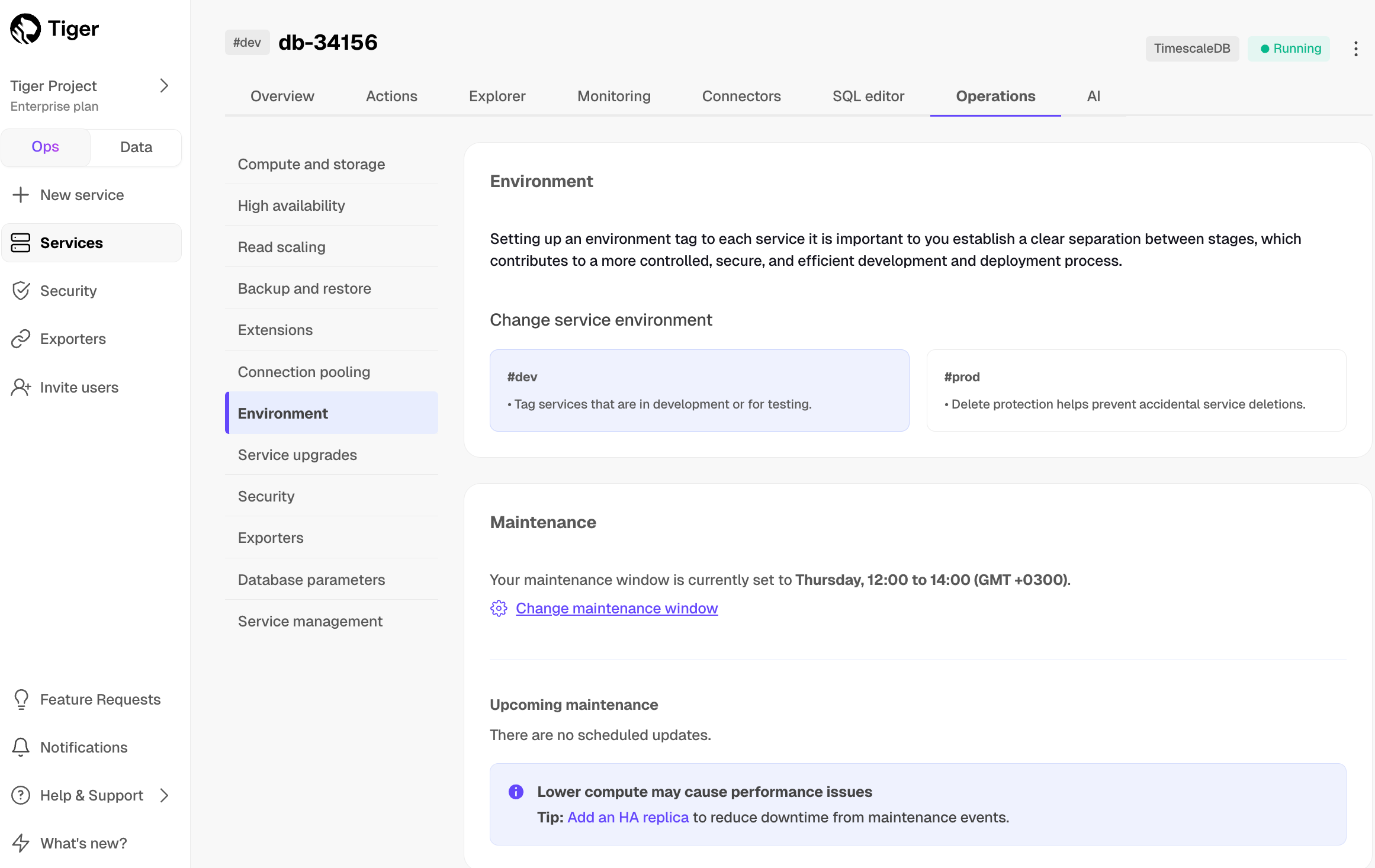
- Select the maintence window start time, then click
Apply.
- Click
- Prerequisites
- Check the TimescaleDB and Postgres versions
- Plan your upgrade path
- Implement your upgrade path
- Install the Postgres client tools on your migration machine. This includes
psql, andpg_dump. - Read the release notes for the version of TimescaleDB that you are upgrading to.
- Perform a backup of your database. While TimescaleDB upgrades are performed in-place, upgrading is an intrusive operation. Always make sure you have a backup on hand, and that the backup is readable in the case of disaster.
- Set your connection string
- Retrieve the version of Postgres that you are running
- Retrieve the version of TimescaleDB that you are running
- Upgrade TimescaleDB to 2.15
- Upgrade Postgres to 14, 15 or 16.
- Upgrade TimescaleDB to 2.18.2.
Upgrade TimescaleDB
If your migration path dictates it, upgrade Postgres
If your migration path dictates it, upgrade TimescaleDB again
Check that you have upgraded to the correct version of TimescaleDB
- For help with the Tiger Cloud Console, try the Tiger Cloud Console index.
- For help on a specific topic, try browsing by keyword.
- Or try the full search, which also returns results from the Tiger Data blog and forum.
- Prerequisites
- Connect qStudio to your Tiger Cloud service
- Create a target Tiger Cloud service with the Real-time analytics capability.
- Download and install qStudio.
- Start qStudio
- Click
Server>Add Server - Configure the connection
- For
Server Type, selectPostgres.- For
Connect By, selectHost. - For
Host,Port,Database,Username, andPassword, use your connection details.
- For
- Prerequisites
- Migrate schema pre-data
- Migrating schema pre-data
- Restore hypertables in your self-hosted TimescaleDB instance
- Restoring hypertables in your self-hosted TimescaleDB instance
- Copy data from the source database
- Copying data from your source database
- Restore data into Timescale
- Restoring data into a Tiger Cloud service with timescaledb-parallel-copy
- Restoring data into a Tiger Cloud service with COPY
- Migrate schema pre-data
- Restore hypertables in Timescale
- Copy data from the source database
- Restore data into Timescale
- Migrate schema post-data
- Recreate continuous aggregates (optional)
- Recreate policies (optional)
- Update table statistics
- Installed the Postgres
pg_dumpandpg_restoreutilities. - Installed a client for connecting to Postgres. These instructions use
psql, but any client works. - Created a new empty database in a self-hosted TimescaleDB instance. For more information, see the Install TimescaleDB. Provision your database with enough space for all your data.
- Checked that any other Postgres extensions you use are compatible with TimescaleDB. For more information, see the list of compatible extensions. Install your other Postgres extensions.
- Checked that you're running the same major version of Postgres on both your self-hosted TimescaleDB instance and your source database. For information about upgrading Postgres on your source database, see the upgrade instructions for self-hosted TimescaleDB and Managed Service for TimescaleDB.
- Checked that you're running the same major version of TimescaleDB on both your target and source database. For more information, see upgrading TimescaleDB.
Dump the schema pre-data from your source database into a
dump_pre_data.bakfile, using your source database connection details. Exclude Timescale-specific schemas. If you are prompted for a password, use your source database credentials:Restore the dumped data from the
dump_pre_data.bakfile into your self-hosted TimescaleDB instance, using your self-hosted TimescaleDB connection details. To avoid permissions errors, include the--no-ownerflag:Connect to your self-hosted TimescaleDB instance:
Restore the hypertable:
Connect to your source database:
Dump the data from the first table into a
.csvfile:At the command prompt, install
timescaledb-parallel-copy:Use
timescaledb-parallel-copyto import data into your Tiger Cloud service. Set<NUM_WORKERS>to twice the number of CPUs in your database. For example, if you have 4 CPUs,<NUM_WORKERS>should be8.Connect to your Tiger Cloud service:
Restore the data to your Tiger Cloud service:
At the command prompt, dump the schema post-data from your source database into a
dump_post_data.dumpfile, using your source database connection details. Exclude Timescale-specific schemas. If you are prompted for a password, use your source database credentials:Restore the dumped schema post-data from the
dump_post_data.dumpfile into your Tiger Cloud service, using your connection details. To avoid permissions errors, include the--no-ownerflag:Connect to your source database:
Get a list of your existing continuous aggregate definitions:
Connect to your Tiger Cloud service:
Recreate each continuous aggregate definition:
Connect to your source database:
Get a list of your existing policies. This query returns a list of all your policies, including continuous aggregate refresh policies, retention policies, compression policies, and reorder policies:
Connect to your Tiger Cloud service:
Recreate each policy. For more information about recreating policies, see the sections on continuous-aggregate refresh policies, retention policies, Hypercore policies, and reorder policies.
- Prerequisites
- Optimize time-series data using hypertables
- Load financial data
- Create a target Tiger Cloud service with the Real-time analytics capability.
- Row-based storage for recent data: the most recent chunk (and possibly more) is always stored in the rowstore, ensuring fast inserts, updates, and low-latency single record queries. Additionally, row-based storage is used as a writethrough for inserts and updates to columnar storage.
- Columnar storage for analytical performance: chunks are automatically compressed into the columnstore, optimizing storage efficiency and accelerating analytical queries.
- Connect to your Tiger Cloud service
- Create a hypertable for your time-series data using CREATE TABLE.
For efficient queries on data in the columnstore, remember to
segmentbythe column you will use most often to filter your data: Create an index on the
hashcolumn to make queries for individual transactions faster:Create an index on the
block_idcolumn to make block-level queries faster:- Create a unique index on the
timeandhashcolumns to make sure you don't accidentally insert duplicate records: - Download the
bitcoin_sample.zipfile. The file contains a.csvfile that contains Bitcoin transactions for the past five days. Download: In a new terminal window, run this command to unzip the
.csvfiles:In Terminal, navigate to the folder where you unzipped the Bitcoin transactions, then connect to your service using psql.
At the
psqlprompt, use theCOPYcommand to transfer data into your Tiger Cloud service. If the.csvfiles aren't in your current directory, specify the file paths in these commands:- Tiger Data extensions
- Postgres built-in extensions
- Third-party extensions
- Prerequisites
- Enable the dblink extension
- Create a foreign data wrapper using dblink_fdw
- Query data using a foreign data wrapper
- Quering data using a foreign data wrapper
HOSTNAME: The remote database hostnamePORT: The remote database portUSER: The remote database user to connect. The default user istsdbadmin.PASSWORD: The remote database password for theUSERDATABASE_NAME: The remote database name. The default database name isdefaultdb.Connect to the database as the
tsdbadminuser:Create the
dblinkextensionCreate a table named
inventory:Insert data into the
inventorytable:Create a user
user1who can access thedblinkCreate a remote server definition named
mst_remote, usingdblink_fdwand the connection details of the service.Create a user mapping for the
user1to automatically authenticate as thetsdbadminwhen using thedblink:Enable
user1to use the remote Postgres connectionmst_remote:Connect to the service as
user1with necessary grants to the remote server.Establish the
dblinkconnection to the remote target server:Query using the foreign server definition as parameter:
- Insert a single row
- Insert multiple rows
- Insert and return data
- JDBC authentication type is not supported
- Run a time-weighted average query
- Running a time-weighted average query
At the
psqlprompt, find the average and the time-weighted average of the data:To determine if the freezer has been out of temperature range for more than 15 minutes at a time, use a time-weighted average in a window function:
- Connect to your service
- Find your project and service ID
- Create client credentials
- Create client credentials
- Hostname
- Port
- Username
- Password
- Database name
- In
<service name>-credentials.txt: - In Tiger Cloud Console:
- Retrieve your project ID:
- Retrieve your service ID:
- Open the settings for your project:
Create client credentials:
Click
Create credentials, then copyPublic keyandSecret keylocally.- Open the settings for your project:
Create client credentials:
Click
Create credentials, then copyPublic keyandSecret keylocally.- Prerequisites
- Set your Tiger Cloud service as a destination in Fivetran
- Set up a Fivetran connection as your data source
- View Fivetran data in your Tiger Cloud service
- Create a target Tiger Cloud service with the Real-time analytics capability.
- Sign up for Fivetran
- In Fivetran Dashboard > Destinations, click
Add destination. - Search for the
PostgreSQLconnector and clickSelect. Add the destination name and clickAdd. - In the
PostgreSQLsetup, add your Tiger Cloud service connection details, then clickSave & Test. - Click
View Destination. - In Fivetran Dashboard > Connections, click
Add connector. - Search for the
Fivetran Platformconnector, then clickSetup. - Leave the default schema name, then click
Save & Test. - Click
Continue, enableAdd Quickstart Data Modeland clickContinue. - Click
Start Initial Sync. - In data mode in Tiger Cloud Console, select your service, then run the following query:
- Learn about schema management to understand how it works before you begin using it.
- Learn about indexing to understand how it works before you begin using it.
- Learn about tablespaces to understand how they work before you begin using them.
- Learn about constraints to understand how they work before you begin using them.
- Alter a hypertable to modify your schema.
- Create an index to speed up your queries.
- Create triggers to propagate your schema changes to chunks.
- Use JSON and JSONB for semi-structured data.
- Query external databases with foreign data wrappers.
- Troubleshoot your schemas.
- Tiger Cloud
- Available service capabilities
- Available regions
- Self-hosted products
- Available services
- Postgres, TimescaleDB support matrix
- Supported operating system
- Tiger Cloud: all the latest features that just work. A reliable and worry-free Postgres cloud for all your workloads.
- Self-hosted products: create your best app from the comfort of your own developer environment.
- Build everything on one service, and each service hosts one database
- Get faster queries using less compute
- Compress data without sacrificing performance
- View insights on performance, queries, and more
- Reduce storage with automated retention policies
- View service operation details
- Modify basic parameters
- Apply configuration changes
- 1. Set up a target database instance in Tiger Cloud
- 2. Modify the application to write to the target database
- 3. Set up schema and migrate relational data to target database
- 3a. Dump the database roles from the source database
- 3b. Dump all plain tables and the TimescaleDB catalog from the source database
- 3c. Ensure that the correct TimescaleDB version is installed
- 3d. Load the roles and schema into the target database, and turn off all background jobs
- 4. Start application in dual-write mode
- 5. Determine the completion point
T- Missing writes
- Set up a target Tiger Cloud service.
- Modify the application to write to a secondary database.
- Migrate schema and relational data from source to target.
- Start the application in dual-write mode.
- Determine the completion point
T. - Backfill time-series data from source to target.
- Enable background jobs (policies) in the target database.
- Validate that all data is present in target database.
- Validate that target database can handle production load.
- Switch application to treat target database as primary (potentially continuing to write into source database, as a backup).
CREATE ROLE "postgres"; andALTER ROLE "postgres": These statements are removed because they require superuser access, which is not supported by Timescale.(NO)SUPERUSER|(NO)REPLICATION|(NO)BYPASSRLS: These are permissions that require superuser access.GRANTED BY role_specification: The GRANTED BY clause can also have permissions that require superuser access and should therefore be removed. Note: according to the TimescaleDB documentation, the GRANTOR in the GRANTED BY clause must be the current user, and this clause mainly serves the purpose of SQL compatibility. Therefore, it's safe to remove it.--exclude-table-data='_timescaledb_internal.*'dumps the structure of the hypertable chunks, but not the data. This creates empty chunks on the target, ready for the backfill process.--no-tablespacesis required because Tiger Cloud does not support tablespaces other than the default. This is a known limitation.--no-owneris required because Tiger Cloud'stsdbadminuser is not a superuser and cannot assign ownership in all cases. This flag means that everything is owned by the user used to connect to the target, regardless of ownership in the source. This is a known limitation.--no-privilegesis required because thetsdbadminuser for your Tiger Cloud service is not a superuser and cannot assign privileges in all cases. This flag means that privileges assigned to other users must be reassigned in the target database as a manual clean-up task. This is a known limitation.Stage: This step prepares metadata about the data to be copied in the target database. On completion, it outputs the number of chunks to be copied.
Copy: This step copies data on a chunk-by-chunk basis from the source to the target. If it fails or is interrupted, it can safely be resumed. You should be aware of the
--parallelismparameter, which dictates how many connections are used to copy data. The default is 8, which, depending on the size of your source and target databases, may be too high or too low. You should closely observe the performance of your source database and tune this parameter accordingly.Verify (optional): This step verifies that the data in the source and target is the same. It reads all the data on a chunk-by-chunk basis from both the source and target databases, so may also impact the performance of your source database.
Clean: This step removes the metadata which was created in the target database by the
stagecommand.- Samples
- Arguments
- Prerequisites
- Prepare your Tiger Cloud service to ingest data from SageMaker
- Create the code to inject data into a Tiger Cloud service
- Create a target Tiger Cloud service with the Real-time analytics capability.
- Set up an AWS Account
- Connect to your Tiger Cloud service
- For better performance and easier real-time analytics, create a hypertable
Create a SageMaker Notebook instance
In Amazon SageMaker > Notebooks and Git repos, click
Create Notebook instance.- Follow the wizard to create a default Notebook instance.
Write a Notebook script that inserts data into your Tiger Cloud service
When your Notebook instance is
inService,clickOpen JupyterLaband clickconda_python3.- Update the following script with your connection details, then paste it in the Notebook.
Test your SageMaker script
Run the script in your SageMaker notebook.
- Verify that the data is in your service
- How this works behind the scenes
- What happens when a chunk is dropped or untiered on a fork
- What happens when a chunk is modified on a fork
- What happens with backups and PITR
- That means that deleting data from a fork does not affect the other servers (including the primary); it just removes the reference to that data, which is for all intends and purposes equal to deleting that data from the point of view of that fork
- The primary and other servers are unaffected, as they still have their references and the metadata on their catalogs intact
- We never delete anything on the object storage tier if at least one server references it: The data is only permanently deleted (or hard deleted as we internally call this operation) once the references drop to 0
- Prerequisites
- Set up your Tiger Cloud service
- Set up a Supabase database
- Test the integration
- Create a target Tiger Cloud service with the Real-time analytics capability.
- Create a Supabase project
- Optimize time-series data in hypertables
- Connect to your Tiger Cloud service and create a table that will point to a Supabase database:
- Optimize cooling data for analytics
- Create optimized analytical queries
Create a continuous aggregate pointing to the Supabase database.
Setup a delay stats comparing
origin_timetotime.Setup a view to recieve the data from Supabase.
Add refresh policies for your analytical queries
Connect a foreign server in Supabase to your Tiger Cloud service
Connect to your Supabase project using Supabase dashboard or psql.
- Enable the
postgres_fdwextension.
- Enable the
Create a foreign server that points to your Tiger Cloud service.
- Create the user mapping for the foreign server
- Create a foreign table that points to a table in your Tiger Cloud service.
time: with a default value ofnow(). This is because thetimecolumn is used by Tiger Cloud to optimize data in the columnstore.origin_time: store the original timestamp of the data.Create a foreign table in Supabase
Create a foreign table that matches the
signs_per_minuteview in your Tiger Cloud service. It represents a top level view of the data.Create a foreign table that matches the
signs_per_minute_delayview in your Tiger Cloud service.- Insert data into your Supabase database
- Check the data in your Tiger Cloud service
- Samples
- Required arguments
- Optional arguments
- Returns
- Prerequisites
- Migrate to Tiger Cloud
- The bulk of the (on-disk) data is in time-series tables.
- Writes by the application do not reference historical time-series data.
- Writes to time-series data are append-only.
- No
UPDATEorDELETEqueries will be run on time-series data in the source database during the migration process (or if they are, it happens in a controlled manner, such that it's possible to either ignore, or re-backfill). - Either the relational (non-time-series) data is small enough to be copied from source to target in an acceptable amount of time for this to be done with downtime, or the relational data can be copied asynchronously while the application continues to run (that is, changes relatively infrequently).
- Create a target Tiger Cloud service.
- To ensure that maintenance does not run while migration is in progress, best practice is to adjust the maintenance window.
- Prerequisites
- What's candlestick data and OHLCV?
- A TimescaleDB instance running locally or on the cloud. For more information, see the Getting Started guide
psql, DBeaver, or any other Postgres client- Open: opening price
- High: highest price
- Low: lowest price
- Close: closing price
- Volume: volume of transactions
- How Trading Strategy built a data stack for crypto quant trading
- How Messari uses data to open the cryptoeconomy to everyone
- How I power a (successful) crypto trading bot with TimescaleDB
- Design schema and ingest tick data
- Create candlestick (open-high-low-close-volume) aggregates
- Query candlestick views
- Advanced data management
- Move data
- Moving data
- Move data in bulk
- Examples
Create a new tablespace. In this example, the tablespace is called
history, it is owned by thepostgressuper user, and the mount point is/mnt/history:List chunks that you want to move. In this example, chunks that contain data that is older than two days:
Move a chunk and its index to the new tablespace. You can also reorder the data in this step. In this example, the chunk called
_timescaledb_internal._hyper_1_4_chunkis moved to thehistorytablespace, and is reordered based on its time index:You can verify that the chunk now resides in the correct tablespace by querying
pg_tablesto list all of the chunks on the tablespace:- Prerequisites
- Install and configure Tiger MCP Server
- Manage the resources in your Tiger Data account through your AI Assistant
- Manually configure the Tiger MCP Server
- Tiger Model Context Protocol Server commands
- Tiger CLI commands for Tiger MCP Server
- Global flags
Create a target Tiger Data account.
Install an AI Assistant on your developer device with an active API key.
- Install Tiger CLI
Set up API credentials
Log Tiger CLI into your Tiger Data account:
- Select a Tiger Cloud project:
- Test your authenticated connection to Tiger Cloud by listing services
Configure your AI Assistant to interact with the project and services in your Tiger Data account
**Choose the client to integrate with, then press
Enter**- Run your AI Assistant
- Check your Tiger Model Context Protocol Server configuration
- Ask a basic question about your services
- Manage your services without having to learn how to
- Find best practice for things you need to do
time-series: enables TimescaleDBai: enables the AI and vector extensions- shared/shared
- 0.5 CPU/2 GB
- 1 CPU/4 GB
- 2 CPU/8 GB
- 4 CPU/16 GB
- 8 CPU/32 GB
- 16 CPU/64 GB
- 32 CPU/128 GB
--no-backup: do not back up the existing configuration--config-path: open the configuration file at a specific location--port <port number>: the default is8000--host <hostname>: the default islocalhost- Update a single row
- Update multiple rows at once
- Samples
- Required arguments
- Before you begin
- Configuring a VPC peering
- Set up a VPC peering for your project in MST.
- In your AWS console, go to
My Accountand make a note of youraccount ID. - In your AWS console, go to
Peering connections, find the VPC that you want to connect, and make a note of the ID for that VPC. In MST Console, click
VPCand select the VPC connection that you created.Type the account ID of your AWS account in
AWS Account ID.Type the ID of the VPC in AWS in
AWS VPC ID.Click
Add peering connection.- In the AWS console, go to
Actionsand selectAccept Request. Update your AWS route tables to match your Aiven CIDR settings. - Prerequisites
- Configure two-factor authentication with Google Authenticator
- Regenerate recovery codes
- Remove two-factor authentication
- Installed the Google Authenticator application on your mobile device.
- Log in to Tiger Cloud Console with your username and password. 2FA is not available if you log in with Google SSO.
- Click the
User nameicon in the bottom left of Tiger Cloud Console and selectAccount. - In
Account, clickAdd two-factor authentication. - On your mobile device, open Google Authenticator, tap
+, and selectScan a QR code. - Scan the QR code provided by Tiger Cloud Console in
Connect to an authenticator appand clickNext. - In Tiger Cloud Console, enter the verification code provided by Google Authenticator, and click
Next. - In
Save your recovery codes, copy, download, or print the recovery codes. These are used to recover your account if you lose your device. - Verify that you have saved your recovery codes, by clicking
OK, I saved my recovery codes. - If two-factor authentication is enabled correctly, an email notification is sent to you.
- Log in to Tiger Cloud Console with your username and password.
- Click the
User nameicon in the bottom left and selectAccount. - In
Account, navigate toTwo-factor authentication. - Click
Regenerate recovery codes. - In
Two-factor authentication, enter the verification code from your authenticator app. Alternatively, if you do not have access to the authenticator app, clickUse recovery code insteadto enter a recovery code. - Click
Next. - In
Save your recovery codes, copy, download, or print the recovery codes. These are used to recover your account if you lose your device. - Verify that you have saved your recovery codes, by clicking
OK, I saved my recovery codes. - Log in to Tiger Cloud Console with your username and password.
- Click the
User nameicon in the bottom left of Tiger Cloud Console and selectAccount. - In
Account, navigate toTwo-factor authentication. - Click
Remove two-factor authentication. - Enter the verification code from your authenticator app to confirm. Alternatively click
Use recovery code insteadto type the recovery code. - Click
Remove. - Create your first service
- Creating your first service
- Connect to your service from the command prompt
- Connecting to your service from the command prompt
- Check that you have the TimescaleDB extension
- Install and update TimescaleDB Toolkit
- Where to next
- Sign in to your MST Console.
- Click
Create serviceand chooseTimescaleDB, and update your preferences: - In the
Select Your Cloud Service Providerfield, click your preferred provider.- In the
Select Your Cloud Service Regionfield, click your preferred server location. This is often the server that's physically closest to you. - In the
Select Your Service Planfield, click your preferred plan, based on the hardware configuration you require. If you are in your trial period, and just want to try the service out, or develop a proof of concept, we recommend theDevplan, because it is the most cost-effective during your trial period.
- In the
- In the information bar on the right of the screen, review the settings you
have selected for your service, and click
Create Service. The service takes a few minutes to provision. - Sign in to your MST Console.
- In the
Servicestab, find the service you want to connect to, and check it is marked asRunning. - Click the name of the service you want to connect to see the connection
information. Take a note of the
host,port, andpassword. - On your local system, at the command prompt, connect to the service, using your own service details:
- Prerequisites
- Limitations
- Set your connection string
- Tune your source database
- Synchronize data to your Tiger Cloud service
- Prerequisites
- Limitations
- Set your connection strings
- Tune your source database
- Migrate the table schema to the Tiger Cloud service
- Copy existing data from a Postgres instance to a Tiger Cloud service:
- Copy data at up to 150 GB/hr.
- Copy the publication tables in parallel.
- Forget foreign key relationships.
- Track progress.
- Synchronize real-time changes from a Postgres instance to a Tiger Cloud service.
- Add and remove tables on demand using the Postgres PUBLICATION interface.
- Enable features such as hypertables, columnstore, and continuous aggregates on your logical replica.
- Create a target Tiger Cloud service with real-time analytics enabled.
Install the Postgres client tools on your sync machine.
Ensure that the source Postgres instance and the target Tiger Cloud service have the same extensions installed.
- The source Postgres instance must be accessible from the Internet.
- Indexes, including the primary key and unique constraints, are not migrated to the target Tiger Cloud service.
This works for Postgres databases only as source. TimescaleDB is not yet supported.
The source must be running Postgres 13 or later.
Schema changes must be co-ordinated.
- Ensure that the source Postgres instance and the target Tiger Cloud service have the same extensions installed.
There is WAL volume growth on the source Postgres instance during large table copy.
Continuous aggregate invalidation
- Missing data in continuous aggregates for the migration period.
- Stale aggregate data.
- Queries returning incomplete results.
Tune the Write Ahead Log (WAL) on the RDS/Aurora Postgres source database
In https://console.aws.amazon.com/rds/home#databases:, select the RDS instance to migrate.
Click
Configuration, scroll down and note theDB instance parameter group, then clickParameter GroupsClick
Create parameter group, fill in the form with the following values, then clickCreate.- Parameter group name - whatever suits your fancy.
- Description - knock yourself out with this one.
- Engine type -
PostgreSQL - Parameter group family - the same as
DB instance parameter groupin yourConfiguration. - In
Parameter groups, select the parameter group you created, then clickEdit. - Update the following parameters, then click
Save changes.rds.logical_replicationset to1: record the information needed for logical decoding.wal_sender_timeoutset to0: disable the timeout for the sender process.
In RDS, navigate back to your databases, select the RDS instance to migrate, and click
Modify.Scroll down to
Database options, select your new parameter group, and clickContinue.- Click
Apply immediatelyor choose a maintenance window, then clickModify DB instance.
- Click
Verify that the settings are live in your database.
Create a user for the source Postgres connector and assign permissions
Create
<pg connector username>:Grant permissions to create a replication slot:
Grant permissions to create a publication:
Assign the user permissions on the source database:
- On each table you want to sync, make
<pg connector username>the owner: - Enable replication
DELETEandUPDATEoperations - A primary key: data replication defaults to the primary key of the table being replicated. Nothing to do.
- A viable unique index: each table has a unique, non-partial, non-deferrable index that includes only columns
marked as
NOT NULL. If a UNIQUE index does not exist, create one to assist the migration. You can delete if after migration. - No primary key or viable unique index: use brute force.
- Tune the Write Ahead Log (WAL) on the Postgres source database
Create a user for the connector and assign permissions
Create
<pg connector username>:Grant permissions to create a replication slot:
Grant permissions to create a publication:
Assign the user permissions on the source database:
- On each table you want to sync, make
<pg connector username>the owner: - Enable replication
DELETEandUPDATEoperations - A primary key: data replication defaults to the primary key of the table being replicated. Nothing to do.
- A viable unique index: each table has a unique, non-partial, non-deferrable index that includes only columns
marked as
NOT NULL. If a UNIQUE index does not exist, create one to assist the migration. You can delete if after migration. - No primary key or viable unique index: use brute force.
- Connect to your Tiger Cloud service
- Connect the source database and the target service
Click
Connectors>PostgreSQL.- Set the name for the new connector by clicking the pencil icon.
- Check the boxes for
Set wal_level to logicalandUpdate your credentials, then clickContinue. - Enter your database credentials or a Postgres connection string, then click
Connect to database. This is the connection string for<pg connector username>. Tiger Cloud Console connects to the source database and retrieves the schema information.
Optimize the data to synchronize in hypertables
- In the
Select tabledropdown, select the tables to sync.- Click
Select tables +.
- Click
- Click
Create Connector. - Monitor synchronization
To view the amount of data replicated, click
Connectors. The diagram inConnector data flowgives you an overview of the connectors you have created, their status, and how much data has been replicated.To review the syncing progress for each table, click
Connectors>Source connectors, then select the name of your connector in the table.Manage the connector
To edit the connector, click
Connectors>Source connectors, then select the name of your connector in the table. You can rename the connector, delete or add new tables for syncing.To pause a connector, click
Connectors>Source connectors, then open the three-dot menu on the right and selectPause.To delete a connector, click
Connectors>Source connectors, then open the three-dot menu on the right and selectDelete. You must pause the connector before deleting it.- Create a target Tiger Cloud service.
To ensure that maintenance does not run while migration is in progress, best practice is to adjust the maintenance window.
Ensure that the source Postgres instance and the target Tiger Cloud service have the same extensions installed.
- Install Docker on your sync machine.
- Install the Postgres client tools on your sync machine.
The schema is not migrated by the source Postgres connector, you use
pg_dump/pg_restoreto migrate it.This works for Postgres databases only as source. TimescaleDB is not yet supported.
The source must be running Postgres 13 or later.
Schema changes must be co-ordinated.
- Ensure that the source Postgres instance and the target Tiger Cloud service have the same extensions installed.
There is WAL volume growth on the source Postgres instance during large table copy.
Continuous aggregate invalidation
- Missing data in continuous aggregates for the migration period.
- Stale aggregate data.
- Queries returning incomplete results.
Update the DB instance parameter group for your source database
In https://console.aws.amazon.com/rds/home#databases:, select the RDS instance to migrate.
Click
Configuration, scroll down and note theDB instance parameter group, then clickParameter groupsClick
Create parameter group, fill in the form with the following values, then clickCreate.- Parameter group name - whatever suits your fancy.
- Description - knock yourself out with this one.
- Engine type -
PostgreSQL - Parameter group family - the same as
DB instance parameter groupin yourConfiguration. - In
Parameter groups, select the parameter group you created, then clickEdit. - Update the following parameters, then click
Save changes.rds.logical_replicationset to1: record the information needed for logical decoding.wal_sender_timeoutset to0: disable the timeout for the sender process.
In RDS, navigate back to your databases, select the RDS instance to migrate, and click
Modify.Scroll down to
Database options, select your new parameter group, and clickContinue.- Click
Apply immediatelyor choose a maintenance window, then clickModify DB instance.
- Click
Verify that the settings are live in your database.
Enable replication
DELETEandUPDATEoperations- A primary key: data replication defaults to the primary key of the table being replicated. Nothing to do.
- A viable unique index: each table has a unique, non-partial, non-deferrable index that includes only columns
marked as
NOT NULL. If a UNIQUE index does not exist, create one to assist the migration. You can delete if after migration. - No primary key or viable unique index: use brute force.
- Tune the Write Ahead Log (WAL) on the Postgres source database
Create a user for the connector and assign permissions
Create
<pg connector username>:Grant permissions to create a replication slot:
Grant permissions to create a publication:
Assign the user permissions on the source database:
- On each table you want to sync, make
<pg connector username>the owner: - Enable replication
DELETEandUPDATEoperations - A primary key: data replication defaults to the primary key of the table being replicated. Nothing to do.
- A viable unique index: each table has a unique, non-partial, non-deferrable index that includes only columns
marked as
NOT NULL. If a UNIQUE index does not exist, create one to assist the migration. You can delete if after migration. - No primary key or viable unique index: use brute force.
Download the schema from the source database
Apply the schema on the target service
- Convert tables to hypertables
- Convert Postgres partitions to hypertables
- Create a publication that specifies the table to synchronize
- Publish the Postgres declarative partitioned table
- Stop syncing a table in the
PUBLICATION, useDROP TABLE - Start the source Postgres connector
- View the progress of tables being synchronized
- Add or remove tables from the publication
- Update table statistics
Stop the source Postgres connector
(Optional) Reset sequence nextval on the target Tiger Cloud service
- Prerequisites
- Connect Grafana to Tiger Cloud
- Create a Grafana dashboard and panel
- Use the time filter function
- Visualize geospatial data
- Create a target Tiger Cloud service with the Real-time analytics capability.
- Install self-managed Grafana or sign up for Grafana Cloud.
- Log in to Grafana
- Add your service as a data source
- Open
Connections>Data sources, then clickAdd new data source. - Select
PostgreSQLfrom the list. - Configure the connection:
Host URL,Database name,Username, andPassword
- Open
- Click
Save & test. On the
Dashboardspage, clickNewand selectNew dashboardClick
Add visualizationSelect the data source
- Configure your panel
- Run your queries
- Click
Save dashboard - Call
_timefilter()to link the user interface construct in a Grafana panel with the query - Group your visualizations and order the results by time buckets
Add a geospatial visualization
In your Grafana dashboard, click
Add>Visualization.Select
Geomapin the visualization type drop-down at the top right.Configure the data format
In the
Queriestab below, select your data source.In the
Formatdrop-down, selectTable.In the mode switcher, toggle
Codeand enter the query, then clickRun.Customize the Geomap settings
Map layers>Styles>Size>value.Map layers>Styles>Color>value.Thresholds> Addthreshold.- Creating a continuous aggregate
- Query the continuous aggregate
- Querying the continuous aggregate
- Graph OHLCV data
- Graphing OHLCV data
Connect to the Tiger Cloud service
tsdbthat contains the Twelve Data stocks dataset.At the psql prompt, create the continuous aggregate to aggregate data every minute:
- Set a refresh policy to update the continuous aggregate every hour, if there is new data available in the hypertable for the last two hours:
Connect to the Tiger Cloud service that contains the Twelve Data stocks dataset.
At the psql prompt, use this query to select all
AAPLOHLCV data for the past 5 hours, by time bucket:- Ensure you have Grafana installed, and you are using the TimescaleDB database that contains the Twelve Data dataset set up as a data source.
- In Grafana, from the
Dashboardsmenu, clickNew Dashboard. In theNew Dashboardpage, clickAdd a new panel. - In the
Visualizationsmenu in the top right corner, selectCandlestickfrom the list. Ensure you have set the Twelve Data dataset as your data source. - Click
Edit SQLand paste in the query you used to get the OHLCV values. - In the
Format assection, selectTable. - Adjust elements of the table as required, and click
Applyto save your graph to the dashboard. - Prerequisites
- Integrate a data lake with your Tiger Cloud service
- Stream data from your Tiger Cloud service to your data lake
- Partitioning intervals
- Sample code
- Limitations
- Create a target Tiger Cloud service with the Real-time analytics capability.
- Set the AWS region to host your table bucket
- In AWS CloudFormation, select the current AWS region at the top-right of the page.
- Set it to the Region you want to create your table bucket in.
Create your CloudFormation stack
- Click
Create stack, then selectWith new resources (standard). - In
Amazon S3 URL, paste the following URL, then clickNext.
- Click
In
Specify stack details, enter the following details, then clickNext:Stack Name: a name for this CloudFormation stackBucketName: a name for this S3 table bucketProjectIDandServiceID: enter the connection details for your Tiger Lake service- In
Configure stack optionscheckI acknowledge that AWS CloudFormation might create IAM resources, then clickNext. - In
Review and create, clickSubmit, then wait for the deployment to complete. AWS deploys your stack and creates the S3 table bucket and IAM role. - Click
Outputs, then copy all four outputs.
Connect your service to the data lake
In Tiger Cloud Console, select the service you want to integrate with AWS S3 Tables, then click
Connectors.Select the Apache Iceberg connector and supply the:
- ARN of the S3Table bucket
- ARN of a role with permissions to write to the table bucket
- Create your CloudFormation stack
Region: region of the S3 table bucketStackName: the name for this CloudFormation stackBucketName: the name of the S3 table bucket to createProjectID: enter your Tiger Cloud service connection detailsServiceID: enter your Tiger Cloud service connection details
Connect your service to the data lake
In Tiger Cloud Console, select the service you want to integrate with AWS S3 Tables, then click
Connectors.Select the Apache Iceberg connector and supply the:
- ARN of the S3Table bucket
- ARN of a role with permissions to write to the table bucket
Create a S3 Bucket
Set the AWS region to host your table bucket
- In Amazon S3 console, select the current AWS region at the top-right of the page.
- Set it to the Region your you want to create your table bucket in.
- In the left navigation pane, click
Table buckets, then clickCreate table bucket. - Enter
Table bucket name, then clickCreate table bucket. Copy the
Amazon Resource Name (ARN)for your table bucket.Create an ARN role
- In IAM Dashboard, click
Rolesthen clickCreate role - In
Select trusted entity, clickCustom trust policy, replace the Custom trust policy code block with the following:
- In IAM Dashboard, click
Replace
<ProjectID>and<ServiceID>with the the connection details for your Tiger Lakeservice, then click `Next`.In
Permissions policies. clickNext.- In
Role details, enterRole name, then clickCreate role. - In
Roles, select the role you just created, then clickAdd Permissions>Create inline policy. - Select
JSONthen replace thePolicy editorcode block with the following:
- In
Replace
<S3TABLE_BUCKET_ARN>with theAmazon Resource Name (ARN)for the table bucket you just created.- Click
Next, then give the inline policy a name and clickCreate policy.
- Click
Connect your service to the data lake
In Tiger Cloud Console, select the service you want to integrate with AWS S3 Tables, then click
Connectors.Select the Apache Iceberg connector and supply the:
- ARN of the S3Table bucket
- ARN of a role with permissions to write to the table bucket
tigerlake.iceberg_sync:boolean, set totrueto start streaming, orfalseto stop the stream. A stream cannot resume after being stopped.tigerlake.iceberg_partitionby: optional property to define a partition specification in Iceberg. By default the Iceberg table is partitioned asday(<time-column of hypertable>). This default behavior is only applicable to hypertables. For more information, see partitioning.tigerlake.iceberg_namespace: optional property to set a namespace, the default istimescaledb.tigerlake.iceberg_table: optional property to specify a different table name. If no name is specified the Postgres table name is used.- Sync a hypertable with the default one-day partitioning interval on the
ts_columncolumn - Specify a custom partitioning scheme for a hypertable
- Set the partition to sync relational tables
Stop sync to an Iceberg table for a hypertable or a Postgres relational table
Update or add the partitioning scheme of an Iceberg table
- Service requires Postgres 17.6 and above is supported.
- Consistent ingestion rates of over 30000 records / second can lead to a lost replication slot. Burst can be feathered out over time.
- Amazon S3 Tables Iceberg REST catalog only is supported.
- In order to collect deletes made to data in the columstore, certain columnstore optimizations are disabled for hypertables.
- Direct Compress is not supported.
- The
TRUNCATEstatement is not supported, and does not truncate data in the corresponding Iceberg table. - Data in a hypertable that has been moved to the low-cost object storage tier is not synced.
- Writing to the same S3 table bucket from multiple services is not supported, bucket-to-service mapping is one-to-one.
- Iceberg snapshots are pruned automatically if the amount exceeds 2500.
- Monitor your services in Tiger Cloud Console.
- Export metrics to Datadog.
- Export metrics to Amazon Cloudwatch.
- Export metrics to Prometheus.
- Add an extension
- Adding an extension
- Available extensions
- Request an extension
- Connect to your database as the
tsdbadminuser. - Run
CREATE EXTENSION IF NOT EXISTS <extension_name>. - address_standardizer
- address_standardizer_data_us
- aiven_extras
- amcheck
- anon
- autoinc
- bloom
- bool_plperl
- btree_gin
- btree_gist
- citext
- cube
- dblink
- dict_int
- dict_xsyn
- earthdistance
- file_fdw
- fuzzystrmatch
- h3
- h3_postgis
- hll
- hstore
- hstore_plperl
- insert_username
- intagg
- intarray
- isn
- jsonb_plperl
- lo
- ltree
- moddatetime
- pageinspect
- pg_buffercache
- pg_cron
- pg_freespacemap
- pg_prewarm
- pg_repack
- pg_similarity
- pg_stat_monitor
- pg_stat_statements
- pg_surgery
- pg_trgm
- pg_visibility
- pg_walinspect
- pgaudit
- pgcrypto
- pgrouting
- pgrowlocks
- pgstattuple
- plperl
- plpgsql
- postgis
- postgis_raster
- postgis_sfcgal
- postgis_tiger_geocoder
- postgis_topology
- postgres_fdw
- refint
- rum
- seg
- sslinfo
- tablefunc
- tcn
- timescaledb
- tsm_system_rows
- tsm_system_time
- unaccent
- unit
- uuid-ossp
- vector
- vectorscale
- xml2
- timescaledb_toolkit
- For more information about how time-weighted averages work, read our time-weighted averages blog.
- For more information about time-weighted average API calls, see the hyperfunction API documentation.
- Create client credentials
- Creating client credentials
- Deleting client credentials
- Log in to your Tiger Data account.
- Navigate to the
Project Settingspage to create client credentials for your project. - In the
Project Settingspage, clickCreate credentials. - In the
New client credentialsdialog, you can view thePublic keyand theSecret Key. Copy your secret key and store it in a secure place. You won't be able to view theSecret Keyagain in the console. - Click
Done. You can use these keys in your client applications to access Tiger Cloud resources inside the respective project. Tiger Cloud generates a defaultNamefor the client credentials. - Click the ⋮ menu and select
Rename credentials. - In the
Edit credential namedialog, type the new name and clickAccept. - Log in to your Tiger Data account.
- Navigate to the
Project Settingspage to view client credentials for your project. - In the
Project Settingspage, click the ⋮ menu of the client credential, and selectDelete. - In the
Are you suredialog, type the name of the client credential, and clickDelete. - Prerequisites
- Access your Kafka cluster in Confluent Cloud
- Configure Confluent Cloud Schema Registry
- Add Kafka source connector in Tiger Cloud
- Known limitations and unsupported types
- Union types
- Reference types (named type references)
- Unsupported logical types
- Create a target Tiger Cloud service with real-time analytics enabled.
- Create a service account
- Log in to Confluent Cloud.
- Click the burger menu at the top-right of the pane, then press
Access control>Service accounts>Add service account. - Enter the following details:
- Click the burger menu at the top-right of the pane, then press
- Name:
tigerdata-access- Description:Service account for the Tiger Cloud source connector Add the service account owner role, then click
Next.Select a role assignment, then click
AddClick
Next, then clickCreate service account.Create API keys
In Confluent Cloud, click
Home>Environments> Select your environment > Select your cluster.- Under
Cluster overviewin the left sidebar, selectAPI Keys. - Click
Add key, chooseService Accountand clickNext. - Select
tigerdata-access, then clickNext. - For your cluster, choose the
Operationand select the followingPermissions, then clickNext:Resource type:ClusterOperation:DESCRIBEPermission:ALLOW
- Click
Download and continue, then securely store the ACL. - Use the same procedure to add the following keys:
- ACL 2: Topic access
Resource type:TopicTopic name: Select the topics that Tiger Cloud should readPattern type:LITERALOperation:READPermission:ALLOW
- ACL 3: Consumer group access
Resource type:Consumer groupConsumer group ID:tigerdata-kafka/<tiger_cloud_project_id>. See Find your connection details for where to find your project IDPattern type:PREFIXEDOperation:READPermission:ALLOWYou need these to configure your Kafka source connector in Tiger Cloud.
- ACL 2: Topic access
- Under
- Navigate to Schema Registry
Create a Schema Registry API key
Click
API Keys, then clickAdd API Key.- Choose
Service Account, selecttigerdata-access, then clickNext. - Under
Resource scope, chooseSchema Registry, select thedefaultenvironment, then clickNext. - In
Create API Key, add the following, then clickCreate API Key:
- Choose
Name:tigerdata-schema-registry-access-Description:API key for Tiger Cloud schema registry accessClick
Download API Keyand securely store the API key and secret, then clickComplete.Assign roles for Schema Registry
Click the burger menu at the top-right of the pane, then press
`Access control` > `Accounts & access` > `Service accounts`.- Select the
tigerdata-accessservice account. - In the
Accesstab, add the following role assignments forAll schema subjects:
- Select the
ResourceOwneron the service account. -DeveloperReadon schema subjects.- In Console, select your service
- Go to
Connectors>Source connectors. ClickNew Connector, then selectKafka - Click the pencil icon, then set the connector name
- Set up Kafka authentication
- Set up the Schema Registry
- Select topics to sync
Multiple type union:
Union as root schema:
- Named type definition:
decimal, date, time-millis, time-micros
timestamp-millis, timestamp-micros, timestamp-nanos
local-timestamp-millis, local-timestamp-micros, local-timestamp-nanos
Keep these terminals open, you use them to test the integration later.
Install the sink connector to communicate with Tiger Cloud
To set up Kafka Connect server, plugins, drivers, and connectors:
In another Terminal window, navigate to , then download and configure the Postgres sink and driver.
Use the -daemon flag to run this process in the background.
In yet another another Terminal window, run the following command:
You see something like:
Create a table in your Tiger Cloud service to ingest Kafka events
To prepare your Tiger Cloud service for Kafka integration:
If you are self-hosting TimescaleDB v2.19.3 and below, create a Postgres relational table, then convert it using create_hypertable. You then enable hypercore with a call to ALTER TABLE.
Create the Tiger Cloud sink
To create a Tiger Cloud sink in Apache Kafka:
To see your sink, query the /connectors route in a GET request:
Test the integration with Tiger Cloud
To test this integration, send some messages onto the accounts topic. You can do this using the kafkacat or kcat utility.
Look in your terminal running kafka-console-consumer to see the messages being processed.
You see something like:
| created_at | name | city | | -- | --| -- | |2025-02-18 13:55:05.147261+00 | Lola | Copacabana | |2025-02-18 13:55:05.216673+00 | Holly | Miami | |2025-02-18 13:55:05.283549+00 | Jolene | Tennessee | |2025-02-18 13:55:05.35226+00 | Barbara Ann | California |
You have successfully integrated Apache Kafka with Tiger Cloud.
===== PAGE: https://docs.tigerdata.com/integrations/apache-airflow/ =====
Examples:
Example 1 (bash):
curl https://dlcdn.apache.org/kafka/3.9.0/kafka_2.13-3.9.0.tgz | tar -xzf -
cd kafka_2.13-3.9.0
Example 2 (bash):
KAFKA_CLUSTER_ID="$(bin/kafka-storage.sh random-uuid)"
./bin/kafka-storage.sh format --standalone -t $KAFKA_CLUSTER_ID -c config/kraft/reconfig-server.properties
./bin/kafka-server-start.sh config/kraft/reconfig-server.properties
Example 3 (bash):
./bin/kafka-topics.sh \
--create \
--topic accounts \
--bootstrap-server localhost:9092 \
--partitions 10
./bin/kafka-topics.sh \
--create \
--topic deadletter \
--bootstrap-server localhost:9092 \
--partitions 10
Example 4 (bash):
bin/kafka-console-producer.sh --topic accounts --bootstrap-server localhost:9092
Manually change compute resources
URL: llms-txt#manually-change-compute-resources
Contents:
Tiger Cloud charges are based on the amount of storage you use. You don't pay for fixed storage size, and you don't need to worry about scaling disk size as your data grows—we handle it all for you. To reduce your data costs further, combine hypercore, a data retention policy, and tiered storage.
You use Tiger Cloud Console to resize the compute (CPU/RAM) resources available to your Tiger Cloud services at any time, with a short downtime.
Update compute resources for a service
You can change the CPU and memory allocation for your service at any time with minimal downtime, usually less than a minute. The new resources become available as soon as the service restarts. You can change the CPU and memory allocation up or down, as frequently as required.
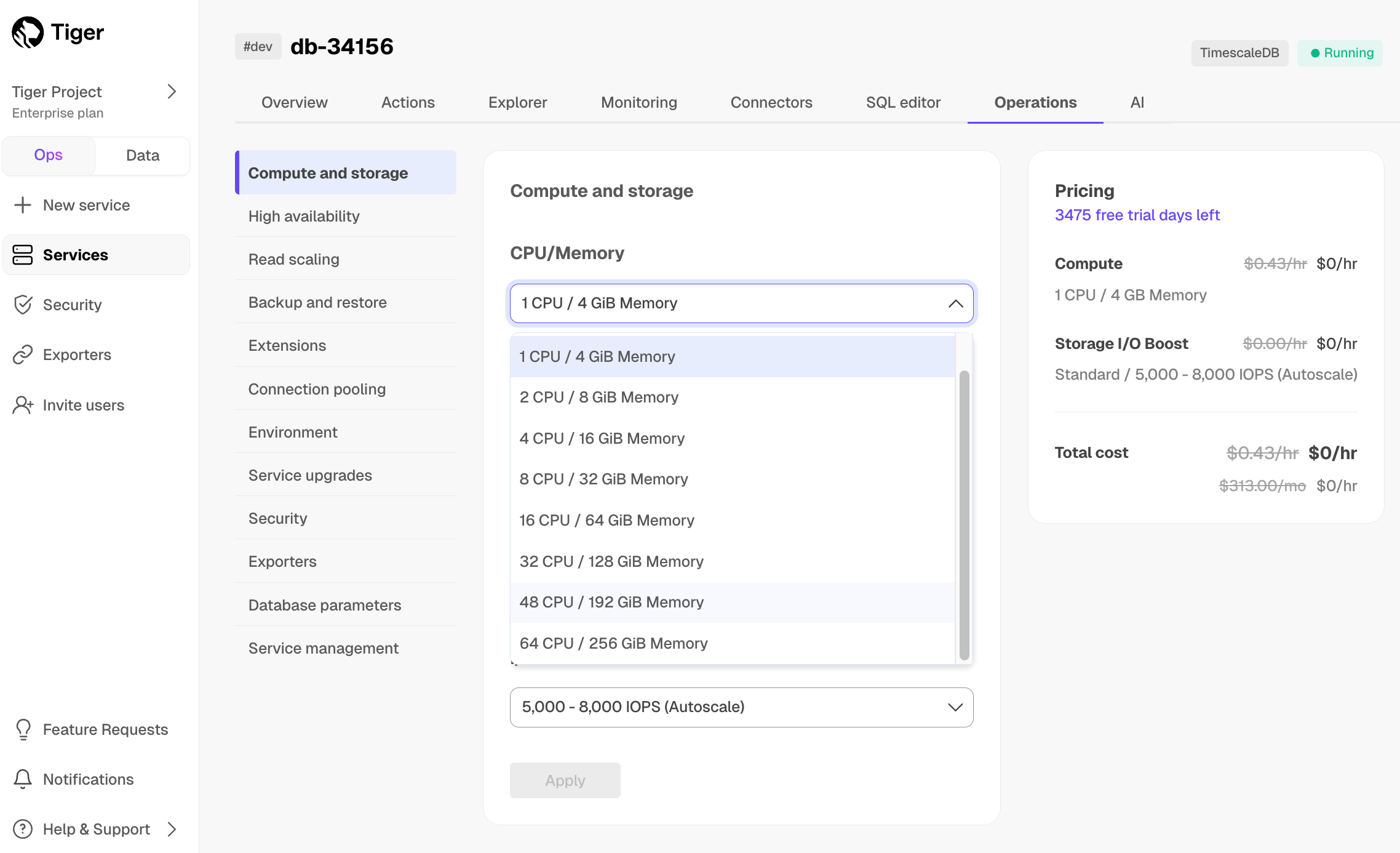
There is momentary downtime while the new compute settings are applied. In most cases, this is less than a minute. However, before making changes to your service, best practice is to enable HA replication on the service. When you resize a service with HA enabled, Tiger Cloud:
HA reduce downtime in the case of resizes or maintenance window restarts, from a minute or so to a couple of seconds.
When you change resource settings, the current and new charges are displayed immediately so that you can verify how the changes impact your costs.
Because compute changes require an interruption to your services, plan accordingly so that the settings are applied during an appropriate service window.
Out of memory errors
If you run intensive queries on your services, you might encounter out of memory (OOM) errors. This occurs if your query consumes more memory than is available.
When this happens, an OOM killer process shuts down Postgres processes using
SIGKILL commands until the memory usage falls below the upper limit. Because
this kills the entire server process, it usually requires a restart.
To prevent service disruption caused by OOM errors, Tiger Cloud attempts to shut down only the query that caused the problem. This means that the problematic query does not run, but that your service continues to operate normally.
Wait for the service to come back online before reconnecting.
If Tiger Cloud successfully guards the service against the OOM killer, it shuts down only the client connection that was using too much memory. This prevents the entire service from shutting down, so you can reconnect immediately. The error log looks like this:
===== PAGE: https://docs.tigerdata.com/use-timescale/time-buckets/use-time-buckets/ =====
Examples:
Example 1 (yml):
2021-09-09 18:15:08 UTC [560567]:TimescaleDB: LOG: server process (PID 2351983) was terminated by signal 9: Killed
Example 2 (yml):
2022-02-03 17:12:04 UTC [2253150]:TimescaleDB: tsdbadmin@tsdb,app=psql [53200] ERROR: out of memory
Upgrade Postgres
URL: llms-txt#upgrade-postgres
Contents:
TimescaleDB is a Postgres extension. Ensure that you upgrade to compatible versions of TimescaleDB and Postgres.
Tiger Cloud is a fully managed service with automatic backup and restore, high availability with replication, seamless scaling and resizing, and much more. You can try Tiger Cloud free for thirty days.
Plan your upgrade path
Best practice is to always use the latest version of TimescaleDB. Subscribe to our releases on GitHub or use Tiger Cloud and always run the latest update without any hassle.
Check the following support matrix against the versions of TimescaleDB and Postgres that you are running currently and the versions you want to update to, then choose your upgrade path.
For example, to upgrade from TimescaleDB 2.13 on Postgres 13 to TimescaleDB 2.18.2 you need to:
You may need to upgrade to the latest Postgres version before you upgrade TimescaleDB. Also,
if you use TimescaleDB Toolkit, ensure the timescaledb_toolkit extension is >=
v1.6.0 before you upgrade TimescaleDB extension.
| TimescaleDB version |Postgres 17|Postgres 16|Postgres 15|Postgres 14|Postgres 13|Postgres 12|Postgres 11|Postgres 10| |-----------------------|-|-|-|-|-|-|-|-| | 2.22.x |✅|✅|✅|❌|❌|❌|❌|❌|❌| | 2.21.x |✅|✅|✅|❌|❌|❌|❌|❌|❌| | 2.20.x |✅|✅|✅|❌|❌|❌|❌|❌|❌| | 2.17 - 2.19 |✅|✅|✅|✅|❌|❌|❌|❌|❌| | 2.16.x |❌|✅|✅|✅|❌|❌|❌|❌|❌|❌| | 2.13 - 2.15 |❌|✅|✅|✅|✅|❌|❌|❌|❌| | 2.12.x |❌|❌|✅|✅|✅|❌|❌|❌|❌| | 2.10.x |❌|❌|✅|✅|✅|✅|❌|❌|❌| | 2.5 - 2.9 |❌|❌|❌|✅|✅|✅|❌|❌|❌| | 2.4 |❌|❌|❌|❌|✅|✅|❌|❌|❌| | 2.1 - 2.3 |❌|❌|❌|❌|✅|✅|✅|❌|❌| | 2.0 |❌|❌|❌|❌|❌|✅|✅|❌|❌ | 1.7 |❌|❌|❌|❌|❌|✅|✅|✅|✅|
We recommend not using TimescaleDB with Postgres 17.1, 16.5, 15.9, 14.14, 13.17, 12.21. These minor versions introduced a breaking binary interface change that, once identified, was reverted in subsequent minor Postgres versions 17.2, 16.6, 15.10, 14.15, 13.18, and 12.22. When you build from source, best practice is to build with Postgres 17.2, 16.6, etc and higher. Users of Tiger Cloud and platform packages for Linux, Windows, MacOS, Docker, and Kubernetes are unaffected.
Upgrade your Postgres instance
You use pg_upgrade to upgrade Postgres in-place. pg_upgrade allows you to retain
the data files of your current Postgres installation while binding the new Postgres binary runtime
to them.
Set the OLD_BIN_DIR environment variable to the folder holding the postgres binary.
For example, which postgres returns something like /usr/lib/postgresql/16/bin/postgres.
This variable holds the connection information for the database to upgrade:
Set the OLD_DATA_DIR environment variable to the value returned by the following:
Postgres returns something like:
For example:
If you are moving data to a new physical instance of Postgres, you can use pg_dump and pg_restore
to dump your data from the old database, and then restore it into the new, upgraded, database. For more
information, see the backup and restore section.
===== PAGE: https://docs.tigerdata.com/self-hosted/upgrades/downgrade/ =====
Examples:
Example 1 (bash):
export OLD_BIN_DIR=/usr/lib/postgresql/16/bin
Example 2 (bash):
export SOURCE="postgres://<user>:<password>@<source host>:<source port>/<db_name>"
Example 3 (shell):
psql -d "source" -c "SHOW data_directory ;"
Example 4 (shell):
----------------------------
/home/postgres/pgdata/data
(1 row)
SELECT data
URL: llms-txt#select-data
Contents:
You can query data from a hypertable using a standard
SELECT command. All SQL clauses and features are supported.
Basic query examples
Here are some examples of basic SELECT queries.
Return the 100 most-recent entries in the table conditions. Order the rows
from newest to oldest:
Return the number of entries written to the table conditions in the last 12
hours:
Advanced query examples
Here are some examples of more advanced SELECT queries.
Get information about the weather conditions at each location, for each 15-minute period within the last 3 hours. Calculate the number of measurements taken, the maximum temperature, and the maximum humidity. Order the results by maximum temperature.
This examples uses the time_bucket function to aggregate data
into 15-minute buckets:
Count the number of distinct locations with air conditioning that have reported data in the last day:
===== PAGE: https://docs.tigerdata.com/use-timescale/query-data/advanced-analytic-queries/ =====
Examples:
Example 1 (sql):
SELECT * FROM conditions ORDER BY time DESC LIMIT 100;
Example 2 (sql):
SELECT COUNT(*) FROM conditions
WHERE time > NOW() - INTERVAL '12 hours';
Example 3 (sql):
SELECT time_bucket('15 minutes', time) AS fifteen_min,
location,
COUNT(*),
MAX(temperature) AS max_temp,
MAX(humidity) AS max_hum
FROM conditions
WHERE time > NOW() - INTERVAL '3 hours'
GROUP BY fifteen_min, location
ORDER BY fifteen_min DESC, max_temp DESC;
Example 4 (sql):
SELECT COUNT(DISTINCT location) FROM conditions
JOIN locations
ON conditions.location = locations.location
WHERE locations.air_conditioning = True
AND time > NOW() - INTERVAL '1 day';
LangChain Integration for pgvector, pgvectorscale, and pgai
URL: llms-txt#langchain-integration-for-pgvector,-pgvectorscale,-and-pgai
LangChain is a popular framework for development applications powered by LLMs. pgai on Tiger Cloud has a native LangChain integration, enabling you to use it as a vector store and leverage all its capabilities in your applications built with LangChain.
Here are resources about using pgai on Tiger Cloud with LangChain:
===== PAGE: https://docs.tigerdata.com/ai/llamaindex-integration-for-pgvector-and-timescale-vector/ =====
Aiven Client for Managed Service for TimescaleDB
URL: llms-txt#aiven-client-for-managed-service-for-timescaledb
Contents:
You can use Aiven Client to manage your services in Managed Service for TimescaleDB.
You can use the Aiven Client tool to:
Install and configure the Aiven client
Aiven Client is a command line tool for fully managed services. To use Aiven Client, you first need to create an authentication token. Then, you configure the client to connect to your Managed Service for TimescaleDB using the command line.
Create an authentication token in Managed Service for TimescaleDB
To connect to Managed Service for TimescaleDB using Aiven Client, create an authentication token.
Install the Aiven Client
The Aiven Client is provided as a Python package. If you've already installed Python, you can install the client on Linux, MacOS, or Windows systems using pip:
For more information about installing the Aiven Client, see the Aiven documentation.
Configure Aiven Client to connect to Managed Service for TimescaleDB
To access Managed Service for TimescaleDB with the Aiven Client, you need an authentication token. Aiven Client uses this to access your services on Managed Service for TimescaleDB.
Configuring Aiven Client to connect to Managed Service for TimescaleDB
This command shows a list of all your projects:
Fork services with Aiven client
When you a fork a service, you create an exact copy of the service, including the underlying database. You can use a fork of your service to:
For more information about projects, plans, and other details about services, see About Managed Service for TimescaleDB.
Creating a fork of your service
To create a fork named grafana-fork for a service named grafana with these parameters:
You can switch to project-fork and view the newly created grafana-fork using:
Configure Grafana authentication plugins
Grafana supports multiple authentication plugins, in addition to built-in username and password authentication.
On Managed Service for TimescaleDB, Grafana supports Google, GitHub, and GitLab authentication. You can configure authentication integration using the Aiven command-line client.
Integrating the Google authentication plugin
To integrate Google authentication with Grafana service on Managed Service for TimescaleDB, you need to create your Google OAuth keys. Copy your client ID and client secret to a secure location.
How to integrate the Google authentication plugin
When you allow sign-ups using the -c auth_google.allow_sign_up=true option, by default each new user is created with viewer permissions and added to their own newly created organizations. To specify different permissions, use -c user_auto_assign_org_role=ROLE_NAME. To add all new users to the main organization, use the -c user_auto_assign_org=true option.
Integrating the GitHub authentication plugin
To integrate GitHub authentication with Grafana service on Managed Service for TimescaleDB, you need to create your GitHub OAuth application. Store your client ID and client secret in a secure location.
How to integrate the GitHub authentication plugin
When you allow sign-ups using the -c auth_github.allow_sign_up=true option, by default each new user is created with viewerpermission and added to their own newly created organizations. To specify different permissions, use -c user_auto_assign_org_role=ROLE_NAME. To add all new users to the main organization, use the -c user_auto_assign_org=true option.
Integrating the GitLab authentication plugin
To integrate the GitLab authentication with Grafana service on Managed Service for TimescaleDB, you need to create your GitLab OAuth application. Copy your client ID, client secret, and GitLab groups name to a secure location.
If you use your own instance of GitLab instead of gitlab.com, then you need to set the following:
How to integrate the GitLab authentication plugin
When you allow sign-ups using the -c auth_gitlab.allow_sign_up=true option, by default each new user is created with viewerpermission and added to their own newly created organizations. To specify different permissions, use -c user_auto_assign_org_role=ROLE_NAME. To add all new users to the main organization, use the -c user_auto_assign_org=true option.
Send Grafana emails
Use the Aiven client to configure the Simple Mail Transfer Protocol (SMTP) server settings and send emails from Managed Service for TimescaleDB for Grafana. This includes invite emails, reset password emails, and alert messages.
Before you begin, make sure you have:
Configuring the SMTP server for Grafana service
You can now send emails for your Grafana service on MST.
Create a read-only replica with Aiven client
Read-only replicas enable you to perform read-only queries against the replica and reduce the load on the primary server. They are also a good way to optimize query response times across different geographical locations. You can achieve this by placing the replicas in different regions or even different cloud providers.
Creating a read-only replica of your service
To create a fork named replica-fork for a service named timescaledb with
these parameters:
You can switch to project-fork and view the newly created replica-fork using:
===== PAGE: https://docs.tigerdata.com/mst/migrate-to-mst/ =====
Examples:
Example 1 (bash):
pip install aiven-client
Example 2 (bash):
cd ~/.config/aiven/
Example 3 (bash):
{
"auth_token": "ABC1+123...TOKEN==",
"user_email": "your.email@timescale.com"
}
Example 4 (bash):
avn project list
Error updating TimescaleDB when using a third-party Postgres admin tool
URL: llms-txt#error-updating-timescaledb-when-using-a-third-party-postgres-admin-tool
The update command ALTER EXTENSION timescaledb UPDATE must be the first command
executed upon connection to a database. Some admin tools execute commands before
this, which can disrupt the process. Try manually updating the database with
psql. For instructions, see the updating guide.
===== PAGE: https://docs.tigerdata.com/_troubleshooting/self-hosted/windows-install-library-not-loaded/ =====
Control access to Tiger Cloud projects
URL: llms-txt#control-access-to-tiger-cloud-projects
Contents:
When you sign up for a 30-day free trial, Tiger Cloud creates a project with built-in role-based access.
This includes the following roles:
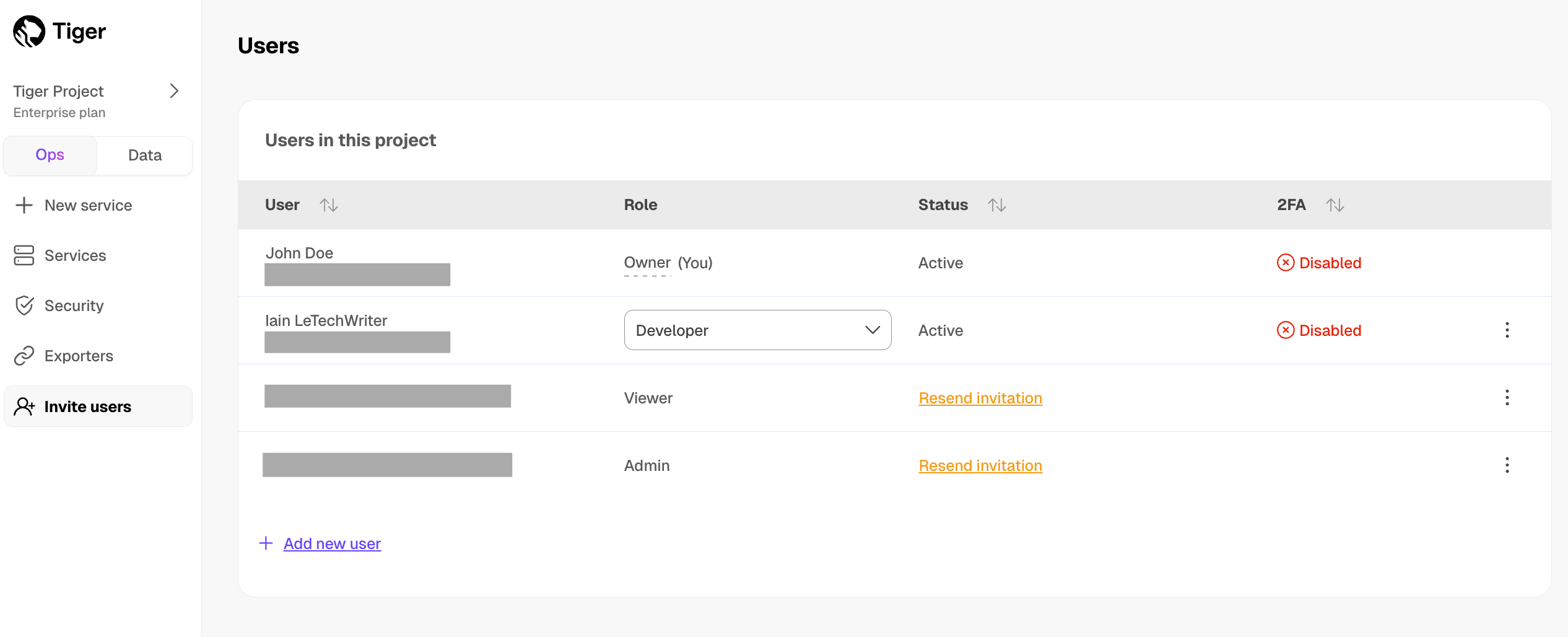
If you have the Enterprise pricing plan, you can use your company SAML identity provider to log in to Console.
User roles in a Tiger Cloud project do not overlap with the database-level roles for the individual services. This page describes the project roles available in Console. For the database-level user roles, see Manage data security in your Tiger Cloud service.
Add a user to your project
New users do not need to have a Tiger Data account before you add them, they are prompted to create one when they respond to the confirmation email. Existing users join a project in addition to the other projects they are already members of.
To add a user to a project:
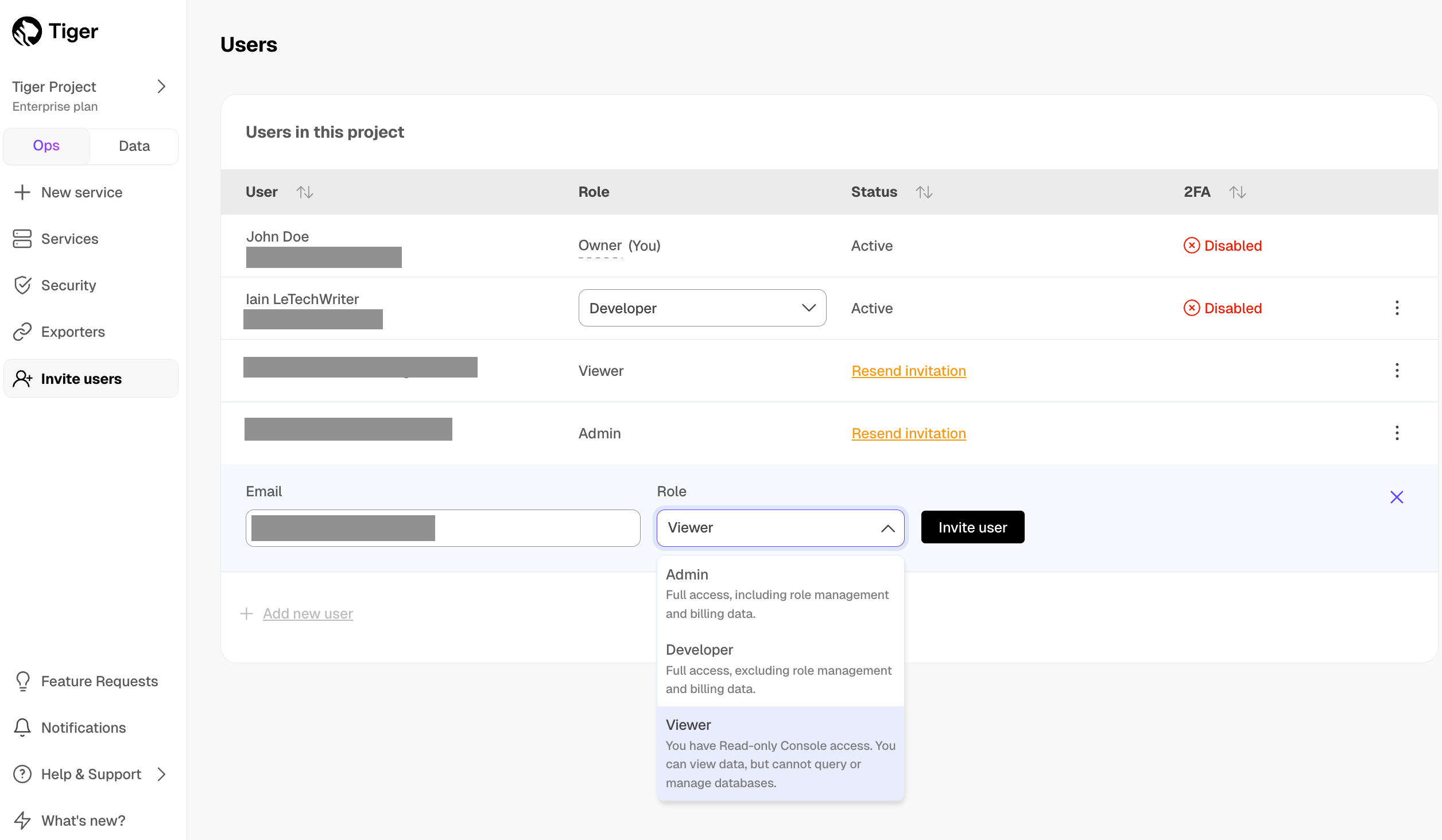
Enterprise pricing plan and SAML users receive a notification in Console. Users in the
other pricing plans receive a confirmation email. The new user then [joins the project][join-a-project].
When you are asked to join a project, Tiger Cloud Console sends you an invitation email. Follow the instructions in the invitation email to join the project:
You are added to the project you were invited to.
Tiger Cloud Console opens, and you are added to the project.
Tiger Cloud Console opens, and you are added to the project. As you are now included in more than one project, you can easily change projects.
Resend a project invitation
Project invitations are valid for 7 days. To resend a project invitation:
Change your current project
To change the project you are currently working in:
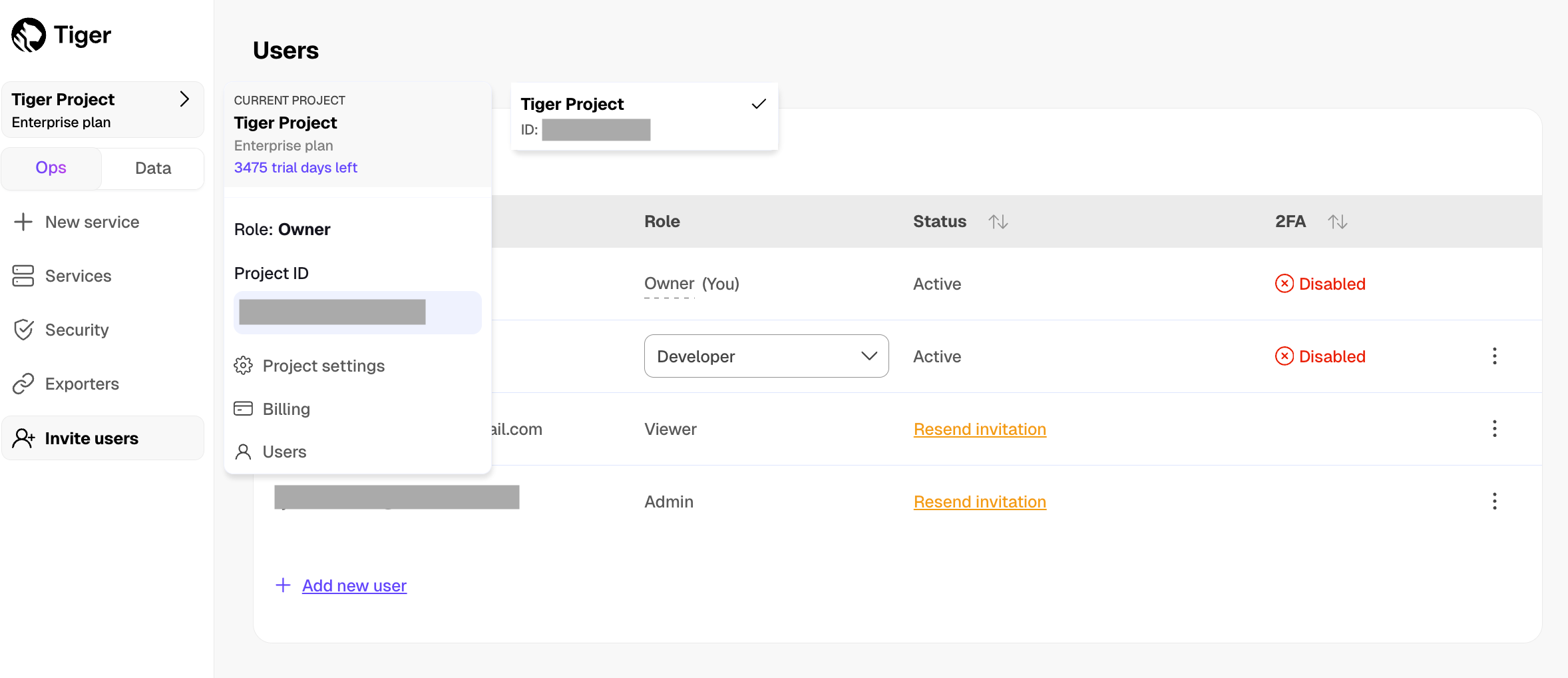
Transfer project ownership
Each Tiger Cloud project has one Owner. As the project Owner, you have rights to add and delete users, edit project settings, and transfer the Owner role to another user. When you transfer ownership to another user, you lose your ownership rights.
To transfer project ownership:
If you are unable to transfer ownership, hover over the greyed out button to see the details.
If you have the Enterprise pricing plan, and log in to Tiger Cloud using SAML authentication or have not enabled two-factor authentication, contact support to transfer project ownership.
To stop working in a project:
Your account is removed from the project immediately, you can no longer access this project.
Change roles of other users in a project
The Owner can change the roles of all users in the project. An Admin can change the roles of all users other than the Owner. Developer and Viewer cannot change the roles of other users.
To change the role for another user:
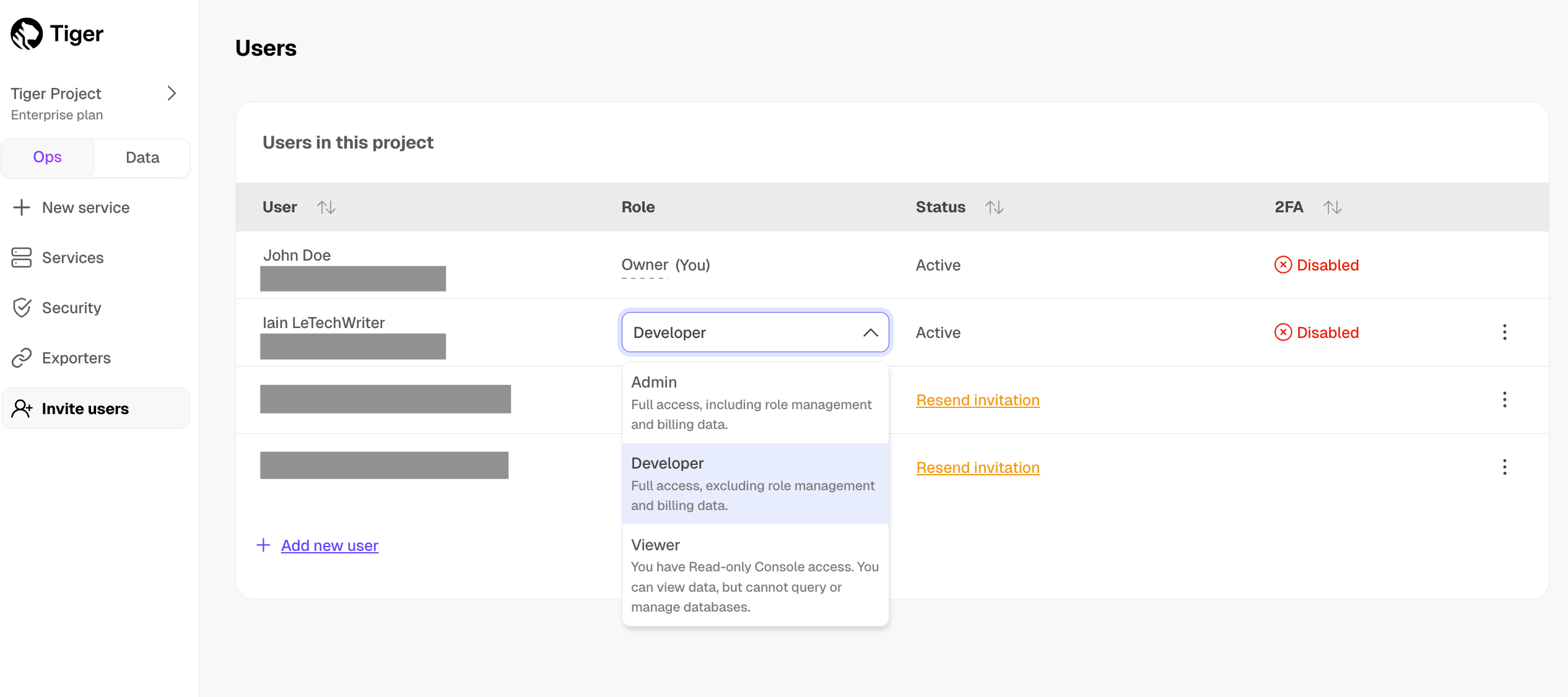
The user role is changed immediately.
Remove users from a project
To remove a user's access to a project:
The user is deleted immediately, they can no longer access your project.
===== PAGE: https://docs.tigerdata.com/use-timescale/security/vpc/ =====
Embed your Postgres data with PgVectorizer
URL: llms-txt#embed-your-postgres-data-with-pgvectorizer
Contents:
Embed Postgres data with PgVectorizer
PgVectorizer enables you to create vector embeddings from any data that you already have stored in Postgres. You can get more background information in the blog post announcing this feature, as well as the "how we built it" post going into the details of the design.
To create vector embeddings, simply attach PgVectorizer to any Postgres table to automatically sync that table's data with a set of embeddings stored in Postgres. For example, say you have a blog table defined in the following way:
You can insert some data as follows:
Now, say you want to embed these blogs and store the embeddings in Postgres. First, you
need to define an embed_and_write function that takes a set of blog
posts, creates the embeddings, and writes them into TigerData Vector. For
example, if using LangChain, it could look something like the following.
Then, all you have to do is run the following code in a scheduled job (cron job, Lambda job, etc):
Every time that job runs, it syncs the table with your embeddings. It
syncs all inserts, updates, and deletes to an embeddings table called
blog_embedding.
Now, you can simply search the embeddings as follows (again, using LangChain in the example):
[(Document(page_content='Author Matvey Arye, title: First Post, contents:some super interesting content about cats.', metadata={'id': '4a784000-4bc4-11eb-855a-06302dbc8c', 'author': 'Matvey Arye', 'blog_id': 1, 'category': 'AI', 'published_time': '2021-01-01T00:00:00+00:00'}),
0.12595687795193833)]
===== PAGE: https://docs.tigerdata.com/README/ =====
Tiger Cloud is the modern Postgres data platform for all your applications. It enhances Postgres to handle time series, events, real-time analytics, and vector search—all in a single database alongside transactional workloads.



This repository contains the current source for Tiger Data documentation available at https://docs.tigerdata.com/.
We welcome contributions! You can contribute to Tiger Data documentation in the following ways:
Contribute to the Tiger Data docs
To make the contribution yourself:
You have to sign the CLA only the first time you raise a PR. This helps to ensure that the community is free to use your contributions.
The documentation site is generated in a separate private repository using Gatsby. Once you raise a PR for any branch, GitHub automatically generates a preview for your changes and attaches the link in the comments. Any new commits are visible at the same URL. If you don't see the latest changes, try an incognito browser window. Automated builds are not available for PRs from forked repositories.
See the Contributing guide for style and language guidance.
Learn about Tiger Data
Tiger Data is Postgres made powerful. To learn more about the company and its products, visit tigerdata.com.
===== PAGE: https://docs.tigerdata.com/CONTRIBUTING/ =====
Examples:
Example 1 (unknown):
Example 2 (unknown):
You can insert some data as follows:
Example 3 (unknown):
Now, say you want to embed these blogs and store the embeddings in Postgres. First, you
need to define an `embed_and_write` function that takes a set of blog
posts, creates the embeddings, and writes them into TigerData Vector. For
example, if using LangChain, it could look something like the following.
Example 4 (unknown):
Then, all you have to do is run the following code in a scheduled job
(cron job, Lambda job, etc):
Manage storage and tiering
URL: llms-txt#manage-storage-and-tiering
Contents:
The tiered storage architecture in Tiger Cloud includes a high-performance storage tier and a low-cost object storage tier:
You can query the data on the object storage tier, but you cannot modify it. Make sure that you are not tiering data that needs to be actively modified.
For low-cost storage, Tiger Data charges only for the size of your data in S3 in the Apache Parquet format, regardless of whether it was compressed in Tiger Cloud before tiering. There are no additional expenses, such as data transfer or compute.
High-performance storage tier
By default, Tiger Cloud stores your service data in the standard high-performance storage. This storage tier comes in the standard and enhanced types. Enhanced storage is available under the Enterprise pricing plan only.
Standard high-performance storage
This storage type gives you up to 16 TB of storage and is available under all pricing plans. You change the IOPS value to better suit your needs in Tiger Cloud Console:
By default, the type of high-performance storage is set to Standard.
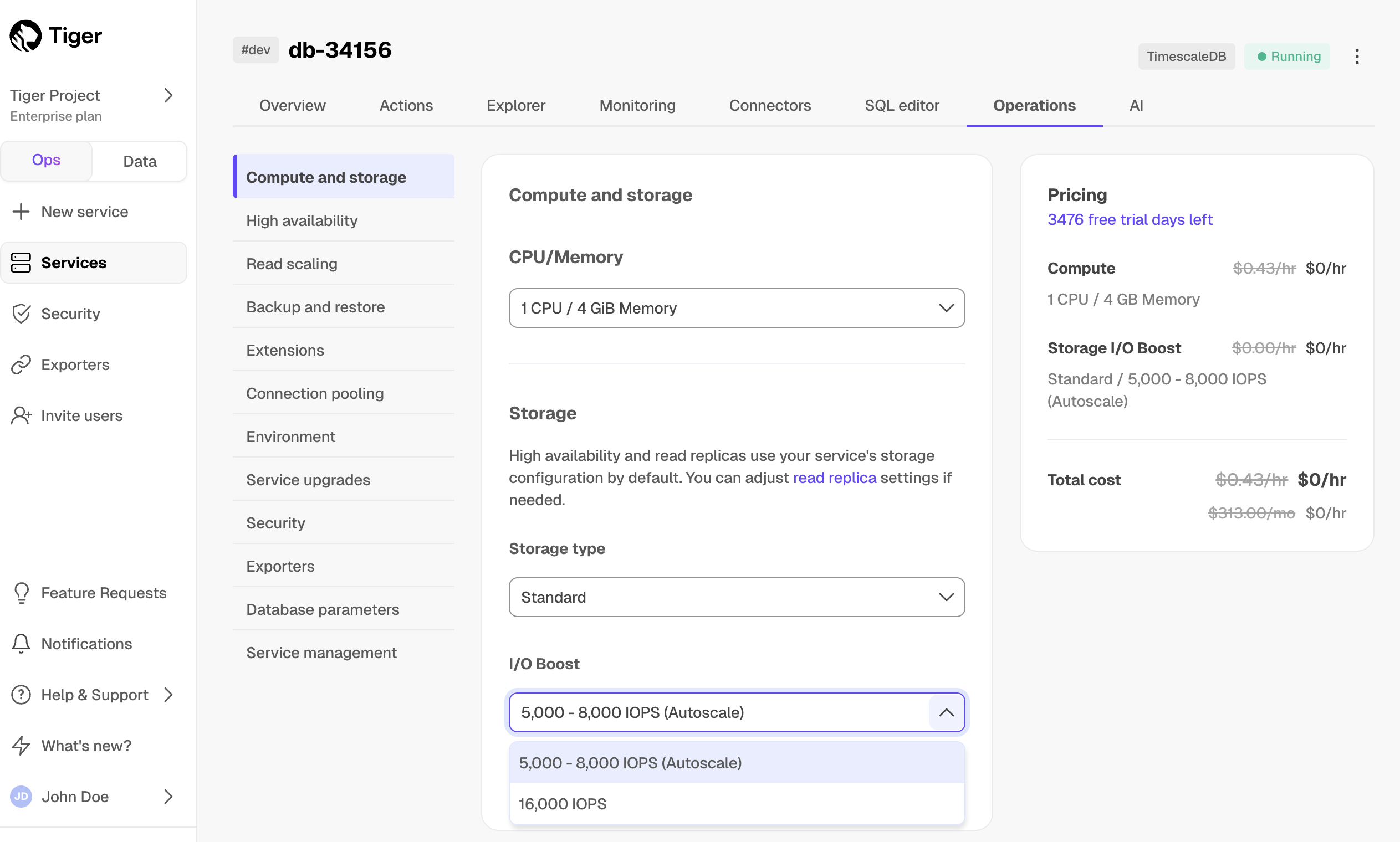
Enhanced high-performance storage
This storage type gives you up to 64 TB and 32,000 IOPS, and is available under the Enterprise pricing plan. To get enhanced storage:
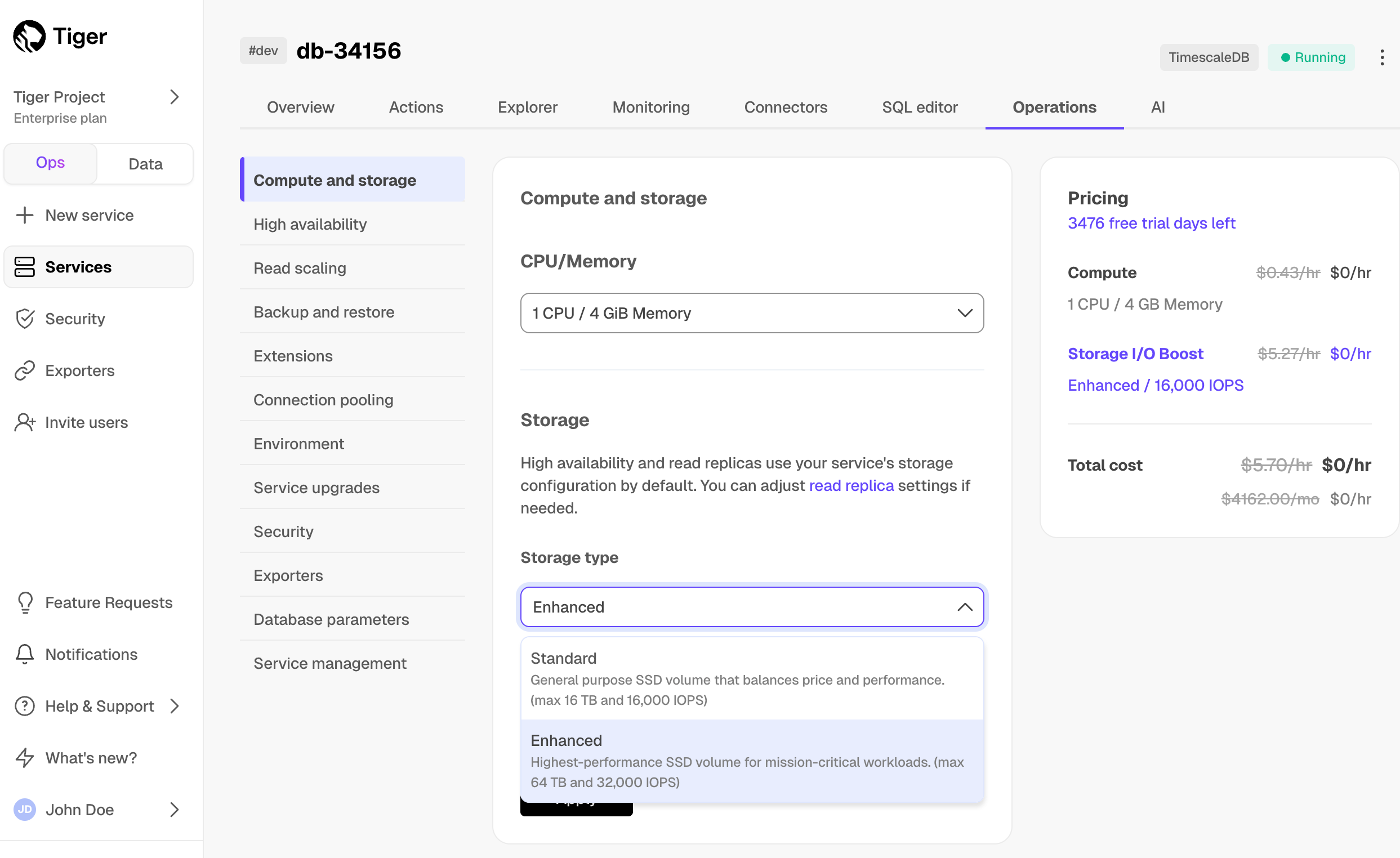
The enhanced storage is currently not available in sa-east-1.
Select between 8,000, 16,000, 24,000, and 32,0000 IOPS. The value that you can apply depends on the number of CPUs in your service. Tiger Cloud Console notifies you if your selected IOPS requires increasing the number of CPUs. To increase IOPS to 64,000, click Contact us and we will be in touch to confirm the details.
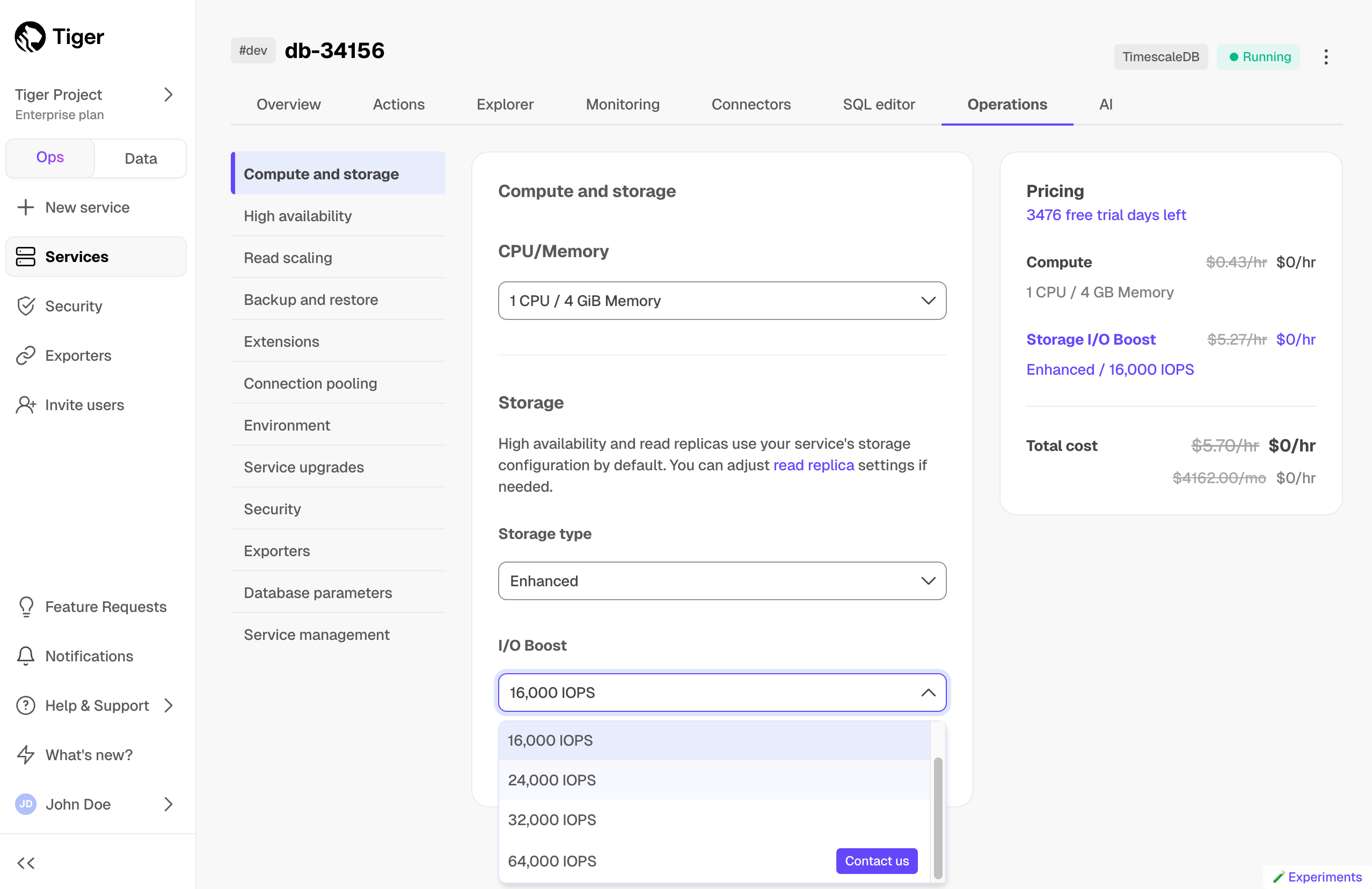
You change from enhanced storage to standard in the same way. If you are using over 16 TB of enhanced storage, changing back to standard is not available until you shrink your data to be under 16 TB. You can make changes to the storage type and I/O boost settings without any downtime. Wait at least 6 hours to attempt another change.
Low-cost object storage tier
You enable the low-cost object storage tier in Tiger Cloud Console and then tier the data with policies or manually.
Enable tiered storage
You enable tiered storage from the Overview tab in Tiger Cloud Console.
Once enabled, you can proceed to tier data manually or set up tiering policies. When tiered storage is enabled, you see the amount of data in the tiered object storage.
Automate tiering with policies
A tiering policy automatically moves any chunks that only contain data
older than the move_after threshold to the object storage tier. This works similarly to a
data retention policy, but chunks are moved rather than deleted.
A tiering policy schedules a job that runs periodically to asynchronously migrate eligible chunks to object storage. Chunks are considered tiered once they appear in the timescaledb_osm.tiered_chunks view.
You can add tiering policies to hypertables, including continuous aggregates. To manage tiering policies, connect to your service and run the queries below in the data mode, the SQL editor, or using psql.
Add a tiering policy
To add a tiering policy, call add_tiering_policy:
For example, to tier chunks that are more than three days old in the example hypertable:
By default, a tiering policy runs hourly on your database. To change this interval, call alter_job.
Remove a tiering policy
To remove an existing tiering policy, call remove_tiering_policy:
For example, to remove the tiering policy from the example hypertable:
If you remove a tiering policy, the remaining scheduled chunks are not tiered. However, chunks in tiered storage are not untiered. You untier chunks manually to local storage.
Manually tier and untier chunks
If tiering policies do not meet your current needs, you can tier and untier chunks manually. To do so, connect to your service and run the queries below in the data mode, the SQL editor, or using psql.
Tiering a chunk is an asynchronous process that schedules the chunk to be tiered. In the following example, you tier chunks older than three days in the example hypertable. You then list the tiered chunks.
This returns a list of chunks. Take a note of the chunk names:
Tiering a chunk schedules it for migration to the object storage tier, but the migration won't happen immediately. Chunks are tiered one at a time in order to minimize database resource consumption. A chunk is marked as migrated and deleted from the standard storage only after it has been durably stored in the object storage tier. You can continue to query a chunk during migration.
To see which chunks are scheduled for tiering either by policy or by a manual call, but have not yet been tiered, use this view:
To update data in a tiered chunk, move it back to the standard high-performance storage tier in Tiger Cloud. Untiering chunks is a synchronous process. Chunks are renamed when the data is untiered.
To untier a chunk, call the untier_chunk stored procedure.
If you no longer want to use tiered storage for a particular hypertable, drop the associated metadata by calling disable_tiering.
===== PAGE: https://docs.tigerdata.com/use-timescale/data-tiering/querying-tiered-data/ =====
Examples:
Example 1 (sql):
SELECT add_tiering_policy(hypertable REGCLASS, move_after INTERVAL, if_not_exists BOOL = false);
Example 2 (sql):
SELECT add_tiering_policy('example', INTERVAL '3 days');
Example 3 (sql):
SELECT remove_tiering_policy(hypertable REGCLASS, if_exists BOOL = false);
Example 4 (sql):
SELECT remove_tiering_policy('example');
Integrate with PostgreSQL
URL: llms-txt#integrate-with-postgresql
Contents:
You use Postgres foreign data wrappers (FDWs) to query external data sources from a Tiger Cloud service. These external data sources can be one of the following:
If you are using VPC peering, you can create FDWs in your Customer VPC to query a service in your Tiger Cloud project. However, you can't create FDWs in your Tiger Cloud services to query a data source in your Customer VPC. This is because Tiger Cloud VPC peering uses AWS PrivateLink for increased security. See VPC peering documentation for additional details.
Postgres FDWs are particularly useful if you manage multiple Tiger Cloud services with different capabilities, and need to seamlessly access and merge regular and time-series data.
To follow the steps on this page:
You need your connection details. This procedure also works for self-hosted TimescaleDB.
Query another data source
To query another data source:
You create Postgres FDWs with the postgres_fdw extension, which is enabled by default in Tiger Cloud.
See how to connect.
Run the following command using your connection details:
Run the following command using your connection details:
A user with the tsdbadmin role assigned already has the required USAGE permission to create Postgres FDWs. You can enable another user, without the tsdbadmin role assigned, to query foreign data. To do so, explicitly grant the permission. For example, for a new grafana user:
You create Postgres FDWs with the postgres_fdw extension. See documenation on how to enable it.
Use psql to connect to your database.
Run the following command using your connection details:
Run the following command using your connection details:
===== PAGE: https://docs.tigerdata.com/integrations/power-bi/ =====
Examples:
Example 1 (sql):
CREATE SERVER myserver
FOREIGN DATA WRAPPER postgres_fdw
OPTIONS (host '<host>', dbname 'tsdb', port '<port>');
Example 2 (sql):
CREATE USER MAPPING FOR tsdbadmin
SERVER myserver
OPTIONS (user 'tsdbadmin', password '<password>');
Example 3 (sql):
CREATE SCHEMA foreign_stuff;
IMPORT FOREIGN SCHEMA public
FROM SERVER myserver
INTO foreign_stuff ;
Example 4 (sql):
CREATE SCHEMA foreign_stuff;
IMPORT FOREIGN SCHEMA public
LIMIT TO (table1, table2)
FROM SERVER myserver
INTO foreign_stuff;
About configuration in Tiger Cloud
URL: llms-txt#about-configuration-in-tiger-cloud
By default, Tiger Cloud uses the default Postgres server configuration settings. Most configuration values for a Tiger Cloud service are initially set in accordance with best practices given the compute and storage settings of the service. Any time you increase or decrease the compute for a service, the most essential values are set to reflect the size of the new service.
There are times, however, when your specific workload could require tuning some of the many available Tiger Cloud-specific and Postgres parameters. By providing the ability to tune various runtime settings, Tiger Cloud provides the balance and flexibility you need when running your workloads in a hosted environment. You can use service settings and service operations to customize Tiger Cloud configurations.
===== PAGE: https://docs.tigerdata.com/use-timescale/configuration/customize-configuration/ =====
Integrations
URL: llms-txt#integrations
Contents:
You can integrate your Tiger Cloud service with third-party solutions to expand and extend what you can do with your data.
Integrates with Postgres? Integrates with your service!
A Tiger Cloud service is a Postgres database instance extended by Tiger Data with custom capabilities. This means that any third-party solution that you can integrate with Postgres, you can also integrate with Tiger Cloud. See the full list of Postgres integrations here.
Some of the most in-demand integrations are listed below.
Authentication and security
| Name | Description |
|---|---|
 Auth.js Auth.js |
Implement authentication and authorization for web applications. |
 Auth0 Auth0 |
Securely manage user authentication and access controls for applications. |
 Okta Okta |
Secure authentication and user identity management for applications. |
Business intelligence and data visualization
| Name | Description |
|---|---|
 Cube.js Cube.js |
Build and optimize data APIs for analytics applications. |
 Looker Looker |
Explore, analyze, and share business insights with a BI platform. |
 Metabase Metabase |
Create dashboards and visualize business data without SQL expertise. |
 Power BI Power BI |
Visualize data, build interactive dashboards, and share insights. |
 Superset Superset |
Create and explore data visualizations and dashboards. |
Configuration and deployment
| Name | Description |
|---|---|
 Azure Functions Azure Functions |
Run event-driven serverless code in the cloud without managing infrastructure. |
 Deno Deploy Deno Deploy |
Deploy and run JavaScript and TypeScript applications at the edge. |
 Flyway Flyway |
Manage and automate database migrations using version control. |
 Liquibase Liquibase |
Track, version, and automate database schema changes. |
 Pulumi Pulumi |
Define and manage cloud infrastructure using code in multiple languages. |
 Render Render |
Deploy and scale web applications, databases, and services easily. |
 Terraform Terraform |
Safely and predictably provision and manage infrastructure in any cloud. |
 Kubernetes Kubernetes |
Deploy, scale, and manage containerized applications automatically. |
Data engineering and extract, transform, load
| Name | Description |
|---|---|
 Airbyte Airbyte |
Sync data between various sources and destinations. |
 Amazon SageMaker Amazon SageMaker |
Build, train, and deploy ML models into a production-ready hosted environment. |
 Apache Airflow Apache Airflow |
Programmatically author, schedule, and monitor workflows. |
 Apache Beam Apache Beam |
Build and execute batch and streaming data pipelines across multiple processing engines. |
 Apache Kafka Apache Kafka |
Stream high-performance data pipelines, analytics, and data integration. |
 AWS Lambda AWS Lambda |
Run code without provisioning or managing servers, scaling automatically as needed. |
 dbt dbt |
Transform and model data in your warehouse using SQL-based workflows. |
 Debezium Debezium |
Capture and stream real-time changes from databases. |
 Decodable Decodable |
Build, run, and manage data pipelines effortlessly. |
 DeltaLake DeltaLake |
Enhance data lakes with ACID transactions and schema enforcement. |
 Firebase Wrapper Firebase Wrapper |
Simplify interactions with Firebase services through an abstraction layer. |
 Stitch Stitch |
Extract, load, and transform data from various sources to data warehouses. |
Data ingestion and streaming
| Name | Description |
|---|---|
 Apache Spark Apache Spark |
Process large-scale data workloads quickly using distributed computing. |
 Confluent Confluent |
Manage and scale Apache Kafka-based event streaming applications. You can also set up Postgres as a source. |
 ElectricSQL ElectricSQL |
Enable real-time synchronization between databases and frontend applications. |
 EMQX EMQX |
Deploy an enterprise-grade MQTT broker for IoT messaging. |
 Estuary Estuary |
Stream and synchronize data in real time between different systems. |
 Flink Flink |
Process real-time data streams with fault-tolerant distributed computing. |
 Fivetran Fivetran |
Sync data from multiple sources to your data warehouse. |
 HighByte HighByte |
Connect operational technology sources, model the data, and stream it into Postgres. |
 Redpanda Redpanda |
Stream and process real-time data as a Kafka-compatible platform. |
 Striim Striim |
Ingest, process, and analyze real-time data streams. |
| Name | Description |
|---|---|
 Deepnote Deepnote |
Collaborate on data science projects with a cloud-based notebook platform. |
 Django Django |
Develop scalable and secure web applications using a Python framework. |
 LangChain LangChain |
Build applications that integrate with language models like GPT. |
 Rust Rust |
Build high-performance, memory-safe applications with a modern programming language. |
 Streamlit Streamlit |
Create interactive data applications and dashboards using Python. |
Language-specific integrations
| Name | Description |
|---|---|
 Golang Golang |
Integrate Tiger Cloud with a Golang application. |
 Java Java |
Integrate Tiger Cloud with a Java application. |
 Node.js Node.js |
Integrate Tiger Cloud with a Node.js application. |
 Python Python |
Integrate Tiger Cloud with a Python application. |
 Ruby Ruby |
Integrate Tiger Cloud with a Ruby application. |
Logging and system administration
| Name | Description |
|---|---|
 RSyslog RSyslog |
Collect, filter, and forward system logs for centralized logging. |
 SchemaSpy SchemaSpy |
Generate database schema documentation and visualization. |
Observability and alerting
| Name | Description |
|---|---|
 Amazon Cloudwatch Amazon Cloudwatch |
Collect, analyze, and act on data from applications, infrastructure, and services running in AWS and on-premises environments. |
 Apache SkyWalking Apache SkyWalking |
Monitor, trace, and diagnose distributed applications for improved observability. You can also set up Postgres as storage. |
 Azure Monitor Azure Monitor |
Collect and analyze telemetry data from cloud and on-premises environments. |
 Dash0 Dash0 |
OpenTelemetry Native Observability, built on CNCF Open Standards like PromQL, Perses, and OTLP, and offering full cost control. |
 Datadog Datadog |
Gain comprehensive visibility into applications, infrastructure, and systems through real-time monitoring, logging, and analytics. |
 Grafana Grafana |
Query, visualize, alert on, and explore your metrics and logs. |
 IBM Instana IBM Instana |
Monitor application performance and detect issues in real-time. |
 Jaeger Jaeger |
Trace and diagnose distributed transactions for observability. |
 New Relic New Relic |
Monitor applications, infrastructure, and logs for performance insights. |
 OpenTelemetry Beta OpenTelemetry Beta |
Collect and analyze telemetry data for observability across systems. |
 Prometheus Prometheus |
Track the performance and health of systems, applications, and infrastructure. |
 SigNoz SigNoz |
Monitor application performance with an open-source observability tool. |
 Tableau Tableau |
Connect to data sources, analyze data, and create interactive visualizations and dashboards. |
 Telegraf Telegraf |
Collect, process, and ship metrics and events into databases or monitoring platforms. |
Query and administration
| Name | Description |
|---|---|
 Azure Data Studio Azure Data Studio |
Query, manage, visualize, and develop databases across SQL Server, Azure SQL, and Postgres. |
 DBeaver DBeaver |
Connect to, manage, query, and analyze multiple database in a single interface with SQL editing, visualization, and administration tools. |
 Forest Admin Forest Admin |
Create admin panels and dashboards for business applications. |
 Hasura Hasura |
Instantly generate GraphQL APIs from databases with access control. |
 Mode Analytics Mode Analytics |
Analyze data, create reports, and share insights with teams. |
 Neon Neon |
Run a cloud-native, serverless Postgres database with automatic scaling. |
 pgAdmin pgAdmin |
Manage, query, and administer Postgres databases through a graphical interface. |
 Postgres Postgres |
Access and query data from external sources as if they were regular Postgres tables. |
 Prisma Prisma |
Simplify database access with an open-source ORM for Node.js. |
 psql psql |
Run SQL queries, manage databases, automate tasks, and interact directly with Postgres. |
 Qlik Replicate Qlik Replicate |
Move and synchronize data across multiple database platforms. You an also set up Postgres as a source. |
 qStudio qStudio |
Write and execute SQL queries, manage database objects, and analyze data in a user-friendly interface. |
 Redash Redash |
Query, visualize, and share data from multiple sources. |
 SQLalchemy SQLalchemy |
Manage database operations using a Python SQL toolkit and ORM. |
 Sequelize Sequelize |
Interact with SQL databases in Node.js using an ORM. |
 StepZen StepZen |
Build and deploy GraphQL APIs with data from multiple sources. |
 TypeORM TypeORM |
Work with databases in TypeScript and JavaScript using an ORM. |
Secure connectivity to Tiger Cloud
| Name | Description |
|---|---|
 Amazon Web Services Amazon Web Services |
Connect your other services and applications running in AWS to Tiger Cloud. |
 Corporate data center Corporate data center |
Connect your on-premise data center to Tiger Cloud. |
 Google Cloud Google Cloud |
Connect your Google Cloud infrastructure to Tiger Cloud. |
 Microsoft Azure Microsoft Azure |
Connect your Microsoft Azure infrastructure to Tiger Cloud. |
Workflow automation and no-code tools
| Name | Description |
|---|---|
 Appsmith Appsmith |
Create internal business applications with a low-code platform. |
 n8n n8n |
Automate workflows and integrate services with a no-code platform. |
 Retool Retool |
Build custom internal tools quickly using a drag-and-drop interface. |
 Tooljet Tooljet |
Develop internal tools and business applications with a low-code builder. |
 Zapier Zapier |
Automate workflows by connecting different applications and services. |
===== PAGE: https://docs.tigerdata.com/integrations/aws-lambda/ =====
Scheduled jobs stop running
URL: llms-txt#scheduled-jobs-stop-running
Your scheduled jobs might stop running for various reasons. On self-hosted TimescaleDB, you can fix this by restarting background workers:
On Tiger Cloud and Managed Service for TimescaleDB, restart background workers by doing one of the following:
===== PAGE: https://docs.tigerdata.com/_troubleshooting/invalid-attribute-reindex-hypertable/ =====
Examples:
Example 1 (sql):
SELECT _timescaledb_functions.start_background_workers();
Example 2 (sql):
SELECT _timescaledb_internal.start_background_workers();
Multi-node configuration
URL: llms-txt#multi-node-configuration
Contents:
Multi-node support is sunsetted.
TimescaleDB v2.13 is the last release that includes multi-node support for Postgres versions 13, 14, and 15.
In addition to the regular TimescaleDB configuration, it is recommended that you also configure additional settings specific to multi-node operation.
Each of these settings can be configured in the postgresql.conf file on the
individual node. The postgresql.conf file is usually in the data directory,
but you can locate the correct path by connecting to the node with psql and
giving this command:
After you have modified the postgresql.conf file, reload the configuration to
see your changes:
max_prepared_transactions
If not already set, ensure that max_prepared_transactions is a non-zero value
on all data nodes is set to 150 as a starting point.
enable_partitionwise_aggregate
On the access node, set the enable_partitionwise_aggregate parameter to on.
This ensures that queries are pushed down to the data nodes, and improves query
performance.
On the access node, set jit to off. Currently, JIT does not work well with
distributed queries. However, you can enable JIT on the data nodes successfully.
statement_timeout
On the data nodes, disable statement_timeout. If you need to enable this,
enable and configure it on the access node only. This setting is disabled by
default in Postgres, but can be useful if your specific environment is suited.
On the data nodes, set the wal_level to logical or higher to
move or copy chunks between data nodes. If you
are moving many chunks in parallel, consider increasing max_wal_senders and
max_replication_slots as well.
Transaction isolation level
For consistency, if the transaction isolation level is set to READ COMMITTED
it is automatically upgraded to REPEATABLE READ whenever a distributed
operation occurs. If the isolation level is SERIALIZABLE, it is not changed.
===== PAGE: https://docs.tigerdata.com/self-hosted/multinode-timescaledb/multinode-maintenance/ =====
Examples:
Example 1 (sql):
SHOW config_file;
Example 2 (bash):
pg_ctl reload
SQL inteface for pgvector and pgvectorscale
URL: llms-txt#sql-inteface-for-pgvector-and-pgvectorscale
Contents:
Installing the pgvector and pgvectorscale extensions
If not already installed, install the vector and vectorscale extensions on your Tiger Data database.
Creating the table for storing embeddings using pgvector
Vectors inside of the database are stored in regular Postgres tables using vector columns. The vector column type is provided by the pgvector extension. A common way to store vectors is alongside the data they are embedding. For example, to store embeddings for documents, a common table structure is:
This table contains a primary key, a foreign key to the document table, some metadata, the text being embedded (in the contents column) and the embedded vector.
You may ask why not just add an embedding column to the document table? The answer is that there is a limit on the length of text an embedding can encode and so there needs to be a one-to-many relationship between the full document and its embeddings.
The above table is just an illustration, it's totally fine to have a table without a foreign key and/or without a metadata column. The important thing is to have a column with the data being embedded and the vector in the same row, enabling you to return the raw data for a given similarity search query
The vector type can specify an optional number of dimensions (1,538) in the example above). If specified, it enforces the constraint that all vectors in the column have that number of dimensions. A plain VECTOR (without specifying the number of dimensions) column is also possible and allows a variable number of dimensions.
Query the vector embeddings
The canonical query is:
Which returns the 10 rows whose distance is the smallest. The distance function used here is cosine distance (specified by using the <=> operator). Other distance functions are available, see the discussion.
The available distance types and their operators are:
| Distance type | Operator |
|---|---|
| Cosine/Angular | <=> |
| Euclidean | <-> |
| Negative inner product | <#> |
If you are using an index, you need to make sure that the distance function used in index creation is the same one used during query (see below). This is important because if you create your index with one distance function but query with another, your index cannot be used to speed up the query.
Indexing the vector data using indexes provided by pgvector and pgvectorscale
Indexing helps speed up similarity queries of the basic form:
The key part is that the ORDER BY contains a distance measure against a constant or a pseudo-constant.
Note that if performing a query without an index, you always get an exact result, but the query is slow (it has to read all of the data you store for every query). With an index, your queries are an order-of-magnitude faster, but the results are approximate (because there are no known indexing techniques that are exact see here for more).
Nevertheless, there are excellent approximate algorithms. There are 3 different indexing algorithms available on TimescaleDB: StreamingDiskANN, HNSW, and ivfflat. Below is the trade-offs between these algorithms:
| Algorithm | Build Speed | Query Speed | Need to rebuild after updates |
|---|---|---|---|
| StreamingDiskANN | Fast | Fastest | No |
| HNSW | Fast | Fast | No |
| ivfflat | Fastest | Slowest | Yes |
You can see benchmarks in the blog.
For most use cases, the StreamingDiskANN index is recommended.
Each of these indexes has a set of build-time options for controlling the speed/accuracy trade-off when creating the index and an additional query-time option for controlling accuracy during a particular query.
You can see the details of each index below.
StreamingDiskANN index
The StreamingDiskANN index is a graph-based algorithm that was inspired by the DiskANN algorithm. You can read more about it in How We Made Postgres as Fast as Pinecone for Vector Data.
To create an index named document_embedding_idx on table document_embedding having a vector column named embedding, with cosine distance metric, run:
Since this index uses cosine distance, you should use the <=> operator in your queries. StreamingDiskANN also supports L2 distance:
For L2 distance, use the <-> operator in queries.
These examples create the index with smart defaults for all parameters not listed. These should be the right values for most cases. But if you want to delve deeper, the available parameters are below.
StreamingDiskANN index build-time parameters
These parameters can be set when an index is created.
| Parameter name | Description | Default value |
|---|---|---|
storage_layout |
memory_optimized which uses SBQ to compress vector data or plain which stores data uncompressed |
memory_optimized |
num_neighbors |
Sets the maximum number of neighbors per node. Higher values increase accuracy but make the graph traversal slower. | 50 |
search_list_size |
This is the S parameter used in the greedy search algorithm used during construction. Higher values improve graph quality at the cost of slower index builds. | 100 |
max_alpha |
Is the alpha parameter in the algorithm. Higher values improve graph quality at the cost of slower index builds. | 1.2 |
num_dimensions |
The number of dimensions to index. By default, all dimensions are indexed. But you can also index less dimensions to make use of Matryoshka embeddings | 0 (all dimensions) |
num_bits_per_dimension |
Number of bits used to encode each dimension when using SBQ | 2 for less than 900 dimensions, 1 otherwise |
An example of how to set the num_neighbors parameter is:
StreamingDiskANN query-time parameters
You can also set two parameters to control the accuracy vs. query speed trade-off at query time. We suggest adjusting diskann.query_rescore to fine-tune accuracy.
| Parameter name | Description | Default value |
|---|---|---|
diskann.query_search_list_size |
The number of additional candidates considered during the graph search. | 100 |
diskann.query_rescore |
The number of elements rescored (0 to disable rescoring) | 50 |
You can set the value by using SET before executing a query. For example:
Note the SET command applies to the entire session (database connection) from the point of execution. You can use a transaction-local variant using LOCAL which will
be reset after the end of the transaction:
StreamingDiskANN index-supported queries
You need to use the cosine-distance embedding measure (<=>) in your ORDER BY clause. A canonical query would be:
Pgvector provides a graph-based indexing algorithm based on the popular HNSW algorithm.
To create an index named document_embedding_idx on table document_embedding having a vector column named embedding, run:
This command creates an index for cosine-distance queries because of vector_cosine_ops. There are also "ops" classes for Euclidean distance and negative inner product:
| Distance type | Query operator | Index ops class |
|---|---|---|
| Cosine / Angular | <=> |
vector_cosine_ops |
| Euclidean / L2 | <-> |
vector_ip_ops |
| Negative inner product | <#> |
vector_l2_ops |
Pgvector HNSW also includes several index build-time and query-time parameters.
pgvector HNSW index build-time parameters
These parameters can be set at index build time:
| Parameter name | Description | Default value |
|---|---|---|
m |
Represents the maximum number of connections per layer. Think of these connections as edges created for each node during graph construction. Increasing m increases accuracy but also increases index build time and size. | 16 |
ef_construction |
Represents the size of the dynamic candidate list for constructing the graph. It influences the trade-off between index quality and construction speed. Increasing ef_construction enables more accurate search results at the expense of lengthier index build times. |
64 |
An example of how to set the m parameter is:
pgvector HNSW query-time parameters
You can also set a parameter to control the accuracy vs. query speed trade-off at query time. The parameter is called hnsw.ef_search. This parameter specifies the size of the dynamic candidate list used during search. Defaults to 40. Higher values improve query accuracy while making the query slower.
You can set the value by running:
Before executing the query, note the SET command applies to the entire session (database connection) from the point of execution. You can use a transaction-local variant using LOCAL:
pgvector HNSW index-supported queries
You need to use the distance operator (<=>, <->, or <#>) matching the ops class you used during index creation in your ORDER BY clause. A canonical query would be:
Pgvector provides a clustering-based indexing algorithm. The blog post describes how it works in detail. It provides the fastest index-build speed but the slowest query speeds of any indexing algorithm.
To create an index named document_embedding_idx on table document_embedding having a vector column named embedding, run:
This command creates an index for cosine-distance queries because of vector_cosine_ops. There are also "ops" classes for Euclidean distance and negative inner product:
| Distance type | Query operator | Index ops class |
|---|---|---|
| Cosine / Angular | <=> |
vector_cosine_ops |
| Euclidean / L2 | <-> |
vector_ip_ops |
| Negative inner product | <#> |
vector_l2_ops |
Note: ivfflat should never be created on empty tables because it needs to cluster data, and that only happens when an index is first created, not when new rows are inserted or modified. Also, if your table undergoes a lot of modifications, you need to rebuild this index occasionally to maintain good accuracy. See the blog post for details.
Pgvector ivfflat has a lists index parameter that should be set. See the next section.
pgvector ivfflat index build-time parameters
Pgvector has a lists parameter that should be set as follows:
For datasets with less than one million rows, use lists = rows / 1000.
For datasets with more than one million rows, use lists = sqrt(rows).
It is generally advisable to have at least 10 clusters.
You can use the following code to simplify creating ivfflat indexes:
pgvector ivfflat query-time parameters
You can also set a parameter to control the accuracy vs. query speed tradeoff at query time. The parameter is called ivfflat.probes. This parameter specifies the number of clusters searched during a query. It is recommended to set this parameter to sqrt(lists) where lists is the parameter used above during index creation. Higher values improve query accuracy while making the query slower.
You can set the value by running:
Before executing the query, note the SET command applies to the entire session (database connection) from the point of execution. You can use a transaction-local variant using LOCAL:
pgvector ivfflat index-supported queries
You need to use the distance operator (<=>, <->, or <#>) matching the ops class you used during index creation in your ORDER BY clause. A canonical query would be:
===== PAGE: https://docs.tigerdata.com/ai/python-interface-for-pgvector-and-timescale-vector/ =====
Examples:
Example 1 (sql):
CREATE EXTENSION IF NOT EXISTS vector;
CREATE EXTENSION IF NOT EXISTS vectorscale;
Example 2 (sql):
CREATE TABLE IF NOT EXISTS document_embedding (
id BIGINT PRIMARY KEY GENERATED BY DEFAULT AS IDENTITY,
document_id BIGINT FOREIGN KEY(document.id)
metadata JSONB,
contents TEXT,
embedding VECTOR(1536)
)
Example 3 (sql):
SELECT *
FROM document_embedding
ORDER BY embedding <=> $1
LIMIT 10
Example 4 (sql):
SELECT *
FROM document_embedding
ORDER BY embedding <=> $1
LIMIT 10
User management
URL: llms-txt#user-management
Contents:
You can add new users, and manage existing users, in MST Console. New users can be added to an entire project, or a single service.
You can invite new users to join your project as project members. There are several roles available for project members:
|Role|Invite more users|Modify billing information|Manage existing services|Start and stop services|View service information| |-|-|-|-|-|-| |Admin|✅|✅|✅|✅|✅| |Operator|❌|❌|✅|✅|✅| |Developer|✅|❌|✅|❌|✅| |Read-only|❌|❌|❌|❌|✅|
Users who can manage existing services can create databases and connect to them, on a service that already exists. To create a new service, users need the start and stop services permission.
Adding project members
By default, when you create a new service, a new tsdbadmin user is created.
This is the user that you use to connect to your new service.
The tsdbadmin user is the owner of the database, but is not a superuser. To
access features requiring a superuser, log in as the postgres user instead.
The tsdbadmin user for Managed Service for TimescaleDBs can:
This allows you to use the tsdbadmin user to create another user with any
other roles. For a complete list of roles available, see the
Postgres role attributes documentation.
Your service must be running before you can manage users.
Adding service users
<img class="main-content__illustration"
src="https://assets.timescale.com/docs/images/mst/create-service-user.png"
alt="Add a new MST service user"/>
To view the password, click the eye icon. Use the options in the list to change
the replication setting and password, or delete the user.
Multi-factor user authentication
You can use multi-factor authentication (MFA) to log in to MST Console. This requires an authentication code, provided by the Google Authenticator app on your mobile device.
You can see which authentication method is in use by each member of your Managed Service for TimescaleDB project. From the dashboard, navigate to the Members
section. Each member is listed in the table with an authentication method of
either Password or Two-Factor.
Before you begin, install the Google Authenticator app on your mobile device. For more information, and installation instructions, see the Google Authenticator documentation.
Configuring multi-factor authentication
If you lose access to the mobile device you use for multi-factor
authentication, you cannot sign in to your Managed Service for TimescaleDB
account. To regain access to your account, on the login screen, click
Forgot password? and follow the step to reset your password. When you have
regained access to your account, reconfigure multi-factor authentication.
User authentication tokens
Every time a registered user logs in, Managed Service for TimescaleDB creates a new authentication token. This occurs for login events using the portal, and using the API. By default, authentication tokens expire after 30 days, but the expiry date is adjusted every time the token is used. This means that tokens can be used indefinitely, if the user logs in at least every 30 days.
You can see the list of all current authentication tokens in the Managed Service for TimescaleDB dashboard. Sign in to your account, and click the
User information icon in the top-right of the dashboard to go to the
User profile section. In the Authentication tab, the table lists all current
authentication tokens.
When you make authentication changes, such as enabling two factor authentication
or resetting a password, all existing tokens are revoked. In some cases, a new
token is immediately created so that the web console session remains valid. You
can also manually revoke authentication tokens from the User profile page
individually, or click Revoke all tokens to revoke all current tokens.
Additionally, you can click Generate token to create a new token. When you
generate a token on this page, you can provide a description, maximum age, and
an extension policy. Generating authentication tokens in this way allows you to
use them with monitoring applications that make automatic API calls to Managed Service for TimescaleDB.
There is a limit to how many valid authentication tokens are allowed per user. This limit is different for tokens that are created as a result of a sign in operation, and for tokens created explicitly. For automatically created tokens, the system automatically deletes the oldest tokens as new ones are created. For explicitly created tokens, older tokens are not deleted unless they expire or are manually revoked. This can result in explicitly created tokens that stop working, even though they haven't expired or been revoked. To avoid this, make sure you sign out at the end of every user session, instead of just discarding your authentication token. This is especially important for automation tools that automatically sign in.
===== PAGE: https://docs.tigerdata.com/mst/billing/ =====
Configuring TimescaleDB
URL: llms-txt#configuring-timescaledb
Contents:
TimescaleDB works with the default Postgres server configuration settings.
However, we find that these settings are typically too conservative and
can be limiting when using larger servers with more resources (CPU, memory,
disk, etc). Adjusting these settings, either
automatically with our tool timescaledb-tune or manually editing
your machine's postgresql.conf, can improve performance.
You can determine the location of postgresql.conf by running
SHOW config_file; from your Postgres client (for example, psql).
In addition, other TimescaleDB specific settings can be modified through the
postgresql.conf file as covered in the TimescaleDB settings section.
Using timescaledb-tune
To streamline the configuration process, use timescaledb-tune that
handles setting the most common parameters to appropriate values based on your
system, accounting for memory, CPU, and Postgres version. timescaledb-tune
is packaged along with the binary releases as a dependency, so if you installed
one of the binary releases (including Docker), you should have access to the
tool. Alternatively, with a standard Go environment, you can also go get the
repository to install it.
timescaledb-tune reads your system's postgresql.conf file and offers
interactive suggestions for updating your settings:
These changes are then written to your postgresql.conf and take effect
on the next (re)start. If you are starting on fresh instance and don't feel
the need to approve each group of changes, you can also automatically accept
and append the suggestions to the end of your postgresql.conf like so:
Postgres configuration and tuning
If you prefer to tune the settings yourself, or are curious about the
suggestions that timescaledb-tune makes, then check these. However,
timescaledb-tune does not cover all settings that you need to adjust.
All of these settings are handled by timescaledb-tune.
The settings shared_buffers, effective_cache_size, work_mem, and
maintenance_work_mem need to be adjusted to match the machine's available
memory. Get the configuration values from the PgTune
website (suggested DB Type: Data warehouse). You should also adjust the
max_connections setting to match the ones given by PgTune since there is a
connection between max_connections and memory settings. Other settings from
PgTune may also be helpful.
All of these settings are handled by timescaledb-tune.
Postgres utilizes worker pools to provide the required workers needed to support both live queries and background jobs. If you do not configure these settings, you may observe performance degradation on both queries and background jobs.
TimescaleDB background workers are configured using the
timescaledb.max_background_workers setting. You should configure this
setting to the sum of your total number of databases and the
total number of concurrent background workers you want running at any given
point in time. You need a background worker allocated to each database to run
a lightweight scheduler that schedules jobs. On top of that, any additional
workers you allocate here run background jobs when needed.
For larger queries, Postgres automatically uses parallel workers if
they are available. To configure this use the max_parallel_workers setting.
Increasing this setting improves query performance for
larger queries. Smaller queries may not trigger parallel workers. By default,
this setting corresponds to the number of CPUs available. Use the --cpus flag
or the TS_TUNE_NUM_CPUS docker environment variable to change it.
Finally, you must configure max_worker_processes to be at least the sum of
timescaledb.max_background_workers and max_parallel_workers.
max_worker_processes is the total pool of workers available to both
background and parallel workers (as well as a handful of built-in Postgres
workers).
By default, timescaledb-tune sets timescaledb.max_background_workers to 16.
In order to change this setting, use the --max-bg-workers flag or the
TS_TUNE_MAX_BG_WORKERS docker environment variable. The max_worker_processes
setting is automatically adjusted as well.
Disk-write settings
In order to increase write throughput, there are
multiple settings to adjust the behavior that Postgres uses
to write data to disk. In tests, performance is good with the default, or safest,
settings. If you want a bit of additional performance, you can set
synchronous_commit = 'off'(Postgres docs).
Please note that when disabling
synchronous_commit in this way, an operating system or database crash might
result in some recent allegedly committed transactions being lost. We actively
discourage changing the fsync setting.
TimescaleDB relies heavily on table partitioning for scaling time-series workloads, which has implications for lock management. A hypertable needs to acquire locks on many chunks (sub-tables) during queries, which can exhaust the default limits for the number of allowed locks held. This might result in a warning like the following:
To avoid this issue, it is necessary to increase the
max_locks_per_transaction setting from the default value (which is
typically 64). Since changing this parameter requires a database
restart, it is advisable to estimate a good setting that also allows
some growth. For most use cases we recommend the following setting:
where num_chunks is the maximum number of chunks you expect to have in a
hypertable and max_connections is the number of connections configured for
Postgres.
This takes into account that the number of locks used by a hypertable query is
roughly equal to the number of chunks in the hypertable if you need to access
all chunks in a query, or double that number if the query uses an index.
You can see how many chunks you currently have using the
timescaledb_information.hypertables view.
Changing this parameter requires a database restart, so make sure you pick a larger
number to allow for some growth. For more information about lock management,
see the Postgres documentation.
TimescaleDB configuration and tuning
Just as you can tune settings in Postgres, TimescaleDB provides a number of
configuration settings that may be useful to your specific installation and
performance needs. These can also be set within the postgresql.conf file or as
command-line parameters when starting Postgres.
timescaledb.max_background_workers (int)
Max background worker processes allocated to TimescaleDB. Set to at least 1 + number of databases in Postgres instance to use background workers. Default value is 8.
Distributed hypertables
timescaledb.hypertable_distributed_default (enum)
Set default policy to create local or distributed hypertables for
create_hypertable() command, when the distributed argument is not provided.
Supported values are auto, local or distributed.
timescaledb.hypertable_replication_factor_default (int)
Global default value for replication factor to use with hypertables
when the replication_factor argument is not provided. Defaults to 1.
timescaledb.enable_2pc (bool)
Enables two-phase commit for distributed hypertables. If disabled, it uses a one-phase commit instead, which is faster but can result in inconsistent data. It is by default enabled.
timescaledb.enable_per_data_node_queries (bool)
If enabled, TimescaleDB combines different chunks belonging to the same hypertable into a single query per data node. It is by default enabled.
timescaledb.max_insert_batch_size (int)
When acting as a access node, TimescaleDB splits batches of inserted
tuples across multiple data nodes. It batches up to
max_insert_batch_size tuples per data node before flushing. Setting
this to 0 disables batching, reverting to tuple-by-tuple inserts. The
default value is 1000.
timescaledb.enable_connection_binary_data (bool)
Enables binary format for data exchanged between nodes in the cluster. It is by default enabled.
timescaledb.enable_client_ddl_on_data_nodes (bool)
Enables DDL operations on data nodes by a client and do not restrict execution of DDL operations only by access node. It is by default disabled.
timescaledb.enable_async_append (bool)
Enables optimization that runs remote queries asynchronously across data nodes. It is by default enabled.
timescaledb.enable_remote_explain (bool)
Enable getting and showing EXPLAIN output from remote nodes. This
requires sending the query to the data node, so it can be affected
by the network connection and availability of data nodes. It is by default disabled.
timescaledb.remote_data_fetcher (enum)
Pick data fetcher type based on type of queries you plan to run, which
can be either rowbyrow or cursor. The default is rowbyrow.
timescaledb.ssl_dir (string)
Specifies the path used to search user certificates and keys when
connecting to data nodes using certificate authentication. Defaults to
timescaledb/certs under the Postgres data directory.
timescaledb.passfile (string)
Specifies the name of the file where passwords are stored and when connecting to data nodes using password authentication.
timescaledb.restoring (bool)
Set TimescaleDB in restoring mode. It is by default disabled.
timescaledb.license (string)
TimescaleDB license type. Determines which features are enabled. The
variable can be set to timescale or apache. Defaults to timescale.
timescaledb.telemetry_level (enum)
Telemetry settings level. Level used to determine which telemetry to
send. Can be set to off or basic. Defaults to basic.
timescaledb.last_tuned (string)
Records last time timescaledb-tune ran.
timescaledb.last_tuned_version (string)
Version of timescaledb-tune used to tune when it ran.
Changing configuration with Docker
When running TimescaleDB in a Docker container, there are
two approaches to modifying your Postgres configuration. In the
following example, we modify the size of the database instance's
write-ahead-log (WAL) from 1 GB to 2 GB in a Docker container named
timescaledb.
Modifying postgres.conf inside Docker
Specify configuration parameters as boot options
Alternatively, one or more parameters can be passed in to the docker run
command via a -c option, as in the following.
Additional examples of passing in arguments at boot can be found in our discussion about using WAL-E for incremental backup.
===== PAGE: https://docs.tigerdata.com/self-hosted/configuration/telemetry/ =====
Examples:
Example 1 (bash):
Using postgresql.conf at this path:
/usr/local/var/postgres/postgresql.conf
Is this correct? [(y)es/(n)o]: y
Writing backup to:
/var/folders/cr/zpgdkv194vz1g5smxl_5tggm0000gn/T/timescaledb_tune.backup201901071520
shared_preload_libraries needs to be updated
Current:
#shared_preload_libraries = 'timescaledb'
Recommended:
shared_preload_libraries = 'timescaledb'
Is this okay? [(y)es/(n)o]: y
success: shared_preload_libraries will be updated
Tune memory/parallelism/WAL and other settings? [(y)es/(n)o]: y
Recommendations based on 8.00 GB of available memory and 4 CPUs for PostgreSQL 11
Memory settings recommendations
Current:
shared_buffers = 128MB
#effective_cache_size = 4GB
#maintenance_work_mem = 64MB
#work_mem = 4MB
Recommended:
shared_buffers = 2GB
effective_cache_size = 6GB
maintenance_work_mem = 1GB
work_mem = 26214kB
Is this okay? [(y)es/(s)kip/(q)uit]:
Example 2 (bash):
timescaledb-tune --quiet --yes --dry-run >> /path/to/postgresql.conf
Example 3 (sql):
psql: FATAL: out of shared memory
HINT: You might need to increase max_locks_per_transaction.
Example 4 (unknown):
max_locks_per_transaction = 2 * num_chunks / max_connections
Service configuration
URL: llms-txt#service-configuration
Tiger Cloud service use the default Postgres server configuration settings. You can optimize your service configuration using the following TimescaleDB and Grand Unified Configuration (GUC) parameters.
===== PAGE: https://docs.tigerdata.com/api/administration/ =====
Integrate a slack-native AI agent
URL: llms-txt#integrate-a-slack-native-ai-agent
Contents:
Tiger Agents for Work is a Slack-native AI agent that you use to unify the knowledge in your company. This includes your Slack history, docs, GitHub repositories, Salesforce and so on. You use your Tiger Agent to get instant answers for real business, technical, and operations questions in your Slack channels.
Tiger Agents for Work can handle concurrent conversations with enterprise-grade reliability. They have the following features:
This page shows you how to install the Tiger Agent CLI, connect to the Tiger Data MCP server, and customize prompts for your specific needs.
To follow the procedure on this page you need to:
This procedure also works for self-hosted TimescaleDB.
Create a Slack app
Before installing Tiger Agents for Work, you need to create a Slack app that the Tiger Agent will connect to. This app provides the security tokens for Slack integration with your Tiger Agent:
You have created a Slack app and obtained the necessary tokens for Tiger Agent integration.
Install and configure your Tiger Agent instance
Tiger Agents for Work are a production-ready library and CLI written in Python that you use to create Slack-native AI agents. This section shows you how to configure a Tiger Agent to connect to your Slack app, and give it access to your data and analytics stored in Tiger Cloud.
tiger-agent is installed in ~/.local/bin/tiger-agent. If necessary, add this folder to your PATH.
You see the Tiger Agent CLI help output with the available commands and options.
Add information from MCP servers to your Tiger Agent
To increase the amount of specialized information your AI Assistant can use, you can add MCP servers supplying data your users need. For example, to add the Tiger Data MCP server to your Tiger Agent:
In my-tiger-agent, run the following command:
For example, to add the Tiger Data documentation MCP server to your Tiger Agent, update the docs entry to the
following:
To avoid errors, delete all entries in `mcp_config.json` with invalid URLs. For example the `github` entry with `http://github-mcp-server/mcp`.
You have configured your Tiger Agent to connect to the Tiger MCP Server. For more information, see MCP Server Configuration.
Customize prompts for personalization
Tiger Agents for Work uses Jinja2 templates for dynamic, context-aware prompt generation. This system allows for sophisticated prompts that adapt to conversation context, user preferences, and event metadata. Tiger Agents for Work uses the following templates:
To change the way your Tiger Agents interact with users in your Slack app:
For example, in prompts/system_prompt.md, add another item in the Response Protocol section to fine tune
the behavior of your Tiger Agents. For example:
Run Tiger Agent with your custom prompt:
For more information, see Prompt tempates.
Advanced configuration options
For additional customization, you can modify the following Tiger Agent parameters:
Example with custom settings:
Your Tiger Agents are now configured with Tiger Data MCP server access and personalized prompts.
===== PAGE: https://docs.tigerdata.com/ai/key-vector-database-concepts-for-understanding-pgvector/ =====
Examples:
Example 1 (bash):
curl -O https://raw.githubusercontent.com/timescale/tiger-agents-for-work/main/slack-manifest.json
Example 2 (json):
"display_information": {
"name": "Tiger Agent",
"description": "Tiger AI Agent helps you easily access your business information, and tune your Tiger services",
"background_color": "#000000"
},
"features": {
"bot_user": {
"display_name": "Tiger Agent",
"always_online": true
}
},
Example 3 (shell):
cat slack-manifest.json| pbcopy
Example 4 (bash):
mkdir my-tiger-agent
cd my-tiger-agent
to_epoch()
URL: llms-txt#to_epoch()
Contents:
Given a timestamptz, returns the number of seconds since January 1, 1970 (the Unix epoch).
Required arguments
|Name|Type|Description|
|-|-|-|
|date|TIMESTAMPTZ|Timestamp to use to calculate epoch|
Convert a date to a Unix epoch time:
The output looks like this:
===== PAGE: https://docs.tigerdata.com/tutorials/ingest-real-time-websocket-data/ =====
Examples:
Example 1 (sql):
SELECT to_epoch('2021-01-01 00:00:00+03'::timestamptz);
Example 2 (sql):
to_epoch
------------
1609448400
Metrics and Datadog
URL: llms-txt#metrics-and-datadog
Contents:
Datadog is a popular cloud-based monitoring service. You can send metrics to Datadog using a metrics collection agent for graphing, service dashboards, alerting, and logging. Managed Service for TimescaleDB (MST) can send data directly to Datadog for monitoring. Datadog integrations are provided free of charge on Managed Service for TimescaleDB.
You need to create a Datadog API key, and use the key to enable metrics for your service.
Datadog logging is not currently supported on MST.
Before you begin, make sure you have:
Upload a Datadog API key
To integrate MST with Datadog you need to upload the API key that you generated in your Datadog account to MST.
Uploading a Datadog API key to MST
Activate Datadog integration for a service
When you have successfully added the endpoint, you can set up one of your service to send data to Datadog.
Activating Datadog integration for a service
The Datadog endpoint is listed under Enabled integrations for the
service.
Datadog dashboards
When you have your Datadog integration set up successfully, you can use the Datadog dashboard editor to configure your visualizations. For more information, see the Datadog Dashboard documentation.
===== PAGE: https://docs.tigerdata.com/mst/integrations/prometheus-mst/ =====
Advanced parameters
URL: llms-txt#advanced-parameters
Contents:
It is possible to configure a wide variety of Tiger Cloud service database parameters by
navigating to the Advanced parameters tab under the Database
configuration heading. The advanced parameters are displayed in a scrollable and searchable list.
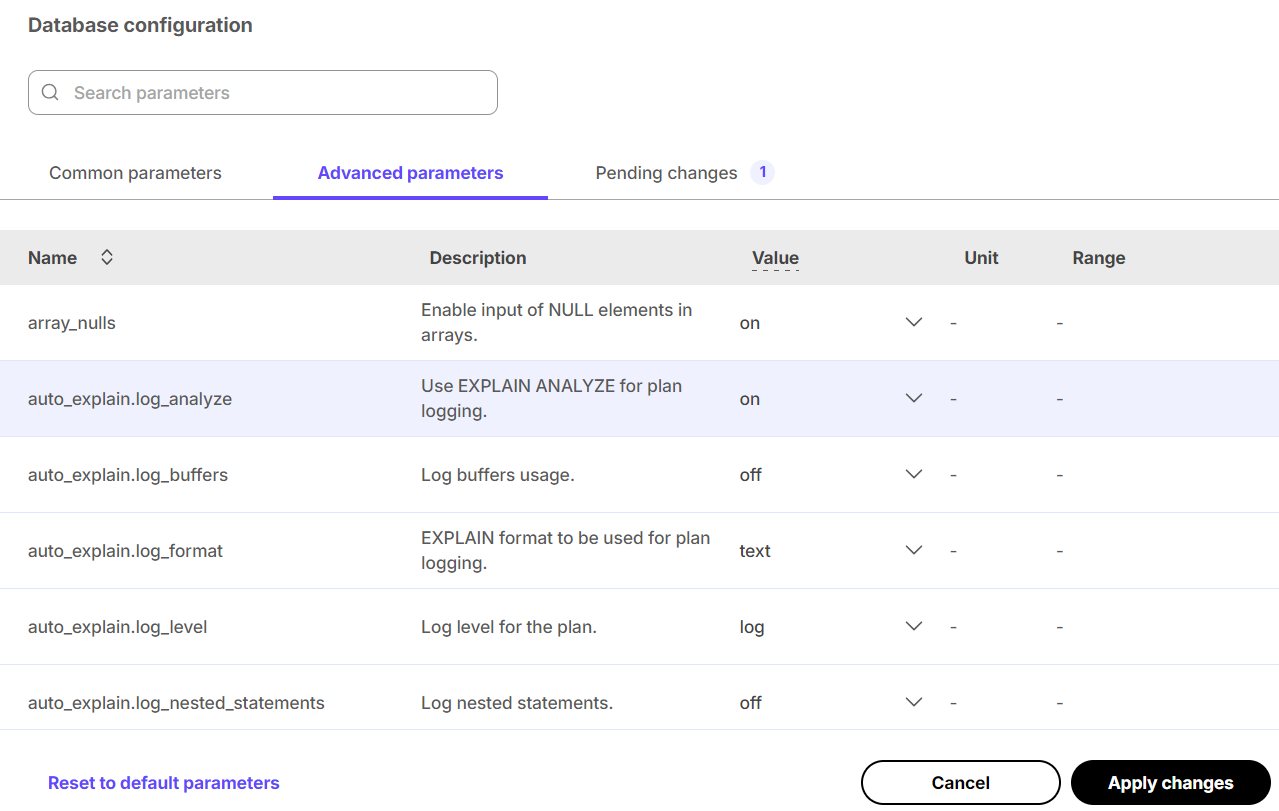
As with the basic database configuration parameters, any changes are highlighted
and the Apply changes, or Apply changes and restart, button is available,
prompting you to confirm changes before the service is modified.
Multiple databases
To create more than one database, you need to create a new service for each database. Tiger Cloud does not support multiple databases within the same service. Having a separate service for each database affords each database its own isolated resources.
You can also use schemas to organize tables into logical groups. A single database can contain multiple schemas, which in turn contain tables. The main difference between isolating with databases versus schemas is that a user can access objects in any of the schemas in the database they are connected to, so long as they have the corresponding privileges. Schemas can help isolate smaller use cases that do not warrant their own service.
Please refer to the Grand Unified Configuration (GUC) parameters for a complete list.
timescaledb.max_background_workers (int)
Max background worker processes allocated to TimescaleDB. Set to at least 1 + the number of databases loaded with the TimescaleDB extension in a Postgres instance. Default value is 16.
Tiger Cloud service tuning
timescaledb.disable_load (bool)
Disable the loading of the actual extension
===== PAGE: https://docs.tigerdata.com/use-timescale/ha-replicas/read-scaling/ =====
Analyze financial tick data - Set up the dataset
URL: llms-txt#analyze-financial-tick-data---set-up-the-dataset
Contents:
This tutorial uses a dataset that contains second-by-second trade data for
the most-traded crypto-assets. You optimize this time-series data in a a hypertable called assets_real_time.
You also create a separate table of asset symbols in a regular Postgres table named assets.
The dataset is updated on a nightly basis and contains data from the last four weeks, typically around 8 million rows of data. Trades are recorded in real-time from 180+ cryptocurrency exchanges.
To follow the steps on this page:
You need your connection details. This procedure also works for self-hosted TimescaleDB.
Optimize time-series data in a hypertable
Hypertables are Postgres tables in TimescaleDB that automatically partition your time-series data by time. Time-series data represents the way a system, process, or behavior changes over time. Hypertables enable TimescaleDB to work efficiently with time-series data. Each hypertable is made up of child tables called chunks. Each chunk is assigned a range of time, and only contains data from that range. When you run a query, TimescaleDB identifies the correct chunk and runs the query on it, instead of going through the entire table.
Hypercore is the hybrid row-columnar storage engine in TimescaleDB used by hypertables. Traditional databases force a trade-off between fast inserts (row-based storage) and efficient analytics (columnar storage). Hypercore eliminates this trade-off, allowing real-time analytics without sacrificing transactional capabilities.
Hypercore dynamically stores data in the most efficient format for its lifecycle:
Unlike traditional columnar databases, hypercore allows data to be inserted or modified at any stage, making it a flexible solution for both high-ingest transactional workloads and real-time analytics—within a single database.
Because TimescaleDB is 100% Postgres, you can use all the standard Postgres tables, indexes, stored procedures, and other objects alongside your hypertables. This makes creating and working with hypertables similar to standard Postgres.
In Tiger Cloud Console open an SQL editor. You can also connect to your service using psql.
Create a hypertable for your time-series data using CREATE TABLE.
For efficient queries on data in the columnstore, remember to segmentby the column you will
use most often to filter your data:
If you are self-hosting TimescaleDB v2.19.3 and below, create a Postgres relational table, then convert it using create_hypertable. You then enable hypercore with a call to ALTER TABLE.
Create a standard Postgres table for relational data
When you have relational data that enhances your time-series data, store that data in standard Postgres relational tables.
You now have two tables within your Tiger Cloud service. A hypertable named crypto_ticks, and a normal
Postgres table named crypto_assets.
Load financial data
This tutorial uses real-time cryptocurrency data, also known as tick data, from Twelve Data. To ingest data into the tables that you created, you need to download the dataset, then upload the data to your Tiger Cloud service.
This test dataset contains second-by-second trade data for the most-traded crypto-assets and a regular table of asset symbols and company names.
To import up to 100GB of data directly from your current Postgres-based database, migrate with downtime using native Postgres tooling. To seamlessly import 100GB-10TB+ of data, use the live migration tooling supplied by Tiger Data. To add data from non-Postgres data sources, see Import and ingest data.
The connection information for a service is available in the file you downloaded when you created it.
Because there are millions of rows of data, the COPY process could take a
few minutes depending on your internet connection and local client
resources.
Connect Grafana to Tiger Cloud
To visualize the results of your queries, enable Grafana to read the data in your service:
In your browser, log in to either:
- Self-hosted Grafana: at `http://localhost:3000/`. The default credentials are `admin`, `admin`.
- Grafana Cloud: use the URL and credentials you set when you created your account.
Configure using your connection details. Host URL is in the format <host>:<port>.
- `TLS/SSL Mode`: select `require`.
- `PostgreSQL options`: enable `TimescaleDB`.
- Leave the default setting for all other fields.
Grafana checks that your details are set correctly.
===== PAGE: https://docs.tigerdata.com/tutorials/financial-tick-data/financial-tick-compress/ =====
Examples:
Example 1 (sql):
CREATE TABLE crypto_ticks (
"time" TIMESTAMPTZ,
symbol TEXT,
price DOUBLE PRECISION,
day_volume NUMERIC
) WITH (
tsdb.hypertable,
tsdb.partition_column='time',
tsdb.segmentby='symbol',
tsdb.orderby='time DESC'
);
Example 2 (sql):
CREATE TABLE crypto_assets (
symbol TEXT UNIQUE,
"name" TEXT
);
Example 3 (bash):
psql -d "postgres://<username>:<password>@<host>:<port>/<database-name>"
Example 4 (sql):
\COPY crypto_ticks FROM 'tutorial_sample_tick.csv' CSV HEADER;
About multi-node
URL: llms-txt#about-multi-node
Contents:
Multi-node support is sunsetted.
TimescaleDB v2.13 is the last release that includes multi-node support for Postgres versions 13, 14, and 15.
If you have a larger petabyte-scale workload, you might need more than one TimescaleDB instance. TimescaleDB multi-node allows you to run and manage a cluster of databases, which can give you faster data ingest, and more responsive and efficient queries for large workloads.
In some cases, your queries could be slower in a multi-node cluster due to the extra network communication between the various nodes. Queries perform the best when the query processing is distributed among the nodes and the result set is small relative to the queried dataset. It is important that you understand multi-node architecture before you begin, and plan your database according to your specific requirements.
Multi-node architecture
Multi-node TimescaleDB allows you to tie several databases together into a logical distributed database to combine the processing power of many physical Postgres instances.
One of the databases exists on an access node and stores metadata about the other databases. The other databases are located on data nodes and hold the actual data. In theory, a Postgres instance can serve as both an access node and a data node at the same time in different databases. However, it is recommended not to have mixed setups, because it can be complicated, and server instances are often provisioned differently depending on the role they serve.
For self-hosted installations, create a server that can act as an access node, then use that access node to create data nodes on other servers.
When you have configured multi-node TimescaleDB, the access node coordinates the placement and access of data chunks on the data nodes. In most cases, it is recommend that you use multidimensional partitioning to distribute data across chunks in both time and space dimensions. The figure in this section shows how an access node (AN) partitions data in the same time interval across multiple data nodes (DN1, DN2, and DN3).
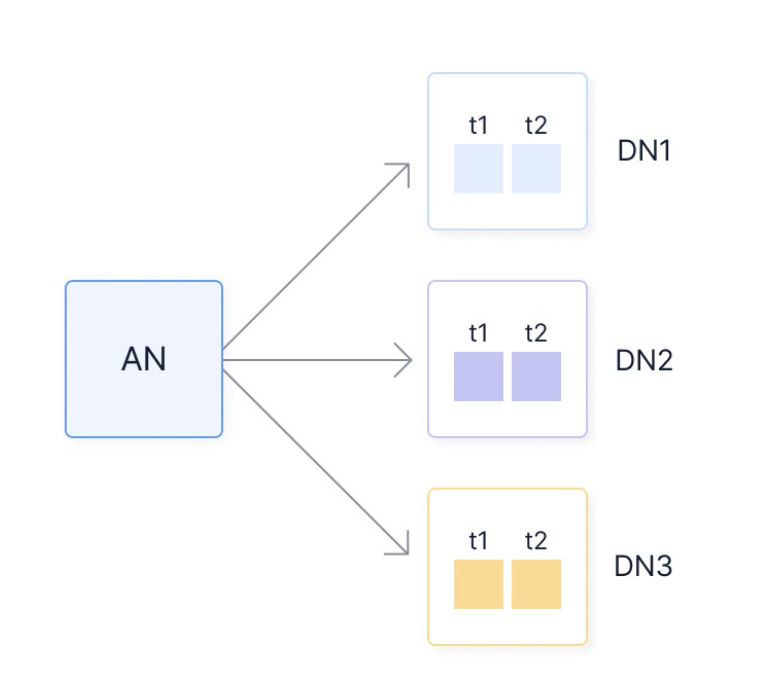
A database user connects to the access node to issue commands and execute queries, similar to how one connects to a regular single node TimescaleDB instance. In most cases, connecting directly to the data nodes is not necessary.
Because TimescaleDB exists as an extension within a specific database, it is possible to have both distributed and non-distributed databases on the same access node. It is also possible to have several distributed databases that use different sets of physical instances as data nodes. In this section, however, it is assumed that you have a single distributed database with a consistent set of data nodes.
Distributed hypertables
If you use a regular table or hypertable on a distributed database, they are not automatically distributed. Regular tables and hypertables continue to work as usual, even when the underlying database is distributed. To enable multi-node capabilities, you need to explicitly create a distributed hypertable on the access node to make use of the data nodes. A distributed hypertable is similar to a regular hypertable, but with the difference that chunks are distributed across data nodes instead of on local storage. By distributing the chunks, the processing power of the data nodes is combined to achieve higher ingest throughput and faster queries. However, the ability to achieve good performance is highly dependent on how the data is partitioned across the data nodes.
To achieve good ingest performance, write the data in batches, with each batch containing data that can be distributed across many data nodes. To achieve good query performance, spread the query across many nodes and have a result set that is small relative to the amount of processed data. To achieve this, it is important to consider an appropriate partitioning method.
Partitioning methods
Data that is ingested into a distributed hypertable is spread across the data nodes according to the partitioning method you have chosen. Queries that can be sent from the access node to multiple data nodes and processed simultaneously generally run faster than queries that run on a single data node, so it is important to think about what kind of data you have, and the type of queries you want to run.
TimescaleDB multi-node currently supports capabilities that make it best suited
for large-volume time-series workloads that are partitioned on time, and a
space dimension such as location. If you usually run wide queries that
aggregate data across many locations and devices, choose this partitioning
method. For example, a query like this is faster on a database partitioned on
time,location, because it spreads the work across all the data nodes in
parallel:
Partitioning on time and a space dimension such as location, is also best if
you need faster insert performance. If you partition only on time, and your
inserts are generally occuring in time order, then you are always writing to one
data node at a time. Partitioning on time and location means your
time-ordered inserts are spread across multiple data nodes, which can lead to
better performance.
If you mostly run deep time queries on a single location, you might see better
performance by partitioning solely on the time dimension, or on a space
dimension other than location. For example, a query like this is faster on a
database partitioned on time only, because the data for a single location is
spread across all the data nodes, rather than being on a single one:
Transactions and consistency model
Transactions that occur on distributed hypertables are atomic, just like those on regular hypertables. This means that a distributed transaction that involves multiple data nodes is guaranteed to either succeed on all nodes or on none of them. This guarantee is provided by the two-phase commit protocol, which is used to implement distributed transactions in TimescaleDB.
However, the read consistency of a distributed hypertable is different to a regular hypertable. Because a distributed transaction is a set of individual transactions across multiple nodes, each node can commit its local transaction at a slightly different time due to network transmission delays or other small fluctuations. As a consequence, the access node cannot guarantee a fully consistent snapshot of the data across all data nodes. For example, a distributed read transaction might start when another concurrent write transaction is in its commit phase and has committed on some data nodes but not others. The read transaction can therefore use a snapshot on one node that includes the other transaction's modifications, while the snapshot on another data node might not include them.
If you need stronger read consistency in a distributed transaction, then you can use consistent snapshots across all data nodes. However, this requires a lot of coordination and management, which can negatively effect performance, and it is therefore not implemented by default for distributed hypertables.
Using continuous aggregates in a multi-node environment
If you are using self-hosted TimescaleDB in a multi-node environment, there are some additional considerations for continuous aggregates.
When you create a continuous aggregate within a multi-node environment, the continuous aggregate should be created on the access node. While it is possible to create a continuous aggregate on data nodes, it interferes with the continuous aggregates on the access node and can cause problems.
When you refresh a continuous aggregate on an access node, it computes a single window to update the time buckets. This could slow down your query if the actual number of rows that were updated is small, but widely spread apart. This is aggravated if the network latency is high if, for example, you have remote data nodes.
Invalidation logs are on kept on the data nodes, which is designed to limit the amount of data that needs to be transferred. However, some statements send invalidations directly to the log, for example, when dropping a chunk or truncate a hypertable. This action could slow down performance, in comparison to a local update. Additionally, if you have infrequent refreshes but a lot of changes to the hypertable, the invalidation logs could get very large, which could cause performance issues. Make sure you are maintaining your invalidation log size to avoid this, for example, by refreshing the continuous aggregate frequently.
For more information about setting up multi-node, see the multi-node section
===== PAGE: https://docs.tigerdata.com/self-hosted/multinode-timescaledb/multinode-config/ =====
Examples:
Example 1 (sql):
SELECT time_bucket('1 hour', time) AS hour, location, avg(temperature)
FROM conditions
GROUP BY hour, location
ORDER BY hour, location
LIMIT 100;
Example 2 (sql):
SELECT time_bucket('1 hour', time) AS hour, avg(temperature)
FROM conditions
WHERE location = 'office_1'
GROUP BY hour
ORDER BY hour
LIMIT 100;
Multi-node maintenance tasks
URL: llms-txt#multi-node-maintenance-tasks
Contents:
Multi-node support is sunsetted.
TimescaleDB v2.13 is the last release that includes multi-node support for Postgres versions 13, 14, and 15.
Various maintenance activities need to be carried out for effective
upkeep of the distributed multi-node setup. You can use cron or
another scheduling system outside the database to run these below
maintenance jobs on a regular schedule if you prefer. Also make sure
that the jobs are scheduled separately for each database that contains
distributed hypertables.
Maintaining distributed transactions
A distributed transaction runs across multiple data nodes, and can remain in a non-completed state if a data node reboots or experiences temporary issues. The access node keeps a log of distributed transactions so that nodes that haven't completed their part of the distributed transaction can complete it later when they become available. This transaction log requires regular cleanup to remove transactions that have completed, and complete those that haven't. We highly recommended that you configure the access node to run a maintenance job that regularly cleans up any unfinished distributed transactions. For example:
Statistics for distributed hypertables
On distributed hypertables, the table statistics need to be kept updated.
This allows you to efficiently plan your queries. Because of the nature of
distributed hypertables, you can't use the auto-vacuum tool to gather
statistics. Instead, you can explicitly ANALYZE the distributed hypertable
periodically using a maintenance job, like this:
You can merge the jobs in this example into a single maintenance job if you prefer. However, analyzing distributed hypertables should be done less frequently than remote transaction healing activity. This is because the former could analyze a large number of remote chunks everytime and can be expensive if called too frequently.
===== PAGE: https://docs.tigerdata.com/self-hosted/migration/migrate-influxdb/ =====
Examples:
Example 1 (sql):
CREATE OR REPLACE PROCEDURE data_node_maintenance(job_id int, config jsonb)
LANGUAGE SQL AS
$$
SELECT _timescaledb_functions.remote_txn_heal_data_node(fs.oid)
FROM pg_foreign_server fs, pg_foreign_data_wrapper fdw
WHERE fs.srvfdw = fdw.oid
AND fdw.fdwname = 'timescaledb_fdw';
$$;
SELECT add_job('data_node_maintenance', '5m');
Example 2 (sql):
CREATE OR REPLACE PROCEDURE data_node_maintenance(job_id int, config jsonb)
LANGUAGE SQL AS
$$
SELECT _timescaledb_internal.remote_txn_heal_data_node(fs.oid)
FROM pg_foreign_server fs, pg_foreign_data_wrapper fdw
WHERE fs.srvfdw = fdw.oid
AND fdw.fdwname = 'timescaledb_fdw';
$$;
SELECT add_job('data_node_maintenance', '5m');
Example 3 (sql):
CREATE OR REPLACE PROCEDURE distributed_hypertables_analyze(job_id int, config jsonb)
LANGUAGE plpgsql AS
$$
DECLARE r record;
BEGIN
FOR r IN SELECT hypertable_schema, hypertable_name
FROM timescaledb_information.hypertables
WHERE is_distributed ORDER BY 1, 2
LOOP
EXECUTE format('ANALYZE %I.%I', r.hypertable_schema, r.hypertable_name);
END LOOP;
END
$$;
SELECT add_job('distributed_hypertables_analyze', '12h');
Perform advanced analytic queries
URL: llms-txt#perform-advanced-analytic-queries
Contents:
You can use TimescaleDB for a variety of analytical queries. Some of these queries are native Postgres, and some are additional functions provided by TimescaleDB and TimescaleDB Toolkit. This section contains the most common and useful analytic queries.
Calculate the median and percentile
Use percentile_cont to calculate percentiles. You can also
use this function to look for the fiftieth percentile, or median. For example, to
find the median temperature:
You can also use TimescaleDB Toolkit to find the approximate percentile.
Calculate the cumulative sum
Use sum(sum(column)) OVER(ORDER BY group) to find the cumulative sum. For
example:
Calculate the moving average
For a simple moving average, use the OVER windowing function over a number of
rows, then compute an aggregation function over those rows. For example, to find
the smoothed temperature of a device by averaging the ten most recent readings:
Calculate the increase in a value
To calculate the increase in a value, you need to account for counter resets. Counter resets can occur if a host reboots or container restarts. This example finds the number of bytes sent, and takes counter resets into account:
Calculate the rate of change
Like increase, rate applies to a situation with monotonically increasing counters. If your sample interval is variable or you use different sampling intervals between different series, it is helpful to normalize the values to a common time interval to make the calculated values comparable. This example finds bytes per second sent, and takes counter resets into account:
Calculate the delta
In many monitoring and IoT use cases, devices or sensors report metrics that do not change frequently, and any changes are considered anomalies. When you query for these changes in values over time, you usually do not want to transmit all the values, but only the values where changes were observed. This helps to minimize the amount of data sent. You can use a combination of window functions and subselects to achieve this. This example uses diffs to filter rows where values have not changed and only transmits rows where values have changed:
Calculate the change in a metric within a group
To group your data by some field, and calculate the change in a metric within
each group, use LAG ... OVER (PARTITION BY ...). For example, given some
weather data, calculate the change in temperature for each city:
Group data into time buckets
The time_bucket function in TimescaleDB extends the Postgres
date_bin function. Time bucket accepts arbitrary time intervals,
as well as optional offsets, and returns the bucket start time. For example:
Get the first or last value in a column
The first and last functions allow you to get
the value of one column as ordered by another. This is commonly used in an
aggregation. These examples find the last element of a group:
Generate a histogram
The histogram function allows you to generate a
histogram of your data. This example defines a histogram with five buckets
defined over the range 60 to 85. The generated histogram has seven bins; the
first is for values below the minimum threshold of 60, the middle five bins are
for values in the stated range and the last is for values above 85:
This query outputs data like this:
Fill gaps in time-series data
You can display records for a selected time range, even if no data exists for part of the range. This is often called gap filling, and usually involves an operation to record a null value for any missing data.
In this example, the trading data that includes a time timestamp, the
asset_code being traded, the price of the asset, and the volume of the
asset being traded is used.
Create a query for the volume of the asset 'TIMS' being traded every day for the month of September:
This query outputs data like this:
You can see from the output that no records are included for 09-23, 09-24, or
09-30, because no trade data was recorded for those days. To include time
records for each missing day, you can use the time_bucket_gapfill
function, which generates a series of time buckets according to a given interval
across a time range. In this example, the interval is one day, across the month
of September:
This query outputs data like this:
You can also use the time_bucket_gapfill function to generate data
points that also include timestamps. This can be useful for graphic libraries
that require even null values to have a timestamp so that they can accurately
draw gaps in a graph. In this example, you generate 1080 data points across the
last two weeks, fill in the gaps with null values, and give each null value a
timestamp:
This query outputs data like this:
Fill gaps by carrying the last observation forward
If your data collections only record rows when the actual value changes, your visualizations might still need all data points to properly display your results. In this situation, you can carry forward the last observed value to fill the gap. For example:
Find the last point for each unique item
You can find the last point for each unique item in your database. For example, the last recorded measurement from each IoT device, the last location of each item in asset tracking, or the last price of a security. The standard approach to minimize the amount of data to be searched for the last point is to use a time predicate to tightly bound the amount of time, or the number of chunks, to traverse. This method does not work unless all items have at least one record within the time range. A more robust method is to use a last point query to determine the last record for each unique item.
In this example, useful for asset tracking or fleet management, you create a metadata table for each vehicle being tracked, and a second time-series table containing the vehicle's location at a given time:
If you are self-hosting TimescaleDB v2.19.3 and below, create a Postgres relational table, then convert it using create_hypertable. You then enable hypercore with a call to ALTER TABLE.
You can use the first table, which gives a distinct set of vehicles, to
perform a LATERAL JOIN against the location table:
This approach requires keeping a separate table of distinct item identifiers or
names. You can do this by using a foreign key from the hypertable to the
metadata table, as shown in the REFERENCES definition in the example.
The metadata table can be populated through business logic, for example when a vehicle is first registered with the system. Alternatively, you can dynamically populate it using a trigger when inserts or updates are performed against the hypertable. For example:
You could also implement this functionality without a separate metadata table by
performing a loose index scan over the location
hypertable, although this requires more compute resources. Alternatively, you
speed up your SELECT DISTINCT queries by structuring them so that TimescaleDB can
use its SkipScan feature.
===== PAGE: https://docs.tigerdata.com/use-timescale/query-data/skipscan/ =====
Examples:
Example 1 (sql):
SELECT percentile_cont(0.5)
WITHIN GROUP (ORDER BY temperature)
FROM conditions;
Example 2 (sql):
SELECT location, sum(sum(temperature)) OVER(ORDER BY location)
FROM conditions
GROUP BY location;
Example 3 (sql):
SELECT time, AVG(temperature) OVER(ORDER BY time
ROWS BETWEEN 9 PRECEDING AND CURRENT ROW)
AS smooth_temp
FROM conditions
WHERE location = 'garage' and time > NOW() - INTERVAL '1 day'
ORDER BY time DESC;
Example 4 (sql):
SELECT
time,
(
CASE
WHEN bytes_sent >= lag(bytes_sent) OVER w
THEN bytes_sent - lag(bytes_sent) OVER w
WHEN lag(bytes_sent) OVER w IS NULL THEN NULL
ELSE bytes_sent
END
) AS "bytes"
FROM net
WHERE interface = 'eth0' AND time > NOW() - INTERVAL '1 day'
WINDOW w AS (ORDER BY time)
ORDER BY time
Data retention
URL: llms-txt#data-retention
An intrinsic part of time-series data is that new data is accumulated and old data is rarely, if ever, updated. This means that the relevance of the data diminishes over time. It is therefore often desirable to delete old data to save disk space.
With TimescaleDB, you can manually remove old chunks of data or implement policies using these APIs.
For more information about creating a data retention policy, see the data retention section.
===== PAGE: https://docs.tigerdata.com/api/jobs-automation/ =====
alter_job()
URL: llms-txt#alter_job()
Contents:
Jobs scheduled using the TimescaleDB automation framework run periodically in
a background worker. You can change the schedule of these jobs with the
alter_job function. To alter an existing job, refer to it by job_id. The
job_id runs a given job, and its current schedule can be found in the
timescaledb_information.jobs view, which lists information about every
scheduled jobs, as well as in timescaledb_information.job_stats. The
job_stats view also gives information about when each job was last run and
other useful statistics for deciding what the new schedule should be.
Reschedules job ID 1000 so that it runs every two days:
Disables scheduling of the compression policy on the conditions hypertable:
Reschedules continuous aggregate job ID 1000 so that it next runs at 9:00:00 on 15 March, 2020:
Required arguments
|Name|Type|Description|
|-|-|-|
|job_id|INTEGER|The ID of the policy job being modified|
Optional arguments
|Name|Type| Description |
|-|-|--------------------------------------------------------------------------------------------------------------------------------------------------------------------------------------------------------------------------------------------------------------------------------------------------------------------------------------------------------------------------------------------------------------------------------------------------------------------------------------------------------------------------------------------------------------------------------------------------------------------------------------------------------------------------------------------------------------------------------------------------------------------------------------------------------------------------------------------------------------------|
|schedule_interval|INTERVAL| The interval at which the job runs. Defaults to 24 hours. |
|max_runtime|INTERVAL| The maximum amount of time the job is allowed to run by the background worker scheduler before it is stopped. |
|max_retries|INTEGER| The number of times the job is retried if it fails. |
|retry_period|INTERVAL| The amount of time the scheduler waits between retries of the job on failure. |
|scheduled|BOOLEAN| Set to FALSE to exclude this job from being run as background job. |
|config|JSONB| Job-specific configuration, passed to the function when it runs. This includes:
next_start|TIMESTAMPTZ| The next time at which to run the job. The job can be paused by setting this value to infinity, and restarted with a value of now(). |
|if_exists|BOOLEAN| Set to trueto issue a notice instead of an error if the job does not exist. Defaults to false. |
|check_config|REGPROC| A function that takes a single argument, the JSONB config structure. The function is expected to raise an error if the configuration is not valid, and return nothing otherwise. Can be used to validate the configuration when updating a job. Only functions, not procedures, are allowed as values for check_config. |
|fixed_schedule|BOOLEAN| To enable fixed scheduled job runs, set to TRUE. |
|initial_start|TIMESTAMPTZ| Set the time when the fixed_schedule job run starts. For example, 19:10:25-07. |
|timezone|TEXT| Address the 1-hour shift in start time when clocks change from Daylight Saving Time to Standard Time. For example, America/Sao_Paulo. |
When a job begins, the next_start parameter is set to infinity. This
prevents the job from attempting to be started again while it is running. When
the job completes, whether or not the job is successful, the parameter is
automatically updated to the next computed start time.
Note that altering the next_start value is only effective for the next
execution of the job in case of fixed schedules. On the next execution, it will
automatically return to the schedule.
|Column|Type| Description |
|-|-|---------------------------------------------------------------------------------------------------------------|
|job_id|INTEGER| The ID of the job being modified |
|schedule_interval|INTERVAL| The interval at which the job runs. Defaults to 24 hours |
|max_runtime|INTERVAL| The maximum amount of time the job is allowed to run by the background worker scheduler before it is stopped |
|max_retries|INTEGER| The number of times the job is retried if it fails |
|retry_period|INTERVAL| The amount of time the scheduler waits between retries of the job on failure |
|scheduled|BOOLEAN| Returns true if the job is executed by the TimescaleDB scheduler |
|config|JSONB| Jobs-specific configuration, passed to the function when it runs |
|next_start|TIMESTAMPTZ| The next time to run the job |
|check_config|TEXT| The function used to validate updated job configurations |
Calculation of next start on failure
When a job run results in a runtime failure, the next start of the job is calculated taking into account both its retry_period and schedule_interval.
The next_start time is calculated using the following formula:
where jitter (± 13%) is added to avoid the "thundering herds" effect.
To ensure that the next_start time is not put off indefinitely or produce timestamps so large they end up out of range, it is capped at 5*schedule_interval.
Also, more than 20 consecutive failures are not considered, so if the number of consecutive failures is higher, then it multiplies by 20.
Additionally, for jobs with fixed schedules, the system ensures that if the next start ( calculated as specified), surpasses the next scheduled execution, the job is executed again at the next scheduled slot and not after that. This ensures that the job does not miss scheduled executions.
There is a distinction between runtime failures that do not cause the job to crash and job crashes. In the event of a job crash, the next start calculation follows the same formula, but it is always at least 5 minutes after the job's last finish, to give an operator enough time to disable it before another crash.
===== PAGE: https://docs.tigerdata.com/api/jobs-automation/delete_job/ =====
Examples:
Example 1 (sql):
SELECT alter_job(1000, schedule_interval => INTERVAL '2 days');
Example 2 (sql):
SELECT alter_job(job_id, scheduled => false)
FROM timescaledb_information.jobs
WHERE proc_name = 'policy_compression' AND hypertable_name = 'conditions'
Example 3 (sql):
SELECT alter_job(1000, next_start => '2020-03-15 09:00:00.0+00');
Example 4 (unknown):
next_start = finish_time + consecutive_failures * retry_period ± jitter
timescaledb_information.history
URL: llms-txt#timescaledb_information.history
Contents:
Shows information about the jobs run by the automation framework. This includes custom jobs and jobs run by policies created to manage data retention, continuous aggregates, columnstore, and other automation policies. For more information about automation policies, see jobs.
To retrieve information about recent jobs:
|Name|Type|Description|
|-|-|-|
|id|INTEGER|The sequencial ID to identify the job execution|
|job_id|INTEGER|The ID of the background job created to implement the policy|
|succeeded|BOOLEAN|TRUE when the job ran successfully, FALSE for failed executions|
|proc_schema|TEXT| The schema name of the function or procedure executed by the job|
|proc_name|TEXT| The name of the function or procedure executed by the job|
|pid|INTEGER|The process ID of the background worker executing the job. This is NULL in the case of a job crash|
|start_time|TIMESTAMP WITH TIME ZONE| The time the job started|
|finish_time|TIMESTAMP WITH TIME ZONE| The time when the error was reported|
|config|JSONB| The job configuration at the moment of execution|
|sqlerrcode|TEXT|The error code associated with this error, if any. See the official Postgres documentation for a full list of error codes|
|err_message|TEXT|The detailed error message|
Error retention policy
The timescaledb_information.job_history informational view is defined on top
of the _timescaledb_internal.bgw_job_stat_history table in the internal schema. To
prevent this table from growing too large, the
Job History Log Retention Policy [3] system background job is enabled by default,
with this configuration:
On TimescaleDB and Managed Service for TimescaleDB, the owner of the job history
retention job is tsdbadmin. In an on-premise installation, the owner of the
job is the same as the extension owner.
The owner of the retention job can alter it and delete it.
For example, the owner can change the retention interval like this:
===== PAGE: https://docs.tigerdata.com/api/informational-views/job_stats/ =====
Examples:
Example 1 (sql):
SELECT job_id, pid, proc_schema, proc_name, succeeded, config, sqlerrcode, err_message
FROM timescaledb_information.job_history
ORDER BY id, job_id;
job_id | pid | proc_schema | proc_name | succeeded | config | sqlerrcode | err_message
--------+---------+-------------+------------------+-----------+------------+------------+------------------
1001 | 1779278 | public | custom_job_error | f | | 22012 | division by zero
1000 | 1779407 | public | custom_job_ok | t | | |
1001 | 1779408 | public | custom_job_error | f | | 22012 | division by zero
1000 | 1779467 | public | custom_job_ok | t | {"foo": 1} | |
1001 | 1779468 | public | custom_job_error | f | {"bar": 1} | 22012 | division by zero
(5 rows)
Example 2 (sql):
job_id | 3
application_name | Job History Log Retention Policy [3]
schedule_interval | 1 mon
max_runtime | 01:00:00
max_retries | -1
retry_period | 01:00:00
proc_schema | _timescaledb_functions
proc_name | policy_job_stat_history_retention
owner | owner must be a user with WRITE privilege on the table `_timescaledb_internal.bgw_job_stat_history`
scheduled | t
fixed_schedule | t
config | {"drop_after": "1 month"}
next_start | 2024-06-01 01:00:00+00
initial_start | 2000-01-01 00:00:00+00
hypertable_schema |
hypertable_name |
check_schema | _timescaledb_functions
check_name | policy_job_stat_history_retention_check
Example 3 (sql):
SELECT alter_job(id,config:=jsonb_set(config,'{drop_after}', '"2 weeks"')) FROM _timescaledb_config.bgw_job WHERE id = 3;
Compare TimescaleDB editions
URL: llms-txt#compare-timescaledb-editions
Contents:
The following versions of TimescaleDB are available:
TimescaleDB Apache 2 Edition
TimescaleDB Apache 2 Edition is available under the Apache 2.0 license. This is a classic open source license, meaning that it is completely unrestricted - anyone can take this code and offer it as a service.
You can install TimescaleDB Apache 2 Edition on your own on-premises or cloud infrastructure and run it for free.
You can sell TimescaleDB Apache 2 Edition as a service, even if you're not the main contributor.
You can modify the TimescaleDB Apache 2 Edition source code and run it for production use.
TimescaleDB Community Edition
TimescaleDB Community Edition is the advanced, best, and most feature complete version of TimescaleDB, available under the terms of the Tiger Data License (TSL).
For more information about the Tiger Data license, see this blog post.
Many of the most recent features of TimescaleDB are only available in TimescaleDB Community Edition.
You can install TimescaleDB Community Edition in your own on-premises or cloud infrastructure and run it for free. TimescaleDB Community Edition is completely free if you manage your own service.
You cannot sell TimescaleDB Community Edition as a service, even if you are the main contributor.
You can modify the TimescaleDB Community Edition source code and run it for production use. Developers using TimescaleDB Community Edition have the "right to repair" and make modifications to the source code and run it in their own on-premises or cloud infrastructure. However, you cannot make modifications to the TimescaleDB Community Edition source code and offer it as a service.
You can access a hosted version of TimescaleDB Community Edition through Tiger Cloud, a cloud-native platform for time-series and real-time analytics.
Feature comparison
<th>Features</th>
<th>TimescaleDB Apache 2 Edition</th>
<th>TimescaleDB Community Edition</th>
<td><strong>Hypertables and chunks</strong></td>
<td><a href="https://docs.timescale.com/api/latest/hypertable/create_table/">CREATE TABLE</a></td>
<td>✅</td>
<td>✅</td>
<td><a href="https://docs.timescale.com/api/latest/hypertable/create_hypertable/">create_hypertable</a></td>
<td>✅</td>
<td>✅</td>
<td><a href="https://docs.timescale.com/api/latest/hypertable/show_chunks/">show_chunks</a></td>
<td>✅</td>
<td>✅</td>
<td><a href="https://docs.timescale.com/api/latest/hypertable/drop_chunks/">drop_chunks</a></td>
<td>✅</td>
<td>✅</td>
<td><a href="https://docs.timescale.com/api/latest/hypertable/split_chunk/">split_chunk</a></td>
<td>❌</td>
<td>✅</td>
<td><a href="https://docs.timescale.com/api/latest/hypertable/reorder_chunk/">reorder_chunk</a></td>
<td>❌</td>
<td>✅</td>
<td><a href="https://docs.timescale.com/api/latest/hypertable/move_chunk/">move_chunk</a></td>
<td>❌</td>
<td>✅</td>
<td><a href="https://docs.timescale.com/api/latest/hypertable/add_reorder_policy/">add_reorder_policy</a></td>
<td>❌</td>
<td>✅</td>
<td><a href="https://docs.timescale.com/api/latest/hypertable/attach_tablespace/">attach_tablespace</a></td>
<td>✅</td>
<td>✅</td>
<td><a href="https://docs.timescale.com/api/latest/hypertable/detach_tablespace/">detach_tablespace()</a></td>
<td>✅</td>
<td>✅</td>
<td><a href="https://docs.timescale.com/api/latest/hypertable/detach_tablespaces/">detach_tablespaces()</a></td>
<td>✅</td>
<td>✅</td>
<td><a href="https://docs.timescale.com/api/latest/hypertable/show_tablespaces/">show_tablespaces</a></td>
<td>✅</td>
<td>✅</td>
<td><a href="https://docs.timescale.com/api/latest/hypertable/set_chunk_time_interval/">set_chunk_time_interval</a></td>
<td>✅</td>
<td>✅</td>
<td><a href="https://docs.timescale.com/api/latest/hypertable/set_integer_now_func/">set_integer_now_func</a></td>
<td>✅</td>
<td>✅</td>
<td><a href="https://docs.timescale.com/api/latest/hypertable/add_dimension/">add_dimension()</a></td>
<td>✅</td>
<td>✅</td>
<td><a href="https://docs.timescale.com/api/latest/hypertable/create_index/">create_index (Transaction Per Chunk)</a></td>
<td>✅</td>
<td>✅</td>
<td><a href="https://docs.timescale.com/api/latest/hypertable/hypertable_size/">hypertable_size</a></td>
<td>✅</td>
<td>✅</td>
<td><a href="https://docs.timescale.com/api/latest/hypertable/hypertable_detailed_size/">hypertable_detailed_size</a></td>
<td>✅</td>
<td>✅</td>
<td><a href="https://docs.timescale.com/api/latest/hypertable/hypertable_index_size/">hypertable_index_size</a></td>
<td>✅</td>
<td>✅</td>
<td><a href="https://docs.timescale.com/api/latest/hypertable/chunks_detailed_size/">chunks_detailed_size</a></td>
<td>✅</td>
<td>✅</td>
<td><a href="https://docs.tigerdata.com/use-timescale/latest/query-data/skipscan/">SkipScan</a></td>
<td>❌</td>
<td>✅</td>
<td colspan="3"><strong>Distributed hypertables</strong>: This feature is <a href="https://github.com/timescale/timescaledb/blob/2.14.0/docs/MultiNodeDeprecation.md">sunsetted in all editions</a> in TimescaleDB v2.14.x</td>
<td><strong>Hypercore</strong> Since [TimescaleDB v2.18.0](https://github.com/timescale/timescaledb/releases/tag/2.18.0)</td>
<td><a href="https://docs.timescale.com/api/latest/hypercore/alter_table/">ALTER TABLE (Hypercore)</a></td>
<td>❌</td>
<td>✅</td>
<td><a href="https://docs.timescale.com/api/latest/hypercore/add_columnstore_policy/">add_columnstore_policy</a></td>
<td>❌</td>
<td>✅</td>
<td><a href="https://docs.timescale.com/api/latest/hypercore/remove_columnstore_policy/">remove_columnstore_policy</a></td>
<td>❌</td>
<td>✅</td>
<td><a href="https://docs.timescale.com/api/latest/hypercore/convert_to_columnstore/">convert_to_columnstore</a></td>
<td>❌</td>
<td>✅</td>
<td><a href="https://docs.timescale.com/api/latest/hypercore/convert_to_rowstore/">convert_to_rowstore</a></td>
<td>❌</td>
<td>✅</td>
<td><a href="https://docs.timescale.com/api/latest/hypercore/hypertable_columnstore_settings/">hypertable_columnstore_settings</a></td>
<td>❌</td>
<td>✅</td>
<td><a href="https://docs.timescale.com/api/latest/hypercore/hypertable_columnstore_stats/">hypertable_columnstore_stats</a></td>
<td>❌</td>
<td>✅</td>
<td><a href="https://docs.timescale.com/api/latest/hypercore/chunk_columnstore_settings/">chunk_columnstore_settings</a></td>
<td>❌</td>
<td>✅</td>
<td><a href="https://docs.timescale.com/api/latest/hypercore/chunk_columnstore_stats/">chunk_columnstore_stats</a></td>
<td>❌</td>
<td>✅</td>
<td><strong>Continuous aggregates</strong></td>
<td><a href="https://docs.timescale.com/api/latest/continuous-aggregates/create_materialized_view/">CREATE MATERIALIZED VIEW (Continuous Aggregate)</a></td>
<td>❌</td>
<td>✅</td>
<td><a href="https://docs.timescale.com/api/latest/continuous-aggregates/alter_materialized_view/">ALTER MATERIALIZED VIEW (Continuous Aggregate)</a></td>
<td>❌</td>
<td>✅</td>
<td><a href="https://docs.timescale.com/api/latest/continuous-aggregates/drop_materialized_view/">DROP MATERIALIZED VIEW (Continuous Aggregate)</a></td>
<td>❌</td>
<td>✅</td>
<td><a href="https://docs.timescale.com/api/latest/continuous-aggregates/add_continuous_aggregate_policy/">add_continuous_aggregate_policy()</a></td>
<td>❌</td>
<td>✅</td>
<td><a href="https://docs.timescale.com/api/latest/continuous-aggregates/refresh_continuous_aggregate/">refresh_continuous_aggregate</a></td>
<td>❌</td>
<td>✅</td>
<td><a href="https://docs.timescale.com/api/latest/continuous-aggregates/remove_continuous_aggregate_policy/">remove_continuous_aggregate_policy()</a></td>
<td>❌</td>
<td>✅</td>
<td><strong>Data retention</strong></td>
<td><a href="https://docs.timescale.com/api/latest/data-retention/add_retention_policy/">add_retention_policy</a></td>
<td>❌</td>
<td>✅</td>
<td><a href="https://docs.timescale.com/api/latest/data-retention/remove_retention_policy/">remove_retention_policy</a></td>
<td>❌</td>
<td>✅</td>
<td><strong>Jobs and automation</strong></td>
<td><a href="https://docs.timescale.com/api/latest/jobs-automation/add_job/">add_job</a></td>
<td>❌</td>
<td>✅</td>
<td><a href="https://docs.timescale.com/api/latest/jobs-automation/alter_job/">alter_job</a></td>
<td>❌</td>
<td>✅</td>
<td><a href="https://docs.timescale.com/api/latest/jobs-automation/delete_job/">delete_job</a></td>
<td>❌</td>
<td>✅</td>
<td><a href="https://docs.timescale.com/api/latest/jobs-automation/run_job/">run_job</a></td>
<td>❌</td>
<td>✅</td>
<td><strong>Hyperfunctions</strong></td>
<td><a href="https://docs.timescale.com/api/latest/hyperfunctions/approximate_row_count/">approximate_row_count</a></td>
<td>✅</td>
<td>✅</td>
<td><a href="https://docs.timescale.com/api/latest/hyperfunctions/first/">first</a></td>
<td>✅</td>
<td>✅</td>
<td><a href="https://docs.timescale.com/api/latest/hyperfunctions/last/">last</a></td>
<td>✅</td>
<td>✅</td>
<td><a href="https://docs.timescale.com/api/latest/hyperfunctions/histogram/">histogram</a></td>
<td>✅</td>
<td>✅</td>
<td><a href="https://docs.timescale.com/api/latest/hyperfunctions/time_bucket/">time_bucket</a></td>
<td>✅</td>
<td>✅</td>
<td><a href="https://docs.timescale.com/api/latest/hyperfunctions/time_bucket_ng/">time_bucket_ng (experimental feature)</a></td>
<td>✅ </td>
<td>✅ </td>
<td><a href="https://docs.timescale.com/api/latest/hyperfunctions/gapfilling/time_bucket_gapfill/">time_bucket_gapfill</a></td>
<td>❌</td>
<td>✅</td>
<td><a href="https://docs.tigerdata.com/api/latest/hyperfunctions/gapfilling/time_bucket_gapfill#locf">locf</a></td>
<td>❌</td>
<td>✅</td>
<td><a href="https://docs.timescale.com/api/latest/hyperfunctions/gapfilling/time_bucket_gapfill#interpolate">interpolate</a></td>
<td>❌</td>
<td>✅</td>
<td><a href="https://docs.timescale.com/api/latest/hyperfunctions/percentile-approximation/uddsketch/#percentile-agg">percentile_agg</a></td>
<td>❌</td>
<td>✅</td>
<td><a href="https://docs.timescale.com/api/latest/hyperfunctions/percentile-approximation/uddsketch/#approx_percentile">approx_percentile</a></td>
<td>❌</td>
<td>✅</td>
<td><a href="https://docs.timescale.com/api/latest/hyperfunctions/percentile-approximation/uddsketch/#approx_percentile_rank">approx_percentile_rank</a></td>
<td>❌</td>
<td>✅</td>
<td><a href="https://docs.timescale.com/api/latest/hyperfunctions/percentile-approximation/uddsketch/#rollup">rollup</a></td>
<td>❌</td>
<td>✅</td>
<td><a href="https://docs.timescale.com/api/latest/hyperfunctions/percentile-approximation/tdigest/#max_val">max_val</a></td>
<td>❌</td>
<td>✅</td>
<td><a href="https://docs.timescale.com/api/latest/hyperfunctions/percentile-approximation/uddsketch/#mean">mean</a></td>
<td>❌</td>
<td>✅</td>
<td><a href="https://docs.timescale.com/api/latest/hyperfunctions/percentile-approximation/uddsketch/#error">error</a></td>
<td>❌</td>
<td>✅</td>
<td><a href="https://docs.timescale.com/api/latest/hyperfunctions/percentile-approximation/tdigest/#min_val">min_val</a></td>
<td>❌</td>
<td>✅</td>
<td><a href="https://docs.timescale.com/api/latest/hyperfunctions/percentile-approximation/uddsketch/#num_vals">num_vals</a></td>
<td>❌</td>
<td>✅</td>
<td><a href="https://docs.timescale.com/api/latest/hyperfunctions/percentile-approximation/uddsketch/#uddsketch">uddsketch</a></td>
<td>❌</td>
<td>✅</td>
<td><a href="https://docs.timescale.com/api/latest/hyperfunctions/percentile-approximation/tdigest/#tdigest">tdigest</a></td>
<td>❌</td>
<td>✅</td>
<td><a href="https://docs.timescale.com/api/latest/hyperfunctions/time-weighted-calculations/time_weight/">time_weight</a></td>
<td>❌</td>
<td>✅</td>
<td><a href="https://docs.tigerdata.com/api/latest/hyperfunctions/time-weighted-calculations/time_weight#rollup">rollup</a></td>
<td>❌</td>
<td>✅</td>
<td><a href="https://docs.timescale.com/api/latest/hyperfunctions/time-weighted-calculations/time_weight#average">average</a></td>
<td>❌</td>
<td>✅</td>
<td><strong>Informational Views</strong></td>
<td><a href="https://docs.timescale.com/api/latest/informational-views/chunks/#available-columns">timescaledb_information.chunks</a></td>
<td>✅</td>
<td>✅</td>
<td><a href="https://docs.timescale.com/api/latest/informational-views/continuous_aggregates/#sample-usage">timescaledb_information.continuous_aggregates</a></td>
<td>✅</td>
<td>✅</td>
<td><a href="https://docs.timescale.com/api/latest/informational-views/compression_settings/#sample-usage">timescaledb_information.compression_settings</a></td>
<td>✅</td>
<td>✅</td>
<td><a href="https://docs.timescale.com/api/latest/informational-views/data_nodes/#sample-usage">timescaledb_information.data_nodes</a></td>
<td>✅</td>
<td>✅</td>
<td><a href="https://docs.timescale.com/api/latest/informational-views/dimensions/#timescaledb-information-dimensions">timescaledb_information.dimension</a></td>
<td>✅</td>
<td>✅</td>
<td><a href="https://docs.timescale.com/api/latest/informational-views/hypertables/">timescaledb_information.hypertables</a></td>
<td>✅</td>
<td>✅</td>
<td><a href="https://docs.timescale.com/api/latest/informational-views/jobs/#available-columns">timescaledb_information.jobs</a></td>
<td>✅</td>
<td>✅</td>
<td><a href="https://docs.timescale.com/api/latest/informational-views/job_stats/#available-columns">timescaledb_information.job_stats</a></td>
<td>✅</td>
<td>✅</td>
<td><strong>Administration functions</strong></td>
<td><a href="https://docs.timescale.com/api/latest/administration/#timescaledb_pre_restore">timescaledb_pre_restore</a></td>
<td>✅</td>
<td>✅</td>
<td><a href="https://docs.timescale.com/api/latest/administration/#timescaledb_post_restore">timescaledb_post_restore</a></td>
<td>✅</td>
<td>✅</td>
<td><a href="https://docs.timescale.com/api/latest/administration/#get_telemetry_report">get_telemetry_report</a></td>
<td>✅</td>
<td>✅</td>
<td><a href="https://docs.timescale.com/api/latest/administration/#dump-timescaledb-meta-data">dump_meta_data</a></td>
<td>✅</td>
<td>✅</td>
<td><strong>Compression</strong> Old API since [TimescaleDB v2.18.0](https://github.com/timescale/timescaledb/releases/tag/2.18.0) replaced by Hypercore</td>
<td><a href="https://docs.timescale.com/api/latest/compression/alter_table_compression/">ALTER TABLE (Compression)</a></td>
<td>❌</td>
<td>✅</td>
<td><a href="https://docs.timescale.com/api/latest/compression/add_compression_policy/#sample-usage">add_compression_policy</a></td>
<td>❌</td>
<td>✅</td>
<td><a href="https://docs.timescale.com/api/latest/compression/remove_compression_policy/">remove_compression_policy</a></td>
<td>❌</td>
<td>✅</td>
<td><a href="https://docs.timescale.com/api/latest/compression/compress_chunk/">compress_chunk</a></td>
<td>❌</td>
<td>✅</td>
<td><a href="https://docs.timescale.com/api/latest/compression/decompress_chunk/">decompress_chunk</a></td>
<td>❌</td>
<td>✅</td>
<td><a href="https://docs.timescale.com/api/latest/compression/hypertable_compression_stats/">hypertable_compression_stats</a></td>
<td>❌</td>
<td>✅</td>
<td><a href="https://docs.timescale.com/api/latest/compression/chunk_compression_stats/">chunk_compression_stats</a></td>
<td>❌</td>
<td>✅</td>
===== PAGE: https://docs.tigerdata.com/about/supported-platforms/ =====
Heartbeat aggregation
URL: llms-txt#heartbeat-aggregation
Given a series of timestamped health checks, it can be tricky to determine the overall health of a system over a given interval. Postgres provides window functions that you use to get a sense of where unhealthy gaps are, but they can be somewhat awkward to use efficiently.
This is one of the many cases where hyperfunctions provide an efficient, simple solution for a frequently occurring problem. Heartbeat aggregation helps analyze event-based time-series data with intermittent or irregular signals.
This example uses the SustData public dataset. This dataset tracks the power usage of a small number of apartments and houses over four different deployment intervals. The data is collected in one-minute samples from each unit.
When you have loaded the data into hypertables, you can create a materialized view containing weekly heartbeat aggregates for each of the units:
The heartbeat aggregate takes four parameters: the timestamp column, the start of the interval, the length of the interval, and how long the aggregate is considered live after each timestamp. This example uses 2 minutes as the heartbeat lifetime to give some tolerance for small gaps.
You can use this data to see when you're receiving data for a particular unit. This example rolls up the weekly aggregates into a single aggregate, and then views the live ranges:
You can construct more elaborate queries. For example, to return the 5 units with the lowest uptime during the third deployment:
Combine aggregates from different units to get the combined coverage. This example queries the interval where any part of a deployment was active:
Then use this data to make observations and draw conclusions:
For more information about heartbeat aggregation API calls, see the hyperfunction API documentation.
===== PAGE: https://docs.tigerdata.com/use-timescale/hyperfunctions/troubleshoot-hyperfunctions/ =====
Examples:
Example 1 (sql):
CREATE MATERIALIZED VIEW weekly_heartbeat AS
SELECT
time_bucket('1 week', tmstp) as week,
iid as unit,
deploy,
heartbeat_agg(tmstp, time_bucket('1w', tmstp), '1w', '2m')
FROM power_samples
GROUP BY 1,2,3;
Example 2 (sql):
SELECT live_ranges(rollup(heartbeat_agg)) FROM weekly_heartbeat WHERE unit = 17;
Example 3 (output):
live_ranges
-----------------------------------------------------
("2010-09-18 00:00:00+00","2011-03-27 01:01:50+00")
("2011-03-27 03:00:52+00","2011-07-03 00:01:00+00")
("2011-07-05 00:00:00+00","2011-08-21 00:01:00+00")
("2011-08-22 00:00:00+00","2011-08-25 00:01:00+00")
("2011-08-27 00:00:00+00","2011-09-06 00:01:00+00")
("2011-09-08 00:00:00+00","2011-09-29 00:01:00+00")
("2011-09-30 00:00:00+00","2011-10-04 00:01:00+00")
("2011-10-05 00:00:00+00","2011-10-17 00:01:00+00")
("2011-10-19 00:00:00+00","2011-11-09 00:01:00+00")
("2011-11-10 00:00:00+00","2011-11-14 00:01:00+00")
("2011-11-15 00:00:00+00","2011-11-18 00:01:00+00")
("2011-11-20 00:00:00+00","2011-11-23 00:01:00+00")
("2011-11-24 00:00:00+00","2011-12-01 00:01:00+00")
("2011-12-02 00:00:00+00","2011-12-12 00:01:00+00")
("2011-12-13 00:00:00+00","2012-01-12 00:01:00+00")
("2012-01-13 00:00:00+00","2012-02-03 00:01:00+00")
("2012-02-04 00:00:00+00","2012-02-10 00:01:00+00")
("2012-02-11 00:00:00+00","2012-03-25 01:01:50+00")
("2012-03-25 03:00:51+00","2012-04-11 00:01:00+00")
Example 4 (sql):
SELECT unit, uptime(rollup(heartbeat_agg))
FROM weekly_heartbeat
WHERE deploy = 3
GROUP BY unit
ORDER BY uptime LIMIT 5;
Create your first Tiger Cloud service
URL: llms-txt#create-your-first-tiger-cloud-service
Contents:
Tiger Cloud is the modern Postgres data platform for all your applications. It enhances Postgres to handle time series, events, real-time analytics, and vector search—all in a single database alongside transactional workloads.
You get one system that handles live data ingestion, late and out-of-order updates, and low latency queries, with the performance, reliability, and scalability your app needs. Ideal for IoT, crypto, finance, SaaS, and a myriad other domains, Tiger Cloud allows you to build data-heavy, mission-critical apps while retaining the familiarity and reliability of Postgres.
What is a Tiger Cloud service?
A Tiger Cloud service is a single optimised Postgres instance extended with innovations in the database engine and cloud infrastructure to deliver speed without sacrifice. A Tiger Cloud service is 10-1000x faster at scale! It is ideal for applications requiring strong data consistency, complex relationships, and advanced querying capabilities. Get ACID compliance, extensive SQL support, JSON handling, and extensibility through custom functions, data types, and extensions.
Each service is associated with a project in Tiger Cloud. Each project can have multiple services. Each user is a member of one or more projects.
You create free and standard services in Tiger Cloud Console, depending on your pricing plan. A free service comes at zero cost and gives you limited resources to get to know Tiger Cloud. Once you are ready to try out more advanced features, you can switch to a paid plan and convert your free service to a standard one.
The Free pricing plan and services are currently in beta.
To the Postgres you know and love, Tiger Cloud adds the following capabilities:
All standard Tiger Cloud services include the tooling you expect for production and developer environments: live migration, automatic backups and PITR, high availability, read replicas, data forking, connection pooling, tiered storage, usage-based storage, secure in-Tiger Cloud Console SQL editing, service metrics and insights, streamlined maintenance, and much more. Tiger Cloud continuously monitors your services and prevents common Postgres out-of-memory crashes.
Postgres with TimescaleDB and vector extensions
Free services offer limited resources and a basic feature scope, perfect to get to know Tiger Cloud in a development environment.
You manage your Tiger Cloud services and interact with your data in Tiger Cloud Console using the following modes:
| Ops mode | Data mode |
|---|---|
|
|
| You use the ops mode to: |
Powered by PopSQL, you use the data mode to: |
To start using Tiger Cloud for your data:
Create a Tiger Data account
You create a Tiger Data account to manage your services and data in a centralized and efficient manner in Tiger Cloud Console. From there, you can create and delete services, run queries, manage access and billing, integrate other services, contact support, and more.
You create a standalone account to manage Tiger Cloud as a separate unit in your infrastructure, which includes separate billing and invoicing.
To set up Tiger Cloud:
Open Sign up for Tiger Cloud and add your details, then click Start your free trial. You receive a confirmation email in your inbox.
In the confirmation email, click the link supplied.
You are now logged into Tiger Cloud Console. You can change the pricing plan to better accommodate your growing needs on the Billing page.
To have Tiger Cloud as a part of your AWS infrastructure, you create a Tiger Data account through AWS Marketplace. In this case, Tiger Cloud is a line item in your AWS invoice.
To set up Tiger Cloud via AWS:
You see two pricing options, pay-as-you-go and annual commit.
You are redirected to Tiger Cloud Console.
Add your details, then click Start your free trial. If you want to link an existing Tiger Data account to AWS, log in with your existing credentials.
You are now logged into Tiger Cloud Console. You can change the pricing plan later to better accommodate your growing needs on the Billing page.
Your Tiger Cloud and AWS accounts are now connected.
Create a Tiger Cloud service
Now that you have an active Tiger Data account, you create and manage your services in Tiger Cloud Console. When you create a service, you effectively create a blank Postgres database with additional Tiger Cloud features available under your pricing plan. You then add or migrate your data into this database.
To create a free or standard service:
Follow the wizard to configure your service depending on its type.
Your service is constructed and ready to use in a few seconds.
This file contains the passwords and configuration information you need to connect to your service using the Tiger Cloud Console data mode, from the command line, or using third-party database administration tools.
If you choose to go directly to the service overview, Connect to your service shows you how to connect.
Connect to your service
To run queries and perform other operations, connect to your service:
In Tiger Cloud Console, check that your service is marked as Running.
Connect using data mode or SQL editor in Tiger Cloud Console, or psql in the command line:
This feature is not available under the Free pricing plan.
This query gives you the current date, you have successfully connected to your service.
And that is it, you are up and running. Enjoy developing with Tiger Data.
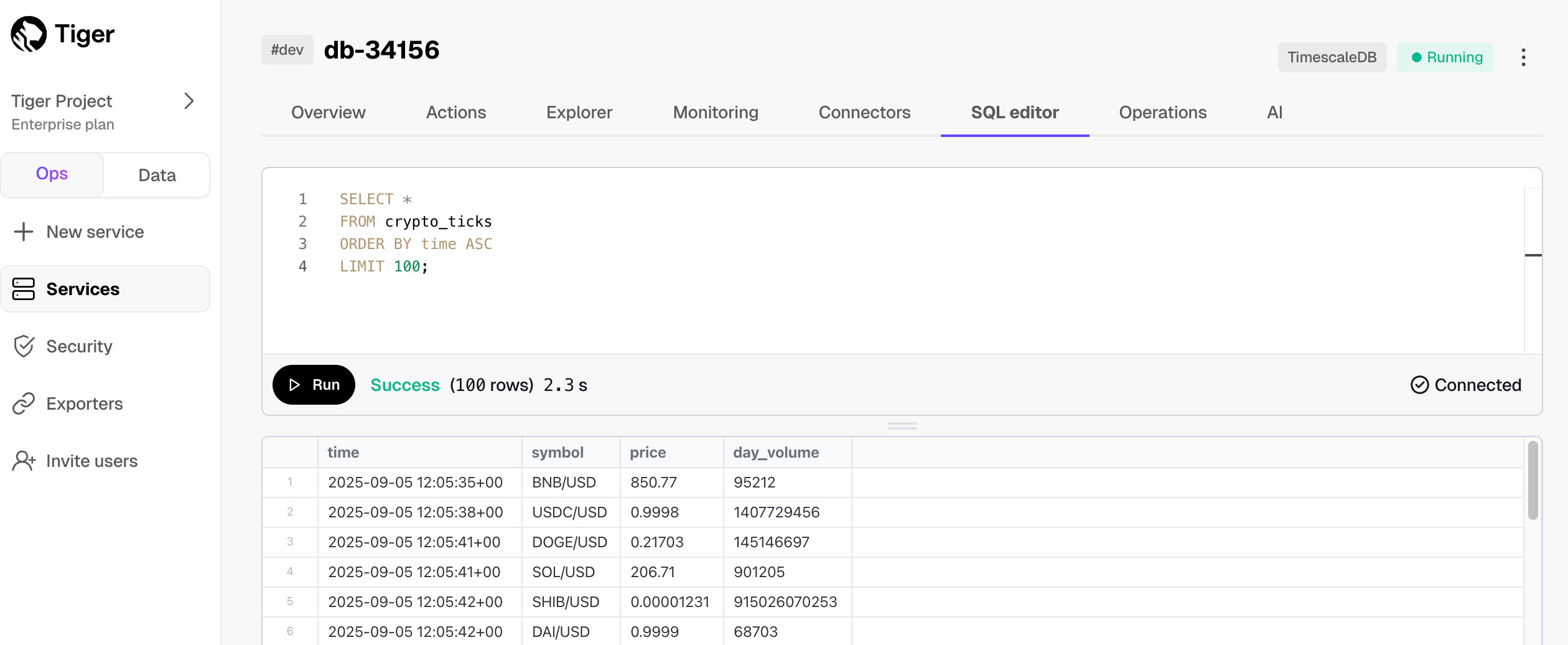
This query gives you the current date, you have successfully connected to your service.
And that is it, you are up and running. Enjoy developing with Tiger Data.
This query returns the current date. You have successfully connected to your service.
And that is it, you are up and running. Enjoy developing with Tiger Data.
Quick recap. You:
What next? Try the key features offered by Tiger Data, see the tutorials, interact with the data in your Tiger Cloud service using your favorite programming language, integrate your Tiger Cloud service with a range of third-party tools, plain old Use Tiger Data products, or dive into the API reference.
===== PAGE: https://docs.tigerdata.com/getting-started/get-started-devops-as-code/ =====
Examples:
Example 1 (sql):
SELECT CURRENT_DATE;
Example 2 (sql):
SELECT CURRENT_DATE;
Example 3 (unknown):
psql "<your-service-url>"
Example 4 (sql):
SELECT CURRENT_DATE;
Upsert data
URL: llms-txt#upsert-data
Contents:
Upserting is an operation that performs both:
Upserts only work when you have a unique index or constraint. A matching row is one that has identical values for the columns covered by the index or constraint.
In Postgres, a primary key is a unique index with a NOT NULL constraint.
If you have a primary key, you automatically have a unique index.
Create a table with a unique constraint
The examples in this section use a conditions table with a unique constraint
on the columns (time, location). To create a unique constraint, use UNIQUE
(<COLUMNS>) while defining your table:
You can also create a unique constraint after the table is created. Use the
syntax ALTER TABLE ... ADD CONSTRAINT ... UNIQUE. In this example, the
constraint is named conditions_time_location:
When you add a unique constraint to a table, you can't insert data that violates the constraint. In other words, if you try to insert data that has identical values to another row, within the columns covered by the constraint, you get an error.
Unique constraints must include all partitioning columns. That means unique constraints on a hypertable must include the time column. If you added other partitioning columns to your hypertable, the constraint must include those as well. For more information, see the section on hypertables and unique indexes.
Insert or update data to a table with a unique constraint
You can tell the database to insert new data if it doesn't violate the
constraint, and to update the existing row if it does. Use the syntax INSERT
INTO ... VALUES ... ON CONFLICT ... DO UPDATE.
For example, to update the temperature and humidity values if a row with the
specified time and location already exists, run:
Insert or do nothing to a table with a unique constraint
You can also tell the database to do nothing if the constraint is violated. The new data is not inserted, and the old row is not updated. This is useful when writing many rows as one batch, to prevent the entire transaction from failing. The database engine skips the row and moves on.
To insert or do nothing, use the syntax INSERT INTO ... VALUES ... ON CONFLICT
DO NOTHING:
===== PAGE: https://docs.tigerdata.com/use-timescale/write-data/delete/ =====
Examples:
Example 1 (sql):
CREATE TABLE conditions (
time TIMESTAMPTZ NOT NULL,
location TEXT NOT NULL,
temperature DOUBLE PRECISION NULL,
humidity DOUBLE PRECISION NULL,
UNIQUE (time, location)
);
Example 2 (sql):
ALTER TABLE conditions
ADD CONSTRAINT conditions_time_location
UNIQUE (time, location);
Example 3 (sql):
INSERT INTO conditions
VALUES ('2017-07-28 11:42:42.846621+00', 'office', 70.2, 50.1)
ON CONFLICT (time, location) DO UPDATE
SET temperature = excluded.temperature,
humidity = excluded.humidity;
Example 4 (sql):
INSERT INTO conditions
VALUES ('2017-07-28 11:42:42.846621+00', 'office', 70.1, 50.0)
ON CONFLICT DO NOTHING;
Reset password
URL: llms-txt#reset-password
It happens to us all, you want to login to MST Console, and the password is somewhere next to your keys, wherever they are.
To reset your password:
A secure reset password link is sent to the email associated with this account. Click the link and update your password.
===== PAGE: https://docs.tigerdata.com/_troubleshooting/mst/resolving-dns/ =====
About Tiger Data products
URL: llms-txt#about-tiger-data-products
===== PAGE: https://docs.tigerdata.com/use-timescale/index/ =====
Postgres transaction ID wraparound
URL: llms-txt#postgres-transaction-id-wraparound
The transaction control mechanism in Postgres assigns a transaction ID to
every row that is modified in the database; these IDs control the visibility of
that row to other concurrent transactions. The transaction ID is a 32-bit number
where two billion IDs are always in the visible past and the remaining IDs are
reserved for future transactions and are not visible to the running transaction.
To avoid a transaction wraparound of old rows, Postgres requires occasional
cleanup and freezing of old rows. This ensures that existing rows are visible
when more transactions are created. You can manually freeze the old rows by
executing VACUUM FREEZE. It can also be done automatically using the
autovacuum daemon when a configured number of transactions has been created
since the last freeze point.
In Managed Service for TimescaleDB, the transaction limit is set according to
the size of the database, up to 1.5 billion transactions. This ensures 500
million transaction IDs are available before a forced freeze and avoids
churning stable data in existing tables. To check your transaction freeze
limits, you can execute show autovacuum_freeze_max_age in your Postgres
instance. When the limit is reached, autovacuum starts freezing the old rows.
Some applications do not automatically adjust the configuration when the Postgres
settings change, which can result in unnecessary warnings. For example,
PGHero's default settings alert when 500 million transactions have been created
instead of alerting after 1.5 billion transactions. To avoid this, change the
value of the transaction_id_danger setting from 1,500,000,000 to
500,000,000, to receive warnings when the transaction limit reaches 1.5 billion.
===== PAGE: https://docs.tigerdata.com/_troubleshooting/mst/low-disk-memory-cpu/ =====
Integrate Google Cloud with Tiger Cloud
URL: llms-txt#integrate-google-cloud-with-tiger-cloud
Contents:
Google Cloud is a suite of cloud computing services, offering scalable infrastructure, AI, analytics, databases, security, and developer tools to help businesses build, deploy, and manage applications.
This page explains how to integrate your Google Cloud infrastructure with Tiger Cloud using AWS Transit Gateway.
To follow the steps on this page:
You need your connection details.
Connect your Google Cloud infrastructure to your Tiger Cloud services
To connect to Tiger Cloud:
Establish connectivity between Google Cloud and AWS. See Connect HA VPN to AWS peer gateways.
Your service and Peering VPC must be in the same AWS region. The number of Peering VPCs you can create in your project depends on your pricing plan. If you need another Peering VPC, either contact support@tigerdata.com or change your plan in Tiger Cloud Console.
Once your peering connection appears as Processing, you can accept and configure it in AWS:
You cannot attach a Tiger Cloud service to multiple Tiger Cloud VPCs at the same time.
You have successfully integrated your Google Cloud infrastructure with Tiger Cloud.
===== PAGE: https://docs.tigerdata.com/integrations/troubleshooting/ =====
VPC peering
URL: llms-txt#vpc-peering
Virtual Private Cloud (VPC) peering is a method of connecting separate Cloud private networks to each other. It makes it possible for the virtual machines in the different VPCs to talk to each other directly without going through the public internet. VPC peering is limited to VPCs that share the same Cloud provider.
VPC peering setup is a per project and per region setting. This means that all services created and running utilize the same VPC peering connection. If needed, you can have multiple projects that peer with different connections.
services are only accessible using your VPC's internal network. They are not accessible from the public internet. TLS certificates for VPC peered services are signed by the MST project CA and cannot be validated against a public CA (Let's Encrypt). You can choose whether you want to run on a VPC peered network or on the public internet for every service.
You can set up VPC peering on:
===== PAGE: https://docs.tigerdata.com/mst/integrations/ =====
first()
URL: llms-txt#first()
Contents:
The first aggregate allows you to get the value of one column
as ordered by another. For example, first(temperature, time) returns the
earliest temperature value based on time within an aggregate group.
The last and first commands do not use indexes, they perform a sequential
scan through the group. They are primarily used for ordered selection within a
GROUP BY aggregate, and not as an alternative to an
ORDER BY time DESC LIMIT 1 clause to find the latest value, which uses
indexes.
Get the earliest temperature by device_id:
This example uses first and last with an aggregate filter, and avoids null values in the output:
Required arguments
| Name | Type | Description |
|---|---|---|
value |
TEXT | The value to return |
time |
TIMESTAMP or INTEGER | The timestamp to use for comparison |
===== PAGE: https://docs.tigerdata.com/api/last/ =====
Examples:
Example 1 (sql):
SELECT device_id, first(temp, time)
FROM metrics
GROUP BY device_id;
Example 2 (sql):
SELECT
TIME_BUCKET('5 MIN', time_column) AS interv,
AVG(temperature) as avg_temp,
first(temperature,time_column) FILTER(WHERE time_column IS NOT NULL) AS beg_temp,
last(temperature,time_column) FILTER(WHERE time_column IS NOT NULL) AS end_temp
FROM sensors
GROUP BY interv
Monitor your Tiger Cloud services
URL: llms-txt#monitor-your-tiger-cloud-services
Contents:
Get complete visibility into your service performance with Tiger Cloud's powerful monitoring suite. Whether you're optimizing for peak efficiency or troubleshooting unexpected behavior, Tiger Cloud gives you the tools to quickly identify and resolve issues.
When something doesn't look right, Tiger Cloud provides a complete investigation workflow:
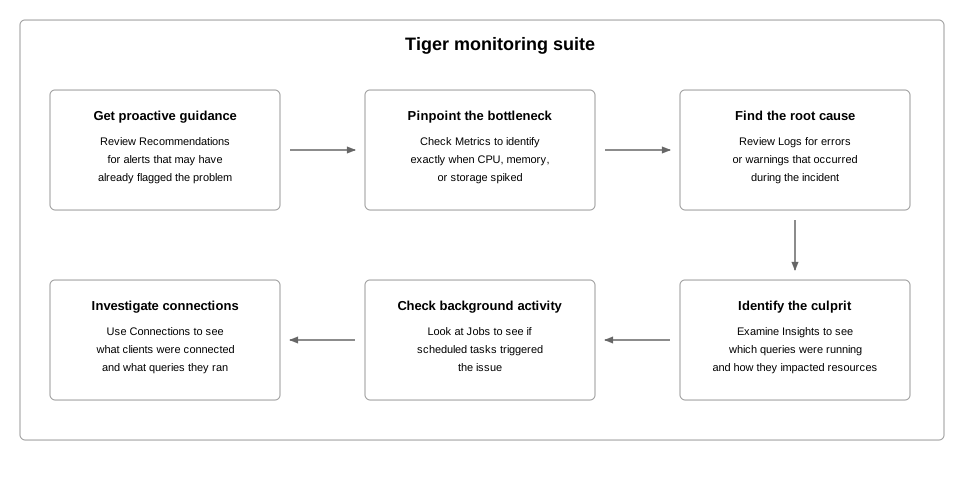
Want to save some time? Check out Recommendations for alerts that may have already flagged the problem!
This pages explains what specific data you get at each point.
Tiger Cloud shows you CPU, memory, and storage metrics for up to 30 previous days and with down to 10-second granularity.
To access metrics, select your service in Tiger Cloud Console, then click Monitoring > Metrics:
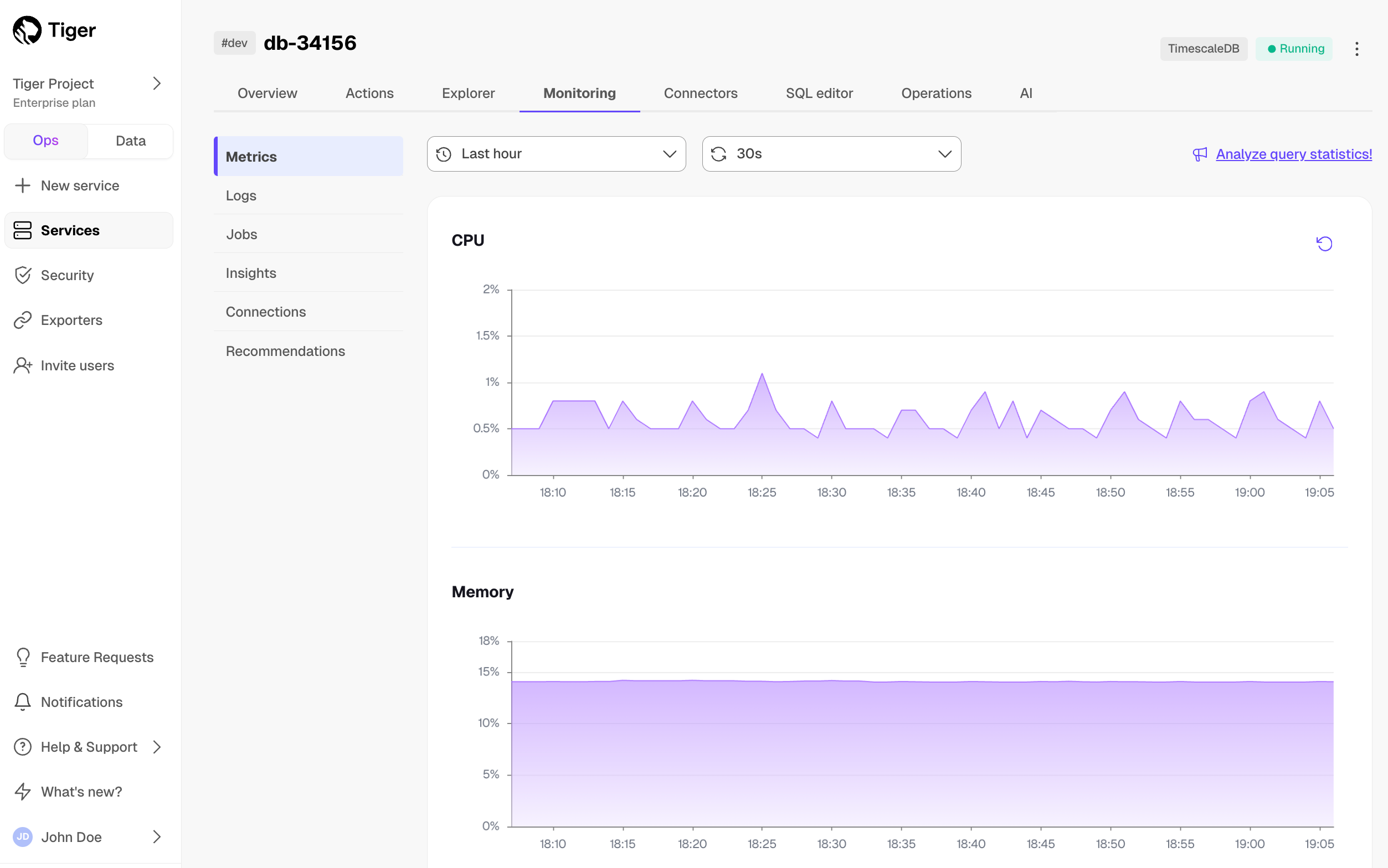
The following metrics are represented by graphs:
The Free pricing plan only includes storage metrics.
When you hit the limits:
Hover over the graph to view metrics for a specific time point. Select an area in the graph to zoom into a specific period.
Gray bars indicate that metrics have not been collected for the period shown:
Understand high memory usage
It is normal to observe high overall memory usage for your Tiger Cloud services, especially for workloads with active read and write. Tiger Cloud service run on Linux, and high memory usage is a particularity of the Linux page cache. The Linux kernel stores file-backed data in memory to speed up read operations. Postgres, and by extension, Tiger Cloud services rely heavily on disk I/O to access tables, WALs, and indexes. When your service reads these files, the kernel caches them in memory to improve performance for future access.
Page cache entries are not locked memory: they are evictable and are automatically reclaimed by the kernel when actual memory pressure arises. Therefore, high memory usage shown in the monitoring dashboards is often not due to service memory allocation, but the beneficial caching behavior in the Linux kernel. The trick is to distinguish between normal memory utilization and memory pressure.
High memory usage does not necessarily mean a problem, especially on read replicas or after periods of activity. For a more accurate view of database memory consumption, look at Postgres-specific metrics, such as shared_buffers or memory context breakdowns. Only take action if you see signs of real memory pressure—such as OOM (Out Of Memory) events or degraded performance.
Tiger Cloud Console gives you a visual representation of the state of your service. The following states are represented with the following colors:
| State | Color |
|---|---|
| Configuring | Yellow |
| Deleted | Yellow |
| Deleting | Yellow |
| Optimizing | Green |
| Paused | Grey |
| Pausing | Grey |
| Queued | Yellow |
| Ready | Green |
| Resuming | Yellow |
| Unstable | Yellow |
| Upgrading | Yellow |
| Read-only | Red |
Tiger Cloud shows you detailed logs for your service, which you can filter by type, date, and time.
To access logs, select your service in Tiger Cloud Console, then click Monitoring > Logs:
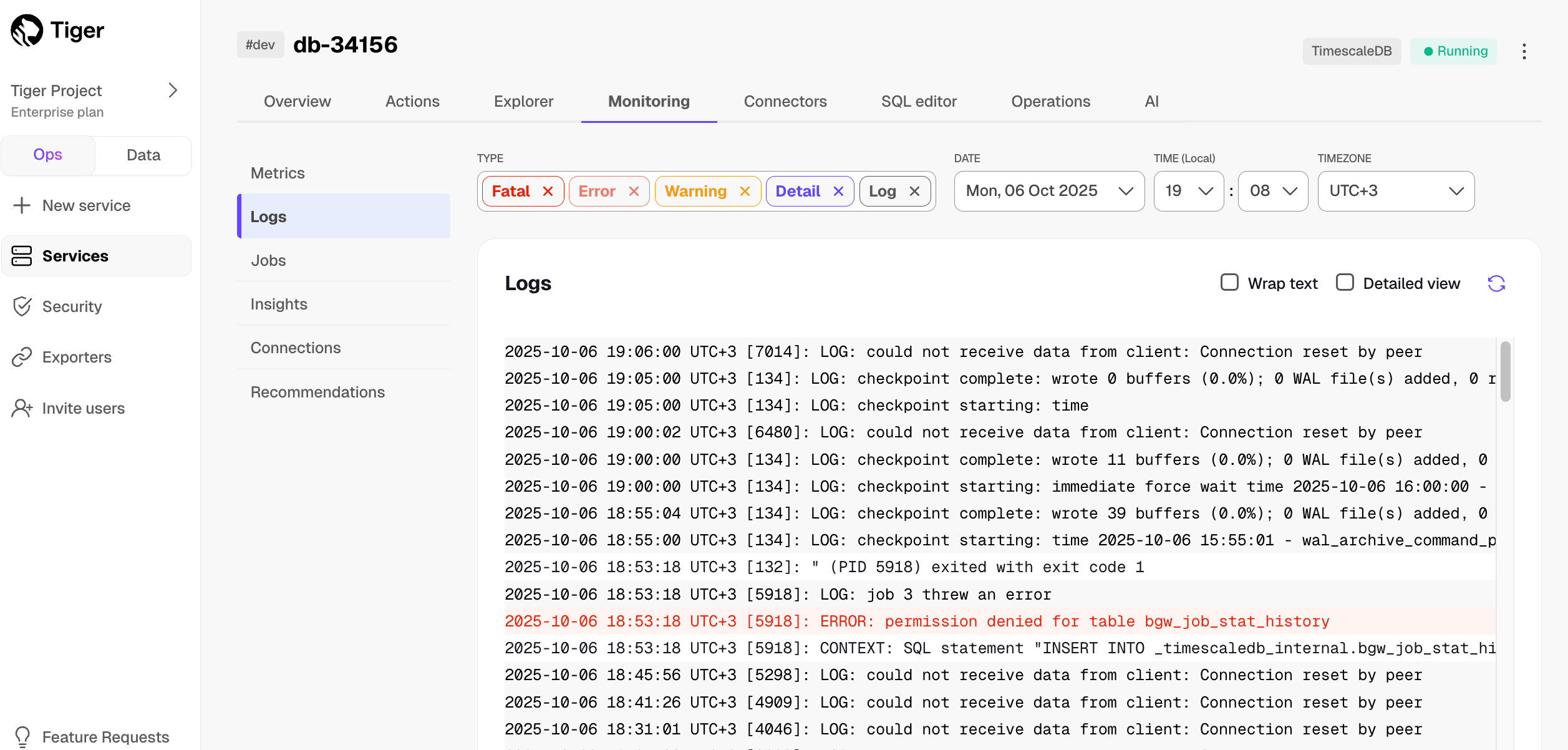
Insights help you get a comprehensive understanding of how your queries perform over time, and make the most efficient use of your resources.
To view insights, select your service, then click Monitoring > Insights. Search or filter queries by type, maximum execution time, and time frame.
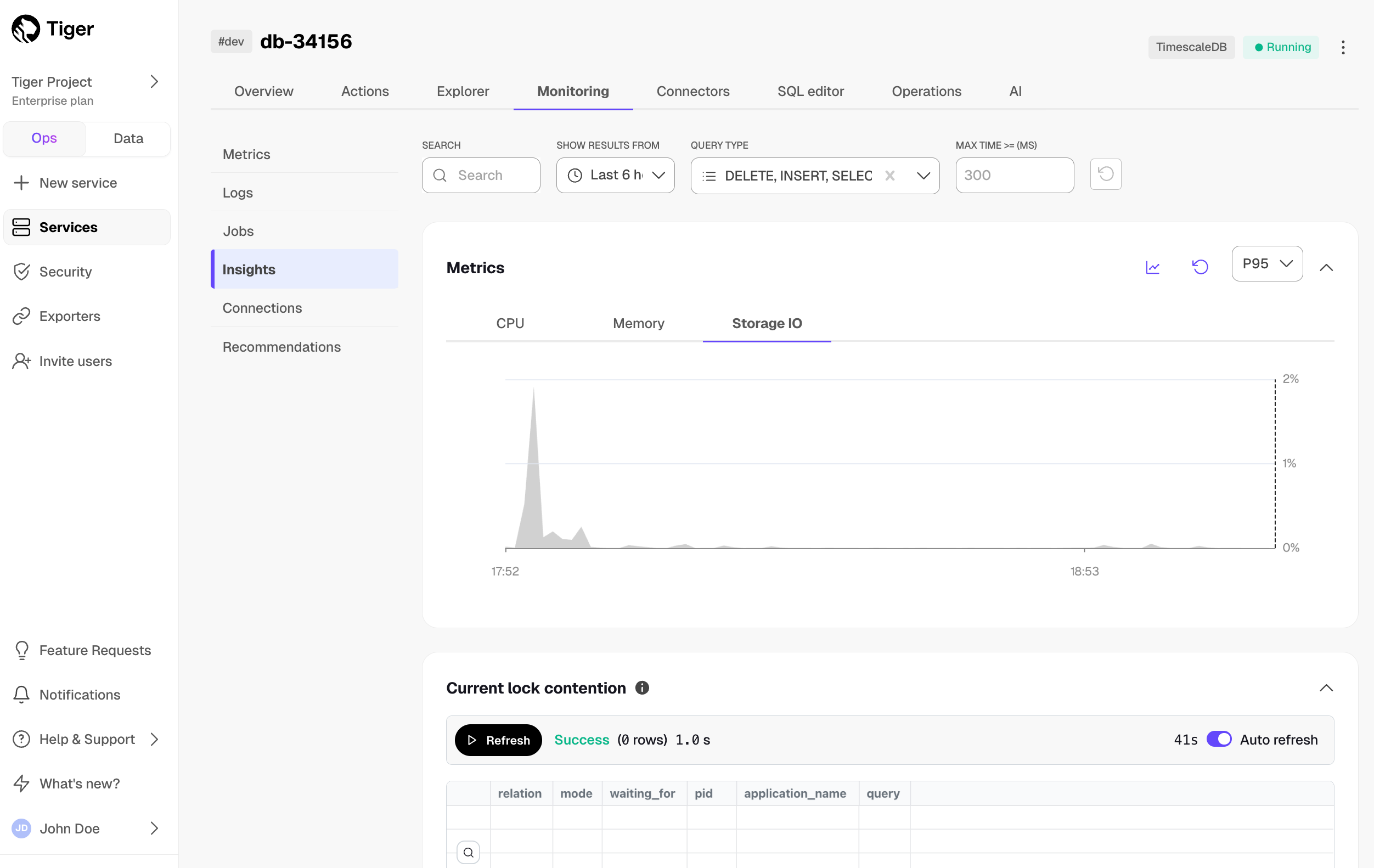
Insights include Metrics, Current lock contention, and Queries.
Metrics provides a visual representation of CPU, memory, and storage input/output usage over time. It also overlays the execution times of the top three queries matching your search. This helps correlate query executions with resource utilization. Select an area of the graph to zoom into a specific time frame.
Current lock contention shows how many queries or transactions are currently waiting for locks held by other queries or transactions.
Queries displays the top 50 queries matching your search. This includes executions, total rows, total time, median time, P95 time, related hypertables, tables in the columnstore, and user name.
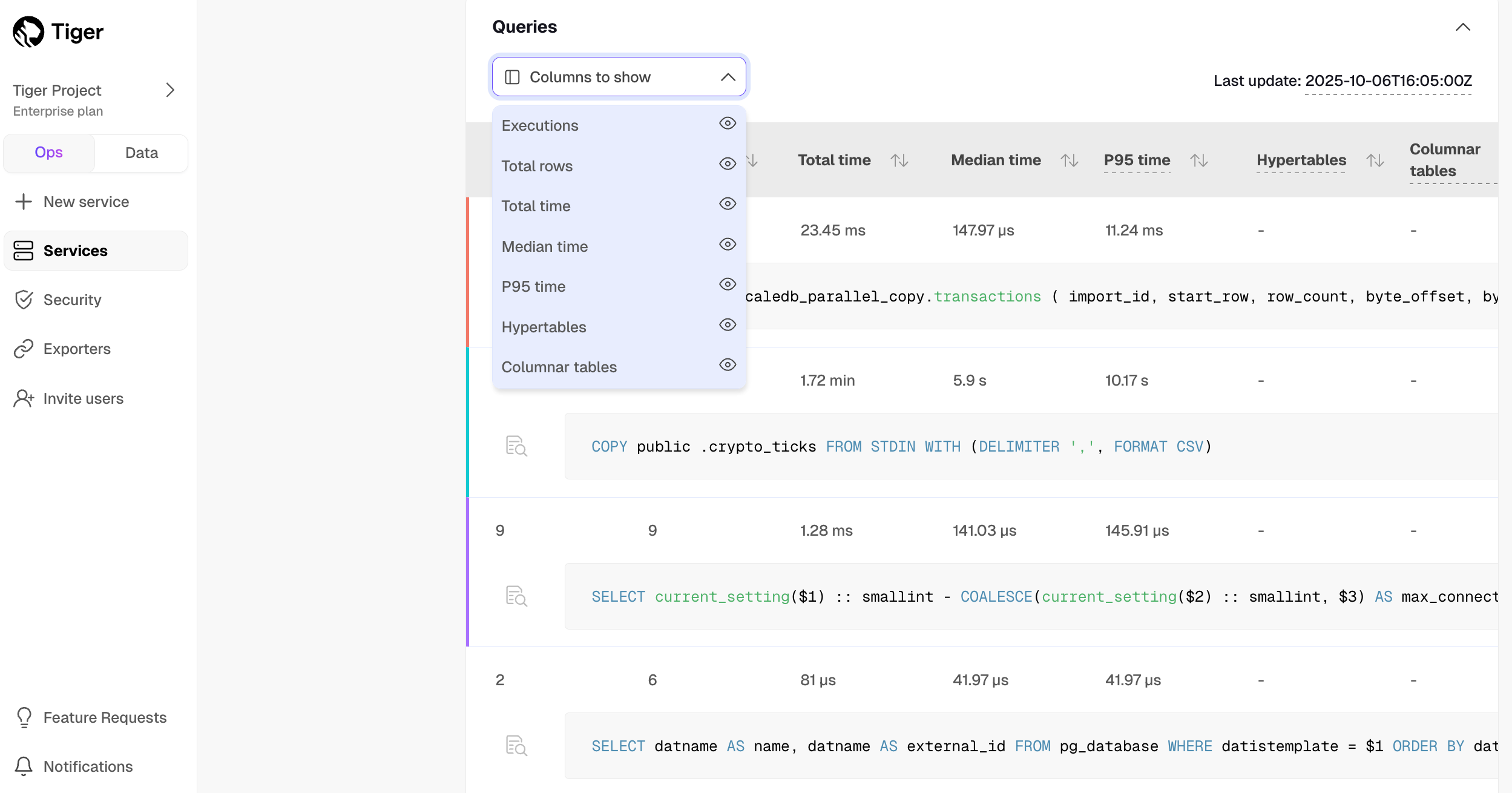
| Column | Description |
|---|---|
Executions |
The number of times the query ran during the selected period. |
Total rows |
The total number of rows scanned, inserted, or updated by the query during the selected period. |
Total time |
The total time of query execution. |
Median time |
The median (P50) time of query execution. |
P95 time |
The ninety-fifth percentile, or the maximum time of query execution. |
Hypertables |
If the query ran on a hypertable. |
Columnar tables |
If the query drew results from a chunk in the columnstore. |
User name |
The user name of the user running the query. |
These metrics calculations are based on the entire period you've selected. For example, if you've selected six hours, all the metrics represent an aggregation of the previous six hours of executions.
If you have just completed a query, it can take some minutes for it to show in the table. Wait a little, then refresh the page to see your query. Check out the last update value at the top of the query table to identify the timestamp from the last processed query stat.
Click a query in the list to see the drill-down view. This view not only helps you identify spikes and unexpected behaviors, but also offers information to optimize your query.
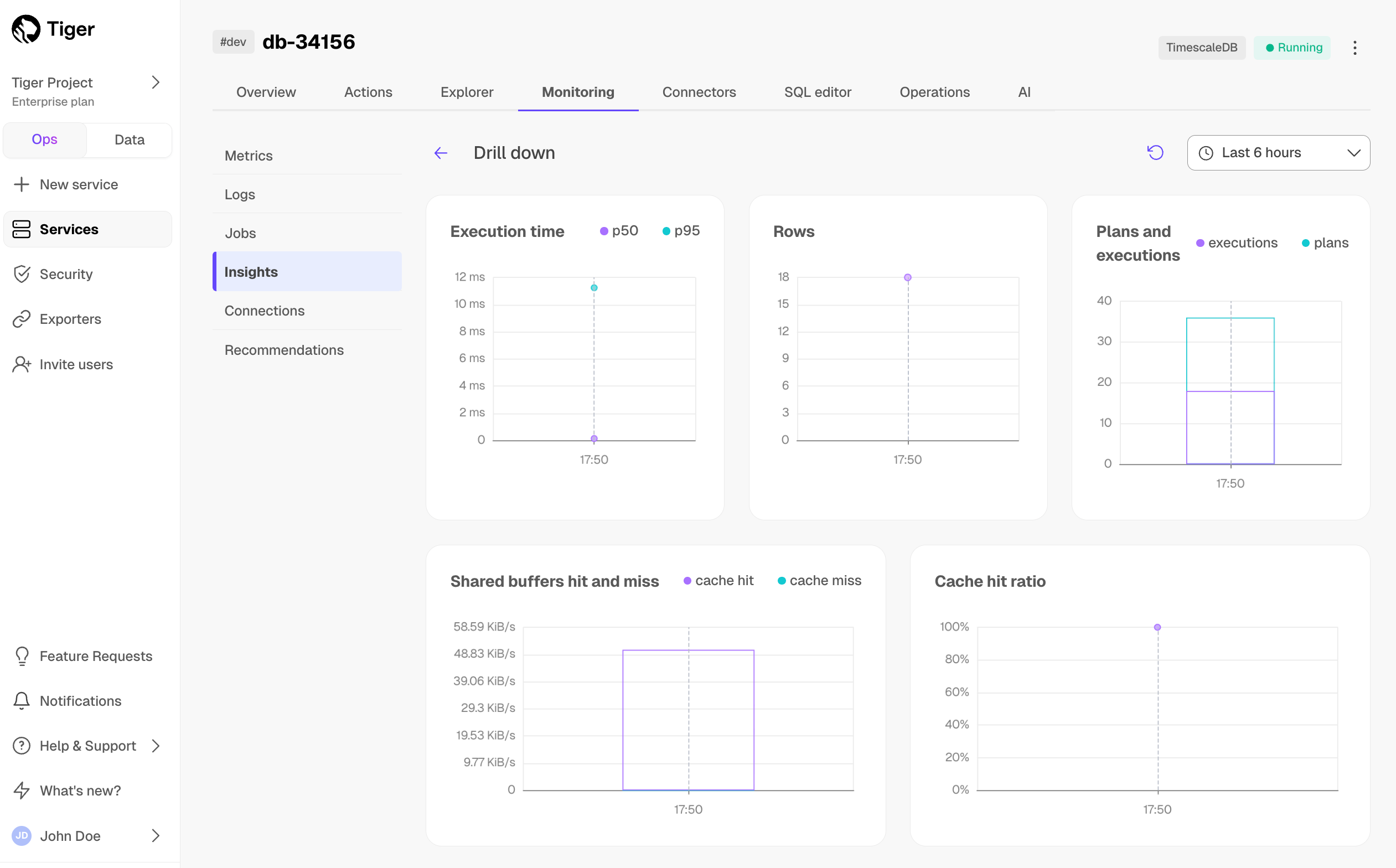
This view includes the following graphs:
Tiger Cloud summarizes all jobs set up for your service along with their details like type, target object, and status. This includes native Tiger Cloud jobs as well as custom jobs you configure based on your specific needs.
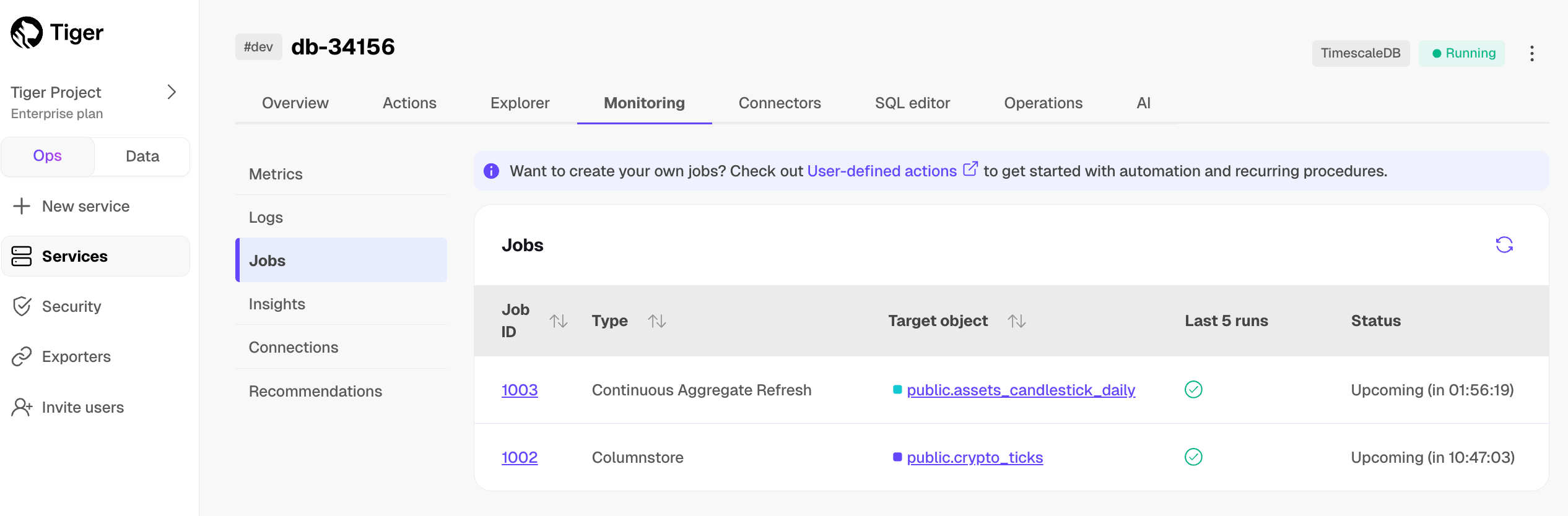
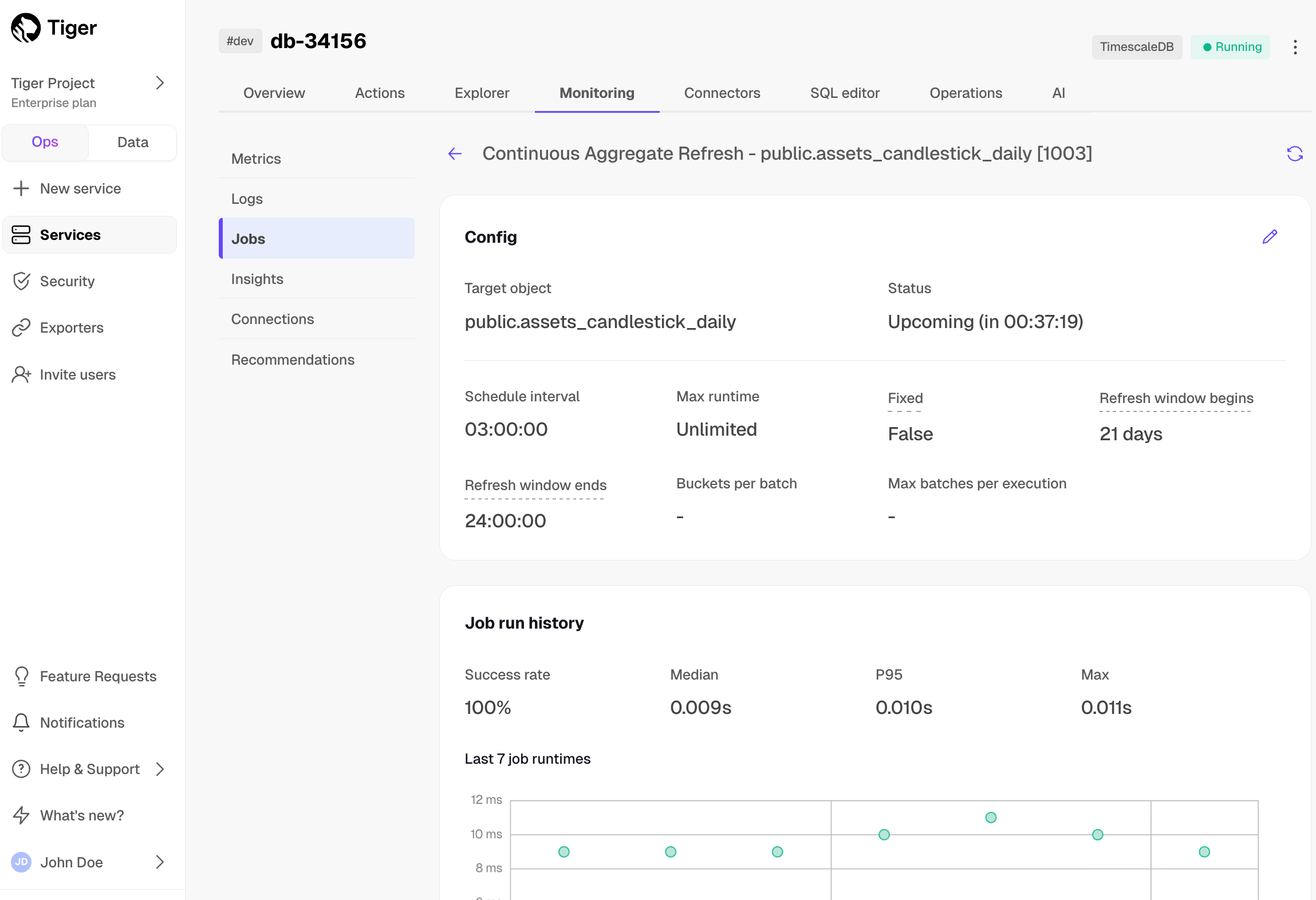
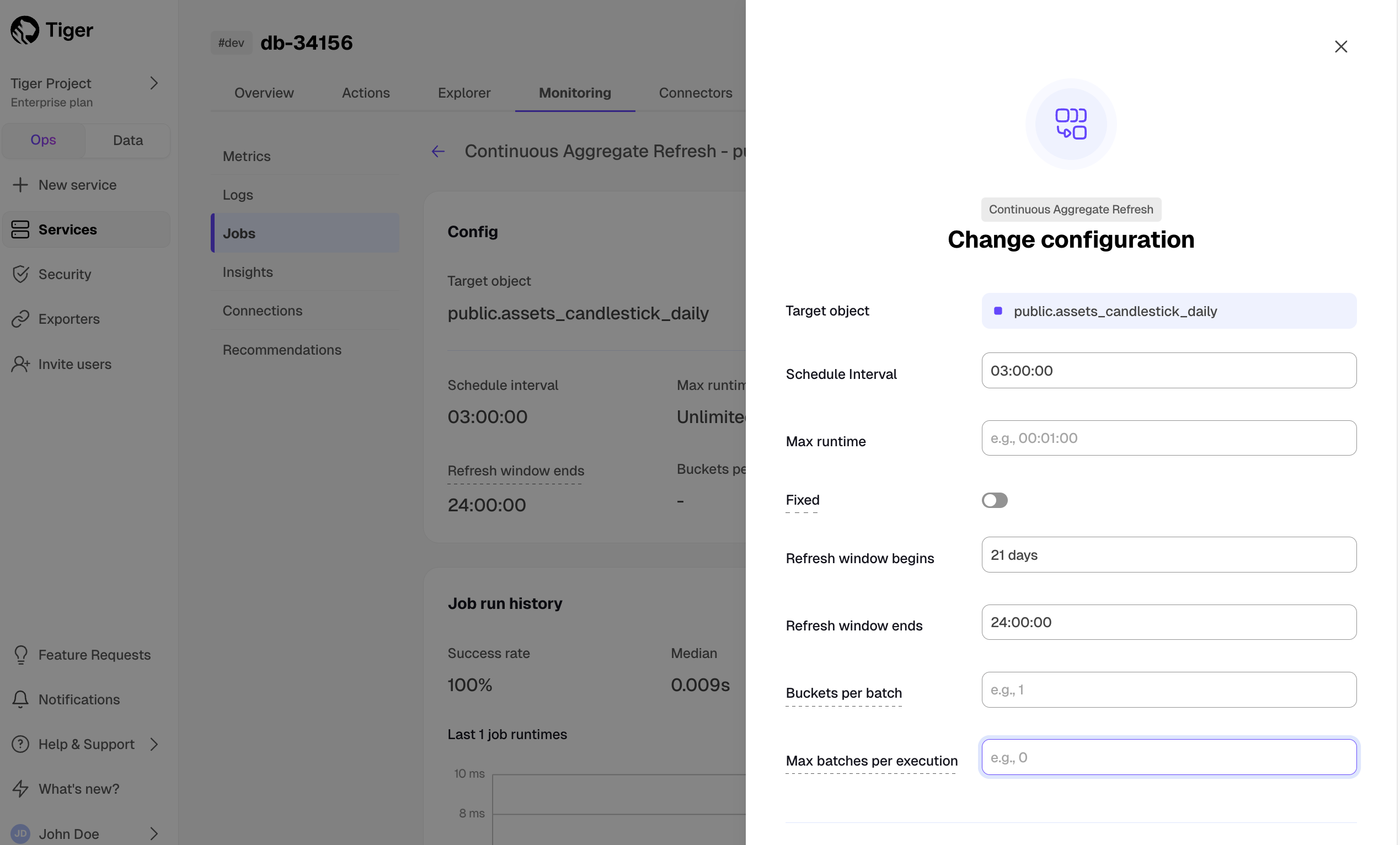
Tiger Cloud lists current and past connections to your service. This includes details like the corresponding query, connecting application, username, connection status, start time, and duration.
To view connections, select your service in Tiger Cloud Console, then click Monitoring > Connections. Expand the query underneath each connection to see the full SQL.
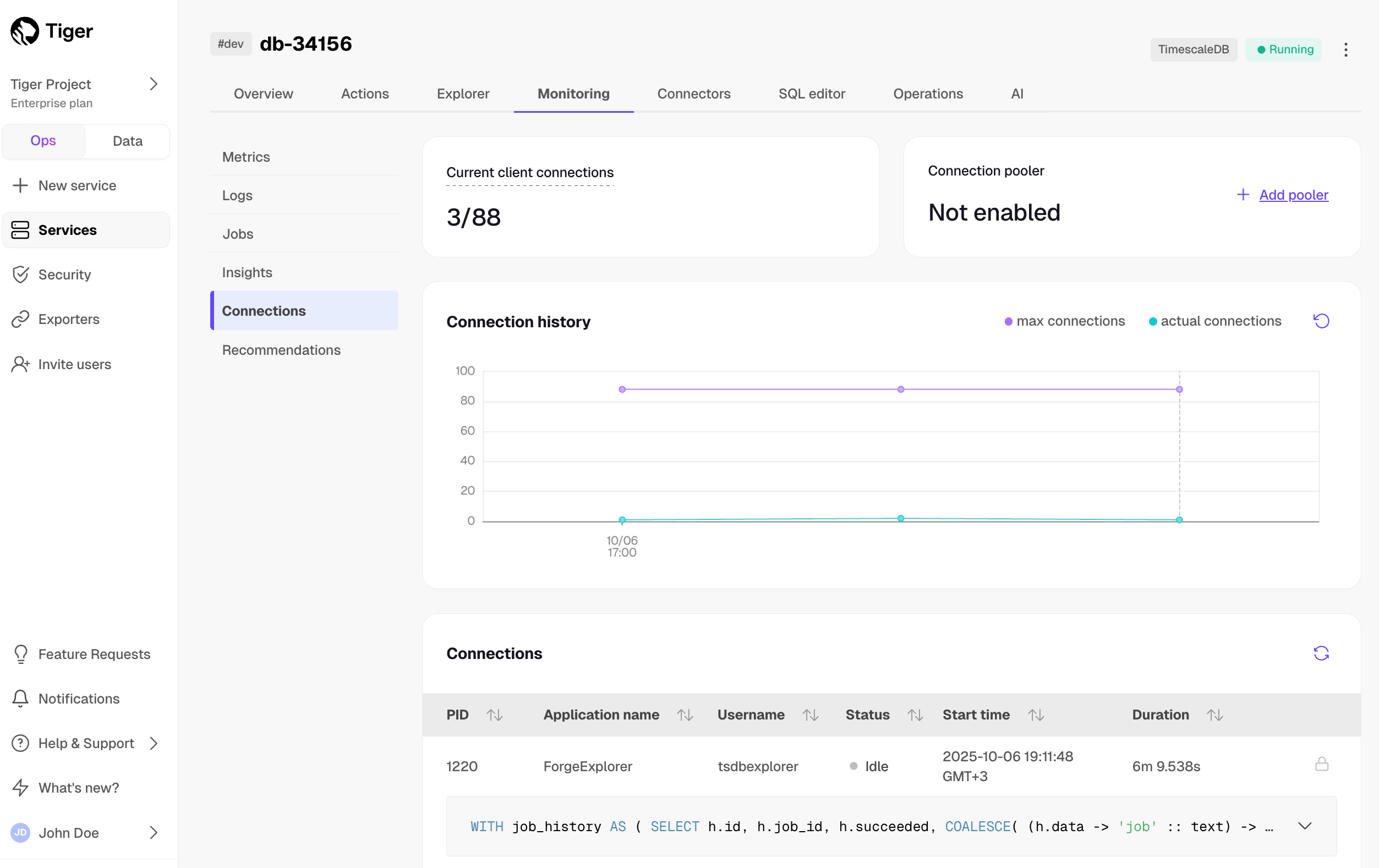
Click the trash icon next to a connection in the list to terminate it. A lock icon means that a connection cannot be terminated; hover over the icon to see the reason.
Tiger Cloud offers specific tips on configuring your service. This includes a wide range of actions—from finishing account setup to tuning your service for the best performance. For example, Tiger Cloud may recommend a more suitable chunk interval or draw your attention to consistently failing jobs.
To view recommendations, select your service in Tiger Cloud Console, then click Monitoring > Recommendations:
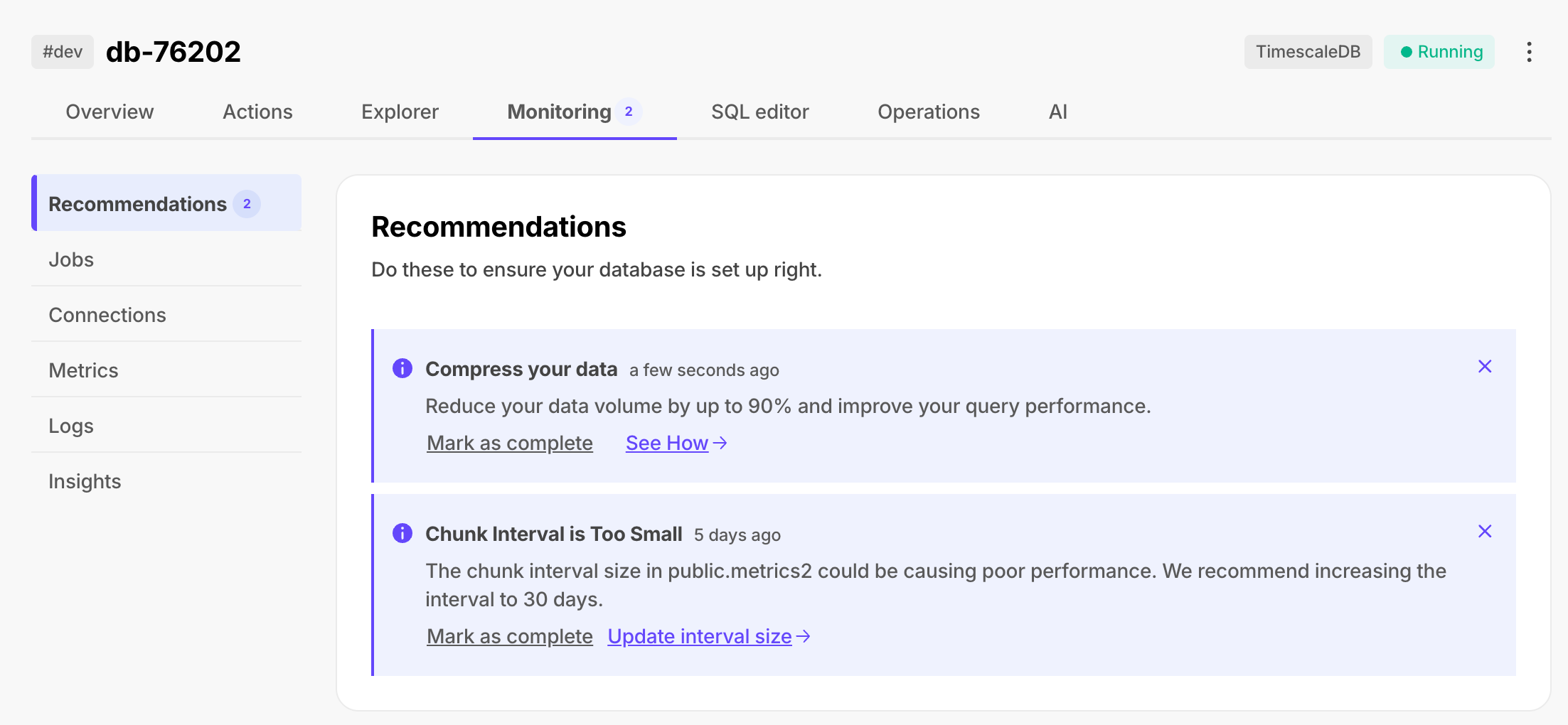
Query-level statistics with pg_stat_statements
You can also get query-level statistics for your services with the pg_stat_statements extension. This includes the time spent planning and executing each query; the number of blocks hit, read, and written; and more. pg_stat_statements comes pre-installed with Tiger Cloud.
For more information about pg_stat_statements, see the Postgres documentation.
Query the pg_stat_statements view as you would any Postgres view.
The full view includes superuser queries used by Tiger Cloud to manage your service in the background. To view only your
queries, filter by the current user.
Connect to your service and run the following command:
For example, to identify the top five longest-running queries by their mean execution time:
Or the top five queries with the highest relative variability in the execution time, expressed as a percentage:
For more examples and detailed explanations, see the blog post on identifying performance bottlenecks with pg_stat_statements.
===== PAGE: https://docs.tigerdata.com/use-timescale/metrics-logging/aws-cloudwatch/ =====
Examples:
Example 1 (sql):
SELECT * FROM pg_stat_statements WHERE pg_get_userbyid(userid) = current_user;
Example 2 (sql):
SELECT calls,
mean_exec_time,
query
FROM pg_stat_statements
WHERE pg_get_userbyid(userid) = current_user
ORDER BY mean_exec_time DESC
LIMIT 5;
Example 3 (sql):
SELECT calls,
stddev_exec_time/mean_exec_time*100 AS rel_std_dev,
query
FROM pg_stat_statements
WHERE pg_get_userbyid(userid) = current_user
ORDER BY rel_std_dev DESC
LIMIT 5;
uuid_timestamp()
URL: llms-txt#uuid_timestamp()
Contents:
Extract a Postgres timestamp with time zone from a UUIDv7 object.
uuid contains a millisecond unix timestamp and an optional sub-millisecond fraction.
This fraction is used to construct the Postgres timestamp.
To include the sub-millisecond fraction in the returned timestamp, call uuid_timestamp_micros.
Returns something like:
| Name | Type | Default | Required | Description |
|-|------------------|-|----------|-------------------------------------------------|
|uuid|UUID| - | ✔ | The UUID object to extract the timestamp from |
===== PAGE: https://docs.tigerdata.com/api/uuid-functions/uuid_version/ =====
Examples:
Example 1 (sql):
postgres=# SELECT uuid_timestamp('019913ce-f124-7835-96c7-a2df691caa98');
Example 2 (terminaloutput):
uuid_timestamp
----------------------------
2025-09-04 10:19:13.316+02
alter_data_node()
URL: llms-txt#alter_data_node()
Contents:
Multi-node support is sunsetted.
TimescaleDB v2.13 is the last release that includes multi-node support for Postgres versions 13, 14, and 15.
Change the configuration of a data node that was originally set up with
add_data_node on the access node.
Only users with certain privileges can alter data nodes. When you alter the connection details for a data node, make sure that the altered configuration is reachable and can be authenticated by the access node.
Required arguments
|Name|Description|
|-|-|
|node_name|Name for the data node|
Optional arguments
|Name|Description|
|-|-|
|host|Host name for the remote data node|
|database|Database name where remote hypertables are created. The default is the database name that was provided in add_data_node|
|port|Port to use on the remote data node. The default is the Postgres port that was provided in add_data_node|
|available|Configure availability of the remote data node. The default is true meaning that the data node is available for read/write queries|
|Column|Description|
|-|-|
|node_name|Local name to use for the data node|
|host|Host name for the remote data node|
|port|Port for the remote data node|
|database|Database name used on the remote data node|
|available|Availability of the remote data node for read/write queries|
An error is given if:
To alter a data node, you must have the correct permissions, or be the owner of the remote server.
Additionally, you must have the USAGE privilege on the timescaledb_fdw foreign data
wrapper.
To change the port number and host information for an existing data node dn1:
Data nodes are available for read/write queries by default. If the data node
becomes unavailable for some reason, the read/write query gives an error. This
API provides an optional argument, available, to mark an existing data node
as available or unavailable for read/write queries. By marking a data node as
unavailable you can allow read/write queries to proceed in the cluster. For
more information, see the multi-node HA section
===== PAGE: https://docs.tigerdata.com/api/distributed-hypertables/move_chunk_experimental/ =====
Examples:
Example 1 (sql):
SELECT alter_data_node('dn1', host => 'dn1.example.com', port => 6999);
remove_all_policies()
URL: llms-txt#remove_all_policies()
Contents:
Remove all policies from a continuous aggregate. The removed columnstore and retention policies apply to the continuous aggregate, not to the original hypertable.
Experimental features could have bugs. They might not be backwards compatible, and could be removed in future releases. Use these features at your own risk, and do not use any experimental features in production.
Remove all policies from a continuous aggregate named
example_continuous_aggregate. This includes refresh policies, columnstore
policies, and data retention policies. It doesn't include custom jobs:
Required arguments
|Name|Type|Description|
|-|-|-|
|relation|REGCLASS|The continuous aggregate to remove all policies from|
Optional arguments
|Name|Type|Description|
|-|-|-|
|if_exists|BOOL|When true, prints a warning instead of erroring if any policies are missing. Defaults to false.|
Returns true if successful.
===== PAGE: https://docs.tigerdata.com/api/continuous-aggregates/hypertable_detailed_size/ =====
Examples:
Example 1 (sql):
timescaledb_experimental.remove_all_policies(
relation REGCLASS,
if_exists BOOL = false
) RETURNS BOOL
Example 2 (sql):
SELECT timescaledb_experimental.remove_all_policies('example_continuous_aggregate');
Configure VPC peering
URL: llms-txt#configure-vpc-peering
Contents:
You can Configure VPC peering for your Managed Service for TimescaleDB project, using the VPC section of the dashboard for your project. VPC peering setup is a per project and per region setting. This means that all services created and running utilize the same VPC peering connection. If needed, you can have multiple projects that peer with different connections.
Configuring a VPC peering
You can configure VPC peering as a project and region-specific setting. This means that all services created and running use the same VPC peering connection. If necessary, you can use different connections for VPC peering across multiple projects. Only Admin and operator user roles can create a VPC.
To set up VPC peering for your project:
The state of the VPC is listed in the table.
===== PAGE: https://docs.tigerdata.com/mst/vpc-peering/vpc-peering-aws-transit/ =====
Security overview
URL: llms-txt#security-overview
Contents:
This section covers how Managed Service for TimescaleDB handles security of your data while it is stored.
Cloud provider accounts
services are hosted by cloud provider accounts controlled by Tiger Data. These accounts are managed only by Tiger Data and Aiven operations personnel. Members of the public cannot directly access the cloud provider account resources.
Your services are located on one or more virtual machines. Each virtual machine is dedicated to a single customer, and is never multi-tenanted. Customer data never leaves the virtual machine, except when uploaded to an offsite backup location.
When you create a new service, you need to select a cloud region. When the virtual machine is launched, it does so in the cloud region you have chosen. Your data never leaves the chosen cloud region.
If a cloud region has multiple Availability Zones, or a similar high-availability mechanism, the virtual machines are distributed evenly across the zones. This provides the best possible service if an Availability Zone becomes unavailable.
Access to the virtual machine providing your service is restricted. Software that is accessing your database needs to run on a different virtual machine. To reduce latency, it is best for it to be using a virtual machine provided by the same cloud provider, and in the same region, if possible.
Virtual machines are not reused. They are terminated and wiped when you upgrade or delete your service.
Every Managed Service for TimescaleDB project has its own certificate authority. This certificate authority is used to sign certificates used internally by your services to communicate between different cluster nodes and to management systems.
You can download your project certificate authority in MST Console. In the Services tab, click the service you want to find
the certificate for. In the service Overview tab, under Connection
information, locate the CA Certificate section, and click Show to see the
certificate. It is recommended that you set up your browser or client to trust
that certificate.
All server certificates are signed by the project certificate authority OF MST Console.
Managed Service for TimescaleDB at-rest data encryption covers both active service instances as well as service backups in cloud object storage.
Service instances and the underlying virtual machines use full volume
encryption. The encryption method uses LUKS, with a randomly generated ephemeral
key per each instance, and per volume. The keys are never re-used, and are
disposed of when the instance is destroyed. This means that a natural key
rotation occurs with roll-forward upgrades. By default, the LUKS mode is
aes-xts-plain64:sha256, with a 512-bit key.
Backups are encrypted with a randomly generated key per file. These keys are in turn encrypted with an RSA key-encryption key-pair, and stored in the header section of each backup segment. The file encryption is performed with AES-256 in CTR mode, with HMAC-SHA256 for integrity protection. The RSA key-pair is randomly generated for each service. The key lengths are 256-bit for block encryption, 512-bit for the integrity protection, and 3072-bits for the RSA key.
Encrypted backup files are stored in the object storage in the same region that the virtual machines are located for the service.
Networking security
Access to provided services is only provided over TLS encrypted connections. TLS ensures that third-parties can't eavesdrop or modify the data while it's in transit between your service and the clients accessing your service. You cannot use unencrypted plain text connections.
Communication between virtual machines within Managed Service for TimescaleDB is secured with either TLS or IPsec. You cannot use unencrypted plaintext connections.
Virtual machines network interfaces are protected by a dynamically configured firewall based on iptables, which only allows connections from specific addresses. This is used for network traffic from the internal network to other VMs in the same service, and for external public network, to client connections.
By default, new services accept incoming traffic from all sources, which is used to simplify initial set up of your service. It is highly recommended that you restrict the IP addresses that are allowed to establish connections to your services.
Configure allowed incoming IP addresses for your service
This is the port that you are managing inbound access for.
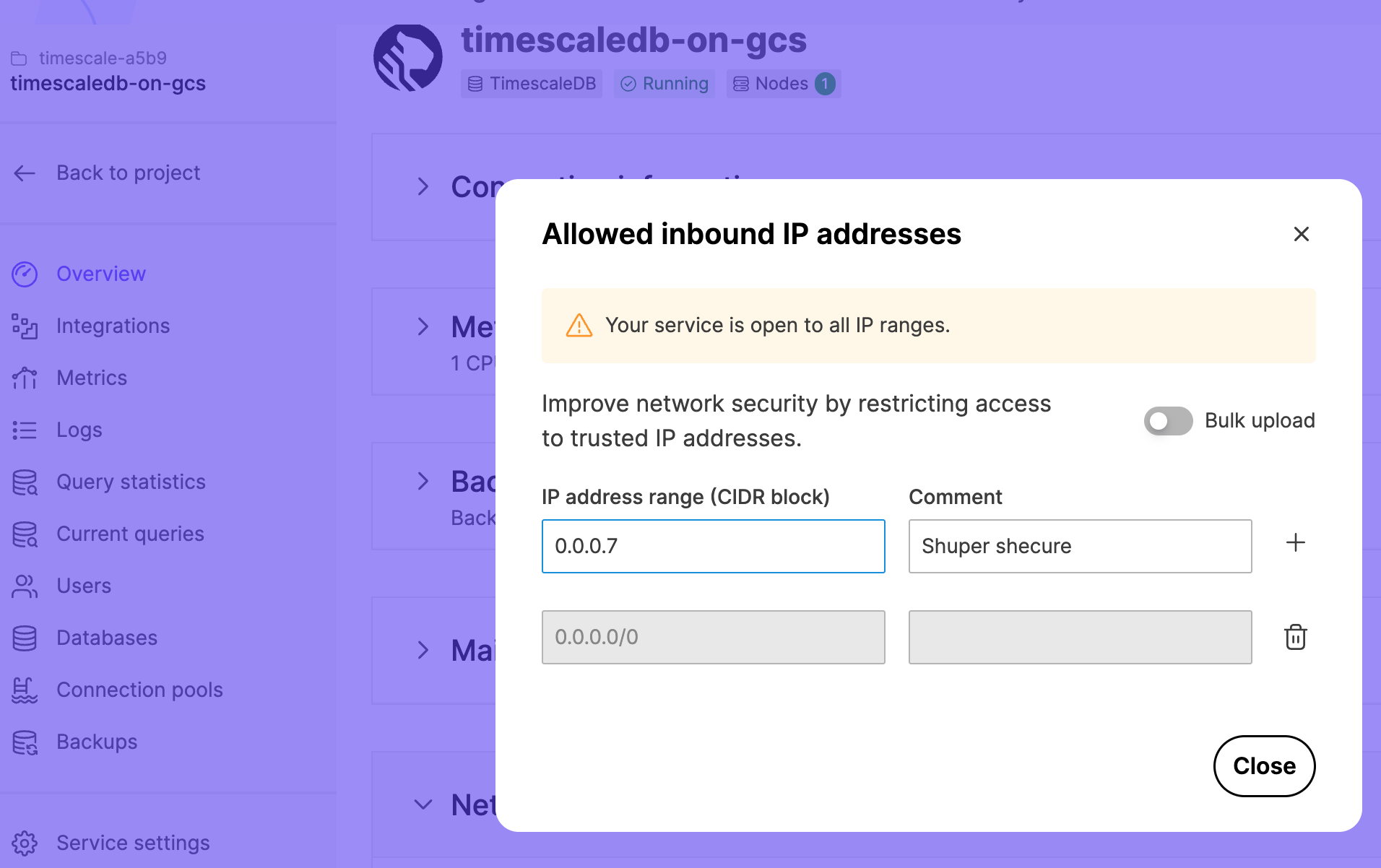
Networking with VPC peering
When you set up VPC peering, you cannot access your services using public internet-based access. Service addresses are published in the public DNS record, but they can only be connected to from your peered VPC network using private network addresses.
The virtual machines providing your service are hosted by cloud provider accounts controlled by Tiger Data.
Customer data privacy
Customer data privacy is of utmost importance at Tiger Data. Tiger Data works with Aiven to provide Managed Service for TimescaleDB.
In most cases, all the resources required for providing your services are automatically created, maintained, and terminated by the Managed Service for TimescaleDB infrastructure, with no manual operator intervention required.
The Tiger Data Operations Team are able to securely log in to your service Virtual Machines, for the purposes of troubleshooting, as required. Tiger Data operators never access customer data unless you explicitly request them to do so, to troubleshoot a technical issue. This access is logged and audited.
There is no ability for any customer or member of the public to access any virtual machines used in Managed Service for TimescaleDB.
Managed Service for TimescaleDB services are periodically assessed and penetration tested for any security issues by an independent professional cyber-security vendor.
Aiven is fully GDPR-compliant, and has executed data processing agreements (DPAs) with relevant cloud infrastructure providers. If you require a DPA, or if you want more information about information security policies, contact Tiger Data.
===== PAGE: https://docs.tigerdata.com/mst/postgresql-read-replica/ =====
Design schema and ingest tick data
URL: llms-txt#design-schema-and-ingest-tick-data
Contents:
This tutorial shows you how to store real-time cryptocurrency or stock tick data in TimescaleDB. The initial schema provides the foundation to store tick data only. Once you begin to store individual transactions, you can calculate the candlestick values using TimescaleDB continuous aggregates based on the raw tick data. This means that our initial schema doesn't need to specifically store candlestick data.
This schema uses two tables:
|Field|Description| |-|-| |symbol|The symbol of the crypto currency pair, such as BTC/USD| |name|The name of the pair, such as Bitcoin USD|
|Field|Description|
|-|-|
|time|Timestamp, in UTC time zone|
|symbol|Crypto pair symbol from the crypto_assets table|
|price|The price registered on the exchange at that time|
|day_volume|Total volume for the given day (incremental)|
You also need to turn the time-series table into a hypertable:
This is an important step in order to efficiently store your time-series data in TimescaleDB.
Using TIMESTAMP data types
It is best practice to store time values using the TIMESTAMP WITH TIME ZONE (TIMESTAMPTZ)
data type. This makes it easier to query your data
using different time zones. TimescaleDB
stores TIMESTAMPTZ values in UTC internally and makes the necessary
conversions for your queries.
With the hypertable and relational table created, download the sample files containing crypto assets and tick data from the last three weeks. Insert the data into your TimescaleDB instance.
Inserting sample data
If you want to ingest real-time market data, instead of sample data, check out our complementing tutorial Ingest real-time financial websocket data to ingest data directly from the Twelve Data financial API.
===== PAGE: https://docs.tigerdata.com/tutorials/OLD-financial-candlestick-tick-data/index/ =====
Examples:
Example 1 (sql):
CREATE TABLE crypto_assets (
symbol TEXT UNIQUE,
"name" TEXT
);
CREATE TABLE crypto_ticks (
"time" TIMESTAMPTZ,
symbol TEXT,
price DOUBLE PRECISION,
day_volume NUMERIC
);
Example 2 (sql):
-- convert the regular 'crypto_ticks' table into a TimescaleDB hypertable with 7-day chunks
SELECT create_hypertable('crypto_ticks', 'time');
Example 3 (bash):
wget https://assets.timescale.com/docs/downloads/candlestick/crypto_sample.zip
Example 4 (bash):
unzip crypto_sample.zip
cd crypto_sample
Integrate Apache Airflow with Tiger
URL: llms-txt#integrate-apache-airflow-with-tiger
Contents:
Apache Airflow® is a platform created by the community to programmatically author, schedule, and monitor workflows.
A DAG (Directed Acyclic Graph) is the core concept of Airflow, collecting Tasks together,
organized with dependencies and relationships to say how they should run. You declare a DAG in a Python file
in the $AIRFLOW_HOME/dags folder of your Airflow instance.
This page shows you how to use a Python connector in a DAG to integrate Apache Airflow with a Tiger Cloud service.
To follow the steps on this page:
You need your connection details. This procedure also works for self-hosted TimescaleDB.
Ensure that your Airflow instance has network access to Tiger Cloud.
This example DAG uses the company table you create in Optimize time-series data in hypertables
Install python connectivity libraries
To install the Python libraries required to connect to Tiger Cloud:
Create a connection between Airflow and your Tiger Cloud service
In your Airflow instance, securely connect to your Tiger Cloud service:
On your development machine, run the following command:
The username and password for Airflow UI are displayed in the standalone | Login with username
line in the output.
Exchange data between Airflow and your Tiger Cloud service
To exchange data between Airflow and your Tiger Cloud service:
To insert data in your Tiger Cloud service from Airflow:
This DAG uses the company table created in Create regular Postgres tables for relational data.
You see the new rows inserted in the table.
You have successfully integrated Apache Airflow with Tiger Cloud and created a data pipeline.
===== PAGE: https://docs.tigerdata.com/integrations/amazon-sagemaker/ =====
Examples:
Example 1 (bash):
pip install psycopg2-binary
Example 2 (bash):
pip install apache-airflow-providers-postgres
Example 3 (bash):
airflow standalone
Example 4 (python):
from airflow import DAG
from airflow.operators.python_operator import PythonOperator
from airflow.hooks.postgres_hook import PostgresHook
from datetime import datetime
def insert_data_to_timescale():
hook = PostgresHook(postgres_conn_id='the ID of the connenction you created')
conn = hook.get_conn()
cursor = conn.cursor()
"""
This could be any query. This example inserts data into the table
you create in:
https://docs.tigerdata.com/getting-started/latest/try-key-features-timescale-products/#optimize-time-series-data-in-hypertables
"""
cursor.execute("INSERT INTO crypto_assets (symbol, name) VALUES (%s, %s)",
('NEW/Asset','New Asset Name'))
conn.commit()
cursor.close()
conn.close()
default_args = {
'owner': 'airflow',
'start_date': datetime(2023, 1, 1),
'retries': 1,
}
dag = DAG('timescale_dag', default_args=default_args, schedule_interval='@daily')
insert_task = PythonOperator(
task_id='insert_data',
python_callable=insert_data_to_timescale,
dag=dag,
)
Integrate your data center with Tiger Cloud
URL: llms-txt#integrate-your-data-center-with-tiger-cloud
Contents:
This page explains how to integrate your corporate on-premise infrastructure with Tiger Cloud using AWS Transit Gateway.
To follow the steps on this page:
You need your connection details.
Connect your on-premise infrastructure to your Tiger Cloud services
To connect to Tiger Cloud:
Establish connectivity between your on-premise infrastructure and AWS. See the Centralize network connectivity using AWS Transit Gateway.
Your service and Peering VPC must be in the same AWS region. The number of Peering VPCs you can create in your project depends on your pricing plan. If you need another Peering VPC, either contact support@tigerdata.com or change your plan in Tiger Cloud Console.
Once your peering connection appears as Processing, you can accept and configure it in AWS:
You cannot attach a Tiger Cloud service to multiple Tiger Cloud VPCs at the same time.
You have successfully integrated your Microsoft Azure infrastructure with Tiger Cloud.
===== PAGE: https://docs.tigerdata.com/integrations/cloudwatch/ =====
Integrate AWS Lambda with Tiger Cloud
URL: llms-txt#integrate-aws-lambda-with-tiger-cloud
Contents:
AWS Lambda is a serverless computing service provided by Amazon Web Services (AWS) that allows you to run code without provisioning or managing servers, scaling automatically as needed.
This page shows you how to integrate AWS Lambda with Tiger Cloud service to process and store time-series data efficiently.
To follow the steps on this page:
You need your connection details. This procedure also works for self-hosted TimescaleDB.
Prepare your Tiger Cloud service to ingest data from AWS Lambda
Create a table in Tiger Cloud service to store time-series data.
For Tiger Cloud, open an SQL editor in Tiger Cloud Console. For self-hosted TimescaleDB, use psql.
Hypertables are Postgres tables that automatically partition your data by time. You interact with hypertables in the same way as regular Postgres tables, but with extra features that make managing your time-series data much easier.
If you are self-hosting TimescaleDB v2.19.3 and below, create a Postgres relational table, then convert it using create_hypertable. You then enable hypercore with a call to ALTER TABLE.
Create the code to inject data into a Tiger Cloud service
Write an AWS Lambda function in a Node.js project that processes and inserts time-series data into a Tiger Cloud service.
Create a file named index.js, then add the following code:
Deploy your Node project to AWS Lambda
To create an AWS Lambda function that injects data into your Tiger Cloud service:
In the following example, replace <IAM_ROLE_ARN> with your AWS IAM credentials, then use
AWS CLI to create a Lambda function for your project:
In the following example, use your connection details to add your Tiger Cloud service connection settings to your Lambda function:
Open an SQL editor and check the sensor_data table:
You see something like:
| time | sensor_id | value |
|-- |-- |--------|
| 2025-02-10 10:58:45.134912+00 | sensor-123 | 42.5 |
You can now seamlessly ingest time-series data from AWS Lambda into Tiger Cloud.
===== PAGE: https://docs.tigerdata.com/integrations/postgresql/ =====
Examples:
Example 1 (sql):
CREATE TABLE sensor_data (
time TIMESTAMPTZ NOT NULL,
sensor_id TEXT NOT NULL,
value DOUBLE PRECISION NOT NULL
) WITH (
tsdb.hypertable,
tsdb.partition_column='time'
);
Example 2 (shell):
mkdir lambda-timescale && cd lambda-timescale
npm init -y
Example 3 (shell):
npm install pg
Example 4 (javascript):
const {
Client
} = require('pg');
exports.handler = async (event) => {
const client = new Client({
host: process.env.TIMESCALE_HOST,
port: process.env.TIMESCALE_PORT,
user: process.env.TIMESCALE_USER,
password: process.env.TIMESCALE_PASSWORD,
database: process.env.TIMESCALE_DB,
});
try {
await client.connect();
//
const query = `
INSERT INTO sensor_data (time, sensor_id, value)
VALUES ($1, $2, $3);
`;
const data = JSON.parse(event.body);
const values = [new Date(), data.sensor_id, data.value];
await client.query(query, values);
return {
statusCode: 200,
body: JSON.stringify({
message: 'Data inserted successfully!'
}),
};
} catch (error) {
console.error('Error inserting data:', error);
return {
statusCode: 500,
body: JSON.stringify({
error: 'Failed to insert data.'
}),
};
} finally {
await client.end();
}
};
Downgrade to a previous version of TimescaleDB
URL: llms-txt#downgrade-to-a-previous-version-of-timescaledb
Contents:
If you upgrade to a new TimescaleDB version and encounter problems, you can roll back to a previously installed version. This works in the same way as a minor upgrade.
Downgrading is not supported for all versions. Generally, downgrades between patch versions and between consecutive minor versions are supported. For example, you can downgrade from TimescaleDB 2.5.2 to 2.5.1, or from 2.5.0 to 2.4.2. To check whether you can downgrade from a specific version, see the release notes.
Tiger Cloud is a fully managed service with automatic backup and restore, high availability with replication, seamless scaling and resizing, and much more. You can try Tiger Cloud free for thirty days.
Plan your downgrade
You can downgrade your on-premise TimescaleDB installation in-place. This means that you do not need to dump and restore your data. However, it is still important that you plan for your downgrade ahead of time.
Before you downgrade:
Downgrade TimescaleDB to a previous minor version
This downgrade uses the Postgres ALTER EXTENSION function to downgrade to
a previous version of the TimescaleDB extension. TimescaleDB supports having
different extension versions on different databases within the same Postgres
instance. This allows you to upgrade and downgrade extensions independently on
different databases. Run the ALTER EXTENSION function on each database to
downgrade them individually.
The downgrade script is tested and supported for single-step downgrades. That is, downgrading from the current version, to the previous minor version. Downgrading might not work if you have made changes to your database between upgrading and downgrading.
This variable holds the connection information for the database to upgrade:
The -X flag prevents any .psqlrc commands from accidentally triggering the load of a
previous TimescaleDB version on session startup.
Postgres returns something like:
===== PAGE: https://docs.tigerdata.com/self-hosted/upgrades/minor-upgrade/ =====
Examples:
Example 1 (bash):
export SOURCE="postgres://<user>:<password>@<source host>:<source port>/<db_name>"
Example 2 (shell):
psql -X -d source
Example 3 (sql):
ALTER EXTENSION timescaledb UPDATE TO '<PREVIOUS_VERSION>';
Example 4 (sql):
ALTER EXTENSION timescaledb UPDATE TO '2.17.0';
Manage high availability
URL: llms-txt#manage-high-availability
Contents:
For Tiger Cloud services where every second of uptime matters, Tiger Cloud delivers High Availability (HA) replicas. These replicas safeguard your data and keep your service running smoothly, even in the face of unexpected failures. By minimizing downtime and protecting against data loss, HA replicas ensure business continuity and give you the confidence to operate without interruption, including during routine maintenance.
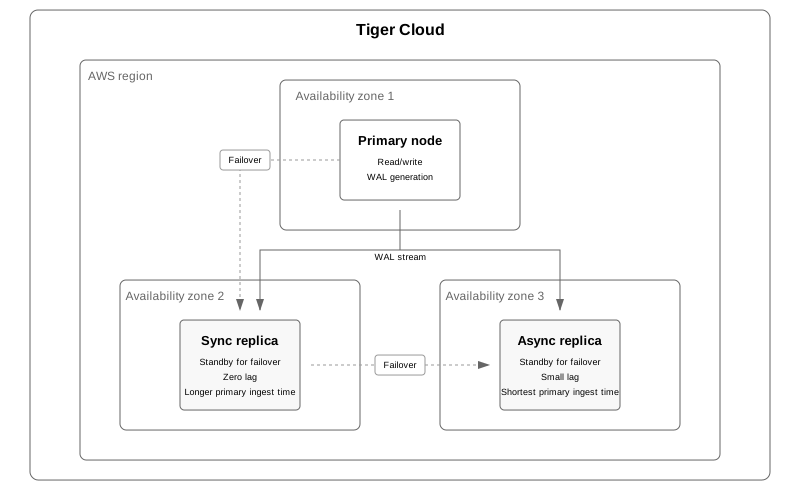
This page shows you how to choose the best high availability option for your service.
What is HA replication?
HA replicas are exact, up-to-date copies of your database hosted in multiple AWS availability zones (AZ) within the same region as your primary node. They automatically take over operations if the original primary data node becomes unavailable. The primary node streams its write-ahead log (WAL) to the replicas to minimize the chances of data loss during failover.
HA replicas can be synchronous and asynchronous.
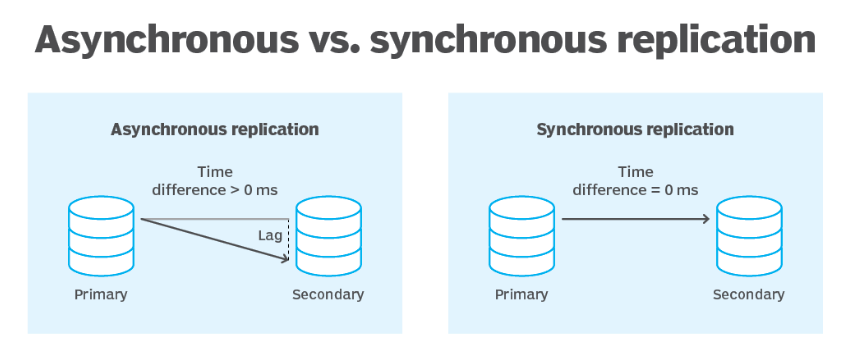
HA replicas have separate unique addresses that you can use to serve read-only requests in parallel to your primary data node. When your primary data node fails, Tiger Cloud automatically fails over to an HA replica within 30 seconds. During failover, the read-only address is unavailable while Tiger Cloud automatically creates a new HA replica. The time to make this replica depends on several factors, including the size of your data.
Operations such as upgrading your service to a new major or minor version may necessitate a service restart. Restarts are run during the maintenance window. To avoid any downtime, each data node is updated in turn. That is, while the primary data node is updated, a replica is promoted to primary. After the primary is updated and online, the same maintenance is performed on the HA replicas.
To ensure that all services have minimum downtime and data loss in the most common failure scenarios and during maintenance, rapid recovery is enabled by default for all services.
Choose an HA strategy
The following HA configurations are available in Tiger Cloud:
The following table summarizes the differences between these HA configurations:
| High availability (1 async) |
High performance (2 async) |
High data integrity (1 sync + 1 async) |
|
|---|---|---|---|
| Write flow | The primary streams its WAL to the async replica, which may have a slight lag compared to the primary, providing 99.9% uptime SLA. | The primary streams its writes to both async replicas, providing 99.9+% uptime SLA. | The primary streams its writes to the sync and async replicas. The async replica is never ahead of the sync one. |
| Additional read replica | Recommended. Reads from the HA replica may cause availability and lag issues. | Not needed. You can still read from the HA replica even if one of them is down. Configure an additional read replica only if your read use case is significantly different from your write use case. | Highly recommended. If you run heavy queries on a sync replica, it may fall behind the primary. Specifically, if it takes too long for the replica to confirm a transaction, the next transaction is canceled. |
| Choosing the replica to read from manually | Not applicable. | Not available. Queries are load-balanced against all available HA replicas. | Not available. Queries are load-balanced against all available HA replicas. |
| Sync replication | Only async replicas are supported in this configuration. | Only async replicas are supported in this configuration. | Supported. |
| Failover flow | |||
| Cost composition | Primary + async (2x) | Primary + 2 async (3x) | Primary + 1 async + 1 sync (3x) |
| Tier | Performance, Scale, and Enterprise | Scale and Enterprise | Scale and Enterprise |
The High and Highest HA strategies are available with the Scale and the Enterprise pricing plans.
To enable HA for a service:
To change your HA replica strategy, click Change configuration, choose a strategy and click Change configuration.
To download the connection information for the HA replica, either click the link next to the replica
Active configuration, or find the information in the Overview tab for this service.
Test failover for your HA replicas
To test the failover mechanism, you can trigger a switchover. A switchover is a safe operation that attempts a failover, and throws an error if the replica or primary is not in a state to safely switch.
You can also connect to the HA replica and check its node using this procedure.
You should see postgres=> prompt.
Note the application_name. This is your service ID followed by the
node. The important part is the `-an-0` or `-an-1`.
By default, the switchover occurs in 30 secs. You can change the time by passing
an interval, like this:
You should see a notice that your connection has been reset, like this:
===== PAGE: https://docs.tigerdata.com/use-timescale/data-tiering/tiered-data-replicas-forks/ =====
Examples:
Example 1 (sql):
\c postgres
Example 2 (sql):
select pg_is_in_recovery();
Example 3 (sql):
select * from pg_stat_replication;
Example 4 (sql):
CALL tscloud.cluster_switchover();
Managed Service for TimescaleDB
URL: llms-txt#managed-service-for-timescaledb
Managed Service for TimescaleDB (MST) is TimescaleDB hosted on Azure and GCP. MST is offered in partnership with Aiven.
Tiger Cloud is a high-performance developer focused cloud that provides Postgres services enhanced with our blazing fast vector search. You can securely integrate Tiger Cloud with your AWS, GCS or Azure infrastructure. Create a Tiger Cloud service and try for free.
If you need to run TimescaleDB on GCP or Azure, you're in the right place — keep reading.
===== PAGE: https://docs.tigerdata.com/.helper-scripts/README/ =====
Set up Virtual Private Cloud (VPC) peering on Azure
URL: llms-txt#set-up-virtual-private-cloud-(vpc)-peering-on-azure
Contents:
You can Configure VPC peering for your Managed Service for TimescaleDB project, using the VPC on Azure.
Configuring a VPC peering on Azure
This should open a window in your browser prompting you to choose an Azure
account to log in with. You need an account with at least the Application
administrator role to create VPC peering. If you manage multiple Azure
subscriptions, configure the Azure CLI to default to the correct
subscription using the command:
This creates an entity to your AD that can be used to log into multiple AD
tenants (`--sign-in-audience AzureADMultipleOrgs`), but only the home tenant (the
tenant the app was created in) has the credentials to authenticate the app.
Save the `appId` field from the output - this is referred to as
`$user_app_id`.
This creates a service principal to your subscription that may have
permissions to peer your VNet. Save the `objectId` field from the output - this
is referred to as `$user_sp_id`.
Save the password field from the output - this is referred to as $user_app_secret.
Make a note of these:
* The id field, which is referred to as `$user_vnet_id`
* The Azure Subscription ID, which is the part after `/subscriptions/` in the
`resource ID`. This is referred to as `$user_subscription_id`.
* The resource group name or the `resourceGroup` field in the output.
This is referred to as `$user_resource_group`.
* The Vnet name or the name field from the output as `$user_vnet_name`
The `$user_vnet_id` should have the format:
<!-- Vale seems to have trouble parsing this as inline code for some reason, maybe the length? -->
<!-- vale Google.Spacing = NO -->
`/subscriptions/$user_subscription_id/resourceGroups/$user_resource_group/providers/Microsoft.Network/virtualNetworks/$user_vnet_name`.
This allows the application object to manage the network in the --scope.
Because you control the application object, it may also be given permission
for the scope of an entire resource group, or the whole subscription to
allow create other peerings later without assigning the role again for each
VNet separately.
The Managed Service for TimescaleDB AD tenant contains an application object
similar to the one you created, and Managed Service for TimescaleDB uses it to
create a peering from the Project VPC VNet in Managed Service for TimescaleDB to the
VNet in Azure. For this, the Managed Service for TimescaleDB app object needs a
service principal in your subscription:
Save the objectId field from the output - it is referred to as $aiven_sp_id.
If this fails with the error "When using this permission, the backing
application of the service principal being created must in the local tenant"
then your account does not have the correct permissions. Use an account
with at least the Application administrator role assigned.
The Managed Service for TimescaleDB application now has a service principal that can be given
permissions. In order to target a network in your subscription with a peering
and nothing else, you can create a custom role definition, with only a
single action allowing to do that and only that:
Creating a custom role must include your subscription's id in
`AssignableScopes` . This in itself does not give permissions to your
subscription - it merely restricts which scopes a role assignment can
include. Save the id field from the output - this is referred to as
`$aiven_role_id`.
Make note of the tenantId field from the output. It is referred to as $user_tenant_id.
$aiven_project_vpc_id is the ID of the Managed Service for TimescaleDB project VPC, and can be
found using the `avn vpc list` command.
Managed Service for TimescaleDB creates a peering from the VNet in the Managed Service for TimescaleDB
Project VPC to the VNet in your subscription. In addition, it creates a
service principal for the application object in your tenant
`--peer-azure-app-id $user_app_id`, giving it permission to target the
Managed Service for TimescaleDB subscription VNet with a peering. Your AD tenant ID is also needed
in order for the Managed Service for TimescaleDB application object to authenticate with your
tenant to give it access to the service principal that you created
`--peer-azure-tenant-id $user_tenant_id`.
Ensure that the arguments starting with $user_ are in lower case. Azure
resource names are case-agnostic, but the Aiven API currently only accepts
names in lower case. If no error is shown, the peering connection is being set
up by Managed Service for TimescaleDB.
A state such as INVALID_SPECIFICATION or REJECTED_BY_PEER may be shown
if the VNet specified did not exist, or the Managed Service for TimescaleDB app object wasn't
given permissions to peer with it. If that occurs, check your configuration
and then recreate the peering connection. If everything went as expected,
the state changes to `PENDING_PEER` within a couple of minutes showing
details to set up the peering connection from your VNet to the Project VPC's
VNet in Managed Service for TimescaleDB.
Save the to-tenant-id field in the output. It is referred to as the
`aiven_tenant_id`. The `to-network-id` field from the output is referred to
as the `$aiven_vnet_id`.
Now your application object has a session with both AD tenants
If you do not specify --allow-vnet-access no traffic is allowed to flow
from the peered VNet and services cannot be reached through the
peering. After the peering has been created, the peering should be in the state
`connected`.
In case you get the following error, it's possible the role assignment hasn't taken
effect yet. If that is the case, try logging in again and creating the
peering again after waiting a bit by repeating the commands in this step. If
the error message persists, check the role assignment was correct.
Managed Service for TimescaleDB polls peering connections in state PENDING_PEER
regularly to see if your subscription has created a peering connection to
the Managed Service for TimescaleDB Project VPC's VNet. After this is detected, the state changes from
`PENDING_PEER` to `ACTIVE`. After this services in the Project VPC can be
reached through the peering.
===== PAGE: https://docs.tigerdata.com/mst/integrations/grafana-mst/ =====
Examples:
Example 1 (bash):
az account clear
az login
Example 2 (bash):
az account set --subscription <subscription name or id>
Example 3 (bash):
az ad app create --display-name "<NAME>" --sign-in-audience AzureADMultipleOrgs --key-type Password
Example 4 (bash):
az ad sp create --id $user_app_id
Cannot create another database
URL: llms-txt#cannot-create-another-database
Each Tiger Cloud service hosts a single Postgres instance called tsdb. You see this error when you try
to create an additional database in a service. If you need another database,
create a new service.
===== PAGE: https://docs.tigerdata.com/_troubleshooting/caggs-inserted-historic-data-no-refresh/ =====
Service is running low on disk, memory, or CPU
URL: llms-txt#service-is-running-low-on-disk,-memory,-or-cpu
When your database reaches 90% of your allocated disk, memory, or CPU resources, an automated message with the text above is sent to your email address.
You can resolve this by logging in to your Managed Service for TimescaleDB
account and increasing your available resources. From the Managed Service for TimescaleDB Dashboard, select the service that you want to increase resources
for. In the Overview tab, locate the Service Plan section, and click
Upgrade Plan. Select the plan that suits your requirements, and click
Upgrade to enable the additional resources.
If you run out of resources regularly, you might need to consider using your resources more efficiently. Consider enabling Hypercore, using continuous aggregates, or configuring data retention to reduce the amount of resources your database uses.
===== PAGE: https://docs.tigerdata.com/_troubleshooting/mst/forgotten-password/ =====
Integrate Azure Data Studio with Tiger
URL: llms-txt#integrate-azure-data-studio-with-tiger
Contents:
Azure Data Studio is an open-source, cross-platform hybrid data analytics tool designed to simplify the data landscape.
This page explains how to integrate Azure Data Studio with Tiger Cloud.
To follow the steps on this page:
You need your connection details. This procedure also works for self-hosted TimescaleDB.
Connect to your Tiger Cloud service with Azure Data Studio
To connect to Tiger Cloud:
If you configured your Tiger Cloud service to connect using stricter SSL mode, set SSL mode to the
configured mode, then type the location of your SSL root CA certificate in `SSL root certificate filename`.
You have successfully integrated Azure Data Studio with Tiger Cloud.
===== PAGE: https://docs.tigerdata.com/integrations/telegraf/ =====
Service explorer
URL: llms-txt#service-explorer
Contents:
Service explorer in Tiger Cloud Console provides a rich administrative dashboard for understanding the state of your database instance. The explorer gives you insight into the performance of your database, giving you greater confidence and control over your data.
The explorer works like an operations center as you develop and run your applications with Tiger Cloud. It gives you quick access to the key properties of your database, like table sizes, schema definitions, and foreign key references, as well as information specific to Tiger Cloud, like information on your hypertables and continuous aggregates.
To see the explorer, select your service in Console and click Explorer.
General information
In the General information section, you can see a high-level
summary of your service, including all your hypertables and
relational tables. It summarizes your overall compression ratios, and other
policy and continuous aggregate data. And, if you aren't already using key features like continuous aggregates, columnstore compression, or other automation policies and actions, it provides pointers to tutorials and documentation to help you get started.
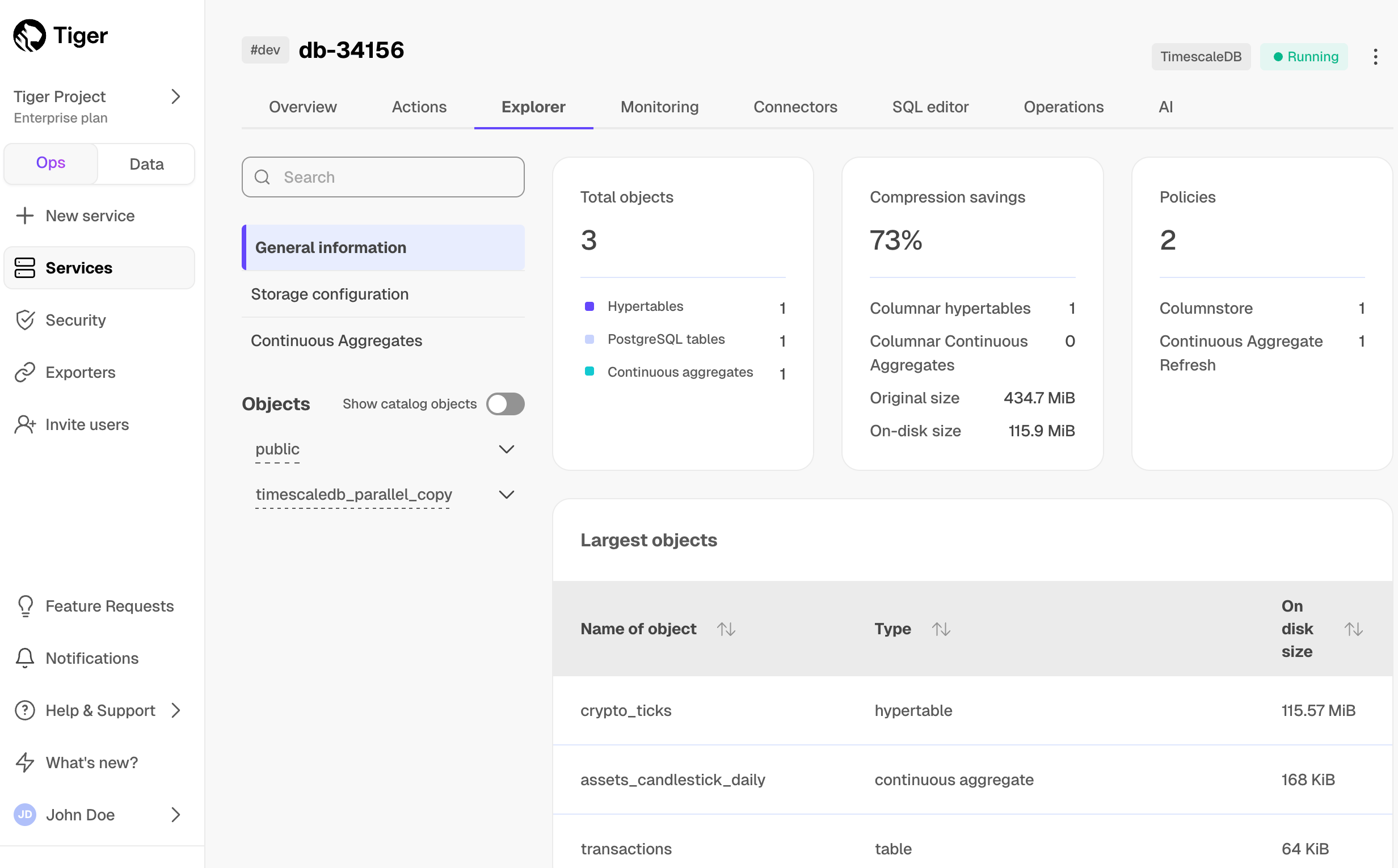
You can have a detailed look into all your tables, including information about table schemas, table indexes, and foreign keys. For your hypertables, it shows details about chunks, continuous aggregates, and policies such as data retention policies and data reordering. You can also inspect individual hypertables, including their sizes, dimension ranges, and columnstore compression status.
From this section, you can also set an automated policy to compress chunks into the columnstore. For more information, see the hypercore documentation.
For more information about hypertables, see the hypertables section.
Continuous aggregates
In the Continuous aggregate section, you can see all your continuous
aggregates, including top-level information such as their size, whether they are
configured for real-time aggregation, and their refresh periods.
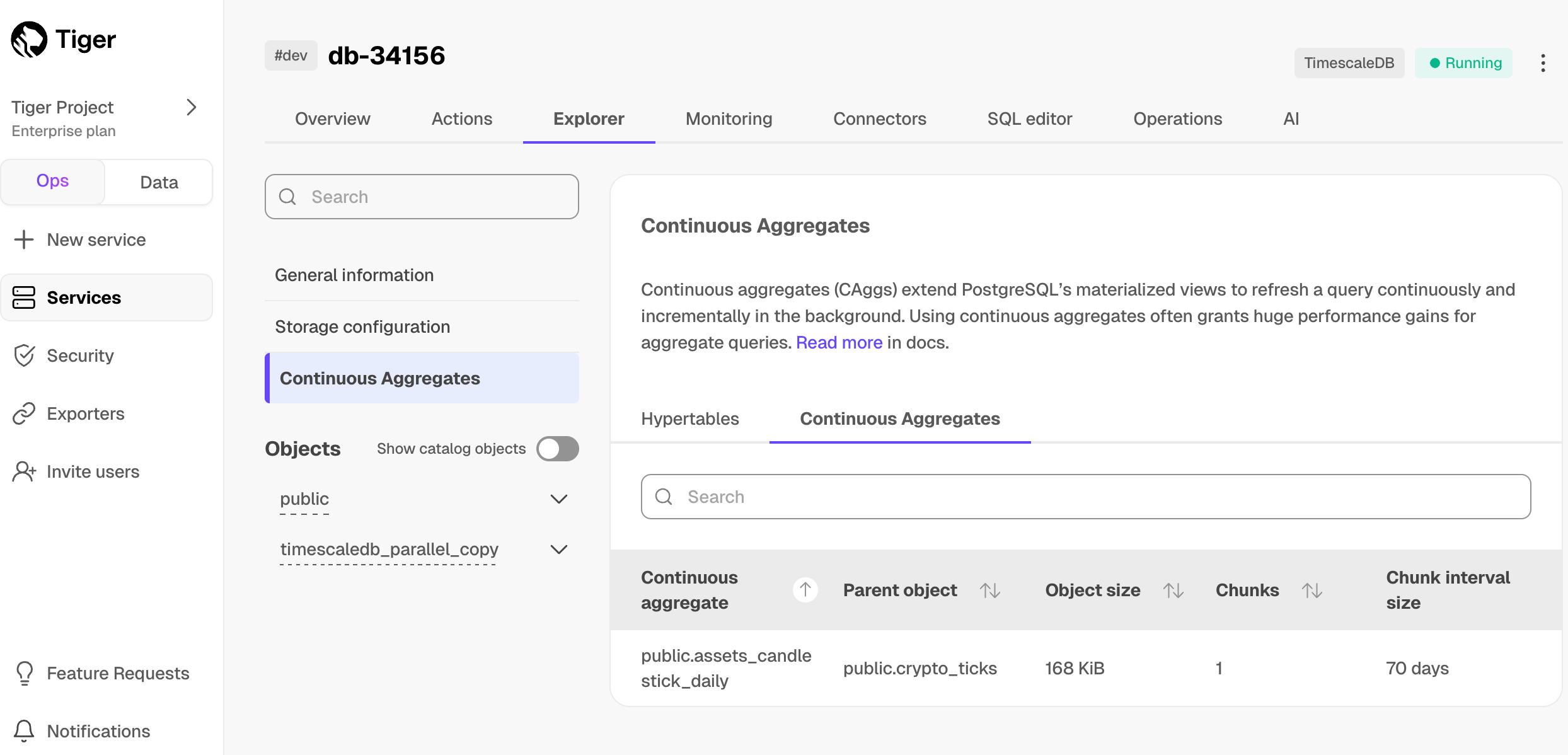
For more information about continuous aggregates, see the continuous aggregates section.
===== PAGE: https://docs.tigerdata.com/use-timescale/services/service-overview/ =====
distributed_exec()
URL: llms-txt#distributed_exec()
Contents:
Multi-node support is sunsetted.
TimescaleDB v2.13 is the last release that includes multi-node support for Postgres versions 13, 14, and 15.
This procedure is used on an access node to execute a SQL command across the data nodes of a distributed database. For instance, one use case is to create the roles and permissions needed in a distributed database.
The procedure can run distributed commands transactionally, so a command
is executed either everywhere or nowhere. However, not all SQL commands can run in a
transaction. This can be toggled with the argument transactional. Note if the execution
is not transactional, a failure on one of the data node requires manual dealing with
any introduced inconsistency.
Note that the command is not executed on the access node itself and it is not possible to chain multiple commands together in one call.
You cannot run distributed_exec with some SQL commands. For example, ALTER
EXTENSION doesn't work because it can't be called after the TimescaleDB
extension is already loaded.
Required arguments
| Name | Type | Description |
|---|---|---|
query |
TEXT | The command to execute on data nodes. |
Optional arguments
| Name | Type | Description |
|---|---|---|
node_list |
ARRAY | An array of data nodes where the command should be executed. Defaults to all data nodes if not specified. |
transactional |
BOOLEAN | Allows to specify if the execution of the statement should be transactional or not. Defaults to TRUE. |
Create the role testrole across all data nodes in a distributed database:
Create the role testrole on two specific data nodes:
Create the table example on all data nodes:
Create new databases dist_database on data nodes, which requires setting
transactional to FALSE:
===== PAGE: https://docs.tigerdata.com/api/distributed-hypertables/create_distributed_hypertable/ =====
Examples:
Example 1 (sql):
CALL distributed_exec($$ CREATE USER testrole WITH LOGIN $$);
Example 2 (sql):
CALL distributed_exec($$ CREATE USER testrole WITH LOGIN $$, node_list => '{ "dn1", "dn2" }');
Example 3 (sql):
CALL distributed_exec($$ CREATE TABLE example (ts TIMESTAMPTZ, value INTEGER) $$);
Example 4 (sql):
CALL distributed_exec('CREATE DATABASE dist_database', transactional => FALSE);
Configuration
URL: llms-txt#configuration
By default, TimescaleDB uses the default Postgres server configuration settings. However, in some cases, these settings are not appropriate, especially if you have larger servers that use more hardware resources such as CPU, memory, and storage.
===== PAGE: https://docs.tigerdata.com/self-hosted/backup-and-restore/ =====
timescaledb_information.job_errors
URL: llms-txt#timescaledb_information.job_errors
Contents:
Shows information about runtime errors encountered by jobs run by the automation framework. This includes custom jobs and jobs run by policies created to manage data retention, continuous aggregates, columnstore, and other automation policies. For more information about automation policies, see the policies section.
See information about recent job failures:
|Name|Type|Description|
|-|-|-|
|job_id|INTEGER|The ID of the background job created to implement the policy|
|proc_schema|TEXT|Schema name of the function or procedure executed by the job|
|proc_name|TEXT|Name of the function or procedure executed by the job|
|pid|INTEGER|The process ID of the background worker executing the job. This is NULL in the case of a job crash|
|start_time|TIMESTAMP WITH TIME ZONE|Start time of the job|
|finish_time|TIMESTAMP WITH TIME ZONE|Time when error was reported|
|sqlerrcode|TEXT|The error code associated with this error, if any. See the official Postgres documentation for a full list of error codes|
|err_message|TEXT|The detailed error message|
Error retention policy
The informational view timescaledb_information.job_errors is defined on top
of the table _timescaledb_internal.job_errors in the internal schema. To
prevent this table from growing too large, a system background job
Error Log Retention Policy [2] is enabled by default,
with this configuration:
On TimescaleDB and Managed Service for TimescaleDB, the owner of the error
retention job is tsdbadmin. In an on-premise installation, the owner of the
job is the same as the extension owner.
The owner of the retention job can alter it and delete it.
For example, the owner can change the retention interval like this:
===== PAGE: https://docs.tigerdata.com/api/informational-views/job_history/ =====
Examples:
Example 1 (sql):
SELECT job_id, proc_schema, proc_name, pid, sqlerrcode, err_message from timescaledb_information.job_errors ;
job_id | proc_schema | proc_name | pid | sqlerrcode | err_message
--------+-------------+--------------+-------+------------+-----------------------------------------------------
1001 | public | custom_proc2 | 83111 | 40001 | could not serialize access due to concurrent update
1003 | public | job_fail | 83134 | 57014 | canceling statement due to user request
1005 | public | job_fail | | | job crash detected, see server logs
(3 rows)
Example 2 (sql):
id | 2
application_name | Error Log Retention Policy [2]
schedule_interval | 1 mon
max_runtime | 01:00:00
max_retries | -1
retry_period | 01:00:00
proc_schema | _timescaledb_internal
proc_name | policy_job_error_retention
owner | owner must be a user with WRITE privilege on the table `_timescaledb_internal.job_errors`
scheduled | t
fixed_schedule | t
initial_start | 2000-01-01 02:00:00+02
hypertable_id |
config | {"drop_after": "1 month"}
check_schema | _timescaledb_internal
check_name | policy_job_error_retention_check
timezone |
Example 3 (sql):
SELECT alter_job(id,config:=jsonb_set(config,'{drop_after}', '"2 weeks"')) FROM _timescaledb_config.bgw_job WHERE id = 2;
Modify data in hypercore
URL: llms-txt#modify-data-in-hypercore
Contents:
Old API since TimescaleDB v2.20.0 TimescaleDB is optimized for fast updates on compressed data in the columnstore. To modify data in the columnstore, use standard SQL.
You set up hypercore to automatically convert data between the rowstore and columnstore when it reaches a certain age. After you have optimized data in the columnstore, you may need to modify it. For example, to make small changes, or backfill large amounts of data. You may even have to update the schema to accommodate these changes to the data.
This page shows you how to update small and large amounts of new data, and update the schema in the columnstore.
To follow the procedure on this page you need to:
This procedure also works for self-hosted TimescaleDB.
Modify small amounts of data
You can INSERT, UPDATE, and DELETE data in the columnstore, even if the data you are
inserting has unique constraints. When you insert data into a chunk in the columnstore, a small amount
of data is decompressed to allow a speculative insertion, and block any inserts that could violate the
constraints.
When you DELETE whole segments of data, filter your deletes using the column you segment_by
instead of separate deletes. This considerably increases performance.
Modify large amounts of data
If you need to modify or add a lot of data to a chunk in the columnstore, best practice is to stop any jobs moving chunks to the columnstore, convert the chunk back to the rowstore, then modify the data. After the update, convert the chunk to the columnstore and restart the jobs. This workflow is especially useful if you need to backfill old data.
Retrieve the list of jobs from the timescaledb_information.jobs view to find the job you need to alter_job.
Best practice is to structure your INSERT statement to include appropriate partition key values, such as the timestamp. TimescaleDB adds the data to the correct chunk:
Modify a table schema for data in the columnstore
You can modify the schema of a table in the columnstore. To do this, you need to:
Retrieve the list of jobs from the timescaledb_information.jobs view to find the job you need to alter_job.
Possible modifications are:
ALTER TABLE <hypertable> ADD COLUMN <column_name> <datatype>;
ALTER TABLE <hypertable> ADD COLUMN <column_name> <datatype> NOT NULL DEFAULT <default_value>;
ALTER TABLE <hypertable> RENAME <column_name> TO <new_name>;
ALTER TABLE <hypertable> DROP COLUMN <column_name>;
You cannot change the data type of an existing column.
===== PAGE: https://docs.tigerdata.com/use-timescale/hypercore/real-time-analytics-in-hypercore/ =====
Examples:
Example 1 (unknown):
1. **Convert a chunk to update back to the rowstore**
Example 2 (unknown):
1. **Update the data in the chunk you added to the rowstore**
Best practice is to structure your [INSERT][insert] statement to include appropriate
partition key values, such as the timestamp. TimescaleDB adds the data to the correct chunk:
Example 3 (unknown):
1. **Convert the updated chunks back to the columnstore**
Example 4 (unknown):
1. **Restart the jobs that are automatically converting chunks to the columnstore**
Release notes
URL: llms-txt#release-notes
For information about new updates and improvement to Tiger Data products, see the Changelog. For release notes about our downloadable products, see:
Want to stay up-to-date with new releases? On the main page for each repository
click Watch, select Custom and then check Releases.
===== PAGE: https://docs.tigerdata.com/migrate/livesync-for-postgresql/ =====
histogram()
URL: llms-txt#histogram()
Contents:
The histogram() function represents the distribution of a set of
values as an array of equal-width buckets. It partitions the dataset
into a specified number of buckets (nbuckets) ranging from the
inputted min and max values.
The return value is an array containing nbuckets+2 buckets, with the
middle nbuckets bins for values in the stated range, the first
bucket at the head of the array for values under the lower min bound,
and the last bucket for values greater than or equal to the max bound.
Each bucket is inclusive on its lower bound, and exclusive on its upper
bound. Therefore, values equal to the min are included in the bucket
starting with min, but values equal to the max are in the last bucket.
A simple bucketing of device's battery levels from the readings dataset:
Required arguments
| Name | Type | Description |
|---|---|---|
value |
ANY VALUE | A set of values to partition into a histogram |
min |
NUMERIC | The histogram's lower bound used in bucketing (inclusive) |
max |
NUMERIC | The histogram's upper bound used in bucketing (exclusive) |
nbuckets |
INTEGER | The integer value for the number of histogram buckets (partitions) |
===== PAGE: https://docs.tigerdata.com/api/time_bucket/ =====
Examples:
Example 1 (sql):
SELECT device_id, histogram(battery_level, 20, 60, 5)
FROM readings
GROUP BY device_id
LIMIT 10;
Example 2 (sql):
device_id | histogram
------------+------------------------------
demo000000 | {0,0,0,7,215,206,572}
demo000001 | {0,12,173,112,99,145,459}
demo000002 | {0,0,187,167,68,229,349}
demo000003 | {197,209,127,221,106,112,28}
demo000004 | {0,0,0,0,0,39,961}
demo000005 | {12,225,171,122,233,80,157}
demo000006 | {0,78,176,170,8,40,528}
demo000007 | {0,0,0,126,239,245,390}
demo000008 | {0,0,311,345,116,228,0}
demo000009 | {295,92,105,50,8,8,442}
Maintenance and upgrades
URL: llms-txt#maintenance-and-upgrades
Contents:
Tiger Cloud offers managed database services that provide a stable and reliable environment for your applications. Each service is based on a specific version of the Postgres database and the TimescaleDB extension. To ensure that you benefit from the latest features, performance and security improvements, it is important that your Tiger Cloud service is kept up to date with the latest versions of TimescaleDB and Postgres.
Tiger Cloud has the following upgrade policies:
Upgrades are performed on your Tiger Cloud service during a maintenance window that you define to suit your workload. You can also manually upgrade TimescaleDB.
Downtime is usually between 30 seconds and 5 minutes. Tiger Data aims to notify you by email if downtime is required, so that you can plan accordingly. However, in some cases this is not possible.
After a maintenance upgrade, the DNS name remains the same. However, the IP address often changes.
Minor software upgrades
If you do not manually upgrade TimescaleDB for non-critical upgrades,
Tiger Cloud performs upgrades automatically in the next available maintenance window. The upgrade is first applied to your services tagged #dev, and three weeks later to those tagged #prod. Subscribe to get an email notification before your #prod services are upgraded. You can upgrade your #prod services manually sooner, if needed.
Most upgrades that occur during your maintenance windows do not require any downtime. This means that there is no service outage during the upgrade. However, all connections and transactions in progress during the upgrade are reset. Usually, the service connection is automatically restored after the reset.
Some minor upgrades do require some downtime. This is usually between 30 seconds and 5 minutes. If downtime is required for an upgrade, Tiger Data endeavors to notify you by email ahead of the upgrade. However, in some cases, we might not be able to do so. Best practice is to schedule your maintenance window so that any downtime disrupts your workloads as little as possible and minimize downtime with replicas. If there are no pending upgrades available during a regular maintenance window, no changes are performed.
To track the status of maintenance events, see the Tiger Cloud status page.
Minimize downtime with replicas
Maintenance upgrades require up to two automatic failovers. Each failover takes less than a few seconds. Tiger Cloud services with high-availability replicas and read replicas require minimal write downtime during maintenance, read-only queries keep working throughout.
During a maintenance event, services with replicas perform maintenance on each node independently. When maintenance is complete on the primary node, it is restarted:
Manually upgrade TimescaleDB for non-critical upgrades
Non-critical upgrades are available before the upgrade is performed automatically by Tiger Cloud. To upgrade TimescaleDB manually:
In Tiger Cloud Console, select the service you want to upgrade.
Either:
Upgrading to a newer version of Postgres allows you to take advantage of new features, enhancements, and security fixes. It also ensures that you are using a version of Postgres that's compatible with the newest version of TimescaleDB, allowing you to take advantage of everything it has to offer. For more information about feature changes between versions, see the Tiger Cloud release notes, supported systems, and the Postgres release notes.
To ensure you benefit from the latest features, optimal performance, enhanced security, and full compatibility with TimescaleDB, Tiger Cloud supports a defined set of Postgres major versions. To reduce the maintenance burden and continue providing a high-quality managed experience, as Postgres and TimescaleDB evolve, Tiger Data periodically deprecates older Postgres versions.
Tiger Data provides advance notification to allow you ample time to plan and perform your upgrade. The timeline deprecation is as follows:
Manually upgrade Postgres for a service
Upgrading to a newer version of Postgres enables you to take advantage of new features, enhancements, and security fixes. It also ensures that you are using a version of Postgres that's compatible with the newest version of TimescaleDB.
For a smooth upgrade experience, make sure you:
Tiger Cloud services with replicas cannot be upgraded. To upgrade a service with a replica, you must first delete the replica and then upgrade the service.
The following table shows you the compatible versions of Postgres and TimescaleDB.
| TimescaleDB version |Postgres 17|Postgres 16|Postgres 15|Postgres 14|Postgres 13|Postgres 12|Postgres 11|Postgres 10| |-----------------------|-|-|-|-|-|-|-|-| | 2.22.x |✅|✅|✅|❌|❌|❌|❌|❌|❌| | 2.21.x |✅|✅|✅|❌|❌|❌|❌|❌|❌| | 2.20.x |✅|✅|✅|❌|❌|❌|❌|❌|❌| | 2.17 - 2.19 |✅|✅|✅|✅|❌|❌|❌|❌|❌| | 2.16.x |❌|✅|✅|✅|❌|❌|❌|❌|❌|❌| | 2.13 - 2.15 |❌|✅|✅|✅|✅|❌|❌|❌|❌| | 2.12.x |❌|❌|✅|✅|✅|❌|❌|❌|❌| | 2.10.x |❌|❌|✅|✅|✅|✅|❌|❌|❌| | 2.5 - 2.9 |❌|❌|❌|✅|✅|✅|❌|❌|❌| | 2.4 |❌|❌|❌|❌|✅|✅|❌|❌|❌| | 2.1 - 2.3 |❌|❌|❌|❌|✅|✅|✅|❌|❌| | 2.0 |❌|❌|❌|❌|❌|✅|✅|❌|❌ | 1.7 |❌|❌|❌|❌|❌|✅|✅|✅|✅|
We recommend not using TimescaleDB with Postgres 17.1, 16.5, 15.9, 14.14, 13.17, 12.21. These minor versions introduced a breaking binary interface change that, once identified, was reverted in subsequent minor Postgres versions 17.2, 16.6, 15.10, 14.15, 13.18, and 12.22. When you build from source, best practice is to build with Postgres 17.2, 16.6, etc and higher. Users of Tiger Cloud and platform packages for Linux, Windows, MacOS, Docker, and Kubernetes are unaffected.
For more information about feature changes between versions, see the Postgres release notes and TimescaleDB release notes.
Your Tiger Cloud service is unavailable until the upgrade is complete. This can take up to 20 minutes. Best practice is to test on a fork first, so you can estimate how long the upgrade will take.
To upgrade your service to a newer version of Postgres:
In Tiger Cloud Console, select the service you want to upgrade.
Your Tiger Cloud service is unavailable until the upgrade is complete. This normally takes up to 20 minutes. However, it can take longer if you have a large or complex service.
When the upgrade is finished, your service automatically resumes normal operations. If the upgrade is unsuccessful, the service returns to the state it was in before you started the upgrade.
Automatic Postgres upgrades for a service
If you do not manually upgrade your services within the customer self-service upgrade window, Tiger Cloud performs an automatic upgrade. Automatic upgrades can result in downtime, best practice is to manually upgrade your services during a low-traffic period for your application.
During an automatic upgrade:
Define your maintenance window
When you are considering your maintenance window schedule, best practice is to choose a day and time that usually has very low activity, such as during the early hours of the morning, or over the weekend. This helps minimize the impact of a short service interruption. Alternatively, you might prefer to have your maintenance window occur during office hours, so that you can monitor your system during the upgrade.
To change your maintenance window:
In Tiger Cloud Console, select the service you want to manage.
Maintenance windows can run for up to four hours.
===== PAGE: https://docs.tigerdata.com/use-timescale/extensions/ =====
Minor TimescaleDB upgrades
URL: llms-txt#minor-timescaledb-upgrades
Contents:
A minor upgrade is when you update from TimescaleDB <major version>.x to TimescaleDB <major version>.y.
A major upgrade is when you update from TimescaleDB X.<minor version> to Y.<minor version>.
You can run different versions of TimescaleDB on different databases within the same Postgres instance.
This process uses the Postgres ALTER EXTENSION function to upgrade TimescaleDB independently on different
databases.
Tiger Cloud is a fully managed service with automatic backup and restore, high availability with replication, seamless scaling and resizing, and much more. You can try Tiger Cloud free for thirty days.
This page shows you how to perform a minor upgrade, for major upgrades, see Upgrade TimescaleDB to a major version.
Check the TimescaleDB and Postgres versions
To see the versions of Postgres and TimescaleDB running in a self-hosted database instance:
This variable holds the connection information for the database to upgrade:
Postgres returns something like:
Postgres returns something like:
Plan your upgrade path
Best practice is to always use the latest version of TimescaleDB. Subscribe to our releases on GitHub or use Tiger Cloud and always run the latest update without any hassle.
Check the following support matrix against the versions of TimescaleDB and Postgres that you are running currently and the versions you want to update to, then choose your upgrade path.
For example, to upgrade from TimescaleDB 2.13 on Postgres 13 to TimescaleDB 2.18.2 you need to:
You may need to upgrade to the latest Postgres version before you upgrade TimescaleDB. Also,
if you use TimescaleDB Toolkit, ensure the timescaledb_toolkit extension is >=
v1.6.0 before you upgrade TimescaleDB extension.
| TimescaleDB version |Postgres 17|Postgres 16|Postgres 15|Postgres 14|Postgres 13|Postgres 12|Postgres 11|Postgres 10| |-----------------------|-|-|-|-|-|-|-|-| | 2.22.x |✅|✅|✅|❌|❌|❌|❌|❌|❌| | 2.21.x |✅|✅|✅|❌|❌|❌|❌|❌|❌| | 2.20.x |✅|✅|✅|❌|❌|❌|❌|❌|❌| | 2.17 - 2.19 |✅|✅|✅|✅|❌|❌|❌|❌|❌| | 2.16.x |❌|✅|✅|✅|❌|❌|❌|❌|❌|❌| | 2.13 - 2.15 |❌|✅|✅|✅|✅|❌|❌|❌|❌| | 2.12.x |❌|❌|✅|✅|✅|❌|❌|❌|❌| | 2.10.x |❌|❌|✅|✅|✅|✅|❌|❌|❌| | 2.5 - 2.9 |❌|❌|❌|✅|✅|✅|❌|❌|❌| | 2.4 |❌|❌|❌|❌|✅|✅|❌|❌|❌| | 2.1 - 2.3 |❌|❌|❌|❌|✅|✅|✅|❌|❌| | 2.0 |❌|❌|❌|❌|❌|✅|✅|❌|❌ | 1.7 |❌|❌|❌|❌|❌|✅|✅|✅|✅|
We recommend not using TimescaleDB with Postgres 17.1, 16.5, 15.9, 14.14, 13.17, 12.21. These minor versions introduced a breaking binary interface change that, once identified, was reverted in subsequent minor Postgres versions 17.2, 16.6, 15.10, 14.15, 13.18, and 12.22. When you build from source, best practice is to build with Postgres 17.2, 16.6, etc and higher. Users of Tiger Cloud and platform packages for Linux, Windows, MacOS, Docker, and Kubernetes are unaffected.
Implement your upgrade path
You cannot upgrade TimescaleDB and Postgres at the same time. You upgrade each product in the following steps:
Follow the procedure in Upgrade Postgres. The version of TimescaleDB installed in your Postgres deployment must be the same before and after the Postgres upgrade.
Postgres returns something like:
You are running a shiny new version of TimescaleDB.
===== PAGE: https://docs.tigerdata.com/self-hosted/upgrades/upgrade-docker/ =====
Examples:
Example 1 (bash):
export SOURCE="postgres://<user>:<password>@<source host>:<source port>/<db_name>"
Example 2 (shell):
psql -X -d source -c "SELECT version();"
Example 3 (shell):
-----------------------------------------------------------------------------------------------------------------------------------------
PostgreSQL 17.2 (Ubuntu 17.2-1.pgdg22.04+1) on aarch64-unknown-linux-gnu, compiled by gcc (Ubuntu 11.4.0-1ubuntu1~22.04) 11.4.0, 64-bit
(1 row)
Example 4 (sql):
psql -X -d source -c "\dx timescaledb;"
Find a docs page
URL: llms-txt#find-a-docs-page
Looking for information on something specific? There are several ways to find it:
===== PAGE: https://docs.tigerdata.com/about/index/ =====
Integrate qStudio with Tiger
URL: llms-txt#integrate-qstudio-with-tiger
Contents:
qStudio is a modern free SQL editor that provides syntax highlighting, code-completion, excel export, charting, and much more. You can use it to run queries, browse tables, and create charts for your Tiger Cloud service.
This page explains how to integrate qStudio with Tiger Cloud.
To follow the steps on this page:
You need your connection details. This procedure also works for self-hosted TimescaleDB.
Connect qStudio to your Tiger Cloud service
To connect to Tiger Cloud:
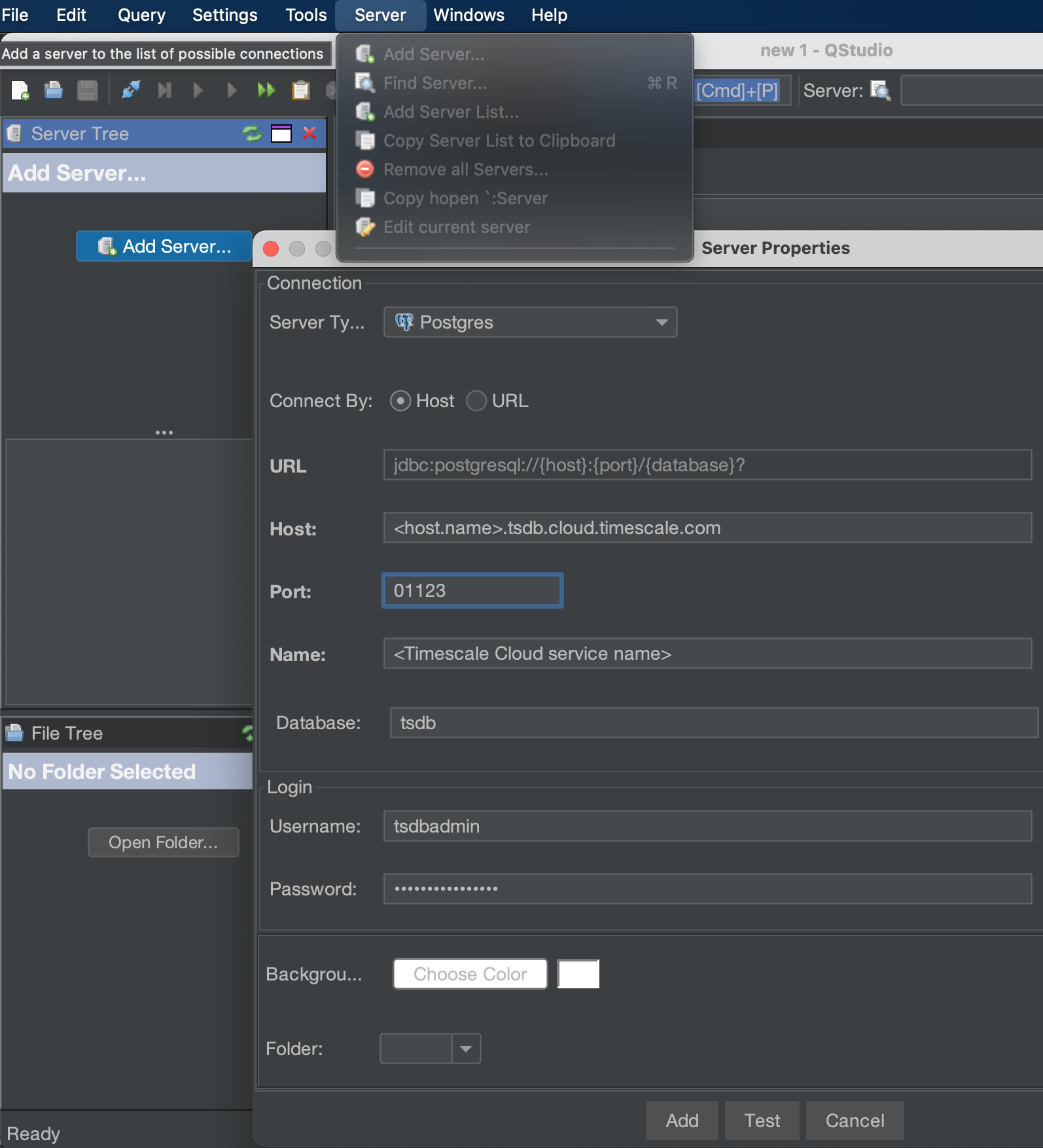
qStudio indicates whether the connection works.
The server is listed in the Server Tree.
You have successfully integrated qStudio with Tiger Cloud.
===== PAGE: https://docs.tigerdata.com/integrations/microsoft-azure/ =====
Migrate schema and data separately
URL: llms-txt#migrate-schema-and-data-separately
Contents:
Migrate larger databases by migrating your schema first, then migrating the data. This method copies each table or chunk separately, which allows you to restart midway if one copy operation fails.
For smaller databases, it may be more convenient to migrate your entire database at once. For more information, see the section on choosing a migration method.
This method does not retain continuous aggregates calculated using already-deleted data. For example, if you delete raw data after a month but retain downsampled data in a continuous aggregate for a year, the continuous aggregate loses any data older than a month upon migration. If you must keep continuous aggregates calculated using deleted data, migrate your entire database at once. For more information, see the section on choosing a migration method.
The procedure to migrate your database requires these steps:
Depending on your database size and network speed, steps that involve copying data can take a very long time. You can continue reading from your source database during this time, though performance could be slower. To avoid this problem, fork your database and migrate your data from the fork. If you write to the tables in your source database during the migration, the new writes might not be transferred to Timescale. To avoid this problem, see the section on migrating an active database.
Before you begin, check that you have:
Migrate schema pre-data
Migrate your pre-data from your source database to self-hosted TimescaleDB. This includes table and schema definitions, as well as information on sequences, owners, and settings. This doesn't include Timescale-specific schemas.
Migrating schema pre-data
Restore hypertables in your self-hosted TimescaleDB instance
After pre-data migration, your hypertables from your source database become regular Postgres tables in Timescale. Recreate your hypertables in your self-hosted TimescaleDB instance to restore them.
Restoring hypertables in your self-hosted TimescaleDB instance
The by_range dimension builder is an addition to TimescaleDB 2.13.
Copy data from the source database
After restoring your hypertables, return to your source database to copy your data, table by table.
Copying data from your source database
Repeat for each table and hypertable you want to migrate.
If your tables are very large, you can migrate each table in multiple pieces. Split each table by time range, and copy each range individually. For example:
Restore data into Timescale
When you have copied your data into .csv files, you can restore it to
self-hosted TimescaleDB by copying from the .csv files. There are two methods: using
regular Postgres COPY, or using the TimescaleDB
timescaledb-parallel-copy function. In tests,
timescaledb-parallel-copy is 16% faster. The timescaledb-parallel-copy tool
is not included by default. You must install the function.
Because COPY decompresses data, any compressed data in your source
database is now stored uncompressed in your .csv files. If you
provisioned your self-hosted TimescaleDB storage for your compressed data, the
uncompressed data may take too much storage. To avoid this problem, periodically
recompress your data as you copy it in. For more information on compression, see
the compression section.
Restoring data into a Tiger Cloud service with timescaledb-parallel-copy
Repeat for each table and hypertable you want to migrate.
Restoring data into a Tiger Cloud service with COPY
Repeat for each table and hypertable you want to migrate.
Migrate schema post-data
When you have migrated your table and hypertable data, migrate your Postgres schema post-data. This includes information about constraints.
Migrating schema post-data
If you see these errors during the migration process, you can safely ignore them. The migration still occurs successfully.
Recreate continuous aggregates
Continuous aggregates aren't migrated by default when you transfer your schema and data separately. You can restore them by recreating the continuous aggregate definitions and recomputing the results on your Tiger Cloud service. The recomputed continuous aggregates only aggregate existing data in your Tiger Cloud service. They don't include deleted raw data.
Recreating continuous aggregates
This query returns the names and definitions for all your continuous
aggregates. For example:
By default, policies aren't migrated when you transfer your schema and data separately. Recreate them on your Tiger Cloud service.
Recreating policies
Update table statistics
Update your table statistics by running ANALYZE on your entire
dataset. Note that this might take some time depending on the size of your
database:
If you see errors of the following form when you run ANALYZE, you can safely
ignore them:
The skipped tables and indexes correspond to system catalogs that can't be accessed. Skipping them does not affect statistics on your data.
===== PAGE: https://docs.tigerdata.com/self-hosted/migration/same-db/ =====
Examples:
Example 1 (bash):
pg_dump -U <SOURCE_DB_USERNAME> -W \
-h <SOURCE_DB_HOST> -p <SOURCE_DB_PORT> -Fc -v \
--section=pre-data --exclude-schema="_timescaledb*" \
-f dump_pre_data.bak <DATABASE_NAME>
Example 2 (bash):
pg_restore -U tsdbadmin -W \
-h <HOST> -p <PORT> --no-owner -Fc \
-v -d tsdb dump_pre_data.bak
Example 3 (sql):
psql "postgres://<USERNAME>:<PASSWORD>@<HOST>:<PORT>/<DATABSE>?sslmode=require"
Example 4 (sql):
SELECT create_hypertable(
'',
by_range('<COLUMN_NAME>', INTERVAL '<CHUNK_INTERVAL>')
);
Error loading the timescaledb extension
URL: llms-txt#error-loading-the-timescaledb-extension
If you see a message saying that Postgres cannot load the TimescaleDB library timescaledb-<version>.dll, start a new psql
session to your self-hosted instance and create the timescaledb extension as the first command:
===== PAGE: https://docs.tigerdata.com/_troubleshooting/self-hosted/pg_dump-errors/ =====
Examples:
Example 1 (bash):
psql -X -d "postgres://<user>:<password>@<source_host>:<source_port>/<db_name>" -c "CREATE EXTENSION IF NOT EXISTS timescaledb;"
Ingest data into a Tiger Cloud service
URL: llms-txt#ingest-data-into-a-tiger-cloud-service
Contents:
This tutorial uses a dataset that contains Bitcoin blockchain data for
the past five days, in a hypertable named transactions.
To follow the steps on this page:
You need your connection details. This procedure also works for self-hosted TimescaleDB.
Optimize time-series data using hypertables
Hypertables are Postgres tables in TimescaleDB that automatically partition your time-series data by time. Time-series data represents the way a system, process, or behavior changes over time. Hypertables enable TimescaleDB to work efficiently with time-series data. Each hypertable is made up of child tables called chunks. Each chunk is assigned a range of time, and only contains data from that range. When you run a query, TimescaleDB identifies the correct chunk and runs the query on it, instead of going through the entire table.
Hypercore is the hybrid row-columnar storage engine in TimescaleDB used by hypertables. Traditional databases force a trade-off between fast inserts (row-based storage) and efficient analytics (columnar storage). Hypercore eliminates this trade-off, allowing real-time analytics without sacrificing transactional capabilities.
Hypercore dynamically stores data in the most efficient format for its lifecycle:
Unlike traditional columnar databases, hypercore allows data to be inserted or modified at any stage, making it a flexible solution for both high-ingest transactional workloads and real-time analytics—within a single database.
Because TimescaleDB is 100% Postgres, you can use all the standard Postgres tables, indexes, stored procedures, and other objects alongside your hypertables. This makes creating and working with hypertables similar to standard Postgres.
In Tiger Cloud Console open an SQL editor. The in-Console editors display the query speed. You can also connect to your service using psql.
If you are self-hosting TimescaleDB v2.19.3 and below, create a Postgres relational table, then convert it using create_hypertable. You then enable hypercore with a call to ALTER TABLE.
When you create a hypertable, it is partitioned on the time column. TimescaleDB automatically creates an index on the time column. However, you'll often filter your time-series data on other columns as well. You use indexes to improve query performance.
Load financial data
The dataset contains around 1.5 million Bitcoin transactions, the trades for five days. It includes information about each transaction, along with the value in satoshi. It also states if a trade is a coinbase transaction, and the reward a coin miner receives for mining the coin.
To ingest data into the tables that you created, you need to download the dataset and copy the data to your database.
Because there is over a million rows of data, the COPY process could take
a few minutes depending on your internet connection and local client
resources.
===== PAGE: https://docs.tigerdata.com/tutorials/blockchain-query/beginner-blockchain-query/ =====
Examples:
Example 1 (sql):
CREATE TABLE transactions (
time TIMESTAMPTZ NOT NULL,
block_id INT,
hash TEXT,
size INT,
weight INT,
is_coinbase BOOLEAN,
output_total BIGINT,
output_total_usd DOUBLE PRECISION,
fee BIGINT,
fee_usd DOUBLE PRECISION,
details JSONB
) WITH (
tsdb.hypertable,
tsdb.partition_column='time',
tsdb.segmentby='block_id',
tsdb.orderby='time DESC'
);
Example 2 (sql):
CREATE INDEX hash_idx ON public.transactions USING HASH (hash);
Example 3 (sql):
CREATE INDEX block_idx ON public.transactions (block_id);
Example 4 (sql):
CREATE UNIQUE INDEX time_hash_idx ON public.transactions (time, hash);
Errors occur when running pg_dump
URL: llms-txt#errors-occur-when-running-pg_dump
You might see the errors above when running pg_dump. You can safely ignore
these. Your hypertable data is still accurately copied.
===== PAGE: https://docs.tigerdata.com/_troubleshooting/self-hosted/background-worker-failed-start/ =====
Postgres extensions
URL: llms-txt#postgres-extensions
Contents:
The following Postgres extensions are installed with each Tiger Cloud service:
Tiger Data extensions
| Extension | Description | Enabled by default |
|---|---|---|
| pgai | Helper functions for AI workflows | For AI-focused services |
| pg_textsearch | BM25-based full-text search | Currently early access. For development and staging environments only |
| pgvector | Vector similarity search for Postgres | For AI-focused services |
| pgvectorscale | Advanced indexing for vector data | For AI-focused services |
| timescaledb_toolkit | TimescaleDB Toolkit | For Real-time analytics services |
| timescaledb | TimescaleDB | For all services |
Postgres built-in extensions
| Extension | Description | Enabled by default |
|---|---|---|
| autoinc | Functions for autoincrementing fields | - |
| amcheck | Functions for verifying relation integrity | - |
| bloom | Bloom access method - signature file-based index | - |
| bool_plperl | Transform between bool and plperl | - |
| btree_gin | Support for indexing common datatypes in GIN | - |
| btree_gist | Support for indexing common datatypes in GiST | - |
| citext | Data type for case-insensitive character strings | - |
| cube | Data type for multidimensional cubes | - |
| dict_int | Text search dictionary template for integers | - |
| dict_xsyn | Text search dictionary template for extended synonym processing | - |
| earthdistance | Calculate great-circle distances on the surface of the Earth | - |
| fuzzystrmatch | Determine similarities and distance between strings | - |
| hstore | Data type for storing sets of (key, value) pairs | - |
| hstore_plperl | Transform between hstore and plperl | - |
| insert_username | Functions for tracking who changed a table | - |
| intagg | Integer aggregator and enumerator (obsolete) | - |
| intarray | Functions, operators, and index support for 1-D arrays of integers | - |
| isn | Data types for international product numbering standards | - |
| jsonb_plperl | Transform between jsonb and plperl | - |
| lo | Large object maintenance | - |
| ltree | Data type for hierarchical tree-like structures | - |
| moddatetime | Functions for tracking last modification time | - |
| old_snapshot | Utilities in support of old_snapshot_threshold |
- |
| pgcrypto | Cryptographic functions | - |
| pgrowlocks | Show row-level locking information | - |
| pgstattuple | Obtain tuple-level statistics | - |
| pg_freespacemap | Examine the free space map (FSM) | - |
| pg_prewarm | Prewarm relation data | - |
| pg_stat_statements | Track execution statistics of all SQL statements executed | For all services |
| pg_trgm | Text similarity measurement and index searching based on trigrams | - |
| pg_visibility | Examine the visibility map (VM) and page-level visibility info | - |
| plperl | PL/Perl procedural language | - |
| plpgsql | SQL procedural language | For all services |
| postgres_fdw | Foreign data wrappers | For all services |
| refint | Functions for implementing referential integrity (obsolete) | - |
| seg | Data type for representing line segments or floating-point intervals | - |
| sslinfo | Information about SSL certificates | - |
| tablefunc | Functions that manipulate whole tables, including crosstab | - |
| tcn | Trigger change notifications | - |
| tsm_system_rows | TABLESAMPLE method which accepts the number of rows as a limit |
- |
| tsm_system_time | TABLESAMPLE method which accepts the time in milliseconds as a limit |
- |
| unaccent | Text search dictionary that removes accents | - |
| uuid-ossp | Generate universally unique identifiers (UUIDs) | - |
Third-party extensions
| Extension | Description | Enabled by default |
|---|---|---|
| h3 | H3 bindings for Postgres | - |
| pgaudit | Detailed session and/or object audit logging | - |
| pgpcre | Perl-compatible RegEx | - |
| pg_cron | SQL commands that you can schedule and run directly inside the database | Contact us to enable |
| pg_repack | Table reorganization in Postgres with minimal locks | - |
| pgrouting | Geospatial routing functionality | - |
| postgis | PostGIS geometry and geography spatial types and functions | - |
| postgis_raster | PostGIS raster types and functions | - |
| postgis_sfcgal | PostGIS SFCGAL functions | - |
| postgis_tiger_geocoder | PostGIS Tiger Cloud geocoder and reverse geocoder | - |
| postgis_topology | PostGIS topology spatial types and functions | - |
| unit | SI units for Postgres | - |
===== PAGE: https://docs.tigerdata.com/use-timescale/backup-restore/ =====
Using the dblink extension in Managed Service for TimescaleDB
URL: llms-txt#using-the-dblink-extension-in-managed-service-for-timescaledb
Contents:
The dblink Postgres extension allows you to connect to
other Postgres databases and to run arbitrary queries.
You can use foreign data wrappers (FDWs) to define a remote
foreign server to access its data. The database connection details such as
hostnames are kept in a single place, and you only need to create a
user mapping to store remote connections credentials.
Before you begin, sign in to your service,
navigate to the Overview tab, and take a note of these parameters for the
Postgres remote server. Alternatively, you can use the avn service get
command in the Aiven client:
Enable the dblink extension
To enable the dblink extension on an MST Postgres service:
Create a foreign data wrapper using dblink_fdw
Query data using a foreign data wrapper
In this example in the user1 user queries the remote table inventory defined
in the target Postgres database from the mst_remote server definition:
Quering data using a foreign data wrapper
To query a foreign data wrapper, you must be a database user with the necessary permissions on the remote server.
Output is similar to:
===== PAGE: https://docs.tigerdata.com/mst/security/ =====
Examples:
Example 1 (bash):
psql -x "postgres://tsdbadmin:<PASSWORD>@<HOSTNAME>:<PORT>/defaultdb?sslmode=require"
Example 2 (sql):
CREATE EXTENSION dblink;
Example 3 (sql):
CREATE TABLE inventory (id int);
Example 4 (sql):
INSERT INTO inventory (id) VALUES (100), (200), (300);
Insert data
URL: llms-txt#insert-data
Contents:
Insert data into a hypertable with a standard INSERT SQL
command.
Insert a single row
To insert a single row into a hypertable, use the syntax INSERT INTO ...
VALUES. For example, to insert data into a hypertable named conditions:
Insert multiple rows
You can also insert multiple rows into a hypertable using a single INSERT
call. This works even for thousands of rows at a time. This is more efficient
than inserting data row-by-row, and is recommended when possible.
Use the same syntax, separating rows with a comma:
You can insert multiple rows belonging to different
chunks within the same INSERT statement. Behind the scenes, TimescaleDB batches the rows by chunk, and writes to each chunk in a single
transaction.
Insert and return data
In the same INSERT command, you can return some or all of the inserted data by
adding a RETURNING clause. For example, to return all the inserted data, run:
===== PAGE: https://docs.tigerdata.com/use-timescale/write-data/about-writing-data/ =====
Examples:
Example 1 (sql):
INSERT INTO conditions(time, location, temperature, humidity)
VALUES (NOW(), 'office', 70.0, 50.0);
Example 2 (sql):
INSERT INTO conditions
VALUES
(NOW(), 'office', 70.0, 50.0),
(NOW(), 'basement', 66.5, 60.0),
(NOW(), 'garage', 77.0, 65.2);
Example 3 (sql):
INSERT INTO conditions
VALUES (NOW(), 'office', 70.1, 50.1)
RETURNING *;
Example 4 (sql):
time | location | temperature | humidity
------------------------------+----------+-------------+----------
2017-07-28 11:42:42.846621+00 | office | 70.1 | 50.1
(1 row)
Troubleshooting
URL: llms-txt#troubleshooting
Contents:
JDBC authentication type is not supported
When connecting to Tiger Cloud service with a Java Database Connectivity (JDBC) driver, you might get this error message:
Your Tiger Cloud authentication type doesn't match your JDBC driver's
supported authentication types. The recommended approach is to upgrade your JDBC
driver to a version that supports scram-sha-256 encryption. If that isn't an
option, you can change the authentication type for your Tiger Cloud service
to md5. Note that md5 is less secure, and is provided solely for
compatibility with older clients.
For information on changing your authentication type, see the documentation on resetting your service password.
===== PAGE: https://docs.tigerdata.com/integrations/datadog/ =====
Examples:
Example 1 (text):
Check that your connection definition references your JDBC database with correct URL syntax,
username, and password. The authentication type 10 is not supported.
Query the Bitcoin blockchain - set up dataset
URL: llms-txt#query-the-bitcoin-blockchain---set-up-dataset
Errors occur after restoring from file dump
URL: llms-txt#errors-occur-after-restoring-from-file-dump
You might see the errors above when running pg_restore. When loading from a
logical dump make sure that you set timescaledb.restoring to true before loading
the dump.
===== PAGE: https://docs.tigerdata.com/_troubleshooting/self-hosted/install-timescaledb-could-not-access-file/ =====
Hyperloglog
URL: llms-txt#hyperloglog
Hyperloglog is typically used to find the cardinality of very large datasets. If you want to find the number of unique values, or cardinality, in a dataset, the time it takes to process this query is proportional to how large the dataset is. So if you wanted to find the cardinality of a dataset that contained only 20 entries, the calculation would be very fast. Finding the cardinality of a dataset that contains 20 million entries, however, can take a significant amount of time and compute resources.
Hyperloglog does not calculate the exact cardinality of a dataset, but rather estimates the number of unique values. It does this by converting the original data into a hash of random numbers that represents the cardinality of the dataset. This is not a perfect calculation of the cardinality, but it is usually within a margin of error of 2%.
The benefit of hyperloglog on time-series data is that it can continue to calculate the approximate cardinality of a dataset as it changes over time. It does this by adding an entry to the hyperloglog hash as new data is retrieved, rather than recalculating the result for the entire dataset every time it is needed. This makes it an ideal candidate for using with continuous aggregates.
For more information about approximate count distinct API calls, see the hyperfunction API documentation.
===== PAGE: https://docs.tigerdata.com/use-timescale/hyperfunctions/time-bucket-gapfill/ =====
Corrupted unique index has duplicated rows
URL: llms-txt#corrupted-unique-index-has-duplicated-rows
When you try to rebuild index with REINDEX it fails because of conflicting
duplicated rows.
To identify conflicting duplicate rows, you need to run a query that counts the number of rows for each combination of columns included in the index definition.
For example, this route table has a unique_route_index index defining
unique rows based on the combination of the source and destination columns:
If the unique_route_index is corrupt, you can find duplicated rows in the
route table using this query:
The query groups the data by the same source and destination fields defined
in the index, and filters any entries with more than one occurrence.
Resolve the problematic entries in the rows by manually deleting or merging the
entries until no duplicates exist. After all duplicate entries are removed, you
can use the REINDEX command to rebuild the index.
===== PAGE: https://docs.tigerdata.com/_troubleshooting/mst/changing-owner-permission-denied/ =====
Examples:
Example 1 (sql):
CREATE TABLE route(
source TEXT,
destination TEXT,
description TEXT
);
CREATE UNIQUE INDEX unique_route_index
ON route (source, destination);
Example 2 (sql):
SELECT
source,
destination,
count
FROM
(SELECT
source,
destination,
COUNT(*) AS count
FROM route
GROUP BY
source,
destination) AS foo
WHERE count > 1;
Time-weighted average
URL: llms-txt#time-weighted-average
Contents:
Time weighted average in TimescaleDB is implemented as an aggregate that weights each value using last observation carried forward (LOCF), or linear interpolation. The aggregate is not parallelizable, but it is supported with continuous aggregation.
Run a time-weighted average query
In this procedure, we are using an example table called freezer_temps that
contains data about internal freezer temperatures.
Running a time-weighted average query
For more information about time-weighted average API calls, see the hyperfunction API documentation.
===== PAGE: https://docs.tigerdata.com/use-timescale/services/service-management/ =====
Examples:
Example 1 (sql):
SELECT freezer_id,
avg(temperature),
average(time_weight('Linear', ts, temperature)) as time_weighted_average
FROM freezer_temps
GROUP BY freezer_id;
Example 2 (sql):
SELECT *,
average(
time_weight('Linear', ts, temperature) OVER (PARTITION BY freezer_id ORDER BY ts RANGE '15 minutes'::interval PRECEDING )
) as rolling_twa
FROM freezer_temps
ORDER BY freezer_id, ts;
Failed to start a background worker
URL: llms-txt#failed-to-start-a-background-worker
You might see this error message in the logs if background workers aren't properly configured.
To fix this error, make sure that max_worker_processes,
max_parallel_workers, and timescaledb.max_background_workers are properly
set. timescaledb.max_background_workers should equal the number of databases
plus the number of concurrent background workers. max_worker_processes should
equal the sum of timescaledb.max_background_workers and
max_parallel_workers.
For more information, see the worker configuration docs.
===== PAGE: https://docs.tigerdata.com/_troubleshooting/self-hosted/toolkit-cannot-create-upgrade-extension/ =====
Find your connection details
URL: llms-txt#find-your-connection-details
Contents:
To connect to your Tiger Cloud service or self-hosted TimescaleDB, you need at least the following:
Find the connection details based on your deployment type:
Connect to your service
Retrieve the connection details for your Tiger Cloud service:
All connection details are supplied in the configuration file you download when you create a new service.
Open the Services page and select your service. The connection details, except the password, are available in Service info > Connection info > More details. If necessary, click Forgot your password? to get a new one.
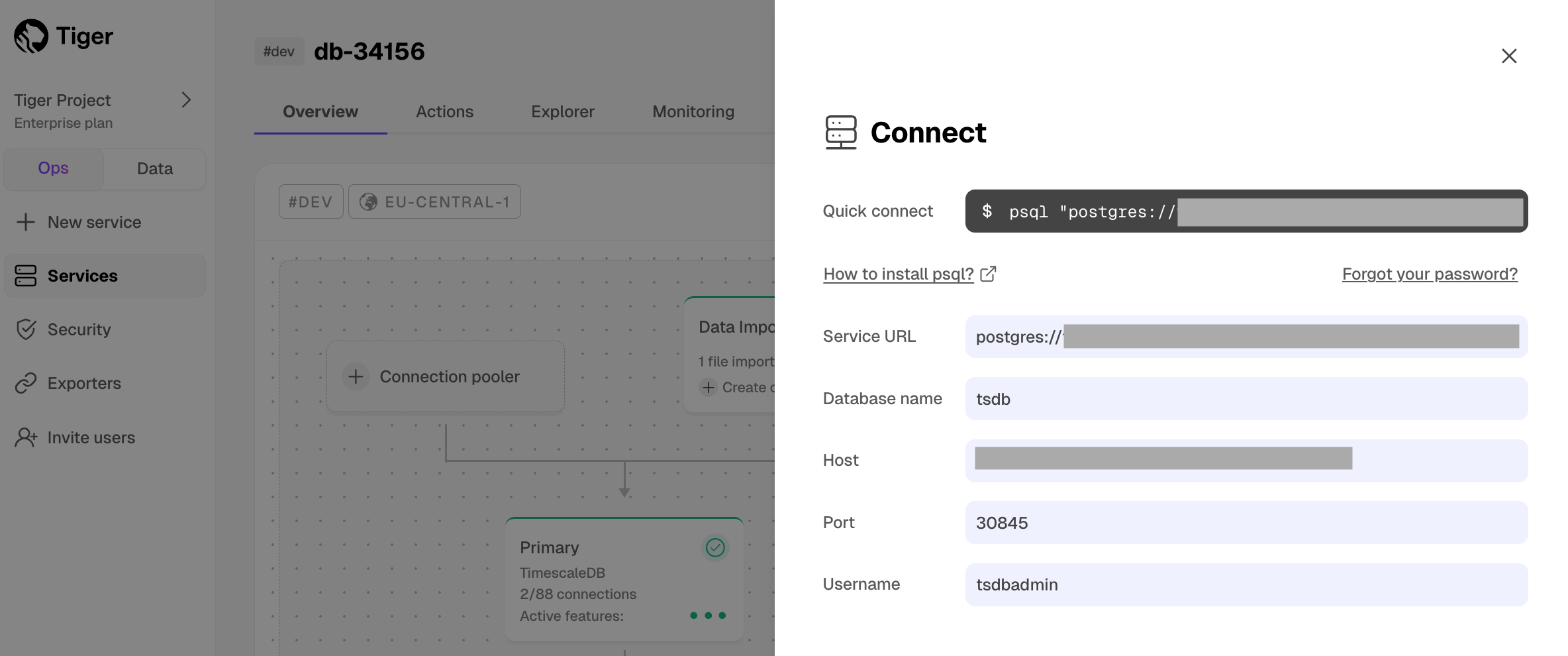
Find your project and service ID
To retrieve the connection details for your Tiger Cloud project and Tiger Cloud service:
In Tiger Cloud Console, click your project name in the upper left corner, then click Copy next to the project ID.
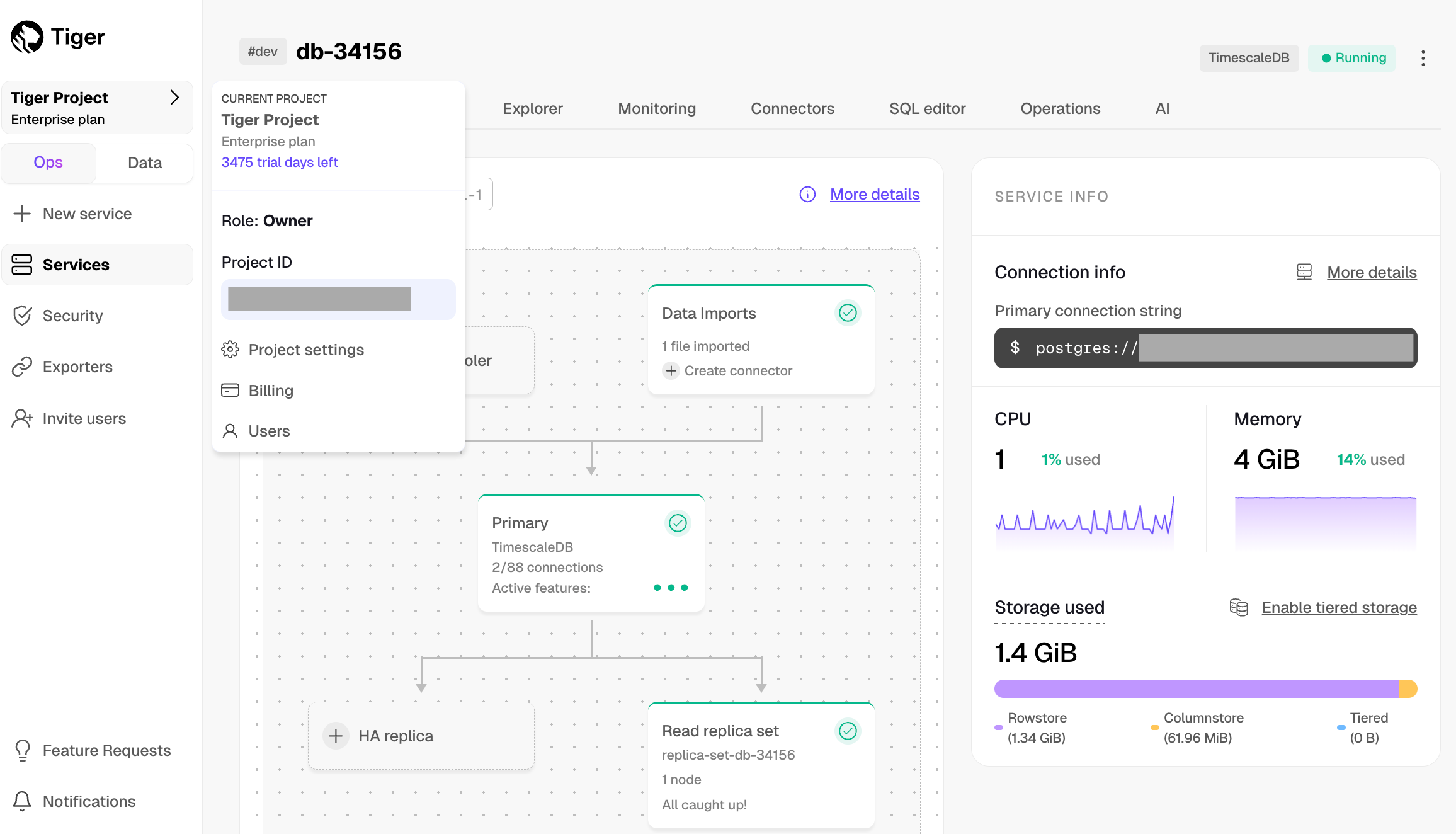
Click the dots next to the service, then click Copy next to the service ID.
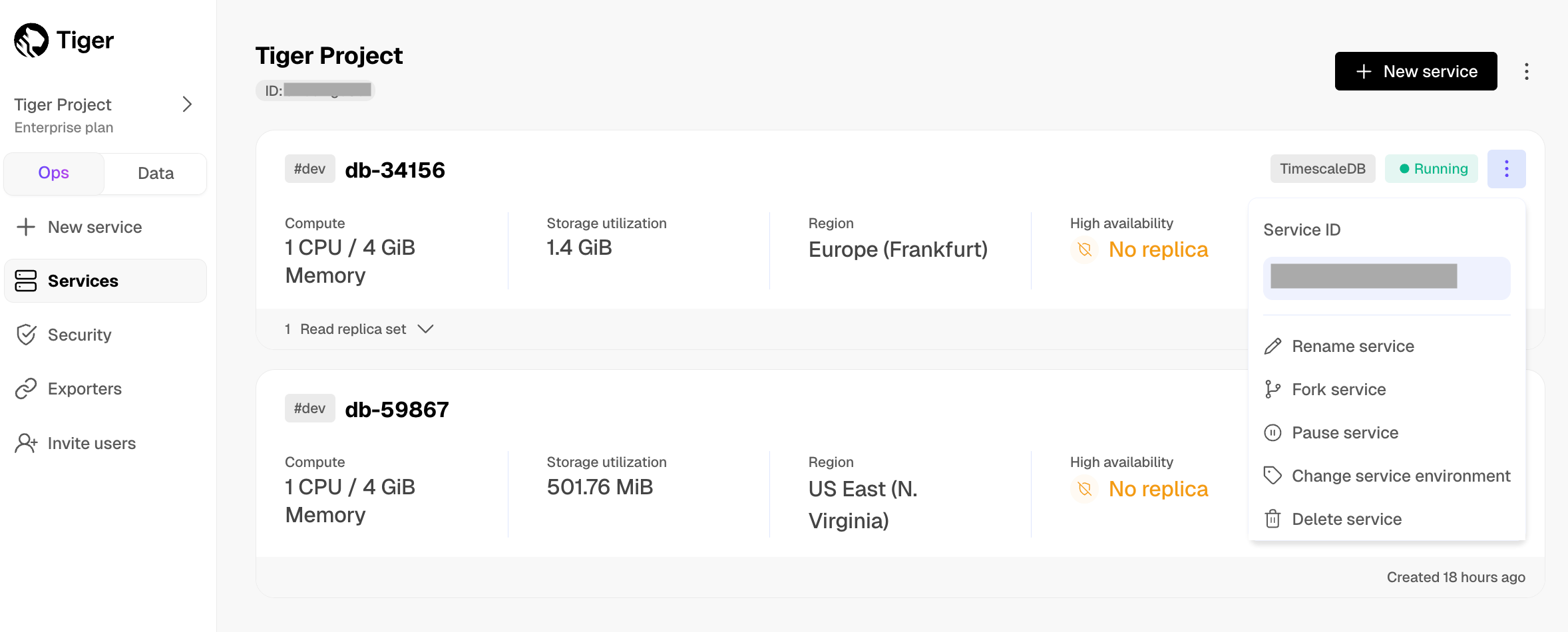
Create client credentials
You use client credentials to obtain access tokens outside of the user context.
To retrieve the connection details for your Tiger Cloud project for programmatic usage such as Terraform or the Tiger Cloud REST API:
In Tiger Cloud Console, click your project name in the upper left corner, then click Project settings.
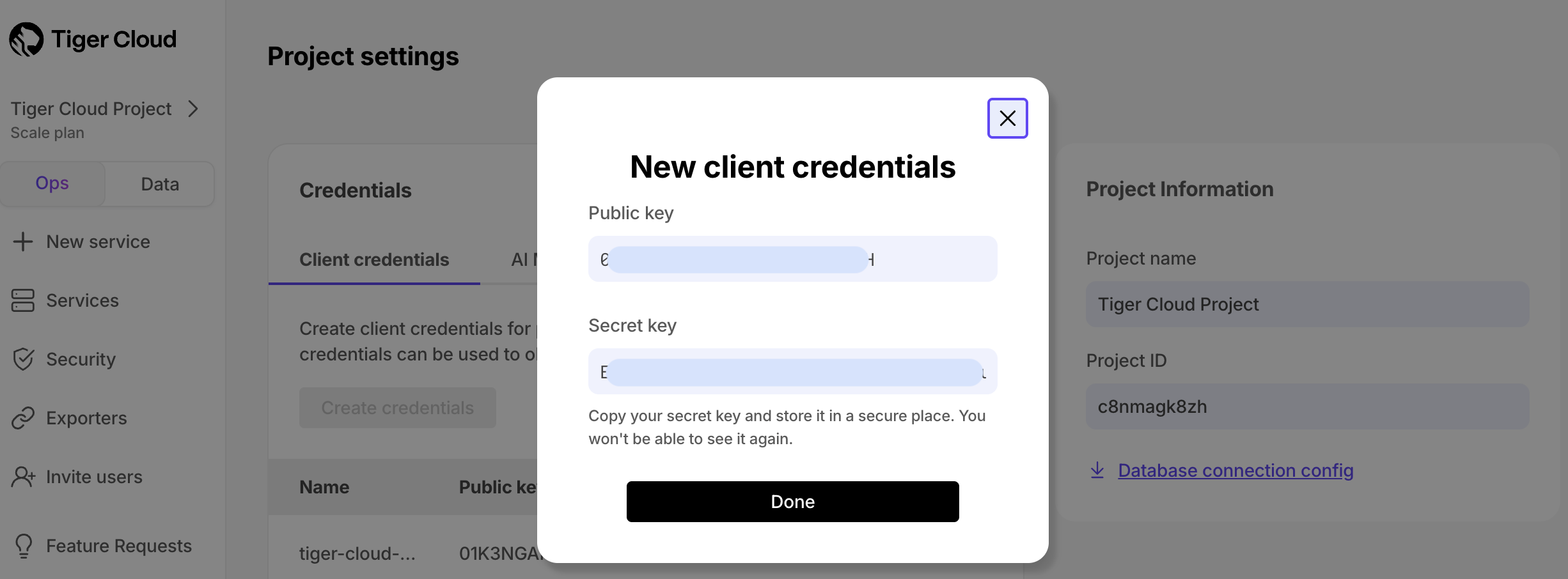
This is the only time you see the Secret key. After this, only the Public key is visible in this page.
Create client credentials
You use client credentials to obtain access tokens outside of the user context.
To retrieve the connection details for your Tiger Cloud project for programmatic usage such as Terraform or the Tiger Cloud REST API:
In Tiger Cloud Console, click your project name in the upper left corner, then click Project settings.
This is the only time you see the Secret key. After this, only the Public key is visible in this page.
Find the connection details in the Postgres configuration file or by asking your database administrator. The postgres superuser, created during Postgres installation, has all the permissions required to run procedures in this documentation. However, it is recommended to create other users and assign permissions on the need-only basis.
In the Services page of the MST Console, click the service you want to connect to. You see the connection details:
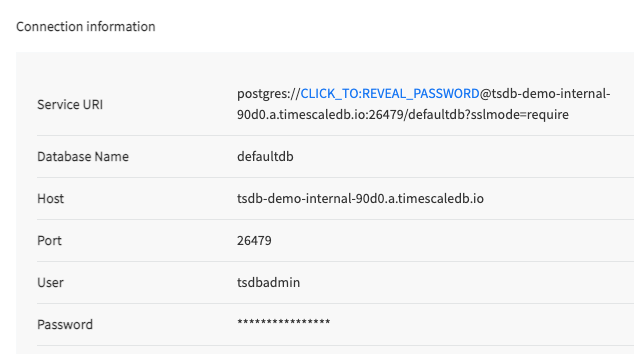
===== PAGE: https://docs.tigerdata.com/integrations/terraform/ =====
Integrate Fivetran with Tiger Cloud
URL: llms-txt#integrate-fivetran-with-tiger-cloud
Contents:
Fivetran is a fully managed data pipeline platform that simplifies ETL (Extract, Transform, Load) processes by automatically syncing data from multiple sources to your data warehouse.
This page shows you how to inject data from data sources managed by Fivetran into a Tiger Cloud service.
To follow the steps on this page:
You need your connection details. This procedure also works for self-hosted TimescaleDB.
Set your Tiger Cloud service as a destination in Fivetran
To be able to inject data into your Tiger Cloud service, set it as a destination in Fivetran:
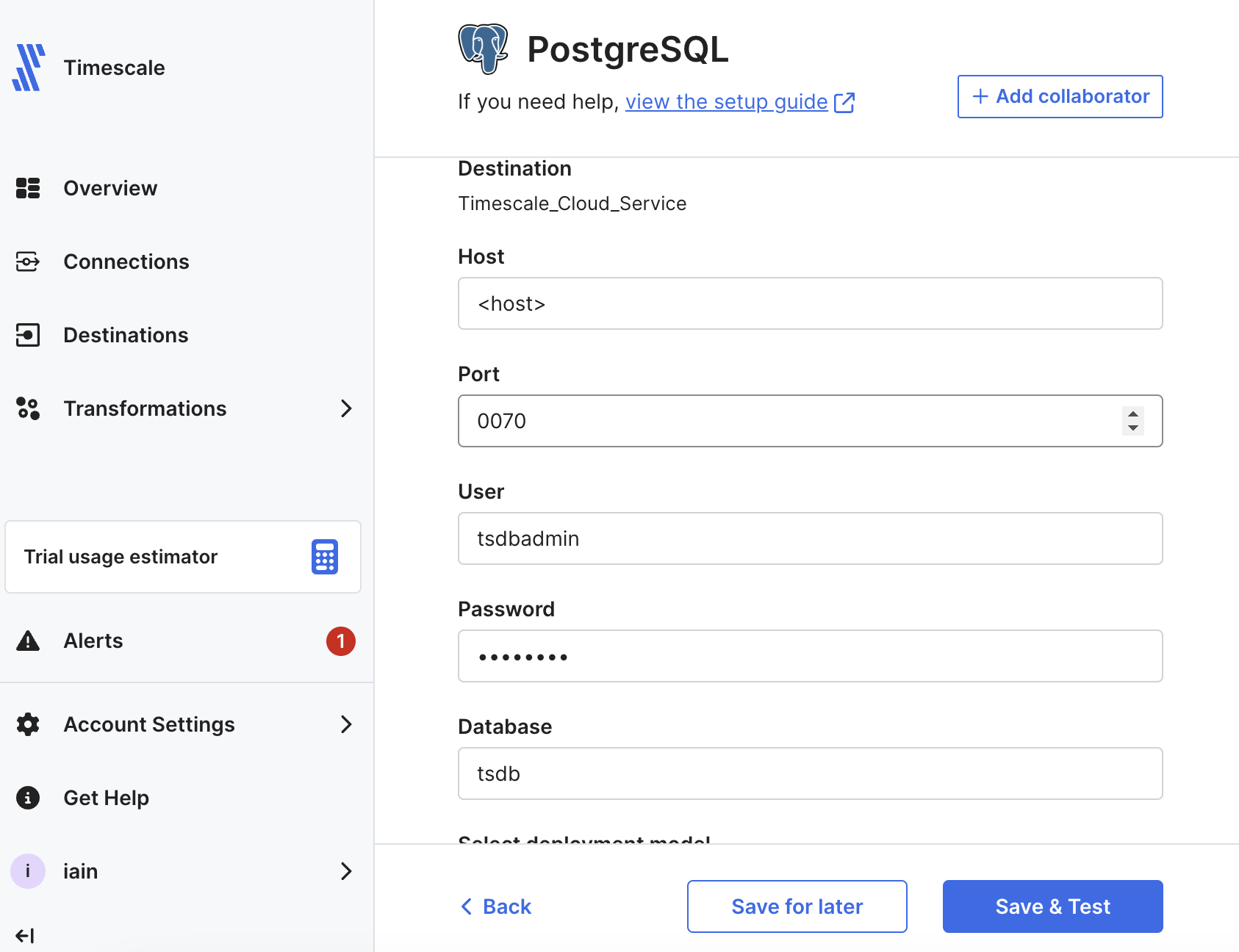
Fivetran validates the connection settings and sets up any security configurations.
The Destination Connection Details page opens.
Set up a Fivetran connection as your data source
In a real world scenario, you can select any of the over 600 connectors available in Fivetran to sync data with your Tiger Cloud service. This section shows you how to inject the logs for your Fivetran connections into your Tiger Cloud service.
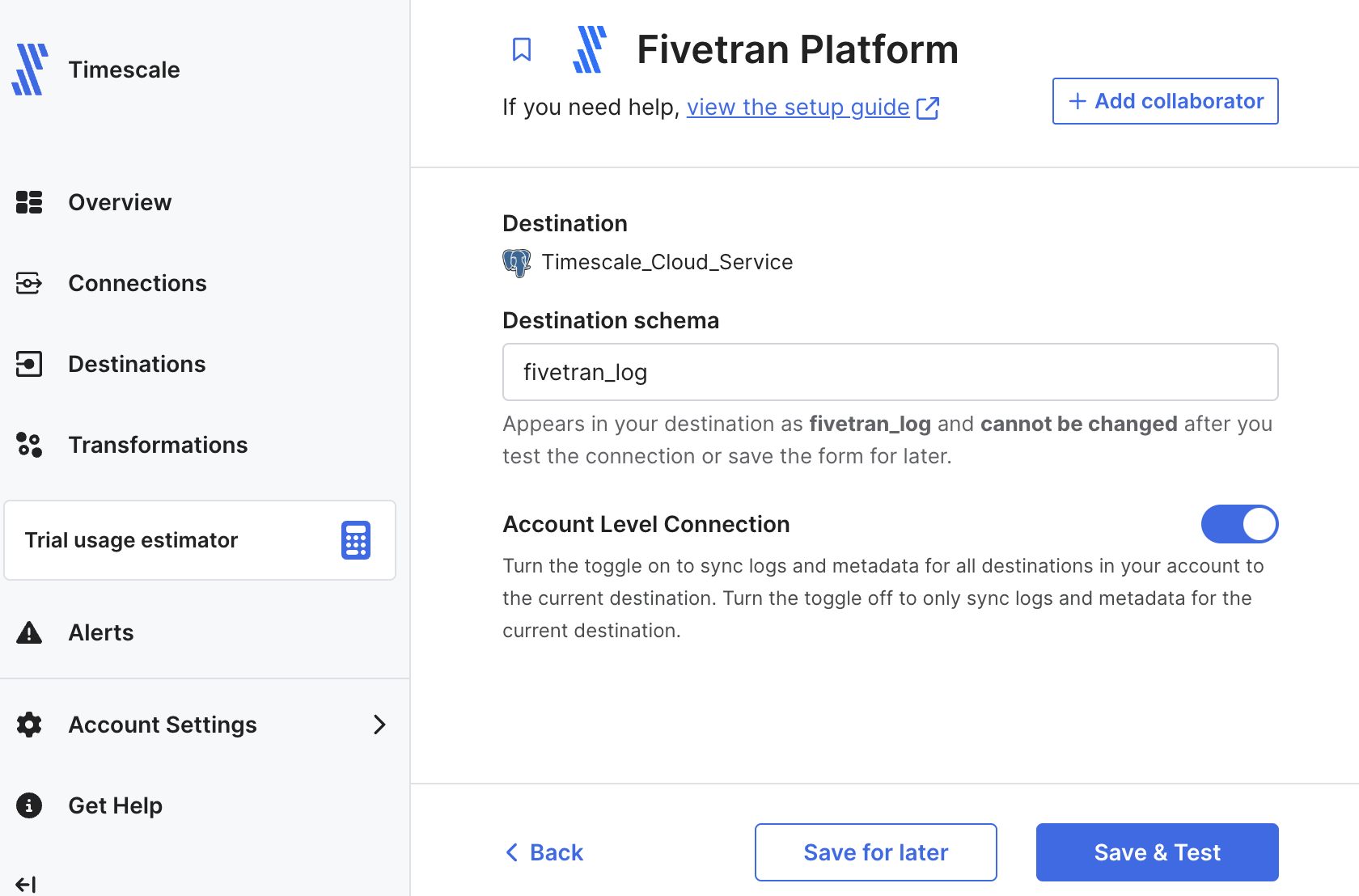
You see All connection tests passed!
Your Fivetran connection is connected to your Tiger Cloud service destination.
Fivetran creates the log schema in your service and syncs the data to your service.
View Fivetran data in your Tiger Cloud service
To see data injected by Fivetran into your Tiger Cloud service:
You see something like the following:
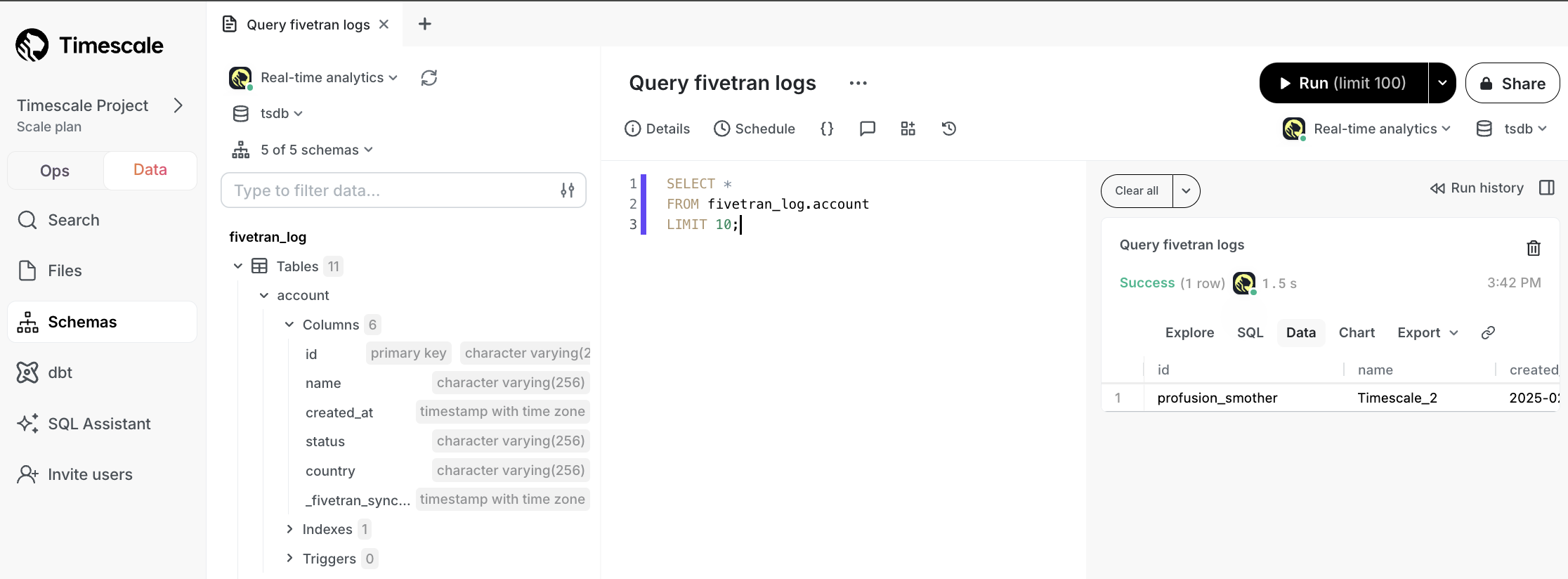
You have successfully integrated Fivetran with Tiger Cloud.
===== PAGE: https://docs.tigerdata.com/integrations/find-connection-details/ =====
Examples:
Example 1 (sql):
SELECT *
FROM fivetran_log.account
LIMIT 10;
Schema management
URL: llms-txt#schema-management
A database schema defines how the tables and indexes in your database are organized. Using a schema that is appropriate for your workload can result in significant performance improvements.
===== PAGE: https://docs.tigerdata.com/use-timescale/configuration/ =====
Supported platforms
URL: llms-txt#supported-platforms
Contents:
This page lists the platforms and systems that Tiger Data products have been tested on for the following options:
Tiger Cloud always runs the latest version of all Tiger Data products. With Tiger Cloud you:
See the available service capabilities and regions.
Available service capabilities
Tiger Cloud services run optimized Tiger Data extensions on latest Postgres, in a highly secure cloud environment. Each service is a specialized database instance tuned for your workload. Available capabilities are:
<tr>
<th>Capability</th>
<th>Extensions</th>
</tr>
</thead>
<tbody>
<tr>
<td><strong>Real-time analytics</strong> <p>Lightning-fast ingest and querying of time-based and event data.</p></td>
<td><ul><li>TimescaleDB</li><li>TimescaleDB Toolkit</li></ul> </td>
</tr>
<tr>
<td ><strong>AI and vector </strong><p>Seamlessly build RAG, search, and AI agents.</p></td>
<td><ul><li>TimescaleDB</li><li>pgvector</li><li>pgvectorscale</li><li>pgai</li></ul></td>
</tr>
<tr>
<td ><strong>Hybrid</strong><p>Everything for real-time analytics and AI workloads, combined.</p></td>
<td><ul><li>TimescaleDB</li><li>TimescaleDB Toolkit</li><li>pgvector</li><li>pgvectorscale</li><li>pgai</li></ul></td>
</tr>
<tr>
<td ><strong>Support</strong></td>
<td><ul><li>24/7 support no matter where you are.</li><li> Continuous incremental backup/recovery. </li><li>Point-in-time forking/branching.</li><li>Zero-downtime upgrades. </li><li>Multi-AZ high availability. </li><li>An experienced global ops and support team that can build and manage Postgres at scale.</li></ul></td>
</tr>
</tbody>
Available regions
Tiger Cloud services run in the following Amazon Web Services (AWS) regions:
| Region | Zone | Location |
|---|---|---|
ap-south-1 |
Asia Pacific | Mumbai |
ap-southeast-1 |
Asia Pacific | Singapore |
ap-southeast-2 |
Asia Pacific | Sydney |
ap-northeast-1 |
Asia Pacific | Tokyo |
ca-central-1 |
Canada | Central |
eu-central-1 |
Europe | Frankfurt |
eu-west-1 |
Europe | Ireland |
eu-west-2 |
Europe | London |
sa-east-1 |
South America | São Paulo |
us-east-1 |
United States | North Virginia |
us-east-2 |
United States | Ohio |
us-west-2 |
United States | Oregon |
Self-hosted products
You use Tiger Data's open-source products to create your best app from the comfort of your own developer environment.
See the available services and supported systems.
Available services
Tiger Data offers the following services for your self-hosted installations:
<tr>
<th>Service type</th>
<th>Description</th>
</tr>
</thead>
<tbody>
<tr>
<td><strong>Self-hosted support</strong></td>
<td><ul><li>24/7 support no matter where you are.</li><li>An experienced global ops and support team that
can build and manage Postgres at scale.</li></ul>
Want to try it out? <a href="https://www.tigerdata.com/self-managed-support">See how we can help</a>.
</td>
</tr>
</tbody>
Postgres, TimescaleDB support matrix
TimescaleDB and TimescaleDB Toolkit run on Postgres v10, v11, v12, v13, v14, v15, v16, and v17. Currently Postgres 15 and higher are supported.
| TimescaleDB version |Postgres 17|Postgres 16|Postgres 15|Postgres 14|Postgres 13|Postgres 12|Postgres 11|Postgres 10| |-----------------------|-|-|-|-|-|-|-|-| | 2.22.x |✅|✅|✅|❌|❌|❌|❌|❌|❌| | 2.21.x |✅|✅|✅|❌|❌|❌|❌|❌|❌| | 2.20.x |✅|✅|✅|❌|❌|❌|❌|❌|❌| | 2.17 - 2.19 |✅|✅|✅|✅|❌|❌|❌|❌|❌| | 2.16.x |❌|✅|✅|✅|❌|❌|❌|❌|❌|❌| | 2.13 - 2.15 |❌|✅|✅|✅|✅|❌|❌|❌|❌| | 2.12.x |❌|❌|✅|✅|✅|❌|❌|❌|❌| | 2.10.x |❌|❌|✅|✅|✅|✅|❌|❌|❌| | 2.5 - 2.9 |❌|❌|❌|✅|✅|✅|❌|❌|❌| | 2.4 |❌|❌|❌|❌|✅|✅|❌|❌|❌| | 2.1 - 2.3 |❌|❌|❌|❌|✅|✅|✅|❌|❌| | 2.0 |❌|❌|❌|❌|❌|✅|✅|❌|❌ | 1.7 |❌|❌|❌|❌|❌|✅|✅|✅|✅|
We recommend not using TimescaleDB with Postgres 17.1, 16.5, 15.9, 14.14, 13.17, 12.21. These minor versions introduced a breaking binary interface change that, once identified, was reverted in subsequent minor Postgres versions 17.2, 16.6, 15.10, 14.15, 13.18, and 12.22. When you build from source, best practice is to build with Postgres 17.2, 16.6, etc and higher. Users of Tiger Cloud and platform packages for Linux, Windows, MacOS, Docker, and Kubernetes are unaffected.
Supported operating system
You can deploy TimescaleDB and TimescaleDB Toolkit on the following systems:
| Operation system | Version |
|---|---|
| Debian | 13 Trixe, 12 Bookworm, 11 Bullseye |
| Ubuntu | 24.04 Noble Numbat, 22.04 LTS Jammy Jellyfish |
| Red Hat Enterprise | Linux 9, Linux 8 |
| Fedora | Fedora 35, Fedora 34, Fedora 33 |
| Rocky Linux | Rocky Linux 9 (x86_64), Rocky Linux 8 |
| ArchLinux (community-supported) | Check the available packages |
| Operation system | Version |
|---|---|
| Microsoft Windows | 10, 11 |
| Microsoft Windows Server | 2019, 2020 |
| Operation system | Version |
|---|---|
| macOS | From 10.15 Catalina to 14 Sonoma |
===== PAGE: https://docs.tigerdata.com/about/contribute-to-timescale/ =====
Configure database parameters
URL: llms-txt#configure-database-parameters
Contents:
Tiger Cloud allows you to customize many Tiger Cloud-specific and Postgres configuration options for each service individually. Most configuration values for a service are initially set in accordance with best practices given the compute and storage settings of the service. Any time you increase or decrease the compute for a service, the most essential values are set to reflect the size of the new service.
You can modify most parameters without restarting the service. However, some changes do require a restart, resulting in some brief downtime that is usually about 30 seconds. An example of a change that needs a restart is modifying the compute resources of a running service.
View service operation details
To modify configuration parameters, first select the service that you want to
modify. This displays the service details, with these tabs across the top:
Overview, Actions, Explorer, Monitoring, Connections, SQL Editor, Operations, and AI. Select Operations, then Database parameters.
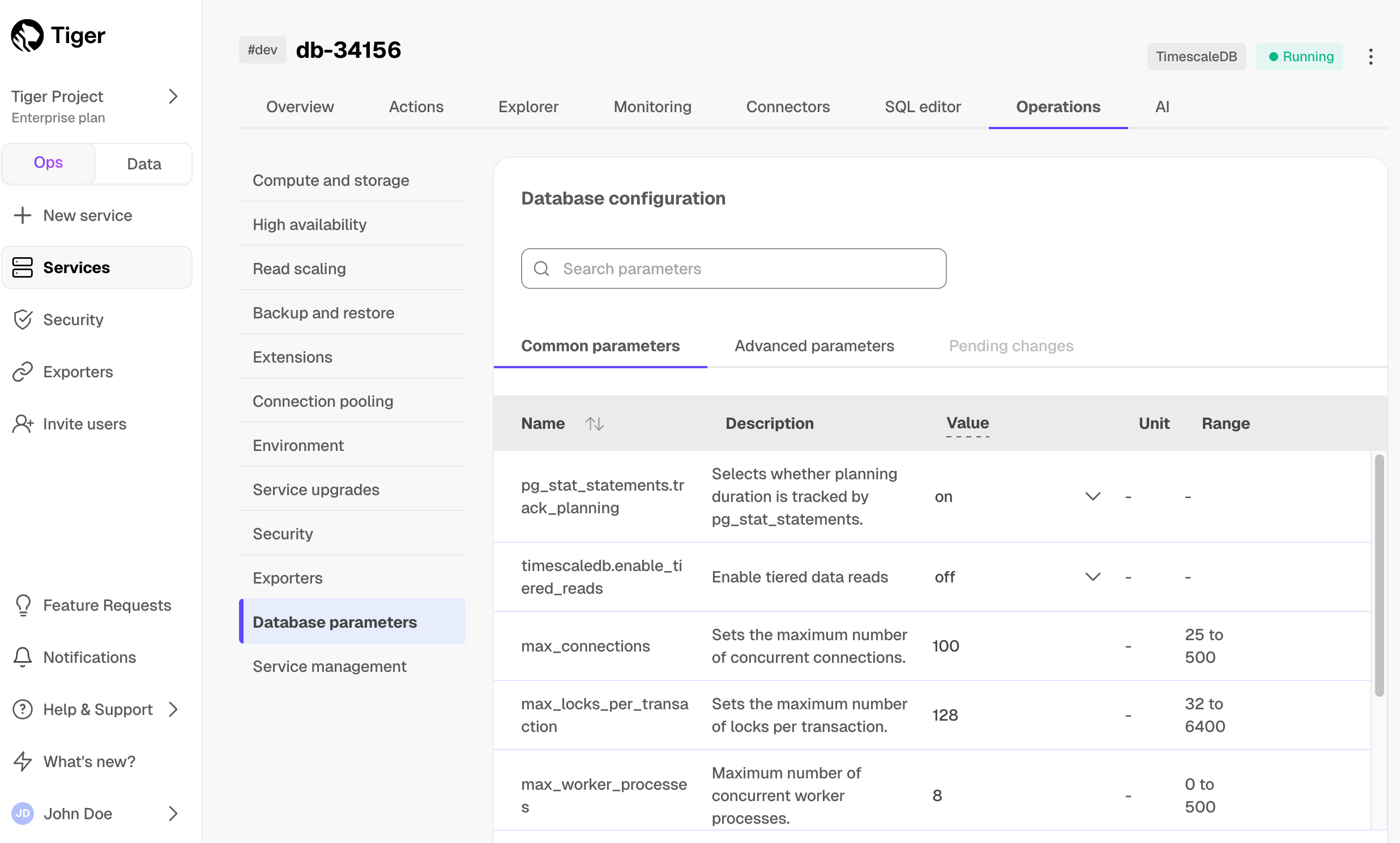
Modify basic parameters
Under the Common parameters tab, you can modify a limited set of the
parameters that are most often modified in a Tiger Cloud or Postgres instance.
To modify a configured value, hover over the value and click the revealed pencil
icon. This reveals an editable field to apply your change. Clicking anywhere
outside of that field saves the value to be applied.
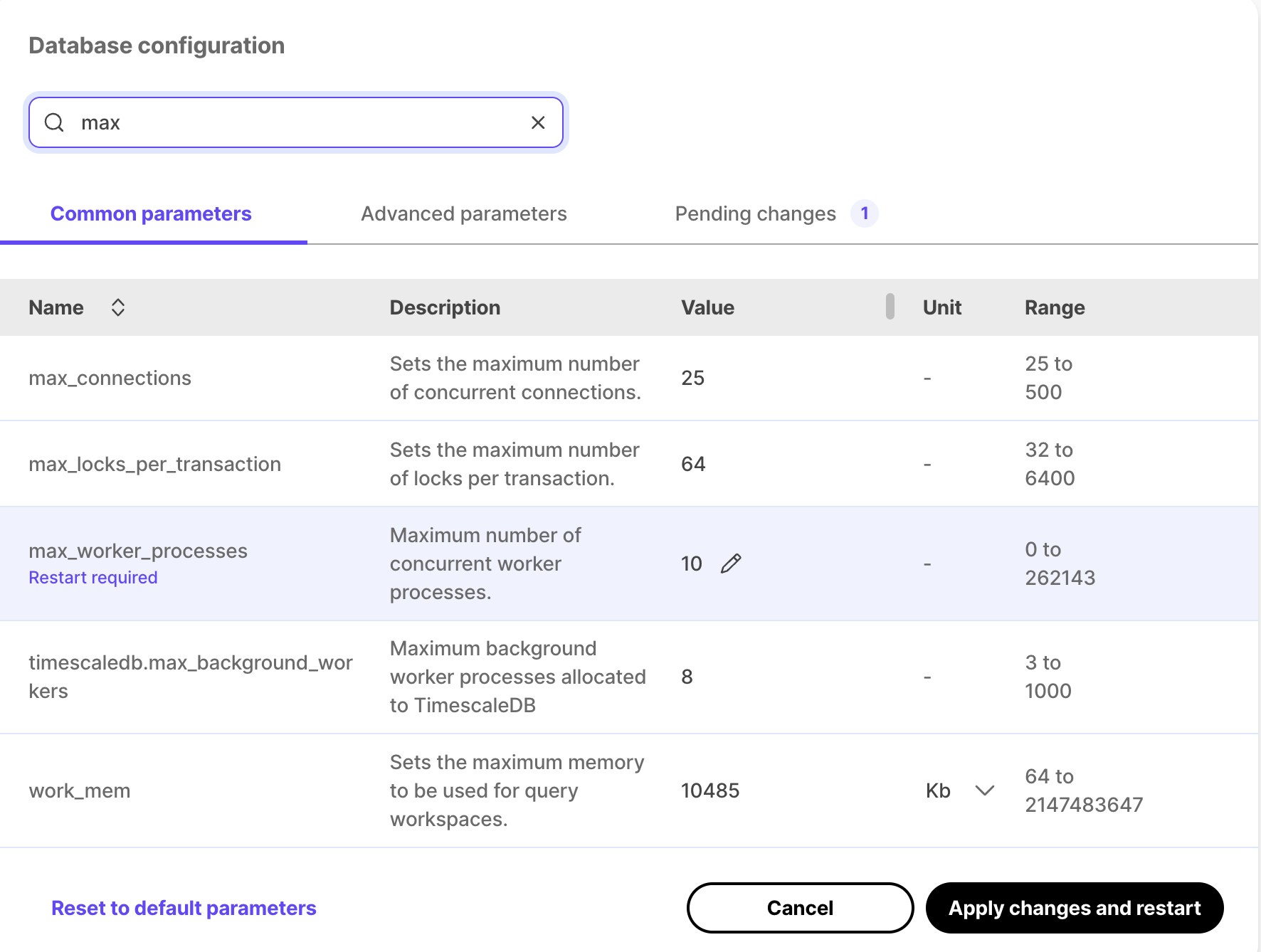
Apply configuration changes
When you have modified the configuration parameters that you would like to
change, click Apply changes. For some changes, such as
timescaledb.max_background_workers, the service needs to be restarted. In this
case, the button reads Apply changes and restart.
A confirmation dialog is displayed which indicates whether a restart is
required. Click Confirm to apply the changes, and restart if necessary.
===== PAGE: https://docs.tigerdata.com/use-timescale/configuration/advanced-parameters/ =====
Migrate from TimescaleDB using dual-write and backfill
URL: llms-txt#migrate-from-timescaledb-using-dual-write-and-backfill
Contents:
This document provides detailed step-by-step instructions to migrate data using the dual-write and backfill migration method from a source database which is using TimescaleDB to Tiger Cloud.
In the context of migrations, your existing production database is referred to as the SOURCE database, the Tiger Cloud service that you are migrating your data to is the TARGET.
In detail, the migration process consists of the following steps:
If you get stuck, you can get help by either opening a support request, or take
your issue to the #migration channel in the community slack,
where the developers of this migration method are there to help.
You can open a support request directly from Tiger Cloud Console, or by email to support@tigerdata.com.
1. Set up a target database instance in Tiger Cloud
If you intend on migrating more than 400 GB, open a support request to ensure that enough disk is pre-provisioned on your Tiger Cloud service.
You can open a support request directly from Tiger Cloud Console, or by email to support@tigerdata.com.
2. Modify the application to write to the target database
How exactly to do this is dependent on the language that your application is written in, and on how exactly your ingestion and application function. In the simplest case, you simply execute two inserts in parallel. In the general case, you must think about how to handle the failure to write to either the source or target database, and what mechanism you want to or can build to recover from such a failure.
Should your time-series data have foreign-key references into a plain table,
you must ensure that your application correctly maintains the foreign key
relations. If the referenced column is a *SERIAL type, the same row inserted
into the source and target may not obtain the same autogenerated id. If this
happens, the data backfilled from the source to the target is internally
inconsistent. In the best case it causes a foreign key violation, in the worst
case, the foreign key constraint is maintained, but the data references the
wrong foreign key. To avoid these issues, best practice is to follow
live migration.
You may also want to execute the same read queries on the source and target database to evaluate the correctness and performance of the results which the queries deliver. Bear in mind that the target database spends a certain amount of time without all data being present, so you should expect that the results are not the same for some period (potentially a number of days).
3. Set up schema and migrate relational data to target database
This section leverages pg_dumpall and pg_dump to migrate the roles and
relational schema that you are using in the source database to the target
database.
The PostgresSQL versions of the source and target databases can be of different versions, as long as the target version is greater than that of the source.
The version of TimescaleDB used in both databases must be exactly the same.
For the sake of convenience, connection strings to the source and target
databases are referred to as source and target throughout this guide.
This can be set in your shell, for example:
3a. Dump the database roles from the source database
Tiger Cloud services do not support roles with superuser access. If your SQL dump includes roles that have such permissions, you'll need to modify the file to be compliant with the security model.
You can use the following sed command to remove unsupported statements and
permissions from your roles.sql file:
This command works only with the GNU implementation of sed (sometimes referred
to as gsed). For the BSD implementation (the default on macOS), you need to
add an extra argument to change the -i flag to -i ''.
To check the sed version, you can use the command sed --version. While the
GNU version explicitly identifies itself as GNU, the BSD version of sed
generally doesn't provide a straightforward --version flag and simply outputs
an "illegal option" error.
A brief explanation of this script is:
3b. Dump all plain tables and the TimescaleDB catalog from the source database
If the source database has the TimescaleDB extension installed in a schema other than "public" it causes issues on Tiger Cloud. Edit the dump file to remove any references to the non-public schema. The extension must be in the "public" schema on Tiger Cloud. This is a known limitation.
3c. Ensure that the correct TimescaleDB version is installed
It is very important that the version of the TimescaleDB extension is the same in the source and target databases. This requires upgrading the TimescaleDB extension in the source database before migrating.
You can determine the version of TimescaleDB in the target database with the following command:
To update the TimescaleDB extension in your source database, first ensure that the desired version is installed from your package repository. Then you can upgrade the extension with the following query:
For more information and guidance, consult the Upgrade TimescaleDB page.
3d. Load the roles and schema into the target database, and turn off all background jobs
Background jobs are turned off to prevent continuous aggregate refresh jobs from updating the continuous aggregate with incomplete/missing data. The continuous aggregates must be manually updated in the required range once the migration is complete.
4. Start application in dual-write mode
With the target database set up, your application can now be started in dual-write mode.
5. Determine the completion point T
After dual-writes have been executing for a while, the target hypertable contains data in three time ranges: missing writes, late-arriving data, and the "consistency" range
If the application is made up of multiple writers, and these writers did not all simultaneously start writing into the target hypertable, there is a period of time in which not all writes have made it into the target hypertable. This period starts when the first writer begins dual-writing, and ends when the last writer begins dual-writing.
Late-arriving data
Some applications have late-arriving data: measurements which have a timestamp in the past, but which weren't written yet (for example from devices which had intermittent connectivity issues). The window of late-arriving data is between the present moment, and the maximum lateness.
Consistency range
The consistency range is the range in which there are no missing writes, and in which all data has arrived, that is between the end of the missing writes range and the beginning of the late-arriving data range.
The length of these ranges is defined by the properties of the application, there is no one-size-fits-all way to determine what they are.
The completion point T is an arbitrarily chosen time in the consistency range.
It is the point in time to which data can safely be backfilled, ensuring that
there is no data loss.
The completion point should be expressed as the type of the time column of
the hypertables to be backfilled. For instance, if you're using a TIMESTAMPTZ
time column, then the completion point may be 2023-08-10T12:00:00.00Z. If
you're using a BIGINT column it may be 1695036737000.
If you are using a mix of types for the time columns of your hypertables, you
must determine the completion point for each type individually, and backfill
each set of hypertables with the same type independently from those of other
types.
6. Backfill data from source to target
The simplest way to backfill from TimescaleDB, is to use the timescaledb-backfill backfill tool. It efficiently copies hypertables with the columnstore or compression enabled, and data stored in continuous aggregates from one database to another.
timescaledb-backfill performs best when executed from a machine located close
to the target database. The ideal scenario is an EC2 instance located in the
same region as the Tiger Cloud service. Use a Linux-based distribution on x86_64.
With the instance that will run the timescaledb-backfill ready, log in and download timescaledb-backfill:
Running timescaledb-backfill is a four-phase process:
7. Enable background jobs in target database
Before enabling the jobs, verify if any continuous aggregate refresh policies exist.
If they do exist, refresh the continuous aggregates before re-enabling the jobs. The timescaledb-backfill tool provides a utility to do this:
Once the continuous aggregates are updated, you can re-enable all background jobs:
If the backfill process took long enough for there to be significant retention/compression work to be done, it may be preferable to run the jobs manually to have control over the pacing of the work until it is caught up before re-enabling.
8. Validate that all data is present in target database
Now that all data has been backfilled, and the application is writing data to both databases, the contents of both databases should be the same. How exactly this should best be validated is dependent on your application.
If you are reading from both databases in parallel for every production query, you could consider adding an application-level validation that both databases are returning the same data.
Another option is to compare the number of rows in the source and target
tables, although this reads all data in the table which may have an impact on
your production workload. timescaledb-backfill's verify subcommand performs
this check.
Another option is to run ANALYZE on both the source and target tables and
then look at the reltuples column of the pg_class table on a chunk-by-chunk
basis. The result is not exact, but doesn't require reading all rows from the
table.
9. Validate that target database can handle production load
Now that dual-writes have been in place for a while, the target database should be holding up to production write traffic. Now would be the right time to determine if the target database can serve all production traffic (both reads and writes). How exactly this is done is application-specific and up to you to determine.
10. Switch production workload to target database
Once you've validated that all the data is present, and that the target database can handle the production workload, the final step is to switch to the target database as your primary. You may want to continue writing to the source database for a period, until you are certain that the target database is holding up to all production traffic.
===== PAGE: https://docs.tigerdata.com/migrate/dual-write-and-backfill/dual-write-from-other/ =====
Examples:
Example 1 (bash):
export SOURCE="postgres://<user>:<password>@<source host>:<source port>/<db_name>"
export TARGET="postgres://<user>:<password>@<target host>:<target port>/<db_name>"
Example 2 (bash):
pg_dumpall -d "source" \
-l database name \
--quote-all-identifiers \
--roles-only \
--file=roles.sql
Example 3 (bash):
sed -i -E \
-e '/CREATE ROLE "postgres";/d' \
-e '/ALTER ROLE "postgres"/d' \
-e '/CREATE ROLE "tsdbadmin";/d' \
-e '/ALTER ROLE "tsdbadmin"/d' \
-e 's/(NO)*SUPERUSER//g' \
-e 's/(NO)*REPLICATION//g' \
-e 's/(NO)*BYPASSRLS//g' \
-e 's/GRANTED BY "[^"]*"//g' \
roles.sql
Example 4 (bash):
pg_dump -d "source" \
--format=plain \
--quote-all-identifiers \
--no-tablespaces \
--no-owner \
--no-privileges \
--exclude-table-data='_timescaledb_internal.*' \
--file=dump.sql
Table management
URL: llms-txt#table-management
A database schema defines how the tables and indexes in your database are organized. Using a schema that is appropriate for your workload can result in significant performance improvements. Conversely, using a poorly suited schema can result in significant performance degradation.
If you are working with semi-structured data, such as readings from IoT sensors that collect varying measurements, you might need a flexible schema. In this case, you can use Postgres JSON and JSONB data types.
TimescaleDB supports all table objects supported within Postgres, including
data types, indexes, and triggers. However, when you create a hypertable, set the
datatype for the time column as timestamptz and not timestamp. For more
information, see Postgres timestamp.
This section explains how to design your schema, how indexing and tablespaces work, and how to use Postgres constraint types. It also includes examples to help you create your own schema, and learn how to use JSON and JSONB for semi-structured data.
===== PAGE: https://docs.tigerdata.com/use-timescale/schema-management/indexing/ =====
to_uuidv7()
URL: llms-txt#to_uuidv7()
Contents:
Create a UUIDv7 object from a Postgres timestamp and random bits.
ts is converted to a UNIX timestamp split into millisecond and sub-millisecond parts.
| Name | Type | Default | Required | Description |
|-|------------------|-|----------|--------------------------------------------------|
|ts|TIMESTAMPTZ| - | ✔ | The timestamp used to return a UUIDv7 object |
===== PAGE: https://docs.tigerdata.com/api/uuid-functions/uuid_timestamp_micros/ =====
Examples:
Example 1 (sql):
SELECT to_uuidv7(ts)
FROM generate_series('2025-01-01:00:00:00'::timestamptz, '2025-01-01:00:00:03'::timestamptz, '1 microsecond'::interval) ts;
Integrate Amazon Sagemaker with Tiger
URL: llms-txt#integrate-amazon-sagemaker-with-tiger
Contents:
Amazon SageMaker AI is a fully managed machine learning (ML) service. With SageMaker AI, data scientists and developers can quickly and confidently build, train, and deploy ML models into a production-ready hosted environment.
This page shows you how to integrate Amazon Sagemaker with a Tiger Cloud service.
To follow the steps on this page:
You need your connection details. This procedure also works for self-hosted TimescaleDB.
Prepare your Tiger Cloud service to ingest data from SageMaker
Create a table in Tiger Cloud service to store model predictions generated by SageMaker.
For Tiger Cloud, open an SQL editor in Tiger Cloud Console. For self-hosted TimescaleDB, use psql.
Hypertables are Postgres tables that automatically partition your data by time. You interact with hypertables in the same way as regular Postgres tables, but with extra features that makes managing your time-series data much easier.
If you are self-hosting TimescaleDB v2.19.3 and below, create a Postgres relational table, then convert it using create_hypertable. You then enable hypercore with a call to ALTER TABLE.
Create the code to inject data into a Tiger Cloud service
Open an SQL editor and check the sensor_data table:
You see something like:
|time | model_name | prediction |
| -- | -- | -- |
|2025-02-06 16:56:34.370316+00| timescale-cloud-model| 0.95|
Now you can seamlessly integrate Amazon SageMaker with Tiger Cloud to store and analyze time-series data generated by machine learning models. You can also untegrate visualization tools like Grafana or Tableau with Tiger Cloud to create real-time dashboards of your model predictions.
===== PAGE: https://docs.tigerdata.com/integrations/aws/ =====
Examples:
Example 1 (sql):
CREATE TABLE model_predictions (
time TIMESTAMPTZ NOT NULL,
model_name TEXT NOT NULL,
prediction DOUBLE PRECISION NOT NULL
) WITH (
tsdb.hypertable,
tsdb.partition_column='time'
);
Example 2 (python):
import psycopg2
from datetime import datetime
def insert_prediction(model_name, prediction, host, port, user, password, dbname):
conn = psycopg2.connect(
host=host,
port=port,
user=user,
password=password,
dbname=dbname
)
cursor = conn.cursor()
query = """
INSERT INTO model_predictions (time, model_name, prediction)
VALUES (%s, %s, %s);
"""
values = (datetime.utcnow(), model_name, prediction)
cursor.execute(query, values)
conn.commit()
cursor.close()
conn.close()
insert_prediction(
model_name="example_model",
prediction=0.95,
host="<host>",
port="<port>",
user="<user>",
password="<password>",
dbname="<dbname>"
)
Example 3 (sql):
SELECT * FROM model_predictions;
Replicas and forks with tiered data
URL: llms-txt#replicas-and-forks-with-tiered-data
Contents:
There is one more thing that makes Tiered Storage even more amazing: when you keep data in the low-cost object storage tier, you pay for this data only once, regardless of whether you have a high-availability replica or read replicas running in your service. We call this the savings multiplication effect of Tiered Storage.
The same applies to forks, which you can use, for example, for running tests or creating dev environments. When creating one (or more) forks, you won't be billed for data shared with the primary in the low-cost storage.
If you decide to tier more data that's not in the primary, you will pay to store it in the low-cost tier, but you will still see substantial savings by moving that data from the high-performance tier of the fork to the cheaper object storage tier.
How this works behind the scenes
Once you tier data to the low-cost object storage tier, we keep a reference to that data on your Database's catalog.
Creating a replica or forking a primary server only copies the references and the metadata we keep on the catalog for all tiered data.
On the billing side, we only count and bill once for the data tiered, not for each reference there may exist towards that data.
What happens when a chunk is dropped or untiered on a fork
Dropping or untiering a chunk from a fork does not delete it from any other servers that reference the same chunk.
You can have one, multiple or 0 servers referencing the same chunk of data:
As described above, tiered chunks are only counted once for billing purposes, so dropping or untiering a chunk that is shared with other servers from a fork will not affect billing as it was never counted for billing purposes.
Droping or untiering a chunk that was only tiered on that fork works as expected and is covered in more detail in the following section.
What happens when a chunk is modified on a fork
As a reminder, tiered data is immutable - there is no such thing as updating the data.
You can untier or drop a chunk, in which case what is described in the previous section covers what happens.
And you can tier new data, at which point a fork deviates from the primary in a similar way as all forks do.
New data tiered are not shared with parent or sibling servers, this is new data tiered for that server and we count them as a new object for the purposes of billing.
If you decide to tier more data that's not in the primary, you will pay to store it in the low-cost tier, but you will still see substantial savings by moving that data from the high-performance tier of the fork to the cheaper object storage tier.
Similar to other types of storage tiers, this type of deviation can not happen for replicas as they have to be identical with the primary server, that's why we don't mention replicas when discussing about droping chunks or tiering additional data.
What happens with backups and PITR
As discussed above, we never delete anything on the object storage tier if at least one server references it. The data is only permanently deleted (or hard deleted as we internally call this operation) once the references drop to 0.
In addition to that, we delay hard deleting the data by 14 days, so that in case of a restore or PITR, all tiered data will be available. In the case of such a restore, new references are added to the deleted tiered chunks, so they are not any more candidates for a hard deletion.
Once 14 days pass after soft deleting the data,that is the number of references to the tiered data drop to 0, we hard delete the tiered data.
===== PAGE: https://docs.tigerdata.com/use-timescale/data-tiering/enabling-data-tiering/ =====
Integrate Supabase with Tiger
URL: llms-txt#integrate-supabase-with-tiger
Contents:
Supabase is an open source Firebase alternative. This page shows how to run real-time analytical queries against a Tiger Cloud service through Supabase using a foreign data wrapper (fdw) to bring aggregated data from your Tiger Cloud service.
To follow the steps on this page:
You need your connection details. This procedure also works for self-hosted TimescaleDB.
Set up your Tiger Cloud service
To set up a Tiger Cloud service optimized for analytics to receive data from Supabase:
Time-series data represents how a system, process, or behavior changes over time. Hypertables are Postgres tables that help you improve insert and query performance by automatically partitioning your data by time.
If you are self-hosting TimescaleDB v2.19.3 and below, create a Postgres relational table, then convert it using create_hypertable. You then enable hypercore with a call to ALTER TABLE.
Hypercore is the hybrid row-columnar storage engine in TimescaleDB, designed specifically for real-time analytics and powered by time-series data. The advantage of hypercore is its ability to seamlessly switch between row-oriented and column-oriented storage. This flexibility enables TimescaleDB to deliver the best of both worlds, solving the key challenges in real-time analytics.
Continuous aggregates are designed to make queries on very large datasets run faster. Continuous aggregates in Tiger Cloud use Postgres materialized views to continuously, and incrementally refresh a query in the background, so that when you run the query, only the data that has changed needs to be computed, not the entire dataset.
You use start_offset and end_offset to define the time range that the continuous aggregate will cover. Assuming
that the data is being inserted without any delay, set the start_offset to 5 minutes and the end_offset to
1 minute. This means that the continuous aggregate is refreshed every minute, and the refresh covers the last 5
minutes.
You set schedule_interval to INTERVAL '1 minute' so the continuous aggregate refreshes on your Tiger Cloud service
every minute. The data is accessed from Supabase, and the continuous aggregate is refreshed every minute in
the other side.
Do the same thing for data inserted with a delay:
Set up a Supabase database
To set up a Supabase database that injects data into your Tiger Cloud service:
Update the following command with your connection details, then run it
in the Supabase database:
Update the following command with your connection details, the run it in the Supabase database:
This query introduced the following columns:
Using both columns, you understand the delay between Supabase (origin_time) and the time the data is
inserted into your Tiger Cloud service (time).
Test the integration
To inject data into your Tiger Cloud service from a Supabase database using a foreign table:
Connect to Supabase and run the following query:
Connect to your Tiger Cloud service and run the following query:
You see something like:
| origin_time | time | name | |-------------|------|------| | 2025-02-27 16:30:04.682391+00 | 2025-02-27 16:30:04.682391+00 | test |
You have successfully integrated Supabase with your Tiger Cloud service.
===== PAGE: https://docs.tigerdata.com/integrations/index/ =====
Examples:
Example 1 (sql):
CREATE TABLE signs (
time timestamptz NOT NULL DEFAULT now(),
origin_time timestamptz NOT NULL,
name TEXT
) WITH (
tsdb.hypertable,
tsdb.partition_column='time'
);
Example 2 (sql):
ALTER TABLE signs SET (
timescaledb.enable_columnstore = true,
timescaledb.segmentby = 'name');
Example 3 (sql):
CREATE MATERIALIZED VIEW IF NOT EXISTS signs_per_minute
WITH (timescaledb.continuous)
AS
SELECT time_bucket('1 minute', time) as ts,
name,
count(*) as total
FROM signs
GROUP BY 1, 2
WITH NO DATA;
Example 4 (sql):
CREATE MATERIALIZED VIEW IF NOT EXISTS _signs_per_minute_delay
WITH (timescaledb.continuous)
AS
SELECT time_bucket('1 minute', time) as ts,
stats_agg(extract(epoch from origin_time - time)::float8) as delay_agg,
candlestick_agg(time, extract(epoch from origin_time - time)::float8, 1) as delay_candlestick
FROM signs GROUP BY 1
WITH NO DATA;
remove_policies()
URL: llms-txt#remove_policies()
Contents:
Remove refresh, columnstore, and data retention policies from a continuous aggregate. The removed columnstore and retention policies apply to the continuous aggregate, not to the original hypertable.
To remove all policies on a continuous aggregate, see
remove_all_policies().
Experimental features could have bugs. They might not be backwards compatible, and could be removed in future releases. Use these features at your own risk, and do not use any experimental features in production.
Given a continuous aggregate named example_continuous_aggregate with a refresh
policy and a data retention policy, remove both policies.
Throw an error if either policy doesn't exist. If the continuous aggregate has a columnstore policy, leave it unchanged:
Required arguments
|Name|Type|Description|
|-|-|-|
|relation|REGCLASS|The continuous aggregate to remove policies from|
Optional arguments
|Name|Type|Description|
|-|-|-|
|if_exists|BOOL|When true, prints a warning instead of erroring if the policy doesn't exist. Defaults to false.|
|policy_names|TEXT|The policies to remove. You can list multiple policies, separated by a comma. Allowed policy names are policy_refresh_continuous_aggregate, policy_compression, and policy_retention.|
Returns true if successful.
===== PAGE: https://docs.tigerdata.com/api/continuous-aggregates/add_continuous_aggregate_policy/ =====
Examples:
Example 1 (sql):
timescaledb_experimental.remove_policies(
relation REGCLASS,
if_exists BOOL = false,
VARIADIC policy_names TEXT[] = NULL
) RETURNS BOOL
Example 2 (sql):
SELECT timescaledb_experimental.remove_policies(
'example_continuous_aggregate',
false,
'policy_refresh_continuous_aggregate',
'policy_retention'
);
Low-downtime migrations with dual-write and backfill
URL: llms-txt#low-downtime-migrations-with-dual-write-and-backfill
Contents:
Dual-write and backfill is a migration strategy to move a large amount of time-series data (100 GB-10 TB+) with low downtime (on the order of minutes of downtime). It is significantly more complicated to execute than a migration with downtime using pg_dump/restore, and has some prerequisites on the data ingest patterns of your application, so it may not be universally applicable.
Dual-write and backfill can be used for any source database type, as long as it can provide data in csv format. It can be used to move data from a PostgresSQL source, and from TimescaleDB to TimescaleDB.
Dual-write and backfill works well when:
Best practice is to use an Ubuntu EC2 instance hosted in the same region as your Tiger Cloud service to move data. That is, the machine you run the commands on to move your data from your source database to your target Tiger Cloud service.
Before you move your data:
Each Tiger Cloud service has a single Postgres instance that supports the most popular extensions. Tiger Cloud services do not support tablespaces, and there is no superuser associated with a service. Best practice is to create a Tiger Cloud service with at least 8 CPUs for a smoother experience. A higher-spec instance can significantly reduce the overall migration window.
Migrate to Tiger Cloud
To move your data from a self-hosted database to a Tiger Cloud service:
===== PAGE: https://docs.tigerdata.com/getting-started/index/ =====
Out of memory errors after enabling the columnstore
URL: llms-txt#out-of-memory-errors-after-enabling-the-columnstore
By default, columnstore policies move all uncompressed chunks to the columnstore.
However, before converting a large backlog of chunks from the rowstore to the columnstore,
best practice is to set maxchunks_to_compress and limit to amount of chunks to be converted. For example:
When all chunks have been converted to the columnstore, set maxchunks_to_compress to 0, unlimited.
===== PAGE: https://docs.tigerdata.com/_troubleshooting/cloud-singledb/ =====
Examples:
Example 1 (sql):
SELECT alter_job(job_id, config.maxchunks_to_compress => 10);
Store financial tick data in TimescaleDB using the OHLCV (candlestick) format
URL: llms-txt#store-financial-tick-data-in-timescaledb-using-the-ohlcv-(candlestick)-format
Contents:
Candlestick charts are the standard way to analyze the price changes of financial assets. They can be used to examine trends in stock prices, cryptocurrency prices, or even NFT prices. To generate candlestick charts, you need candlestick data in the OHLCV format. That is, you need the Open, High, Low, Close, and Volume data for some financial assets.
This tutorial shows you how to efficiently store raw financial tick data, create different candlestick views, and query aggregated data in TimescaleDB using the OHLCV format. It also shows you how to download sample data containing real-world crypto tick transactions for cryptocurrencies like BTC, ETH, and other popular assets.
Before you begin, make sure you have:
What's candlestick data and OHLCV?
Candlestick charts are used in the financial sector to visualize the price change of an asset. Each candlestick represents a time frame (for example, 1 minute, 5 minutes, 1 hour, or similar) and shows how the asset's price changed during that time.

Candlestick charts are generated from candlestick data, which is the collection of data points used in the chart. This is often abbreviated as OHLCV (open-high-low-close-volume):
These data points correspond to the bucket of time covered by the candlestick. For example, a 1-minute candlestick would need the open and close prices for that minute.
Many Tiger Data community members use TimescaleDB to store and analyze candlestick data. Here are some examples:
Follow this tutorial and see how to set up your TimescaleDB database to consume real-time tick or aggregated financial data and generate candlestick views efficiently.
===== PAGE: https://docs.tigerdata.com/tutorials/OLD-financial-candlestick-tick-data/advanced-data-management/ =====
Manage storage using tablespaces
URL: llms-txt#manage-storage-using-tablespaces
Contents:
If you are running TimescaleDB on your own hardware, you can save storage by moving chunks between tablespaces. By moving older chunks to cheaper, slower storage, you can save on storage costs while still using faster, more expensive storage for frequently accessed data. Moving infrequently accessed chunks can also improve performance, because it isolates historical data from the continual read-and-write workload of more recent data.
Using tablespaces is one way to manage data storage costs with TimescaleDB. You can also use compression and data retention to reduce your storage requirements.
Tiger Cloud is a fully managed service with automatic backup and restore, high availability with replication, seamless scaling and resizing, and much more. You can try Tiger Cloud free for thirty days.
To move chunks to a new tablespace, you first need to create the new tablespace
and set the storage mount point. You can then use the
move_chunk API call to move individual chunks from the
default tablespace to the new tablespace. The move_chunk command also allows
you to move indexes belonging to those chunks to an appropriate tablespace.
Additionally, move_chunk allows you reorder the chunk during the migration.
This can be used to make your queries faster, and works in a similar way to the
reorder_chunk command.
You must be logged in as a super user, such as the postgres user, to use the
move_chunk() API call.
You can also verify that the index is in the correct location:
To move several chunks at once, select the chunks you want to move by using
FROM show_chunks(...). For example, to move chunks containing data between 1
and 3 weeks old, in a hypertable named example:
After moving a chunk to a slower tablespace, you can move it back to the default, faster tablespace:
You can move a data chunk to the slower tablespace, but keep the chunk's indexes on the default, faster tablespace:
You can also keep the data in pg_default but move the index to history.
Alternatively, you can set up a third tablespace called history_indexes,
and move the data to history and the indexes to history_indexes.
In TimescaleDB v2.0 and later, you can use move_chunk with the job scheduler
framework. For more information, see the jobs section.
===== PAGE: https://docs.tigerdata.com/self-hosted/replication-and-ha/ =====
Examples:
Example 1 (sql):
CREATE TABLESPACE history
OWNER postgres
LOCATION '/mnt/history';
Example 2 (sql):
SELECT show_chunks('conditions', older_than => INTERVAL '2 days');
Example 3 (sql):
SELECT move_chunk(
chunk => '_timescaledb_internal._hyper_1_4_chunk',
destination_tablespace => 'history',
index_destination_tablespace => 'history',
reorder_index => '_timescaledb_internal._hyper_1_4_chunk_netdata_time_idx',
verbose => TRUE
);
Example 4 (sql):
SELECT tablename from pg_tables
WHERE tablespace = 'history' and tablename like '_hyper_%_%_chunk';
Integrate Tiger Cloud with your AI Assistant
URL: llms-txt#integrate-tiger-cloud-with-your-ai-assistant
Contents:
The Tiger Model Context Protocol Server provides access to your Tiger Cloud resources through Claude and other AI Assistants. Tiger MCP Server mirrors the functionality of Tiger CLI and is integrated directly into the CLI binary. You manage your Tiger Cloud resources using natural language from your AI Assistant. As Tiger MCP Server is integrated with the Tiger Data documentation, ask any question and you will get the best answer.
This page shows you how to install Tiger CLI and set up secure authentication for Tiger MCP Server, then manage the resources in your Tiger Data account through the Tiger Model Context Protocol Server using your AI Assistant.
To follow the steps on this page:
The following AI Assistants are automatically configured by the Tiger Model Context Protocol Server: claude-code, cursor, windsurf, codex, gemini/gemini-cli, vscode/code/vs-code.
You can also manually configure Tiger MCP Server.
Install and configure Tiger MCP Server
The Tiger MCP Server is bundled with Tiger CLI:
Use the terminal to install the CLI:
Tiger CLI opens Console in your browser. Log in, then click Authorize.
You can have a maximum of 10 active client credentials. If you get an error, open credentials
and delete an unused credential.
If only one project is associated with your account, this step is not shown.
Where possible, Tiger CLI stores your authentication information in the system keychain/credential manager.
If that fails, the credentials are stored in `~/.config/tiger/credentials` with restricted file permissions (600).
By default, Tiger CLI stores your configuration in `~/.config/tiger/config.yaml`.
This call returns something like:
- No services:
- One or more services:
And that is it, you are ready to use the Tiger Model Context Protocol Server to manage your services in Tiger Cloud.
Manage the resources in your Tiger Data account through your AI Assistant
Your AI Assistant is connected to your Tiger Data account and the Tiger Data documentation, you can now use it to manage your services and learn more about how to implement Tiger Cloud features. For example:
Claude automatically runs the Tiger MCP Server server that enables you to interact with Tiger Cloud from your AI Assistant.
You see something like:
You see something like:
For example:
You see something like:
You see something like:
That beats working. Let the Tiger MCP Server do it all for you.
Manually configure the Tiger MCP Server
If your MCP client is not supported by tiger mcp install, follow the client's instructions to install
MCP servers. For example, many clients use a JSON file like the following that use tiger mcp start to
start Tiger Model Context Protocol Server:
Tiger Model Context Protocol Server commands
Tiger Model Context Protocol Server exposes the following MCP tools to your AI Assistant:
| Command | Parameter | Required | Description |
|---|---|---|---|
service_list |
- | - | Returns a list of the services in the current project. |
service_get |
- | - | Returns detailed information about a service. |
service_id |
✓ | The unique identifier of the service (10-character alphanumeric string). | |
with_password |
- | Set to true to include the password in the response and connection string. WARNING: never do this unless the user explicitly requests the password. |
|
service_create |
- | - | Create a new service in Tiger Cloud. WARNING: creates billable resources. |
name |
- | Set the human-readable name of up to 128 characters for this service. | |
addons |
- | Set the array of addons to enable for the service. Options: |
|
region |
- | Set the AWS region to deploy this service in. | |
cpu_memory |
- | CPU and memory allocation combination. Available configurations are: |
|
replicas |
- | Set the number of high-availability replicas for fault tolerance. | |
wait |
- | Set to true to wait for service to be fully ready before returning. |
|
timeout_minutes |
- | Set the timeout in minutes to wait for service to be ready. Only used when wait=true. Default: 30 minutes |
|
set_default |
- | By default, the new service is the default for following commands in CLI. Set to false to keep the previous service as the default. |
|
with_password |
- | Set to true to include the password for this service in response and connection string. WARNING: never set to true unless user explicitly requests the password. |
|
service_update_password |
- | - | Update the password for the tsdbadmin for this service. The password change takes effect immediately and may terminate existing connections. |
service_id |
✓ | The unique identifier of the service you want to update the password for. | |
password |
✓ | The new password for the tsdbadmin user. |
|
db_execute_query |
- | - | Execute a single SQL query against a service. This command returns column metadata, result rows, affected row count, and execution time. Multi-statement queries are not supported. WARNING: can execute destructive SQL including INSERT, UPDATE, DELETE, and DDL commands. |
service_id |
✓ | The unique identifier of the service. Use tiger_service_list to find service IDs. |
|
query |
✓ | The SQL query to execute. Single statement queries are supported. | |
parameters |
- | Query parameters for parameterized queries. Values are substituted for the $n placeholders in the query. |
|
timeout_seconds |
- | The query timeout in seconds. Default: 30. |
|
role |
- | The service role/username to connect as. Default: tsdbadmin. |
|
pooled |
- | Use connection pooling. This is only available if you have already enabled it for the service. Default: false. |
Tiger CLI commands for Tiger MCP Server
You can use the following Tiger CLI commands to run Tiger MCP Server:
Usage: tiger mcp [subcommand] --<flags>
| Command | Subcommand | Description |
|---|---|---|
| mcp | Manage the Tiger Model Context Protocol Server | |
install [client] |
Install and configure Tiger MCP Server for a specific client installed on your developer device. Supported clients are: claude-code, cursor, windsurf, codex, gemini/gemini-cli, vscode/code/vs-code. Flags: |
|
| start | Start the Tiger MCP Server. This is the same as tiger mcp start stdio |
|
| start stdio | Start the Tiger MCP Server with stdio transport | |
| start http | Start the Tiger MCP Server with HTTP transport. This option is for users who wish to access Tiger Model Context Protocol Server without using stdio. For example, your AI Assistant does not support stdio, or you do not want to run CLI on your device. Flags are: |
You can use the following Tiger CLI global flags when you run the Tiger MCP Server:
| Flag | Default | Description |
|---|---|---|
--analytics |
true |
Set to false to disable usage analytics |
--color |
true |
Set to false to disable colored output |
--config-dir string |
.config/tiger |
Set the directory that holds config.yaml |
--debug |
No debugging | Enable debug logging |
--help |
- | Print help about the current command. For example, tiger service --help |
--password-storage string |
keyring | Set the password storage method. Options are keyring, pgpass, or none |
--service-id string |
- | Set the Tiger Cloud service to manage |
--skip-update-check |
- | Do not check if a new version of Tiger CLI is available |
===== PAGE: https://docs.tigerdata.com/ai/tiger-eon/ =====
Examples:
Example 1 (shell):
curl -s https://packagecloud.io/install/repositories/timescale/tiger-cli/script.deb.sh | sudo os=any dist=any bash
sudo apt-get install tiger-cli
Example 2 (shell):
curl -s https://packagecloud.io/install/repositories/timescale/tiger-cli/script.deb.sh | sudo os=any dist=any bash
sudo apt-get install tiger-cli
Example 3 (shell):
curl -s https://packagecloud.io/install/repositories/timescale/tiger-cli/script.rpm.sh | sudo os=rpm_any dist=rpm_any bash
sudo yum install tiger-cli
Example 4 (shell):
curl -s https://packagecloud.io/install/repositories/timescale/tiger-cli/script.rpm.sh | sudo os=rpm_any dist=rpm_any bash
sudo yum install tiger-cli
Update data
URL: llms-txt#update-data
Contents:
Update data in a hypertable with a standard UPDATE SQL
command.
Update a single row
Update a single row with the syntax UPDATE ... SET ... WHERE. For example, to
update a row in the conditions hypertable with new temperature and
humidity values, run the following. The WHERE clause specifies the row to be
updated.
Update multiple rows at once
You can also update multiple rows at once, by using a WHERE clause that
filters for more than one row. For example, run the following to update
all temperature values within the given 10-minute span:
===== PAGE: https://docs.tigerdata.com/use-timescale/hypertables/hypertables-and-unique-indexes/ =====
Examples:
Example 1 (sql):
UPDATE conditions
SET temperature = 70.2, humidity = 50.0
WHERE time = '2017-07-28 11:42:42.846621+00'
AND location = 'office';
Example 2 (sql):
UPDATE conditions
SET temperature = temperature + 0.1
WHERE time >= '2017-07-28 11:40'
AND time < '2017-07-28 11:50';
Approximate count distincts
URL: llms-txt#approximate-count-distincts
Approximate count distincts are typically used to find the number of unique values, or cardinality, in a large dataset. When you calculate cardinality in a dataset, the time it takes to process the query is proportional to how large the dataset is. So if you wanted to find the cardinality of a dataset that contained only 20 entries, the calculation would be very fast. Finding the cardinality of a dataset that contains 20 million entries, however, can take a significant amount of time and compute resources. Approximate count distincts do not calculate the exact cardinality of a dataset, but rather estimate the number of unique values, to reduce memory consumption and improve compute time by avoiding spilling the intermediate results to the secondary storage.
===== PAGE: https://docs.tigerdata.com/use-timescale/hyperfunctions/gapfilling-interpolation/ =====
days_in_month()
URL: llms-txt#days_in_month()
Contents:
Given a timestamptz, returns how many days are in that month.
Calculate how many days in the month of January 1, 2022:
The output looks like this:
Required arguments
|Name|Type|Description|
|-|-|-|
|date|TIMESTAMPTZ|Timestamp to use to calculate how many days in the month|
===== PAGE: https://docs.tigerdata.com/api/month_normalize/ =====
Examples:
Example 1 (sql):
SELECT days_in_month('2021-01-01 00:00:00+03'::timestamptz)
Example 2 (sql):
days_in_month
----------------------
31
Set up Virtual Private Cloud (VPC) peering on AWS
URL: llms-txt#set-up-virtual-private-cloud-(vpc)-peering-on-aws
Contents:
You can configure VPC peering for your Managed Service for TimescaleDB project, using the VPC on AWS.
Configuring a VPC peering
To set up VPC peering for your project:
A new connection with a status of Pending Acceptance is listed in your
AWS console. Verify that the account ID and VPC ID match those listed in MST Console.
After you accept the request in AWS Console, the peering connection is active in the MST portal.
===== PAGE: https://docs.tigerdata.com/mst/vpc-peering/vpc-peering-azure/ =====
Multi-factor user authentication
URL: llms-txt#multi-factor-user-authentication
Contents:
You can use two-factor authentication to log in to your Tiger Data account. Two-factor authentication, also known as two-step verification or 2FA, enables secure logins that require an authentication code in addition to your user password. The code is provided by an authenticator app on your mobile device. There are multiple authenticator apps available.
This page describes how to configure two-factor authentication with Google Authenticator.
Before you begin, make sure you have:
Configure two-factor authentication with Google Authenticator
Take the following steps to configure two-factor authentication:
If you lose access to the mobile device you use for multi-factor authentication, and you do not have access to your recovery codes, you cannot sign in to your Tiger Data account. To regain access to your account, contact support@tigerdata.com.
Regenerate recovery codes
If you do not have access to your authenticator app and need to log in to Tiger Cloud Console, you can use your recovery codes. Recovery codes are single-use. If you've used all 10 recovery codes, or lost access to them, you can generate another list. Generating a new list invalidates all previously generated codes.
Remove two-factor authentication
If you need to enroll a new device for two-factor authentication, you can remove two-factor authentication from your account and then add it again with your new device.
===== PAGE: https://docs.tigerdata.com/use-timescale/security/client-credentials/ =====
Get started with Managed Service for TimescaleDB
URL: llms-txt#get-started-with-managed-service-for-timescaledb
Contents:
Managed Service for TimescaleDB (MST) is TimescaleDB hosted on Azure and GCP. MST is offered in partnership with Aiven.
Tiger Cloud is a high-performance developer focused cloud that provides Postgres services enhanced with our blazing fast vector search. You can securely integrate Tiger Cloud with your AWS, GCS or Azure infrastructure. Create a Tiger Cloud service and try for free.
If you need to run TimescaleDB on GCP or Azure, you're in the right place — keep reading.
Create your first service
A service in Managed Service for TimescaleDB is a cloud instance on your chosen cloud provider, which you can install your database on.
Creating your first service
<img class="main-content__illustration"
src="https://assets.timescale.com/docs/images/mst/new-service.png"
alt="Create a new service in the Managed Service for TimescaleDB portal"/>
Connect to your service from the command prompt
When you have a service up and running, you can connect to it from your local
system using the psql command-line utility. This is the same tool you might
have used to connect to Postgres before, but if you haven't installed it yet,
check out the installing psql section.
Connecting to your service from the command prompt
If your connection is successful, you'll see a message like this, followed
by the `psql` prompt:
Check that you have the TimescaleDB extension
TimescaleDB is provided as an extension to your Postgres database, and it is
enabled by default when you create a new service on Managed Service for TimescaleDB You can check that the TimescaleDB extension is installed by using
the \dx command at the psql prompt. It looks like this:
Install and update TimescaleDB Toolkit
Run this command on each database you want to use the Toolkit with:
Update an installed version of the Toolkit using this command:
Now that you have your first service up and running, you can check out the Managed Service for TimescaleDB section in the documentation, and find out what you can do with it.
If you want to work through some tutorials to help you get up and running with TimescaleDB and time-series data, check out the tutorials section.
You can always contact us if you need help working something out, or if you want to have a chat.
===== PAGE: https://docs.tigerdata.com/mst/ingest-data/ =====
Examples:
Example 1 (bash):
psql -x "postgres://tsdbadmin:<PASSWORD>@<HOSTNAME>:<PORT>/defaultdb?sslmode=require"
Example 2 (bash):
psql (13.3, server 13.4)
SSL connection (protocol: TLSv1.3, cipher: TLS_AES_256_GCM_SHA384, bits: 256, compression: off)
Type "help" for help.
defaultdb=>
Example 3 (sql):
defaultdb=> \dx
List of installed extensions
-[ RECORD 1 ]------------------------------------------------------------------
Name | plpgsql
Version | 1.0
Schema | pg_catalog
Description | PL/pgSQL procedural language
-[ RECORD 2 ]------------------------------------------------------------------
Name | timescaledb
Version | 2.5.1
Schema | public
Description | Enables scalable inserts and complex queries for time-series data
defaultdb=>
Example 4 (sql):
CREATE EXTENSION timescaledb_toolkit;
Sync data from Postgres to your service
URL: llms-txt#sync-data-from-postgres-to-your-service
Contents:
You use the source Postgres connector in Tiger Cloud to synchronize all data or specific tables from a Postgres database instance to your service, in real time. You run the connector continuously, turning Postgres into a primary database with your service as a logical replica. This enables you to leverage Tiger Cloud’s real-time analytics capabilities on your replica data.
The source Postgres connector in Tiger Cloud leverages the well-established Postgres logical replication protocol. By relying on this protocol, Tiger Cloud ensures compatibility, familiarity, and a broader knowledge base—making it easier for you to adopt the connector and integrate your data.
You use the source Postgres connector for data synchronization, rather than migration. This includes:
You need at least a 4 CPU/16 GB source database, and a 4 CPU/16 GB target service.
Large tables are still copied using a single connection. Parallel copying is in the backlog.
The connector disables foreign key validation during the sync. For example, if a metrics table refers to
the `id` column on the `tags` table, you can still sync only the `metrics` table without worrying about their
foreign key relationships.
Postgres exposes COPY progress under pg_stat_progress_copy.
Early access: this source Postgres connector is not yet supported for production use. If you have any questions or feedback, talk to us in #livesync in the Tiger Community.
To follow the steps on this page:
You need your connection details.
The source Postgres connector does not create extensions on the target. If the table uses column types from an extension,
first create the extension on the target Tiger Cloud service before syncing the table.
Services hosted behind a firewall or VPC are not supported. This functionality is on the roadmap.
We recommend that, depending on your query patterns, you create only the necessary indexes on the target Tiger Cloud service.
Make compatible changes to the schema in your Tiger Cloud service first, then make the same changes to the source Postgres instance.
The source Postgres connector does not create extensions on the target. If the table uses column types from an extension, first create the extension on the target Tiger Cloud service before syncing the table.
The connector uses session_replication_role=replica during data replication,
which prevents table triggers from firing. This includes the internal
triggers that mark continuous aggregates as invalid when underlying data
changes.
If you have continuous aggregates on your target database, they do not automatically refresh for data inserted during the migration. This limitation only applies to data below the continuous aggregate's materialization watermark. For example, backfilled data. New rows synced above the continuous aggregate watermark are used correctly when refreshing.
If the continuous aggregate exists in the source database, best
practice is to add it to the Postgres connector publication. If it only exists on the
target database, manually refresh the continuous aggregate using the force
option of refresh_continuous_aggregate.
Set your connection string
This variable holds the connection information for the source database. In the terminal on your migration machine, set the following:
Avoid using connection strings that route through connection poolers like PgBouncer or similar tools. This tool requires a direct connection to the database to function properly.
Tune your source database
Updating parameters on a Postgres instance will cause an outage. Choose a time that will cause the least issues to tune this database.
<img class="main-content__illustration"
src="https://assets.timescale.com/docs/images/migrate/awsrds-parameter-groups.png"
alt="Create security rule to enable RDS EC2 connection"/>
Changing parameters will cause an outage. Wait for the database instance to reboot before continuing.
You can use an existing user. However, you must ensure that the user has the following permissions.
If the tables you are syncing are not in the public schema, grant the user permissions for each schema you are syncing:
You can skip this step if the replicating user is already the owner of the tables.
Replica identity assists data replication by identifying the rows being modified. Your options are that each table and hypertable in the source database should either have:
For each table, set REPLICA IDENTITY to the viable unique index:
For each table, set REPLICA IDENTITY to FULL:
For each UPDATE or DELETE statement, Postgres reads the whole table to find all matching rows. This results
in significantly slower replication. If you are expecting a large number of UPDATE or DELETE operations on the table,
best practice is to not use FULL.
This will require a restart of the Postgres source database.
You can use an existing user. However, you must ensure that the user has the following permissions.
If the tables you are syncing are not in the public schema, grant the user permissions for each schema you are syncing:
You can skip this step if the replicating user is already the owner of the tables.
Replica identity assists data replication by identifying the rows being modified. Your options are that each table and hypertable in the source database should either have:
For each table, set REPLICA IDENTITY to the viable unique index:
For each table, set REPLICA IDENTITY to FULL:
For each UPDATE or DELETE statement, Postgres reads the whole table to find all matching rows. This results
in significantly slower replication. If you are expecting a large number of UPDATE or DELETE operations on the table,
best practice is to not use FULL.
Synchronize data to your Tiger Cloud service
To sync data from your Postgres database to your Tiger Cloud service using Tiger Cloud Console:
In Tiger Cloud Console, select the service to sync live data to.
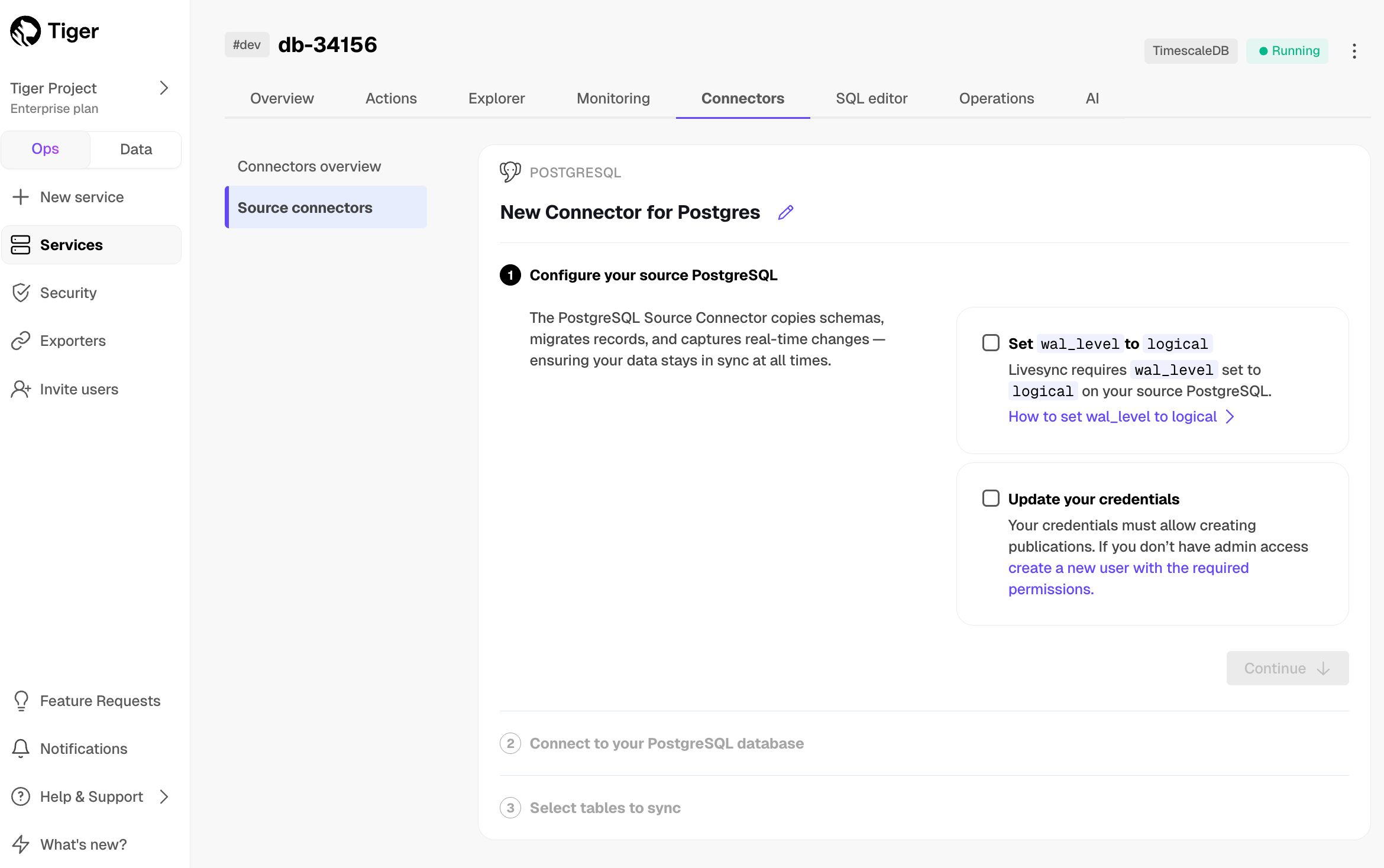
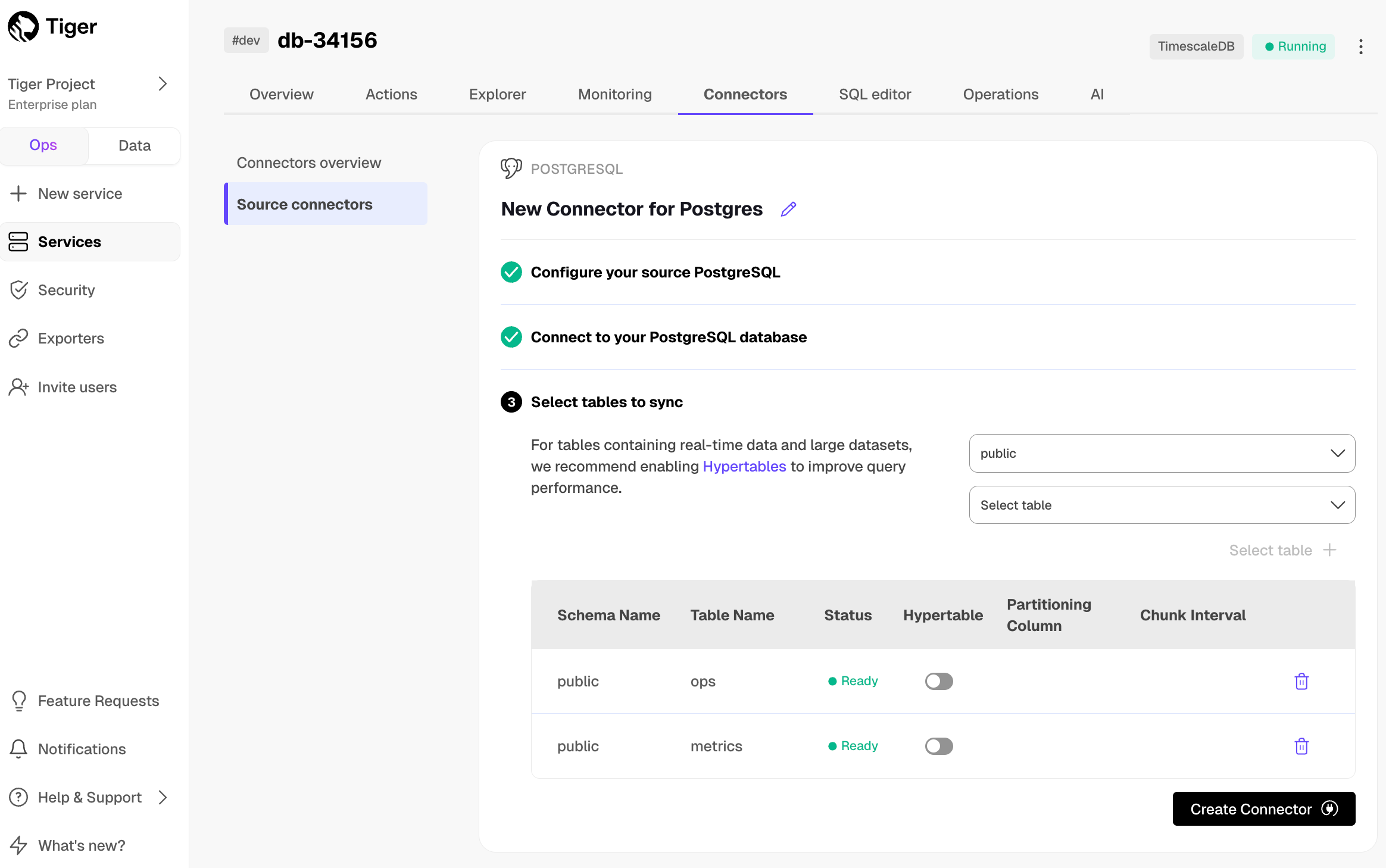
Tiger Cloud Console checks the table schema and, if possible, suggests the column to use as the time dimension in a hypertable.
Tiger Cloud Console starts source Postgres connector between the source database and the target service and displays the progress.
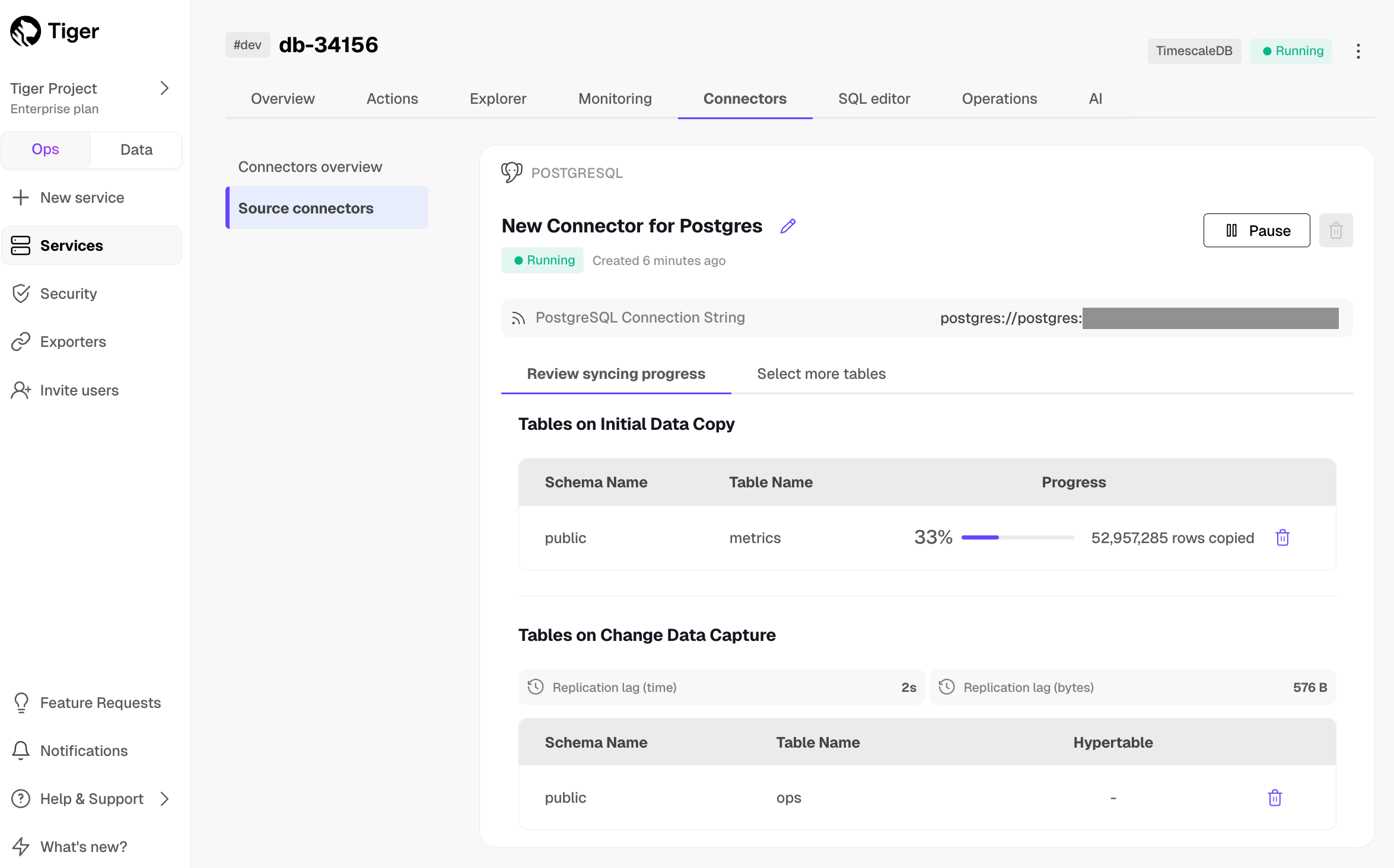
And that is it, you are using the source Postgres connector to synchronize all the data, or specific tables, from a Postgres database instance to your Tiger Cloud service, in real time.
Best practice is to use an Ubuntu EC2 instance hosted in the same region as your Tiger Cloud service to move data. That is, the machine you run the commands on to move your data from your source database to your target Tiger Cloud service.
Before you move your data:
Each Tiger Cloud service has a single Postgres instance that supports the most popular extensions. Tiger Cloud services do not support tablespaces, and there is no superuser associated with a service. Best practice is to create a Tiger Cloud service with at least 8 CPUs for a smoother experience. A higher-spec instance can significantly reduce the overall migration window.
The source Postgres connector does not create extensions on the target. If the table uses column types from an extension, first create the extension on the target Tiger Cloud service before syncing the table.
For a better experience, use a 4 CPU/16GB EC2 instance or greater to run the source Postgres connector.
This includes psql, pg_dump, pg_dumpall, and vacuumdb commands.
Make compatible changes to the schema in your Tiger Cloud service first, then make the same changes to the source Postgres instance.
The source Postgres connector does not create extensions on the target. If the table uses column types from an extension, first create the extension on the target Tiger Cloud service before syncing the table.
The connector uses session_replication_role=replica during data replication,
which prevents table triggers from firing. This includes the internal
triggers that mark continuous aggregates as invalid when underlying data
changes.
If you have continuous aggregates on your target database, they do not automatically refresh for data inserted during the migration. This limitation only applies to data below the continuous aggregate's materialization watermark. For example, backfilled data. New rows synced above the continuous aggregate watermark are used correctly when refreshing.
If the continuous aggregate exists in the source database, best
practice is to add it to the Postgres connector publication. If it only exists on the
target database, manually refresh the continuous aggregate using the force
option of refresh_continuous_aggregate.
Set your connection strings
The <user> in the SOURCE connection must have the replication role granted in order to create a replication slot.
These variables hold the connection information for the source database and target Tiger Cloud service. In Terminal on your migration machine, set the following:
You find the connection information for your Tiger Cloud service in the configuration file you downloaded when you created the service.
Avoid using connection strings that route through connection poolers like PgBouncer or similar tools. This tool requires a direct connection to the database to function properly.
Tune your source database
Updating parameters on a Postgres instance will cause an outage. Choose a time that will cause the least issues to tune this database.
<img class="main-content__illustration"
src="https://assets.timescale.com/docs/images/migrate/awsrds-parameter-groups.png"
alt="Create security rule to enable RDS EC2 connection"/>
Changing parameters will cause an outage. Wait for the database instance to reboot before continuing.
Replica identity assists data replication by identifying the rows being modified. Your options are that each table and hypertable in the source database should either have:
For each table, set REPLICA IDENTITY to the viable unique index:
For each table, set REPLICA IDENTITY to FULL:
For each UPDATE or DELETE statement, Postgres reads the whole table to find all matching rows. This results
in significantly slower replication. If you are expecting a large number of UPDATE or DELETE operations on the table,
best practice is to not use FULL.
This will require a restart of the Postgres source database.
You can use an existing user. However, you must ensure that the user has the following permissions.
If the tables you are syncing are not in the public schema, grant the user permissions for each schema you are syncing:
You can skip this step if the replicating user is already the owner of the tables.
Replica identity assists data replication by identifying the rows being modified. Your options are that each table and hypertable in the source database should either have:
For each table, set REPLICA IDENTITY to the viable unique index:
For each table, set REPLICA IDENTITY to FULL:
For each UPDATE or DELETE statement, Postgres reads the whole table to find all matching rows. This results
in significantly slower replication. If you are expecting a large number of UPDATE or DELETE operations on the table,
best practice is to not use FULL.
Migrate the table schema to the Tiger Cloud service
Convert partitions and tables with time-series data into hypertables
For efficient querying and analysis, you can convert tables which contain time-series or events data, and tables that are already partitioned using Postgres declarative partition into hypertables.
Run the following on each table in the target Tiger Cloud service to convert it to a hypertable:
For example, to convert the metrics table into a hypertable with time as a partition column and 1 day as a partition interval:
Rename the partition and create a new regular table with the same name as the partitioned table, then convert to a hypertable:
Specify the tables to synchronize
After the schema is migrated, you CREATE PUBLICATION on the source database that
specifies the tables to synchronize.
A PUBLICATION enables you to synchronize some or all the tables in the schema or database.
To add tables after to an existing publication, use ALTER PUBLICATION**
To convert partitioned table to hypertable, follow Convert partitions and tables with time-series data into hypertables.
Synchronize data to your Tiger Cloud service
You use the source Postgres connector docker image to synchronize changes in real time from a Postgres database instance to a Tiger Cloud service:
As you run the source Postgres connector continuously, best practice is to run it as a Docker daemon.
--publication: The name of the publication as you created in the previous step. To use multiple publications, repeat the --publication flag.
--subscription: The name that identifies the subscription on the target Tiger Cloud service.
--source: The connection string to the source Postgres database.
--target: The connection string to the target Tiger Cloud service.
--table-map: (Optional) A JSON string that maps source tables to target tables. If not provided, the source and target table names are assumed to be the same.
For example, to map the source table metrics to the target table metrics_data:
To map only the schema, use:
This flag can be repeated for multiple table mappings.
Once the source Postgres connector is running as a docker daemon, you can also capture the logs:
List the tables being synchronized by the source Postgres connector using the _ts_live_sync.subscription_rel table in the target Tiger Cloud service:
You see something like the following:
| subname | pubname | schemaname | tablename | rrelid | state | lsn | updated_at | last_error | created_at | rows_copied | approximate_rows | bytes_copied | approximate_size | target_schema | target_table | |----------|---------|-------------|-----------|--------|-------|------------|-------------------------------|-------------------------------------------------------------------------------|-------------------------------|-------------|------------------|--------------|------------------|---------------|-------------| |livesync | analytics | public | metrics | 20856 | r | 6/1A8CBA48 | 2025-06-24 06:16:21.434898+00 | | 2025-06-24 06:03:58.172946+00 | 18225440 | 18225440 | 1387359359 | 1387359359 | public | metrics |
The state column indicates the current state of the table synchronization.
Possible values for state are:
| state | description | |-------|-------------| | d | initial table data sync | | f | initial table data sync completed | | s | catching up with the latest changes | | r | table is ready, syncing live changes |
To see the replication lag, run the following against the SOURCE database:
To add tables, use ALTER PUBLICATION .. ADD TABLE**
To remove tables, use ALTER PUBLICATION .. DROP TABLE**
If you have a large table, you can run ANALYZE on the target Tiger Cloud service
to update the table statistics after the initial sync is complete.
This helps the query planner make better decisions for query execution plans.
The source Postgres connector does not automatically reset the sequence nextval on the target Tiger Cloud service.
Run the following script to reset the sequence for all tables that have a serial or identity column in the target Tiger Cloud service:
Use the --drop flag to remove the replication slots created by the source Postgres connector on the source database.
===== PAGE: https://docs.tigerdata.com/migrate/livesync-for-s3/ =====
Examples:
Example 1 (bash):
export SOURCE="postgres://<user>:<password>@<source host>:<source port>/<db_name>"
Example 2 (sql):
psql source -c "CREATE USER <pg connector username> PASSWORD '<password>'"
Example 3 (sql):
psql source -c "GRANT rds_replication TO <pg connector username>"
Example 4 (sql):
psql source -c "GRANT CREATE ON DATABASE <database name> TO <pg connector username>"
Integrate Grafana and Tiger
URL: llms-txt#integrate-grafana-and-tiger
Contents:
Grafana enables you to query, visualize, alert on, and explore your metrics, logs, and traces wherever they’re stored.
This page shows you how to integrate Grafana with a Tiger Cloud service, create a dashboard and panel, then visualize geospatial data.
To follow the steps on this page:
You need your connection details. This procedure also works for self-hosted TimescaleDB.
Connect Grafana to Tiger Cloud
To visualize the results of your queries, enable Grafana to read the data in your service:
In your browser, log in to either:
- Self-hosted Grafana: at `http://localhost:3000/`. The default credentials are `admin`, `admin`.
- Grafana Cloud: use the URL and credentials you set when you created your account.
Configure using your connection details. Host URL is in the format <host>:<port>.
- `TLS/SSL Mode`: select `require`.
- `PostgreSQL options`: enable `TimescaleDB`.
- Leave the default setting for all other fields.
Grafana checks that your details are set correctly.
Create a Grafana dashboard and panel
Grafana is organized into dashboards and panels. A dashboard represents a view into the performance of a system, and each dashboard consists of one or more panels, which represent information about a specific metric related to that system.
To create a new dashboard:
Select your service from the list of pre-configured data sources or configure a new one.
Select the visualization type. The type defines specific fields to configure in addition to standard ones, such as the panel name.
You can edit the queries directly or use the built-in query editor. If you are visualizing time-series data, select Time series in the Format drop-down.
You now have a dashboard with one panel. Add more panels to a dashboard by clicking Add at the top right and selecting Visualization from the drop-down.
Use the time filter function
Grafana time-series panels include a time filter:
For example, to set the pickup_datetime column as the filtering range for your visualizations:
In this case, the GROUP BY and ORDER BY statements reference time.
When you visualize this query in Grafana, you see this:
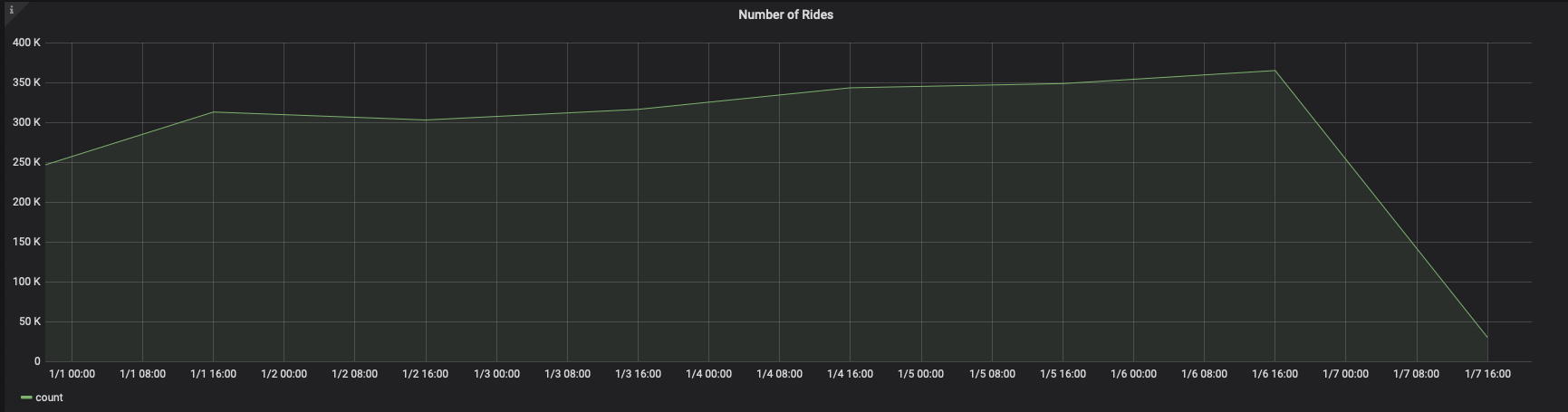
You can adjust the time_bucket function and compare the graphs:
When you visualize this query, it looks like this:

Visualize geospatial data
Grafana includes a Geomap panel so you can see geospatial data overlaid on a map. This can be helpful to understand how data changes based on its location.
This section visualizes taxi rides in Manhattan, where the distance traveled was greater than 5 miles. It uses the same query as the NYC Taxi Cab tutorial as a starting point.
With default settings, the visualization uses green circles of the fixed size. Configure at least the following for a more representative view:
This changes the size of the circle depending on the value, with bigger circles representing bigger values.
Add thresholds for 7 and 10, to mark rides over 7 and 10 miles in different colors, respectively.
You now have a visualization that looks like this:
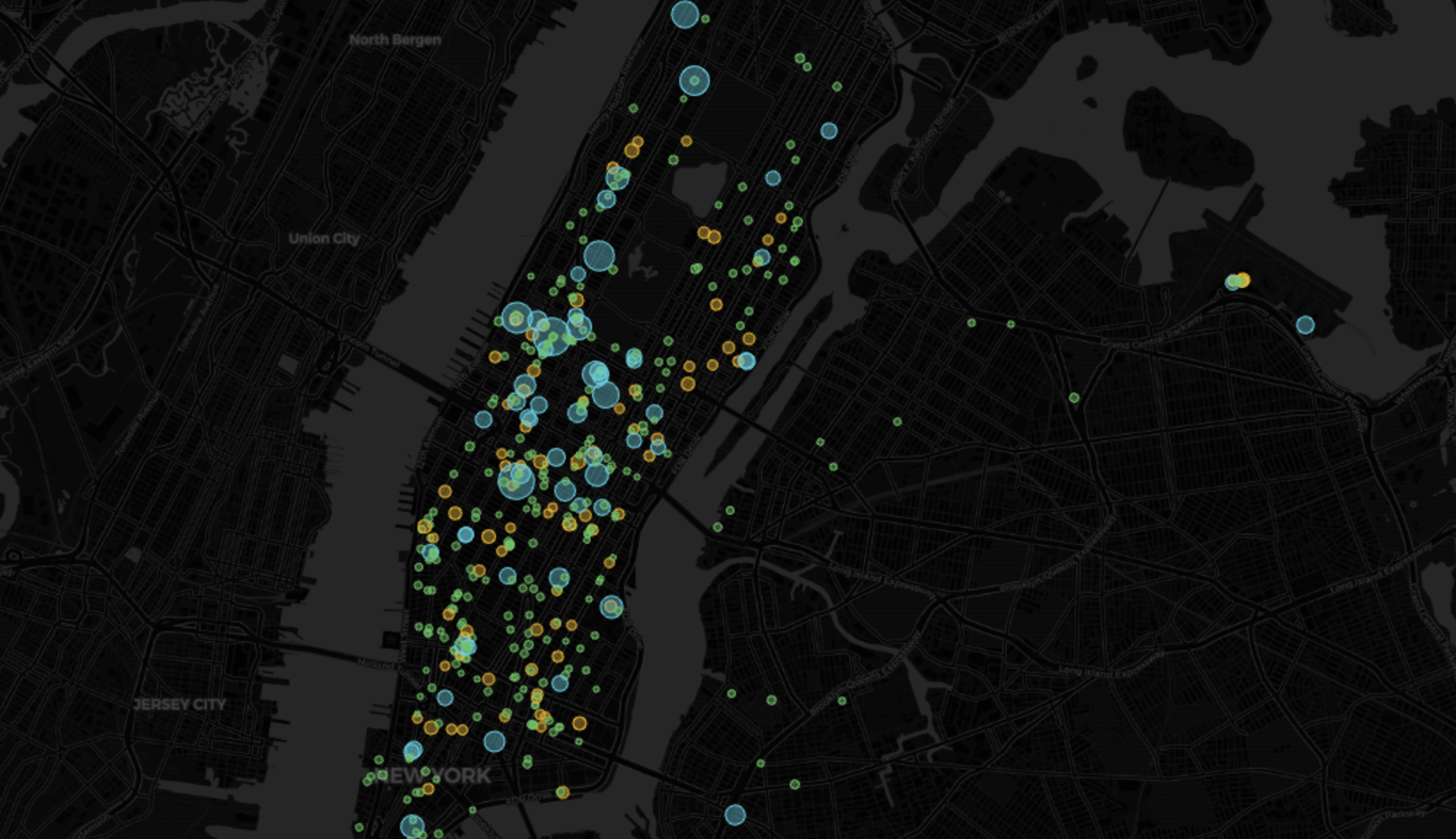
===== PAGE: https://docs.tigerdata.com/integrations/dbeaver/ =====
Examples:
Example 1 (sql):
SELECT
--1--
time_bucket('1 day', pickup_datetime) AS "time",
--2--
COUNT(*)
FROM rides
WHERE _timeFilter(pickup_datetime)
Example 2 (sql):
SELECT
--1--
time_bucket('1 day', pickup_datetime) AS time,
--2--
COUNT(*)
FROM rides
WHERE _timeFilter(pickup_datetime)
GROUP BY time
ORDER BY time
Example 3 (sql):
SELECT
--1--
time_bucket('5m', pickup_datetime) AS time,
--2--
COUNT(*)
FROM rides
WHERE _timeFilter(pickup_datetime)
GROUP BY time
ORDER BY time
Example 4 (sql):
SELECT time_bucket('5m', rides.pickup_datetime) AS time,
rides.trip_distance AS value,
rides.pickup_latitude AS latitude,
rides.pickup_longitude AS longitude
FROM rides
WHERE rides.trip_distance > 5
GROUP BY time,
rides.trip_distance,
rides.pickup_latitude,
rides.pickup_longitude
ORDER BY time
LIMIT 500;
Ingest real-time financial websocket data - Query the data
URL: llms-txt#ingest-real-time-financial-websocket-data---query-the-data
Contents:
To look at OHLCV values, the most effective way is to create a continuous aggregate. You can create a continuous aggregate to aggregate data for each hour, then set the aggregate to refresh every hour, and aggregate the last two hours' worth of data.
Creating a continuous aggregate
When you create the continuous aggregate, it refreshes by default.
Query the continuous aggregate
When you have your continuous aggregate set up, you can query it to get the OHLCV values.
Querying the continuous aggregate
The result of the query looks like this:
When you have extracted the raw OHLCV data, you can use it to graph the result in a candlestick chart, using Grafana. To do this, you need to have Grafana set up to connect to your self-hosted TimescaleDB instance.
Graphing OHLCV data
<img class="main-content__illustration"
width={1375} height={944}
src="https://assets.timescale.com/docs/images/Grafana_candlestick_1day.webp"
alt="Creating a candlestick graph in Grafana using 1-day OHLCV tick data"
/>
===== PAGE: https://docs.tigerdata.com/tutorials/nyc-taxi-geospatial/dataset-nyc/ =====
Examples:
Example 1 (sql):
CREATE MATERIALIZED VIEW one_hour_candle
WITH (timescaledb.continuous) AS
SELECT
time_bucket('1 hour', time) AS bucket,
symbol,
FIRST(price, time) AS "open",
MAX(price) AS high,
MIN(price) AS low,
LAST(price, time) AS "close",
LAST(day_volume, time) AS day_volume
FROM crypto_ticks
GROUP BY bucket, symbol;
Example 2 (sql):
SELECT add_continuous_aggregate_policy('one_hour_candle',
start_offset => INTERVAL '3 hours',
end_offset => INTERVAL '1 hour',
schedule_interval => INTERVAL '1 hour');
Example 3 (sql):
SELECT * FROM one_hour_candle
WHERE symbol = 'AAPL' AND bucket >= NOW() - INTERVAL '5 hours'
ORDER BY bucket;
Example 4 (sql):
bucket | symbol | open | high | low | close | day_volume
------------------------+---------+---------+---------+---------+---------+------------
2023-05-30 08:00:00+00 | AAPL | 176.31 | 176.31 | 176 | 176.01 |
2023-05-30 08:01:00+00 | AAPL | 176.27 | 176.27 | 176.02 | 176.2 |
2023-05-30 08:06:00+00 | AAPL | 176.03 | 176.04 | 175.95 | 176 |
2023-05-30 08:07:00+00 | AAPL | 175.95 | 176 | 175.82 | 175.91 |
2023-05-30 08:08:00+00 | AAPL | 175.92 | 176.02 | 175.8 | 176.02 |
2023-05-30 08:09:00+00 | AAPL | 176.02 | 176.02 | 175.9 | 175.98 |
2023-05-30 08:10:00+00 | AAPL | 175.98 | 175.98 | 175.94 | 175.94 |
2023-05-30 08:11:00+00 | AAPL | 175.94 | 175.94 | 175.91 | 175.91 |
2023-05-30 08:12:00+00 | AAPL | 175.9 | 175.94 | 175.9 | 175.94 |
Integrate data lakes with Tiger Cloud
URL: llms-txt#integrate-data-lakes-with-tiger-cloud
Contents:
Tiger Lake enables you to build real-time applications alongside efficient data pipeline management within a single system. Tiger Lake unifies the Tiger Cloud operational architecture with data lake architectures.
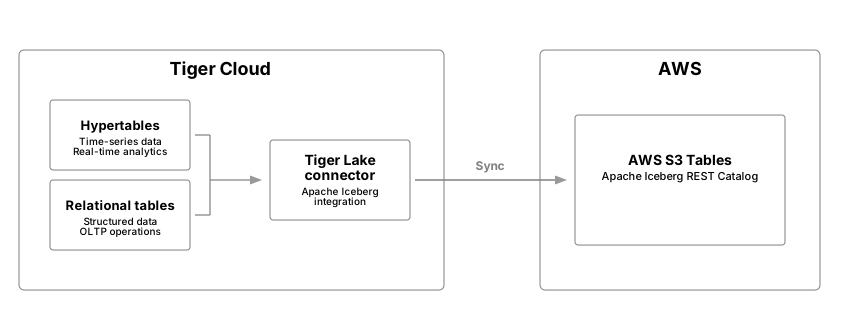
Tiger Lake is a native integration enabling synchronization between hypertables and relational tables running in Tiger Cloud services to Iceberg tables running in Amazon S3 Tables in your AWS account.
Tiger Lake is currently in private beta. Please contact us to request access.
To follow the steps on this page:
You need your connection details.
Integrate a data lake with your Tiger Cloud service
To connect a Tiger Cloud service to your data lake:
This must match the region your Tiger Cloud service is running in: if the regions do not match AWS charges you for cross-region data transfer.
Provisioning takes a couple of minutes.
Replace the following values in the command, then run it from the terminal:
Setting up the integration through Tiger Cloud Console in Tiger Cloud, provides a convenient copy-paste option with the placeholders populated.
Provisioning takes a couple of minutes.
This must match the region your Tiger Cloud service is running in: if the regions do not match AWS charges you for
cross-region data transfer.
"Principal": { "AWS": "arn:aws:iam::123456789012:root" } does not mean root access. This delegates
permissions to the entire AWS account, not just the root user.
Provisioning takes a couple of minutes.
Stream data from your Tiger Cloud service to your data lake
When you start streaming, all data in the table is synchronized to Iceberg. Records are imported in time order, from oldest to youngest. The write throughput is approximately 40.000 records / second. For larger tables, a full import can take some time.
For Iceberg to perform update or delete statements, your hypertable or relational table must have a primary key. This includes composite primary keys.
To stream data from a Postgres relational table, or a hypertable in your Tiger Cloud service to your data lake, run the following statement:
Partitioning intervals
By default, the partition interval for an Iceberg table is one day(time-column) for a hypertable. Postgres table sync does not enable any partitioning in Iceberg for non-hypertables. You can set it using tigerlake.iceberg_partitionby. The following partition intervals and specifications are supported:
| Interval | Description | Source types |
|---|---|---|
hour |
Extract a date or timestamp day, as days from epoch. Epoch is 1970-01-01. | date, timestamp, timestamptz |
day |
Extract a date or timestamp day, as days from epoch. | date, timestamp, timestamptz |
month |
Extract a date or timestamp day, as days from epoch. | date, timestamp, timestamptz |
year |
Extract a date or timestamp day, as days from epoch. | date, timestamp, timestamptz |
truncate[W] |
Value truncated to width W, see options |
These partitions define the behavior using the Iceberg partition specification:
The following samples show you how to tune data sync from a hypertable or a Postgres relational table to your data lake:
To start syncing data from a hypertable to your data lake using the default one-day chunk interval as the partitioning scheme to the Iceberg table, run the following statement:
This is equivalent to day(ts_column).
You use the tigerlake.iceberg_partitionby property to specify a different partitioning scheme for the Iceberg
table at sync start. For example, to enforce an hourly partition scheme from the chunks on ts_column on a
hypertable, run the following statement:
Postgres relational tables do not forward a partitioning scheme to Iceberg, you must specify the partitioning scheme using
tigerlake.iceberg_partitionby when you start the sync. For example, for a standard Postgres table to sync to the Iceberg
table with daily partitioning , run the following statement:
To change the partitioning scheme of an Iceberg table, you specify the desired partitioning scheme using the tigerlake.iceberg_partitionby property.
For example. if the samples table has an hourly (hour(ts)) partition on the ts timestamp column,
to change to daily partitioning, call the following statement:
This statement is also correct for Iceberg tables without a partitioning scheme. When you change the partition, you do not have to pause the sync to Iceberg. Apache Iceberg handles the partitioning operation in function of the internal implementation.
Specify a different namespace
By default, tables are created in the the timescaledb namespace. To specify a different namespace when you start the sync, use the tigerlake.iceberg_namespace property. For example:
Specify a different Iceberg table name
The table name in Iceberg is the same as the source table in Tiger Cloud.
Some services do not allow mixed case, or have other constraints for table names.
To define a different table name for the Iceberg table at sync start, use the tigerlake.iceberg_table property. For example:
===== PAGE: https://docs.tigerdata.com/use-timescale/troubleshoot-timescaledb/ =====
Examples:
Example 1 (unknown):
1. In `Specify stack details`, enter the following details, then click `Next`:
* `Stack Name`: a name for this CloudFormation stack
* `BucketName`: a name for this S3 table bucket
* `ProjectID` and `ServiceID`: enter the [connection details][get-project-id] for your Tiger Lake service
1. In `Configure stack options` check `I acknowledge that AWS CloudFormation might create IAM resources`, then
click `Next`.
1. In `Review and create`, click `Submit`, then wait for the deployment to complete.
AWS deploys your stack and creates the S3 table bucket and IAM role.
1. Click `Outputs`, then copy all four outputs.
1. **Connect your service to the data lake**
1. In [Tiger Cloud Console][services-portal], select the service you want to integrate with AWS S3 Tables, then click
`Connectors`.
1. Select the Apache Iceberg connector and supply the:
- ARN of the S3Table bucket
- ARN of a role with permissions to write to the table bucket
Provisioning takes a couple of minutes.
<Procedure >
1. **Create your CloudFormation stack**
Replace the following values in the command, then run it from the terminal:
* `Region`: region of the S3 table bucket
* `StackName`: the name for this CloudFormation stack
* `BucketName`: the name of the S3 table bucket to create
* `ProjectID`: enter your Tiger Cloud service [connection details][get-project-id]
* `ServiceID`: enter your Tiger Cloud service [connection details][get-project-id]
Example 2 (unknown):
Setting up the integration through Tiger Cloud Console in Tiger Cloud, provides a convenient copy-paste option with the
placeholders populated.
1. **Connect your service to the data lake**
1. In [Tiger Cloud Console][services-portal], select the service you want to integrate with AWS S3 Tables, then click
`Connectors`.
1. Select the Apache Iceberg connector and supply the:
- ARN of the S3Table bucket
- ARN of a role with permissions to write to the table bucket
Provisioning takes a couple of minutes.
<Procedure >
1. **Create a S3 Bucket**
1. Set the AWS region to host your table bucket
1. In [Amazon S3 console][s3-console], select the current AWS region at the top-right of the page.
2. Set it to the Region your you want to create your table bucket in.
**This must match the region your Tiger Cloud service is running in**: if the regions do not match AWS charges you for
cross-region data transfer.
1. In the left navigation pane, click `Table buckets`, then click `Create table bucket`.
1. Enter `Table bucket name`, then click `Create table bucket`.
1. Copy the `Amazon Resource Name (ARN)` for your table bucket.
1. **Create an ARN role**
1. In [IAM Dashboard][iam-dashboard], click `Roles` then click `Create role`
1. In `Select trusted entity`, click `Custom trust policy`, replace the **Custom trust policy** code block with the
following:
Example 3 (unknown):
`"Principal": { "AWS": "arn:aws:iam::123456789012:root" }` does not mean `root` access. This delegates
permissions to the entire AWS account, not just the root user.
1. Replace `<ProjectID>` and `<ServiceID>` with the the [connection details][get-project-id] for your Tiger Lake
service, then click `Next`.
1. In `Permissions policies`. click `Next`.
1. In `Role details`, enter `Role name`, then click `Create role`.
1. In `Roles`, select the role you just created, then click `Add Permissions` > `Create inline policy`.
1. Select `JSON` then replace the `Policy editor` code block with the following:
Example 4 (unknown):
1. Replace `<S3TABLE_BUCKET_ARN>` with the `Amazon Resource Name (ARN)` for the table bucket you just created.
1. Click `Next`, then give the inline policy a name and click `Create policy`.
1. **Connect your service to the data lake**
1. In [Tiger Cloud Console][services-portal], select the service you want to integrate with AWS S3 Tables, then click
`Connectors`.
1. Select the Apache Iceberg connector and supply the:
- ARN of the S3Table bucket
- ARN of a role with permissions to write to the table bucket
Provisioning takes a couple of minutes.
## Stream data from your Tiger Cloud service to your data lake
When you start streaming, all data in the table is synchronized to Iceberg. Records are imported in time order, from
oldest to youngest. The write throughput is approximately 40.000 records / second. For larger tables, a full import can
take some time.
For Iceberg to perform update or delete statements, your hypertable or relational table must have a primary key.
This includes composite primary keys.
To stream data from a Postgres relational table, or a hypertable in your Tiger Cloud service to your data lake, run the following
statement:
Metrics and logging
URL: llms-txt#metrics-and-logging
Find metrics and logs for your services in Tiger Cloud Console, or integrate with third-party monitoring services:
===== PAGE: https://docs.tigerdata.com/use-timescale/ha-replicas/ =====
Supported Postgres extensions in Managed Service for TimescaleDB
URL: llms-txt#supported-postgres-extensions-in-managed-service-for-timescaledb
Contents:
Managed Service for TimescaleDB supports many Postgres extensions. See available extensions for a full list.
You can add a supported extension to your database from the command line.
Some extensions have dependencies. When adding these, make sure to create them in the proper order.
Some extensions require disconnecting and reconnecting the client connection before they are fully available.
Adding an extension
Available extensions
These extensions are available on Managed Service for TimescaleDB:
The postgis_legacy extension is not packaged or supported as an extension by
the PostGIS project. Tiger Data provides the extension package for Managed Service for TimescaleDB.
Request an extension
You can request an extension not on the list by contacting Support. In your request, specify the database service and user database where you want to use the extension.
Untrusted language extensions are not supported. This restriction preserves our
ability to offer the highest possible service level. An example of an untrusted
language extension is plpythonu.
You can contact Support directly from Managed Service for TimescaleDB. Click the life-preserver icon in the upper-right corner of your dashboard.
===== PAGE: https://docs.tigerdata.com/mst/dblink-extension/ =====
Time-weighted averages and integrals
URL: llms-txt#time-weighted-averages-and-integrals
Time weighted averages and integrals are used in cases where a time series is not evenly sampled. Time series data points are often evenly spaced, for example every 30 seconds, or every hour. But sometimes data points are recorded irregularly, for example if a value has a large change, or changes quickly. Computing an average using data that is not evenly sampled is not always useful.
For example, if you have a lot of ice cream in freezers, you need to make sure the ice cream stays within a 0-10℉ (-20 to -12℃) temperature range. The temperature in the freezer can vary if folks are opening and closing the door, but the ice cream only has a problem if the temperature is out of range for a long time. You can set your sensors in the freezer to sample every five minutes while the temperature is in range, and every 30 seconds while the temperature is out of range. If the results are generally stable, but with some quick moving transients, an average of all the data points weights the transient values too highly. A time weighted average weights each value by the duration over which it occurred based on the points around it, producing much more accurate results.
Time weighted integrals are useful when you need a time-weighted sum of irregularly sampled data. For example, if you bill your users based on irregularly sampled CPU usage, you need to find the total area under the graph of their CPU usage. You can use a time-weighted integral to find the total CPU-hours used by a user over a given time period.
===== PAGE: https://docs.tigerdata.com/use-timescale/hyperfunctions/about-hyperfunctions/ =====
Client credentials
URL: llms-txt#client-credentials
Contents:
You can use client credentials to programmatically access resources instead of using your username and password. You can generate multiple client credentials for different applications or use cases rather than a single set of user credentials for everything.
Create client credentials
When you create client credentials, a public key and a private key are generated. These keys act as the username and password for programmatic client applications. It is important that you save these keys in a safe place. You can also delete these client credentials when the client applications no longer need access to Tiger Cloud resources. For more information about obtaining an access token programmatically, see the Tiger Cloud Terraform provider documentation.
Creating client credentials
Deleting client credentials
===== PAGE: https://docs.tigerdata.com/use-timescale/security/members/ =====
Stream data from Kafka into your service
URL: llms-txt#stream-data-from-kafka-into-your-service
Contents:
You use the Kafka source connector in Tiger Cloud to stream events from Kafka into your service. Tiger Cloud connects to your Confluent Cloud Kafka cluster and Schema Registry using SASL/SCRAM authentication and service account–based API keys. Only the Avro format is currently supported with some limitations.
This page explains how to connect Tiger Cloud to your Confluence Cloud Kafka cluster.
Early access: the Kafka source connector is not yet supported for production use.
To follow the steps on this page:
You need your connection details.
Access your Kafka cluster in Confluent Cloud
Take the following steps to prepare your Kafka cluster for connection to Tiger Cloud:
If you already have a service account for Tiger Cloud, you can reuse it. To create a new service account:
Configure Confluent Cloud Schema Registry
Tiger Cloud requires access to the Schema Registry to fetch schemas for Kafka topics. To configure the Schema Registry:
In Confluent Cloud, click Environments and select your environment, then click Stream Governance.
Choose All schema subjects or restrict to specific subjects as required.
1. Save the role assignments.
Your Confluent Cloud Schema Registry is now accessible to Tiger Cloud using the API key and secret.
Add Kafka source connector in Tiger Cloud
Take the following steps to create a Kafka source connector in Tiger Cloud Console.
Enter the name of your cluster in Confluent Cloud and the information from the first api-key-*.txt that you
downloaded, then click `Authenticate`.
Enter the service account ID and the information from the second api-key-*.txt that you
downloaded, then click Authenticate.
Add the schema and table, map the columns in the table, and click Create connector.
Your Kafka connector is configured and ready to stream events.
Known limitations and unsupported types
The following Avro schema types are not supported:
Multi-type non-nullable unions are blocked.
Reference types (named type references)
Referencing a previously defined named type by name, instead of inline, is not supported.
Unsupported logical types
Only the logical types in the hardcoded supported list are supported. This includes:
Unsupported examples:
===== PAGE: https://docs.tigerdata.com/migrate/upload-file-using-console/ =====
Examples:
Example 1 (unknown):
{
"type": "record",
"name": "Message",
"fields": [
{"name": "content", "type": ["string", "bytes", "null"]}
]
}
Example 2 (unknown):
["null", "string"]
Example 3 (unknown):
{
"type": "record",
"name": "Address",
"fields": [
{"name": "street", "type": "string"},
{"name": "city", "type": "string"}
]
}
Example 4 (unknown):
{
"type": "record",
"name": "Person",
"fields": [
{"name": "name", "type": "string"},
{"name": "address", "type": "Address"}
]
}